P5EESC1700Residential Gateway
Elesign INC.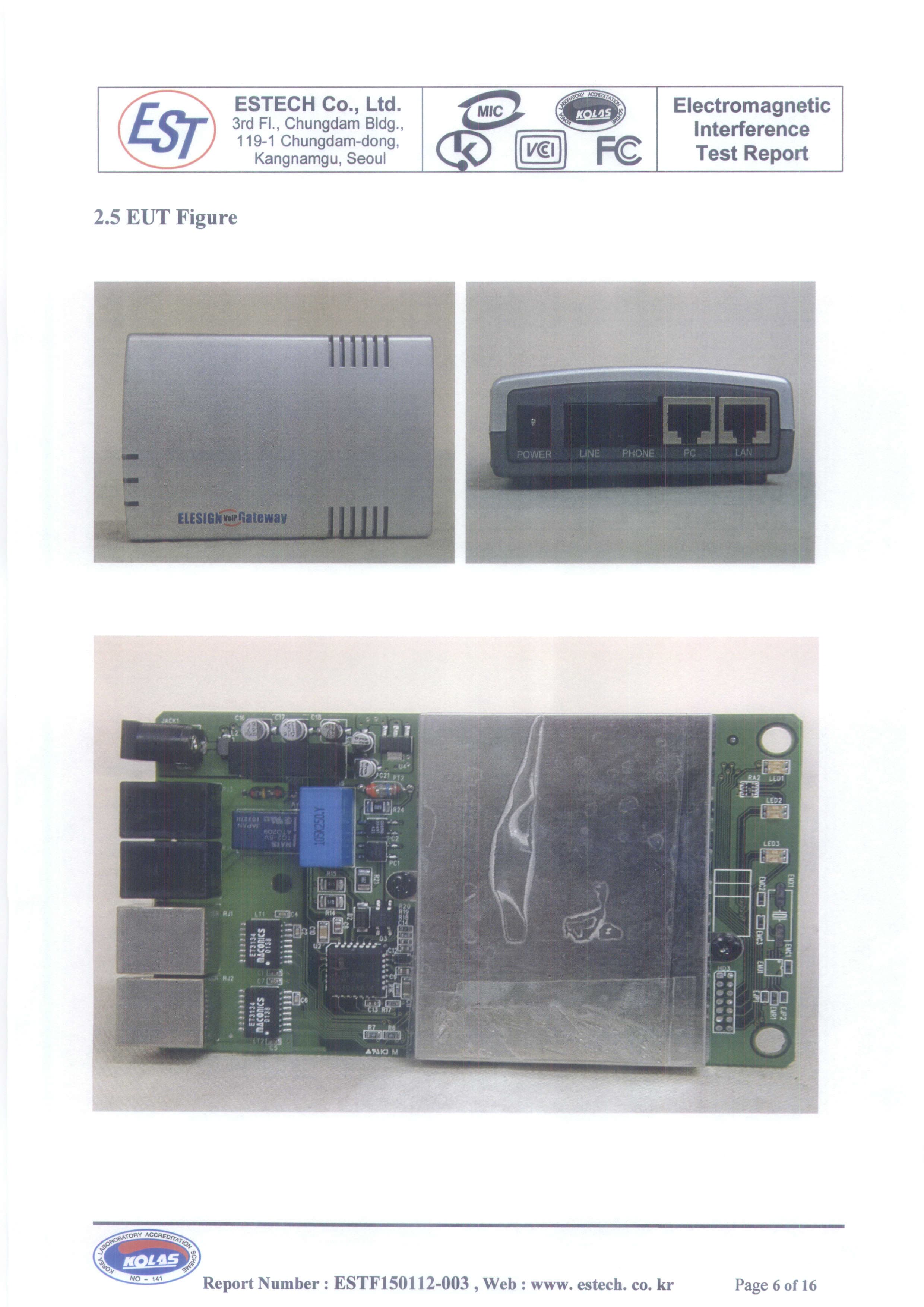
Click to zoom
Application Details
- Equipment Class
- JBP - Part 15 Class B Computing Device Peripheral
- Date of Grant
- Dec 30, 2001
- Application Purpose
- Original Equipment
- Date of Application
- Dec 30, 2001
- Equipment Note
- Residential Gateway
- Company
- Elesign INC.
- Country
- South Korea
Documents & Files
Document Text
Text extracted from the exhibit documents filed with the FCC. Open a document above to read the original.
Users Manual
ESC1700 Manual v.3 ∆ο Νοτ ∆υπλιχατε Ελεσιγν ινχ. προπριεταρψ - 1 - ESC1700 Manual v.3 - Contents - 1. Installation of ESC1700 2. PC set up 3. Network Set up 4. H.323 Set up 5. Make a call Appendix This manual is to configure and evaluate ESC1700. For any inquiries, please contact Elesign inc. at Address: #404 KOLON techno valley 60-4 Kasan-dong, Keumjung-gu, Seoul, Korea Tel: 82-2-866-6190 Fax: 82-2-6332-6013 E-mail: [email protected] ESC1700 ESC1700 is a 1-port gateway, which enables Internet phone call thru existing conventional phone. It’s a stand-alone device, which means no PC connection is necessary to use ESC1700 except for the initial configuration thru built-in web-server. This manual is to be used for ! The evaluation of standard features in various VoIP network system for those who want to employ H.323 based solution ! The interoperability with various VoIP gatekeeper and VoIP gateways to produce the optimized product ! The marketing tools, especially to present to the overseas customers who need to test ESC1700 without any representative from Elesign. This manual and web-based configuration is for the experts or the engineers who are familiar with the system. Components check list ! 1 ESC1700 ! 1 RJ-45 Cable ! 1 RJ-11 Telephone line ESC1700 Manual v.3 ∆ο Νοτ ∆υπλιχατε Ελεσιγν ινχ. προπριεταρψ - 2 - ! 1 ESC1700 manual ! 1 Adaptor Procedure: Installation of ESC1700 " "" " PC Set up " "" " Network Set up " "" " H.323 Set up 1. Installation of ESC1700 Internet PSTN Analogue Phone IP Sharing PC Cable M odem ADSL M odem LAN Router Internet PSTN Analogue Phone IP Sharing PC Cable M odem ADSL M odem LAN Router # Remove the phone line, which is connected from the wall jack to your existing analogue phone, and connect it to ‘PSTN’ port. # Find a phone line in the box and connect between ‘PHONE’ port and your existing analogue phone. # Remove from your PC the LAN cable for Internet connection and connect it to ‘UP’ port. # Find a LAN cable in the box and connect between ‘PC’ port and your PC. # Connect an adapter in the box to ‘POWER’. ESC1700 Manual v.3 ∆ο Νοτ ∆υπλιχατε Ελεσιγν ινχ. προπριεταρψ - 3 - ; Ηοω το χηεχκ τηε ινσταλλατιον βψ τηε χολορ οφ ΛΕ∆. # Ωηεν αδαπτερ ισ χοννεχτεδ το ΕΣΧ1700, ινιτιαλ ΛΕ∆ χολορ οφ ‘Πηονε’ ισ ορανγε ανδ τυρνσ το γρεεν ωιτη ‘χλιχκ’ σουνδ. [Πλεασε μακε συρε ψου ηεαρ τηε ‘χλιχκ’ σουνδ βεφορε γοινγ το νεξτ στεπ.] # Ωηεν Ιντερνετ λινε (ΛΑΝ χαβλε) ισ χοννεχτεδ το ΕΣΧ1700, τηε χολορ οφ ‘Λινκ’ ισ ‘Γρεεν’. Ανδ ωηεν Χομπυτερ ισ χοννεχτεδ ανδ ποωερ οφ ΠΧ ισ τυρνεδ ον, τηε χολορ χηανγεδ το ‘Ορανγε’. Ιφ ονλψ ΠΧ ισ χοννεχτεδ, χολορ οφ ‘Λινκ’ ισ ‘ΡΕ∆’. # Ωηεν ψου πιχκ υπ τηε ηανδσετ οφ τηε τελεπηονε, τηε χολορ οφ ‘Ηοοκ’ ισ ‘Ρεδ’. 2. PC Setup # For Leased-Dynamic IP, Cable Modem, and ADSL modem Users After the installation, please restart the computer. If computer is turned off, simply turn on the computer after the installation. # For Leased-Static IP Users 1 For WIN98/ Window Me users - Select ‘Control Panel’ from ‘setting’ of start menu - Select ‘Network’ - Select TCP/IP and click on ‘Property’ button - Select ‘Obtain an IP address automatically’ and click on ‘OK’ button - Popup window will appear to restart the computer, then restart the computer right away by clicking on ‘OK’ button 2 For Win2000 users - Select ‘Control Panel’ from ‘Setting’ of start menu - Select ‘Network’ - Select ‘Local Connection’ - Click on ‘Properties’ button - Select ‘TCP/IP’ and click on ‘Property’ button - Select ‘Obtain an IP address automatically’ and click on ‘OK’ button 3. Network Setup ESC1700 Manual v.3 ∆ο Νοτ ∆υπλιχατε Ελεσιγν ινχ. προπριεταρψ - 4 - 1 Run Internet Browser (i.e. Explorer) 2 Input ‘http://10.0.0.1’ in the address box and hit enter. [This may take a moment until main screen appears.] 3 Select ‘Network Setup’ ESC1700 Manual v.3 ∆ο Νοτ ∆υπλιχατε Ελεσιγν ινχ. προπριεταρψ - 5 - 4 Select an environment that is appropriate to your Internet connection 5 Input necessary information if needed, and click on ‘OK’ button 6 Please confirm the information appears, and hit ‘F5’ key. 7 Until you see a message ‘Setup complete’ for ‘Network Status’, hit ‘F5’ key 8 When you see a message ‘Setup complete’, then network setup is successfully done. 4. H.323 Setup $ Set Up for call using IP address (No need to register a gatekeeper) 1 Select ‘H.323 Setup’ from the main screen 2 Make sure Gatekeeper is checked for ‘OFF’ 3 Make sure not to input Gateway address ESC1700 Manual v.3 ∆ο Νοτ ∆υπλιχατε Ελεσιγν ινχ. προπριεταρψ - 6 - 4 Click on ‘OK’ button 5 When ‘H323 Setting Result’ screen appears, hit ‘F5’ key 6 To make a call with IP address: Pick up a handset of the phone and dial as following: If IP address is 123.123.123.123 " Press ‘123’, ‘#’, ’123’, ‘#’, ‘123’, ‘#’, ‘123’, ‘ * ’ in order • ‘ # ’ for ‘ . ’ (Period), ‘ * ’ as ‘Send’ $ Set Up for call thru Gatekeeper 1 Select ‘H.323 Setup’ from the main screen. 2 Input necessary information to register • Be sure to fill in every box, except gateway address, with some number. Even though some of the information is not necessary for authentication, fill in with some arbitrary number. 3 Check for the Gatekeeper usage ESC1700 Manual v.3 ∆ο Νοτ ∆υπλιχατε Ελεσιγν ινχ. προπριεταρψ - 7 - 4 Click on ‘OK’ button 5 When you see a message ‘Now Registering’ for ‘H323 Setting Result’, hit ‘F5’ key [Registering may take a moment.] 6 When you see a message ‘Successfully Registered’ for ‘H.323 Status’, then H.323 set up is successfully done $ Set Up for call thru Gateway 1 Select ‘H.323 Setup’ from main screen 2 Input Gateway address 3 Make sure Gatekeeper is checked for ‘OFF’ ESC1700 Manual v.3 ∆ο Νοτ ∆υπλιχατε Ελεσιγν ινχ. προπριεταρψ - 8 - 4 Click on ‘OK’ button 5 When you see a message ‘Now Registering’ for ‘H323 Setting Result’, hit ‘F5’ key [Registering may take a moment.] 5. Make a call # VoIP Call (Default) Dial number " press ‘ * ’(‘send’ function) button at the end # PSTN call - Use ‘Flash’ button to …
Text truncated - open the document above for the full version.
ID Label/Location Info
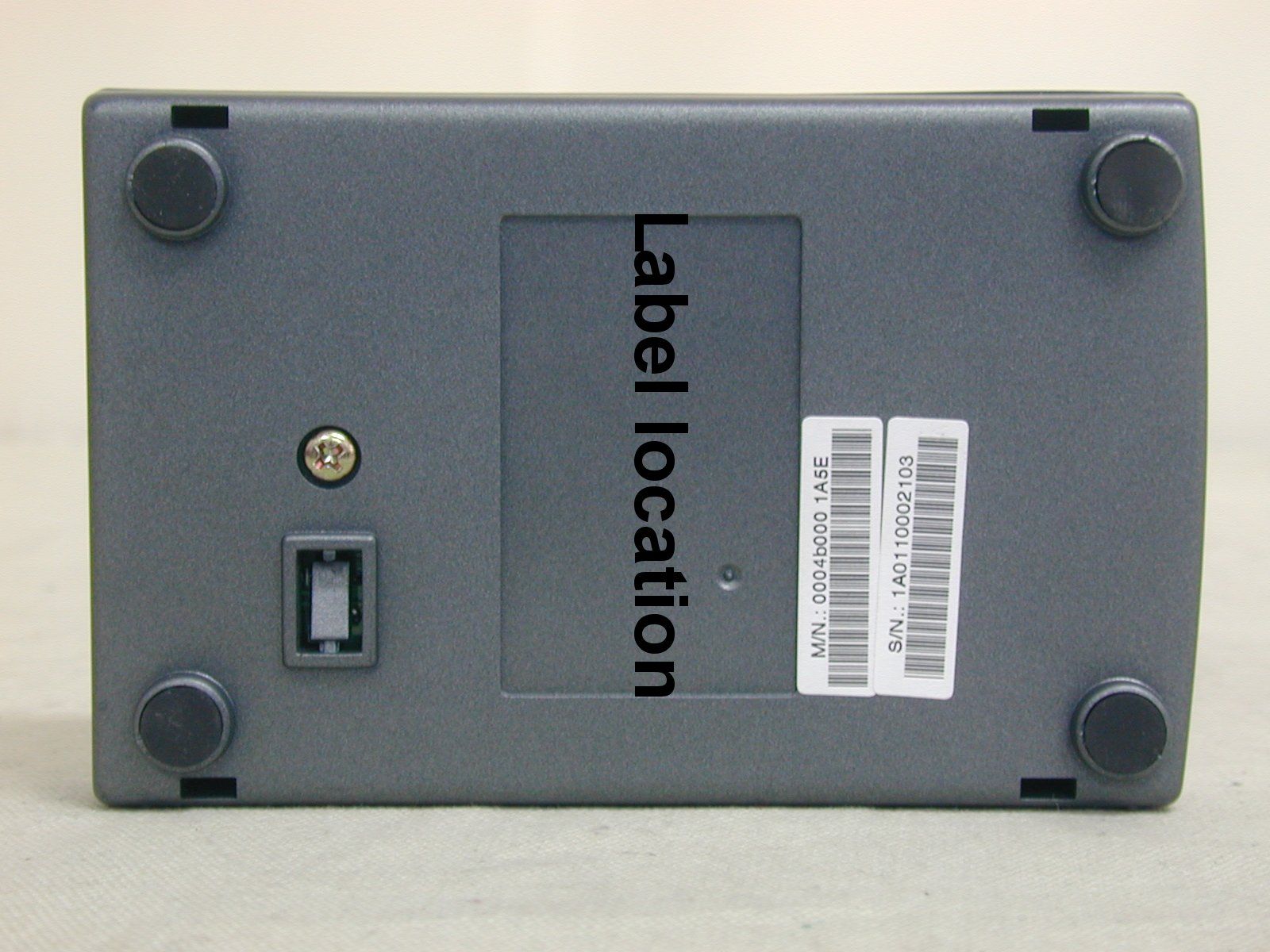
Trade Name : Residential Gateway FCC Part 15 Standards FOR HOME OR OFFICE USE ested To Comply With Model Number : ESC 1700
Contact Information
Applicant
Lee Eun Gu(Associate Research Engineer)
[email protected]82-2-6332-6190
Test Firm
Estech Co., Ltd.Ike Chung
Technical Specifications
| # | Rule Parts | Frequency Range | Power Output |
|---|---|---|---|
| 1 | 15B | - | - |
Other Applications from Elesign INC.
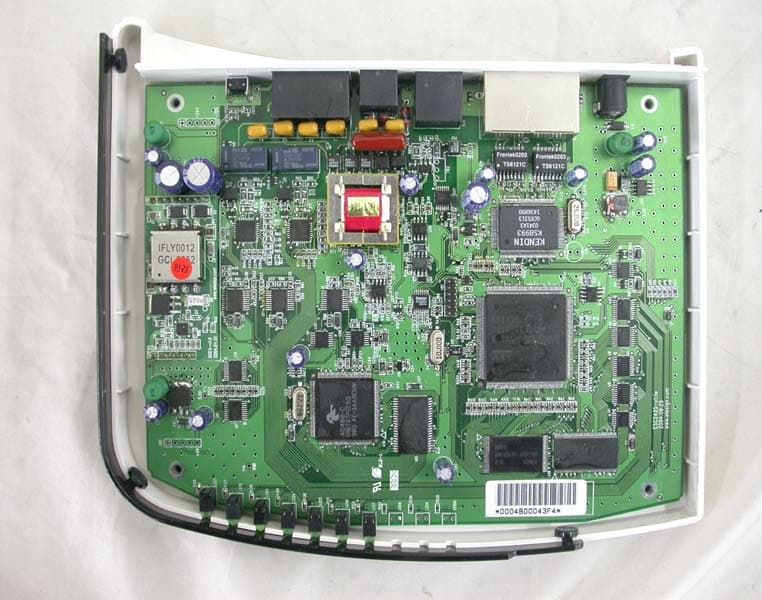
P5EESC2420
Apr 13, 20052-Port VoIP Gateway
Equipment Class
JBP - Part 15 Class B Computing Device Peripheral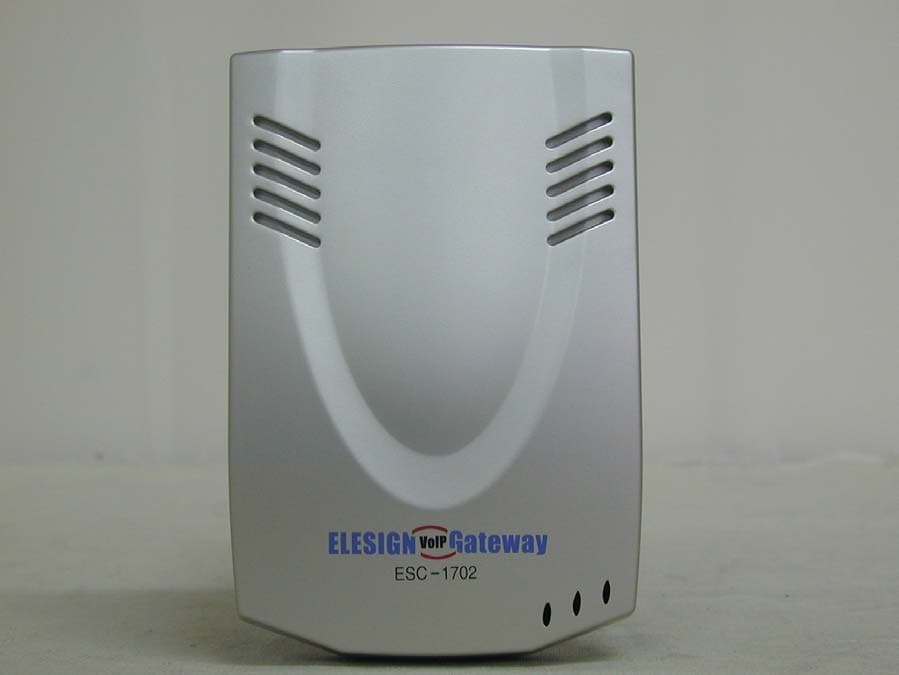
P5EESC1702
Apr 09, 2002Residential Gateway
Equipment Class
JBP - Part 15 Class B Computing Device Peripheral