PEBNT001201EyeD OptiMouse
NITGen Co., Ltd.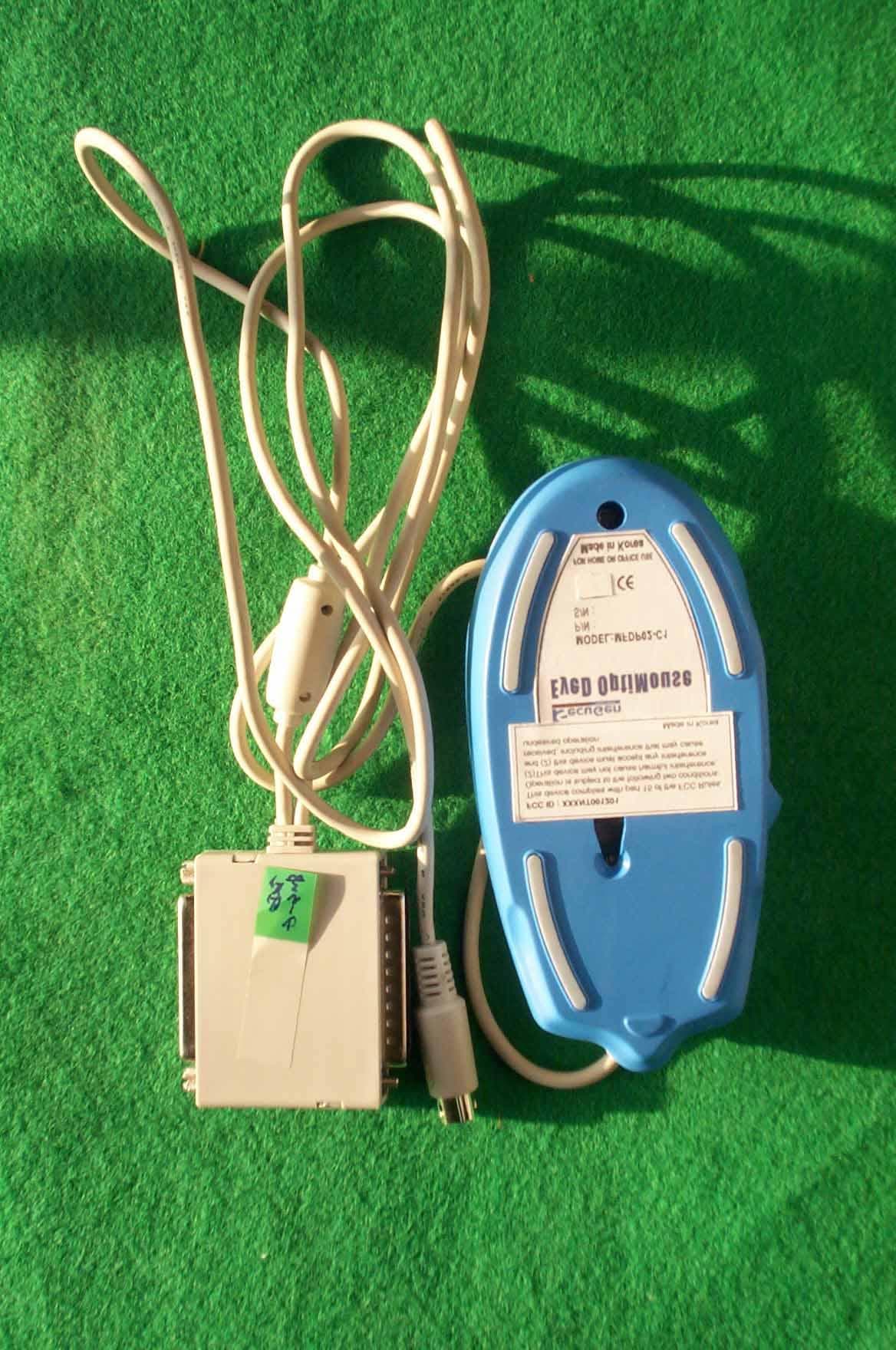
Click to zoom
Application Details
- Equipment Class
- JBP - Part 15 Class B Computing Device Peripheral
- Date of Grant
- Dec 17, 2000
- Application Purpose
- Original Equipment
- Date of Application
- Dec 17, 2000
- Equipment Note
- EyeD OptiMouse
- Company
- NITGen Co., Ltd.
- Country
- South Korea
Documents & Files
Document Text
Text extracted from the exhibit documents filed with the FCC. Open a document above to read the original.
Users Manual
Guide NITGen Co., Ltd. www.nitgen.com 2 " CD-ROM (Or 1.44MB FDD) " Parallel ports (EPP or ECP mode-EPP mode recommended) " PS/2 port (mouse jack port) " 16 MB RAM " 20 MB hard disk empty space " MS Windows 95/98/NT 4.0 or Windows 2000 ! USB Driver " IBM compatible models PC486 or later " CD-ROM (or 1.44MB FDD) " USB port " 16 MB RAM " 20 MB hard disk empty space " MS Windows 95/98/NT 4.0 or Windows 2000 Installing Drivers Installing DriversInstalling Drivers Installing Drivers Installing USB Driver Installing Parallel Driver 4 2. When the driver installation is finished, connect the USB cable to the USB port on the host computer as shown below. ※ Note: It can be a little different according to the OS type. 4. Choose “Search for the driver that is the most appropriate for the device (Recommended)”, then click <Next>. 6 6. “USB composite device” dialog box appears, click <Next>. ※ note: In case of USB Hamster, installation is now completed. 8. When “SecuGen USB” wizard dialog appears, click <Next>. 8 10. Click the CD-ROM drive check box, and then click <Next>. 12. Click <Finish>. The installation is now finished. 10 Printer port PS/2 port Parallel port recognizers, connect the fingerprint recognizer first before starting driver installation program. 1. Turn off the power of computer. 2. Connect the PS/2 mouse connector to PS/2 port (mouse or keyboard port) of the host computer. 3. Connect the mouse parallel adapter to the parallel port (Printer port) of the host computer. To attach a local printer, connect the printer cable to the back of the mouse parallel adapter. 6. Setup dialog box will start automatically. Click <Next> to continue. 12 # note: In the case of parallel port device, the BIOS settings on your computer SHOULD BE SHOULD BESHOULD BE SHOULD BE set for EPP(recommended) or ECP parallel port mode. You can change the mode on BIOS Setup. Diagnostic Tools Diagnostic ToolsDiagnostic Tools Diagnostic Tools Executing Diagnostic Tools Checking System State View of Fingerprint Images Brightness and Contrast Controls Others 15 2. Type “SGD” as shown below, then click <OK>. 16 Drivers installed If parallel type has been checked, it indicates that a driver for parallel type device has been installed. And, if USB type has been checked, a driver for USB has been installed. If both have been checked, both types of drivers have been installed. Parallel Port Status It appears only when parallel type driver has been installed. It indicates the printer port connected to the current system’s parallel port. USB Device It appears only when a USB type driver has been installed. It shows the device version and type of the USB device connected to current system. 17 2. Click <Init> button to initialize the device. 18 4. If you click <Start> after selecting check box “ Continuous Capture”, then fingerprint image appears continuously. At this time, information about the action state of the device appears below. 19 2. If you click <Preview>, the fingerprint image is captured. If it appears too bright as below, adjust ‘Brightness’ or ‘Contrast’. If it is still bright, increase ‘Gain’ value one level at a time. 20 4. If you click <Auto Exposure>, it will automatically find the most optimum setup value. 21 22 Changing the BIOS Set-up Mode When the Printer Does Not Work When the Mouse Does Not Move When the Fingerprint Recognizer Does Not Function Others 23 1. If you want to either change or check the ‘printer port mode’ in system BIOS, press ‘Delete’ key or ‘F2’ key while computer is booting. 2. Generally you can find either the ‘Integrated Peripheral’ or ‘I/O Device Configuration ’ menu although it is a bit different by computer types. 3. Using +,- keys or PageUp and PageDown keys, select ECP or EPP mode among the ECP, EPP, and SPP modes. 4. Quit the BIOS SETUP after saving the changes, and then the computer gets automatically rebooted. " When the Printer Does Not Work ① First, check if the fingerprint input window has appeared. The printer does not function while the fingerprint recognizing driver is working. You can use after closing the fingerprint input window. ② Detach the fingerprint recognizing mouse and connect only the printer. If the printer works properly, it is a mouse malfunction. ③ If the printer does not function after detaching the fingerprint 24 ② Make sure that the installation has been done properly. If you want to check it, open the ‘Setting’->‘Control Panel’ in the ‘Start’ menu. Then double-click ‘System’ icon. Click ‘Device manager’ tap, then check if there are “Human Interface Device”, “mouse” and “SecuGen *** USB FRD”. 25 connecting the USB cable to the USB port. ! Reboot the computer after connecting the device to start the Add New Hardware Wizard. " You cannot use the fingerprint-recognizing mouse when you use USB device. If you use either the USB keyboard or a Hub port, you can use the fingerprint-recognizing hamster, but you cannot use the fingerprint-recognizing mouse by connecting it.
Block Diagram
Host Computer Parallel Port FDP02I (contains PIC) OPP02 (Optic Module) External Peripherals (e.g. printers, Zip drives) MFDP02 MFDP02 MFDP02 MFDP02- - - -C1 EyeD Opti C1 EyeD Opti C1 EyeD Opti C1 EyeD OptiMouse Mouse Mouse Mouse Block Diagram Block Diagram Block Diagram Block Diagram status signal control signal control signal status signal data [0..8] bus data [0..8] bus control signal data
External Photos
SK TECH CO., LTD. Page 1 of 2 SKT SKTOS-00152 FCC ID : XXXNT001201 External Photographs of EUT SK TECH CO., LTD. Page 2 of 2 SKT SKTOS-00152 FCC ID : XXXNT001201
ID Label/Location Info
SK TECH CO., LTD. Page 1 of 1 SKT SKTOS-00152 FCC ID : XXXNT001201 FCC ID Sample Label & Location Information LABELLING REQUIREMENTS PER ∫∫∫∫ ∫∫∫∫∫∫∫∫ ∫∫∫∫2.928 The Label shown shall be permanently affixed at a conspicuous location on the device and be readily visible to the user at the time of purchase. FCC ID : PEBNT001201 This device complies with part 15 of the FCC Rules. Operation is subject to the following two conditions: (1) This device may not cause harmful interference, and (2) this device must accept any interference received, including interference that may cause undesired operation.
ID Label/Location Info
SK TECH CO., LTD. Page 1 of 1 SKT SKTOS-00152 FCC ID : XXXNT001201 FCC ID Label Sample
Internal Photos
SK TECH CO., LTD. Page 1 of 4 SKT SKTOS-00152 FCC ID : XXXNT001201 Internal Photographs of EUT SK TECH CO., LTD. Page 2 of 4 SKT SKTOS-00152 FCC ID : XXXNT001201 SK TECH CO., LTD. Page 3 of 4 SKT SKTOS-00152 FCC ID : XXXNT001201 SK TECH CO., LTD. Page 4 of 4 SKT SKTOS-00152 FCC ID : XXXNT001201
Test Report
SK TECH CO., LTD. Page 1 of 13 SKT SKTOS-00152 FCC ID : XXXNT001201 Certificate of Compliance Test Report No.: SKTOS-00152 NVLAP CODE : 200220-0 Applicant: NITGen Co., Ltd. Applicant Address: Sanhak Research Foundation B/D, 4 th FL. 1337-31, Seocho-dong, Seocho-ku, Seoul, Korea Product: EyeD OptiMouse FCC ID: PEBNT001201 Model No.: MFDP02-C1 Receipt No.: SKE20001128-867 Date of receipt: Nov. 28, 2000 Date of Issue: Dec. 07, 2000 Testing location: SK TECH CO., LTD. 820-2, Wolmoon-Ri, Wabu-Up, Namyangju-Si, Kyunggi-Do, Korea Test Standards: ANSI C63.4 / 1992 Rule Parts: FCC part 15 Subpart B Equipment Class : Class B Digital Device Peripheral Test Result: The above mentioned product has been tested and passed. Prepared by:Y.H. Kang Tested by:S.K.Lee/Engineer Approved by: J.Y.Hyun /Lab.Manager Signature Date Signature Date Signature Date Other Aspects : Abbreviations : · OK, Pass = passed · Fail = failed · N/A = not applicable ☞ ☞☞ ☞ •This test report is not permitted to copy partly without our permission. •This test result is dependent on only equipment to be used. •This test result is based on a single evaluation of one sample of the above mentioned. •This test report must not be used by the client to claim product endorsement by NVLAP or any agency of the U.S Government. • We certify that this test report has been based on the measurement standards that is traceable to the national or International standards. NVLAP Lab. Code: 200220-0 SK TECH CO., LTD. Page 2 of 13 SKT SKTOS-00152 FCC ID : XXXNT001201 》》 》》》》 》》 Contents 《《 《《《《 《《 Contents 2 List of Tables 2 List of Figures 2 List of Photographs 2 1. General 3 2. Test Site 3 2.1 Location 3 2.2 List of Test and Measurement Instruments 4 2.3 Test Data 4 2.4 Test Environment 4 3. Description of the tested samples 5 3.1 Rating and Physical characteristics 5 3.2 Submitted documents 5 4. Measurement conditions 6 4.1 Modes of operation 6 4.2 List of Peripherals 6 4.3 Type of Used cables 7 4.4 Test Setup 7 4.5 Uncertainty 7 5. Emission Test 8 5.1 Conducted Emissions 8 5.2 Radiated Emissions 12 》 》》 》List of Tables Table 1 List of test and measurement equipment 4 Table 2 Test Data, Conducted Emissions 11 Table 3 Test Data, Radiated Emissions 13 》 》》 》List of Figures Figure 1 Spectral Diagram, LINE-PE 9 Figure 2 Spectral Diagram, Neutral-PE 10 SK TECH CO., LTD. Page 3 of 13 SKT SKTOS-00152 FCC ID : XXXNT001201 1. General This equipment has been shown to be capable of compliance with the applicable technical standards and was tested in accordance with the measurement procedures as indicated in this report. We attest to the accuracy of data. All measurements reported herein were performed by SK Tech Co., Ltd. and were made under Chief Engineer’s supervision. We assume full responsibility for the completeness of these measurements and vouch for the qualifications of all persons taking them. 2. Test Site SK TECH Co., Ltd. 2.1 Location 820-2, Wolmoon Ri, Wabu-Up, Namyangju-Si, Kyunggi-Do, Korea The test site is in compliance with ANSI C63.4/1992 for measurement of radio interference. SK TECH CO., LTD. Page 4 of 13 SKT SKTOS-00152 FCC ID : XXXNT001201 2.2 List of Test and Measurement Instruments Table 1 : List of Test and Measurement Equipment z Conducted Emissions Kind of Equipment Type S/N Calibrated until Field Strength Meter ESHS 10 862970/019 04.2001 LISN KNW-407 M63284 07.2001 LISN ESH2-Z5 862060/029 06.2001 Conducted Cable N/A N/A 07.2001 z Radiated Emissions Kind of Equipment Type S/N Calibrated until Field Strength Meter ESVS 10 825120/013 04.2001 Spectrum Analyzer R3361A 11730187 07.2001 Amplifier 8447F 3113A05153 05.2001 Log Periodic Antenna UHALP9107 91071238 04.2001 Biconical Antenna BBA9106 N/A 04.2001 Open Site Cable N/A N/A 07.2001 Antenna Mast 5907 N/A N/A Antenna & Turntable controller 5906 91X519 N/A Amp & Receiver connection cable N/A N/A 07.2001 Amp & Spectrum connection cable N/A N/A 07.2001 50Ω Switcher MP59B M93083 07.2001 2.3 Test Date Date of Application : Nov. 28, 2000 Date of Test : Dec. 01, 2000 ~ Dec. 04, 2000 2.4 Test Environment See each test item’s description. SK TECH CO., LTD. Page 5 of 13 SKT SKTOS-00152 FCC ID : XXXNT001201 3. Description of the tested samples The EUT is EyeD OptiMouse. 3.1 Rating and Physical Characteristics ● ●● ●System Requirements -Parallel Driver • IBM compatible modes PC586 or later • CD-ROM (Or 1.44MB FDD) • Parallel ports (EPP or ECP mode-EPP mode recommended) • PS/2 port (mouse jack port) • 16 MB RAM • 20 MB hard disk empty space • MS Windows 95/98/NT 4.0 or Windows 2000 -USB Driver • IBM compatible modes PC486 or later • CD-ROM (Or 1.44MB FDD) • USB ports • 16 MB RAM • 20 MB hard disk empty space • MS Windows 95/98/NT 4.0 or Windows 2000 3.2 Submitted Documents N/A SK TECH CO., LTD. Page 6 of 13 SKT SKTOS-00152 FCC ID : XXXNT001201 4. Measurement Conditions Testing Input Voltage : AC 120V, 60Hz (DC 5V, 500mA by the PC) 4.1 Modes of Operation The EUT was in the following operation mode during all testing; Enable the parallel port and set parallel port mode to EPP on CMOS configuration. EUT is connected the parallel port adapter and the male PS/2 connector to the PS2 mouse port. Check to continuous fingerprint identification. 4.2 List of Peripherals Description Manufacturer Model Name Serial No. FCC ID Monitor Samsung SyncMaster750P PG17HS9U/ADC DoC Printer H.P 2225C 3132S00310 DSI6XU2225 Keyboard Samsung SEM-DT35N 0B000046 DoC Mouse 1 NITGen MFDU01-J N/A DoC Mouse 2 A4 TECH AM-5E 951237243 H8GAM555P USB internet Phone Streamnet USB IP Gz 15 N/A N/A INNO Dispenser BIOPIA BD-2000 N/A DoC Headset N/A N/A N/A N/A Personal Computer Mother board Micro-Star MS-6161 96K6262664G1144716 DoC Power supply HIPRO HP-235ATXA6 F3-9911252206 DoC FDD Drive Panasonic JU-257A604P 62638 DoC HDD Quantum Pro Drive LPS 9442203B DoC CD-ROM Drive LG GCD-R560B 6023002365 BEJGCD-R560B SK TECH CO., LTD. Page 7 of 13 SKT SKTOS-00152 FCC ID : XXXNT001201 4.3 Type of Used Cables Description Length Type of shield Manufactu…
Text truncated - open the document above for the full version.
Test Setup Photos
SK TECH CO., LTD. Page 1 of 2 SKT SKTOS-00152 FCC ID : XXXNT001201 Test set up photos Photograph 1: Setup for Conducted Emissions SK TECH CO., LTD. Page 2 of 2 SKT SKTOS-00152 FCC ID : XXXNT001201 Photograph 2: Setup for Radiated Emissions
Contact Information
Applicant
Yong-Geun Moon
Test Firm
SK Tech Co., Ltd.Jae-Yeong Hyun
Technical Specifications
| # | Rule Parts | Frequency Range | Power Output |
|---|---|---|---|
| 1 | 15B | - | - |
Other Applications from NITGen Co., Ltd.

PEBNAC-2500LR
Jan 21, 2008COMMERCIAL
Equipment Class
DCD - Part 15 Low Power Transmitter Below 1705 kHz
PEBNAC-2500LM
Jan 02, 2008ACCESS CONTROLLER
Equipment Class
DXX - Part 15 Low Power Communication Device Transmitter
PEBNAC-3000M
Feb 21, 2007ACCESS CONTROLLER
Equipment Class
DXX - Part 15 Low Power Communication Device Transmitter
PEBNAC-2500R
Aug 21, 2006ACCESS CONTROLLER
Equipment Class
DCD - Part 15 Low Power Transmitter Below 1705 kHz
PEBNAC-2500M
Aug 20, 2006ACCESS CONTROLLER
Equipment Class
DXX - Part 15 Low Power Communication Device Transmitter