PFBM-CNX-DSL-PCI2ADSL Modem
Serome Electronics Inc.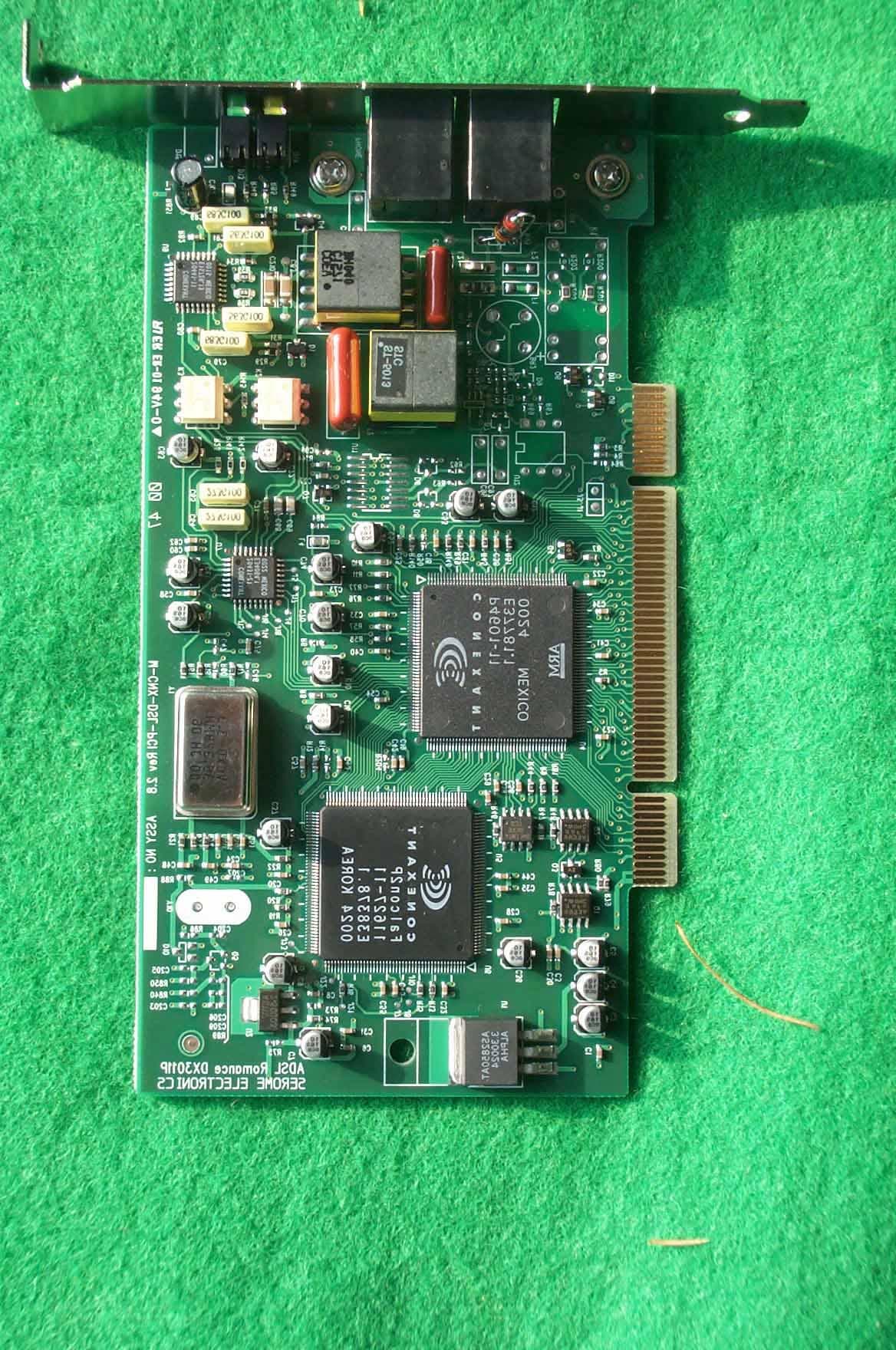
Click to zoom
Application Details
- Equipment Class
- JBP - Part 15 Class B Computing Device Peripheral
- Date of Grant
- Jan 04, 2001
- Application Purpose
- Original Equipment
- Date of Application
- Jan 04, 2001
- Equipment Note
- ADSL Modem
- Company
- Serome Electronics Inc.
- Country
- South Korea
Documents & Files
Document Text
Text extracted from the exhibit documents filed with the FCC. Open a document above to read the original.
Users Manual
M-CNX-DSL-PCI2 Quick Installation Guide ! ! U U n n p p a a c c k k i i n n g g t t h h e e B B o o x x 2 2 P P A A G G E E " " B B e e f f o o r r e e I I n n s s t t a a l l l l i i n n g g 3 3 P P A A G G E E # # I I n n s s t t a a l l l l i i n n g g t t h h e e M M - - D D N N X X - - D D S S L L - - P P C C I I 2 2 4 4 P P A A G G E E $ $ I I n n s s t t a a l l l l i i n n g g S S o o f f t t w w a a r r e e D D r r i i v v e e r r o o n n W W i i n n d d o o w w s s 9 9 8 8 5 5 P P A A G G E E % % I I n n s s t t a a l l l l i i n n g g S S o o f f t t w w a a r r e e D D r r i i v v e e r r o o n n W W i i n n d d o o w w s s 2 2 0 0 0 0 0 0 8 8 P P A A G G E E & & C C o o n n n n e e c c t t i i n n g g t t h h e e N N e e t t w w o o r r k k 1 1 1 1 P P A A G G E E 2 ! ! U U n n p p a a c c k k i i n n g g t t h h e e B B o o x x After the shipping carton carefully and check the contents include the following items. If any items were not delivered, please contact Medialincs or your product provider. ADSL Modem 3 " " B B e e f f o o r r e e I I n n s s t t a a l l l l i i n n g g Hardware Requirement The following hardware and software requirements are necessary to configure and use the M-CNX-DSL-PCI2: Item Specification CPU Pentium II 300MHz or compatible processor Operating system Window 98/98 Second Edtion/2000/NT 4.0 Main memory 32MB (Recommended : 64MB) CD-ROM drive CD-ROM drive necessary to install the software driver PCI slot PCI expansion slot for the M-CNX-DSL-PCI2 Necessary Information Before installing the M-CNX-DSL-PCI2. investigate and determine the following information. ' Driver software you want to install ) LAN (1483) or WAN (PPPoA) ' Necessary information for the LAN driver ) IP address ) Subnet mask ) Default gateway IP address ) DNS server NOTE If DHCP server function is provided, the above information are unnecessary. ' Necessary information for the WAN driver ) VPI, VCI value of the PPP channel ) User ID and password ) IP address ) Subnet mask ) Default gateway IP address ) DNS server 4 # # I I n n s s t t a a l l l l i i n n g g t t h h e e M M - - C C N N X X - - D D S S L L - - P P C C I I 2 2 The following procedures show how to install the M-CNX-DSL-PCI2 in the PC. 1. Power off the your computer and disconnect the power cord. 2. Open your computer and find the empty PCI slot. Remove the cover of the PCI slot. 3. Slide the M-CNX-DSL-PCI2 ADSL modem into the empty PCI slot, push it gently. Using the screw loosen in step 3, fix the M-CNX-DSL-PCI2 ADSL modem. 4. Close the computer and connect the power cord. Don’t press the power switch yet. 5 $ I I n n s s t t a a l l l l i i n n g g S S o o f f t t w w a a r r e e D D r r i i v v e e r r o o n n W W i i n n d d o o w w s s 9 9 8 8 This section describes the following procedures on a Windows 98 or Windows 98 second edition system to use the M-CNX-DSL-PCI2 ADSL modem. ' Installing the software driver ' Setting the VPI, VCI ' WAN driver : Creating a new connection profile / LAN driver : Setting the TCP/IP Installing Software Driver M-CNX-DSL-PCI2 ADSL modem software driver is composed of the following three device drivers. ' Basic System Device ' ATM Network Controller ' DSL Network Device Installation procedures of each device driver are same. So, during installing the M-CNX-DSL-PCI2 ADSL modem driver, the step 3 ~ 8 in the following procedures are repeated three times. 1. Power on your computer. 2. After a while, Windows 98 detects the M-CNX-DSL-PCI2 ADSL modem and the wizard displays a message a system device was detected. Click [Next>] to go to the next wizard panel. 3. Two choices appear. Choose Search to find the best driver for you device and click [Next>] to go to the next wizard panel. 4. The wizard prompts you to specify a location to search for the driver you are installing. Click Specify a location and click [Browse] button. An then, insert the installation driver CD into the CD-ROM drive. 5. According to the software to install, select the following directory path and click [OK]. Software Directory WAN <CD-ROM Drive Letter>:\WAN LAN <CD-ROM Drive Letter>:\LAN 6. If the path is correct, the wizard shows a verification panel and displays the choice you made. Click [Next>] to go to the next panel. 7. The system finds the driver and begins to automatically copy the driver files from the CD. When the copy is complete, click [Finish] button. 8. After completing the driver installation wizard, the system prompts you to reboot. Click [YES] to reboot the system. 9. After rebooting the system, set the VPI and VCI value of the channel referring to the next section. And then, according to the installed driver, create the new connection profile(refer to the section, ‘Creating a New Connection Profile : In Case of the WAN Driver’) or set the TCP/IP (refer to the section ‘Setting the TCP/IP : In Case of the LAN Driver). 6 Setting VPI and VCI 1. Click Start * ** * Setting * ** * Control Panel. 2. Double-click Conexant AccessRu... icon in <Control Panel> window. 3. <Conexant AccesssRunner PCI ADSL WAN Adapter Properties> window appears. Press the [Alt + P] keys simultaneously. 4. Then, several tabs are added to the <Conexant AccesssRunner PCI ADSL WAN Adapter Properties> window. lick Setup tab and specify the VPI and VCI values in the Virtual Path Identifier and Virtual Connection Identifier field. Click the [Apply] button and click [OK]. ) Contact your ADSL server provider for the VPI and VCI. Creating a New Connection Profile : In case of the WAN Driver Create and save a connection profile for each dial-up session so that you do not have to re-enter the same information each time you connect to your corporate LAN or ISP. 1. Double-click My Computer icon. The My Computer window appears. 2. Double-click the Dial-Up Networking icon in <My Computer> dialog box. 3. <Dial-Up Networking> window appears. To create a new connection profile, double-click the Make New Connection icon. 4. The <Make a New Connection> wi…
Text truncated - open the document above for the full version.
Block Diagram
System Block Diagram System Block Diagram System Block Diagram System Block Diagram P C I B U S P46 PCI Interface 11627 Data Pump 20431 AFE 20441 Line Driver Splitter TELEPHONE ADSL LINE
External Photos
SK TECH CO., LTD. Page 1 of 2 SKT SKTOS-00156 FCC ID : XXXM-CNX-DSL-PCI2 External Photographs of EUT SK TECH CO., LTD. Page 2 of 2 SKT SKTOS-00156 FCC ID : XXXM-CNX-DSL-PCI2
ID Label/Location Info
SK TECH CO., LTD. Page 1 of 1 SKT SKTOS-00156 FCC ID : XXXM-CNX-DSL-PCI2 FCC ID Sample Label & Location Information LABELLING REQUIREMENTS PER ∫∫∫∫ ∫∫∫∫∫∫∫∫ ∫∫∫∫2.928 The Label shown shall be permanently affixed at a conspicuous location on the device and be readily visible to the user at the time of purchase. FCC ID : PFBM-CNX-DSL-PCI2 This device complies with part 15 of the FCC Rules. Operation is subject to the following two conditions: (1) This device may not cause harmful interference, and (2) this device must accept any interference received, including interference that may cause undesired operation.
Internal Photos
SK TECH CO., LTD. Page 1 of 1 SKT SKTOS-00156 FCC ID : XXXM-CNX-DSL-PCI2 Internal Photographs of EUT
Test Setup Photos
SK TECH CO., LTD. Page 1 of 2 SKT SKTOS-00156 FCC ID : XXXM-CNX-DSL-PCI2 Test set up photos Photograph 1: Setup for Conducted Emissions SK TECH CO., LTD. Page 2 of 2 SKT SKTOS-00156 FCC ID : XXXM-CNX-DSL-PCI2 Photograph 2: Setup for Radiated Emissions
Contact Information
Applicant
Hong-Joo Ahn(General Manager)
Test Firm
SK Tech Co., Ltd.Jae-Yeong Hyun
Technical Specifications
| # | Rule Parts | Frequency Range | Power Output |
|---|---|---|---|
| 1 | 15B | - | - |
Other Applications from Serome Electronics Inc.
PFB708
Sep 10, 2002ADSL Modem
Equipment Class
JBP - Part 15 Class B Computing Device Peripheral
PFBSRE01035
Jul 16, 2002ADSL Modem
Equipment Class
JBP - Part 15 Class B Computing Device Peripheral
PFBSRE06003
Feb 06, 2002PC Camera
Equipment Class
JBP - Part 15 Class B Computing Device Peripheral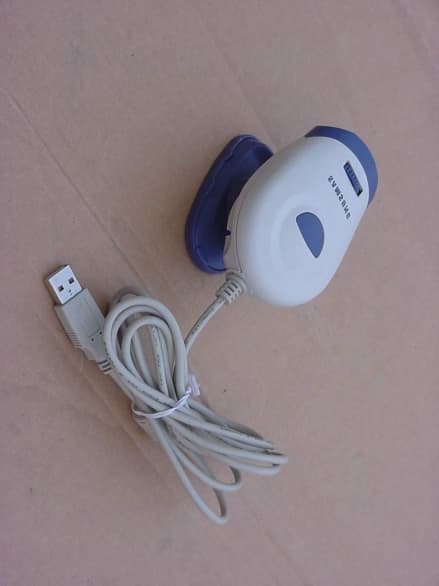
PFBSRE06002
Jan 21, 2002USB PC Camera
Equipment Class
JBP - Part 15 Class B Computing Device Peripheral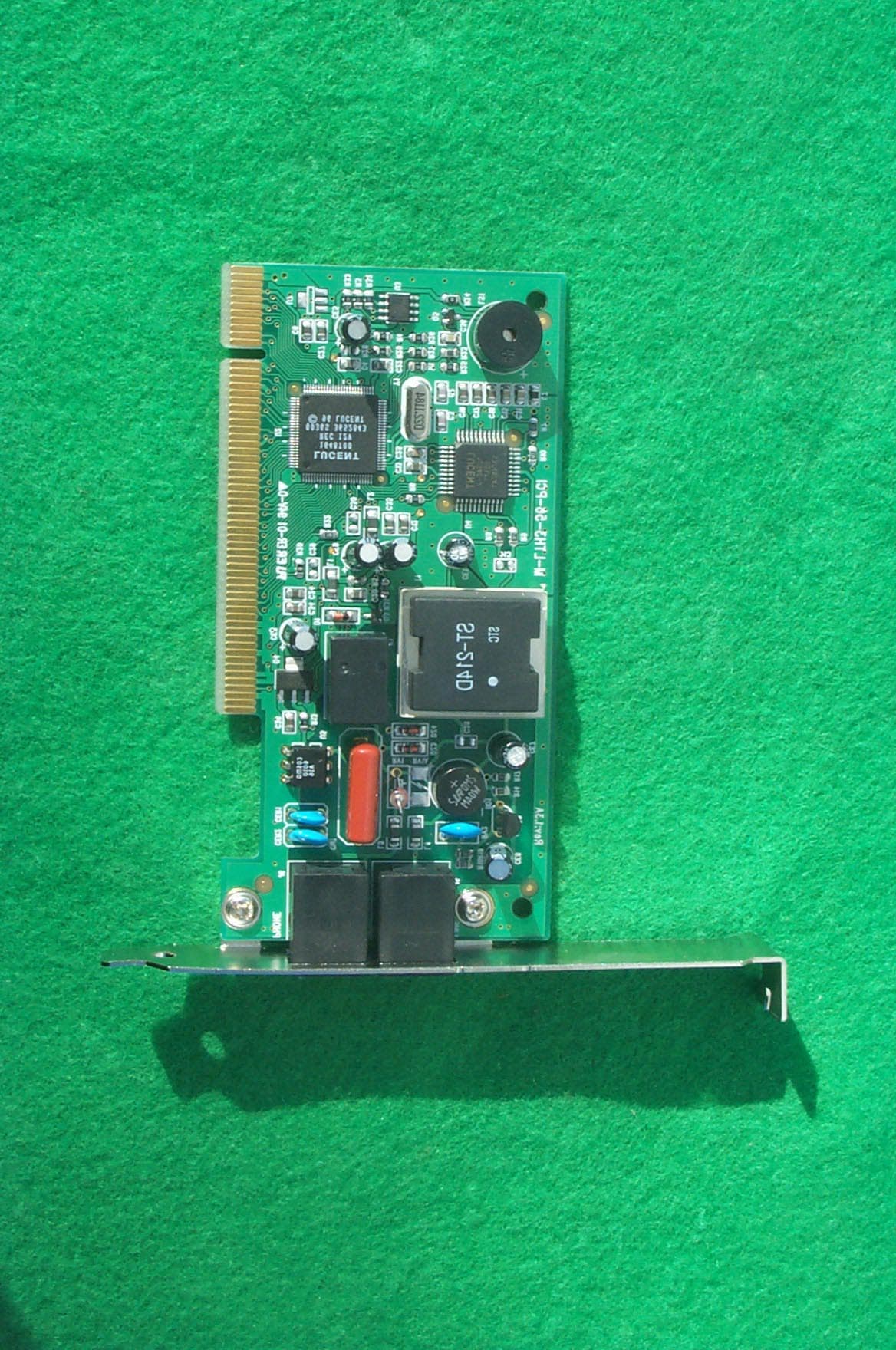
PFBM-LTH3-56-PCI
Jan 18, 2001Modem
Equipment Class
JBP - Part 15 Class B Computing Device Peripheral