PRDMPN00511283D Laser Mouse
Acrox Technologies Co., Ltd.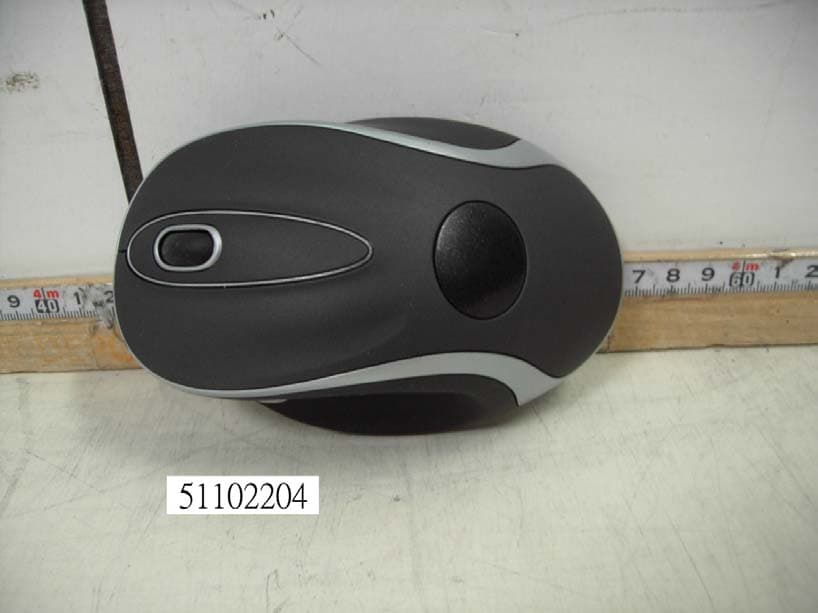
Click to zoom
Application Details
- Equipment Class
- DXX - Part 15 Low Power Communication Device Transmitter
- Date of Grant
- Dec 04, 2005
- Application Purpose
- Original Equipment
- Date of Application
- Dec 04, 2005
- Equipment Note
- 3D Laser Mouse
- Frequency Range
- 27.04200000 - 27.04200000
- Company
- Acrox Technologies Co., Ltd.
- Country
- Taiwan
Documents & Files
Document Text
Text extracted from the exhibit documents filed with the FCC. Open a document above to read the original.
Users Manual
3D Laser Mouse OWNER'S GUIDE Ver.1.0 CAUTION: To use this product properly, please read the user's guide before installation Please DO NOT direct the laser beam at anyone’s eye. 050719LMPN+MRB 1 Safety Notice 1. This product complies with IEC 60825-1, class 1 lase r product. 2. Your product complies with FCC and CE rules. 3. This product has no serviceable parts. Use of controls o r adjustments of procedures other than the user guide may result in dangerous. Welcome Your mouse uses a new generation technology laser module that replaces the traditional LED mouse and provides amazing tracking ability. The laser module accurately scans the surface with 30 times more sensitivity of an LED optical mouse. It also uses digital radio technology and a has rechargeable receiver for your mouse’s batteries. This symbol on the product or in the instructions means that your electrical and electronic equipment should be disposed at the end of its life separately from your household waste. There are separate collection systems for recycling in the EU. For more information, please contact the local authority or your retailer where you purchased the product. CAUTION: Change or modifications not expressly approved by the manufacturer responsible for compliance could void the user's authority to operate the equipment. 2 Functional Introduction: Mouse wheel Previous / Next page OFF/ ON Switc h Lo w p o w e r LED Channel reset button Battery c over Installing the Batteries Step 1 Pull up the battery cover of the mouse. Step 2 Insert the batteries as shown inside the battery compartment. Step 3 Replace the cover. 3 USB Port Install the Receiver and the Charger The receiver (charger) is connected to your computer via a cable. It needs to plug in your computer by a USB port or a mouse port. Connect to the USB or Mouse port of your computer For PS/2 port installation Please turn off your computer before plugging in the receiver cable to the computer’s mouse port. Plugging and unplugging cables to your computer’s mouse port while the computer is running can damage the mouse port or your computer. For USB port installation Windows 98 (or higher) is required for USB port installation. Connect the receiver cable to the USB port on the computer. For Windows, you may be prompted to insert the Windows software CD. Insert the driver’s CD into the computer’s CD-ROM driver when ask to do so. Follow the instructions steps. PS/2 Mouse Port 4 Note: This RF Mouse is a plug-and-play device. Normally, it’s not necessary to setup the RF Channel. But if some interference happens, then you must setup the connection RF Channel. Setup the connection RF Channel between the Mouse and the Receiver 1 2 Push the c hannel reset button on the mouse. Push the channel reset button on the receiver If the cursor does NOT move after 30 seconds, please-do the steps above. GREEN LED FLASH (0.5 sec. Regularly) GREEN LED FLASH (if any action) GREEN LED ON Searching the channel Channel connec ted No a c tio n 5 Recharging: RED LED FLASH Lo w p o w e r RED LED OFF Normal / No batteries RED LED ON Recharging RED LED OFF Finished c harging 6 Using your Mouse How to use the wheel Your mouse has a wheel that functions both as a wheel for Windows Scrolling and also as a customized button. It can be used as a standard mouse button, click (press down) the wheel. To Use the Middle Button, Directly Press down the Wheel. For scrolling across the screen, simply move the wheel. Utility The Mouse Utility provides you an easy way to customize the mouse operations. It will load into your system automatically after finishing the driver Installation. Double click the mouse icon on the right-bottom corner of the Windows screen for utility setting up. Wheel Setting: 1. Choose “System Default Mode “to be compatible with Intelli-Mouse functions. 2. Choose “Enhance Scroll Mode “to support the new useful functions of 3D Wheel mouse. Button Setting: You can set the button 3~5 by selecting the functions you want in the task. And the functions you can select are including the system frequently functions and special powerful functions as below: 7 Universal Scroll Provide the scrolling movement by mouse scroll button. Choose the “Universal Scroll “to adjust the horizontal and Vertical Movement speed by “Slow-Fast bar “on the window. Zoom It allows you to a certain pan area by input the numbers in “Zoomed Size “from 2 X 2 to 64 X 48. And, enlarge the content of the pan area by inputting the factor number from2 to 8 times to” Zoom Factor “. Application Switching Choose this function for easy-to-do application change by clicking scroll button. Launch Default Browser Mark this function to get the path to access the IE and Netscape application by pressing the scroll button. Launch Default E-Mail Mark this function to get the path to access the E-Mail application by pressing the scroll button. Auto Scroll Give a fixed movement speed for horizontal and vertical scrolling. Control (Office Zoom) As holding the “Ctrl” Key of the keyboard by pressing down the scroll button. Shift As holding the “Shift” Key of the keyboard by pressing down the scroll button. Switch to Horizontal Wheel Choose to change the Vertical Scrolling wheel mode to Horizontal Scroll mode by each pressing down the scroll button. IE Switching Backward Choose to replace the “Back “function by each pressing down the scroll button. Forward Choose to replace the “Forward “function by each pressing down the scroll button. K.B. Simulation Choose to simulate the function key of the keyboard (F1~F10, Esc, Backspace, Enter, ect.) by each pressing down the scroll button. 8 Troubleshooting A. Mouse does not work upon installation. Try one or more of the following: y For optimal performance, adjust the placement of the receiver to find the best performance. y Make sure you have installed the batteries correctly. y Press the “Channel Reset” button on the receiver, and then press the “Channel Reset” button on the mouse. B. Mouse not …
Text truncated - open the document above for the full version.
External Photos
Compliance Certification Services Inc. Report No: 51102204 Date of Issue: December 01, 2005 Page 1 Total Page: 9 Rev. 00 PHOTOGRAPHS OF EUT Compliance Certification Services Inc. Report No: 51102204 Date of Issue: December 01, 2005 Page 2 Rev. 00 Compliance Certification Services Inc. Report No: 51102204 Date of Issue: December 01, 2005 Page 3 Rev. 00
ID Label/Location Info
FCC ID LABEL FORMAT AND LOCATION Applicant: Acrox Technologies Co., Ltd. FCC ID: PRDMPN0051128 FCC ID: PRDMPN0051128 This device complies with part 15 of the FCC Rules. Operation is subject to the following two conditions: (1) This device may not cause harmful interference, and (2) this device must accept any interference received, including interference that may cause undesired operation. FCC ID LABEL AREA
Internal Photos
Compliance Certification Services Inc. Report No: 51102204 Date of Issue: December 01, 2005 Page 4 Rev. 00 Compliance Certification Services Inc. Report No: 51102204 Date of Issue: December 01, 2005 Page 5 Rev. 00 Compliance Certification Services Inc. Report No: 51102204 Date of Issue: December 01, 2005 Page 6 Rev. 00
Test Report
Compliance Certification Services Inc. Report No: 51102204-RP1 FCC ID: PRDMPN0051128 Date of Issue: December 01, 2005 Page 1 Total Page: 18 Rev. 00 FCC CFR 47 PART 15 SUBPART C TEST REPORT For Acrox Technologies Co., Ltd. 3D Laser Mouse Model: MPN; ADE-LR1 Trade Name: ACROX; ADVENT Issued to Acrox Technologies Co., Ltd. 8F, No. 437, Rui Guang Rd., Nei Hu Dist., Taipei 114, Taiwan, R.O.C. Issued by Compliance Certification Services Inc. Hsintien Lab. No. 165, Chunghsen Road, Hsintien City Taipei Hsien, Taiwan TEL: (02) 2217-0894 FAX: (02) 2217-1029 Note: This report shall not be reproduced except in full, without the written approval of Compliance Certification Services Inc. This document may be altered or revised by Compliance Certification Services Inc. personnel only, and shall be noted in the revision section of the document. Compliance Certification Services Inc. Report No: 51102204-RP1 FCC ID: PRDMPN0051128 Date of Issue: December 01, 2005 Page 2 Rev. 00 TABLE OF CONTENTS 1. TEST RESULT CERTIFICATION ................................................................................3 2. EUT DESCRIPTION ........................................................................................................4 3. TEST METHODOLOGY .................................................................................................5 3.1 EUT CONFIGURATION.........................................................................................5 3.2 EUT EXERCISE .......................................................................................................5 3.3 GENERAL TEST PROCEDURES .........................................................................5 3.4 FCC PART 15.205 RESTRICTED BANDS OF OPERATIONS .........................6 3.5 DESCRIPTION OF TEST MODES .......................................................................6 4. INSTRUMENT CALIBRATION.....................................................................................7 5. FACILITIES AND ACCREDITATIONS .......................................................................7 5.1 FACILITIES..............................................................................................................7 5.2 EQUIPMENT ............................................................................................................7 5.3 LABORATORY ACCREDITATIONS AND LISTINGS.....................................7 5.4 TABLE PF ACCREDITATIONS AND LISTINGS ..............................................8 6. SETUP OF EQUIPMENT UNDER TEST......................................................................9 6.1 SETUP CONFIGURATION OF EUT ....................................................................9 6.2 SUPPORT EQUIPMENT ........................................................................................9 7. FCC PART 15.227 REQUIREMENTS .........................................................................10 7.1 26 DB BANDWIDTH..............................................................................................10 7.2 RADIATED EMISSIONS ......................................................................................12 7.3 POWERLINE CONDUCTED EMISSIONS........................................................17 APPENDIX 1 - PHOTOGRAPHS OF TEST SETUP........................................................18 Compliance Certification Services Inc. Report No: 51102204-RP1 FCC ID: PRDMPN0051128 Date of Issue: December 01, 2005 Page 4 Rev. 00 2. EUT DESCRIPTION Product 3D Laser Mouse Trade Name ACROX; ADVENT Model MPN; ADE-LR1 Power Supply 3VDC From Battery AA size X 2 pcs. Operate Frequency 27.042MHz Transmit Power N/A Modulation Technique Frequency Shift Keying (FSK) Number of Channels 1 Channel Operating Mode Point-to-Point Antenna Designation Internal loop, which is built in EUT Note: The product is a composite system which includes Transmitter and Receiver. This submittal(s) (test report) is intended for FCC ID: PRDMPN0051128 filing to comply with Section 15.227 of the FCC Part 15 Subpart C Rules. The composite system (digital device) is compliance with Subpart B is authorized under a DoC procedure. MODEL DIFFERENCE Model Number Difference (Trade Name)Test (check) Original MPN ACROX Additional ADE-LR1 ADVENT Note: Client consigns only one model sample (Model Number is MPN) to test. Compliance Certification Services Inc. Report No: 51102204-RP1 FCC ID: PRDMPN0051128 Date of Issue: December 01, 2005 Page 5 Rev. 00 3. TEST METHODOLOGY The tests documented in this report were performed in accordance with ANSI C63.4 and FCC CFR 47 Part 15 Subpart C. 3.1 EUT CONFIGURATION The EUT configuration for testing is installed on RF field strength measurement to meet the Commissions requirement and operating in a manner that intends to maximize its emission characteristics in a continuous normal application. 3.2 EUT EXERCISE The calibrated antennas used to sample the radiated field strength are mounted on a non-conductive, motorized antenna mast 3 or 10 meters from the leading edge of the turntable. 3.3 GENERAL TEST PROCEDURES Conducted Emissions The EUT is placed on the turntable, which is 0.8 m above ground plane. According to the requirements in Section 7.1 of ANSI C63.4-2003. Conducted emissions from the EUT measured in the frequency range between 0.15 MHz and 30MHz using CISPR Quasi-Peak detector mode. Radiated Emissions The EUT is a placed on as turn table, which is 0.8 m above ground plane. The turntable shall rotate 360 degrees to determine the position of maximum emission level. EUT is set 3m away from the receiving antenna, which varied from 1m to 4m to find out the highest emission. And also, each emission was to be maximized by changing the polarization of receiving antenna both horizontal and vertical. Compliance Certification Services Inc. Report No: 51102204-RP1 FCC ID: PRDMPN0051128 Date of Issue: December 01, 2005 Page 6 Rev. 00 3.4 FCC PART 15.205 RESTRICTED BANDS OF OPERATIONS (a) Except as shown in paragra…
Text truncated - open the document above for the full version.
Test Setup Photos
Compliance Certification Services Inc. Report No: 51102204-RP1 FCC ID: PRDMPN0051128 Date of Issue: December 01, 2005 Page 18 Rev. 00 APPENDIX 1 - PHOTOGRAPHS OF TEST SETUP
Contact Information
Applicant
Gavin Hsieh(Product Manager)
Test Firm
Compliance Certification Services Inc.Kurt Chen
Technical Specifications
| # | Rule Parts | Frequency Range | Power Output |
|---|---|---|---|
| 1 | 15C | 27.042 MHz - 27.042 MHz | - |
Other Applications from Acrox Technologies Co., Ltd.
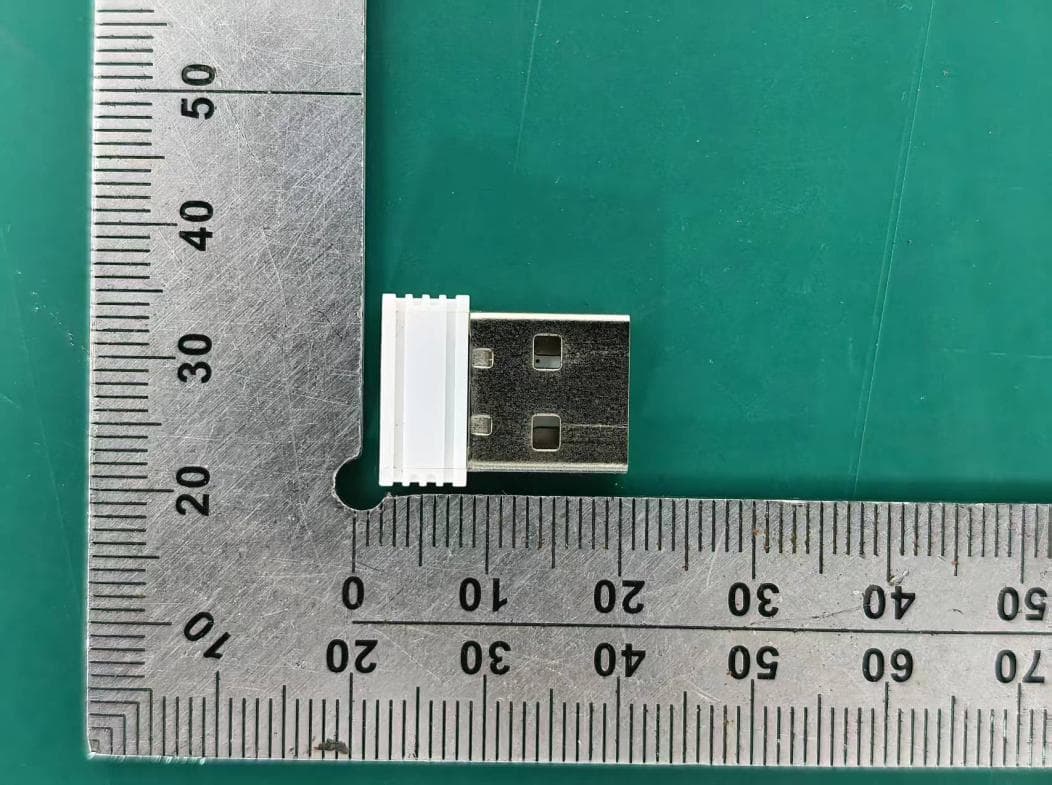
PRDRX12
May 27, 2026Wireless Receiver
Equipment Class
DXX - Part 15 Low Power Communication Device Transmitter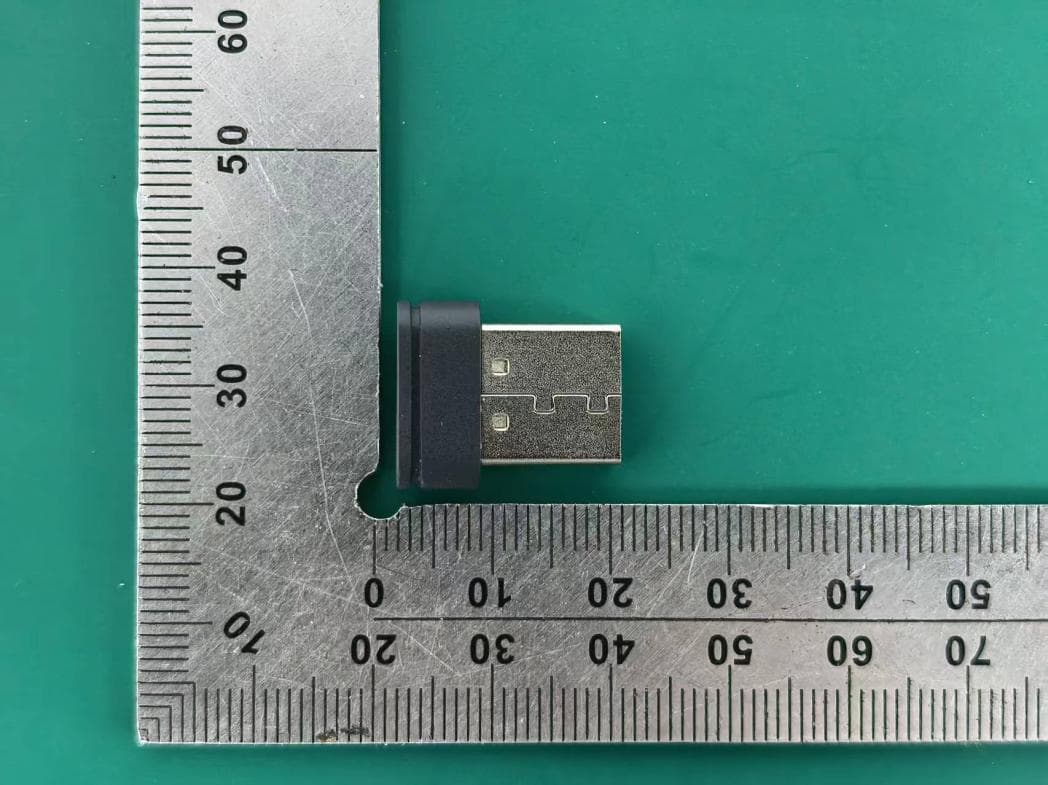
PRDRX11
Apr 07, 2026Wireless Receiver
Equipment Class
DXX - Part 15 Low Power Communication Device Transmitter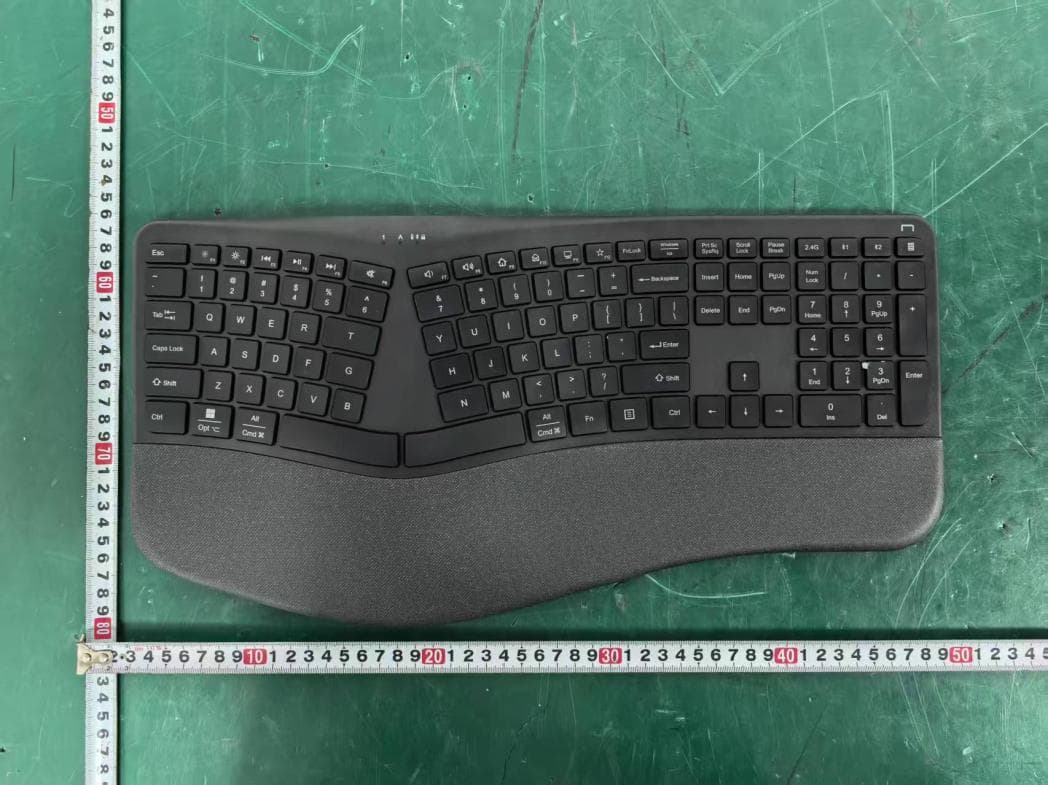
PRDKB72
Apr 03, 2026WIRELESS SPLIT KEY ERGONOMIC KEYBOARD
Equipment Class
DTS - Digital Transmission System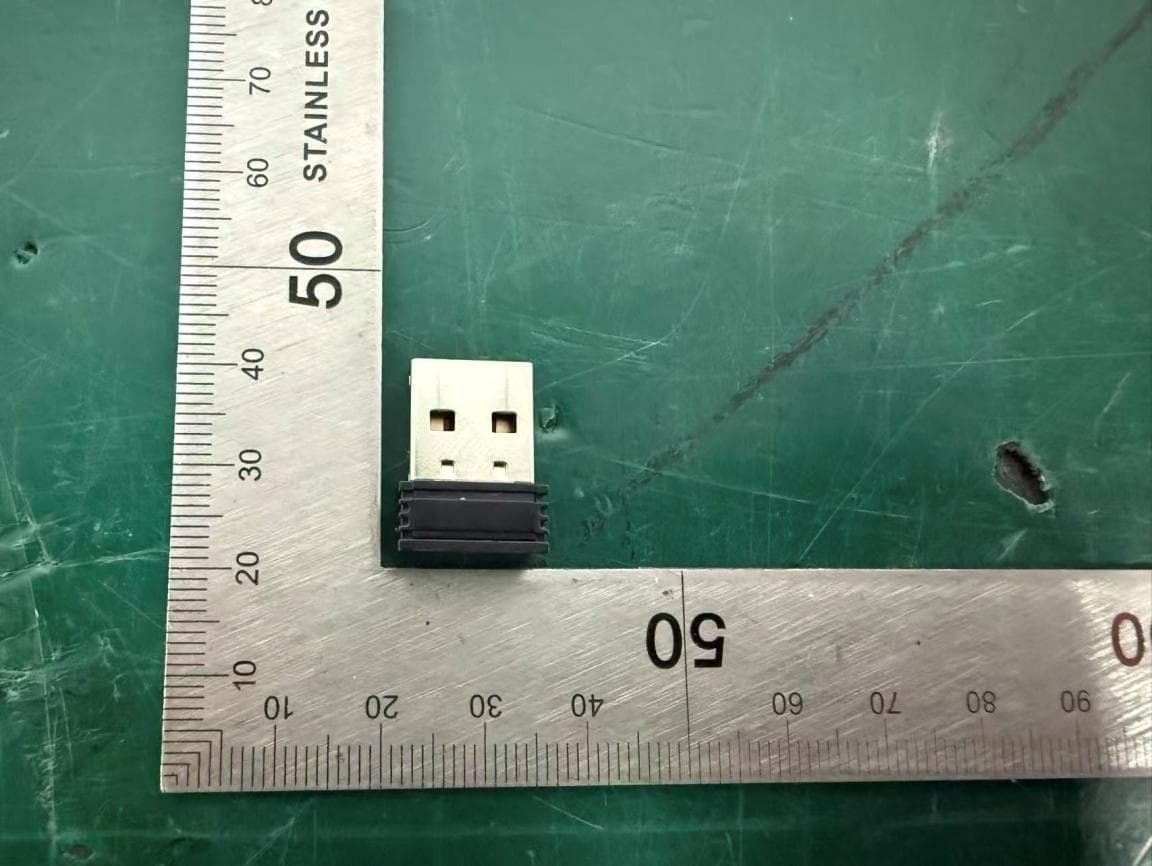
PRDRX1P
Apr 03, 2026Wireless Receiver
Equipment Class
DXX - Part 15 Low Power Communication Device Transmitter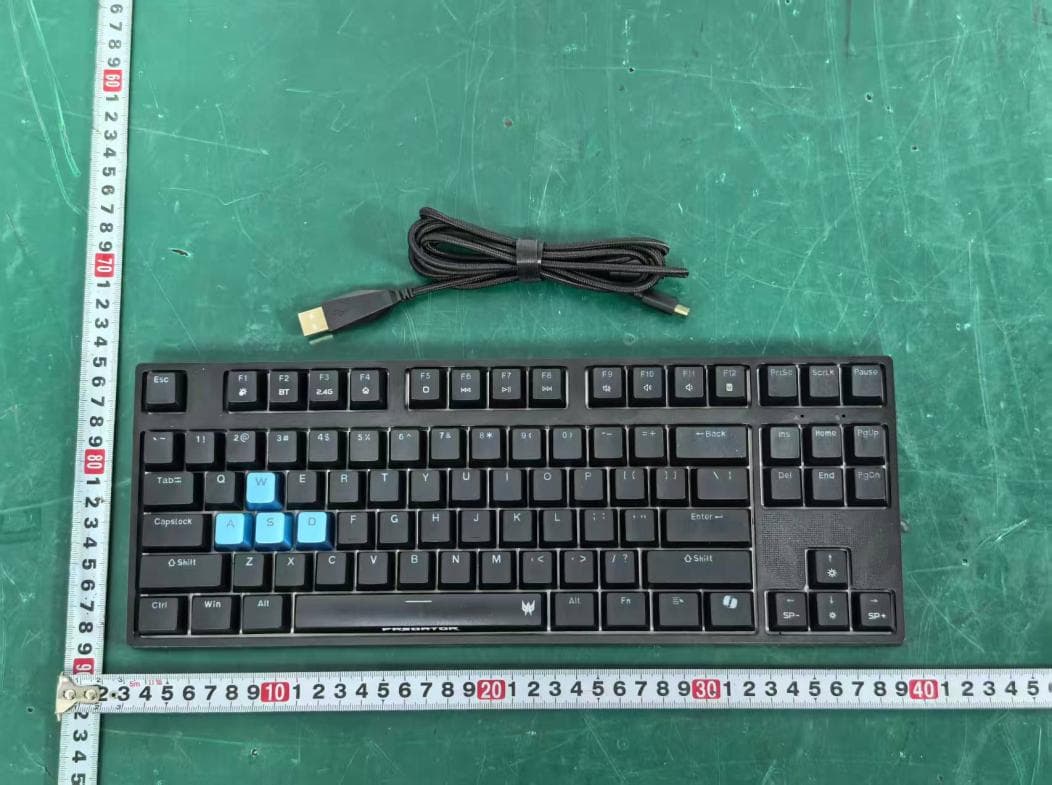
PRDKB73
Apr 03, 2026Gaming Keyboard
Equipment Class
DTS - Digital Transmission System