PY312300207N900 Wireless Dual Band Gigabit Router
Netgear Incorporated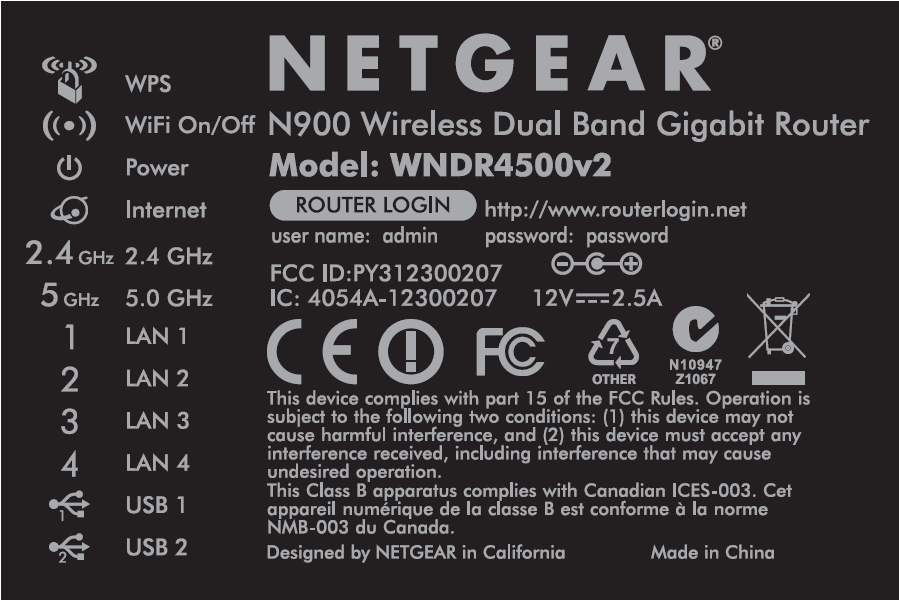
Click to zoom
Application Details
- Equipment Class
- NII - Unlicensed National Information Infrastructure TX
- Date of Grant
- Nov 05, 2012
- Application Purpose
- Original Equipment
- Date of Application
- Nov 05, 2012
- Equipment Note
- N900 Wireless Dual Band Gigabit Router
- Frequency Range
- 5190.00000000 - 5230.00000000
- Company
- Netgear Incorporated
- Country
- United States
Documents & Files
Document Text
Text extracted from the exhibit documents filed with the FCC. Open a document above to read the original.
Users Manual
350 East Plumeria Drive San Jose, CA 95134 USA October 2012 202-11130-01 v1.0 N900 Wireless Dual Band Gigabit Router WNDR4500v2 User Manual 2 N900 Wireless Dual Band Gigabit Router WNDR4500v2 Support Thank you for choosing NETGEAR. After installing your device, locate the serial number on the label of your product and use it to register your product at https://my.netgear.com. You must register your product before you can use NETGEAR telephone support. NETGEAR recommends registering your product through the NETGEAR web site. For product updates and web support, visit http://support.netgear.com. Phone (US & Canada only): 1-888-NETGEAR. Phone (Other Countries): Check the list of phone numbers at http://support.netgear.com/general/contact/default.aspx. NETGEAR recommends that you use only the official NETGEAR support resources. Trademarks NETGEAR, the NETGEAR logo, and Connect with Innovation are trademarks and/or registered trademarks of NETGEAR, Inc. and/or its subsidiaries in the United States and/or other countries. Information is subject to change without notice. © NETGEAR, Inc. All rights reserved. Revision History Publication Part NumberVersion Publish DateComments 202-11130-01v1.0October 2012First publication 3 Contents Chapter 1 Hardware Setup Unpack Your Router . . . . . . . . . . . . . . . . . . . . . . . . . . . . . . . . . . . . . . . . . . . 8 Position Your Router . . . . . . . . . . . . . . . . . . . . . . . . . . . . . . . . . . . . . . . . . . 8 Hardware Features. . . . . . . . . . . . . . . . . . . . . . . . . . . . . . . . . . . . . . . . . . . . 9 Front Panel . . . . . . . . . . . . . . . . . . . . . . . . . . . . . . . . . . . . . . . . . . . . . . . . 9 Back Panel . . . . . . . . . . . . . . . . . . . . . . . . . . . . . . . . . . . . . . . . . . . . . . . 11 Label . . . . . . . . . . . . . . . . . . . . . . . . . . . . . . . . . . . . . . . . . . . . . . . . . . . . 11 Chapter 2 Getting Started with NETGEAR genie Router Setup Preparation. . . . . . . . . . . . . . . . . . . . . . . . . . . . . . . . . . . . . . 13 Use Standard TCP/IP Properties for DHCP . . . . . . . . . . . . . . . . . . . . . . 13 Gather ISP Information . . . . . . . . . . . . . . . . . . . . . . . . . . . . . . . . . . . . . . 13 Wireless Devices and Security Settings . . . . . . . . . . . . . . . . . . . . . . . . . 13 Types of Logins and Access. . . . . . . . . . . . . . . . . . . . . . . . . . . . . . . . . . . . 13 NETGEAR genie Setup . . . . . . . . . . . . . . . . . . . . . . . . . . . . . . . . . . . . . . . 14 Use NETGEAR genie after Installation. . . . . . . . . . . . . . . . . . . . . . . . . . . . 15 Upgrade Router Firmware . . . . . . . . . . . . . . . . . . . . . . . . . . . . . . . . . . . . . 15 Router Dashboard (Basic Home Screen) . . . . . . . . . . . . . . . . . . . . . . . . . . 16 Add Wireless Devices or Computers to Your Network . . . . . . . . . . . . . . . . 17 Manual Method . . . . . . . . . . . . . . . . . . . . . . . . . . . . . . . . . . . . . . . . . . . . 17 Wi-Fi Protected Setup (WPS) Method . . . . . . . . . . . . . . . . . . . . . . . . . . 17 Chapter 3 NETGEAR genie Basic Settings Internet Setup . . . . . . . . . . . . . . . . . . . . . . . . . . . . . . . . . . . . . . . . . . . . . . . 19 Internet Setup Screen Fields . . . . . . . . . . . . . . . . . . . . . . . . . . . . . . . . . 19 Attached Devices . . . . . . . . . . . . . . . . . . . . . . . . . . . . . . . . . . . . . . . . . . . . 21 Parental Controls . . . . . . . . . . . . . . . . . . . . . . . . . . . . . . . . . . . . . . . . . . . . 22 ReadySHARE USB Storage. . . . . . . . . . . . . . . . . . . . . . . . . . . . . . . . . . . . 22 Basic Wireless Settings . . . . . . . . . . . . . . . . . . . . . . . . . . . . . . . . . . . . . . . 23 Wireless Settings Screen Fields . . . . . . . . . . . . . . . . . . . . . . . . . . . . . . . 24 Change WPA Security Option and Passphrase . . . . . . . . . . . . . . . . . . . 25 Guest Networks . . . . . . . . . . . . . . . . . . . . . . . . . . . . . . . . . . . . . . . . . . . . . 26 Guest Network Wireless Security Options . . . . . . . . . . . . . . . . . . . . . . . 27 4 N900 Wireless Dual Band Gigabit Router WNDR4500v2 Chapter 4 NETGEAR genie Advanced Home Setup Wizard . . . . . . . . . . . . . . . . . . . . . . . . . . . . . . . . . . . . . . . . . . . . . . . 29 WPS Wizard . . . . . . . . . . . . . . . . . . . . . . . . . . . . . . . . . . . . . . . . . . . . . . . . 30 Setup Menu . . . . . . . . . . . . . . . . . . . . . . . . . . . . . . . . . . . . . . . . . . . . . . . . 31 WAN Setup. . . . . . . . . . . . . . . . . . . . . . . . . . . . . . . . . . . . . . . . . . . . . . . . . 32 Default DMZ Server . . . . . . . . . . . . . . . . . . . . . . . . . . . . . . . . . . . . . . . . 33 Change the MTU Size . . . . . . . . . . . . . . . . . . . . . . . . . . . . . . . . . . . . . . 33 LAN Setup . . . . . . . . . . . . . . . . . . . . . . . . . . . . . . . . . . . . . . . . . . . . . . . . . 35 LAN Setup Screen Settings . . . . . . . . . . . . . . . . . . . . . . . . . . . . . . . . . . 36 Use the Router as a DHCP Server. . . . . . . . . . . . . . . . . . . . . . . . . . . . . 36 Address Reservation . . . . . . . . . . . . . . . . . . . . . . . . . . . . . . . . . . . . . . . 37 Quality of Service (QoS) Setup . . . . . . . . . . . . . . . . . . . . . . . . . . . . . . . . . 38 Chapter 5 USB Storage USB Drive Requirements . . . . . . . . . . . . . . . . . . . . . . . . . . . . . . . . . . . . . . 44 ReadySHARE Access . . . . . . . . . . . . . . . . . . . . . . . . . . . . . . . . . . . . . . . . 44 File-Sharing Scenarios . . . . . . . . . . . . . . . . . . . . . . . . . . . . . . . . . . . . . . . . 44 Basic Settings. . . . . . . . . . . . . . . . . . . . . . . . . . . . . . . . . . . . . . . . . . . . . . . 46 Add or Edit a Network Folder . . . . . . . . . . . . . . . . . . . . . . . . . . . . . . . . . 47 USB Storage Advanced Settings . . . . . . . . . . . . . . . . .…
Text truncated - open the document above for the full version.
Users Manual
ReadySHARE Printer 61 N900 Wireless Dual Band Gigabit Router WNDR4500v2 Once the printer shows Available status, it is no longer grayed out in a Paused state in the Windows Printers window. This USB printer is ready. The utility does not need to always hold the connection of this USB printer. Once there is any print job for this printer, the USB utility connects to this USB printer automatically then prints. After the print job is done, the printer status returns to the Paused state. Scan with a Multi-Function Printer You can use the scan feature of a multi-function printer. 1.Make sure that the printer’s status shows as Available status. 2.Click the Network Scanner button. This activates the scanner window to perform scans. USB Speaker To control a USB speaker: 1.Select the USB speaker. 2.Click the Connect button to connect this speaker, or click Disconnect to disconnect the speaker. If you click Connect, and someone else is already connected to the speaker, a request is sent to that person. The person who receives the request can click an Accept or Reject button. If someone is connected to the speaker and it is not being used (the router does not detect any activity), the router holds the connection for the amount of time that is in the timeout value, and then makes it available. ReadySHARE Printer 62 N900 Wireless Dual Band Gigabit Router WNDR4500v2 Desktop NETGEAR genie Desktop NETGEAR genie is the easy dashboard for managing, monitoring, and repairing your home network. •Automatically repair common wireless network problems. •Have easy access to router features like Live Parental Controls, guest access, broadband usage meter, speed test, and more. •Use the Network map to see all devices on your home network. To download the free NETGEAR genie, go to this page at the NETGEAR website: www.NETGEAR.com/genie. 63 7 7. Security Keeping unwanted content out of your network This chapter explains how to use the basic firewall features of the router to prevent objectionable content from reaching the PCs and other devices connected to your network. This chapter includes the following sections: •Keyword Blocking of HTTP Traffic •Block Services (Port Filtering) •Schedule Blocking •Security Event Email Notifications Security 64 N900 Wireless Dual Band Gigabit Router WNDR4500v2 Keyword Blocking of HTTP Traffic Use keyword blocking to prevent certain types of HTTP traffic from accessing your network. The blocking can be always or according to a schedule. 1.Select Advanced > Security > Block Sites to display the following screen: 2.Select one of the keyword blocking options: •Per Schedule. Turn on keyword blocking according to the Schedule screen settings. •Always. Turn on keyword blocking all the time, independent of the Schedule screen. 3.In the Keyword field, enter a keyword or domain, click Add Keyword, and click Apply. The Keyword list supports up to 32 entries. Here are some sample entries: •Specify XXX to block http://www.badstuff.com/xxx.html. •Specify .com if you want to allow only sites with domain suffixes such as .edu or .gov. •Enter a period (.) to block all Internet browsing access. To delete a keyword or domain: 1.Select the keyword you want to delete from the list. 2.Click Delete Keyword, and then Apply to save your changes. To specify a trusted computer: You can exempt one trusted computer from blocking and logging. The computer you exempt has to have a fixed IP address. 1.In the Trusted IP Address field, enter the IP address. 2.Click Apply to save your changes. Security 65 N900 Wireless Dual Band Gigabit Router WNDR4500v2 Block Services (Port Filtering) Services are functions performed by server computers at the request of client computers. For example, web servers serve web pages, time servers serve time and date information, and game hosts serve data about other players’ moves. When a computer on the Internet sends a request for service to a server computer, the requested service is identified by a service or port number. This number appears as the destination port number in the transmitted IP packets. For example, a packet that is sent with the destination port number 80 is an HTTP (web server) request. The service numbers for many common protocols are defined by the Internet Engineering Task Force (IETF at http://www.ietf.org/) and published in RFC1700, “Assigned Numbers.” Service numbers for other applications are typically chosen from the range 1024 to 65535 by the authors of the application. Although the router already holds a list of many service port numbers, you are not limited to these choices. You can often determine port number information by contacting the publisher of the application, by asking user groups or newsgroups, or by searching. The Block Services screen lets you add and block specific Internet services by computers on your network. This is called service blocking or port filtering. To add a service for blocking, first determine which port number or range of numbers are used by the application. To block services: 1.Select Advanced > Security > Block Services to display the following screen: 2.Select either Per Schedule or Always to enable service blocking, and click Apply. If you selected Per Schedule, specify a time period in the Schedule screen as described in Schedule Blocking on page 67. Security 66 N900 Wireless Dual Band Gigabit Router WNDR4500v2 3.Click Add to add a service. The Block Services Setup screen displays: 4.From the Service Type list, select the application or service to allow or block. The list already displays several common services, but you are not limited to these choices. To add any additional services or applications that do not already appear, select User Defined. 5.If you know that the application uses either TCP or UDP, select the appropriate protocol. If you are not sure, select Both. 6.Enter the starting and ending port numbers. If the application uses a single port number, enter that number in both fields. 7.Select the radi…
Text truncated - open the document above for the full version.
Cover Letter(s)
NETGEAR, Inc. 350 East Plumeria Drive, San Jose, California 95134-1911 Tel: +1 408 907 8000 / Fax: +1 408 907 8097 Date: 2012/10/9 Confidential Letter Federal Communications Commission Office of Engineering and Technology Equipment Authorization Division 7345 Oakland Mills Road Columbia, Maryland 21046 Subject: Confidentiality Request for FCC ID:PY312300207 Gentlemen: The form 731 and application have been electronically submitted and any attachments will be up loaded to your web site to be used in obtaining a grant of certification. Short-term Pursuant to DA 04-1705 of the Commission’s pubic notice, we request short-term confidential treatment for the following information until 180 days after the Grant Date of Equipment Authorization in order to ensure sensitive business information remains confidential until the actual marketing of the device: 1. External Photos 2. Internal Photos 3. Test Setup photos 4. User’s Manual Permanent NETGEAR, Inc. requests that the material in the following files be withheld from public disclosure in accordance with Section 0.459 of the Commission’s Rules, 47 C.F.R. 0.459, following grant of the application. 1. Block Diagram 2. Circuit Diagram 3. Operational Description Should you require any further information, please contact the undersigned. Thank you for your consideration in this matter. Note: The registered grantee contact is not available, John Ramones is signing for grantee contact. He/She can be reached at email: [email protected]. Sincerely, Applicant’s company name : NETGEAR, Inc. Applicant’s company address : 350 East Plumeria Drive, San Jose, California 95134-1911 Signature : Signed for Mark Gandler Job Title and Dept. : Mark Gandler / Sr. Compliance Engineer E-Mail : [email protected] Tel. : +1 408 907 8000
Cover Letter(s)
NETGEAR, Inc. 350 East Plumeria Drive, San Jose, California 95134-1911 Tel: +1 408 907 8000 / Fax: +1 408 907 8097 Power of Attorney Date: 2012/10/9 Dear Sir, I hereby have entrusted the following person to be a proxy regarding application for Type Certification. Sporton International Inc. Address : No.8, Lane 724, Bo-ai St., Jhubei City, HsinChu County 302, Taiwan, R.O.C. Name : Leo Huang Job Title : Manager e-mail : [email protected] I am therefore responsible for the contents of the application. Brand name and model type of the specified radio equipment: NETGEAR / WNDR4500v2 FCC ID: PY312300207 Product name: N900 Wireless Dual Band Gigabit Router Note: The registered grantee contact is not available, John Ramones is signing for grantee contact. He/She can be reached at email: [email protected]. FCC Grantee contact person information. Applicant’s company name : NETGEAR, Inc. Applicant’s company address : 350 East Plumeria Drive, San Jose, California 95134-1911 Signature : Signed for Mark Gandler Job Title and Dept. : Mark Gandler / Sr. Compliance Engineer E-Mail : [email protected] Tel. : +1 408 907 8000
Cover Letter(s)
NETGEAR, Inc. 350 East Plumeria Drive, San Jose, California 95134-1911 Tel: +1 408 907 8000 / Fax: +1 408 907 8097 DoC Attestation Letter Date: 2012/10/9 We NETGEAR, Inc., as the grantee of this project (FCC ID: PY312300207 / Brand Name: NETGEAR / Model No.: WNDR4500v2), would like to declare that the composite portion categorized as computer peripheral has been authorized under the Declaration of Conformity procedures (Sproton report No.: FD292829, FCC Test Firm Registration No.: 187376). The final product shall consequently comply with the FCC rule applied for DoC Procedure. Regards, Note: The registered grantee contact is not available, John Ramones is signing for grantee contact. He/She can be reached at email: [email protected]. FCC Grantee contact person information. Applicant’s company name : NETGEAR, Inc. Applicant’s company address : 350 East Plumeria Drive, San Jose, California 95134-1911 Signature : Signed for Mark Gandler Job Title and Dept. : Mark Gandler / Sr. Compliance Engineer E-Mail : [email protected] Tel. : +1 408 907 8000
External Photos
Report No: 292829 SPORTON International Inc. PAGE NUMBER : 1 OF 8 TEL : 886-2-2696-2468 ISSUED DATE : Oct. 31, 2012 FAX : 886-2-2696-2255 Photographs of EUT Report No: 292829 SPORTON International Inc. PAGE NUMBER : 2 OF 8 TEL : 886-2-2696-2468 ISSUED DATE : Oct. 31, 2012 FAX : 886-2-2696-2255 Report No: 292829 SPORTON International Inc. PAGE NUMBER : 3 OF 8 TEL : 886-2-2696-2468 ISSUED DATE : Oct. 31, 2012 FAX : 886-2-2696-2255 Report No: 292829 SPORTON International Inc. PAGE NUMBER : 4 OF 8 TEL : 886-2-2696-2468 ISSUED DATE : Oct. 31, 2012 FAX : 886-2-2696-2255 Adapter 1 Brand: NETGEAR Model: P030WF120B P/N: 332-10200-02 Report No: 292829 SPORTON International Inc. PAGE NUMBER : 5 OF 8 TEL : 886-2-2696-2468 ISSUED DATE : Oct. 31, 2012 FAX : 886-2-2696-2255 Report No: 292829 SPORTON International Inc. PAGE NUMBER : 6 OF 8 TEL : 886-2-2696-2468 ISSUED DATE : Oct. 31, 2012 FAX : 886-2-2696-2255 Adapter 2 Brand: NETGEAR Model: MU30-5120250-A1 P/N: 332-10234-01 Report No: 292829 SPORTON International Inc. PAGE NUMBER : 7 OF 8 TEL : 886-2-2696-2468 ISSUED DATE : Oct. 31, 2012 FAX : 886-2-2696-2255 Report No: 292829 SPORTON International Inc. PAGE NUMBER : 8 OF 8 TEL : 886-2-2696-2468 ISSUED DATE : Oct. 31, 2012 FAX : 886-2-2696-2255
Internal Photos
Reporton No: 292829 SPORTON International Inc. PAGE NUMBER : 1 OF 16 TEL : 886-2-2696-2468 ISSUED DATE : Oct. 31, 2012 FAX : 886-2-2696-2255 Photographs of EUT Reporton No: 292829 SPORTON International Inc. PAGE NUMBER : 2 OF 16 TEL : 886-2-2696-2468 ISSUED DATE : Oct. 31, 2012 FAX : 886-2-2696-2255 Reporton No: 292829 SPORTON International Inc. PAGE NUMBER : 3 OF 16 TEL : 886-2-2696-2468 ISSUED DATE : Oct. 31, 2012 FAX : 886-2-2696-2255 Reporton No: 292829 SPORTON International Inc. PAGE NUMBER : 4 OF 16 TEL : 886-2-2696-2468 ISSUED DATE : Oct. 31, 2012 FAX : 886-2-2696-2255 Reporton No: 292829 SPORTON International Inc. PAGE NUMBER : 5 OF 16 TEL : 886-2-2696-2468 ISSUED DATE : Oct. 31, 2012 FAX : 886-2-2696-2255 Reporton No: 292829 SPORTON International Inc. PAGE NUMBER : 6 OF 16 TEL : 886-2-2696-2468 ISSUED DATE : Oct. 31, 2012 FAX : 886-2-2696-2255 Reporton No: 292829 SPORTON International Inc. PAGE NUMBER : 7 OF 16 TEL : 886-2-2696-2468 ISSUED DATE : Oct. 31, 2012 FAX : 886-2-2696-2255 Reporton No: 292829 SPORTON International Inc. PAGE NUMBER : 8 OF 16 TEL : 886-2-2696-2468 ISSUED DATE : Oct. 31, 2012 FAX : 886-2-2696-2255 Reporton No: 292829 SPORTON International Inc. PAGE NUMBER : 9 OF 16 TEL : 886-2-2696-2468 ISSUED DATE : Oct. 31, 2012 FAX : 886-2-2696-2255 Reporton No: 292829 SPORTON International Inc. PAGE NUMBER : 10 OF 16 TEL : 886-2-2696-2468 ISSUED DATE : Oct. 31, 2012 FAX : 886-2-2696-2255 Reporton No: 292829 SPORTON International Inc. PAGE NUMBER : 11 OF 16 TEL : 886-2-2696-2468 ISSUED DATE : Oct. 31, 2012 FAX : 886-2-2696-2255 Reporton No: 292829 SPORTON International Inc. PAGE NUMBER : 12 OF 16 TEL : 886-2-2696-2468 ISSUED DATE : Oct. 31, 2012 FAX : 886-2-2696-2255 Reporton No: 292829 SPORTON International Inc. PAGE NUMBER : 13 OF 16 TEL : 886-2-2696-2468 ISSUED DATE : Oct. 31, 2012 FAX : 886-2-2696-2255 Reporton No: 292829 SPORTON International Inc. PAGE NUMBER : 14 OF 16 TEL : 886-2-2696-2468 ISSUED DATE : Oct. 31, 2012 FAX : 886-2-2696-2255 Reporton No: 292829 SPORTON International Inc. PAGE NUMBER : 15 OF 16 TEL : 886-2-2696-2468 ISSUED DATE : Oct. 31, 2012 FAX : 886-2-2696-2255 Reporton No: 292829 SPORTON International Inc. PAGE NUMBER : 16 OF 16 TEL : 886-2-2696-2468 ISSUED DATE : Oct. 31, 2012 FAX : 886-2-2696-2255
RF Exposure Info
Report No.: FR292829 FCC ID: PY312300207 Page No. : B1 of B3 Appendix B. Maximum Permissible Exposure Report No.: FR292829 FCC ID: PY312300207 Page No. : B2 of B3 1. Maximum Permissible Exposure 1.1. Applicable Standard Systems operating under the provisions of this section shall be operated in a manner that ensures that the public is not exposed to radio frequency energy levels in excess limit for maximum permissible exposure. In accordance with 47 CFR FCC Part 2 Subpart J, section 2.1091 this device has been defined as a mobile device whereby a distance of 0.25 m normally can be maintained between the user and the device. (A) Limits for Occupational / Controlled Exposure Frequency Range (MHz) Electric Field Strength (E) (V/m) Magnetic Field Strength (H) (A/m) Power Density (S) (mW/ cm²) Averaging Time |E|²,|H|² or S (minutes) 0.3-3.0 614 1.63 (100)* 6 3.0-30 1842 / f 4.89 / f (900 / f)* 6 30-300 61.4 0.163 1.0 6 300-1500 F/300 6 1500-100,000 5 6 (B) Limits for General Population / Uncontrolled Exposure Frequency Range (MHz) Electric Field Strength (E) (V/m) Magnetic Field Strength (H) (A/m) Power Density (S) (mW/ cm²) Averaging Time |E|²,|H|² or S (minutes) 0.3-1.34 614 1.63 (100)* 30 1.34-30 824/f 2.19/f (180/f)* 30 30-300 27.5 0.073 0.2 30 300-1500 F/1500 30 1500-100,000 1.0 30 Note: f = frequency in MHz ; *Plane-wave equivalent power density 1.2. MPE Calculation Method E (V/m) = d GP30 Power Density: Pd (W/m²) = 377 2 E E = Electric field (V/m) P = Peak RF output power (W) G = EUT Antenna numeric gain (numeric) d = Separation distance between radiator and human body (m) The formula can be changed to Pd = 2 377 30 d GP From the peak EUT RF output power, the minimum mobile separation distance, d=20cm, as well as the gain of the used antenna, the RF power density can be obtained. Report No.: FR292829 FCC ID: PY312300207 Page No. : B3 of B3 1.3. Calculated Result and Limit For 5GHz UNII Band: (15.407) Antenna Type : Printed Antenna Max Conducted Power for IEEE 802.11n MCS8: 16.97 dBm Antenna Gain (dBi) Antenna Gain (numeric) Average Output Power (dBm) Average Output Power (mW) Power Density (S) (mW/cm²) Limit of Power Density (S) (mW/cm²) Test Result 4.18 2.6182 16.9724 49.8013 0.025953 1 Complies For 5GHz ISM Band: (15.247) Antenna Type : Printed Antenna Max Conducted Power for IEEE 802.11a : 25.85 dBm Directional Antenna Gain (dBi) Antenna Gain (numeric) Average Output Power (dBm) Average Output Power (mW) Power Density (S) (mW/cm²) Limit of Power Density (S) (mW/cm²) Test Result 4.18 2.6182 25.8501 384.6008 0.200429 1 Complies For 2.4GHz Band: Antenna Type : Printed Antenna Max Conducted Power for IEEE 802.11g : 28.40 dBm Directional Antenna Gain (dBi) Antenna Gain (numeric) Average Output Power (dBm) Average Output Power (mW) Power Density (S) (mW/cm²) Limit of Power Density (S) (mW/cm²) Test Result 3.52 2.2491 28.3952 691.0622 0.309362 1 Complies CONCULSION: Both of the WLAN function and LTE function can transmit simultaneously, the formula of calculatedthe MPE is: CPD1 / LPD1 + CPD2 / LPD2 + ......etc. < 1 CPD = Calculation power density LPD = Limit of power density Therefore, the worst-case situation is 0.200429 /1+ 0.309362 /1 = 0.509791, which isless than “1”. This confirmed that the device comply with FCC 1.1310 MPE limit.
Test Report
SPORTON International Inc. No. 52, Hwa Ya 1st Rd., Kwei-Shan Hsiang, TaoYuan Hsien, Taiwan, R.O.C. Ph: 886-3-327-3456 / FAX: 886-3-327-0973 / www.sporton.com.tw Report Format Version: 01 FCC RADIO TEST REPORT Applicant’s company NETGEAR, Inc. Applicant Address 350 East Plumeria Drive, San Jose, California 95134-1911 FCC ID PY312300207 Manufacturer’s company Ambit Microsystems (Shanghai) Ltd. Manufacturer Address No. 1925, Nanle Road, Songjiang Export Processing Zone, Shanghai, China Product Name N900 Wireless Dual Band Gigabit Router Brand Name NETGEAR Model Name WNDR4500v2 Test Rule Part(s) 47 CFR FCC Part 15 Subpart E § 15.407 Test Freq. Range 5150 ~ 5250MHz Received Date Sep. 04, 2012 Final Test Date Oct. 29, 2012 Submission Type Original Equipment Operating Mode Master Statement Test result included is for the IEEE 802.11n and IEEE 802.11a (5150 ~ 5250MHz) of the product. The test result in this report refers exclusively to the presented test model / sample. Without written approval of SPORTON International Inc., the test report shall not be reproduced except in full. The measurements and test results shown in this test report were made in accordance with the procedures and found in compliance with the limit given in ANSI C63.10-2009 and 47 CFR FCC Part 15 Subpart E and KDB 789033 – 20120926. The test equipment used to perform the test is calibrated and traceable to NML/ROC. Report No.: FR292829AA Report Format Version: 01 Page No. : i of ii FCC ID: PY312300207 Issued Date : Oct. 31, 2012 Table of Contents 1. CERTIFICATE OF COMPLIANCE.......................................................................................................................... 1 2. SUMMARY OF THE TEST RESULT........................................................................................................................... 2 3. GENERAL INFORMATION................................................................................................................................... 3 3.1. Product Details....................................................................................................................................................................................3 3.2. Accessories.........................................................................................................................................................................................5 3.3. Table for Filed Antenna.......................................................................................................................................................................6 3.4. Table for Carrier Frequencies...............................................................................................................................................................7 3.5. Table for Test Modes............................................................................................................................................................................7 3.6. Table for Testing Locations...................................................................................................................................................................8 3.7. Table for Supporting Units....................................................................................................................................................................9 3.8. Table for Parameters of Test Software Setting.......................................................................................................................................9 3.9. Test Configurations............................................................................................................................................................................10 4. TEST RESULT.................................................................................................................................................... 13 4.1. AC Power Line Conducted Emissions Measurement..........................................................................................................................13 4.2. 99% Occupied Bandwidth Measurement.........................................................................................................................................17 4.3. Maximum Conducted Output Power Measurement.........................................................................................................................28 4.4. Power Spectral Density Measurement...............................................................................................................................................32 4.5. Peak Excursion Measurement............................................................................................................................................................39 4.6. Radiated Emissions Measurement.....................................................................................................................................................46 4.7. Band Edge Emissions Measurement..................................................................................................................................................65 4.8. Frequency Stability Measurement.....................................................................................................................................................72 4.9. Antenna Requirements......................................................................................................................................................................74 5. LIST OF MEASURING EQUIPMENTS.................................................................................................................... 75 6. TEST LOCATION.............................................................................................................................................. 77 7. TAF CERTIFICATE OF ACCREDITATION........................................................…
Text truncated - open the document above for the full version.
Test Report
SPORTON International Inc. No. 52, Hwa Ya 1st Rd., Kwei-Shan Hsiang, TaoYuan Hsien, Taiwan, R.O.C. Ph: 886-3-327-3456 / FAX: 886-3-327-0973 / www.sporton.com.tw Report Format Version: 01 FCC RADIO TEST REPORT Applicant’s company NETGEAR, Inc. Applicant Address 350 East Plumeria Drive, San Jose, California 95134-1911 FCC ID PY312300207 Manufacturer’s company Ambit Microsystems (Shanghai) Ltd. Manufacturer Address No. 1925, Nanle Road, Songjiang Export Processing Zone, Shanghai, China Product Name N900 Wireless Dual Band Gigabit Router Brand Name NETGEAR Model Name WNDR4500v2 Test Rule Part(s) 47 CFR FCC Part 15 Subpart C § 15.247 Test Freq. Range 2400 ~ 2483.5MHz / 5725 ~ 5850MHz Received Date Sep. 04, 2012 Final Test Date Oct. 29, 2012 Submission Type Original Equipment Statement Test result included is only for the IEEE 802.11n, IEEE 802.11b/g part and IEEE 802.11a (5725 ~ 5850MHz) of the product. The test result in this report refers exclusively to the presented test model / sample. Without written approval of SPORTON International Inc., the test report shall not be reproduced except in full. The measurements and test results shown in this test report …
Text truncated - open the document above for the full version.
Contact Information
Applicant
David Kay
Test Firm
Sporton International Inc.Alex Chen
Technical Specifications
| # | Rule Parts | Frequency Range | Power Output |
|---|---|---|---|
| 2 | 15E | 5.19 GHz - 5.23 GHz | 49.70 mW |
Other Applications from Netgear Incorporated
PY325100647
Aug 04, 2026BE5000 Dual-Band PoE 2.5G Insight Managed WiFi 7 Outdoor Access Point
Equipment Class
DTS - Digital Transmission SystemPY325300652
May 12, 2026BE5000 Dual-Band PoE 2.5G Insight Managed WiFi 7 Access Point
Equipment Class
NII - Unlicensed National Information Infrastructure TXPY325400656
Apr 16, 2026Orbi Outdoor Satellite
Equipment Class
DTS - Digital Transmission SystemPY324400640
Dec 12, 2025Orbi 11BE WiFi 7 Tri-band Router, Orbi 11BE WiFi 7 Tri-band Satellite
Equipment Class
NII - Unlicensed National Information Infrastructure TXPY324100618
Jul 31, 2024Nighthawk 5G Mobile Router
Equipment Class
PCB - PCS Licensed Transmitter