PY3FWG114PV2ProSafe 802.11g Wireless Firewall/Print Server
Netgear Incorporated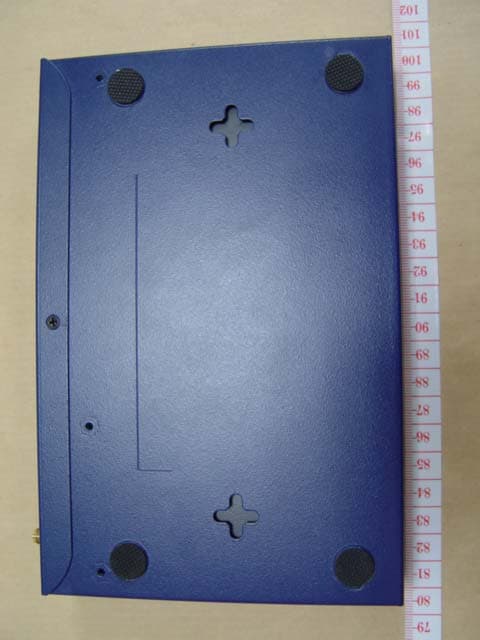
Click to zoom
Application Details
- Equipment Class
- DTS - Digital Transmission System
- Date of Grant
- Oct 10, 2004
- Application Purpose
- Original Equipment
- Date of Application
- Oct 10, 2004
- Equipment Note
- ProSafe 802.11g Wireless Firewall/Print Server
- Frequency Range
- 2412.00000000 - 2462.00000000
- Company
- Netgear Incorporated
- Country
- United States
Documents & Files
Document Text
Text extracted from the exhibit documents filed with the FCC. Open a document above to read the original.
Users Manual
March 2004, 202-10027-01 202-10027-01 Version 2.0 March 2004 NETGEAR, Inc. 4500 Great America Parkway Santa Clara, CA 95054 USA Reference Manual for the ProSafe Wireless 802.11g Firewall/Print Server Model FWG114P ~ ~2004byNETGEAR,Inc.Allrightsreserved. , Trademarks NETGEARis a trademarkofNetgear,Inc. Microsoft,Windows,andWindowsNTareregisteredtrademarksofMicrosoftCorporation. Otherbrandandproductnamesareregisteredtrademarksortrademarksoftheirrespectiveholders. StatementofConditions . Intheinterestofimprovinginternaldesign,operationalfunction,and/orreliability,NETGEARreservestherightto makechangestotheproductsdescribedinthisdocumentwithoutnotice. NETGEARdoesnotassumeanyliabilitythatmayoccurduetotheuseorapplicationoftheproduct(s)orcircuit layout(s)describedherein. FederalCommunicationsCommission(FCC)ComplianceNotice:RadioFrequencyNotice ... ..., Thisequipmenthasbeentestedandfoundtocomplywiththelimitsfora ClassB digitaldevice,pursuantto part15oftheFCCRules.Theselimitsaredesignedtoprovidereasonableprotectionagainstharmfulinterferenceina residentialinstallation.Thisequipmentgenerates,uses,andcanradiateradiofrequencyenergyand,if notinstalledand usedinaccordancewiththeinstructions,maycauseharmfulinterferencetoradiocommunications.However,thereis no guaranteethatinterferencewillnotoccurina particularinstallation.Ifthisequipmentdoescauseharmfulinterferenceto radioortelevisionreception,whichcanbedeterminedbyturningtheequipmentoffandon,theuseris encouragedto try tocorrecttheinterferencebyoneOl)omoreofthefollowingmeasures: Reorientorrelocatethereceivingantenna. Increasetheseparationbetweentheequipmentandreceiver. Connecttheequipmentintoanoutletona circuitdifferentfromthattowhichthereceiveris connected. Consultthedealeroranexperiencedradio/TVtechnicianforhelp. FCCCaution 1. FCCRFRadiationExposureStatement:TheequipmentcomplieswithFCCRFradiationexposurelimitssetforth foranun.controlledenvironment.Thisequipmentshouldbeinstalledandoperatedwitha minimumdistanceof20 centimetersbetweentheradiatorandyourbody. Thistransmittermustnotbeco-locatedoroperatinginconjunctionwithanyotherantennaortransmitter. Changesormodificationstothisunitnotexpresslyapprovedbythepartyresponsibleforcompliancecouldvoidthe userauthoritytooperatetheequipment. 2. 3. EN55022DeclarationofConformance Thisis tocertifythattheProSafeWireless802.11gFirewall/PrintServerModelFWG114Pis shieldedagainstthe generationofradiointerferenceinaccordancewiththeapplicationofCouncilDirective89/336/EEC,Article4a. Conformityis declaredbytheapplicationofEN55022ClassB (CISPR22). ThisdevicecomplieswithPart15oftheFCCRules.Operationissubjecttothefollowingtwoconditions: (1)Thisdevicemaynotcauseharmfulinterference,and(2)Thisdevicemustacceptanyinterferencereceived, includinginterferencethatmaycauseundesiredoperation. ii March2004,202-10027-01 ". " March 2004, 202-10027-01 iii Bestätigung des Herstellers/Importeurs Es wird hiermit bestätigt, daß das ProSafe Wireless 802.11g Firewall/Print Server Model FWG114P gemäß der im BMPT-AmtsblVfg 243/1991 und Vfg 46/1992 aufgeführten Bestimmungen entstört ist. Das vorschriftsmäßige Betreiben einiger Geräte (z.B. Testsender) kann jedoch gewissen Beschränkungen unterliegen. Lesen Sie dazu bitte die Anmerkungen in der Betriebsanleitung. Das Bundesamt für Zulassungen in der Telekommunikation wurde davon unterrichtet, daß dieses Gerät auf den Markt gebracht wurde und es ist berechtigt, die Serie auf die Erfüllung der Vorschriften hin zu überprüfen. Certificate of the Manufacturer/Importer It is hereby certified that the ProSafe Wireless 802.11g Firewall/Print Server Model FWG114P has been suppressed in accordance with the conditions set out in the BMPT-AmtsblVfg 243/1991 and Vfg 46/1992. The operation of some equipment (for example, test transmitters) in accordance with the regulations may, however, be subject to certain restrictions. Please refer to the notes in the operating instructions. Federal Office for Telecommunications Approvals has been notified of the placing of this equipment on the market and has been granted the right to test the series for compliance with the regulations. Voluntary Control Council for Interference (VCCI) Statement This equipment is in the second category (information equipment to be used in a residential area or an adjacent area thereto) and conforms to the standards set by the Voluntary Control Council for Interference by Data Processing Equipment and Electronic Office Machines aimed at preventing radio interference in such residential areas. When used near a radio or TV receiver, it may become the cause of radio interference. Read instructions for correct handling. March 2004, 202-10027-01 iv Contentsv March 2004, 202-10027-01 Contents Chapter 1 About This Manual Audience, Conventions, Scope ......................................................................................1-1 How to Use this Manual ..................................................................................................1-2 How to Print this Manual .................................................................................................1-3 Chapter 2 Introduction Key Features of the FWG114P .......................................................................................2-1 Full Routing on Both the Broadband and Serial Ports .............................................2-2 802.11g and 802.11b Wireless Networking ..............................................................2-2 Virtual Private Networking ........................................................................................2-3 A Powerful, True Firewall with Content Filtering ......................................................2-3 Security ....................................................................................................................2-4 Autosensing Ethernet Connections with Auto Uplink ...............................................2-4 Extensive Protocol Support ..........................................................…
Text truncated - open the document above for the full version.
Users Manual
Reference Manual for the ProSafe Wireless 802.11g Firewall/Print Server Model FWG114P Firewall Protection and Content Filtering6-3 March 2004, 202-10027-01 To delete a keyword or domain, select it from the list, click Delete Keyword, then click Apply. Keyword application examples: •If the keyword "XXX" is specified, the URL <http://www.badstuff.com/xxx.html> is blocked, as is the newsgroup alt.pictures.XXX. •If the keyword “.com” is specified, only Web sites with other domain suffixes (such as .edu or .gov) can be viewed. •If you want to block all Internet browsing access, enter the keyword “.”. Up to 255 entries are supported in the Keyword list. To specify a Trusted User, enter that computer’s IP address in the Trusted User box and click Apply. You may specify one Trusted User, which is a computer that will be exempt from blocking and logging. Since the Trusted User will be identified by an IP address, you should configure that computer with a fixed or reserved IP address. Services and Rules Regulate Inbound and Outbound Traffic The ProSafe Wireless 802.11g Firewall/Print Server Model FWG114P firewall lets you regulate what ports are available to the various TCP/IP protocols. Follow these two steps to configure inbound or outbound traffic: 1.Define a Service 2.Set up an Inbound or Outbound Rule that uses the Service These steps are discussed below. Defining a Service Services are functions performed by server computers at the request of client computers. For example, Web servers serve Web pages, time servers serve time and date information, and game hosts serve data about other players’ moves. When a computer on the Internet sends a request for service to a server computer, the requested service is identified by a service or port number. This number appears as the destination port number in the transmitted IP packets. For example, a packet that is sent with destination port number 80 is an HTTP (Web server) request. Reference Manual for the ProSafe Wireless 802.11g Firewall/Print Server Model FWG114P 6-4Firewall Protection and Content Filtering March 2004, 202-10027-01 The service numbers for many common protocols are defined by the Internet Engineering Task Force (IETF) and published in RFC1700, “Assigned Numbers.” Service numbers for other applications are typically chosen from the range 1024 to 65535 by the authors of the application. Although the FWG114P already holds a list of many service port numbers, you are not limited to these choices. Use the Services menu to add additional services and applications to the list for use in defining firewall rules. The Services menu shows a list of services that you have defined. To define a new service, first you must determine which port number or range of numbers is used by the application. This information can usually be determined by contacting the publisher of the application or from user groups of newsgroups. When you have the port number information, go the Services menu and click on the Add Custom Service button. The Add Services menu will appear. To add a service, 1.Enter a descriptive name for the service so that you will remember what it is. 2.Select whether the service uses TCP or UDP as its transport protocol. If you can’t determine which is used, select both. 3.Enter the lowest port number used by the service. 4.Enter the highest port number used by the service. If the service only uses a single port number, enter the same number in both fields. 5.Click Apply. The new service will now appear in the Services menu, and in the Service name selection box in the Rules menu. Using Inbound/Outbound Rules to Block or Allow Services Firewall rules are used to block or allow specific traffic passing through from one side of the wireless firewall/print server to the other. Inbound rules (WAN to LAN) restrict access by outsiders to private resources, selectively allowing only specific outside users to access specific resources. Outbound rules (LAN to WAN) determine what outside resources local users can have access to. A firewall has two default rules, one for inbound traffic and one for outbound. The default rules of the FWG114P are: •Inbound: Block all access from outside except responses to requests from the LAN side. •Outbound: Allow all access from the LAN side to the outside. Reference Manual for the ProSafe Wireless 802.11g Firewall/Print Server Model FWG114P Firewall Protection and Content Filtering6-5 March 2004, 202-10027-01 These default rules are shown in the Rules table of the Rules menu in Figure 6-2: Figure 6-2: Rules menu You can define additional rules that will specify exceptions to the default rules. By adding custom rules, you can block or allow access based on the service or application, source or destination IP addresses, and time of day. You can also choose to log traffic that matches or does not match the rule you have defined. To create a new rule, click the Add button. To edit an existing rule, select its button on the left side of the table and click Edit. To delete an existing rule, select its button on the left side of the table and click Delete. To move an existing rule to a different position in the table, select its button on the left side of the table and click Move. At the script prompt, enter the number of the desired new position and click OK. An example of the menu for defining or editing a rule is shown in Figure 6-3. The parameters are: Reference Manual for the ProSafe Wireless 802.11g Firewall/Print Server Model FWG114P 6-6Firewall Protection and Content Filtering March 2004, 202-10027-01 •Service. From this list, select the application or service to be allowed or blocked. The list already displays many common services, but you are not limited to these choices. Use the Services menu to add any additional services or applications that do not already appear. •Action. Choose how you would like this type of traffic to be handled. You can block or allow always, or you can choose to block or allow according…
Text truncated - open the document above for the full version.
Users Manual
Reference Manual for the ProSafe Wireless 802.11g Firewall/Print Server Model FWG114P Virtual Private Networking8-41 March 2004, 202-10027-01 b.Click Pre-Shared Key. Figure 8-29: Connection Identity Pre-Shared Key c.Enter hr5xb84l6aa9r6, which is the same Pre-Shared Key entered in the FWG114P. d.Click OK. 4.Configure the Connection Identity Settings. a.In the Network Security Policy list, click the Security Policy subheading. Figure 8-30: Security Policy b.For this example, ensure that the following settings are configured: –In the Select Phase 1 Negotiation Mode menu, select Aggressive Mode. –Select the Enable Perfect Forward Secrecy (PFS) check box. –In the PFS Key Group drop-down list, Diffie-Hellman Group 2. –Select the Enable Replay Detection check box. In this example, enter this pre-shared key in this field: hr5xb84l6aa9r6 Reference Manual for the ProSafe Wireless 802.11g Firewall/Print Server Model FWG114P 8-42Virtual Private Networking March 2004, 202-10027-01 5. Configure the Connection Security Policy In this step, you will provide the authentication (IKE Phase 1) settings, and the key exchange (Phase 2) settings. The setting choices in this procedure follow the VPNC guidelines. Figure 8-31: Connection Security Policy Authentication (Phase 1) a.Configure the Authentication (Phase 1) Settings. •Expand the Security Policy heading, then expand the Authentication (Phase 1) heading, and click on Proposal 1. •For this example, ensure that the following settings are configured: –In the Encrypt Alg menu, select Triple DES. –In the Hash Alg, select SHA-1. –In the SA Life, select Unspecified. –In the Key Group menu, select Diffie-Hellman Group 2. Reference Manual for the ProSafe Wireless 802.11g Firewall/Print Server Model FWG114P Virtual Private Networking8-43 March 2004, 202-10027-01 Figure 8-32: Connection Security Policy Key Exchange (Phase 2) b.Configure the Key Exchange (Phase 2). •Expand the Key Exchange (Phase 2) heading, and click on Proposal 1. •For this example, ensure that the following settings are configured: –In the SA Life menu, select Unspecified. –In the Compression menu, select None. –Check the Encapsulation Protocol (ESP) check box. –In the Encrypt Alg menu, select Triple DES. –In the Hash Alg, select SHA-1. –In the Encapsulation menu, select Tunnel. Reference Manual for the ProSafe Wireless 802.11g Firewall/Print Server Model FWG114P 8-44Virtual Private Networking March 2004, 202-10027-01 6. Configure the Global Policy Settings. a.From the Options menu at the top of the Security Policy Editor window, select Global Policy Settings. Figure 8-33: Security Policy Editor Global Policy Options b.Increase the Retransmit Interval period to 45 seconds. c.Select the Allow to Specify Internal Network Address check box and click OK. 7.Save the VPN Client Settings. From the File menu at the top of the Security Policy Editor window, select Save. After you have configured and saved the VPN client information, your PC will automatically open the VPN connection when you attempt to access any IP addresses in the range of the remote VPN router’s LAN. Note: Whenever you make changes to a Security Policy, save them first, then deactivate the security policy, reload the security policy, and finally activate the security policy. This ensures that your new settings will take effect. Reference Manual for the ProSafe Wireless 802.11g Firewall/Print Server Model FWG114P Virtual Private Networking8-45 March 2004, 202-10027-01 Testing the VPN Connection You can test the VPN connection in several ways: •From the client PC to the FWG114P •From the FWG114P to the client PC These procedures are explained below. From the Client PC to the FWG114P To check the VPN Connection, you can initiate a request from the remote PC to the FWG114P by using the “Connect” option of the FWG114P Wireless Firewall/Print Server popup menu. 1.Open the popup menu by right-clicking on the system tray icon. 2.Select Connect to open the My Connections list. 3.Choose FWG114P. The FWG114P Wireless Firewall/Print Server will report the results of the attempt to connect. Once the connection is established, you can access resources of the network connected to the FWG114P. Another method is to ping from the remote PC to the LAN IP address of the FWG114P. To perform a ping test using our example, start from the remote PC: 1.Establish an Internet connection from the PC. 2.On the Windows taskbar, click the Start button, and then click Run. 3.Type ping -t 192.168.0.1 and click OK. This will cause a continuous ping to be sent to the first FWG114P. After a period of up to two minutes, the ping response should change from “timed out” to “reply.” Note: Virus protection or firewall software can interfere with VPN communications. Be sure such software is not running on the remote PC with the Netgear ProSafe VPN Client and that the firewall features of the FWG114P are not set in such a way as to prevent VPN communications. Reference Manual for the ProSafe Wireless 802.11g Firewall/Print Server Model FWG114P 8-46Virtual Private Networking March 2004, 202-10027-01 To test the connection to a computer connected to the FWG114P, simply ping the IP address of that computer. Once connected, you can open a browser on the remote PC and enter the LAN IP Address of the FWG114P, which is http://192.168.0.1 in this example. After a short wait, you should see the login screen of the FWG114P. From the FWG114P to the Client PC You can use the FWG114P Diagnostic utilities to test the VPN connection from the FWG114P to the client PC. Run ping tests from the Diagnostics link of the FWG114P main menu. Monitoring the PC VPN Connection Information on the progress and status of the VPN client connection can be viewed by opening the Netgear ProSafe VPN Client Connection Monitor or Log Viewer. To launch these functions, click on the Windows Start button, then select Programs, then Netgear ProSafe VPN Client, then either the Connection Monitor or Log Viewer. The Log…
Text truncated - open the document above for the full version.
Cover Letter(s)
I. " SerCommCorporation 8F,No.3-I,YuanQuSt.,Nankang,Taipei115,Taiwan,R.O.C. FederalCommunicationsCommission ... DearSir: We,theundersigned,herebyauthorizeETSDr.GenzTaiwanPSCo.,Ltd.toactonour .behalfin allmattersrelatingto applicationfor"( Model:FWG114Pv.2, FCCID:PY3FWG114PV2)"authorization,includingthesigningofalldocuments relatingtothesematters.AnyandallactscarriedoutbyETSDr.GenzTaiwanPS Co.,Ltd.onourbehalfshallhavethesameeffectasactsofourown. ,. .... Theapplicantcertifiesthatinthecaseofanindividualapplicant( e.g.,corporation), nopartyto theapplicantis subjecttoa denialoffederalbenefits,thatincludesFCC benefits,pursuanttosection5301oftheAnti-drugabuseActof1988,21V.S.C.862. Fora definitionofa "party"forthesepurposesSee47C.ER.1.2002(b). B~/L~--~' (SIgnature).''/By: Title. KevinTseng (Printed) Applicant:SerCommCorporation Address:8F,No.3-I,YuanQuSt.,Nankang,Taipei115,Taiwan,R.O.C. Tel: +886-2-2655-3988 Fax:+886-2-2655-3765 Date : Sep.14,2004 " (, ~ £:0'd 6.!..88909901 wo~.:!6£::91v00G-d3S-6G
Cover Letter(s)
SerCommCorporation 8F,No.3-I,YuanQuSt.,Nankang,Taipei115,Taiwan,R.O.C. FederalCommunicationsCommission FCCID:PY3FWGl14PV2 ....DearSir: Thisis to requestconfidentialityoninformationsubmittedforaboveapplication.We wouldliketorequestconfidentialityonsomeexhibitswesubmittedforaboveoriginal applicationforthereasonoftradesecret.If thoseexhibitsareavailabl~forpublic inspection,anypersonwhooncegetstheinformationcontainedin thoseexhibitswill beabletodesignandtomakethesameproductsveryeasily.Thisis a veryserious problemandhugelossforus,becausewedidinvestsomuchonit. '" ... PleasebenotmadetheExhibitTypeslistedbelowroutinelyavailableforpublic inspection: Blockdiagram,Partlists,Schematics , By: By: KevinTseng (Signature) Title (printed) Applicant: -SerCommCorporation Address:8F,No.3-I,YuanQuSt.,Nankang,Taipei115,Taiwan,RO.C. Tel :+886-2-2655-3988 Fax:+886-2-2655-3765 Date - Sep.14,2004 Po {, ~ S0'd 6688909901 WOd~ 0p:91p00c-d3S-6c
External Photos
ELECTRONIC TECHNOLOGY SYSTEMS DR.GENZ GMBH Registration number: W6M20408-5425-C-1 FCC ID: PY3FWG114PV2 ETS Dr. Genz GmbH, Germany External Photo Type of Antenna (A) ELECTRONIC TECHNOLOGY SYSTEMS DR.GENZ GMBH Registration number: W6M20408-5425-C-1 FCC ID: PY3FWG114PV2 ETS Dr. Genz GmbH, Germany ELECTRONIC TECHNOLOGY SYSTEMS DR.GENZ GMBH Registration number: W6M20408-5425-C-1 FCC ID: PY3FWG114PV2 ETS Dr. Genz GmbH, Germany ELECTRONIC TECHNOLOGY SYSTEMS DR.GENZ GMBH Registration number: W6M20408-5425-C-1 FCC ID: PY3FWG114PV2 ETS Dr. Genz GmbH, Germany ELECTRONIC TECHNOLOGY SYSTEMS DR.GENZ GMBH Registration number: W6M20408-5425-C-1 FCC ID: PY3FWG114PV2 ETS Dr. Genz GmbH, Germany ELECTRONIC TECHNOLOGY SYSTEMS DR.GENZ GMBH Registration number: W6M20408-5425-C-1 FCC ID: PY3FWG114PV2 ETS Dr. Genz GmbH, Germany ELECTRONIC TECHNOLOGY SYSTEMS DR.GENZ GMBH Registration number: W6M20408-5425-C-1 FCC ID: PY3FWG114PV2 ETS Dr. Genz GmbH, Germany ELECTRONIC TECHNOLOGY SYSTEMS DR.GENZ GMBH Registration number: W6M20408-5425-C-1 FCC ID: PY3FWG114PV2 ETS Dr. Genz GmbH, Germany ELECTRONIC TECHNOLOGY SYSTEMS DR.GENZ GMBH Registration number: W6M20408-5425-C-1 FCC ID: PY3FWG114PV2 ETS Dr. Genz GmbH, Germany ELECTRONIC TECHNOLOGY SYSTEMS DR.GENZ GMBH Registration number: W6M20408-5425-C-1 FCC ID: PY3FWG114PV2 ETS Dr. Genz GmbH, Germany ELECTRONIC TECHNOLOGY SYSTEMS DR.GENZ GMBH Registration number: W6M20408-5425-C-1 FCC ID: PY3FWG114PV2 ETS Dr. Genz GmbH, Germany ELECTRONIC TECHNOLOGY SYSTEMS DR.GENZ GMBH Registration number: W6M20408-5425-C-1 FCC ID: PY3FWG114PV2 ETS Dr. Genz GmbH, Germany ELECTRONIC TECHNOLOGY SYSTEMS DR.GENZ GMBH Registration number: W6M20408-5425-C-1 FCC ID: PY3FWG114PV2 ETS Dr. Genz GmbH, Germany ELECTRONIC TECHNOLOGY SYSTEMS DR.GENZ GMBH Registration number: W6M20408-5425-C-1 FCC ID: PY3FWG114PV2 ETS Dr. Genz GmbH, Germany Type of Antenna (B) ELECTRONIC TECHNOLOGY SYSTEMS DR.GENZ GMBH Registration number: W6M20408-5425-C-1 FCC ID: PY3FWG114PV2 ETS Dr. Genz GmbH, Germany ELECTRONIC TECHNOLOGY SYSTEMS DR.GENZ GMBH Registration number: W6M20408-5425-C-1 FCC ID: PY3FWG114PV2 ETS Dr. Genz GmbH, Germany ELECTRONIC TECHNOLOGY SYSTEMS DR.GENZ GMBH Registration number: W6M20408-5425-C-1 FCC ID: PY3FWG114PV2 ETS Dr. Genz GmbH, Germany ELECTRONIC TECHNOLOGY SYSTEMS DR.GENZ GMBH Registration number: W6M20408-5425-C-1 FCC ID: PY3FWG114PV2 ETS Dr. Genz GmbH, Germany ELECTRONIC TECHNOLOGY SYSTEMS DR.GENZ GMBH Registration number: W6M20408-5425-C-1 FCC ID: PY3FWG114PV2 ETS Dr. Genz GmbH, Germany ELECTRONIC TECHNOLOGY SYSTEMS DR.GENZ GMBH Registration number: W6M20408-5425-C-1 FCC ID: PY3FWG114PV2 ETS Dr. Genz GmbH, Germany ELECTRONIC TECHNOLOGY SYSTEMS DR.GENZ GMBH Registration number: W6M20408-5425-C-1 FCC ID: PY3FWG114PV2 ETS Dr. Genz GmbH, Germany ELECTRONIC TECHNOLOGY SYSTEMS DR.GENZ GMBH Registration number: W6M20408-5425-C-1 FCC ID: PY3FWG114PV2 ETS Dr. Genz GmbH, Germany Type of Antenna (C) ELECTRONIC TECHNOLOGY SYSTEMS DR.GENZ GMBH Registration number: W6M20408-5425-C-1 FCC ID: PY3FWG114PV2 ETS Dr. Genz GmbH, Germany ELECTRONIC TECHNOLOGY SYSTEMS DR.GENZ GMBH Registration number: W6M20408-5425-C-1 FCC ID: PY3FWG114PV2 ETS Dr. Genz GmbH, Germany ELECTRONIC TECHNOLOGY SYSTEMS DR.GENZ GMBH Registration number: W6M20408-5425-C-1 FCC ID: PY3FWG114PV2 ETS Dr. Genz GmbH, Germany ELECTRONIC TECHNOLOGY SYSTEMS DR.GENZ GMBH Registration number: W6M20408-5425-C-1 FCC ID: PY3FWG114PV2 ETS Dr. Genz GmbH, Germany ELECTRONIC TECHNOLOGY SYSTEMS DR.GENZ GMBH Registration number: W6M20408-5425-C-1 FCC ID: PY3FWG114PV2 ETS Dr. Genz GmbH, Germany ELECTRONIC TECHNOLOGY SYSTEMS DR.GENZ GMBH Registration number: W6M20408-5425-C-1 FCC ID: PY3FWG114PV2 ETS Dr. Genz GmbH, Germany ELECTRONIC TECHNOLOGY SYSTEMS DR.GENZ GMBH Registration number: W6M20408-5425-C-1 FCC ID: PY3FWG114PV2 ETS Dr. Genz GmbH, Germany ELECTRONIC TECHNOLOGY SYSTEMS DR.GENZ GMBH Registration number: W6M20408-5425-C-1 FCC ID: PY3FWG114PV2 ETS Dr. Genz GmbH, Germany Type of Antenna (D) ELECTRONIC TECHNOLOGY SYSTEMS DR.GENZ GMBH Registration number: W6M20408-5425-C-1 FCC ID: PY3FWG114PV2 ETS Dr. Genz GmbH, Germany ELECTRONIC TECHNOLOGY SYSTEMS DR.GENZ GMBH Registration number: W6M20408-5425-C-1 FCC ID: PY3FWG114PV2 ETS Dr. Genz GmbH, Germany ELECTRONIC TECHNOLOGY SYSTEMS DR.GENZ GMBH Registration number: W6M20408-5425-C-1 FCC ID: PY3FWG114PV2 ETS Dr. Genz GmbH, Germany ELECTRONIC TECHNOLOGY SYSTEMS DR.GENZ GMBH Registration number: W6M20408-5425-C-1 FCC ID: PY3FWG114PV2 ETS Dr. Genz GmbH, Germany ELECTRONIC TECHNOLOGY SYSTEMS DR.GENZ GMBH Registration number: W6M20408-5425-C-1 FCC ID: PY3FWG114PV2 ETS Dr. Genz GmbH, Germany ELECTRONIC TECHNOLOGY SYSTEMS DR.GENZ GMBH Registration number: W6M20408-5425-C-1 FCC ID: PY3FWG114PV2 ETS Dr. Genz GmbH, Germany ELECTRONIC TECHNOLOGY SYSTEMS DR.GENZ GMBH Registration number: W6M20408-5425-C-1 FCC ID: PY3FWG114PV2 ETS Dr. Genz GmbH, Germany ELECTRONIC TECHNOLOGY SYSTEMS DR.GENZ GMBH Registration number: W6M20408-5425-C-1 FCC ID: PY3FWG114PV2 ETS Dr. Genz GmbH, Germany ELECTRONIC TECHNOLOGY SYSTEMS DR.GENZ GMBH Registration number: W6M20408-5425-C-1 FCC ID: PY3FWG114PV2 ETS Dr. Genz GmbH, Germany ELECTRONIC TECHNOLOGY SYSTEMS DR.GENZ GMBH Registration number: W6M20408-5425-C-1 FCC ID: PY3FWG114PV2 ETS Dr. Genz GmbH, Germany ELECTRONIC TECHNOLOGY SYSTEMS DR.GENZ GMBH Registration number: W6M20408-5425-C-1 FCC ID: PY3FWG114PV2 ETS Dr. Genz GmbH, Germany
RF Exposure Info
MPE Prediction FCC Rule: 15.247(b)(5) Systems operating under the provisions of this section shall be operated in a manner that ensures that the public is not exposed to radio frequency energy levels in excess of the Commission’s guidelines. See §1.1307(b)(1) of this Chapter. LIMITS FOR MAXIMUM PERMISSIBLE EXPOSURE (MPE) Frequency Range (MHz) Electric Field Strength (V/m) Magnetic Field Strength (A/m) Power Density (mW/cm2) Average time (minutes) (A)Limits For Occupational / Control Exposures 30-300 61.4 0.613 1.0 6 300-1500 ... ... F/300 6 1500-100,000 ... ... 5 6 (B)Limits For General Population / Uncontrolled Exposure 30-300 27.5 0.073 0.2 30 300-1500 ... ... F/1500 30 1500-100,000 ... ... 1.0 30 F = Frequency in MHz Prediction of MPE limit at a given distance Equation from page 18 of OET Bulletin 65, Edition 97-01 PG S = -------------- 4πR² where: S = power density P = power input to the antenna G = power gain of the antenna in the direction of interest relative to an isotropic radiator R = distance to the center of radiation of the antenna Maximum peak output power at antenna input terminal: 26.30 (dBm) Maximum peak output power at antenna input terminal: 426.5 (mW) Antenna gain(maximal): 5 (dBi) Prediction distance: 15 (cm) Prediction frequency: 2412 (MHz) MPE limit for uncontrolled exposure at prediction frequency: 1.0 (mW/cm²) Power density at prediction frequency: 0.754239 (mW/cm²) The manual instruct the user to install and operate the device in a minimum distance of 20 cm between antenna and the users body.
RF Exposure Info
MPE Prediction FCC Rule: 15.247(b)(5) Systems operating under the provisions of this section shall be operated in a manner that ensures that the public is not exposed to radio frequency energy levels in excess of the Commission’s guidelines. See §1.1307(b)(1) of this Chapter. LIMITS FOR MAXIMUM PERMISSIBLE EXPOSURE (MPE) Frequency Range (MHz) Electric Field Strength (V/m) Magnetic Field Strength (A/m) Power Density (mW/cm2) Average time (minutes) (A)Limits For Occupational / Control Exposures 30-300 61.4 0.613 1.0 6 300-1500 ... ... F/300 6 1500-100,000 ... ... 5 6 (B)Limits For General Population / Uncontrolled Exposure 30-300 27.5 0.073 0.2 30 300-1500 ... ... F/1500 30 1500-100,000 ... ... 1.0 30 F = Frequency in MHz Prediction of MPE limit at a given distance Equation from page 18 of OET Bulletin 65, Edition 97-01 PG S = -------------- 4πR² where: S = power density P = power input to the antenna G = power gain of the antenna in the direction of interest relative to an isotropic radiator R = distance to the center of radiation of the antenna Maximum peak output power at antenna input terminal: 28.53 (dBm) Maximum peak output power at antenna input terminal: 712.85 (mW) Antenna gain(maximal): 5 (dBi) Prediction distance: 18 (cm) Prediction frequency: 2462 (MHz) MPE limit for uncontrolled exposure at prediction frequency: 1.0 (mW/cm²) Power density at prediction frequency: 0.875439 (mW/cm²) The manual instruct the user to install and operate the device in a minimum distance of 20 cm between antenna and the users body.
Test Report
ELECTRONIC TECHNOLOGY SYSTEMS DR. GENZ GMBH FCC TEST - REPORT FCC Part 15 C for IEEE 802.11 b device FCC ID:PY3FWG114PV2 Test report no.: W6M20408-5425-C-1 ELECTRONIC TECHNOLOGY SYSTEMS STORKOWER STRASSE 38C, D-15526 REICHENWALDE B. BERLIN DR. GENZ GMBH PHONE +49-33631-888 00 FAX +49-33631-888 66 ELECTRONIC TECHNOLOGY SYSTEMS DR.GENZ GMBH Registration number: W6M20408-5425-C-1 FCC ID: PY3FWG114PV2 ETS Dr. Genz GmbH, Germany 2 of 42 TABLE OF CONTENTS 1 GENERAL INFORMATION ................................................................................................... 3 1.1 N OTES................................................................................................................................... 3 1.2 TESTING LABORATORY......................................................................................................... 4 1.2.1 Location .......................................................................................................................4 1.2.2 Details of accreditation status ..................................................................................... 4 1.3 D ETAILS OF APPROVAL HOLDER............................................................................................ 4 1.4 APPLICATION DETAILS.......................................................................................................... 5 1.5 G ENERAL INFORMATION OF TEST ITEM................................................................................. 5 1.6 TEST STANDARDS.............................................…
Text truncated - open the document above for the full version.
Contact Information
Applicant
David Kay
Technical Contact
ETS Dr. Genz TAIWAN PS CO., LTDSteven Chuang
[email protected]+886-2-6606-8877
6F., No. 58, Lane 188, Ruey Kuang Road, Neihu · Taipei · Taiwan
Non-Technical Contact
ETS Dr. Genz TAIWAN PS CO., LTDLulu Lin
[email protected]+886-2-6606-8877
Test Firm
Eurofins Product Service GmbHRobert Kschiwan-Kaspar
Technical Specifications
| # | Rule Parts | Frequency Range | Power Output |
|---|---|---|---|
| 1 | 15C | 2.41 GHz - 2.46 GHz | 712.85 mW |
Other Applications from Netgear Incorporated
PY325100647
Aug 04, 2026BE5000 Dual-Band PoE 2.5G Insight Managed WiFi 7 Outdoor Access Point
Equipment Class
DTS - Digital Transmission SystemPY325300652
May 12, 2026BE5000 Dual-Band PoE 2.5G Insight Managed WiFi 7 Access Point
Equipment Class
NII - Unlicensed National Information Infrastructure TXPY325400656
Apr 16, 2026Orbi Outdoor Satellite
Equipment Class
DTS - Digital Transmission SystemPY324400640
Dec 12, 2025Orbi 11BE WiFi 7 Tri-band Router, Orbi 11BE WiFi 7 Tri-band Satellite
Equipment Class
NII - Unlicensed National Information Infrastructure TXPY324100618
Jul 31, 2024Nighthawk 5G Mobile Router
Equipment Class
PCB - PCS Licensed Transmitter