Q78-K4510-ZHSPA+USB Stick
ZTE Corporation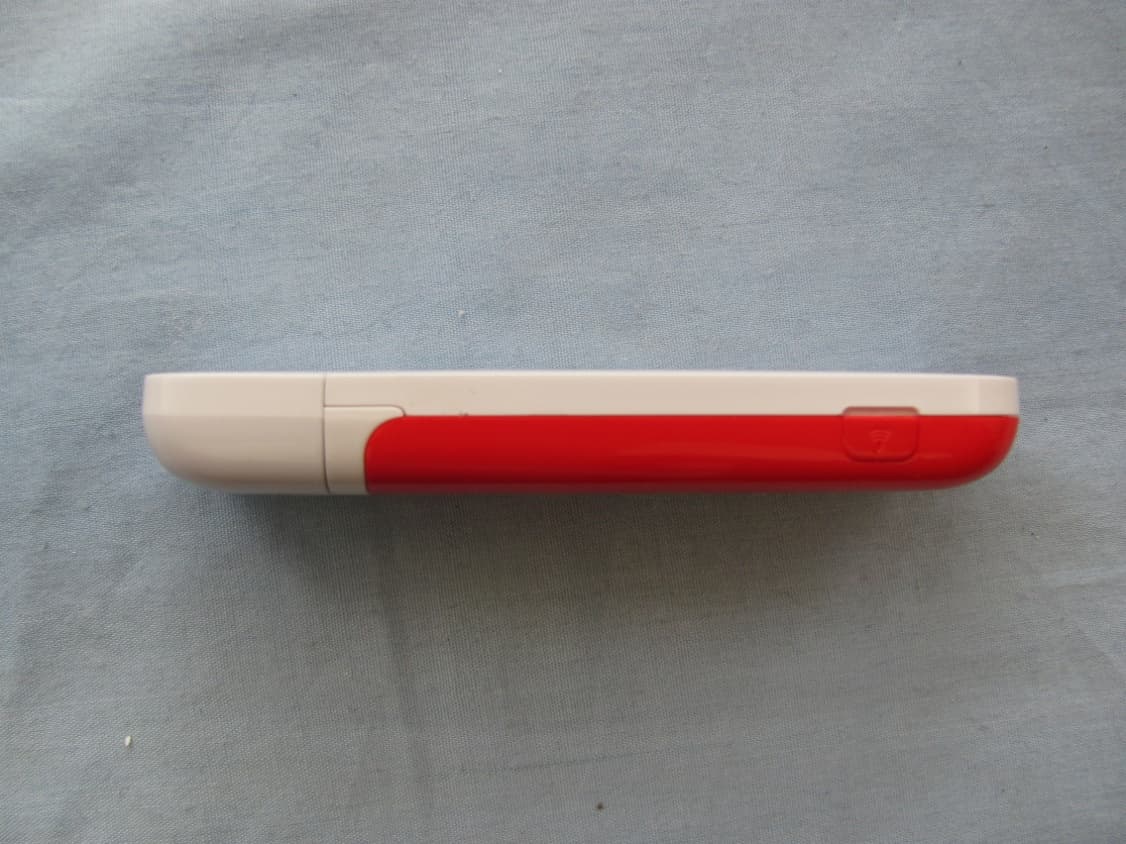
Click to zoom
Application Details
- Equipment Class
- JBP - Part 15 Class B Computing Device Peripheral
- Date of Grant
- May 29, 2011
- Application Purpose
- Original Equipment
- Date of Application
- May 18, 2011
- Equipment Note
- HSPA+USB Stick
- Company
- ZTE Corporation
- Country
- China
Documents & Files
Document Text
Text extracted from the exhibit documents filed with the FCC. Open a document above to read the original.
Users Manual
K4510-Z Table of contents RF Exposure 4 Distraction 6 Product Handling 6 Electrical Safety 8 Interference 9 Explosive environments 11 4 Safety Information RF Exposure Specific Absorption Rate (SAR) Body worn operation Safety Information 5 Regulatory information CE Approval (European Union) FCC Statement 6 Safety Information Distraction Driving Operating machinery Product Handling • • • • Safety Information 7 • • • • – • Caution: Small Children 8 Safety Information Air Bags Emergency Calls Device Heating WEEE Approval Electrical Safety Accessories Safety Information 9 Connection to a Car Faulty and Damaged Products Interference Pacemakers 10 Safety Information Hearing Aids Medical devices Hospitals Aircraft Safety Information 11 Interference in cars Explosive environments Petrol stations and explosive atmospheres Blasting Caps and Areas
Users Manual
Quick Start Guide Vodafone Mobile Broadband USB Stick K4510-Z Designed by Vodafone Welcome to the world of mobile communications 1 Welcome 2 Set up your USB Stick 3 Start the application 4 Connect – Standard window 5 Settings – Advanced window 6 SMS text messaging 8 SMS contacts 9 USB Stick LED lights 9 Signal strength 10 Hints and tips 12 Glossary 1 Your new Vodafone Mobile Broadband USB Stick lets you connect your computer to the internet over the Vodafone high- speed mobile phone network. Browse the web You can now access the web and any other internet ser vice wherever there’s a mobile phone network. Pick up emails Keep up to date with your emails, wherever you are. You can also access your personal email accounts – even web-based accounts like Hotmail. Send and receive SMS text messages You can send and receive SMS text messages straight from your computer. The SMS application provides an easy way to view messages, write new ones, and manage contact details. System Requirements To use this USB Stick and the Vodafone Mobile Broadband application, you need: A computer running Microsoft – ® Windows ® 7, Windows Vista™ (SP2 recommended), or Windows ® XP SP3, or an Apple Mac running Mac OS ® X 10.4.11 (Intel ® ) or 10.5.8, or above. 10.6.4 or above recommended - 10.4.11 not supported on PowerPC. At least 100 MB free disk space and 256 MB RAM memory – A USB socket – Administrator rights on your computer. – Welcome 2 Slide the back cover off the USB Stick, and insert your SIM • as shown. If you are using a MicroSD memory card with your Stick (to allow your Stick to behave as a fl ash memory drive), insert the card as shown. Plug the USB Stick fi rmly into your computer’s USB port. • Set up your USB Stick MicroSD card SIM card 3 On Microsoft Windows computers The fi rst time you plug your USB Stick into your computer, it should be set up automatically. If for some reason setup does not start, right-click on the VMB Lite 10.x.x.x drive in ‘My Computer’, (Start menu>Computer on Vista), select ‘Explore’ and double-click the fi le called setup_vmb_lite.exe on the USB Stick. Follow the on-screen instructions. Setting up your USB Stick may take a few minutes, but once setup is complete, the Vodafone Mobile Broadband Lite application should start automatically. If for some reason it does not start, select Vodafone Mobile Broadband from the Windows Start menu. On Mac OS X computers The fi rst time you plug in your USB Stick, it will show up on your desktop as a Vodafone Mobile Broadband disk. Drag the Vodafone Mobile Broadband icon from the disk window into the Applications folder on your hard disk. Double-click the Vodafone Mobile Broadband icon in your Applications folder to start the application. The application will start, identify your device, create the correct mobile connection settings and select a mobile network. Once the application is ready to connect, the Connect button will be enabled. For further details, select Vodafone Mobile Broadband Help in the Help menu. Start the application The first time you run the application, your USB Stick will usually be set as the current device. If it is not, open the ‘Devices’ view, and select your USB Stick there. 4 Connect/Disconnect Connect to the internet via the mobile phone network or Wi-Fi, to browse the web or use email Status Check the status of the current connection Start SMS application Send, receive and manage SMS messages and contacts Advanced Switch to Advanced to show more detail Help View Help topics 5 1 4 2 3 4 5 3 1 2 As a rule, anywhere you can make a call on your mobile phone, you should be able to open a mobile connection. Connect – Standard window 5 9 8 10 6 7 The connection type icons are animated whenever a connection is open. Application menu View Options, Support and Updates, or exit the application Views Check the status of all connections, prioritise connections, check your usage, and manage devices or shortcuts Ribbon Customise settings for the items in each view Connections View the status of all connection types Standard Switch to Standard to show just the current connection Settings – Advanced window 6 7 8 10 9 6 Click SMS on the Shortcuts bar at the bottom of the Vodafone Mobile Broadband Lite application to open the SMS application. To send an SMS Click New at the left-hand end of the SMS toolbar to create a new SMS text message. Address Enter the recipients here, or choose them from Contacts Message Write your message here Send Click on the Send button to send your message. After your SMS has been sent, it will be stored in the Sent list. 2 1 3 The number displayed to the person who receives your message will be from your data SIM, not your mobile phone. Use a short ‘signature’ to make sure people know you sent them a message: Settings/Messages/ Signature. 2 3 SMS Text Messaging 1 7 Receiving SMS When you receive a new message, an SMS Notifi cation is shown briefl y so you can respond to it directly. The received message can also be read from the Inbox in the main SMS window. The SMS application will receive text messages whenever you have mobile network coverage. 8 Click Contacts on the SMS navigation bar to open the Contacts list, in which you can save SMS numbers that you use frequently as contacts with names. New SMS Contact Clicking the New button on the SMS toolbar opens a new contact window. Enter the name and number of your contact using the international format for the number, eg. +447774477000. On Mac OS X, contacts are saved in the OS X Address Book application. SMS Contacts 9 Signal strength The LED light on your USB Stick shows which kind of mobile network has been found, and whether the USB Stick is connected to that network. Green blinking A GPRS network has been found – you could connect Green solid Connected via GPRS Blue blinking A 3G network has been found – you could connect Blue solid Connected via 3G Light blue solid Connected via 3G Broadband. The strength of the mobile or Wi-Fi network signal…
Text truncated - open the document above for the full version.
Cover Letter(s)
内部公开 内部公开内部公开 内部公开▲ 本文中的所有信息归中兴通讯股份有限公司所有,未经允许,不得外传 第 1 / 1 页 ZTE CORPORATION ZTE Plaza, Keji Road South, Hi-Tech Industrial Park,Nanshan District,Shenzhen, Guangdong, 518057, P.R.China To: Federal Communications Commission, Authorization & Evaluation Division, 7435 Oakland Mills Road, Columbia, MD 21046 And American Telecommunications Certification Body, Inc. 6731 Whittier Avenue Suite C110 McLean, VA 22101 To Whom It May Concern: TMC(Telecommunication Metrology Center of MII) is authorized to act on our behalf, until otherwise notified, for applications to American Telecommunications Certification Body, Inc. (ATCB). We certify that we are not subject to denial of federal benefits, that includes FCC benefits, pur suant to Section 5301 of the Anti-Drug Abuse Act of 1988, U.S.C. 862. Further, no party, as defined in 47 CFR 1.2002 (b) to the application is subject to denial of federal benefits, that includes FCC benefits. Thank you. Regards, Royce Wang ZTE CORPORATION Tel:0755-26770345 Fa x:0755-26770347 E- Mail:[email protected] Date:May 10,2011
Cover Letter(s)
内部公开▲ 本文所有信息为中兴通讯股份有限公司内部信息,未经允许,不得外传 第1页,共1页 ZTE CORPORATION ZTE Plaza, Keji Road South, Hi-Tech Industrial Park, Nanshan District, Shenzhen, Guangdong, 518057, P.R.China Date: April 12, 2011 Federal Communications Commission Office of Engineering and Technology Equipment Authorization Division 7345 Oakland Mills Road Columbia, Maryland 21046 Subject: Permanent Confidentiality request for FCC ID: Q78-K4510-Z To Whom It May Concern, Pursuant to sections 0.457 and 0.459 of CFR 47, the applicant requests permanent confidential treatment of the following information accompanying this application: - Block Diagram - Schematics - Operational Description - BOM list/Tune-Up-Procedure The above materials contain trade secrets and proprietary information not customarily released to the public. The public disclosure of these matters might be harmful to the applicant and provide unjustified benefits to its competitors. Sincerely yours, Royce Wang ZTE CORPORATION Tel: 0755-26770345 Fax: 0755-26770347 E-Mail: [email protected]
Test Report
No.2011TAR172 Page 1 of 14 ©Copyright. All rights reserved by TMC Beijing. TEST REPORT No. 2011TAR172 for ZTE Corporation HSPA+ USB Stick Model Name: K4510-Z with FCC ID: Q78-K4510-Z Hardware Version: K4510-Z.0.02 Software Version: Kestrel R2.0 Issued Date: 2011-04-21 Note: The test results in this test report relate only to the devices specified in this report. This report shall not be reproduced except in full without the written approval of TMC Beijing. Test Laboratory: DAR accreditation (DIN EN ISO/IEC 17025): No. DGA-PL-114/01-02 FCC 2.948 Listed: No.733176 IC O.A.T.S listed: No.6629A-1 TMC Beijing, Telecommunication Metrology Center of Ministry of Industry and Information Technology No. 52, Huayuan Bei Road, Haidian District, Beijing, P. R. China 100191 Tel:+86(0)10-62304633 , Fax:+86(0)10-62304633 Email:[email protected]. www.emcite.com No.2011TAR118 Page 2 of 14 ©Copyright. All rights reserved by TMC Beijing. CONTENTS 1. TEST LABORATORY ......................................................................................................................... 3 1.1. TESTING LOCATION .................................................................................................................... 3 1.2. TESTING ENVIRONMENT ........................................................................................................... 3 1.3. PROJECT DATA .............................................................................................................................. 3 1.4. SIGNATURE ..................................................................................................................................... 3 2. CLIENT INFORMATION ................................................................................................................... 4 2.1. APPLICANT INFORMATION ....................................................................................................... 4 2.2. MANUFACTURER INFORMATION ............................................................................................ 4 3. EQUIPMENT UNDER TEST (EUT) AND ANCILLARY EQUIPMENT (AE) ............................. 5 3.1. ABOUT EUT ..................................................................................................................................... 5 3.2. INTERNAL IDENTIFICATION OF EUT USED DURING THE TEST .................................... 5 4. REFERENCE DOCUMENTS ............................................................................................................. 6 4.1. REFERENCE DOCUMENTS FOR TESTING ............................................................................. 6 5. LABORATORY ENVIRONMENT ..................................................................................................... 7 6. SUMMARY OF TEST RESULTS ....................................................................................................... 8 7. TEST EQUIPMENTS UTILIZED ...................................................................................................... 9 ANNEX A: MEASUREMENT RESULTS ................................................................................................ 10 No.2011TAR118 Page 3 of 14 ©Copyright. All rights reserved by TMC Beijing. 1. Test Laboratory 1.1. Testing Location Company Name: TMC Beijing, Telecommunication Metrology Center of MIIT Address: No 52, Huayuan beilu, Haidian District, Beijing, P. R. China Postal Code: 100191 Telephone: 00861062304633 Fax: 00861062304633 1.2. Testing Environment Normal Temperature: 15-35°C Relative Humidity: 20-75% 1.3. Project data Testing Start Date: Apr 08, 2011 Testing End Date: Apr 18, 2011 1.4. Signature Liu Baodian (Prepared this test report) Sun Xiangqian (Reviewed this test report) Lu Bingsong Deputy Director of the laboratory (Approved this test report) No.2011TAR118 Page 4 of 14 ©Copyright. All rights reserved by TMC Beijing. 2. Client Information 2.1. Applicant Information Company Name: ZTE Corporation Address /Post: #68 Zijin Hua Road, Nanjing, Jiangsu Province, P. R. China City: Nan Jing Postal Code: 210012 Country: China Telephone: +86-25-52878232 Fax: +86-25-68897541 2.2. Manufacturer Information Company Name: ZTE Corporation Address /Post: #68 Zijin Hua Road, Nanjing, Jiangsu Province, P. R. China City: Nan Jing Postal Code: 210012 Country: China Telephone: +86-25-52878232 Fax: +86-25-68897541 No.2011TAR118 Page 5 of 14 ©Copyright. All rights reserved by TMC Beijing. 3. Equipment Under Test (EUT) and Ancillary Equipment (AE) 3.1. About EUT Description HSPA+ USB Stick Model Name K4510-Z FCC ID Q78-K4510-Z Frequency GSM 850MHz; PCS 1900MHz; Antenna Internal Note: Components list, please refer to documents of the manufacturer; it is also included in the original test record of Telecommunication Metrology Center of MII of People’s Republic of China. 3.2. Internal Identification of EUT used during the test EUT ID* SN or IMEI HW Version SW Version EUT1 356721040003874 K4510-Z.0.02 Kestrel R2.0 *EUT ID: is used to identify the test sample in the lab internally. No.2011TAR118 Page 6 of 14 ©Copyright. All rights reserved by TMC Beijing. 4. Reference Documents 4.1. Reference Documents for testing The following documents listed in this section are referred for testing. Reference Title Version FCC Part 15, Subpart B Radio frequency devices July 10, 2008 Edition ANSI C63.4 Methods of Measurement of Radio-Noise Emissions from Low-Voltage Electrical and Electronic Equipment in the Range of 9 kHz to 40 GHz 2003 No.2011TAR118 Page 7 of 14 ©Copyright. All rights reserved by TMC Beijing. 5. LABORATORY ENVIRONMENT Semi-anechoic chamber (23 meters×17meters×10meters) did not exceed following limits along the EMC testing: Temperature Min. = 15 , °CMax. = 30 °C Relative humidity Min. = 30 %, Max. = 60 % Shielding effectiveness > 110 dB Electrical insulation > 10 kΩ Ground system resistance < 0.5 Ω Normalised site attenuation (NSA) < ±3.2 dB, 10 m distance, from 30 to 1000 MHz Uniformity of field strengt…
Text truncated - open the document above for the full version.
Contact Information
Applicant
Cary Kong(Product Certification Manager)
Technical Contact
Telecommunication Metrology Center of MIITXue Zhen
[email protected]+86-10-62304633
No. 52, Huayuan Bei Road, Haidian District, · Beijing · China
Test Firm
TMC-Telecommunication Metrology Center of M.I.I.TChongwen Song
Technical Specifications
| # | Rule Parts | Frequency Range | Power Output |
|---|---|---|---|
| 1 | 15B | - | - |
Other Applications from ZTE Corporation

Q78-E1320
Oct 06, 2022Home Gateway
Equipment Class
NII - Unlicensed National Information Infrastructure TX
Q78-E3330
Sep 21, 2022Home Gateway
Equipment Class
JBP - Part 15 Class B Computing Device Peripheral
Q78-ZXV10B866V2
May 23, 2021RichMedia Box
Equipment Class
DTS - Digital Transmission System
Q78-ZXHNH298Q
Apr 22, 2021Home Gateway
Equipment Class
NII - Unlicensed National Information Infrastructure TX
Q78-ZXHNH196Q
Apr 19, 2021Home Gateway
Equipment Class
NII - Unlicensed National Information Infrastructure TX