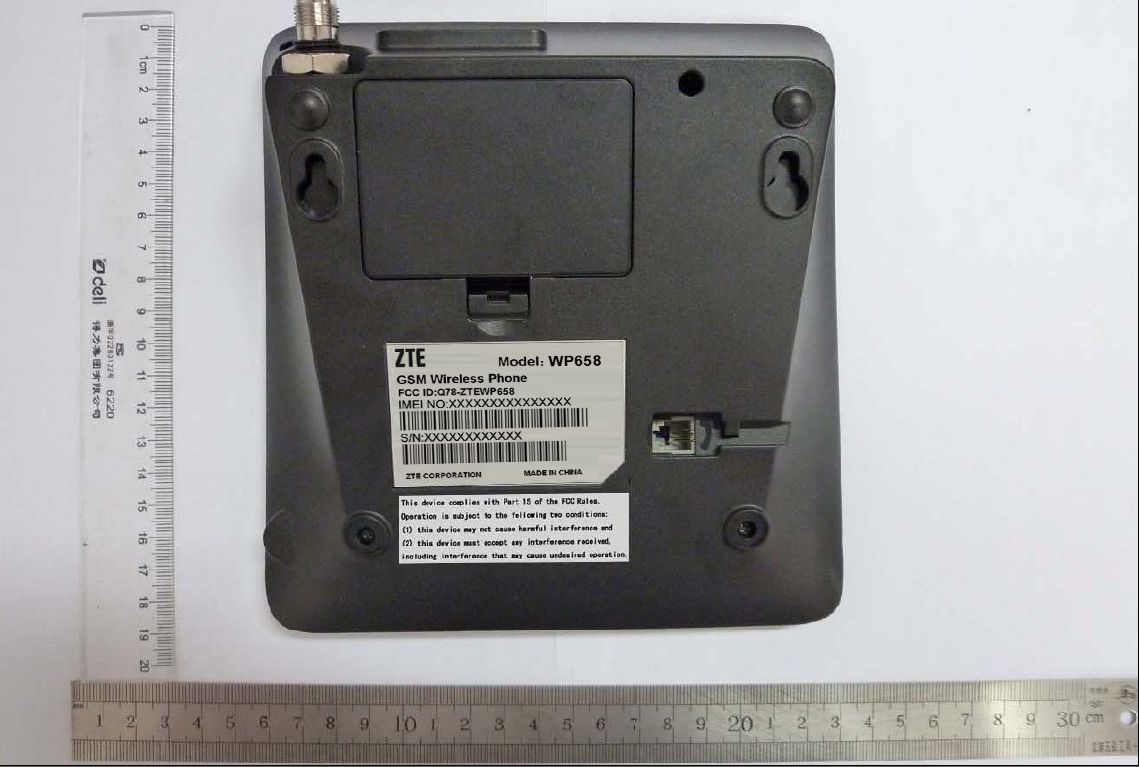
Q78-ZTEWP658GSM 850/1900 Fixed Wireless Terminal
ZTE Corporation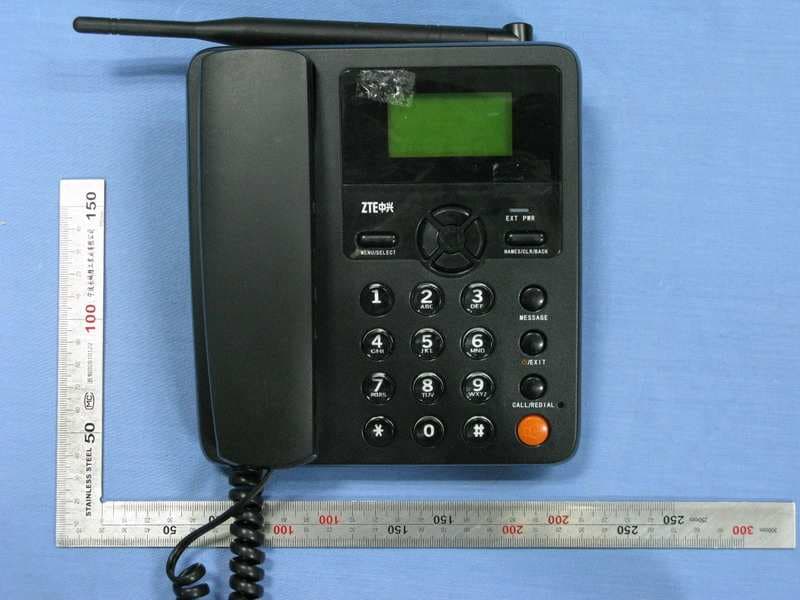
Click to zoom
Application Details
- Equipment Class
- JBP - Part 15 Class B Computing Device Peripheral
- Date of Grant
- Oct 25, 2010
- Application Purpose
- Original Equipment
- Date of Application
- Oct 25, 2010
- Equipment Note
- GSM 850/1900 Fixed Wireless Terminal
- Company
- ZTE Corporation
- Country
- China
Documents & Files
Document Text
Text extracted from the exhibit documents filed with the FCC. Open a document above to read the original.
Users Manual
1 ZTE WP658 GSM Wireless Phone User Guide Copyright © 2010 by ZTE Corporation All rights reserved. No part of this publication may be excerpted, reproduced, translated or utilized in any form or by any means, electronic or mechanical, including photocopying and microfilm, without the prior written permission of ZTE Corporation. The guide is published by ZTE Corporation. We reserve the right to make modifications on print errors or update specifications without prior notice. The information on the package is only for your reference. Images are for you reference only. Please check the product model before purchasing. ------------------------------------------------------------------------------------------------------------- NO. 55, Hi-tech Road South, ShenZhen, P.R.China Postcode: 518057 Service Hotline: +86-755-26779999 Http://www.zte.com.cn E-mail: [email protected] 2 Know Your Phone Key Instruction Key Description 1. MENU/SELECT It is used to enter main Menu, select or confirm options in menus, or confirm the character chosen in condition of character input. 2. Number Use the number keys to enter characters. 3.# , * It differs in different mode, option or function menu. 4.Scrolling Press these keys to scroll cursor to the left, right, up or down when inputting characters or selecting items. 6 10 LCD Screen 5 4 3 2 8 7 1 9 3 Or default functions in standby mode are set in Settings menu. 5. EXT PWR Lights on when the phone is connected to external power supply. 6. NAMES/CLR/BACK It is used to erase input information, or cancel operating, exit to previous interface, or enter Names list in standby mode. 7.MESSAGE This is the shortcut key to enter message menu in standby mode. 8. EXIT It is used to power on/power off the phone; end an active call or reject a call. 9. CALL/REDIAL Press this key to make a call after having entered the telephone number intended for calling. Or press to enter all recent calls list in standby mode. 10.HANDS-FREE If you are using the handset to call and want to transfer the call to the speakerphone, press this key and hang up the handset to put conversation on the speakerphone. Press this key to end a hands-free call. 4 Interface Icons Installation 1. Handset Connect phone set and handset with the phone cord. 2. External power adapter Plug the external power adapter to the external AC socket. 3. SIM card Always switch the phone off before removing or inserting SIM card. Open the bottom cover of the battery before inserting the SIM card. Remove the battery, slide the SIM card into the SIM slot. Make sure that the contact area of the card is facing down. And the beveled corner matches with the SIM slot. Put in the battery and install the bottom cover. Signal strength New Message (blinks when memory is full) Mute Divert always Power Indicator Alarm clock Roaming Keypad Lock Icon Description Icon Description 5 How to power on/off To power on the phone, connect phone and external power outlet with the power adapter and then hold the Exit key for about three seconds. To power off the phone, hold the Exit key till it is powered off. ※ It is strongly recommended to connect the phone to external power outlet, and use internal battery to power your phone only when external power fails or is not available. How to Make a Call Pick up the handset or press the HANDS-FREE key, or go to step 2 directly. Enter the telephone number by using the Number keys (add country code, area code when making an international call) or select from Names, or press CALL/REDIAL Key to enter the recent calls list, select a number. Press the CALL/REDIAL Key to make the call. Voice Mail Before using Voicemail, please consult with service provider to confirm that the voice mailbox has been activated. The system automatically sends a message to your phone informing a new voice message. Read the message in Inbox and then dial voice mail box number to listen to your voice message. To read or send your voice mail quickly, you set the Voicemail No. first, Then pick up the handset or press HANDS-FREE key, and then hold ”1” key to dial voice mail number directly. Message Select Short Messages in Menu. ¾ Select New message to write and edit message text, select Options to send or save the message. ¾ Select Inbox to view messages received. ¾ Select Outbox to view the messages sent unsuccessfully. ¾ Select Draftbox to view draft messages. 6 ¾ Select Msg settings to make some necessary short message settings. ¾ Select Voicemail → Get voicemail, to listen or leave message following guide prompt or set the Voicemail No.. Phone code Phone code could prevent your phone from illegal use. The default phone code is 1234. Change it to your own phone password as soon as possible. If you change the default phone code to a new one, remember it or place it at secure place. PIN Code and PUK Code PIN(PIN1 or PIN2) code: PIN code could prevent your SIM card from illegal use. When PIN lock is on, you should enter the PIN code when powering on the phone again. Change the default PIN code to your own PIN code as soon as possible. PUK code: Consecutive inputting wrong PIN code for several times can cause locking of SIM card. To unlock, you need PUK code. PIN code and PUK code may be offered together with the SIM card. If not, contact the network operator. Text Input Operation Method Input Letters Multitap Input—“ABC” or “abc”, press corresponding letter key till the letter appears. Press # key to switch between capitalization and lowercase. Input Words eZiText Input—“Eng”, press the Number keys to input the characters of the word. If the word displayed is not the word you want, press Scrolling keys to look for another matching word. Input Digits Numbers Input—“123”, press number keys once. 7 Input Symbol Symbols Input —press * key, then select corresponding symbol by pressing Scrolling key. ABC/abc Input — press “1” key till the symbol (common symbols) appears. Input Space Press “0” key, except for being in numbers m…
Text truncated - open the document above for the full version.
Cover Letter(s)
ZTE Corporation Zhongxing Bldg, Shenzhen Hi-tech Industrial Park Nanshan District, Shenzhen city, GuangDong Province, P.R.China 518057 Tel: 086-021-68895196 Fax: 086-021-50801070 Authorization Letter Date: September 1, 2010 BABT Balfour House Churchfield Road Walton-on-Thames Surrey KT12 2TD Dear Sir or Madam: We, the undersigned, hereby authorize Mr. Wang Jiageng from China Telecommunication Technology Labs, 11 Yue Tan Nan Jie,100045 Beijing, act on our behalf, as our agent, in all matters relating to applications for equipment authorization, including the signing of all documents relating to these matters. I further certify that the applicant nor any party to the application is subject to a denial of Federal benefits, that includes FCC benefits, pursuant to Section 5301 of the Anti-Drug Abuse Act of 1988, 21 U.S.C. Section 862. This authorization shall expire 3 months from original date. If you have any question regarding the authorization, please don’t hesitate to contact with me. Sincerely Royce Wang Title: Product Certification Director
Cover Letter(s)
COMPANY LETTERHEAD Date (11/10/2010) BABT TCB Forsyth House, Churchfield Road, Walton-on-Thames, Surrey, KT12 2TD Confidentiality Request FCC ID: Q78-ZTEWP658 Pursuant to Sections 0.457(d)(1)(ii) and 0.459 of the Commission’s Rules, ZTE Corporation hereby requests permanent confidential treatment of information accompanying this application as outlined below: Schematics Bill of Materials/Parts List Block Diagrams Theory of Operation ZTE also hereby requests short-term confidential treatment of information accompanying this application as outlined below for a period of 90 Days: Internal Photos External Photos User Manual Test Set-up Photographs The above materials contain trade secrets and proprietary information not customarily released to the public. The public disclosure of these matters might be harmful to the Applicant and provide unjustified benefits to its competitors. The Applicant understands that pursuant to Rule 0.457(d)(1)(ii), disclosure of this Application and all accompanying materials will not be made before the date of the Grant for this Application. Yours sincerely, Authorised Signatory: Wang Jiageng Telephone Number: 86-10 62300481 Email: : <[email protected]>
Test Report
1 ZTE WP658 GSM Wireless Phone User Guide Copyright © 2010 by ZTE Corporation All rights reserved. No part of this publication may be excerpted, reproduced, translated or utilized in any form or by any means, electronic or mechanical, including photocopying and microfilm, without the prior written permission of ZTE Corporation. The guide is published by ZTE Corporation. We reserve the right to make modifications on print errors or update specifications without prior notice. The information on the package is only for your reference. Images are for you reference only. Please check the product model before purchasing. ------------------------------------------------------------------------------------------------------------- NO. 55, Hi-tech Road South, ShenZhen, P.R.China Postcode: 518057 Service Hotline: +86-755-26779999 Http://www.zte.com.cn E-mail: [email protected] 2 Know Your Phone Key Instruction Key Description 1. MENU/SELECT It is used to enter main Menu, select or confirm options in menus, or confirm the character chosen in condition of character input. 2. Number Use the number keys to enter characters. 3.# , * It differs in different mode, option or function menu. 4.Scrolling Press these keys to scroll cursor to the left, right, up or down when inputting characters or selecting items. 6 10 LCD Screen 5 4 3 2 8 7 1 9 3 Or default functions in standby mode are set in Settings menu. 5. EXT PWR Lights on when the phone is connected to external power supply. 6. NAMES/CLR/BACK It is used to erase input information, or cancel operating, exit to previous interface, or enter Names list in standby mode. 7.MESSAGE This is the shortcut key to enter message menu in standby mode. 8. EXIT It is used to power on/power off the phone; end an active call or reject a call. 9. CALL/REDIAL Press this key to make a call after having entered the telephone number intended for calling. Or press to enter all recent calls list in standby mode. 10.HANDS-FREE If you are using the handset to call and want to transfer the call to the speakerphone, press this key and hang up the handset to put conversation on the speakerphone. Press this key to end a hands-free call. 4 Interface Icons Installation 1. Handset Connect phone set and handset with the phone cord. 2. External power adapter Plug the external power adapter to the external AC socket. 3. SIM card Always switch the phone off before removing or inserting SIM card. Open the bottom cover of the battery before inserting the SIM card. Remove the battery, slide the SIM card into the SIM slot. Make sure that the contact area of the card is facing down. And the beveled corner matches with the SIM slot. Put in the battery and install the bottom cover. Signal strength New Message (blinks when memory is full) Mute Divert always Power Indicator Alarm clock Roaming Keypad Lock Icon Description Icon Description 5 How to power on/off To power on the phone, connect phone and external power outlet with the power adapter and then hold the Exit key for about three seconds. To power off the phone, hold the Exit key till it is powered off. ※ It is strongly recommended to connect the phone to external power outlet, and use internal battery to power your phone only when external power fails or is not available. How to Make a Call Pick up the handset or press the HANDS-FREE key, or go to step 2 directly. Enter the telephone number by using the Number keys (add country code, area code when making an international call) or select from Names, or press CALL/REDIAL Key to enter the recent calls list, select a number. Press the CALL/REDIAL Key to make the call. Voice Mail Before using Voicemail, please consult with service provider to confirm that the voice mailbox has been activated. The system automatically sends a message to your phone informing a new voice message. Read the message in Inbox and then dial voice mail box number to listen to your voice message. To read or send your voice mail quickly, you set the Voicemail No. first, Then pick up the handset or press HANDS-FREE key, and then hold ”1” key to dial voice mail number directly. Message Select Short Messages in Menu. ¾ Select New message to write and edit message text, select Options to send or save the message. ¾ Select Inbox to view messages received. ¾ Select Outbox to view the messages sent unsuccessfully. ¾ Select Draftbox to view draft messages. 6 ¾ Select Msg settings to make some necessary short message settings. ¾ Select Voicemail → Get voicemail, to listen or leave message following guide prompt or set the Voicemail No.. Phone code Phone code could prevent your phone from illegal use. The default phone code is 1234. Change it to your own phone password as soon as possible. If you change the default phone code to a new one, remember it or place it at secure place. PIN Code and PUK Code PIN(PIN1 or PIN2) code: PIN code could prevent your SIM card from illegal use. When PIN lock is on, you should enter the PIN code when powering on the phone again. Change the default PIN code to your own PIN code as soon as possible. PUK code: Consecutive inputting wrong PIN code for several times can cause locking of SIM card. To unlock, you need PUK code. PIN code and PUK code may be offered together with the SIM card. If not, contact the network operator. Text Input Operation Method Input Letters Multitap Input—“ABC” or “abc”, press corresponding letter key till the letter appears. Press # key to switch between capitalization and lowercase. Input Words eZiText Input—“Eng”, press the Number keys to input the characters of the word. If the word displayed is not the word you want, press Scrolling keys to look for another matching word. Input Digits Numbers Input—“123”, press number keys once. 7 Input Symbol Symbols Input —press * key, then select corresponding symbol by pressing Scrolling key. ABC/abc Input — press “1” key till the symbol (common symbols) appears. Input Space Press “0” key, except for being in numbers m…
Text truncated - open the document above for the full version.
Test Setup Photos
ZTEWP658 Test Setup Photo FCC ID:Q78-ZTEWP658 Manufacturer:ZTE Corporation Product Model: ZTE WP658 Product Name: GSM Fixed wireless phone
Contact Information
Applicant
Cary Kong(Product Certification Manager)
Technical Contact
China Telecommunications Technology LabsJiageng Wang
[email protected]+86-10-68094208
11 Yue Tan Nan Jie · Beijing · China
Test Firm
China Telecommunication Technology LabsZou Dongyi
Technical Specifications
| # | Rule Parts | Frequency Range | Power Output |
|---|---|---|---|
| 1 | 15B | - | - |
Other Applications from ZTE Corporation

Q78-E1320
Oct 06, 2022Home Gateway
Equipment Class
NII - Unlicensed National Information Infrastructure TX
Q78-E3330
Sep 21, 2022Home Gateway
Equipment Class
JBP - Part 15 Class B Computing Device Peripheral
Q78-ZXV10B866V2
May 23, 2021RichMedia Box
Equipment Class
DTS - Digital Transmission System
Q78-ZXHNH298Q
Apr 22, 2021Home Gateway
Equipment Class
NII - Unlicensed National Information Infrastructure TX
Q78-ZXHNH196Q
Apr 19, 2021Home Gateway
Equipment Class
NII - Unlicensed National Information Infrastructure TX