QYUESP12Nike + Sports Kit
Nike, Inc.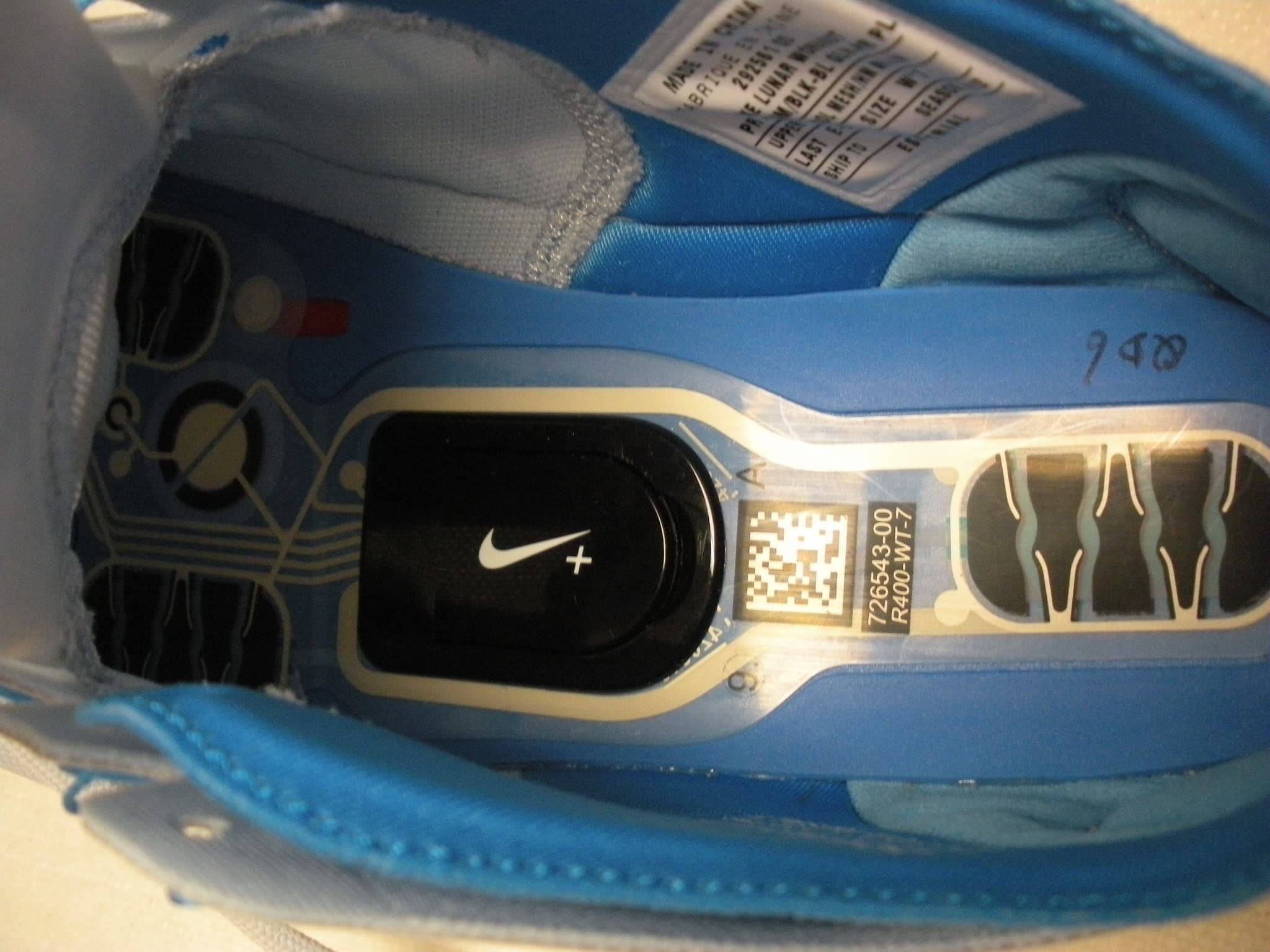
Click to zoom
Application Details
- Equipment Class
- DTS - Digital Transmission System
- Date of Grant
- Jun 10, 2012
- Application Purpose
- Original Equipment
- Date of Application
- Jun 10, 2012
- Equipment Note
- Nike + Sports Kit
- Frequency Range
- 2402.00000000 - 2480.00000000
- Company
- Nike, Inc.
- Country
- United States
Documents & Files
Document Text
Text extracted from the exhibit documents filed with the FCC. Open a document above to read the original.
Users Manual
Nike+ Basketball/Training 2Nike+ Basketball/Training User’s Guide Welcome 03 System Requirements 04 Included in the Box Get Started 05 Set Up 09 Nike+ Connect 10 Airplane Mode Maintenance 11 Charging 14 Technical Specifications 16 Service and Support 16 Warranty 17 Compliance Information Table of Contents 3Nike+ Basketball/Training User’s Guide Welcome Welcome to your new Nike+ Sport Pack, designed to motivate and empower you to improve by utilizing your measured performance data, the power of community and digital tools. Included in your system is a pair of Nike+ Basketball/Training shoes with embedded sensing technology that work with Nike+ Basketball/Training mobile Apps. The Nike+ Basketball App breaks down how high, how quick and how hard you play. The Nike+ Training App delivers high-intensity training remixed with game-like Challenges. Both systems turn measured performance into NikeFuel points and then let you share, compare and compete with friends and the entire Nike+ Community. To USe yoUR NIke+ SPoRT, yoU MUST hAve: • A Macintosh or PC with built-in USB; Mac oS X v10.5.8 or later, Windows 7, Windows vista (SP2) or Windows XP (SP3). optional mobile app available on ioS4 and above; for the latest compatible handsets check nikeplus.com. • Internet access (Broadband recommended; fees may apply). • An iPhone 3GS, 4 or 4S, or an iPod touch 3rd or 4th generation running ioS 5.1 and above. For a complete list of compatible devices, visit: www.nikeplus.com/setup. System Requirements 4Nike+ Basketball/Training User’s Guide WhAT’S INCLUDeD IN The NIke+ SPoRT PACk 1. Pair Nike+ Basketball/Training shoes includes Nike+ Pressure Sensor embedded within the midsole to measure balance and stability 2. Nike+ Sport Sensors measure motion and sync wirelessly to mobile device 3. Nike+ Sport Charger Charges and updates Nike+ Sport Sensors 4. Nike+ Sport Adapter required for wireless communication with your Nike+ Sport Sensors if you have an iPhone 3GS, 4, iPod touch (3rd and 4th Gen) 1 4 2 3 Included in the Box First, get to know what’s in the box. We will introduce you to each component of the Nike+ Sport system and what it does. 5Nike+ Basketball/Training User’s Guide Getting Started Set Up To get started, open an internet browser on your mobile device or computer and go to www.nikeplus.com/setup. Click on Nike+ Training or Basketball. There you’ll find resources such as a link to the iTunes App store and video tutorials demonstrating the following setup steps. 1. Download and install the Nike+ Basketball/Training App available in the Apple iTunes store. Nike+ mobile Apps wirelessly connect with Sport Sensors in your shoes to capture and deliver never-before-seen information on key parts of your game/training sessions. By wirelessly syncing with Nike+ through Bluetooth Smart, performance statistics are collected and NikeFuel points calculated. The App then displays statistics, personal records and NikeFuel points earned. BUYBUYBUYBUY BUYBUYBUYBUY iTune Store iTunes Store iPhone Apps Nike+ Nike+ BUYBUYBUYBUY BUYBUYBUYBUY iTune Store iTunes Store iPhone Apps Nike 2. Watch the intro video and Welcome Tour to learn about key features of the App. 6Nike+ Basketball/Training User’s Guide 3. Setup a Nike+ ID or log in to your existing account on nikeplus.com. To unlock all the features of the Apps, you’ll need to create a Nike+ profile. With your Nike+ account you’ll be able to share activity with friends and get motivated to improve. To create a new account, click “LoG IN” you can also register using your Facebook or Twitter account. If you already have a Nike+ account, you can log in with your email address and password, or use your Facebook or Twitter account. 4. Follow guided setup flow. The first screen of the app will introduce to what’s in the box. Next, insert the Sport Sensor into Sport Charger and plug Charger into USB port of computer. This will “wake-up” the Sport Sensors from a deep-sleep state and launch the Connect utility. Connect software allows you to update and reset your Nike+ Sport Sensors. The mobile Apps will notify you when your Sport Sensors need updating. For more information on Connect, see section below. 7Nike+ Basketball/Training User’s Guide 1. If you are using an iPhone 3GS, iPhone 4 or iPod Touch (3rd & 4th gen.), you will need to plug the Nike+ Sport Adapter into your iPhone. 3. Within the first 10 seconds after inserting the Sport Sensor, press and hold the heel of the Nike+ Pressure Sensor. 5. Now, you must “pair” your Nike+ Basketball/Training shoes and mobile device. Pairing allows the Nike+ Sport Sensors to communicate exclusively with your mobile device, which is logged into your unique Nike+ ID. you only have to do this once for each sensor. iPhone 3GS or 4 or ipod touch (3rd & 4th gen) 2. Lift sockliner and insert Nike+ Sport Sensor into pocket Skip this step if you have iPhone 4S running IoS 5.1 and above. 4. When you see the LeD change to a red/yellow/green blink sequence the Sport Sensor is in pairing mode. Continue to hold until the App tells you to release and pairing has completed successfully. Repeat the process for the second shoe. 8Nike+ Basketball/Training User’s Guide Nike+ Connect The Nike+ Connect software allows your Nike+ Sport Sensors and computer to communicate with each other. Through your computer you can update your Sport Sensors to provide greatest performance and accuracy. Connect also allows you to reset your Sport Sensors to original factory settings. Download and install Nike+ Connect. During setup, the first time you plug the Nike+ Sport Charger in: 1. Plug the Nike+ Sport Charger into a USB port on your computer. 2. If you’re using a Mac, double click the NikePlus icon on the desktop. 3. If you’re using a PC, click the NikePlus icon located in My Computer. or, it might launch automatically. Double click the icon of the drive to open it. 4. Double click the “nikeplus.URL” icon to open the file. 5. you’ll automatically be sent to the Nike…
Text truncated - open the document above for the full version.
Cover Letter(s)
On our behalf, I appoint Lina Kwee-Nguyen Nemko USA, Inc. at 802 N. Kealy Avenue, Lewisville TX 75057 to act as our agent in the preparation of this application for equipment certification. I certify that submitted documents properly describe the device or system for which equipment certification is sought. I also certify that each unit manufactured, imported or marketed, as defined in FCC regulations will have affixed to it a label identical to that submitted for approval with this application. In signing this letter, Applicant certifies that neither the applicant nor any party to the application is not subject to a denial of Federal benefits, that include FCC benefits, pursuant to Section 5301 of the Anti- Drug Abuse Act of 1988, 21 U.S.C. § 862 because of a conviction for possession or distribution of a controlled substance. See 47 CFR 1.2002(b) for the definition of a "party" for these purposes. For instances where our authorized agent signs the application for certification on our behalf, I acknowledge that all responsibility for complying with the terms and conditions for certification, as specified by Nemko Canada Inc, still resides Nike,Inc at One Bowerman Drive, Beaverton, OR 97005, USA.
ID Label/Location Info
FCC ID:QYUESP12 XXXXXXYYWW MADE IN CHINA NA0020 CMIIT ID: XXXXYYZZ
Operational Description
Operational Description Nike, Inc. Model: NA0020 FCC ID.: QYUESP12 The device is a sensor that fits into an athletic shoe. The sensor measures various physical parameters during the physical activity of the user. This information is transmitted to a companion device (adapter) that connects to a mobile computing device such as an iPOD using an on‐board Bluetooth Low Energy transmit circuit. The adapter device is filed as FCC ID.: QYUESP11 Modulation: GMSK (Gaussian Minimum‐Shift Keying) Spectrum Access: The device is a Digital transmission device that also uses Frequency Hopping Spread Spectrum technology to access the radio spectrum. The device was tested as a Digital Transmission System device (DTS). Transmitted information: The transmitter is data‐only Frequency band: The transmitter on 40 channels between 2402 MHz and 2480 MHz. Crystal oscillator: 16 MHz
Operational Description
NORTHWEST EMC EUT: ESP AntennaWork Order: SYNA0067 Serial Number: noneDate: Customer: Synapse Strategic Product Development LLCTemperature: 22 Attendees: Mike SchaafHumidity: 50% Project: NoneBarometric Pres.: 30.26 Tested by: Rod PeloquinPower: N/ AJob Site: EV01 TEST SPECIFICATIONSTest Method TEST PARAMETERS Antenna Height(s) (m)Test Distance (m) 3 COMMENTS EUT OPERATING MODES DEVIATIONS FROM TEST STANDARD Run # Configuration # Results Signature 0.00 270.00 180.00 90.00 Frequency2480.00 Absolute Gain of Reference Antenna (dBi)9.25 Reference Antenna Relative Gain Max (dBuV/m)103.80 AUT Relative Gain Max (dBuV/m)94.50 Difference (Reference Antenna - AUT) (dB)9.30 AUT Setup Loss (dB)0.00 Maximum Absolute Gain of AUT (dBi)-0.05 Correction Factor (Convert From Relative to Absolute Gain) (dB)94.55 Measurement Antenna PolarityVertical Antenna Under Test (AUT) Polarity Horizontal 53 1 10/13/11 ABSOLUTE GAIN DATA SHEET 6 dB attenuator at antenna feed for matching. 1.35m test distance. Shoe in normal horizontal orientation, Height delta = 0 Transmitting from siignal generator 0.00 270.0 0 180.0 0 90.00 -45.0 -35.0 -25.0 -15.0 -5.0 5.0 Absolute Gain of AUT 90° 270° 180° 0° Antenna
Test Report
Nemko USA, Inc. 802 N. Kealy Ave. Lewisville, TX USA Page 1 of 53 Tel: +1 972-436-9600 Fax: +1 972-436-2667 NVLAP Lab Code 100426-0 This report must not be used to claim product certification, approval, or endorsement by NVLAP, NIST, or any agency of the Federal Government. Nemko USA, Inc. is a NVLAP accredited laboratory . Test Report issued under the responsibility of: www.nemko.com TEST REPORT FCC Part 15 Radio Frequency Devices Subpart C – Intentional Radiators RSS 210, Issue 8 Licence-exempt Radio Apparatus: Category I Equipment FCC ID.: QYUESP12 Not certified Report Reference No. ..................... : trf_195591_FCC_IC Compiled by (+ signature) ............... : David Light Approved by (+ signature) ................ : Mike Cantwell Date of issue .................................... : 6-Jun-12 Report Revision ............................... : 0 Total number of pages ..................... : 53 Testing Laboratory ......................... : Nemko USA, Inc. (Dallas) Address ............................................ : 802 N. Kealy Ave. Lewisville, TX 75057 USA Tel: +1 972 436 9600 Fax: +1 972 436 2667 Applicant’s name ............................ : Nike, Inc. Address ............................................. : One Bowerman Drive ED-3, Beaverton, OR 97005 Model(s) Tested ............................... : NA0020 Test specification: Standard ........................................... : FCC Part 15, Subpart C & RSS 210, Issue 8 Test procedure .................................. : ANSI C63.4:2003 and “Measurement of Digital Transmission Systems Operating under Section 15.247” - March 23, 2005 Non-standard test method ................ : N/A TRF Revision .................................... : 18-Nov-11 FCC Part 15, Subpart C & RSS 210, Issue 8 Report Number: trf_195591_FCC_IC Revision: 0 Issue Date: 6-Jun-12 Nemko USA, Inc. 802 N. Kealy Ave. Lewisville, TX USA Page 2 of 53 Tel: +1 972-436-9600 Fax: +1 972-436-2667 Revision History # Description Date 0 Original Report Release 6-Jun-12 Notices: 1. This report shall not be reproduced, except in full, without the written approval of the Issuing testing laboratory. 2. The test results presented in this report relate only to the object tested. 3. The results contained in this report reflect the results for this particular model and serial number. It is the responsibility of the manufacturer to ensure that all production models meet the intent of the requirements detailed within this report. 4. "(see Enclosure #)" refers to additional information appended to the report. 5. Throughout this report a point is used as the decimal separator. 6. Dimensions in English units for convenience only, metric units prevail. FCC Part 15, Subpart C & RSS 210, Issue 8 Report Number: trf_195591_FCC_IC Revision: 0 Issue Date: 6-Jun-12 Nemko USA, Inc. 802 N. Kealy Ave. Lewisville, TX USA Page 3 of 53 Tel: +1 972-436-9600 Fax: +1 972-436-2667 Table of Contents Revision History ................................................................................................................................................................. 2 Normative References ........................................................................................................................................................ 4 RSS 210, Issue 8 Test Report Cover Sheet ....................................................................................................................... 5 FCC Technical Specifications ............................................................................................................................................. 6 Equipment Under Test (EUT) ............................................................................................................................................. 7 Details: ........................................................................................................................................................................... 7 EUT Configuration ......................................................................................................................................................... 8 EUT Photo(s) ............................................................................................................................................................... 10 Summary of Testing .......................................................................................................................................................... 13 Testing Location ........................................................................................................................................................... 14 Procedural Requirements ................................................................................................................................................. 14 United States ............................................................................................................................................................... 14 Canada......................................................................................................................................................................... 14 Information to the User and Labeling Requirements ....................................................................................................... 14 United States ............................................................................................................................................................... 14 Labelling ................................................................................................................................................................... 14 Information to User .................................................................................................................................................. 15 Canada...............................................................................................…
Text truncated - open the document above for the full version.
Test Setup Photos
FCC Part 15, Subpart C & RSS 210, Issue 8 Report Number: trf_195591_FCC_IC Revision: 0 Issue Date: 6-Jun-12 Nemko USA, Inc. 802 N. Kealy Ave. Lewisville, TX USA Page 12 of 53 Tel: +1 972-436-9600 Fax: +1 972-436-2667 Photo 5 EUT Photo – Test Setup Supplemental Information:
Contact Information
Applicant
Catherine Morrison(Engineering Program Manager)
Technical Contact
Non-Technical Contact
Nemko USALina Kwee Nguyen
[email protected]469-877-6150
Test Firm
Nemko USA, Inc.Jenny Gibbs
Technical Specifications
| # | Rule Parts | Frequency Range | Power Output |
|---|---|---|---|
| 1 | 15C | 2.40 GHz - 2.48 GHz | 3.40 mW |
Other Applications from Nike, Inc.
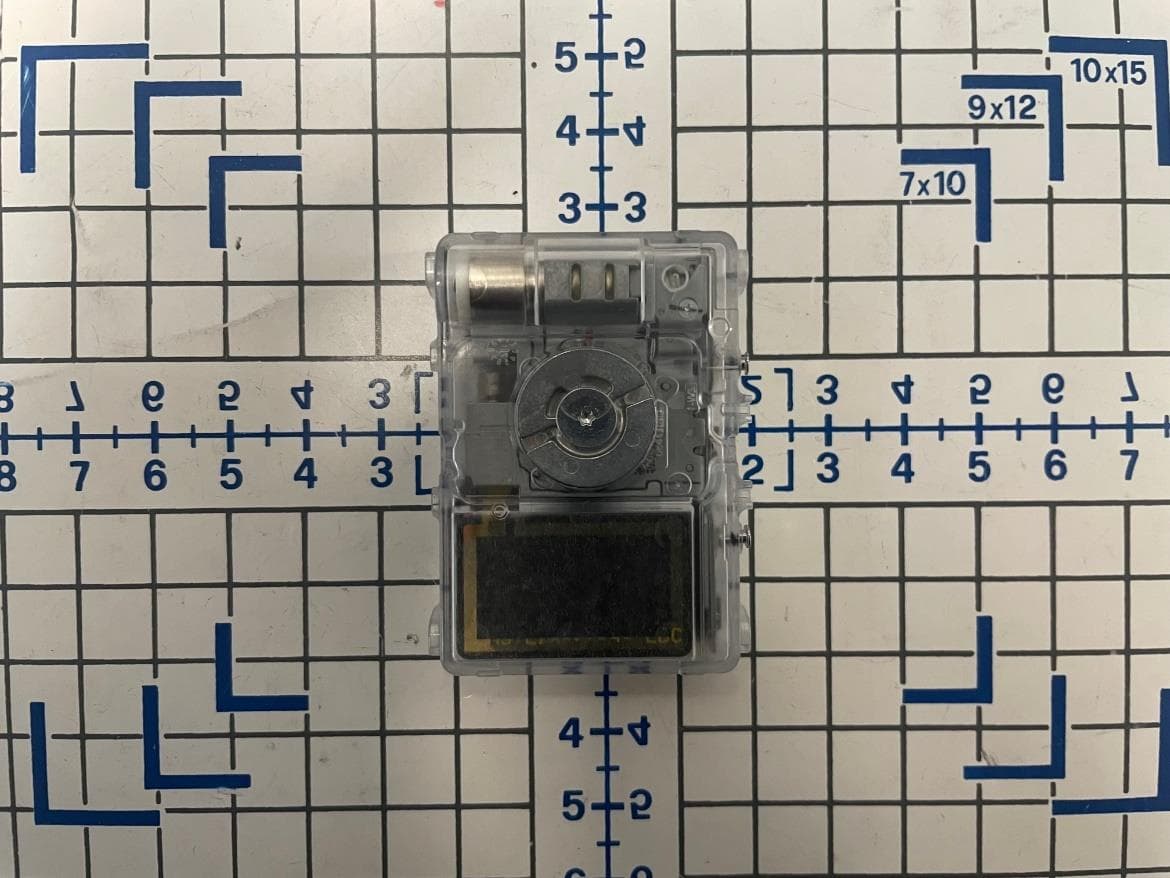
QYU-LE04
Nov 08, 2022Wireless Communication Device
Equipment Class
DTS - Digital Transmission System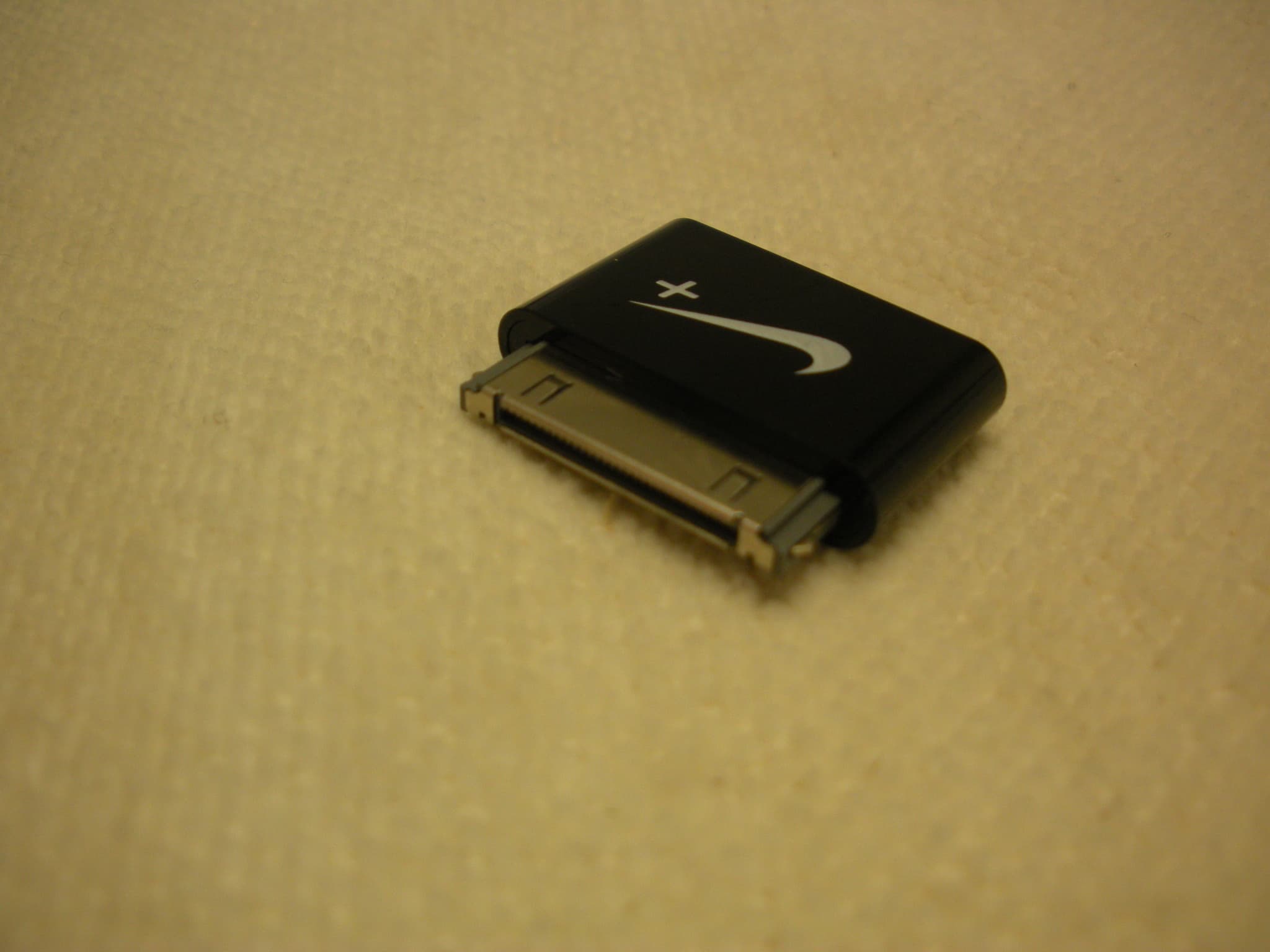
QYUESP11
Jun 10, 2012Nike + Sports Kit
Equipment Class
DTS - Digital Transmission System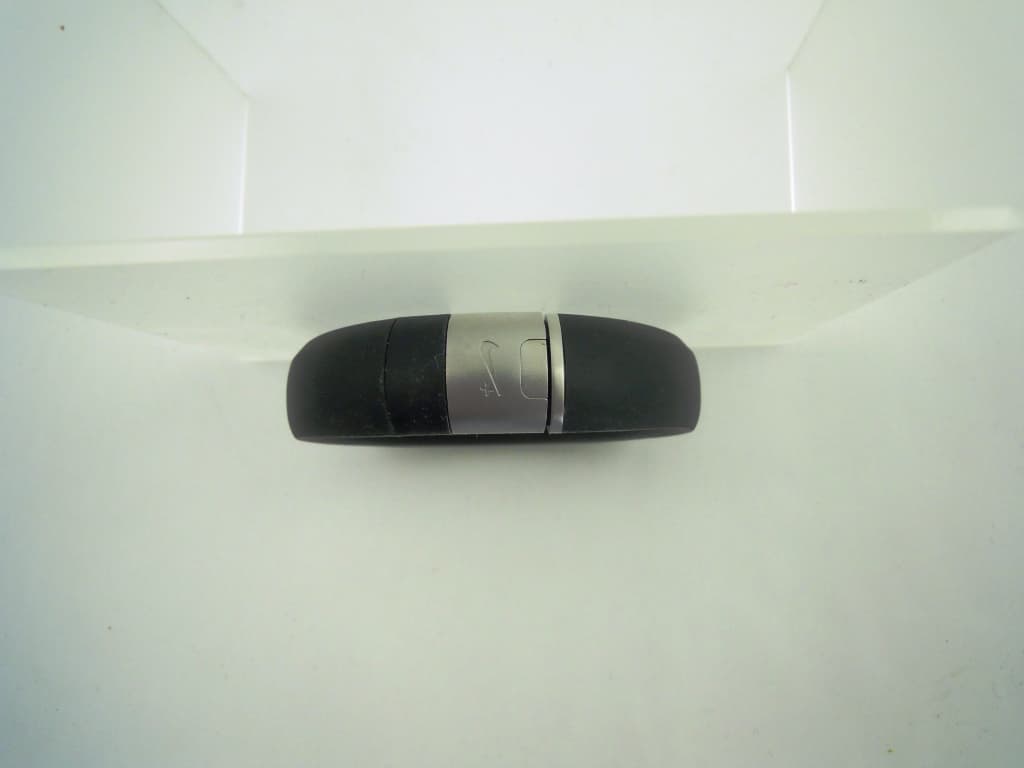
QYUM411
Feb 01, 2012Nike+ FuelBand
Equipment Class
DSS - Part 15 Spread Spectrum Transmitter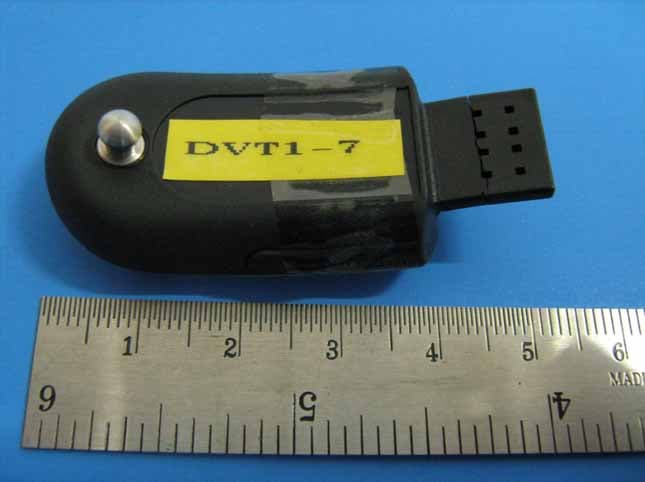
QYUFL500
Feb 19, 2008Nike + Sportband
Equipment Class
DXX - Part 15 Low Power Communication Device Transmitter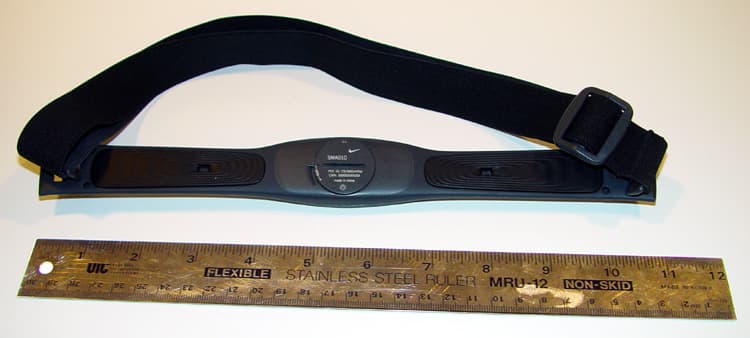
QYUHRM2400
Jul 29, 2003SMA011
Equipment Class
DXX - Part 15 Low Power Communication Device Transmitter