QYUM411Nike+ FuelBand
Nike, Inc.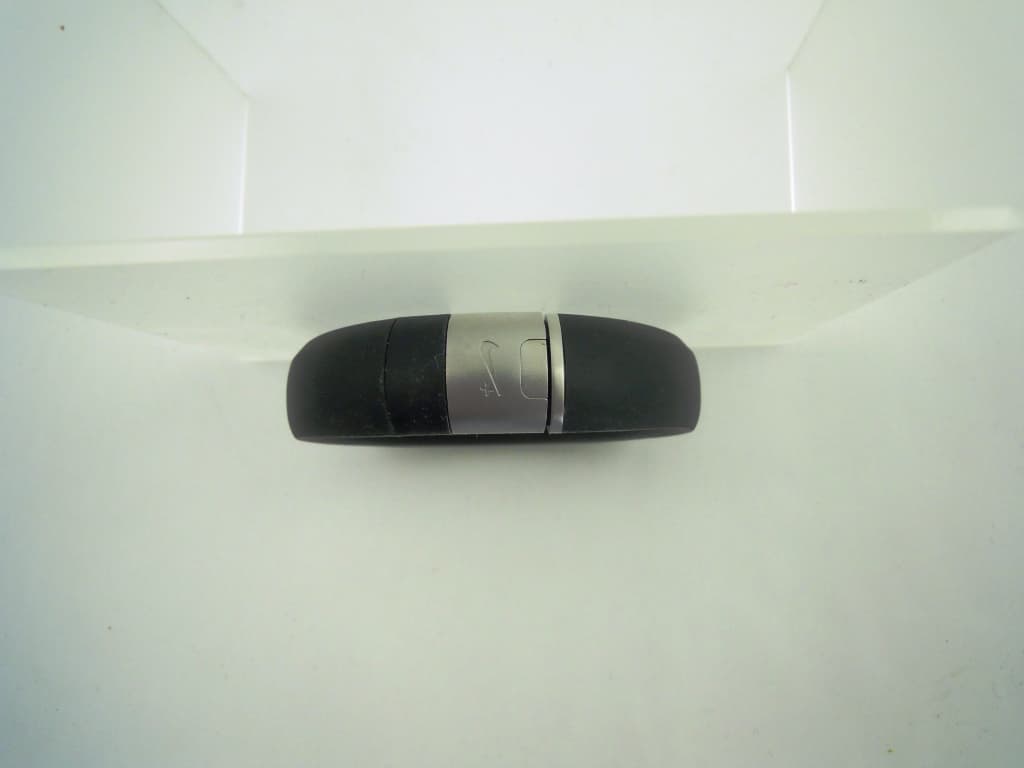
Click to zoom
Application Details
- Equipment Class
- DSS - Part 15 Spread Spectrum Transmitter
- Date of Grant
- Feb 01, 2012
- Application Purpose
- Original Equipment
- Date of Application
- Feb 01, 2012
- Equipment Note
- Nike+ FuelBand
- Frequency Range
- 2402.00000000 - 2480.00000000
- Company
- Nike, Inc.
- Country
- United States
Documents & Files
Document Text
Text extracted from the exhibit documents filed with the FCC. Open a document above to read the original.
Users Manual
Nike+ FuelBand 2The Nike+ FuelBand User’s Guide Welcome 03 System Requirements 04 Included in the Box 04 Overview Get Started 06 Set Up 09 Adjusting Your Fit Display 11 View Your Results 12 Progress Toward Your Daily Goal 14 Brightness 15 Warnings 15 Customizing the Display Connect to Mobile Device 11 Bluetooth Pairing 12 Sync Activity to the Nike+ FuelBand App 14 Re -establish a Connection 15 Airplane Mode Track Your Progress 29 Upload Activity to nikeplus.com 30 Changing Your Daily Goal 30 View Progress and Achievements Maintenance 33 Charging 33 Updating Nike+ FuelBand 33 Updating Nike+ Connect 34 Resetting Nike+ FuelBand 34 Technical Specifications 34 Service and Support 34 Warranty 34 Compliance Information Table of Contents 3The Nike+ FuelBand User’s Guide Welcome Welcome to your Nike+ FuelBand, a device that measures your everyday activity and turns it into NikeFuel. NikeFuel reflects your level of effort throughout the day. It’s calculated the same way for everyone, so you can compare and compete with friends and other Nike+ members. Plug your Nike+ FuelBand into your computer’s USB port or sync wirelessly through Bluetooth with our mobile app to access Nike+ where you can track your performance, see results and get motivated to do more. TO USe YOUR NIke+ FUeLBAND, YOU MUST hAVe: • A Macintosh or PC with built-in USB. Mac OS v 10.4 or later, Windows 7 or Windows Vista (SP2) or Windows XP (SP2) • In ternet access. Broadband is recommended; fees may apply. • Optional mo bile app available on iOS4 and above; for the latest compatible handsets check nikeplus.com. Wh A T’S INCLUDe D IN The NIke+ FUe L BAND BOX 1. Nike+ FuelBand 2. S izing Tool 3. extender Links (8mm and 16 mm) 4. USB Cable 5. Charging Stand 1 4 23 5 System Requirements Included in the Box 4The Nike+ FuelBand User’s Guide Goal Progress Spacer Clasp Button Screen Overview 5The Nike+ FuelBand User’s Guide Getting Started Set Up You’ll need to set up your Nike+ FuelBand before you use it. To get started, open an internet browser on your computer and go to www.nikeplus.com/setup. The Nike+ Connect software allows your Nike+ FuelBand and computer to communicate with each other. It also lets you customize your settings. 1. DOWNLOAD AND INSTALL NIke+ CONNeCT Click on “Download Nike+ Connect” to save the Nike+ Connect Installer file to your computer. Once downloaded, the Nike+ Connect Installer should automatically open. If it does not automatically open: Mac: Double click the downloaded Nike+Connect. dmg file. When it opens, double click the Nike+ Connect Installer.mpkg file. PC: Double click the downloaded Nike+Connect_Installer.exe file. Nikee+N FulBaFn+dF2aB+TheUB iF++eiuBsruuF+BnTu B 2+aB irkNFkBF’ekBTu Nikee+N FulB+anedBiF++eiuB a+N u 2T T e k 6The Nike+ FuelBand User’s Guide Follow the instructions to install the software. each time you connect your Nike+ FuelBand to that computer, the software will automatically launch, uploading your activity to nikeplus.com and removing it from the Nike+ FuelBand’s memory. Note: You can download and install the software to more than one computer. Take your Nike+ FuelBand out of the box and plug it into a USB port on your computer. (You can also use the USB cable that came in the box by plugging one end of the cable into Nike+ FuelBand and the other end into your computer). 2. MAke IT YOURS enter your height and weight so Nike+ FuelBand can accurately calculate your daily results. Indicate which wrist you’ll wear it on so the LeD display orients correctly. 3. SeT YOUR DAILY GOAL Choose how active you will strive to be each day. Don’t worry, you can adjust your daily goal any time (see page #). 7The Nike+ FuelBand User’s Guide 4. JOIN The NIke+ COMMUNITY In order to save your activity and view your progress, you’ll need to create a Nike+ profile. Nike+ is also a great way to share activity with friends and get motivated to reach your goals. To create a new account, click “register.” You can also register using your Facebook or Twitter account. If you already have a Nike+ account, you can log in with your email address and password, or use your Facebook or Twitter account. 5. ChARGe Your Nike+ FuelBand needs to charge completely. The battery icon on the Nike+ FuelBand display will fill to indicate the level of your battery’s charge. Once your battery is charged, unplug Nike+ FuelBand from your computer, put it on, and get moving! 8The Nike+ FuelBand User’s Guide Adjusting Your Fit NIke+ FUeLBAND IS DeSIGNeD TO Be WORN ON YOUR WRIST Your Nike+ FuelBand comes with two extender links—an 8mm link that’s already inserted in the band and an extra 16mm link. You can add or remove the links to make the fit looser or tighter. 9The Nike+ FuelBand User’s Guide INSeRTING OR ReMOVING LINkS Larger Link 8mm Link hole Sizing Tool 1. Push clasp to open the band. 2. Insert the pin on the Sizing Tool into the hole on Nike+ FuelBand. (If you no longer have a Sizing Tool, a bent paperclip will also work.) Push down until you feel the link release. 3. Push the pin into the hole on the 8mm link to release it from the clasp. To make the Nike+ FuelBand smaller, replace the clasp with the Swoosh facing outwards and snap the band closed. 4. To make the Nike+ FuelBand bigger, connect the larger link to the clasp, then insert the connected pieces into the band with the Swoosh facing outwards and snap it closed. 10The Nike+ FuelBand User’s Guide Display The LeD display on your Nike+ FuelBand lets you view results, check progress and access advanced features with the press of a button. Note: When the Nike+ FuelBand is connected to a PC or wall charger, the button becomes inactive. View Your Results Current Time A short press of the button will cycle the display through your current day’s results in this order: Three seconds after releasing the button, the display will go into a sleep state. A short button press resumes the cycle to the last result seen. NikeFuel earned Calories BurnedNumber of Steps Taken 11The Nike+…
Text truncated - open the document above for the full version.
Operational Description
Functional Description: The Nike+ FuelBand is a device worn on the wrist that monitors daily activity level and stores this data. The user can download the data to a mobile device with Bluetooth capability. Radio: This product uses a Bluetooth wireless communications system to exchange data between the product and a mobile device. The radio is a CC2564 by Texas Instruments, and the Bluetooth stack is provided by Stonestreet One. The antenna for the system is a monopole etched directly into the circuit substrate. Pairing and connecting are operations initiated by the user through the single available button on the product, and when not exchanging data with the cellular phone, the product negotiates for operating in a low power Sniff mode. After any period of inactivity (~2 minutes), the product will terminate the Bluetooth connection. Modulation modes: This product has three modulation modes: GFSK, pi/4DPSK, and 8DPSK. The device is a data- only device. RF Power The Nike+ FuelBand has a maximum peak conducted rf output power of 3 mW at the antenna port.
Test Report
Nemko USA, Inc. 802 N. Kealy Ave. Lewisville, TX USA Page 1 of 87 Tel: +1 972-436-9600 Fax: +1 972-436-2667 NVLAP Lab Code 100426-0 This report must not be used to claim product certification, approval, or endorsement by NVLAP, NIST, or any agency of the Federal Government. Nemko USA, Inc. is a NVLAP accredited laboratory . Test Report issued under the responsibility of: www.nemko.com TEST REPORT FCC Part 15 Radio Frequency Devices Subpart C – Intentional Radiators RSS 210, Issue 8 Licence-exempt Radio Apparatus: Category I Equipment FCC ID ......................... : QYUM411 IC ID ............................. : 4571A-M411 Report Reference No. ..................... : 191036_TRF_USA_CAN Compiled by (+ signature) ............... : David Light Approved by (+ signature) ................ : Mike Cantwell Date of issue .................................... : 20-Jan-12 Report Revision ............................... : 0 Total number of pages ..................... : 87 Testing Laboratory ......................... : Nemko USA, Inc. (Dallas) Address ............................................ : 802 N. Kealy Ave. Lewisville, TX 75057 USA Tel: +1 972 436 9600 Fax: +1 972 436 2667 Applicant’s name ............................ : Nike, Inc. Address ............................................. : EDO-1 Building, One Bowerman Drive Beaverton, Oregon USA 97005 Model(s) Tested ............................... : Nike+ FuelBand (small, medium, and large sizes) Test specification: Standard ........................................... : FCC Part 15, Subpart C & RSS 210, Issue 8 Test procedure .................................. : ANSI C63.4:2003 and DA 00-705:2000 Non-standard test method ................ : N/A TRF Revision .................................... : 18-Nov-11 FCC Part 15, Subpart C & RSS 210, Issue 8 Report Number: 191036_TRF_USA_CAN Revision: 0 Issue Date: 20-Jan-12 Nemko USA, Inc. 802 N. Kealy Ave. Lewisville, TX USA Page 2 of 87 Tel: +1 972-436-9600 Fax: +1 972-436-2667 Revision History # Description Date 0 Original Report Release 20-Jan-12 Notices: 1. This report shall not be reproduced, except in full, without the written approval of the Issuing testing laboratory. 2. The test results presented in this report relate only to the object tested. 3. The results contained in this report reflect the results for this particular model and serial number. It is the responsibility of the manufacturer to ensure that all production models meet the intent of the requirements detailed within this report. 4. "(see Enclosure #)" refers to additional information appended to the report. 5. Throughout this report a point is used as the decimal separator. 6. Dimensions in English units for convenience only, metric units prevail. FCC Part 15, Subpart C & RSS 210, Issue 8 Report Number: 191036_TRF_USA_CAN Revision: 0 Issue Date: 20-Jan-12 Nemko USA, Inc. 802 N. Kealy Ave. Lewisville, TX USA Page 3 of 87 Tel: +1 972-436-9600 Fax: +1 972-436-2667 Table of Contents Revision History ................................................................................................................................................................. 2 Normative References ........................................................................................................................................................ 4 RSS 210, Issue 8 Test Report Cover Sheet ....................................................................................................................... 5 FCC Technical Specifications ............................................................................................................................................. 6 Equipment Under Test (EUT) ............................................................................................................................................. 7 Details: ........................................................................................................................................................................... 7 EUT Configuration ......................................................................................................................................................... 8 EUT Photo(s) ............................................................................................................................................................... 10 Summary of Testing .......................................................................................................................................................... 14 Testing Location ........................................................................................................................................................... 15 Procedural Requirements ................................................................................................................................................. 15 United States ............................................................................................................................................................... 15 Canada......................................................................................................................................................................... 15 Information to the User and Labeling Requirements ....................................................................................................... 15 United States ............................................................................................................................................................... 15 Labeling ................................................................................................................................................................... 15 Information to User .................................................................................................................................................. 16 Canada.................................................…
Text truncated - open the document above for the full version.
Test Setup Photos
FCC Part 15, Subpart C & RSS 210, Issue 8 Report Number: 191036_TRF_USA_CAN Revision: 0 Issue Date: 20-Jan-12 Nemko USA, Inc. 802 N. Kealy Ave. Lewisville, TX USA Page 85 of 87 Tel: +1 972-436-9600 Fax: +1 972-436-2667 Setup Photos FCC Part 15, Subpart C & RSS 210, Issue 8 Report Number: 191036_TRF_USA_CAN Revision: 0 Issue Date: 20-Jan-12 Nemko USA, Inc. 802 N. Kealy Ave. Lewisville, TX USA Page 86 of 87 Tel: +1 972-436-9600 Fax: +1 972-436-2667 Photo 4 Test Setup – Radiated Emissions Supplemental Information: Photo 5 Test Setup – Radiated Emissions Supplemental Information: FCC Part 15, Subpart C & RSS 210, Issue 8 Report Number: 191036_TRF_USA_CAN Revision: 0 Issue Date: 20-Jan-12 Nemko USA, Inc. 802 N. Kealy Ave. Lewisville, TX USA Page 87 of 87 Tel: +1 972-436-9600 Fax: +1 972-436-2667 Photo 6 Test Setup – Conducted Emissions - MAINS Supplemental Information: Photo 7 Test Setup –Conducted Emissions - MAINS Supplemental Information:
Contact Information
Applicant
Catherine Morrison(Engineering Program Manager)
Technical Contact
Nemko USA, Inc.David Light
[email protected]972-436-9600
802 N. Kealy Avenue · Lewisville · United States
Non-Technical Contact
Nemko USA, Inc.Lina Kwee Nguyen
[email protected]469-877-6150
Test Firm
Nemko Dallas, Inc.Mike Cantwell
Technical Specifications
| # | Rule Parts | Frequency Range | Power Output |
|---|---|---|---|
| 1 | 15C | 2.40 GHz - 2.48 GHz | 3.00 mW |
Other Applications from Nike, Inc.
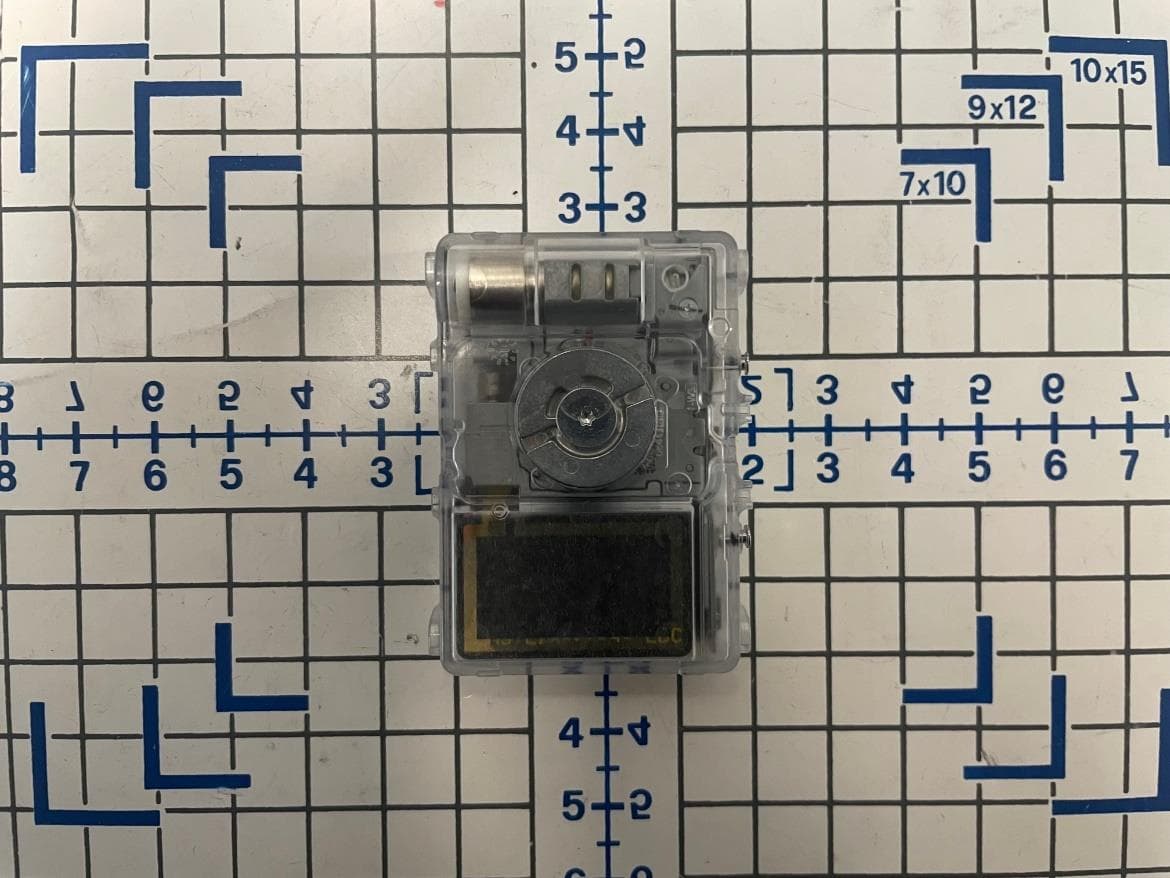
QYU-LE04
Nov 08, 2022Wireless Communication Device
Equipment Class
DTS - Digital Transmission System
QYUESP11
Jun 10, 2012Nike + Sports Kit
Equipment Class
DTS - Digital Transmission System
QYUESP12
Jun 10, 2012Nike + Sports Kit
Equipment Class
DTS - Digital Transmission System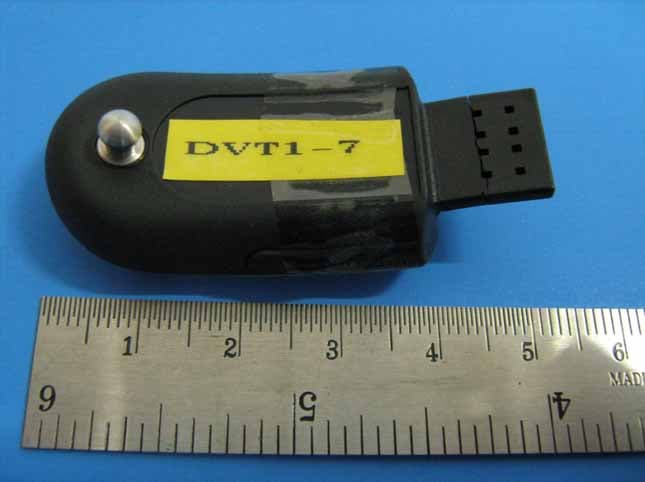
QYUFL500
Feb 19, 2008Nike + Sportband
Equipment Class
DXX - Part 15 Low Power Communication Device Transmitter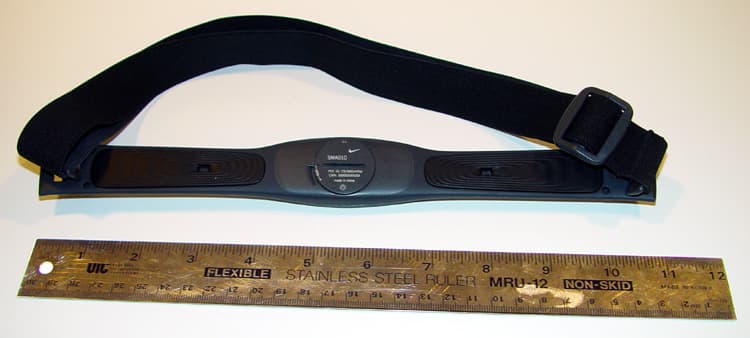
QYUHRM2400
Jul 29, 2003SMA011
Equipment Class
DXX - Part 15 Low Power Communication Device Transmitter