R38YLCP337ASMOBILE Hotspot
Yulong Computer Telecommunication Scientific (Shenzhen) Co. LTD
Click to zoom
Application Details
- Equipment Class
- JBP - Part 15 Class B Computing Device Peripheral
- Date of Grant
- Feb 23, 2021
- Application Purpose
- Original Equipment
- Date of Application
- Feb 23, 2021
- Equipment Note
- MOBILE Hotspot
- Country
- China
Documents & Files
Document Text
Text extracted from the exhibit documents filed with the FCC. Open a document above to read the original.
Users Manual
Health and Safety Information Important Health Information and Safety Precautions When using this product, the safety precautions below must be taken to avoid possible legal liabilities and damages. Retain and follow all product safety and operating instructions. Observe all warnings in the product operating instructions. To reduce the risk of bodily injury, electric shock, fire and damage to the device, closely observe all of the following precautions. Safety Precautions for Proper Grounding Installation Caution: Connecting to improperly grounded equipment can result in an electric shock to either you or your device. This product is equipped with a USB Cable for connecting to a desktop or notebook computer. Be sure your computer is properly grounded before connecting this product to the computer. The power supply cord of a desktop or notebook computer has an equipment-grounding conductor and a grounding plug. The grounding plug must be plugged into an appropriate outlet which is properly installed and grounded in accordance with all local codes and ordinances. Safety Precautions for Power Supply Unit Use the correct external power source. A product should be operated only from the type of power source indicated on the electrical ratings label. If you are not sure of the type of power source required, consult your authorized service provider or local power company. For a product that operates from battery power or other sources, refer to the operating instructions that are included with the product. Electrical Safety This product is intended for use when supplied with power from the designated battery or power supply unit. Other usage may be dangerous and will invalidate any approval given to this product. Handle battery packs carefully. This product contains a Li-ion battery. There is a risk of fire and burns if the battery pack is handled improperly. Do not attempt to open or service the battery pack. Do not disassemble, crush, puncture, short external contacts or circuits, dispose of in fire or water, or expose a battery pack to temperatures higher than 60°C (140°F). Note: Danger of explosion if battery is incorrectly replaced. Replace only with specified batteries. To replace the battery, take the device to an authorized service centre. Recycle or dispose of used batteries according to all applicable local regulations, or in accordance with the instructions in the reference guide. Follow these other specific precautions: 1. Keep the battery or device dry and away from water or any liquid as it may cause a short circuit. 2. The device should be connected only to products that bear the USB-IF logo or have completed the USB-IF compliance program. 3. Keep metal objects away so they do not come in contact with the battery or its connectors as it may lead to short circuit during operation. 4. Always keep the battery out of the reach of babies and small children to avoid swallowing. Consult a doctor immediately if the battery is swallowed. 5. Do not use a battery that appears damaged, deformed, discolored, has any rust on its casing, if it overheats, and/or if it emits a foul odor. 6. Use of an unqualified battery or charger may present a risk of fire, explosion, leakage or other hazard. 7. Only use the battery with a charging system that has been qualified with the system per this standard: IEEE-Std-1725-200x. 8. Use of an unqualified battery may present a risk of fire, explosion, leakage or other hazard. 9. Replace the battery only with another battery that has been qualified with the system per this standard: IEEE-Std-1725-200x. 10. Avoid dropping the device or battery. If the device or battery is dropped, especially on a hard surface causing damage, take it to a service center for inspection. 11. If the battery leaks: Do not allow the leaking fluid to come in contact with eyes. If contact occurs, DO NOT rub the eyes. Rinse with clean water immediately and seek medical advice. Do not allow the leaking fluid to come in contact with skin or clothing. If contact occurs, flush the affected area immediately with clean water and seek medical advice. Take other precautions to keep a leaking battery away from fire as there is a danger of ignition or explosion. Health & Safety Warranty Guide FCC Notice and Cautions This device and its accessories comply with Part 15 of FCC Rules. Operation is subject to the following conditions: (1) This device and its accessories may not cause harmful interference. (2) This device and its accessories must accept any interference received, including interference that may cause undesired operation. Part 15.21 Statement Changes or modifications that are not expressly approved by the manufacturer could void the user’s authority to operate the equipment. Part of Statement 15.105: This equipment has been tested and found to comply with the limits for a class B digital device, pursuant to Part 15 of the FCC Rules. These limits are designed to provide reasonable protection against harmful interference in a residential installation. This equipment generates, uses, and can radiate radio frequency energy and, if not installed and used in accordance with the instructions, may cause harmful interference to radio communications. However, there is no guarantee that interference will not occur in a particular installation. If you experience interference with reception (e.g., television), determine if this equipment is causing the harmful interference by turning the equipment off and then back on to see if the interference is affected. If necessary, try correcting the interference by one or more of the following measures: - Reorient or relocate the receiving antenna. - Increase the separation between the equipment and receiver. - Connect the equipment into an outlet on a circuit different from that to which the receiver is connected. - Consult the dealer or an experienced radio/TV technician for further assistance. TIA Safety Information The following is the complete TIA Safety …
Text truncated - open the document above for the full version.
Users Manual
Quick Start Guide On-Screen Indicators Get Updates Get updates, user guides and more information for your Coolpad Stream Mobile Hotspot at www.coolpad.us. Discover what’s going on right now in hotspot news, trends, techniques & other cool stuff by connecting with us by: @CoolpadAmericas Trademarks and Copyrights ©2021 Coolpad Technologies Inc. Coolpad ® and Coolpad Stream TM are trademarks of Yulong Computer Telecommunication Scientific (Shenzhen) Co., Ltd. All Rights Reserved. Google and Android are trademarks of Google Inc. Other trademarks and trade names are the property of their respective owners. Screenshots and product images are simulated; they may differ from the actual product and are subject to change. Reproduction, transfer, distribution of the contents herein in any manner without the prior written permission of Coolpad Technologies, Inc. is prohibited. Coolpad Technologies, Inc. reserves the right to add, modify or delete, any of the contents herein or withdraw this documents at any time without prior notice and without assigning any reasons thereof. Getting to Know Your Mobile Hotspot Hold the Power key for 3 seconds to power the device on/off. Hold the WPS key for 3 seconds to activate the WPS function. Once activated, the Wi-Fi TM LED indicator will blink every two seconds. If the network is not accessed within 2 minutes, the device will automatically exit WPS (Wi-Fi Protected Setup) mode. Display network signal, Wi-Fi, SMS, battery charge and mobile data status. Use the USB port to charge your device via the USB cable. Hold both the Power key and the WPS key simultaneously for 15 seconds. All LED indicators will blink green 4 times to indicate that the device has been reset to factory default settings. Hold the Power key for 32 seconds to restart it when the device becomes unresponsive. Power key: WPS key: LED indicators: USB port: Reset: Reboot: Displays your current network status. Solid green light indicates strong network signals; solid yellow light indicates normal network signals; solid red light indicates no network or weak network signals, no SIM or bad SIM card, limited or no service. Solid green light indicates Wi-Fi is active. Blinking green light indicates WPS mode is active. Indicates when there is a new message (not applicable). Displays your current battery status. Solid green light indicates the battery level is more than 39%, solid yellow light indicates the battery level is 16%-39%, and solid red light indicates the battery level is less than 16%; when the device is charging, the indicator will blink red when the battery level is at or below 16%, will blink yellow when the battery level is 16%-39%, and will blink green when the battery level is more than 39%. Blinking red light indicates less than 26% monthly Data left, blinking yellow light indicates 26%-50% monthly Data left, blinking green light indicates more than 50% monthly Data left. Network: Wi-Fi: SMS: Battery: Data: 1. 2. 3. 1. 2. 3. 4. 5. 1. 2. 3. Charging Your Mobile Hotspot Connect the USB-C end of the USB cable to the USB port on your device. Connect the other end to the travel adapter. Connect the travel adapter to an electrical outlet to fully charge your device. Note: You can also charge the device by connecting it to a computer with the USB cable. Connecting Your Wi-Fi Device to Your Mobile Hotspot Power on your mobile hotspot. On your computer or other Wi-Fi enabled device, search for available Wi-Fi networks and select network name (SSID) located on label on back panel of your mobile hotspot. Note: Wi-Fi name (SSID) and Wi-Fi Password are located on the label inside the back cover of the device. From a Windows computer: Left-click Wireless Network Connection on the task bar to view available networks. Choose the SSID from the list of available networks. From a Mac computer: Select System Preferences > Network. Choose the SSID from the list of available networks. From an iOS device: Go to Settings > Wi-Fi. Choose the SSID from the list of available networks. From an Android device: Go to Settings > Wi-Fi. Choose the SSID from the list of available networks. Enter the password located on label on back panel and click OK. Using the WPS If your Wi-Fi device supports WPS, you do not have to input the password manually after a WPS connection has been established. Please follow the following steps: Power on your Mobile Hotspot and enable the Wi-Fi function from the device you would like to connect. Press and hold the WPS key on your device for 3 seconds to start the Wi-Fi Protected Setup authentication process. Enable the WPS function on your Wi-Fi device in order to respond to this authentication process. Follow the system prompts on your Wi-Fi device to finish the connection. If no Wi-Fi device is connected within 2 minutes, the WPS function will automatically turn off. Managing Your Mobile Hotspot You can access your Mobile Hotspot device information using an Internet browser or by connecting the device to a computer via the USB cable. Setting Up Your Mobile Hotspot 1. 2. 3. 4. 5. 1. 2. 3. 4. 5. 6. 7. 1. 2. 3. 4. 5. Access Mobile Hotspot Using A Browser Connect to your hotspot device through Wi-Fi using the network connection software on your computer. Provide the Wi-Fi network password, if requested. Open a browser and enter http://mobile.hotspot or http://192.168.0.1 in the address bar. The Coolpad Stream Mobile Hotspot Web User Interface screen will appear. Click Login on the top right of the Web UI screen. The login screen will appear. Enter your Password in the field provided. The default password is "admin". Click Login. If you entered the correct password, the Web User Interface screen appears again. Access Mobile Hotspot Using USB Cable Connect your Coolpad Stream Mobile Hotspot to the computer with the USB cable. Power on your device. The computer operating system detects and recognizes new hardware and finishes the installation automatically. Open a browser and enter http://mo…
Text truncated - open the document above for the full version.
Users Manual
User Guide TOC i Table of Contents Table of Contents ........................................................................................................................................... i Introduction.................................................................................................................................................... 2 About the User Guide............................................................................................................................ 2 Set Up Your Mobile Hotspot.......................................................................................................................... 3 Parts and Functions .............................................................................................................................. 3 Battery Use ........................................................................................................................................... 4 Insert the Battery ........................................................................................................................... 5 Remove the Battery ...................................................................................................................... 6 Charge the Battery ........................................................................................................................ 6 SIM Card ............................................................................................................................................... 7 Turn Your Mobile Hotspot On and Off .................................................................................................. 8 Connect Your Wi-Fi Device to Your Mobile Hotspot ............................................................................. 8 Use the WPS ......................................................................................................................................... 8 Manage Your Mobile Hotspot ..................................................................................................................... 10 Access Mobile Hotspot Using a Browser ............................................................................................ 10 Access Mobile Hotspot Using USB Cable .......................................................................................... 11 Web UI Configuration .................................................................................................................................. 12 Home ................................................................................................................................................... 12 Connected Devices ............................................................................................................................. 12 Change Mobile Hotspot’s Access Status .................................................................................... 13 Settings ............................................................................................................................................... 15 Wi-Fi ............................................................................................................................................ 15 Mobile Network ........................................................................................................................... 19 Device ......................................................................................................................................... 21 Advanced Router ........................................................................................................................ 26 About ................................................................................................................................................... 28 Support ................................................................................................................................................ 30 Specifications .............................................................................................................................................. 31 Copyright Information .................................................................................................................................. 32 2 Introduction The following topics describe the basics of using this guide and your new mobile hotspot. About the User Guide Thank you for purchasing your new Coolpad Stream TM . The following topics explain how best to use this guide to get the most out of your mobile hotspot. Before Using Your Mobile Hotspot Read the Quick Start Guide that was packaged with your mobile hotspot thoroughly for proper usage. Accessible services may be limited by subscription contract conditions. Descriptions in the User Guide Note that most descriptions in this guide are based on your mobile hotspot's setup at the time of purchase. Some operation descriptions may be simplified. Other Notations In the user guide, the mobile hotspot may be referred to either as "mobile hotspot" or "device". 3 Set Up Your Mobile Hotspot The following topics give you all the information you need to set up your mobile hotspot and wireless service the first time. Parts and Functions These topics illustrate your mobile hotspot’s primary parts and key functions. Mobile Hotspot Layout The following illustration outlines your mobile hotspot’s primary external features and keys. Part Description Power key Hold the Power key for 3 seconds to power the device on/off. WPS key Hold the WPS key for 3 seconds to activate the WPS function. Once activated, the Wi-Fi LED indicator will flash every two seconds. If the network is not accessed within 2 minutes, the device will automatically exit WPS (Wi-Fi Protected Setup) mode. 4 LED indicators Display network signal, Wi-Fi, SMS, battery charge and mobile data status. USB port Use the USB port to charge your device via the USB cable. Reset Hold both the …
Text truncated - open the document above for the full version.
Cover Letter(s)
Yulong Computer Telecommunication Scientific (Shenzhen) Co., Ltd Federal Communications Commission Authorization and Evaluation Division Confidentiality Request regarding application for certification of FCC ID: (R38YLCP337AS). Pursuant to Sections 0.457 and 0.459 of the Commission’s Rules, we hereby request confidential treatment of information accompanying this application as outlined below: Block Diagram Schematics Parts List Operational Description Tune Up The above materials contain trade secrets and proprietary information not customarily released to the public. The public disclosure of these materials may be harmful to the applicant and provide unjustified benefits to its competitors. The applicant understands that pursuant to Section 0.457 of the Rules, disclosure of this application and all accompanying documentation will not be made before the date of the Grant for this application. Sincerely, (signature) : Yentl Chen (printed name)
Cover Letter(s)
Yulong Computer Telecommunication Scientific (Shenzhen) Co., Ltd Declaration of Identity Hereby, Name of manufacturer: Yulong Computer Telecommunication Scientific (Shenzhen) Co., Ltd Address: Floor 21, Block A, Coolpad Building, Intersection of Keyuan Avenue and Baoshen Road, North High-Tech Industrial Park, Nanshan District City: Shenzhen Country: China declares that this equipment: Product description: Mobile hotspot Type designation(s): R38YLCP337AS Trademark: N/A is different on the supplier of Battery Main Supply Part Name Model Name supplier Remark Battery CPLD-440 Jiade Memory FS702B2R1DH2A2KDE FORESEE PCB CP337AS MAINBOARD P3-ZH Zhihao USB cable Leagtech Electrinics Co.,LTD LS-KP002 Secondary Supply Part Name Model Name supplier Remark Battery CPLD-440 Ganfeng Memory NM1282KSLAXAL-3B Nanya PCB CP337AS MAINBOARD P3_SUNTAK Suntak USB cable Shenzhen Saibao Communication industrial Co.,Ltd SYL-A147A Date: 20201223 City: Shenzhen Name: Yentl Chen Signature:
Cover Letter(s)
Yulong Computer Telecommunication Scientific (Shenzhen) Co., Ltd Federal Communications Commission Authorization and Evaluation Division 1435 Oakland Mills Road Columbia, MD 21046 Date: 2020.12.23 SUBJECT: FCC Application for (R38YLCP337AS) To Whom It May Concern: We, the undersigned, hereby authorize Jim Huang at SGS-CSTC Standards Technical Services Ltd on our behalf, to apply to the Federal Communications Commission on our equipment. Any and all acts carried out by SGS-CSTC Standards Technical Services Ltd on our behalf shall have the same effect as acts of our own. This is to advise that we are in full compliance with the Anti- Drug Abuse Act. We, the applicant, are not subject to a denial of federal benefits pursuant to Section 5301 of the Anti-Drug Act of 1988, 21 USC853a, and no party to the application is subject to a denial of federal benefits pursuant to that section. Regards, Signature: Yentl Chen Print name:
Cover Letter(s)
Amendment Letter TIMCO Engineering, Inc. This is to request report update for FCC ID: R38YLCP337AS, The Major change filed under this application and the relevant report numbers are as below: Original report number New report number Revise content ZR20209003204 ZR20209003204-01 1.Modify data conversion error of antenna height in radiated emission. 2. Update equipment list in section 3. 3. Updated Support Units, Test facility and Test Location. Setup photo Add test location. Sincerely, (signature) (printed name) Simon Ling
External Photos
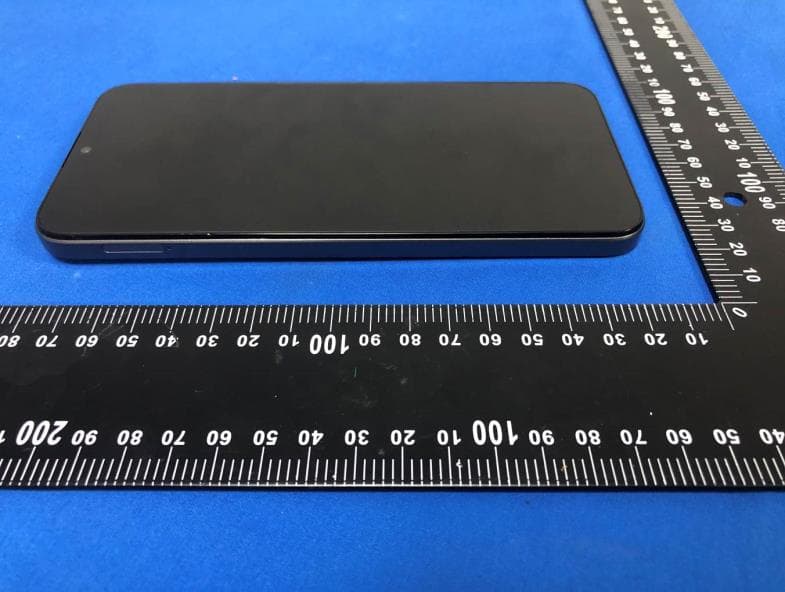
1 Photographs - EUT external Photographs Test model No.: CP337AS
ID Label/Location Info
Yulong Computer Telecommunication Scientific (Shenzhen) Co., Ltd We declare that : This device (FCC ID : R38YLCP337AS) is removable battery , Battery is in sale box when shipment. The consumer can immediately see the label, when the consumer open the back cover of the phone to install the battery. Name:Yentl Chen Signature: Date :2020-12-23
ID Label/Location Info
Label location
Internal Photos
1 Photographs - EUT external Photographs Test model No.: CP337AS
Test Report
SGS-CSTC STANDARDS TECHNICAL SERVICES (XI 'AN) CO., LTD. Report No.: ZR/2020/9003204 Page: 1 of 22 Authorized Signature: Derek Yang Wireless Laboratory Manager TEST REPORT Application No: ZR/2020/90032 Applicant: Yulong Computer Telecommunication Scientific (Shenzhen) Co., Ltd Address of Applicant Floor 21, Block A, Coolpad Building, Intersection of Keyuan Avenue and Baoshen Road, North High-Tech Industrial Park, Nanshan District, Shenzhen Manufacturer: Yulong Computer Telecommunication Scientific (Shenzhen) Co., Ltd Address of Manufacturer: Floor 21, Block A, Coolpad Building, Intersection of Keyuan Avenue and Baoshen Road, North High-Tech Industrial Park, Nanshan District, Shenzhen EUT Description: Mobile Hotspot Model No.: CP337AS Trade Mark: coolpad FCC ID: R38YLCP337AS Standard(s) : 47 CFR Part 15, Subpart B Date of Receipt: 2020/10/8 Date of Test: 2020/10/21 to 2020/12/31 Date of Issue: 2021/1/5 Test Result: Pass* * In the configuration tested, the EUT complied with the standards specified above. SGS-CSTC STANDARDS TECHNICAL SERVICES (XI 'AN) CO., LTD. Report No.: ZR/2020/9003204 Page: 2 of 22 Revision Record Version Chapter Date Modifier Remark 01 2021/1/5 Original SGS-CSTC STANDARDS TECHNICAL SERVICES (XI 'AN) CO., LTD. Report No.: ZR/2020/9003204 Page: 3 of 22 Test Summary Emission Part Item Standard Method Requirement Result Conducted Emissions at Mains Terminals (150kHz-30MHz) 47 CFR Part 15, Subpart B ANSI C63.4:2014 Class B Pass Radiated Emissions (30MHz-1GHz) 47 CFR Part 15, Subpart B ANSI C63.4:2014 Class B Pass Radiated Emissions (above 1GHz) 47 CFR Part 15, Subpart B ANSI C63.4:2014 Class B Pass Internal Source Upper Frequency Below 1.705MHz 30MHz 1.705MHz to 108MHz 1GHz 108MHz to 500MHz 2GHz 500MHz to 1GHz 5GHz Above 1GHz 5th harmonic of the highest frequency or 40GHz, whichever is lower Checked By Test By David Chen Daniel Wang Reviewer Project Engineer SGS-CSTC STANDARDS TECHNICAL SERVICES (XI 'AN) CO., LTD. Report No.: ZR/2020/9003204 Page: 4 of 22 Contents 1 GENERAL INFORMATION .................................................................................................................. 5 1.1 DESCRIPTION OF SUPPORT UNITS .................................................................................................... 7 1.2 TEST LOCATION ............................................................................................................................. 7 1.3 TEST FACILITY ............................................................................................................................... 7 1.4 DEVIATION FROM STANDARDS ......................................................................................................... 7 1.5 ABNORMALITIES FROM STANDARD CONDITIONS ................................................................................. 7 2 EMISSION TEST RESULTS................................................................................................................. 8 2.1 CONDUCTED EMISSIONS AT MAINS TERMINALS (150KHZ-30MHZ) ....................................................... 8 2.1.1 E.U.T. Operation ...................................................................................................................... 8 2.1.2 Test Setup Diagram ................................................................................................................. 9 2.1.3 Measurement Data................................................................................................................... 9 2.2 RADIATED EMISSIONS (30MHZ-1GHZ) ............................................................................................12 2.1.4 E.U.T. Operation .....................................................................................................................12 2.1.5 Test Setup Diagram ................................................................................................................13 2.1.6 Measurement Data..................................................................................................................13 2.3 RADIATED EMISSIONS (ABOVE 1GHZ) ..............................................................................................16 2.1.7 E.U.T. Operation .....................................................................................................................16 2.1.8 Test Setup Diagram ................................................................................................................17 2.1.9 Measurement Data..................................................................................................................17 3 EQUIPMENT LIST ..............................................................................................................................20 4 MEASUREMENT UNCERTAINTY.......................................................................................................21 5 PHOTOGRAPHS ................................................................................................................................22 5.1 TEST SETUP .................................................................................................................................22 5.2 EUT CONSTRUCTIONAL DETAILS (EUT PHOTOS) .............................................................................22 SGS-CSTC STANDARDS TECHNICAL SERVICES (XI 'AN) CO., LTD. Report No.: ZR/2020/9003204 Page: 5 of 22 1 General Information Product Name: Mobile Hotspot Model No.(EUT): CP337AS Trade Mark: coolpad Hardware Version: P3 Software Version: 3.18.054.P3.201216.CP337AS Frequency Bands: Band Tx (MHz) Rx (MHz) WCDMA Band II 1850~1910 1930~1990 WCDMA Band IV 1710~1755 2110~2155 WCDMA Band V 824~849 869~894 LTE Band 2 1850~1910 1930~1990 LTE Band 5 824~849 869~894 LTE Band 12 699~716 729~746 LTE Band 13 777~787 746~756 LTE Band 14 788~798 746~756 LTE Band 25 1850~1915 1930~1995 LTE Band 26 814~849 859~894 LTE Band 41 2496~2690 2496~2690 LTE Band 66 1710~1780 2110~2200 LTE Band 7…
Text truncated - open the document above for the full version.
Test Report
SGS-CSTC STANDARDS TECHNICAL SERVICES (XI 'AN) CO., LTD. Report No.: ZR/2020/9003204-01 Page: 1 of 23 Authorized Signature: Simon Ling Wireless Laboratory Manager TEST REPORT Application No: ZR/2020/90032 Applicant: Yulong Computer Telecommunication Scientific (Shenzhen) Co., Ltd Address of Applicant Floor 21, Block A, Coolpad Building, Intersection of Keyuan Avenue and Baoshen Road, North High-Tech Industrial Park, Nanshan District, Shenzhen Manufacturer: Yulong Computer Telecommunication Scientific (Shenzhen) Co., Ltd Address of Manufacturer: Floor 21, Block A, Coolpad Building, Intersection of Keyuan Avenue and Baoshen Road, North High-Tech Industrial Park, Nanshan District, Shenzhen EUT Description: Mobile Hotspot Model No.: CP337AS Trade Mark: coolpad FCC ID: R38YLCP337AS Standard(s) : 47 CFR Part 15, Subpart B Date of Receipt: 2020/10/8 Date of Test: 2020/10/21 to 2020/12/31 Date of Issue: 2021/8/15 Test Result: Pass* * In the configuration tested, the EUT complied with the standards specified above. SGS-CSTC STANDARDS TECHNICAL SERVICES (XI 'AN) CO., LTD. Report No.: ZR/2020/9003204-01 Page: 2 of 23 Revision Record Version Chapter Date Modifier Remark 01 2021/1/5 Original 02 2021/5/29 Leah Chen 1. Modify data conversion error of antenna height 2.Updated equipment list 03 2021/8/15 Leah Chen 1.Updated Support Units, Test facility and Test Location This report supersedes our previous report ZR/2020/9003204, issued on 2021-01-05, which is hereby deemed null and void. Authorized for issue by: Prepared By (Leah Chen) /Engineer Checked By (Daniel Wang) /Reviewer SGS-CSTC STANDARDS TECHNICAL SERVICES (XI 'AN) CO., LTD. Report No.: ZR/2020/9003204-01 Page: 3 of 23 Test Summary Emission Part Item Standard Method Requirement Result Conducted Emissions at Mains Terminals (150kHz-30MHz) 47 CFR Part 15, Subpart B ANSI C63.4:2014 Class B Pass Radiated Emissions (30MHz-1GHz) 47 CFR Part 15, Subpart B ANSI C63.4:2014 Class B Pass Radiated Emissions (above 1GHz) 47 CFR Part 15, Subpart B ANSI C63.4:2014 Class B Pass Internal Source Upper Frequency Below 1.705MHz 30MHz 1.705MHz to 108MHz 1GHz 108MHz…
Text truncated - open the document above for the full version.
Contact Information
Applicant
Yentl Chen(Project Manager)
Test Firm
SGS-CSTC Standards Technical Services (Xi 'an) Co.Linus Chen
[email protected]+86 512 36836182
Technical Specifications
| # | Rule Parts | Frequency Range | Power Output |
|---|---|---|---|
| 1 | 15B | - | - |
Other Applications from Yulong Computer Telecommunication Scientific (Shenzhen) Co. LTD
R38YLCPK21
Dec 04, 2025Smart Phone
Equipment Class
DSS - Part 15 Spread Spectrum Transmitter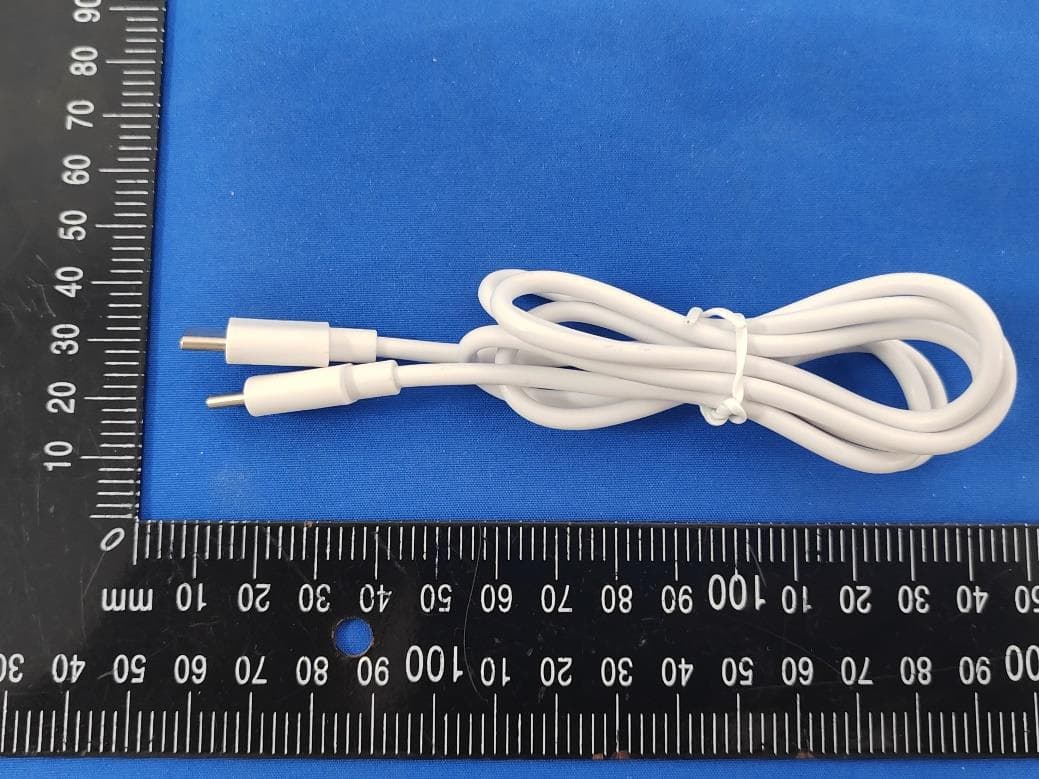
R38YLCP36T
Aug 28, 2024Smart Phone
Equipment Class
DSS - Part 15 Spread Spectrum Transmitter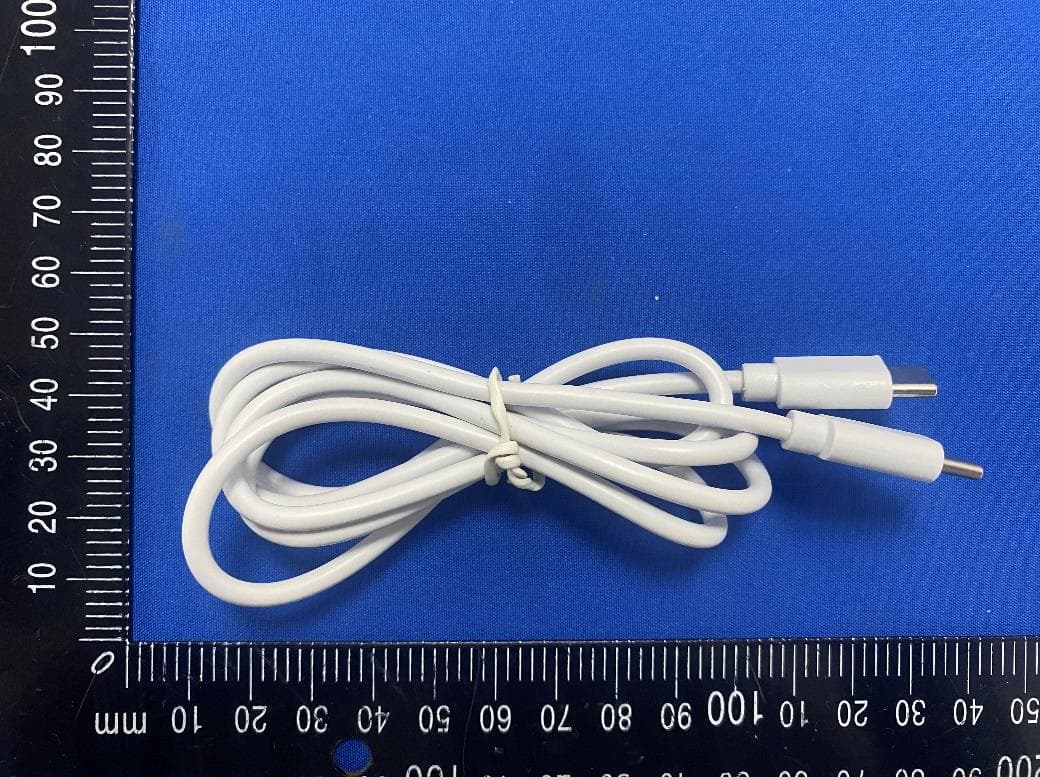
R38YLCP32A
Jul 22, 2024Smart Phone
Equipment Class
DXX - Part 15 Low Power Communication Device Transmitter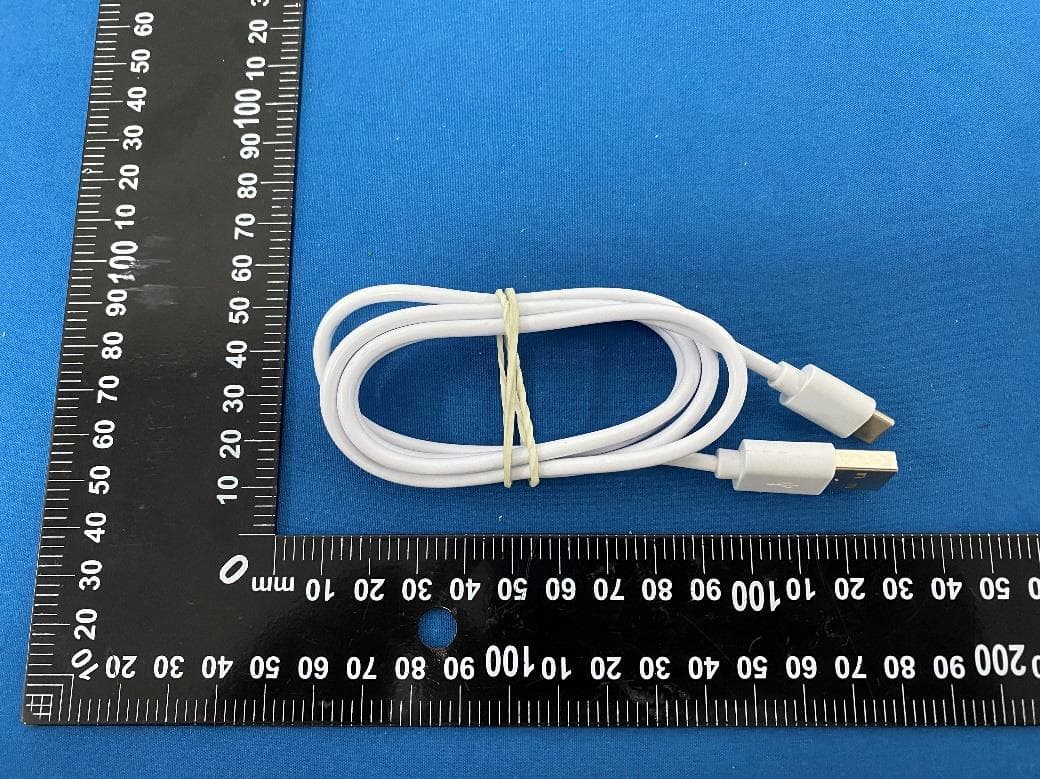
R38YLCP12U
Apr 25, 2024Smart Phone
Equipment Class
JBP - Part 15 Class B Computing Device Peripheral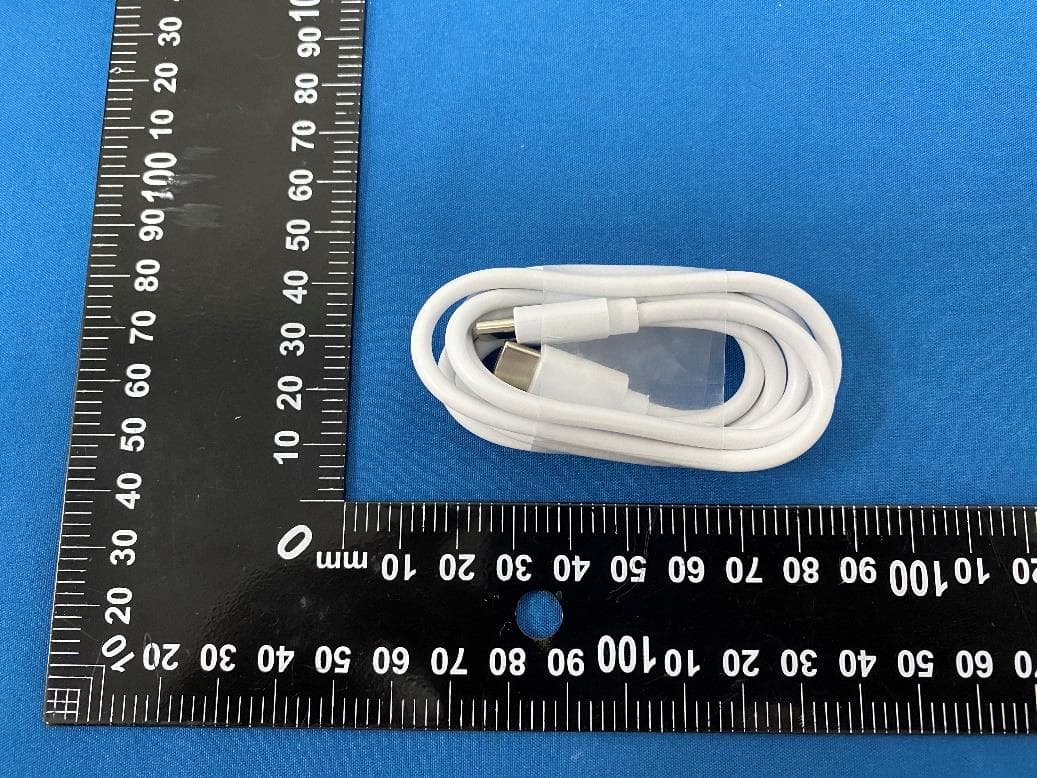
R38YLCP12S
Apr 02, 2024Smart Phone
Equipment Class
PCE - PCS Licensed Transmitter held to ear