RA8-BS003Bluetooth Stereo Headset
Sunitec Enterprise Co., Ltd.
Click to zoom
Application Details
- Equipment Class
- DSS - Part 15 Spread Spectrum Transmitter
- Date of Grant
- May 07, 2012
- Application Purpose
- Original Equipment
- Date of Application
- May 07, 2012
- Equipment Note
- Bluetooth Stereo Headset
- Frequency Range
- 2402.00000000 - 2480.00000000
- Company
- Sunitec Enterprise Co., Ltd.
- Country
- Taiwan
Documents & Files
Document Text
Text extracted from the exhibit documents filed with the FCC. Open a document above to read the original.
Users Manual
CRC#: 5279194 Instruction Manual Before u sing thi s p roduct , read thi s manual carefully and retain it for future reference . -01 - 1. Introduction The Bluetooth Stereo works with al l Bluetooth enabled compatible phone or music device tha t support s Advanced Aud io Distribu ti on Profile (A 2DP) an d Aud io Video Remote Co ntrol Profile (AVRCP). List ening to music, answering calls, adjusting volume, and tr ack controls ar e easily ac cessible on the buttons of the headset - the ideal solution for integrating wireless mobile music and calls. 2. Diagram Mini USB Charging Poi nt 3.5mm Stereo Headset Jack Microphone Volume Up Volume Down Backwar d LED Light Indicator MFB: Multi-Function But ton (on/o ff/answer) Forwar d 3. Wearing Your Headset BS852 -02 - 4. Charging Your Bluetooth Stereo Headset Make sure tha t you r Stereo He ad se t is fully charged before usin g it. Use only the charger pr ovided, do not use chargers from an y other devices as it might damage the device. A ful l charge is approximately 3 hours. 5. To Charge Your Bluetooth Headset 1. Use the charger to charge from a charging outlet (or from your laptop/PC's USB port if the optional USB Charging Cable is provided). 2. When an LED light indication is red, the headset is charging. 3. The LED light indication goes off when the device is ful ly charged. 6. Powering Up To turn ON the Bluetooth Stereo Headset Pres s an d hold the “MFB ” button for 3 seconds an d the fla shi ng Blue LED lig ht indicator comes on. Note: Do not ho ld the button do wn for more tha n 6 se cond s when turning the head set on or else it may switch to pairing mode. If this happens, turn of f the headset and repeat the process for turning the headset on. To turn OFF the Bluetooth Stereo Headset Pr ess and hold the “MFB” button until the red LED light indication goes off. 7. Pairing Bluetooth Stereo Headset to Mobile Phone Pai rin g is the process of con nect in g your headset with you r mobile phone. Before using the headset wi th your mobile phone, you must pair both devices. If you wish to use your headset with a dif fer ent mobile phone, you must reinstate the pairing pr ocess with your intended Bluetooth mobile phone. 1. Switc h to pa iri ng mode by ho lding on to the “M FB” button (approximate ly 6 seconds) till both Blue/Red LED lights appear. 2. The LED lights will blink simultaneously in pairing mode. 3. Turn on the mobile phone and place it within 1 meter to the headset. 4. Activate the Bluetooth function on your mobile phone and search fro ac cessible Bluetooth device by ref erring to your mobile phone user guide for details. 5. Select “BT Headset”from the list. -03 - 6. Ente r the pre-programmed code “0000” an d pres s “OK” to pair the headset and the phone. When pairing is completed, the blue and red LED stop flashing, the headse t is under the standby mode with the blue LED flashes in every 4 seconds. 7. Pr ess “R eturn” to go back to your mobile phone’s main menu. Please place the mobile phone an d the headse t within 10 meters sensing dis tance. You should now be able to make and receive calls using your headset. No te: If the pa iring ca nnot be co mpleted wi thin 2 minutes after the pa iring mode is activated, the headset wil l power of f automatically . Please repeat steps above to pair the headset and mobile phone again. 8. Connection/Link between Headset and Mobile Phone After pairing is completed, headset is always under standby mode. Bef or e you place or answer a call , if the headset icon is not shown on ph one screen, please foll ow the steps below to activate the Bluetooth connection/link thr ough your mobile phone or headset until the headset icon is on the screen. (1) On phone: Select the “from the paired list on your phone screen. (2) On headset: Short pr ess “MFB” and select “Ac cept” on phone screen to ac cept connection. 9. Disconnection between Headset and Mobile Phone When you need to con nect your headset with another Bluet oo th-enabled mobile phone, please fol low the steps below to disconnect the headset wi th the pr e-paired mobile phone. (1) Power off the Headset. (2) Select “D isconn ecting ” on the Bluetooth device lis t of your mobile phone to remove the connection. Note: When losing the connection/link, the headset wil l be automatically power of f in 10 minutes. 10. Using the Headset (1) Answering Call When receiving a phone call, press the “MFB” button to answer the call. (2) Ending Call Pr ess the “MFB” button to end a call. (3) Reject Call When you hear the ringing tone, pr ess and hold the “MFB” button for 3 seconds to reject the call. -04 - (4) Voice Dial If your mobile phone is voice dialing enabled, under standby mode, pr ess and hold the “V+” or “V -” button for 3 seconds and sa y the voice tag after you hear a beep. Note: Please make s ur e t o recor d voice t ag int o t he mobile phone be for e using voi ce dial funct ion . Functionality varie s depending on the mobile phone models. Please ref er to your mobile phone user guide for details. (5) Last Number Re-Dialing Under standby mode, short press the “MFB” button twice for last number redial. (6) Adjusting the Volume Duri ng a call, press the “V+” or “V-” buttons repeate dly until you reach the desired volume level. (7) Mute & Un-Mute Mute: During talking via the headset, pr ess “V+” or “V -” for 6 seconds until the headset emit a short beep. Un-Mute: Press “V+” or “V-” for 6 seconds until the headset emits a short beep. (8) Transferring Calls a. Headset to Mobile Phone: During a cal l, pr ess and hold the “MFB” button for 3 seconds, and the call is routed to your mobile phone. b. Mob ile Phone to Headset: Pres s the “MFB” button f o r 3 s e c o n ds to route the call to headset. (9) Hold the Call Duri ng a call , press “V+” or “ V-” for 3 sec on ds to hold t he phone call. P ress “ V+” or “V-” for 3 seconds button again to resume conversation. (10) Answer the Second Call a. During conversation in pr ogress, pr ess “V+” or “V -” for 3 seconds…
Text truncated - open the document above for the full version.
Cover Letter(s)
Sunitec Enterprise Co., Ltd. 10F.-1, No.200, Jingping Rd., Jhonghe City, Taipei County 23581, Taiwan FCC Confidentiality Request Number: CF303 Version: V01 Date: 2012-4-18 To the FCC and FCC TCB handling this application for certification Pursuant to 47 CFR Section 0.459(a) & (b), we, (the applicant / grantee) Company name Sunitec Enterprise Co., Ltd. Addresss 10F.-1, No.200, Jingping Rd., Jhonghe City, Taipei County23581, Taiwan City Jhonghe Country Taiwan request non-disclosure and confidential treatment for our certification under: Grantee Code Product Number FCC ID: RA8 - BS003 of the following materials submitted within this certification application: (please cross what is applicable, or add other documents) x Operational Description x Block Diagrams x Schematics Diagrams Above materials contain secrets, proprietary and technical information, which would customarily be guarded from competitors under 47 CFR, section 0.457(d)(2). Disclosure or publication or any portion of this company confidential material to other parties could cause substantial competitive harm and provide unjustified benefits for competitors. We understand that pursuant to 47 CFR section 0.457(d)(1)(ii) disclosure of the applicant and all accompanying documentation will not be made before the date of the grant. Attestation: City and Country: Date: Name: (this must be a person) Function: Signature: (or official company stamp) Jhonghe,Taiwan April 18, 2012 Tom Chien General Manager
External Photos
Report No: SZ120412B14-RP Page 1 / 4 Report No: SZ120412B14-RP Page 2 / 4 Report No: SZ120412B14-RP Page 3 / 4 Report No: SZ120412B14-RP Page 4 / 4
Test Setup Photos
Report No.:SZ120412B14-RP FCC ID : RA8-BS003 Page 1 / 2 PHOTOGRAPHS OF THE TEST CONFIGURATION CONDUCTED EMISSION TEST Report No.:SZ111208B03-RP FCC ID: RA8-BS003 Page 2/2 . Radiated Emissions Setup Photos Below 1GHz Above 1GHz
Contact Information
Applicant
Tom Chien(General Manager)
Technical Contact
TeleconformityMark Koop
[email protected]+31 84 8395876
Rietven 31 · Enschede, Overyssel · Netherlands
Test Firm
Compliance Certification Services (Shenzhen) Inc.Harry Li
Technical Specifications
| # | Rule Parts | Frequency Range | Power Output |
|---|---|---|---|
| 1 | 15C | 2.40 GHz - 2.48 GHz | 6.10 mW |
Other Applications from Sunitec Enterprise Co., Ltd.
RA8-BA530
May 19, 2014Bluetooth Audio Transmitter
Equipment Class
DSS - Part 15 Spread Spectrum Transmitter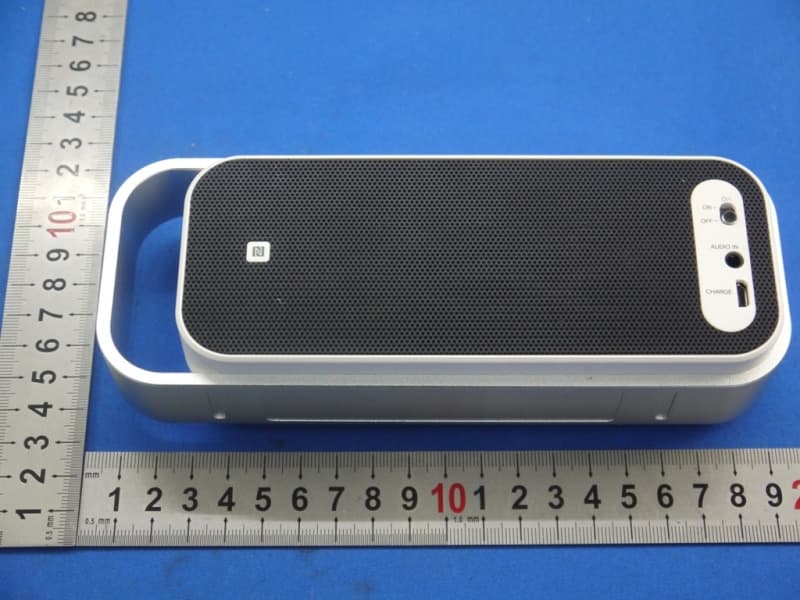
RA8-SPABT2
Mar 25, 2014BLUETOOTH STEREO SPEAKER
Equipment Class
DSS - Part 15 Spread Spectrum Transmitter
RA8-BH006
Mar 17, 2014Bluetooth Alcohol Breath Tester
Equipment Class
DTS - Digital Transmission System
RA8-BS006
Mar 05, 2014Bluetooth Speaker
Equipment Class
DTS - Digital Transmission System
RA8-BH005
Jan 01, 2014Bluetooth Headset
Equipment Class
DSS - Part 15 Spread Spectrum Transmitter