RAD081GSM/GPRS/EDGE/WCDMA/HSDPA Data Card
TCT Mobile Limited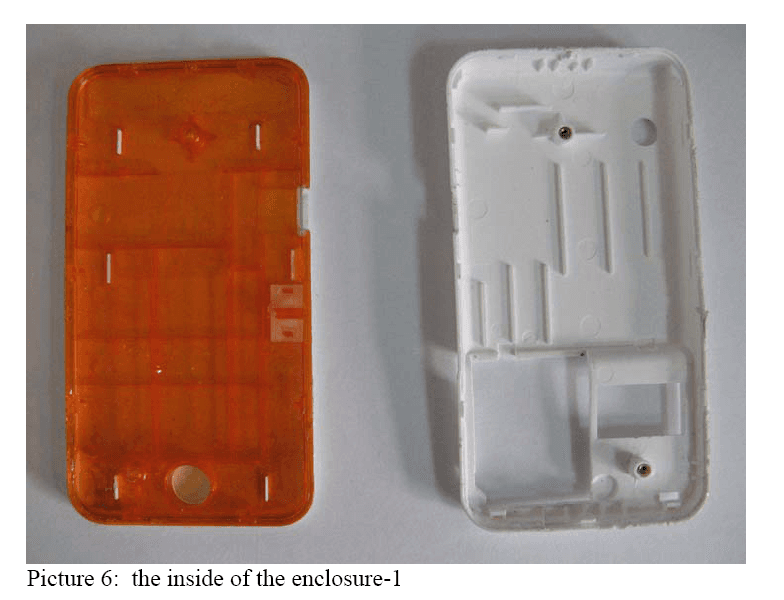
Click to zoom
Application Details
- Equipment Class
- PCB - PCS Licensed Transmitter
- Date of Grant
- Feb 24, 2008
- Application Purpose
- Original Equipment
- Date of Application
- Feb 24, 2008
- Equipment Note
- GSM/GPRS/EDGE/WCDMA/HSDPA Data Card
- Frequency Range
- 1852.40000000 - 1907.60000000
- Company
- TCT Mobile Limited
- Country
- China
Documents & Files
Document Text
Text extracted from the exhibit documents filed with the FCC. Open a document above to read the original.
Users Manual
HSDPA MODEM USER Manual 2 Index Introduction .....................................................................................3 Main interface introduction ..............................................................5 Entrance to main interface ..............................................................8 Connect to the Internet....................................................................9 SMS Service .................................................................................13 Contacts ........................................................................................16 Settings .........................................................................................19 FAQ ...............................................................................................25 FCC Part 15 statement .................................................................29 3 Introduction This PC Suite is designed to enable users to access the Internet via the GPRS / EDGE / UMTS / HSDPA networks. With this application, users can access the following functions: y Wireless Internet connection y An SMS service y A contact manager y Settings 1. Internet connection This application will ensure easy connection to the Internet. Users will be able to enjoy a high-speed data service by clicking on the button in the main window or by clicking directly on the device. Users can also access the connection status in the tray bar, including connection time and volume of data transferred. 2. SMS service With this PC Suite, users can use the following functions: 4 y New SMS y Edit SMS y Group SMS y Reply y Forward y Save number y Export to PC y Delete 3. Contacts It contains 2 memories: PC and (U)SIM card. It supports the following functions: y New y Edit y Send SMS y Export vCard file y Export text file y Copy to PC and (U)SIM card y Delete y Search 5 4. Settings This contains the following settings: y Network mode y Network band y Network selection y Request PIN y Modify PIN y Connection profile settings y Diagnostics y SMS settings y System settings y Help y About Main interface introduction 1. Function icon /: Connect / disconnect to Internet : Access the SMS service window 6 : Access the contact management window : Set parameters of the PC suite 2. Status bar information Current network operator name will be displayed on the status bar. y If no device is found, ”No device” is displayed y If no SIM card is found, “No (U)SIM card” is displayed y If the SIM card is invalid, “Invalid (U)SIM card” is displayed y During Initialization, ”Initializing” is displayed y If searching for the network, “Searching” is displayed y If no network is found,” No service” is displayed 3. Signal status bar : Indicates the signal strength of the current network Network type: is displayed when GSM/GPRS is connected is displayed when UMTS is connected Support data service: is displayed if HSDPA is available is displayed if EDGE is available 7 Nothing is displayed if GPRS support is available : Indicates that there is an unread SMS in main interface : Indicates that the (U)SIM card memory is full 4. Tray Icon If you click on , the main window is closed and the tray icon will appear in the tray bar. The main window can be reopened by double clicking on the tray icon. 5. System tray menu y Open: Opens the main window y Connect/Disconnect: Connects/disconnects to the Internet y Statistics: Displays connection status information y Contacts: Opens contact management window y SMS: Opens SMS service window y About: Application version y Exit: Exits the application 8 Entrance to main interface y The application runs automatically and the main window will pop up when a device is connected. Users can also access and run the application from the <Start> menu. y If the PIN code is enabled, please enter the correct PIN code in the entry field, and click on <OK>. Users may try only 3 times to enter the correct PIN code; after three incorrect attempts, the (U)SIM card will be blocked. y A PUK dialog box will then be displayed asking the user to enter the right PUK code. Click on <OK>, and a default PIN code will be retrieved. If the user fails to input the correct PUK code after 10 attempts, he should contact the operator. y If the PIN code is correct, the application will be launched and all functions can be used. 9 Figure1: Main window Connect to the Internet 1. Connecting with the default log-on profile If you want to connect to the Internet without setting any user-defined or predefined profiles, press . The default connection profile will be used in accordance with your (U)SIM card. Connecting 10 y Click on from the main window; y Wait several seconds until the connection is established; y Once you are connected, will change into and the connection information window will appear in the tray bar. Disconnecting Click on from the main window to disconnect from the Internet. 2. Connecting with a user-defined log-on profile Click on and select the <Connection settings> menu to open the profile setting window. Adding a new connection profile Click on <Add> to open a new connection profile window: 1. If <New profile> is selected y Click on <Next>, and the edit settings window will pop up; y Enter any profile such as APN; y Click on <Finish> to add it to the available profile list. 2. If <Choose from predefined list> is selected y Click on <Next>, and a predefined list will pop up as shown below; y Select one item in the predefined profile list; 11 y Click on <Finish> to add it to the available profile list. Note:Users may obtain APN information from their operator. Setting a default connection profile 1. Select one item from the list of available connection profile(s); 2. Click on <Set default> to set it as the default profile; 3. Click on to start the connection using the specified profile. 3. Connection status information A connection status window will be displayed in the tray bar as soon as you are connected. Figure 1: Statisti…
Text truncated - open the document above for the full version.
External Photos
External photos for One Touch X030 Picture 1:The front view of the Sample Picture 2: The back view of the Sample Picture 3: The top view of the sample Picture 3: The top view of the sample Picture 4: The bottom of the sample Picture 5: The left view of the sample Picture 5: The left view of the sample Picture 6: The right view of the sample.
Internal Photos
Internal Photos for One Touch X030 Picture 4: the back view of the sample with the RF shield-2
Parts List/Tune Up Info
Antenna Details for One Touch X030 Main Antenna: Type: monopole Antenna Gain GSM 850: 1.40dBi GSM 900: 0.68dBi GSM 1800: 3.37dBi GSM 1900: 2.99dBi WCDMA 850: 1.40dBi WCDMA 1900: 3.40dBi WCDMA 2100: 3.26dBi The location of the antennas inside mobile phone is shown below:
RF Exposure Info
MPE calculation for One Touch X030 S = (0.0795 * 10 ^ ((P + G) / 10)) / (d^2) d = MPE distance in cm P = Power in dBm G = Antenna Gain in dBi S = Power Density Limit in mW/cm^2 BANDGAIN(dBi)POWER(dBm)D(cm)S GSM8501.432.5200.48 GSM9000.6832.5200.413 DCS18003.3729.5200.385 PCS19002.9929.5200.353 UMTS21003.2622.8200.08 UMTS19003.422.8200.083 UMTS8501.423200.055
Test Report
FCC Parts 2, 22, 24 Equipment: One Touch X030 REPORT NO.: I08GE4343-FCC-EMC Address:11 YUE TAN NAN JIE, BEIJING, P.R.C,100045 Tel:+86 10 68094053 FAX:+86 10 68011404 Web:http://www.chinattl.com Page 2 of 75 China Telecommunication Technology Labs. ® FCC ID: RAD081 Report Date: 2008-2-3 Test Firm Name: China Telecommunication Technology Labs Registration Number: 840587 Statement The measurements shown in this report were made in accordance with the procedures described on test pages. All reported tests were carried out on a sample equipment to demonstrate limited compliance with FCC CFR 47 Parts 2, 22, and 24. The sample tested was found to comply with the requirements defined in the applied rules. FCC Parts 2, 22, 24 Equipment: One Touch X030 REPORT NO.: I08GE4343-FCC-EMC Address:11 YUE TAN NAN JIE, BEIJING, P.R.C,100045 Tel:+86 10 68094053 FAX:+86 10 68011404 Web:http://www.chinattl.com Page 3 of 75 China Telecommunication Technology Labs. ® CONTENTS 1 GENERAL INFORMATION ................................................................. 4 1.1 NOTES......................................................................................... 4 1.2 TESTERS....................................................................................... 5 1.3 TESTING LABORATORY INFORMATION...................................................... 7 1.4 DETAILS OF APPLICANT OR MANUFACTURER............................................... 8 2 TEST ITEM ....................................................................................... 9 2.1 GENERAL INFORMATION..................................................................... 9 2.2 OUTLINE OF EUT............................................................................. 9 2.3 MODIFICATIONS INCORPORATED IN EUT.................................................. 9 2.4 EQUIPMENT CONFIGURATION............................................................... 9 2.5 OTHER INFORMATION.......................................................................10 3 SUMMARY OF TEST RESULTS ......................................................... 11 4 TEST RESULTS OF MODE ................................................................ 13 4.1 RADIATED SPURIOUS EMISSION...........................................................13 4.2 RADIATED RF POWER OUTPUT AND ERP.................................................34 4.3 OCCUPIED BANDWIDTH.....................................................................38 4.4 FREQUENCY STABILITY OVER TEMPERATURE VARIATION................................52 4.5 FREQUENCY STABILITY OVER VOLTAGE VARIATION......................................56 4.6 CONDUCTED RF POWER OUTPUT..........................................................59 4.7 CONDUCTED SPURIOUS EMISSION........................................................63 ANNEX A EXTERNAL PHOTOS............................................................ 71 ANNEX B INTERNAL PHOTOS ............................................................ 74 ANNEX C DEVIATIONS FROM PRESCRIBED TEST METHODS .............. 75 FCC Parts 2, 22, 24 Equipment: One Touch X030 REPORT NO.: I08GE4343-FCC-EMC Address:11 YUE TAN NAN JIE, BEIJING, P.R.C,100045 Tel:+86 10 68094053 FAX:+86 10 68011404 Web:http://www.chinattl.com Page 4 of 75 China Telecommunication Technology Labs. ® 1 General Information 1.1 Notes All reported tests were carried out on a sample equipment to demonstrate limited compliance with FCC CFR 47 Parts 2, 22 and 24. The test results of this test report relate exclusively to the item(s) tested as specified in section 2. The following deviation from, additions to, or exclusions from the test specifications have been made. See Annex C. China Telecommunication Technology Labs.(CTTL) authorizes the applicant or manufacturer (see section 1.4) to reproduce this report provided, and the test report may only be reproduced or published in full. Reproduction or publication of extracts from the report requires the prior written approval of CTTL Mr. He Guili. Any use which a third party makes of this report, or any reliance on or decisions to be made based on it, are the responsibility of such third parties. CTTL accepts no responsibility for damages, if any, suffered by any third party as a result of decisions made or actions based on this report. FCC Parts 2, 22, 24 Equipment: One Touch X030 REPORT NO.: I08GE4343-FCC-EMC Address:11 YUE TAN NAN JIE, BEIJING, P.R.C,100045 Tel:+86 10 68094053 FAX:+86 10 68011404 Web:http://www.chinattl.com Page 7 of 75 China Telecommunication Technology Labs. ® 1.3 Testing Laboratory information 1.3.1 Location Name: China Telecommunication Technology Labs. Address: No. 11, Yue Tan Nan Jie, Xi Cheng District BEIJING P. R. CHINA, 100083 Tel: +86 10 68094053 Fax: +86 10 68011404 Email: [email protected] 1.3.2 Details of accreditation status Accredited by: China National Accreditation Service for Conformity Assessment (CNAS) Registration number: CNAS Registration No. CNAS L0570 Standard: ISO/IEC 17025 1.3.3 Test location, where different from section 1.3.1 Name: ------ Street: ------ City: ------ Country: ------ Telephone: ------ Fax: ------ Postcode: ------ FCC Parts 2, 22, 24 Equipment: One Touch X030 REPORT NO.: I08GE4343-FCC-EMC Address:11 YUE TAN NAN JIE, BEIJING, P.R.C,100045 Tel:+86 10 68094053 FAX:+86 10 68011404 Web:http://www.chinattl.com Page 8 of 75 China Telecommunication Technology Labs. ® 1.4 Details of applicant or manufacturer 1.4.1 Applicant Name: T&A Mobile Phones Address: 4/F, South Building, No.2966, Jinke Road, Zhangjiang High-Tech Park, Pudong, Shanghai, 201203, P.R.China Country: China Telephone: +86-21-61460888 Fax: +86-21-61460600 Contact: Kong Ying Telephone: +86-21-61460883 Email: [email protected] 1.4.2 Manufacturer (if different from applicant in section 1.4.1) Name: -- Address: -- City: -- Country: -- 1.4.3 Manufactory (if different from applicant in section 1.4.1) Name: -- Address: -- City: -- Country: -- FCC Parts 2, 22, 24 Equipment: One Touch X030 …
Text truncated - open the document above for the full version.
Test Setup Photos
Set-up Photos for One Touch X030
Contact Information
Applicant
Zhizhou Gong
Test Firm
China Telecommunication Technology LabsZou Dongyi
Technical Specifications
| # | Rule Parts | Frequency Range | Power Output | Emission | Tolerance |
|---|---|---|---|---|---|
| 6 | 24E | 1.85 GHz - 1.91 GHz | 250.00 mW | 4M70F9W | 2.5 ppm |
Other Applications from TCT Mobile Limited
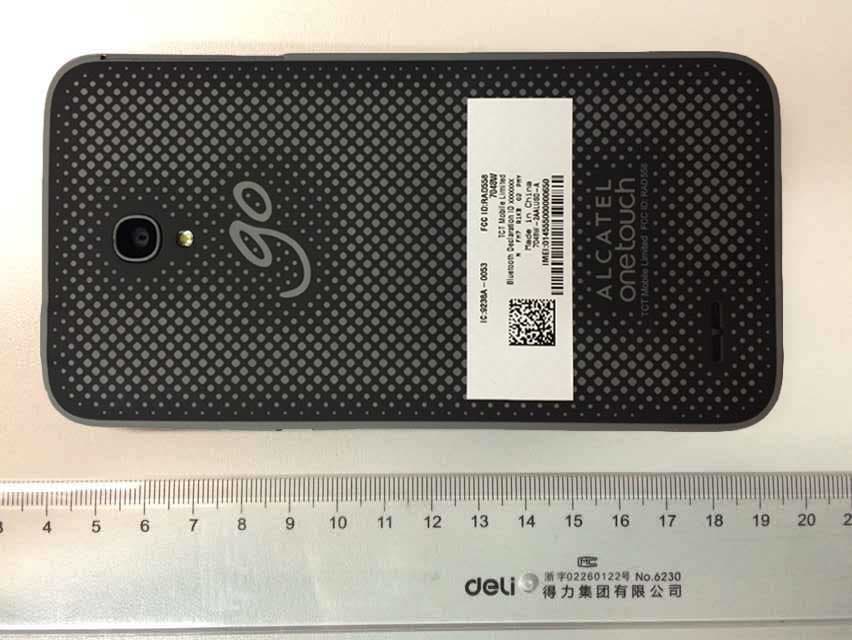
RAD558
Nov 15, 2015HSUPA/HSDPA/UMTS tribands / GSM quadbands/LTE 6-band mobile phone
Equipment Class
JBP - Part 15 Class B Computing Device Peripheral
RAD556
Sep 08, 2015CDMA 1X BC0/BC1/BC10 mobile phone
Equipment Class
PCE - PCS Licensed Transmitter held to ear
RAD552
Jun 20, 2015GSM Quadband / UMTS Triband mobile phone
Equipment Class
PCE - PCS Licensed Transmitter held to ear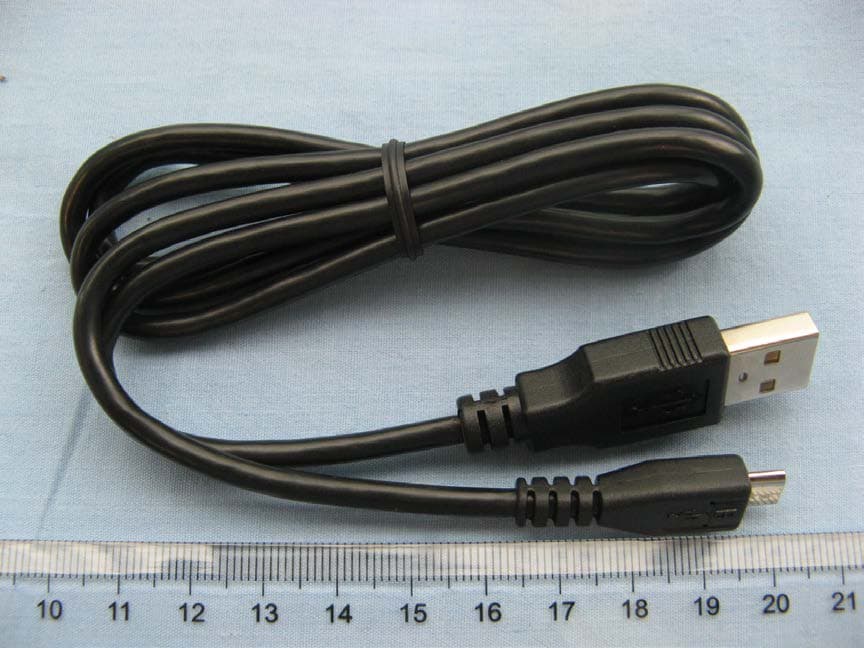
RAD550
Jun 06, 2015HSDPA/HSUPA/HSPA+/UMTS quad band /GSM quad band/LTE 4 band mobile phone
Equipment Class
DSS - Part 15 Spread Spectrum Transmitter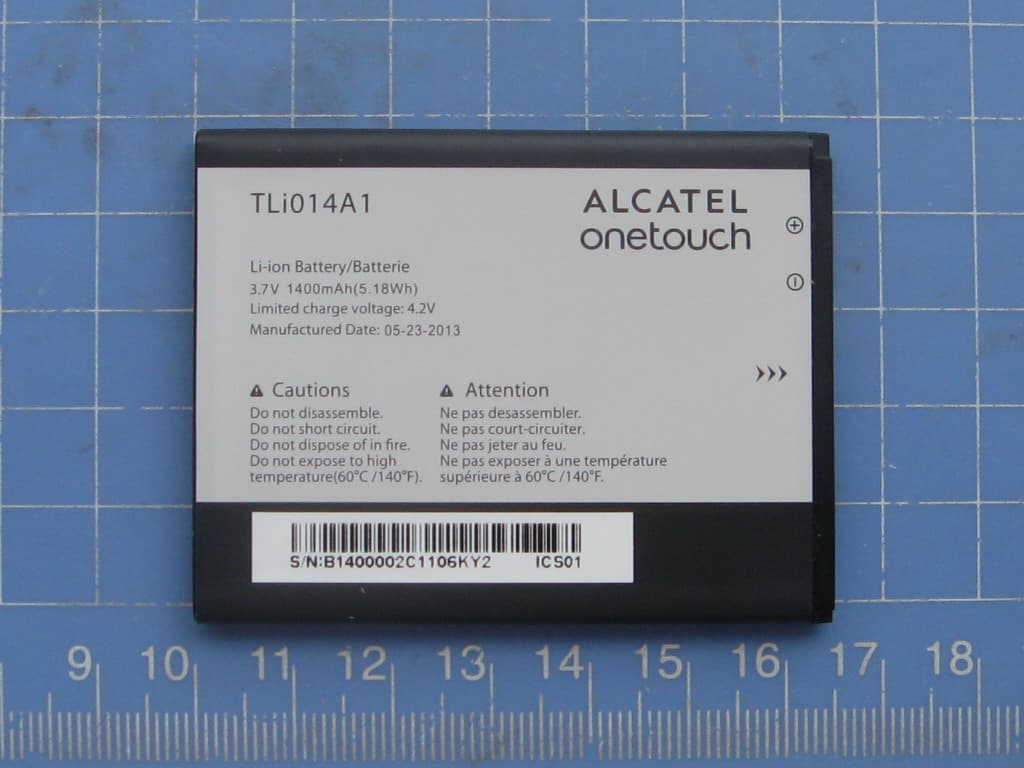
RAD549
May 13, 2015WCDMA tri band / GSM quad band Moblie phone with BT, Wi-Fi functionality.
Equipment Class
DSS - Part 15 Spread Spectrum Transmitter