RAD315HSUPA/HSDPA/UMTS triband/GSM quadband mobile phone
TCT Mobile Limited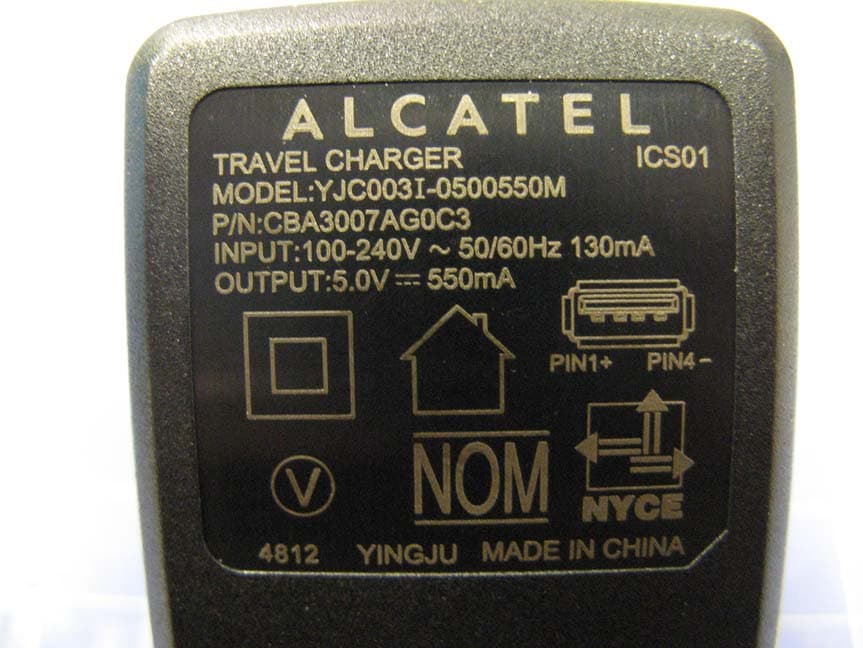
Click to zoom
Application Details
- Equipment Class
- JBP - Part 15 Class B Computing Device Peripheral
- Date of Grant
- Dec 30, 2012
- Application Purpose
- Original Equipment
- Date of Application
- Dec 27, 2012
- Equipment Note
- HSUPA/HSDPA/UMTS triband/GSM quadband mobile phone
- Company
- TCT Mobile Limited
- Country
- China
Documents & Files
Document Text
Text extracted from the exhibit documents filed with the FCC. Open a document above to read the original.
Users Manual
12 English - CJB26N1ALAAA Quick Start Guide For more information about how to use the cellphone, please go to www.alcatelonetouch.com to download complete user manual. Also on our website you can find helpful FAQs, realize software upgrade, etc. Your mobile 1 .................. Keys and connectors1.1 Proximity sensor Touch screen LED light Front camera Back key Home key Recent apps key Headset connector Power key micro-USB connector Volume up Side key Volume down 4030A 4030E PROTECT YOUR HEARING To prevent possible hearing damage, do not listen at high volume levels for long periods. Exercise caution when holding your device near your ear while the loudspeaker is in use. IP4468_4030A_4030E_QG_Eng_USA_04_121225.indd 1-2IP4468_4030A_4030E_QG_Eng_USA_04_121225.indd 1-22012-12-25 10:55:092012-12-25 10:55:09 34 Camera Recent apps key Open a list of thumbnail images of apps you've worked • with recently. Touch it to open an app. Swipe it left or right to remove a thumbnail from the list. Home key While on any application or screen, touch to return to • the Home screen. Back key Touch to go back to the previous screen, or to close a • dialog box, options menu, the notification panel, etc. Power key Press: Lock the screen/Light up the screen• Press and hold: Show the pop-up menu to select from • Ringer mode/Airplane mode/Power off Press and hold: Power on Press and hold• Power key and Volume down key to capture a screenshot. Press and hold • Power key and Volume up key to restore factory set. Volume Keys Under call mode, adjust the earpiece or headset volume.• In Music/Video/Streaming mode, adjust the media volume.• In general mode, adjust the ring tone volume.• Mute the ringtone of an incoming call.• Side key Press: Take a picture in Camera mode.• Press and hold: Access Camera.• Getting started1.2 Set-up1.2.1 Removing or installing the back cover Inserting or removing the SIM card You must insert your SIM card to make phone calls. Please power off your phone and remove battery before inserting or removing the SIM card. ONE TOUCH 4030A ONE TOUCH 4030E Place the SIM card with the chip facing downwards and slide it into its housing. Make sure that it is correctly inserted. To remove the card, press and slide it out. IP4468_4030A_4030E_QG_Eng_USA_04_121225.indd 3-4IP4468_4030A_4030E_QG_Eng_USA_04_121225.indd 3-42012-12-25 10:55:092012-12-25 10:55:09 56 Installing or removing the battery Please power off your phone before removing the battery. Insert and click the battery into place, then close the phone cover.• Unclip the cover, then remove the battery.• Installing and removing the microSD card Insert the external microSD card into the slot with the gold contact facing down. To remove the external microSD card, gently press and slide it out. Before removing the microSD card, you should ensure the phone is off, to protect it from corruption or damage. In addition, regularly removing or inserting the SD card may cause the phone to restart. Charging the battery Connect the battery charger to your phone, then the LED light will be on. The charging status bar will not float if your battery is extendly consumed. To reduce power consumption and energy waste, when battery is fully charged, disconnect your charger from the plug; switch off Wi-Fi, GPS, Bluetooth or background-running applications when not in use; reduce the backlight time, etc. Power on your phone1.2.2 Hold down the Power key until the phone powers on. It will take some seconds before the screen lights up. Set up your phone for the first time The first time you power on the phone, you should set following options: language, date & time, Google account, Input method, etc. Power off your phone1.2.3 Hold down the Power key from the Home screen until the Phone options appear, select Power off. Home screen1.3 You can bring all the items (applications, shortcuts, folders and widgets) you love or use most frequently to your Home screen for quick access. Touch the Home key to switch to Home screen. Status bar Status/Notification indicators • Touch and drag down to open the • notification panel. Application tab Touch to open main menu.• Search bar Touch • n to enter text search screen. Touch • o to enter voice search screen. Touch an icon to open an application, folder, etc. Favorite tray applications Touch to enter the application.• Touch and hold to move or change • applications. IP4468_4030A_4030E_QG_Eng_USA_04_121225.indd 5-6IP4468_4030A_4030E_QG_Eng_USA_04_121225.indd 5-62012-12-25 10:55:092012-12-25 10:55:09 78 Home screen is provided in an extended format to allow more space for adding applications, shortcuts etc. Slide the Home screen horizontally left and right to get a complete view of the Home screen. Using the touchscreen1.3.1 Touch To access an application, touch it with your finger. Touch and Hold Touch and hold the home screen to access the available options for setting the wallpaper. Drag Place your finger on any item to drag it to another location. Slide/Swipe Slide the screen to scroll up and down the applications, images, web pages... at your convenience. Flick Similar to swiping, but flicking makes it move quicker. Pinch/Spread Place your fingers of one hand on the screen surface and draw them apart or together to scale an element on the screen. Rotate Automatically change the screen orientation from portrait to landscape by turning the phone sideways to have a better view. Status bar1.3.2 From status bar, you can view both phone status (to the right side) and notification information (to the left side). Status icons For dual SIM model, status icons referring to either SIM1 or SIM2 will be identified by a colour which you have defined (1). GPRS connectedGPS is on GPRS in use Receiving location data from GPS EDGE connectedSpeakerphone is on EDGE in useRoaming 3G connectedNo signal 3G in useVibrate mode HSPA (3G+) connectedRinger is silenced HSPA (3G+) in use Phone microphone is mute Wi-Fi is onNo charge in battery…
Text truncated - open the document above for the full version.
Users Manual
910 Notification icons New text or multimedia message Carrier data use threshold approaching or exceeded Problem with SMS or MMS delivery More notifications are hidden New Google Talk message Call in progress New voicemailMissed call Upcoming eventCall on hold Data is synchronizingCall forwarding is on Song is playing Uploading data microSD card is fullDownloading data No microSD card installed Download finished preparing SD cardSelect input method safe to remove SD card An open Wi-Fi network is available Screenshot error Phone is connected via USB cable USB tethering is onRadio is on Portable Wi-Fi hotspot is on System update available Both USB tethering and portable hotspot are on Connected to VPN Screenshot captured Disconnected from VPN Notification panel Touch and drag down the Status bar to open the notification panel. Touch and drag up to close it. From the Notification panel, you can open items and other reminders indicated by notification icons or view wireless service information. Quick settings bar Touch to enable/disable functions or • change modes. Slide left and right to view more.• Touch one notificaiton and slide it sideways to delete it. Touch the icon to clear all event–based notifications (other ongoing notifications will remain). Touch the Settings icon to access Settings. Search bar1.3.3 The phone provides a Search function which can be used to locate information within applications, the phone or the web. Lock/Unlock your screen1.3.4 To protect your phone and privacy, you can lock the phone screen by creating a variety of patterns, PIN or password etc. Personalize your Home screen1.3.5 Add Touch the application tab , touch and hold an application or a widget to active the Move mode, and drag the item to any Home screen as you prefer. IP4468_4030A_4030E_QG_Eng_USA_04_121225.indd 9-10IP4468_4030A_4030E_QG_Eng_USA_04_121225.indd 9-102012-12-25 10:55:102012-12-25 10:55:10 1112 Reposition Touch and hold the item to be repositioned to activate the Move mode, drag the item to the desired position and then release. You can move items both on the Home screen and the Favorite tray. Hold the icon on the left or right edge of the screen to drag the item to another Home screen. Remove Touch and hold the item to be removed to activate the Move mode, drag the item up to the top of Remove icon, and release after the item turns red. Create folders To improve the organization of items (shortcuts or applications) on the Home screen and the Favorite tray, you can add them to a folder by stacking one item on top of another. To rename a folder, open it, touch the folder’s title bar to input the new name. Wallpaper customization Touch and hold an empty area or touch Settings\Display, then touch Wallpaper on the Home screen to customize wallpaper. Application tab1.3.6 Touch from the Home screen to enter applications list. To return to the Home screen, touch the Home key. Consult recently-used applications To consult recently-used applications, you can touch the Recent apps key. Touch a thumbnail in the window to open the related application.Touch one thumbnail and slide it sideways to delete it. Volume adjustment1.3.7 You can set ringer, media and phone ringtone volume to your preference by pressing Volume up/down key. Applications and widgets list1.4 The list contains all pre-embedded and newly installed applications and widgets. To access the list, touch from the Home screen. To return to the Home screen, touch the Home key or the Back key. Touch the icon to access the Google Play Store. IP4468_4030A_4030E_QG_Eng_USA_04_121225.indd 11-12IP4468_4030A_4030E_QG_Eng_USA_04_121225.indd 11-122012-12-25 10:55:102012-12-25 10:55:10 1314 Text input 2 ..................... Using Onscreen Keyboard2.1 Onscreen Keyboard settings Touch application tab from the home screen, select Settings\ Language&input, touch the Settings icon on the right of Android keyboard, a series of settings are available for your selection. Adjust the Onscreen Keyboard orientation Turn the phone sideways or upright to adjust the Onscreen Keyboard orientation. You can also adjust it by changing the settings (Touch Settings\Display\Orientation). Android keyboard2.1.1 Touch to switch between symbol and numeric keyboard. Touch & hold, then select to enter symbols/emoticons. Touch to enter text or numbers. Touch & hold to show input options; Touch to enter voice input. Touch to switch between "abc/ Abc" mode; Touch & hold to switch between "abc/ABC" mode. Text editing2.2 You can edit the text you have entered. Touch and hold or double-tap within the text you would like • to edit. Drag the tap to change the high-lighted selection.• Following options will show: • Select all , Cut , Copy and Paste . Touch the icon • or touch the blank to go back without any action. Phone call 3 ............... Placing a call3.1 You can easily launch a call using Phone. Touch Application tab from the Home screen and select Phone. Touch and hold to access voicemail Slide to access Call log and Contacts. IP4468_4030A_4030E_QG_Eng_USA_04_121225.indd 13-14IP4468_4030A_4030E_QG_Eng_USA_04_121225.indd 13-142012-12-25 10:55:102012-12-25 10:55:10 1516 Enter the desired number from the keyboard directly or select a contact from Contacts or Call log by sliding or touching tabs, then touch to place the call. The number you entered can be saved to Contacts by touching the Menu (1) key and touching Add to Contacts. If you make a mistake, you can delete the incorrect digits by touching . To hang up a call, touch or the Power key. Answering or rejecting a call3.2 When you receive a call, slide the icon • rightward to answer, or slide the red line on the right leftward to reject, or slide the icon upward to reject the call by sending a preset message. To mute the ringtone volume of an incoming call, press the Volume up/down key. (1) Menu key mentioned on the following chapters stands for . Consulting your call memory3.3 You can access your call memor…
Text truncated - open the document above for the full version.
Cover Letter(s)
5F, C building, No. 232, Liang Jing Road ZhangJiang High-Tech Park, Pudong Area Shanghai, P.R. China. 201203 TEL: +86(0)21 61460666 FAX: +86(0)21 61460602 Date 2012-12-20 To: Federal Communications Commission, Authorization & Evaluation Division, 7345 Oakland Mills Road Columbia, MD 21046 And American Telecommunications Certification Body, Inc. 6731 Whittier Avenue Suite C110 McLean, VA 22101 To Whom It May Concern: TMC (Telecommunication Metrology Center of MIIT) is authorized to act on our behalf, until otherwise notified, for applications to American Telecommunications Certification Body, Inc. (ATCB). We certify that we are not subject to denial of federal benefits, which includes FCC benefits, pursuant to Section 5301 of the Anti-Drug Abuse Act of 1988, U.S.C. 862. Further, no party, as defined in 47 CFR1.2002 (b) to the application is subject to denial of federal benefits, that includes FCC benefits. Thank you. Regards, Gong Zhizhou Approval Team Leader TCT Mobile Limited
Cover Letter(s)
5F, C building, No. 232, Liang Jing Road ZhangJiang High-Tech Park, Pudong Area Shanghai, P.R. China. 201203 TEL: +86(0)21 61460666 FAX: +86(0)21 61460602 2012-12-20 Federal Communications Commission Office of Engineering and Technology Equipment Authorization Division 7345 Oakland Mills Road Columbia, Maryland 21046 Subject: Permanent Confidentiality request for FCC ID: RAD315 To Whom It May Concern, Pursuant to sections 0.457 and 0.459 of CFR 47, the applicant requests permanent confidential treatment of the following information accompanying this application: - Block Diagram - Schematics - Operational Description - BOM list/Tune-Up-Procedure The above materials contain trade secrets and proprietary information not customarily released to the public. The public disclosure of these matters might be harmful to the applicant and provide unjustified benefits to its competitors. Yours Sincerely, Zhizhou Gong Approval Team Leader TCT Mobile Limited
External Photos
EUT photograph Mobile Phone Mobile Phone Mobile Phone Battery AE1 Battery AE1 Battery AE2 Battery AE2 Charger AE3 Label of Charger AE3 Charger AE4 Label of Charger AE4 Headset AE7 Headset AE8 Headset AE9 Headset AE10 Data Cable AE11 Data Cable AE12 Data Cable AE13 Data Cable AE14
ID Label/Location Info
Label
Internal Photos
EUT Interior photograph Mobile Phone Mobile Phone Disassembly Mobile Phone Disassembly
Test Report
No.2012TAR589 Page 1 of 21 ©Copyright. All rights reserved by TMC Beijing. TEST REPORT No. 2012TAR589 for TCT Mobile Limited HSUPA/HSDPA/UMTS triband/GSM quadband mobile phone Model Name: Beetle US Marketing Name: ONE TOUCH 4030A FCC ID : RAD315 with Hardware Version: Proto Software Version: vEA1 Issued Date: 2012-12-21 Note: The test results in this test report relate only to the devices specified in this report. This report shall not be reproduced except in full without the written approval of TMC Beijing. Test Laboratory: DAR accreditation (DIN EN ISO/IEC 17025): No. D-PL-12123-01-01 FCC 2.948 Listed: No.733176 IC O.A.T.S listed: No.6629B TMC Beijing, Telecommunication Metrology Center of Ministry of Industry and Information Technology No. 52, Huayuan Bei Road, Haidian District, Beijing, P. R. China 100191 Tel:+86(0)10-62304633-2561 , Fax:+86(0)10-62304633-2504 Email:[email protected]. www.emcite.com No.2012TAR589 Page 2 of 21 ©Copyright. All rights reserved by TMC Beijing. CONTENTS 1. TEST LABORATORY .............................................................................................................. 3 1.1. TESTING LOCATION .......................................................................................................... 3 1.2. TESTING ENVIRONMENT .................................................................................................. 3 1.3. PROJECT DATA .................................................................................................................. 3 1.4. SIGNATURE ........................................................................................................................ 3 2. CLIENT INFORMATION .......................................................................................................... 4 2.1. APPLICANT INFORMATION............................................................................................... 4 2.2. MANUFACTURER INFORMATION ..................................................................................... 4 3. EQUIPMENT UNDER TEST (EUT) AND ANCILLARY EQUIPMENT (AE) ............................ 5 3.1. ABOUT EUT ........................................................................................................................ 5 3.2. INTERNAL IDENTIFICATION OF EUT USED DURING THE TEST ................................... 5 3.3. INTERNAL IDENTIFICATION OF AE USED DURING THE TEST ...................................... 5 4. REFERENCE DOCUMENTS .................................................................................................. 7 4.1. REFERENCE DOCUMENTS FOR TESTING ...................................................................... 7 5. LABORATORY ENVIRONMENT ............................................................................................ 8 6. SUMMARY OF TEST RESULTS ............................................................................................. 9 7. TEST EQUIPMENTS UTILIZED ............................................................................................ 10 ANNEX A: MEASUREMENT RESULTS ...................................................................................... 11 No.2012TAR589 Page 3 of 21 ©Copyright. All rights reserved by TMC Beijing. 1. Test Laboratory 1.1. Testing Location Company Name: TMC Beijing, Telecommunication Metrology Center of MIIT Address: No 52, Huayuan beilu, Haidian District, Beijing, P. R. China Postal Code: 100191 Telephone: 0086-10-62304633-2561 Fax: 0086-10-62304633-2504 1.2. Testing Environment Normal Temperature: 15-35°C Relative Humidity: 20-75% 1.3. Project data Testing Start Date: Dec 05, 2012 Testing End Date: Dec 05, 2012 1.4. Signature Qu Pengfei (Prepared this test report) Sun Xiangqian (Reviewed this test report) Lu Bingsong Deputy Director of the laboratory (Approved this test report) No.2012TAR589 Page 4 of 21 ©Copyright. All rights reserved by TMC Beijing. 2. Client Information 2.1. Applicant Information Company Name: TCT Mobile Limited Address /Post: 5F, C building, No. 232, Liang Jing Road ZhangJiang High-Tech Park, Pudong Area Shanghai, P.R. China. City: Shanghai Postal Code: 201203 Country: China Telephone: +86-21-61460890 Fax: +86-21-61460602 2.2. Manufacturer Information Company Name: TCT Mobile Limited Address /Post: 5F, C building, No. 232, Liang Jing Road ZhangJiang High-Tech Park, Pudong Area Shanghai, P.R. China. City: Shanghai Postal Code: 201203 Country: China Telephone: +86-21-61460890 Fax: +86-21-61460602 No.2012TAR589 Page 5 of 21 ©Copyright. All rights reserved by TMC Beijing. 3. Equipment Under Test (EUT) and Ancillary Equipment (AE) 3.1. About EUT Description HSUPA/HSDPA/UMTS triband/GSM quadband mobile phone Model Name ONE TOUCH 4030A FCC ID RAD315 Extreme vol. Limits 3.5VDC to 4.2VDC (nominal: 3.7VDC) Note: Components list, please refer to documents of the manufacturer; it is also included in the original test record of Telecommunication Metrology Center of MII of People’s Republic of China. 3.2. Internal Identification of EUT used during the test EUT ID* SN or IMEI HW Version SW Version EUT4 013459000000185 Proto vEA1 *EUT ID: is used to identify the test sample in the lab internally. 3.3. Internal Identification of AE used during the test AE ID* Description SN AE1 Battery / AE2 Battery / AE3 Battery / AE4 Travel charger / AE5 Travel charger / AE6 USB cable / AE1 Model CAB60B0000C2 Manufacturer BAK Capacitance 1400mAh Nominal voltage 3.7V AE2/AE3 Model CAB60B0000C1 Manufacturer BYD Capacitance 1400mAh Nominal voltage 3.7V AE4 Model CBA3007AG0C1 Manufacturer BYD Length of cable \ AE5 Model CBA3007AG0C3 Manufacturer YINGJU Length of cable \ No.2012TAR589 Page 6 of 21 ©Copyright. All rights reserved by TMC Beijing. AE6 Model \ Manufacturer \ Length of cable *AE ID: is used to identify the test sample in the lab internally. EUT set-ups EUT set-up No. Combination of EUT and AE Remarks Set.1 EUT4+ AE1 + AE6 USB Set.2 EUT4+ AE1 + AE4+AE6 Charger Set.3 EUT4+ AE1 + AE5+AE6 Charger No…
Text truncated - open the document above for the full version.
Test Setup Photos
FDD Con D ID RAD31 nducted em 5 mission RE Ra ddiated Spurrious Emisssion
Contact Information
Applicant
Zhizhou Gong
Technical Contact
TMC Beijing, Telecommunication Metrology Center ofXue Zhen
[email protected]+86-10-62304633
No. 52, Huayuan Bei Road, Haidian District, · Beijing · China
Test Firm
TMC-Telecommunication Metrology Center of M.I.I.TChongwen Song
Technical Specifications
| # | Rule Parts | Frequency Range | Power Output |
|---|---|---|---|
| 1 | 15B | - | - |
Other Applications from TCT Mobile Limited
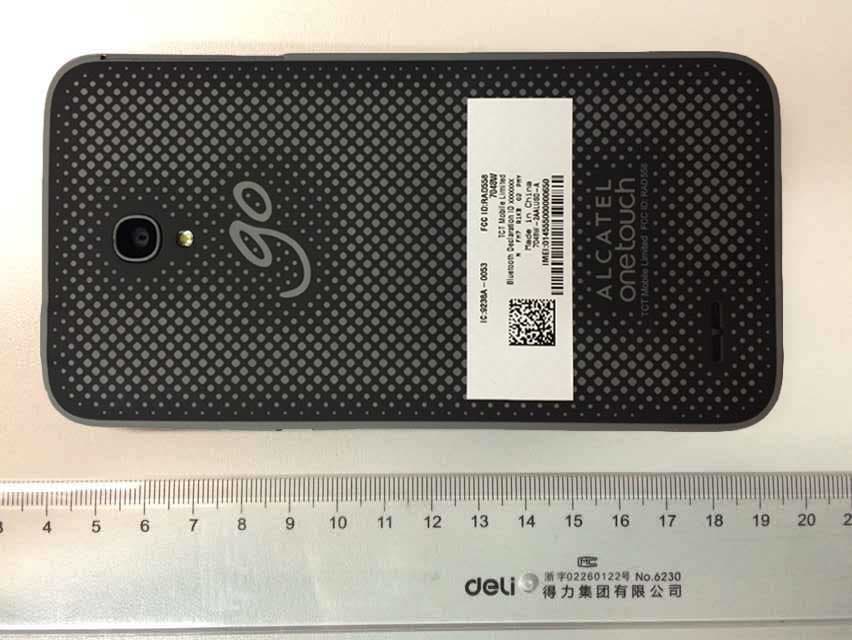
RAD558
Nov 15, 2015HSUPA/HSDPA/UMTS tribands / GSM quadbands/LTE 6-band mobile phone
Equipment Class
JBP - Part 15 Class B Computing Device Peripheral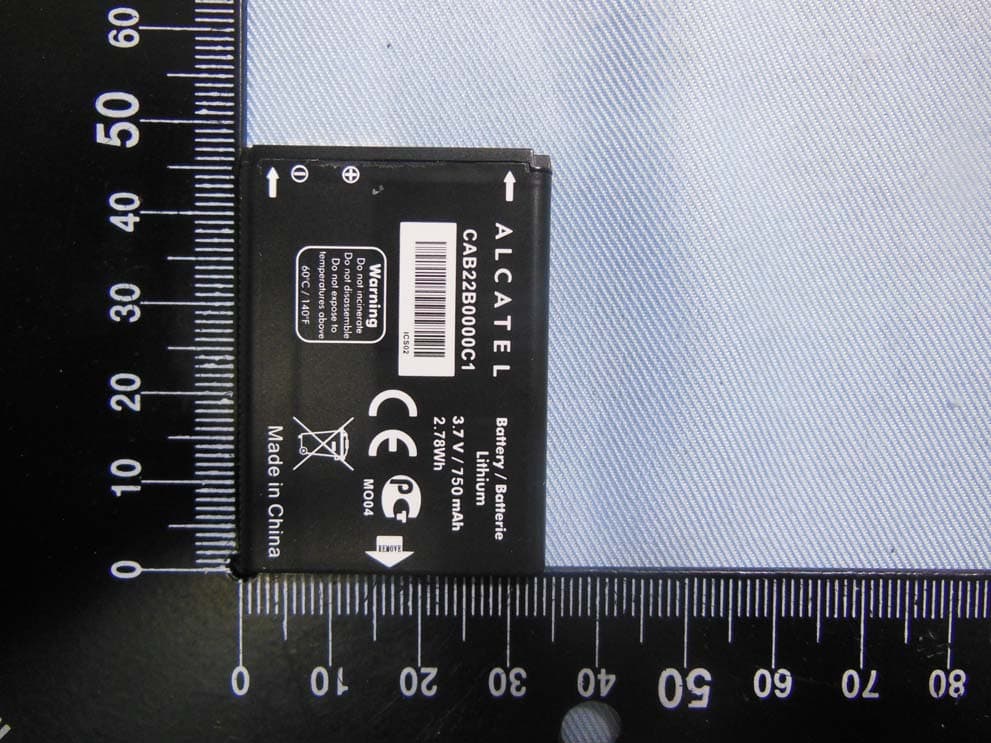
RAD556
Sep 08, 2015CDMA 1X BC0/BC1/BC10 mobile phone
Equipment Class
PCE - PCS Licensed Transmitter held to ear
RAD552
Jun 20, 2015GSM Quadband / UMTS Triband mobile phone
Equipment Class
PCE - PCS Licensed Transmitter held to ear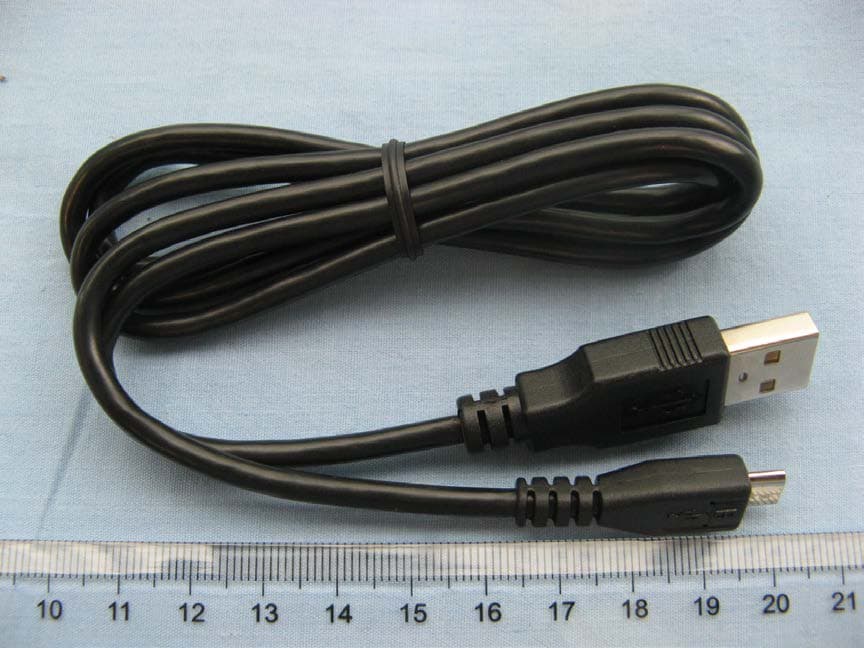
RAD550
Jun 06, 2015HSDPA/HSUPA/HSPA+/UMTS quad band /GSM quad band/LTE 4 band mobile phone
Equipment Class
DSS - Part 15 Spread Spectrum Transmitter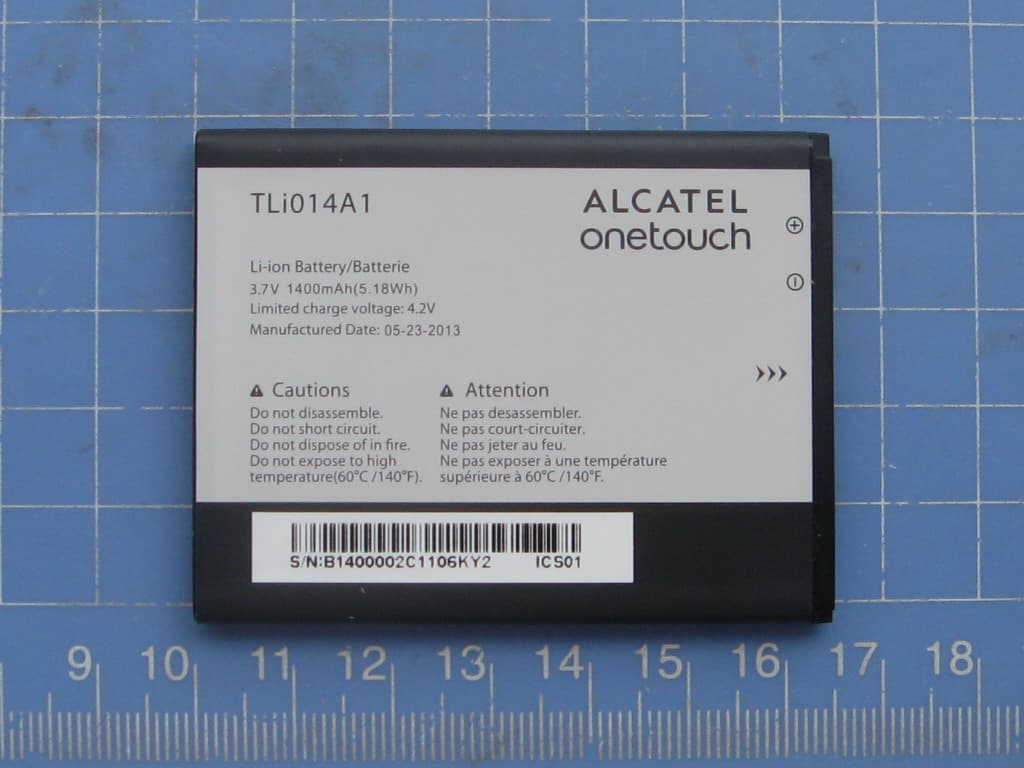
RAD549
May 13, 2015WCDMA tri band / GSM quad band Moblie phone with BT, Wi-Fi functionality.
Equipment Class
DSS - Part 15 Spread Spectrum Transmitter