RAD477GSM Quad-band UMTS Tri-band mobile phone
TCT Mobile Limited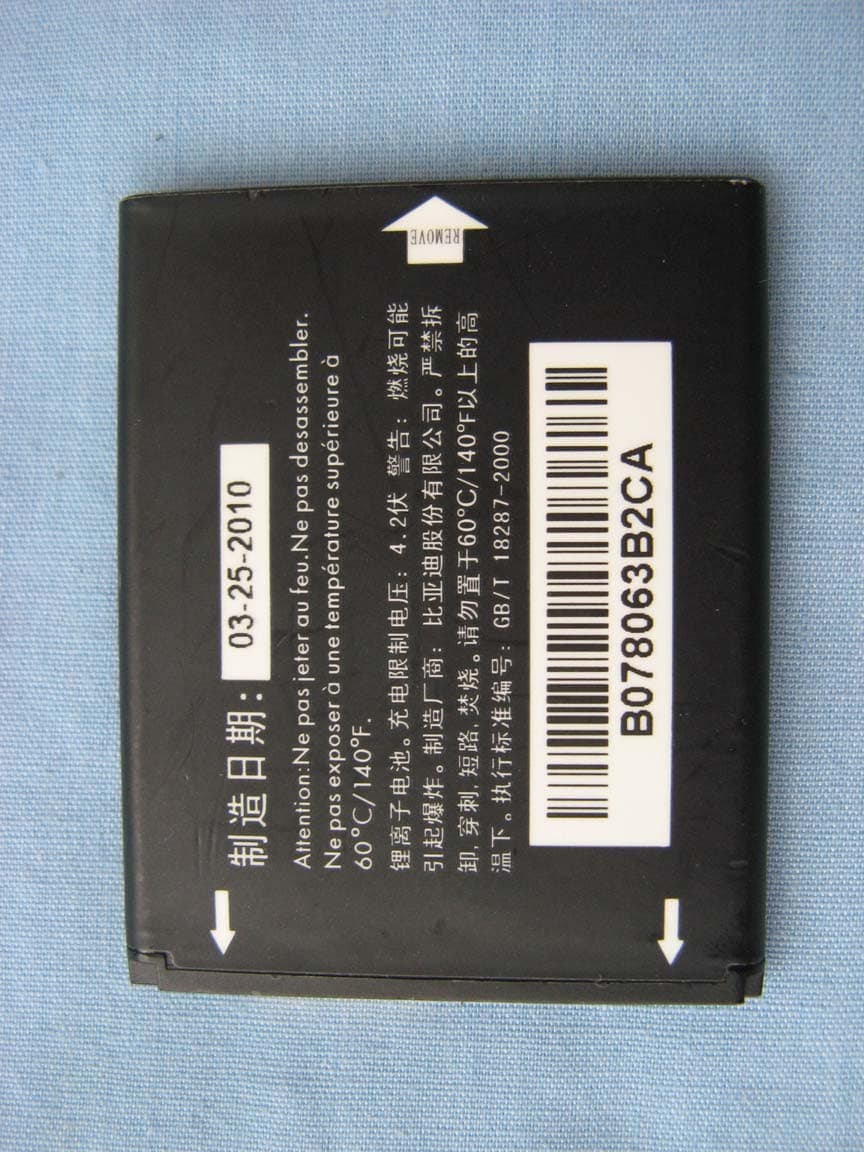
Click to zoom
Application Details
- Equipment Class
- DSS - Part 15 Spread Spectrum Transmitter
- Date of Grant
- Aug 18, 2014
- Application Purpose
- Original Equipment
- Date of Application
- Aug 17, 2014
- Equipment Note
- GSM Quad-band UMTS Tri-band mobile phone
- Frequency Range
- 2402.00000000 - 2480.00000000
- Company
- TCT Mobile Limited
- Country
- China
Documents & Files
Document Text
Text extracted from the exhibit documents filed with the FCC. Open a document above to read the original.
Users Manual
English - CJA33R2ALAAA 1 Table of contents 1 Basics .................................................3 Activating Your Phone ................................. 3 Powering On or Off .................................... 4 Charging Your Device .................................. 4 Phone Overview ........................................ 5 Setting Up Voicemail ................................... 7 2 Getting Started ...................................8 Status Bar Icons ........................................ 8 Menu Navigation ........................................ 9 3 Phone Calls .......................................11 Making a Call ........................................... 11 Answering a Call ...................................... 12 Ending a Call ............................................ 13 Adjusting Call Volume ............................... 13 Recent Calls ............................................. 13 In-Call Options ......................................... 14 4 Contacts ............................................15 Using the contact list ................................ 15 Adding New Contacts ............................... 16 Editing/Deleting Contacts ......................... 16 Making a Call from Your Contact List ........ 16 Speed Dial List ......................................... 17 Contacts Management ............................. 17 5 Entering Text .....................................18 Keypad Input ............................................ 18 Text Input Mode ....................................... 19 Changing Text Mode ................................. 20 6 Messages ........................................21 Types of Messages ................................... 21 Creating and Sending New Text Messages ......................................... 22 Creating and Sending New Multimedia Messages .............................. 22 Reading New Messages ........................... 22 Using Message Options ............................ 23 Deleting Messages ................................... 24 Message Settings ..................................... 24 7 Web .................................................25 Launching Web ......................................... 25 Accessing a WAP Site ............................... 26 Navigating with the Web ........................... 26 Settings .................................................... 27 8 Applications .....................................27 Camera .................................................... 27 Music Player............................................. 29 My Images ............................................... 30 2 Video Player ............................................. 30 FM Radio .................................................. 30 Tone Recorder .......................................... 31 9 Tools ................................................32 Alarm ....................................................... 32 Calculator ................................................. 33 Calendar................................................... 33 Notes ....................................................... 34 Bluetooth ® ................................................ 34 10 My Folder .........................................36 Buy Ringtones and Graphics ..................... 36 Phone ....................................................... 36 Memory Status ......................................... 36 11 Settings ...........................................36 Accessing the Settings Menu .................... 36 Sound ...................................................... 36 Phone Settings ......................................... 37 Call Settings ............................................. 39 Airplane mode .......................................... 40 Security .................................................... 40 Restore default ......................................... 41 12 Safety and Use ..................................41 13 General Information ...........................50 www.sar-tick.com This product meets applicable national SAR limits of 1.6W/ kg. The specific maximum SAR values can be found in the RADIO WAVES section of this user guide. When carrying the product or using it while worn on your body, either use an approved accessory such as a holster or otherwise maintain a distance of 1 cm from the body to ensure compliance with RF exposure requirements. Note that the product may be transmitting even if you are not making a phone call. PROTECT YOUR HEARING To prevent possible hearing damage, do not listen at high volume levels for long periods. Exercise caution when holding your device near your ear while the loudspeaker is in use.
Users Manual
3 1 Basics 1.1 Activating Your Phone 1.1.1 Removing or Installing the Back Cover 1.1.2 Removing or Installing the Battery a Place the battery on the back of the phone so the metal contacts match up on the battery and in the battery cavity. b Slide the battery down into the battery cavity until it locks into place. c To remove, lift the battery out of the cavity from the upper right corner. 4 1.2 Powering On or Off 1.2.1 Power On Your Phone a Press and hold the key until the phone powers on. b Enter your PIN code if necessary and then press and hold the key. c The Home screen is displayed. d While the phone is searching for a network, Searching/Emergency will be displayed. If you don’t know your PIN code or if you have forgotten it, contact your service provider. 1.2.2 Power Off Your Phone Press and hold the key from the Home screen. 1.3 Charging Your Device The light at the front cover of the phone when the phone is plugged in indicates it's charging. a Plug the AC Charger into a standard outlet. b To access the charging port on the lower left side of your phone, open the flap and plug the other end of the AC charger into the charging port. • Charging may take about 10 minutes to start if the battery is completely dead. • Be careful not to force the plug into the socket. 5 • Make sure the battery is correctly inserted before connecting the charger. • Use a wall socket that is easily accessible and in close proximity to the phone (avoid electric extension cables). • When using your phone for the first time, charge the battery fully (approximately 3 hours). When the battery is fully charged the will display on the screen. To reduce power consumption, when the battery is fully charged, disconnect your phone from the AC Charger and the charger from the wall outlet. Switch off some applications when not in use; reduce the backlight time, etc. 1.4 Phone Overview n r s t o p q Right softkey Left softkey 6 micro-USB connector Headset connector n Send key: Answer/Send a call Enter Recent calls o 1 key: Press: Dial "1" Press and hold: Access your voicemail In Edit mode Press: Input frequently-used symbols Press and hold: Input "1" p key: Press: Dial " * " In Edit mode Press: Change input methods Press and hold: Access the Symbols table q 0 key: Press: Dial "0" Press and hold: Switch between "+/P/W" In Edit mode Press: Enter a space Press and hold: Input "0" r # key: Press: Dial "#" Press and hold: Vibrate alert 7 s Navigation key (1) : Press to go left/right/up/ down Press to access function UP: Camera DOWN: Contacts LEFT: Write message RIGHT: Tools OK key: Press to confirm an option t End key: Press: End a call Return to the Home screen Press and hold: Power on/off (1) (1) You can personalize navigation keys in Settings. 1.5 Setting Up Voicemail a From the Home screen, press and hold the key. b When connected, you’re prompted to set up your voicemail. 8 2 Getting Started 2.1 Status Bar Icons (1) This list covers the symbols appearing on your phone’s display and indicator area. Battery charge level Meeting mode: Your phone vibrates, but does not ring or beep with the exception of the alarm. Bluetooth status (Activated). Bluetooth status (Connected to an audio device). Headset connected Call forwarding activated: Your calls are forwarded. Alarm or appointments programmed (1) The icons and illustrations in this guide are provided for informational purposes only. Level of network reception New voicemail message Voice service only Missed calls Call in progress Radio is on Browser messages Roaming SIM card unavailable 3G connected and the device is ex- changing data 3G connection status (Activated) GPRS connection status (Activated) GPRS connecting 9 EDGE connecting EDGE connection status (Activated) Music active MMS receipt in progress Silent mode: Your phone does not ring, beep or vibrate with the exception of the alarm. Unread messages Message list is full: Your phone cannot accept any new messages. You must ac- cess the message list and delete at least one message on your SIM card. Flight mode 2.2 Menu Navigation 2.2.1 Accessing Menus You can access menus and submenus by scroll- ing the Navigation keys or by using the shortcut keys. 2.2.2 Accessing a Menu Function by Scrolling a From the Home screen, press the Left softkey to access the main menu. b Access submenus included in the menu by scrolling to and highlighting the option and pressing the Left softkey or the key. If the menu contains further options, repeat this step. 10 c Press the Up or Down Navigation key to scroll through the menus. Make your selection by pressing the Left softkey or the key. d Return to the previous menu level by pressing the Right softkey. e Press the key to directly exit the menu without changing any settings. 2.2.3 Using Numbered Menu Shortcuts key Numbered menu items, such as menus, sub- menus, and options can be quickly accessed by using their shortcut numbers. From the Home screen, you can also press and hold the number keys (2 to 9) to call a contact to which you have previously assigned a shortcut. a From the Home screen, press the Left softkey to access the main menu. b From the main menu, select Settings > Phone settings > Keypad > Numeric keys. c Set the contacts shortcut. 11 2.2.4 Navigation Keys The Navigation keys come preset, however you are able to change them to suit your needs. a From the Home screen, press the Left softkey to access the main menu. b From the main menu, select Settings > Phone Settings > Keypad > Navigation keys. c Change the Up, Down, Left and Right menu options by highlighting the option and pressing the Right softkey/ key. d Use the Up or Down Navigation keys to your new shortcut choice. e Press the Right softkey/ key to save the change. 3 Phone Calls 3.1 Making a Call a From the Home screen, enter the area code and phone number. b If you press an incorrect key, press the Right softkey to delete the incorrect digits. c Press the key to make the call. 3.1.1 Making an Emergency Call •…
Text truncated - open the document above for the full version.
Cover Letter(s)
5F, C building, No. 232, Liang Jing Road ZhangJiang High-Tech Park, Pudong Area Shanghai, P.R. China. 201203 TEL: +86(0)21 61460666 FAX: +86(0)21 61460602 Date 2014-08-01 To: Federal Communications Commission, Authorization & Evaluation Division, 7345 Oakland Mills Road Columbia, MD 21046 And American Telecommunications Certification Body, Inc. 6731 Whittier Avenue Suite C110 McLean, VA 22101 To Whom It May Concern: TMC (Telecommunication Metrology Center of MIIT) is authorized to act on our behalf, until otherwise notified, for applications to American Telecommunications Certification Body, Inc. (ATCB). We certify that we are not subject to denial of federal benefits, which includes FCC benefits, pursuant to Section 5301 of the Anti-Drug Abuse Act of 1988, U.S.C. 862. Further, no party, as defined in 47 CFR1.2002 (b) to the application is subject to denial of federal benefits, that includes FCC benefits. Thank you. Regards, Gong Zhizhou Approval Team Leader TCT Mobile Limited
Cover Letter(s)
5F, C building, No. 232, Liang Jing Road ZhangJiang High-Tech Park, Pudong Area Shanghai, P.R. China. 201203 TEL: +86(0)21 61460666 FAX: +86(0)21 61460602 2014-07-30 Federal Communications Commission Office of Engineering and Technology Equipment Authorization Division 7345 Oakland Mills Road Columbia, Maryland 21046 Subject: Permanent Confidentiality request for FCC ID: RAD477 To Whom It May Concern, Pursuant to sections 0.457 and 0.459 of CFR 47, the applicant requests permanent confidential treatment of the following information accompanying this application: - Block Diagram - Schematics - Operational Description - BOM list/Tune-Up-Procedure The above materials contain trade secrets and proprietary information not customarily released to the public. The public disclosure of these matters might be harmful to the applicant and provide unjustified benefits to its competitors. Yours Sincerely, Zhizhou GONG Product Certification Manager TCT Mobile Limited
External Photos
EUT photograph Mobile Phone Mobile Phone Mobile Phone Mobile Phone Mobile Phone Mobile Phone Mobile Phone Mobile Phone Battery AE1 Battery AE1 Charger AE7 Label of Charger AE7 Charger AE8 Label of Charger AE8 Headset AE10 Data Cable AE19
Internal Photos
EUT Interior photograph Mobile Phone Mobile Phone Disassembly Mobile Phone Disassembly Mobile Phone Disassembly Mobile Phone Disassembly Mobile Phone Disassembly
Test Report
No. I14Z47151-SRD01 Page1 of 87 ©Copyright. All rights reserved by TMC Beijing. FCC PART 15C TEST REPORT No. I14Z47151-SRD01 for TCT Mobile Limited GSM Quad-band UMTS Tri-band mobile phone Model Name: A206G FCC ID: RAD477 with Hardware Version: PIO Software Version: D2B Issued Date: 2014-07-18 DAR accreditation (DIN EN ISO/IEC 17025): No. D-PL-12123-01-01 FCC 2.948 Listed: No.733176 IC O.A.T.S listed: No.6629B-1 Note: The test results in this test report relate only to the devices specified in this report. This report shall not be reproduced except in full without the written approval of TMC Beijing. Test Laboratory: TMC Beijing, Telecommunication Metrology Center of Ministry of Industry and Information Technology Shouxiang Science Building, No 51, Xueyuan Road, Haidian District, Beijing, P.R.China 100191 Tel:+86(0)10-62304633, Fax:+86(0)10-62304633-2504 Email:[email protected]. www.emcite.com No. I14Z47151-SRD01 Page2 of 87 ©Copyright. All rights reserved by TMC Beijing. CONTENTS 1. TEST LABORATORY ............................................................................................................. 3 1.1. T ESTING LOCATION ............................................................................................................. 3 1.2. T ESTING ENVIRONMENT ...................................................................................................... 3 1.3. P ROJECT DATA ................................................................................................................... 3 1.4. S IGNATURE ........................................................................................................................ 3 2. CLIENT INFORMATION .......................................................................................................... 4 2.1. A PPLICANT INFORMATION .................................................................................................... 4 2.2. MANUFACTURER INFORMATION ..................................................................................... 4 3. EQUIPMENT UNDER TEST (EUT) AND ANCILLARY EQUIPMENT (AE) ............................ 5 3.1. A BOUT EUT ....................................................................................................................... 5 3.2. I NTERNAL IDENTIFICATION OF EUT USED DURING THE TEST ................................................... 5 3.3. I NTERNAL IDENTIFICATION OF AE USED DURING THE TEST ..................................................... 5 3.4. N ORMAL ACCESSORY SETTING ............................................................................................ 5 3.5. G ENERAL DESCRIPTION ...................................................................................................... 5 4. REFERENCE DOCUMENTS .................................................................................................. 6 4.1. D OCUMENTS SUPPLIED BY APPLICANT .................................................................................. 6 4.2. R EFERENCE DOCUMENTS FOR TESTING ............................................................................... 6 5. LABORATORY ENVIRONMENT ............................................................................................ 7 6. SUMMARY OF TEST RESULTS ............................................................................................. 8 6.1. S UMMARY OF TEST RESULTS .............................................................................................. 8 6.2. S TATEMENTS ...................................................................................................................... 8 7. TEST EQUIPMENTS UTILIZED .............................................................................................. 9 ANNEX A: MEASUREMENT RESULTS ...................................................................................... 10 A.1. MEASUREMENT METHOD ...................................................................................................... 10 A.2. PEAK OUTPUT POWER - CONDUCTED .................................................................................... 11 A.3. FREQUENCY BAND EDGES - CONDUCTED .............................................................................. 12 A.4. CONDUCTED EMISSION......................................................................................................... 19 A.5. RADIATED EMISSION ............................................................................................................. 44 A.6. TIME OF OCCUPANCY (DWELL TIME) ...................................................................................... 63 A.7. 20DB BANDWIDTH ................................................................................................................ 73 A.8. CARRIER FREQUENCY SEPARATION ....................................................................................... 79 A.9. NUMBER OF HOPPING CHANNELS ......................................................................................... 81 A.10. AC POWERLINE CONDUCTED EMISSION .................................................................................. 85 No. I14Z47151-SRD01 Page3 of 87 ©Copyright. All rights reserved by TMC Beijing. 1. Test Laboratory 1.1. Testing Location Company Name: TMC Beijing, Telecommunication Metrology Center of MIIT Address: Shouxiang Science Building, No 51, Xueyuan Road, Haidian District, Beijing, P.R.China Postal Code: 100191 Telephone: 00861062304633 Fax: 00861062304633-2504 1.2. Testing Environment Normal Temperature: 15-35°C Extreme Temperature: -20/+55°C Relative Humidity: 20-75% 1.3. Project data Project Leader: Zi Xiaogang Testing Start Date: 2014-06-30 Testing End Date: 2014-07-08 1.4. Signature Zi Xiaogang (Prepared this test report) Sun Xiangqian (Reviewed this test report) Lu Bingsong Deputy Director of the laboratory (Approved this test report) No. I14Z47151-SRD01 Page4 of 87 ©Copyright. All rights reserved by TMC Beijing. 2. Client Informati…
Text truncated - open the document above for the full version.
Test Setup Photos
FDD ID RAD477 Conducted emission RE Radiated Spurious Emission
Contact Information
Applicant
Zhizhou Gong
Technical Contact
TMC Beijing, Telecommunication Metrology Center ofXue Zhen
[email protected]+86-62304633
No. 52, Huayuan Bei Road, Haidian District, · Beijing · China
Test Firm
TMC-Telecommunication Metrology Center of M.I.I.TChongwen Song
Technical Specifications
| # | Rule Parts | Frequency Range | Power Output |
|---|---|---|---|
| 1 | 15C | 2.40 GHz - 2.48 GHz | 7.20 mW |
Other Applications from TCT Mobile Limited
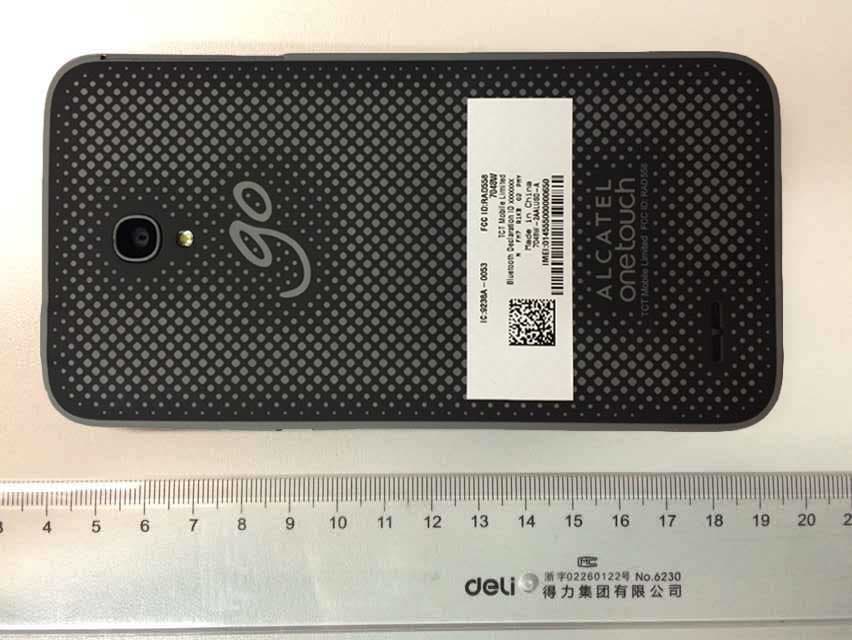
RAD558
Nov 15, 2015HSUPA/HSDPA/UMTS tribands / GSM quadbands/LTE 6-band mobile phone
Equipment Class
JBP - Part 15 Class B Computing Device Peripheral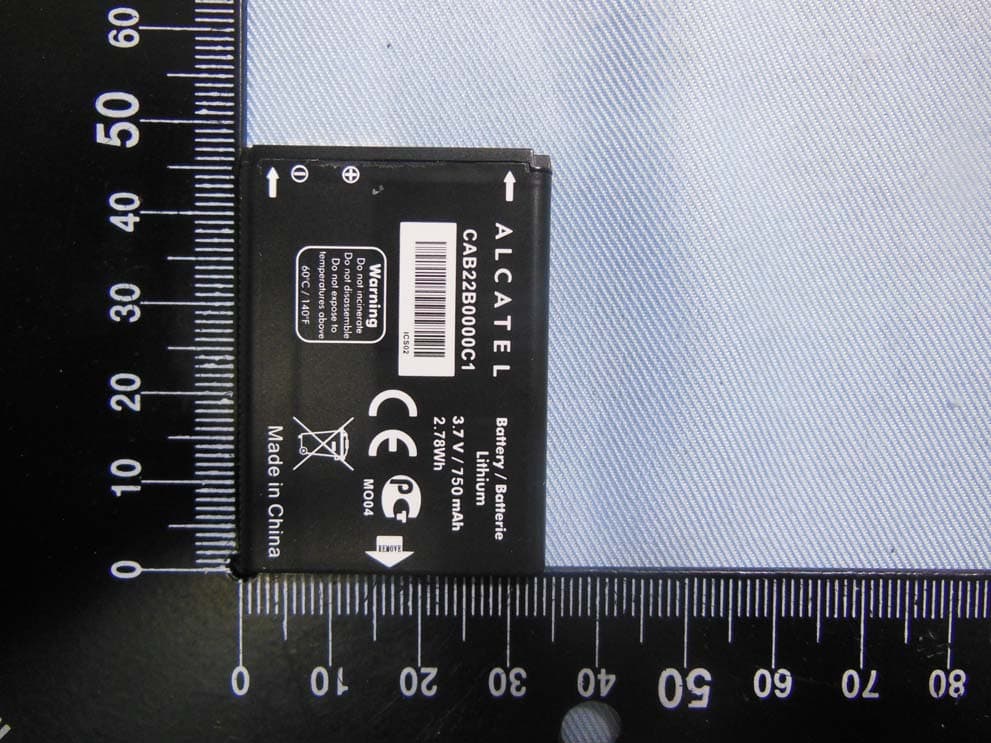
RAD556
Sep 08, 2015CDMA 1X BC0/BC1/BC10 mobile phone
Equipment Class
PCE - PCS Licensed Transmitter held to ear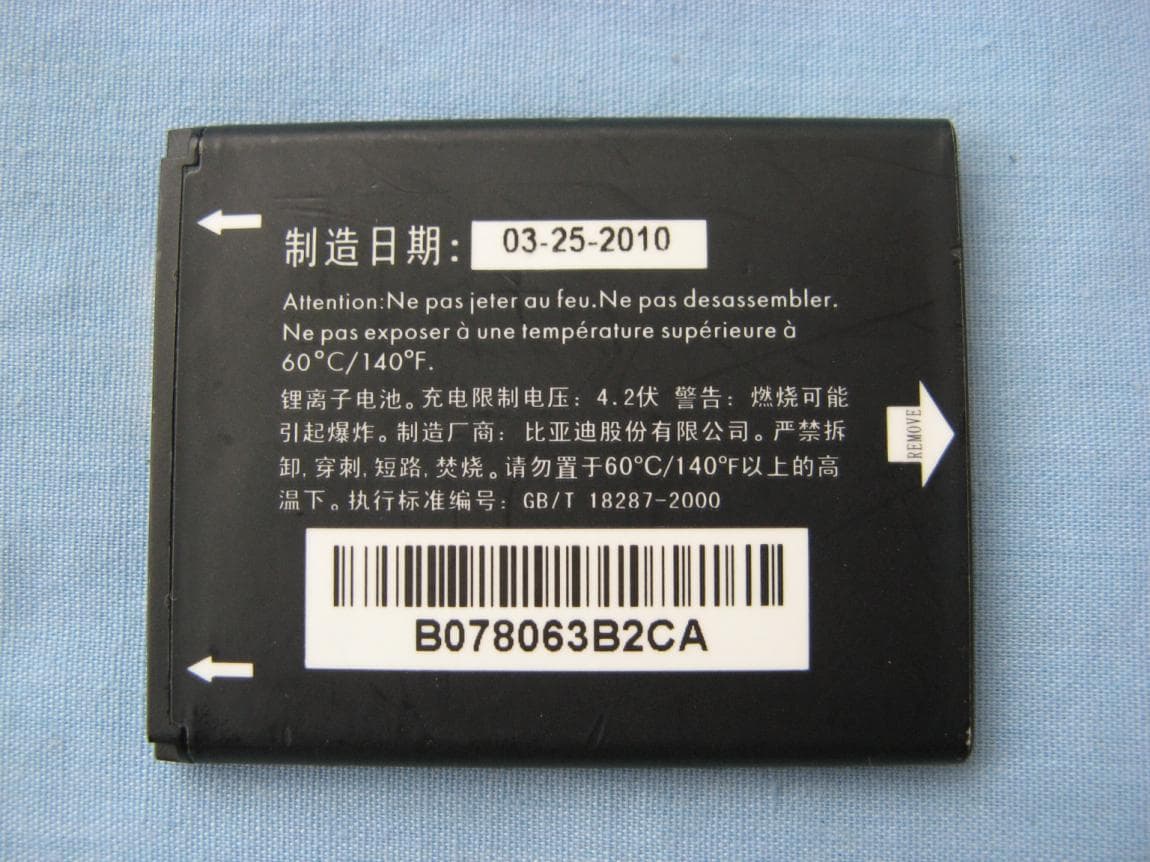
RAD552
Jun 20, 2015GSM Quadband / UMTS Triband mobile phone
Equipment Class
PCE - PCS Licensed Transmitter held to ear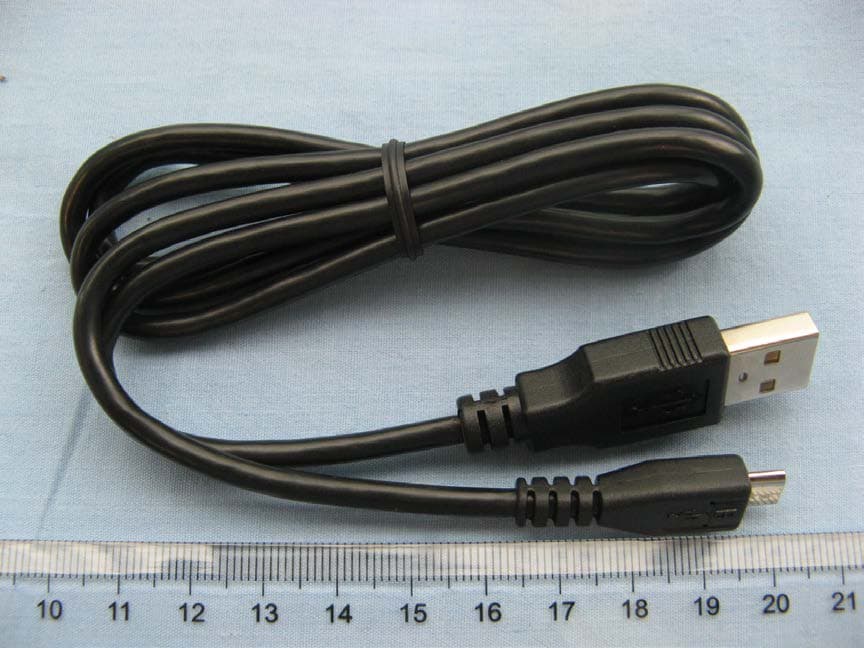
RAD550
Jun 06, 2015HSDPA/HSUPA/HSPA+/UMTS quad band /GSM quad band/LTE 4 band mobile phone
Equipment Class
DSS - Part 15 Spread Spectrum Transmitter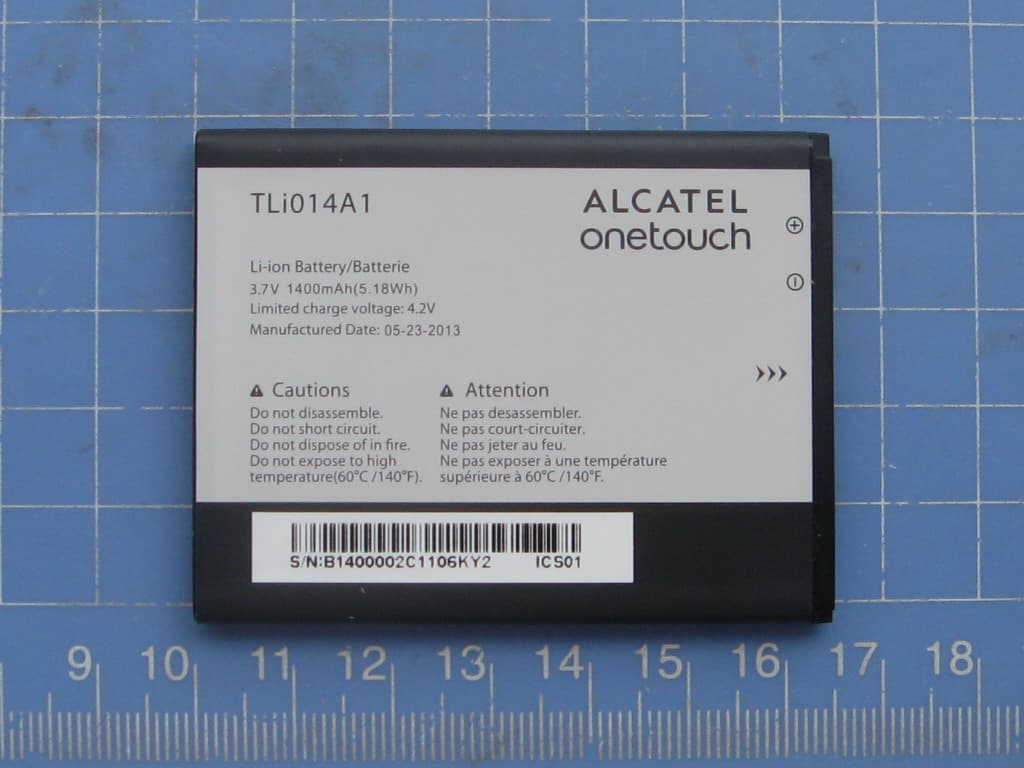
RAD549
May 13, 2015WCDMA tri band / GSM quad band Moblie phone with BT, Wi-Fi functionality.
Equipment Class
DSS - Part 15 Spread Spectrum Transmitter