RU5AWBC1UUSB BLUETOOTH DONGLE
Asia Pacific Microsystems, Inc.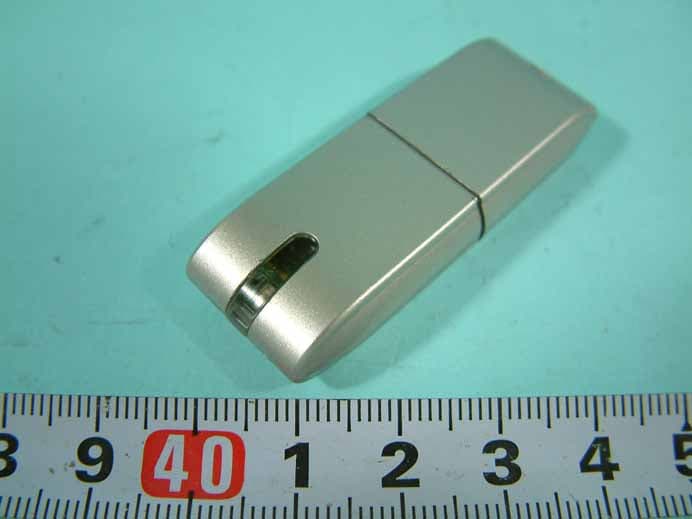
Click to zoom
Application Details
- Equipment Class
- DSS - Part 15 Spread Spectrum Transmitter
- Date of Grant
- Jan 04, 2005
- Application Purpose
- Original Equipment
- Date of Application
- Jan 04, 2005
- Equipment Note
- USB BLUETOOTH DONGLE
- Frequency Range
- 2402.00000000 - 2480.00000000
- Country
- Taiwan
Documents & Files
Document Text
Text extracted from the exhibit documents filed with the FCC. Open a document above to read the original.
Users Manual
Page 1 of 27 9/19/2004 Rev.A.1 U-Storage User’s Manual Version 2.9 Page 2 of 27 9/19/2004 Rev.A.1 Introduction Thank you for purchasing the U-Storage device. The manual explains how to use the U-Storage software bundled with the device. Safety Precautions Please follow the safety precautions carefully before you use the U-Storage device and the application software (the product). Make sure that you use the product correctly according to the procedures described in this guide. Warnings This mark indicates topics that could lead to serious injury of your body or damage of the product if ignored or handled incorrectly. _____________________________________________________________________ Warnings _____________________________________________________________________ z Do not attempt to disassemble or alter any part of the product that is not described in this guide. z Do not allow the product to come into contact with water or other liquids. In the event that water or other liquids enter the interior, immediately unplug the product from the computer. Continued use of the product may result in fire or electrical shock. Please consult your product distributor or the closest support center. z Do not handle the product to do the plug and unplug operation if your hands are wet. Otherwise it will cause electrical shock. z Do not place the product near a heat source or expose them to direct flame or heat. z Never place the product close to equipment generating strong electromagnetic fields. Exposure to strong magnetic fields may cause malfunctions or corrupt data. Page 3 of 27 9/19/2004 Rev.A.1 System Requirements There are minimum hardware and software requirements that must be satisfied to ensure the product to function properly. z Computer Model IBM PC/AT Compatible, Power Macintosh, PowerBook, iMAC or iBook z OS Windows 98 Second Edition, Windows Millennium Edition (Windows ME), Windows 2000, Windows XP z Interface USB z Free Hard Disk Space 3 MB and more ¾ Windows 98 SE does not support default Mass Storage Driver. You have to install the driver bundled with the product. ¾ The product can use the default driver in most of the OS. If you want to run the application software bundled with the product, install the vendor driver by the “U-StorageTools2.0.exe” utility. Then, the application software will work properly. ¾ The application software only can run with Microsoft Windows OS. ¾ However, the U-Storage basic functions can be supported in all OS listed above. Page 4 of 27 9/19/2004 Rev.A.1 Guide to Components USB Interface: The interface connects to the USB port of the computer. LED Display: This LED Display will show the status of the device. Once the device is in operation, the LED will be turned on. Basic Functions 1. Plug and Play When you plug the device into the USB port of your computer, you will see a “Removable Disk” icon in the file manager window. In Macintosh, once you plug the U-Storage into the USB port. You can see the disk Flash LED Page 5 of 27 9/19/2004 Rev.A.1 icon in the “Desktop”. In Linux OS, you can mount the device by the following instruction. .Execute cd /etc/sysconfig/ ( cat /etc/sysconfig/hwconf | more ) .Check the device information in hwconf,write down the mount point. .Make a directory in /mnt (ex: mkdir /mnt/usbHD ) .Then, execute mount /dev/sda1 /mnt/usbHD (if mount point was .dev/sda) 2. Read and Write You can retrieve or store files in the device as a hard disk. The read/write operation of the device is the same as that of a hard disk. 3. Write-Protect Switch When you put the write-protect switch to “ON” position, you cannot write any file or data into the device. You still can view and read the files and data in the device. You can switch the “Write-Protect” switch even you do not disconnect the device. Due to Linux OS limitation, the write-protect switch will not work on-line. 4. Unplug You can remove the device after you finish the action with the device. However, in Windows ME and Windows 2000, please follow the safe removal procedure. You can find a safe removal icon in your computer’s notification area. Double click the “safe removal” icon; the “Unplug or Eject Hardware” window will be pop up. You can select the device you want to remove. Then, click the “Stop” button. After that you can unplug the device from the USB port of your computer. Warning When you want to remove the U-Storage device, make sure the LED is not flashing. When the LED flashes quickly, there are some traffic on going between the OS and the U-Storage device. Don’t remove the U-Storage at this moment. Otherwise, it will cause some damages to the data or even the U-Storage Page 6 of 27 9/19/2004 Rev.A.1 device itself. Warning If you do not follow the safe removal procedure in Windows ME and Windows 2000 systems, data loss caused by the “write cache” issue may happen. In Macintosh systems, you can drag the removable disk icon and put into the trash. This action will perform the “Eject” function. In Linux OS, please follow the “umount” command procedure to un-mount the device. Page 7 of 27 9/19/2004 Rev.A.1 Partition Type The U-Storage may be partitioned into three types of disk. We will use the following terms in this guide, 1. Public Area There is no “Security” function at all. You can do any basic functions, described in the “Basic Functions” section, in this area. 2. Security Area This area cannot be viewed without the application software. Once you do the “Log In” action in the application software, you will switch view from “Public Area” to “Security Area”. After successful switch, you can do any basic functions, described in the “Basic Functions” section, in this area. ) You can only view either “Public Area” or “Security Area” at the same time in the same disk logic unit number (LUN). In U-Storage, you can select the following partition combinations: 1. Single Public Area Make all the device area accessible by everybody. 2. Security Area Make the device area into two partitions …
Text truncated - open the document above for the full version.
External Photos
REPORT NO. : F483126 SPORTON International Inc. PAGE NUMBER : A1 OF A5 TEL : 886-2-2696-2468 ISSUED DATE : Dec. 15, 2004 FAX : 886-2-2696-2255 APPENDIX A. Photographs of EUT REPORT NO. : F483126 SPORTON International Inc. PAGE NUMBER : A2 OF A5 TEL : 886-2-2696-2468 ISSUED DATE : Dec. 15, 2004 FAX : 886-2-2696-2255
Internal Photos
REPORT NO. : F483126 SPORTON International Inc. PAGE NUMBER : A3 OF A5 TEL : 886-2-2696-2468 ISSUED DATE : Dec. 15, 2004 FAX : 886-2-2696-2255 REPORT NO. : F483126 SPORTON International Inc. PAGE NUMBER : A4 OF A5 TEL : 886-2-2696-2468 ISSUED DATE : Dec. 15, 2004 FAX : 886-2-2696-2255 REPORT NO. : F483126 SPORTON International Inc. PAGE NUMBER : A5 OF A5 TEL : 886-2-2696-2468 ISSUED DATE : Dec. 15, 2004 FAX : 886-2-2696-2255
Test Report
FCC ID: RU5AWBC1U Issued on Dec. 15, 2004 Report No.: F483126 SPORTON International Inc. TEL : 886-2-2696-2468 FAX : 886-2-2696-2255 FCC TEST REPORT CATEGORY : Portable PRODUCT NAME : USB Class I Bluetooth Dongle FCC ID. : RU5AWBC1U FILING TYPE : Certification MODEL NAME : AWBC1U, BT01UDI TRADE NAME APM, PLANEX APPLICANT : Asia Pacific Microsystems, Inc. No. 2 R&D Road 6, Science-Based Industrial Park, Hsinchu, Taiwan, R.O.C. MANUFACTURER : Same as applicant ISSUED BY : SPORTON INTERNATIONAL INC. 6F, No. 106, Sec. 1, Hsin Tai Wu Rd., His Chih, Taipei Hsien, Taiwan, R.O.C. Statements: The test result in this report refers exclusively to the presented test model / sample. Without written approval of SPORTON International Inc., the test report shall not be reproduced except in full. Certificate or Test Report could not be used by the applicant to claim the product endorsement by CNLA, NVLAP or any agency of U.S. government. The test equipment used to perform the test are calibrated and traceable to NML/ROC or NIST/USA. Dr. Alan Lane Vice General Manager Sporton International Inc. Lab Code: 200079-0 FCC ID: RU5AWBC1U Issued on Dec. 15, 2004 Report No.: F483126 SPORTON International Inc. Page No. : i TEL : 886-2-2696-2468 Issued Date : Dec. 15, 2004 FAX : 886-2-2696-2255: Table of Contents History of this test report....................................................................................................................................ii CERTIFICATE OF COMPLIANCE.......................................................................................................................iii 1. General Description of Equipment under Test.............................................................................................1 1.1. Applicant ......................................................................................................................................................................................... 1 1.2. Manufacturer ................................................................................................................................................................................... 1 1.3. Basic Description of Equipment under Test.................................................................................................................................... 1 1.4. Features of Equipment under Test ................................................................................................................................................. 1 1.5. Antenna Description........................................................................................................................................................................ 2 1.6. Table for Carrier Frequencies ......................................................................................................................................................... 2 2. Test Configuration of the Equipment under Test.........................................................................................3 2.1. Connection Diagram of Test System .............................................................................................................................................. 3 2.2. The Test Mode Description............................................................................................................................................................. 3 2.3. Description of Test Supporting Units .............................................................................................................................................. 3 3. General Information of Test............................................................................................................................4 3.1. Test Facility ..................................................................................................................................................................................... 4 3.2. Test Conditions ............................................................................................................................................................................... 4 3.3. Standards for Methods of Measurement......................................................................................................................................... 4 3.4. DoC Statement ............................................................................................................................................................................... 4 3.5. Frequency Range Investigated ....................................................................................................................................................... 4 3.6. Test Distance .................................................................................................................................................................................. 4 3.7. Test Software .................................................................................................................................................................................. 4 4. List of Measurements......................................................................................................................................5 4.1. Summary of the Test Results.......................................................................................................................................................... 5 5. Test Result .......................................................................................................................................................6 5.1. Test of Hopping Channel Bandwidth .............................................................................................................................................. 6 5.2. Test of Hopping Channel Separation...........................................................................................................................…
Text truncated - open the document above for the full version.
Test Setup Photos
FRONT VIEW REAR VIEW FRONT VIEW REAR VIEW
Contact Information
Applicant
John Young(Engineer)
Test Firm
SPORTON International IncKathy Lin
Technical Specifications
| # | Rule Parts | Frequency Range | Power Output |
|---|---|---|---|
| 1 | 15C | 2.40 GHz - 2.48 GHz | 12.60 mW |
Other Applications from Asia Pacific Microsystems, Inc.
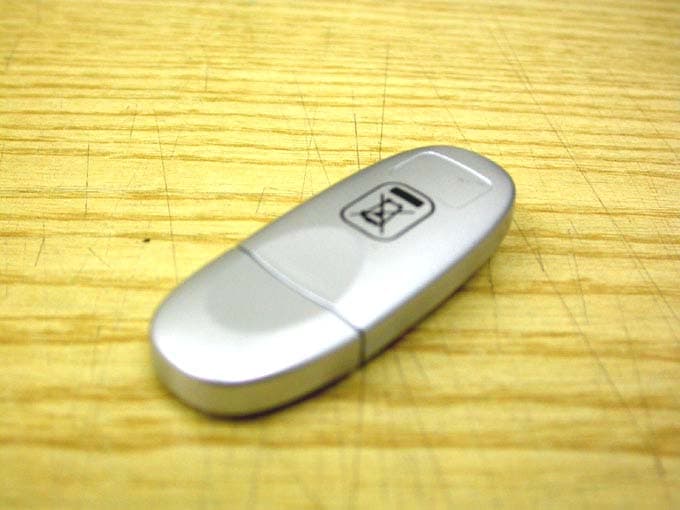
RU5AWBC1E
May 23, 2006Bluetooth V.1.2 Class 1 USB Dongle
Equipment Class
DSS - Part 15 Spread Spectrum Transmitter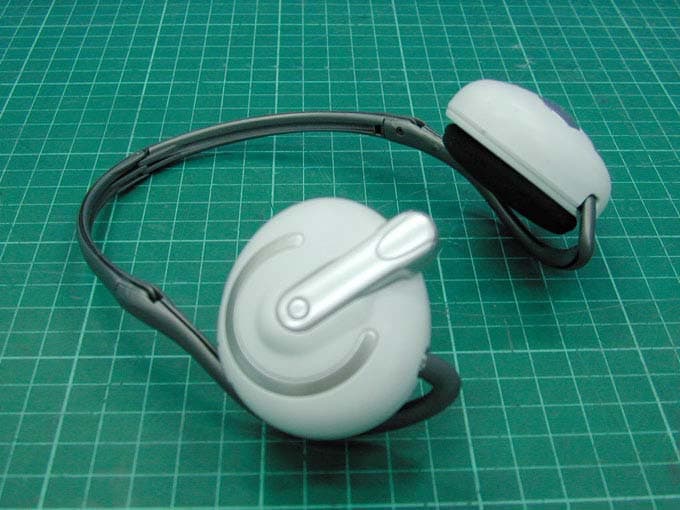
RU5AWBSH3
Apr 27, 2006BLUETOOTH EARPHONE
Equipment Class
DSS - Part 15 Spread Spectrum Transmitter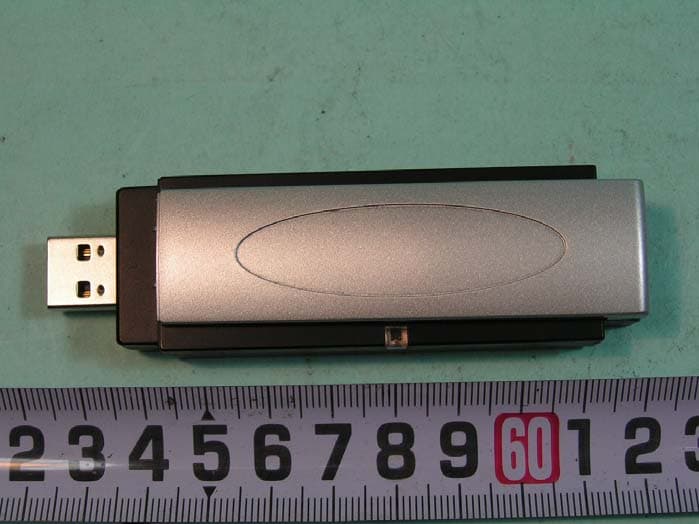
RU5AWGB3U
Mar 29, 2006802.11g WLAN+BlueTooth V1.2 Class 2 USB Dongle
Equipment Class
DTS - Digital Transmission System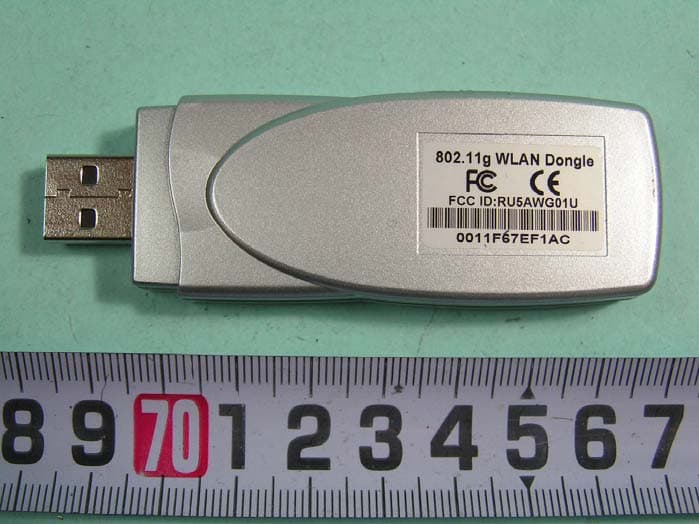
RU5AWG02U
Mar 26, 2006802.11g 54Mbps WLAN 2 USB Dongle
Equipment Class
DTS - Digital Transmission System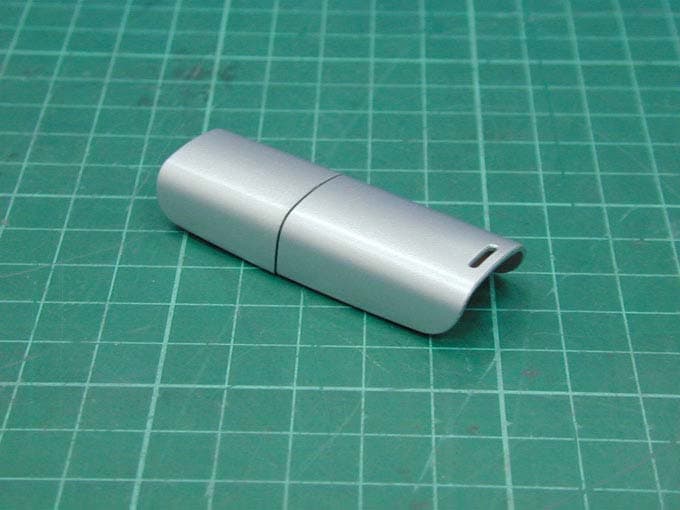
RU5AWBC2E
Dec 19, 2005Bluetooth Dongle
Equipment Class
DSS - Part 15 Spread Spectrum Transmitter