SJ6-W2028RFWireless Keyboard
Shenzhen Weijian Plastics Co., Ltd.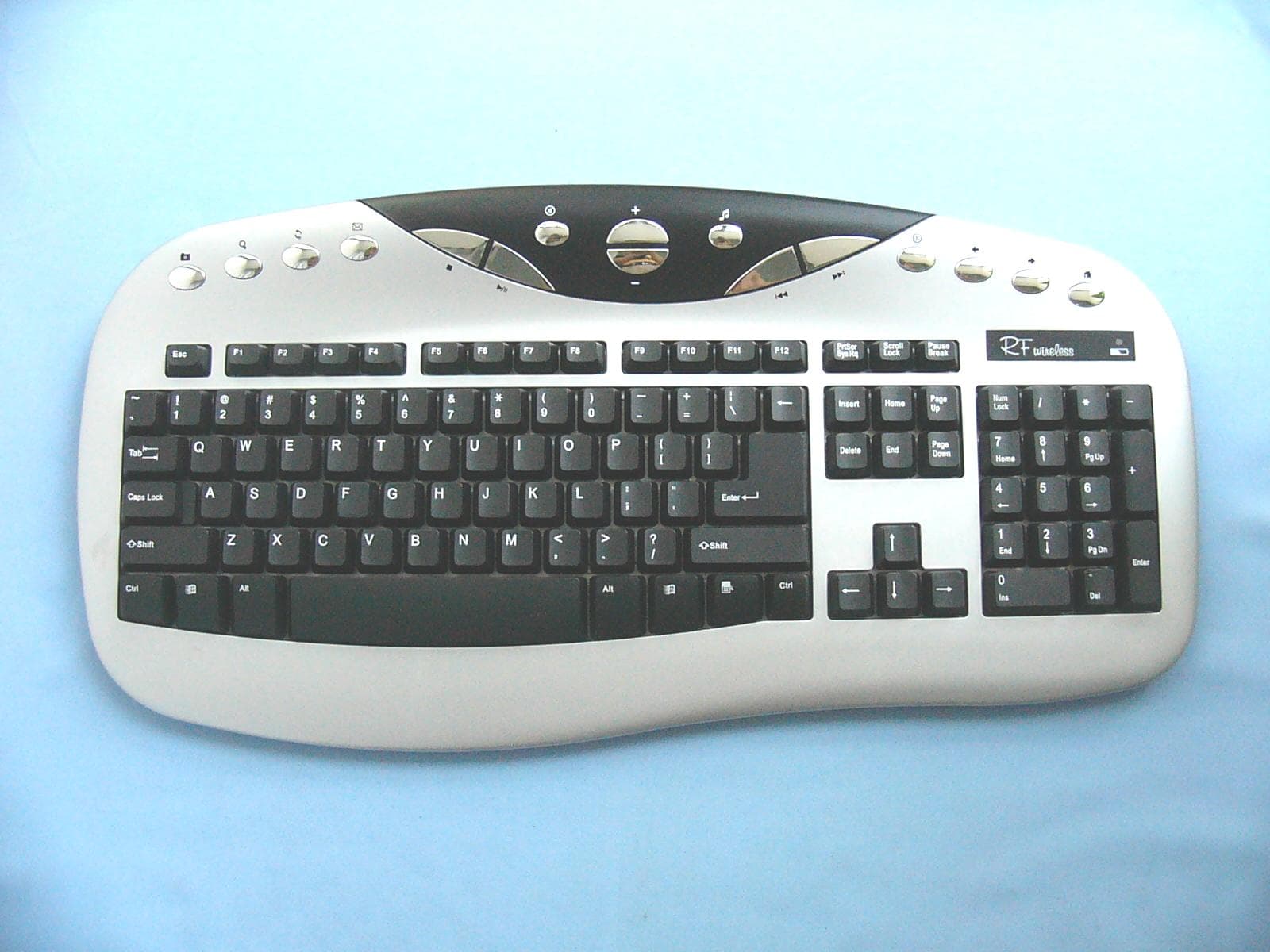
Click to zoom
Application Details
- Equipment Class
- DXX - Part 15 Low Power Communication Device Transmitter
- Date of Grant
- Oct 14, 2004
- Application Purpose
- Original Equipment
- Date of Application
- Oct 14, 2004
- Equipment Note
- Wireless Keyboard
- Frequency Range
- 27.14400000 - 27.14400000
- Country
- China
Documents & Files
Document Text
Text extracted from the exhibit documents filed with the FCC. Open a document above to read the original.
Users Manual
USER’S GUIDE TO W2028RF WIRELESS KEYBOARD AND MOUSE Please read the followings before using the set. Introductions: This keyboard/mouse set is a wireless input device with 27 Mhz radio frequency. It is plug & play with Windows Me/2000/XP, no need of any software installation. When user typing the keyboard, membrane will detect the user typing character, then send signal to the MCU; through the 27M Hz RF circuit transmit the modulation signal, the MCU will enclose the signal and modulation the signal that uses FSK modulation type. Please remove the software for your previous keyboard or mouse that you have installed before using this new device. This set consists of 3 parts: keyboard, mouse, and receiver. Note: This device complies with Part 15 of the FCC rules. Operation is subject to the following two conditions: (1) This device may not cause harmful interference, and (2) This device must accept any interference received, including interference that may cause undesired operation. Caution: The manufacturer is not responsible for any radio or TV interference caused by unauthorized modifications to this equipment. Such modifications could void the user authority to operate the equipment. (Figure 1) System Requirement IBM PC compatibles PS/2 ports for mouse and for keyboard Microsoft Windows Me/2000 and XP Install Batteries: The wireless mouse and the keyboard need two AAA batteries individually. (For best performance, please use only alkaline batteries) 1. Open the battery compartment covers of the mouse and the keyboard. 2. Insert two AAA batteries inside the compartment individually. 3. Close the battery compartment covers. Figure 2 Caution: When you do not use the wireless keyboard/mouse for a long period of time, please remove the batteries. Connect The Receiver RF wireless keyboard/mouse uses digital radio technology to communicate. It transmits radio frequency signals which are picked by the receiver, then pass on to the computer. The receiver is connected to the computer’s PS/2 ports Via a Y cable. Connect the green connector to the computer’s mouse port, and plug the purple connector the keyboard port. Caution: Shut the computer before connecting the receiver to your computer. For the best performance, place the receiver at least 20 cm (8 inches) away from computer, monitor, and the other devices which will cause radio interference. Working on metallic surface will reduce the RF performance. Avoid placing the receiver on metallic surface. Plug or unplug cable from the computer’s PS/2 ports improperly can cause damage to the PS/2 ports and to the computer. If the working range becomes short when using them, please move the receiver another place. ID set up After installing the batteries and connecting the receiver to your computer, please start your computer. If the product does not work, please set the ID Code (see figure 2): Press the ID Buttons, the ID code will be set automatically. The process must be completed within 20 seconds. After setting the ID code, the Receiver’s RF LED blinks. This means the keyboard and the mouse communicate with receiver successfully. If the LED does not blink, or the keyboard/mouse does not work properly. Please re-install the batteries or reset the ID Code. Caution: After changing the batteries, loosing the batteries, or reconnecting the Receiver, please carry out the above procedures to set the ID Code again. Otherwise, the unit can not work properly. This product is single channel RF keyboard/mouse. If the same ID is also used by other users in the near environment and interferences are caused, please repeat the ID set up procedure. Use Of The Mouse After successful installation, the mouse can work well with Windows 95/98/Me/2000/and XP, no need of software driver. The mouse comes with a scrolling wheel, which can function either as a wheel or as a button. (See figure 1) To scroll up, move the wheel forward; to scroll down, move the wheel backward. To use the wheel like a standard mouse middle button, simple click (press down) the wheel Use Of The Keyboard After successfully installation, the keyboard can work well with Windows Me/2000/XP, no need of any software driver. The keyboard is a 104/5-key model with 15 hot keys that can take you directly to your favorite multimedia activities. And you can navigate music and video clips, surf the web and start programs. All the hot keys are on the upside of the keyboard. The functions are (See Figure3 ) 1.My Favorite: Open my favorites 2.Web Search: Launch your web search function 3.Web Refresh : Update and refresh the web page. 4.E-mail: Call the email application 5.Media Stop: Stop the media playing 6.Play/Pause: Play or Pause the media playing 7.Mute: Disable the sound 8.Volume Up: Increase the volume 9.Volume Down: Decrease the volume 10.Media Select: Launch the media player 11.Rewind: Changes to the previous media track 12.Forward: Changes to the next media track 13.Web Stop: Stop the web browser 14. Page Back: Back to the previous web page 15.Page Forward: Forward to next web page 16.Web Home: Go to web home page Figure 3 Trouble-shooting 1.If your keyboard/mouse does not work after installation, please check the followings: Make sure you have connected the receiver correctly with the computer and the receiver’s connectors have been properly plugged into computer’s PS/2 ports. Make sure you have inserted the batteries correctly. Make sure you have set the ID code properly as stated above For better performance, place the receiver at least 20 cm (8 inches) away from computer, monitor, or other devices which may cause radio interference. Avoid placing the receiver on metallic surface. If no interference, the working distance of the keyboard/mouse and the receiver is about 5 feet. 2.If your keyboard/mouse is not detected by the computer, please check the followings: a). Make sure the receiver is plugged into the right PS/2 port. Do not plug and unplug the receiver’s connectors while the computer is on…
Text truncated - open the document above for the full version.
Block Diagram
Applicant: SHENZHEN WEI JIAN ELECTRONIC CO., LTD. FCC ID: SJ6-W2028RF 27MHz
External Photos
Applicant: SHENZHEN WEI JIAN ELECTRONIC CO., LTD. FCC ID: SJ6-W2028RF EUT top view EUT bottom view
ID Label/Location Info
Applicant: SHENZHEN WEI JIAN ELECTRONIC CO., LTD. FCC ID: SJ6-W2028RF This device complies with Part 15 of the FCC Rules. Operation is subject to the following two conditions: (1) this device may not cause harmful interference, and (2) this device must accept any interference received, including interference that may cause undesired operation. Proposed Label Location on EUT EUT Bottom View/Proposed FCC ID Label Location FCC ID: SJ6-W2028RF
Internal Photos
Applicant: SHENZHEN WEI JIAN ELECTRONIC CO., LTD. FCC ID: SJ6-W2028RF EUT inside whole view Main board component side Main board solder side
Operational Description
Applicant: SHENZHEN WEI JIAN ELECTRONIC CO., LTD. FCC ID: SJ6-W2028RF Operational Description I. When user types the keyboard, the membrane in the keyboard acts ON/OFF to form a closed circuit of the relevant I/O (scan input/output) port of MCU (MA60H12), and sends the scanned signal to the MCU. II. The MCU(MA60H12)encodes and modulates the signal and produces key assignments (pulse data) corresponded with the typing. III. The MCU(MA60H12)groups the key assignments into frequency combination (FSK signal). The frequency-producer combining the MCU with a 27MHz resonator produces a high frequency carrier wave which is mixed in the MCU. The frequency-producer sends out the carrier wave through the antenna. The Receiver: I. The receiver picks up the carrier wave through the antenna and input the MCU (UTC3361) to mix. And the receiver produces a medium wave (455 KHz) which is reverted (A-D) into the original pulse signal after being processed by the identifier. II. The original pulse signal is transmitted to the MCU (MA6135) to encode to get a code which can be recognized by the computer. And the code is transmitted to the PSII by the cable. The computer changes the code into the typing character.
Schematics
Applicant: SHENZHEN WEI JIAN ELECTRONIC CO., LTD. FCC ID: SJ6-W2028RF
Test Setup Photos
Applicant: SHENZHEN WEI JIAN ELECTRONIC CO., LTD. FCC ID: SJ6-W2028RF Radiated emission test view
Contact Information
Applicant
Tang Di(Engineer)
Test Firm
Ke Mei Ou Laboratory Co., Ltd.Apollo Liu
Technical Specifications
| # | Rule Parts | Frequency Range | Power Output |
|---|---|---|---|
| 1 | 15C | 27.144 MHz - 27.144 MHz | - |
Other Applications from Shenzhen Weijian Plastics Co., Ltd.
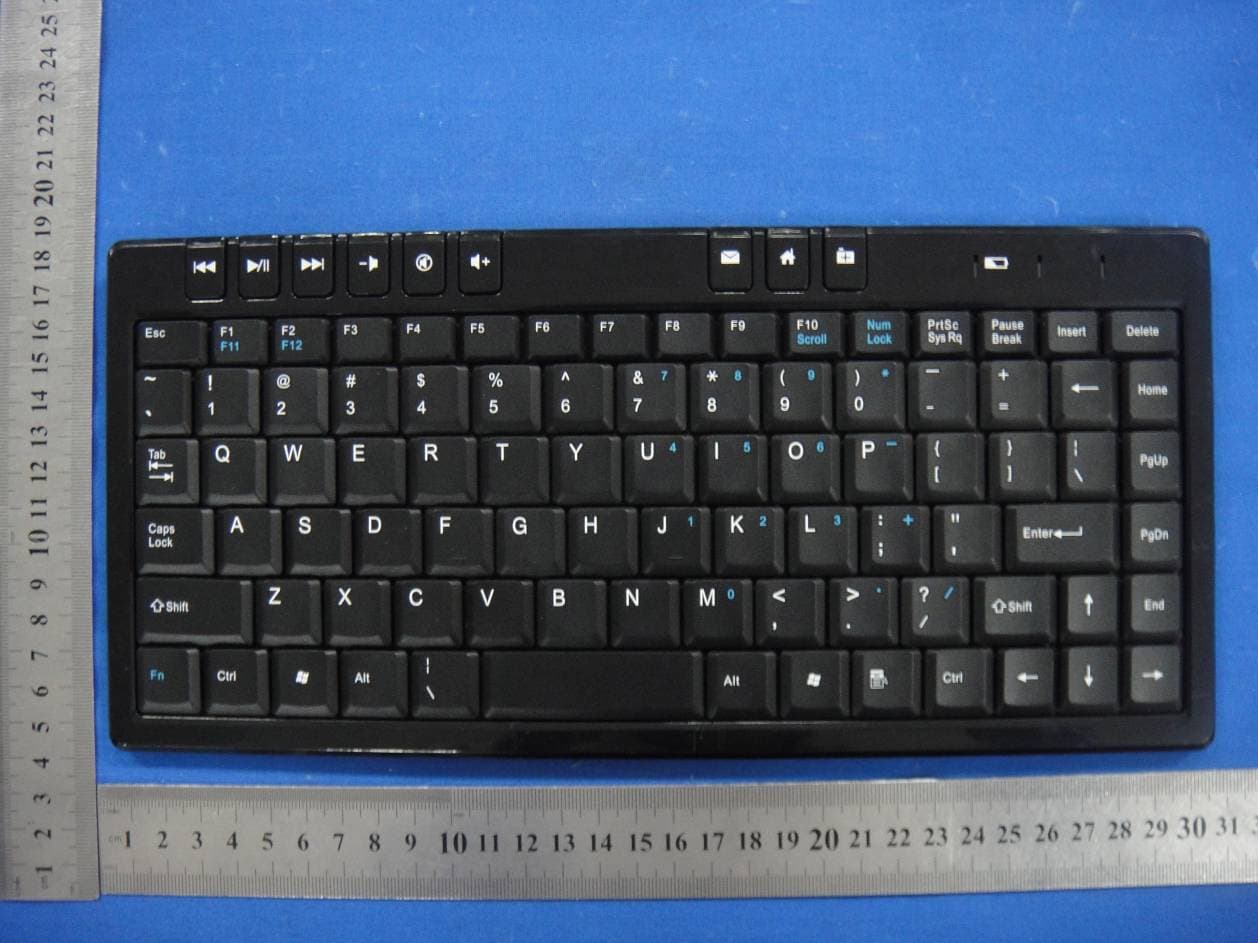
SJ6W6010RF
Dec 28, 2014Wireless Keyboard
Equipment Class
DXX - Part 15 Low Power Communication Device Transmitter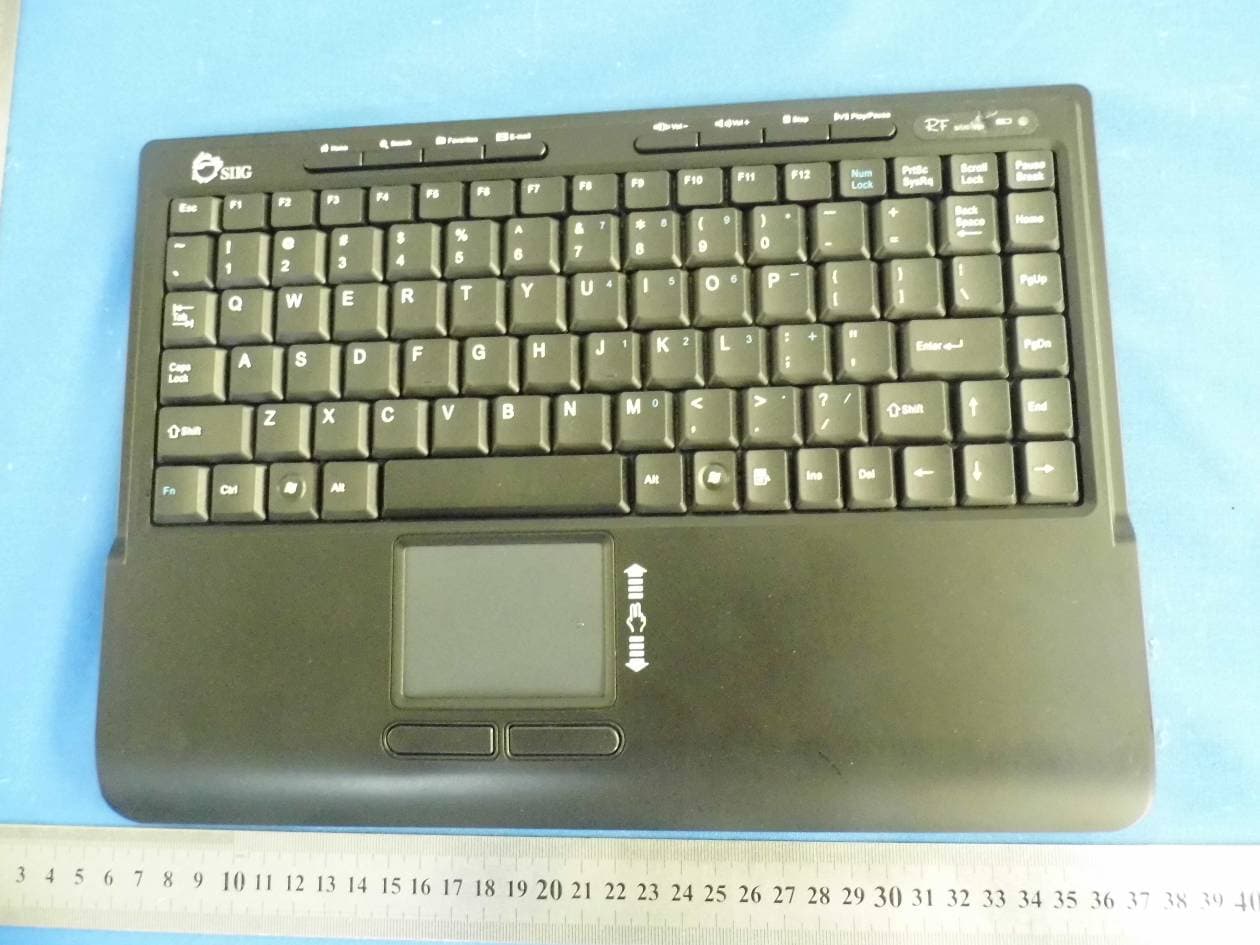
SJ6W9824RF
Oct 27, 2014Wireless Keyboard
Equipment Class
DXX - Part 15 Low Power Communication Device Transmitter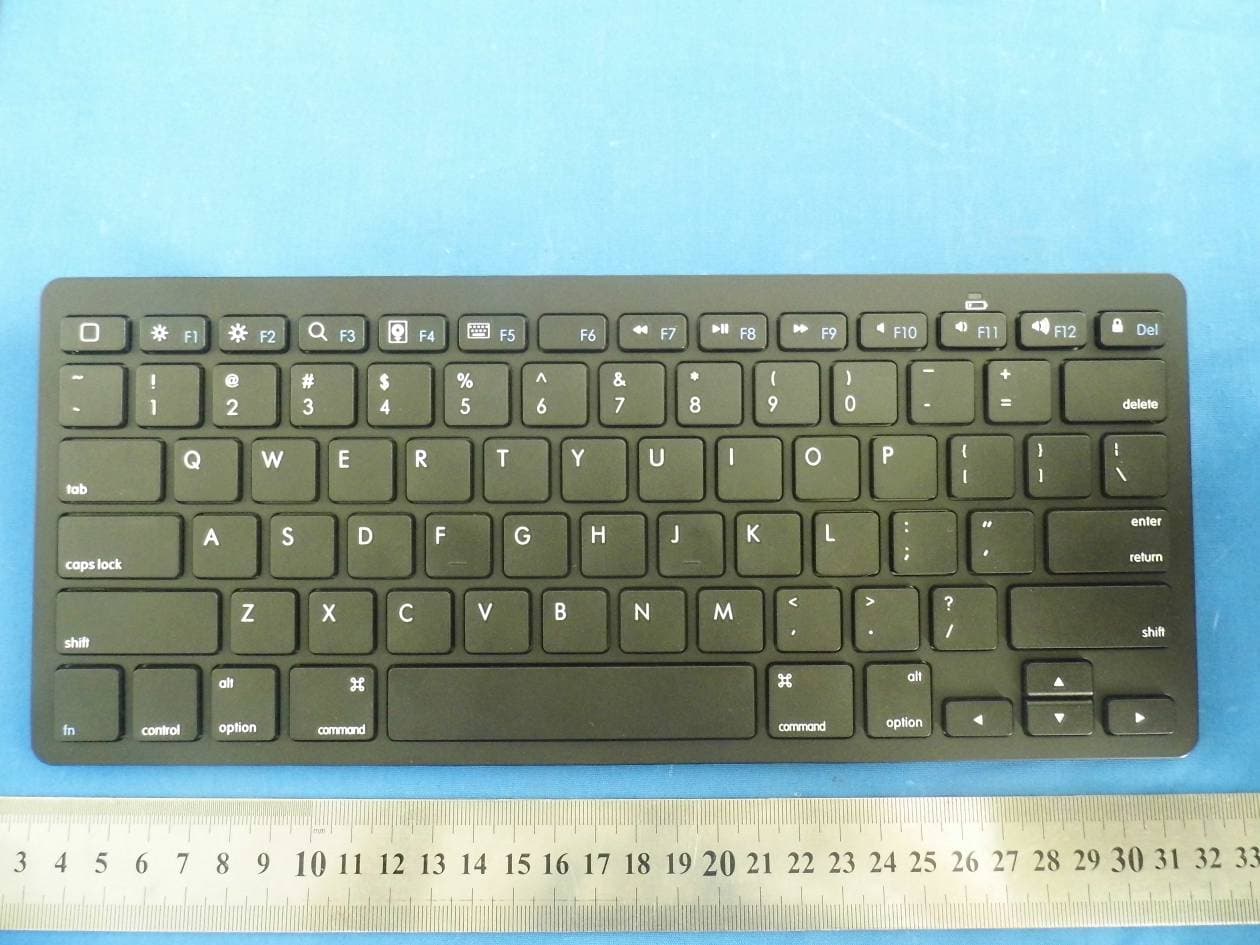
SJ6BKB018
Sep 23, 2014Bluetooth Keyboard
Equipment Class
DXX - Part 15 Low Power Communication Device Transmitter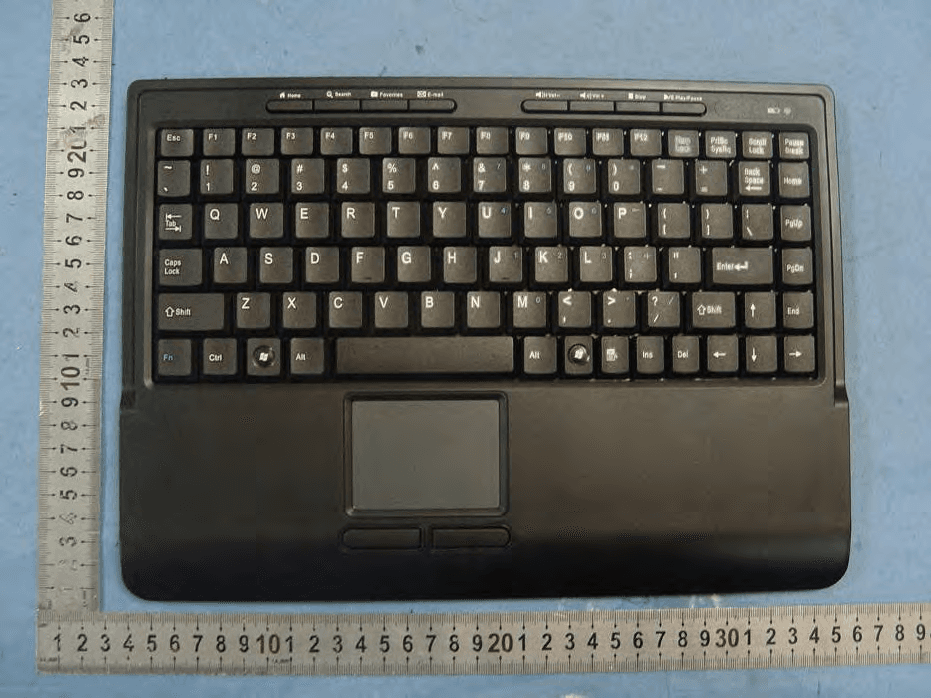
SJ6-W9824RF
Dec 07, 2012Keyboard
Equipment Class
DXX - Part 15 Low Power Communication Device TransmitterSJ6-W6112RF
Nov 24, 2012Keyboard
Equipment Class
DXX - Part 15 Low Power Communication Device Transmitter