SNMS198PDual Band GSM Mobile Phone
Ningbo Bird Co., Ltd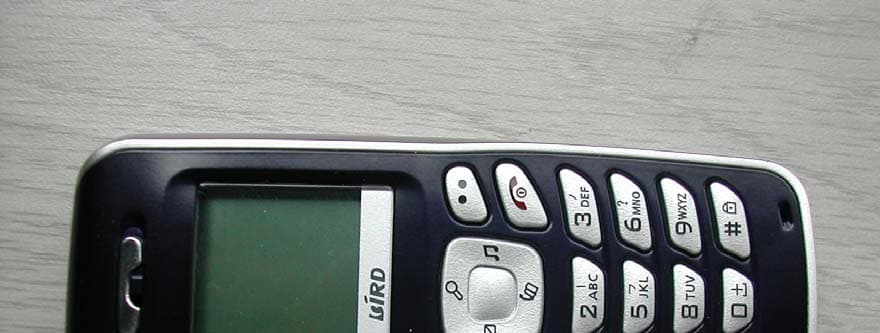
Click to zoom
Application Details
- Equipment Class
- PCE - PCS Licensed Transmitter held to ear
- Date of Grant
- Jul 02, 2006
- Application Purpose
- Original Equipment
- Date of Application
- Jul 01, 2006
- Equipment Note
- Dual Band GSM Mobile Phone
- Frequency Range
- 824.20000000 - 848.80000000
- Company
- Ningbo Bird Co., Ltd
- Country
- China
Documents & Files
Document Text
Text extracted from the exhibit documents filed with the FCC. Open a document above to read the original.
Users Manual
Receiving a call.......................................21 Adjusting In-Call Volume.........................21 Ending a Call...........................................21 Locking & Unlocking Keypad...................21 Emergency Services................................21 Making an International Call....................21 Dialing From the Phone Book..................21 Using the In-Call Menu............................22 Accessing the Menu The Menu Structure.................................23 Navigating the Menu................................24 Shortcuts.................................................24 Enjoying the Features The SMS Menu........................................25 SMS Functions & Operations..................26 The Phone Book Menu............................29 Phone Book Functions & Operations......30 The Call Records Menu...........................33 Call Records Functions & Operations.....34 The Settings Menu..................................36 Settings Functions & Operations ............38 The Alarm Menu......................................44 Alarm Functions & Operations.................44 Table of Contents Table of Contents.......................................1 Forewords...................................................3 FCC Part 15 Notice.....................................4 FCC Radiation Exposure Statement........4 SAR & RF Safety Information...................4 Safety Precautions.....................................6 Care and Maintenence ..............................9 Glimpse of Your Phone...........................10 Quick Reference.......................................11 Keys & Controls.......................................12 Display & Icons........................................14 Preparing Your Phone Installing SIM Card..................................15 Fitting Battery..........................................15 Removing Battery....................................16 Understanding Instruction Symbols.........16 Charging Battery......................................17 Caring for Battery....................................18 Security Codes........................................18 Using Your Phone Powering ON/OFF...................................20 Making a Call...........................................20 Refusing a Call........................................20 Table of Contents 1 The Extras Menu.....................................45 Calculator.................................................46 Currency Converter.................................46 Calendar..................................................46 World Times.............................................47 Games.....................................................47 Input Methods The Numeric Input Method......................48 The Alphabetic Input Method...................48 The Predictive English Input....................49 The Pin Yin Input Method........................49 The Stroke Input Method.........................50 Accessories............................................51 Technical Specifications........................52 2 Table of Contents Keys & Controls 13 Display & Icons 14 Display & Icons Keys Standby General Input / Edit Key Key Name Press Long Press Press Press Remarks “1” Key Input “1” Call voice mail Input symbol Repeated press to desired symbol. “2” Key Input “2” Input “ABC2” “3” Key Input “3” Input “DEF3” “4” Key Input “4” Input “GHI4” “5” Key Input “5” Input “JKL5” “6” Key Input “6” Input “MNO6” “7” Key Input “7” Input “PQRS7” “8” Key Input “8” Input “”TUV8” “9” Key Input “9” Input “WXYZ9” Speed dial numbers must be set in the Phone Book menu. “0” Key Input “0” Input “+” Input Space “*” Key Input “*” Shift capitalization “#” Key Lock keypad Change input method Icon / Status Bar Operator Name Time Date Left Soft Key Function Tab Right Soft Key Function Tab Main Display Area Signal Strength - more bars means stronger signal. Roaming - indicating phone is on roaming mode. Call - indicating there is call in progress. Message - indicating new message received. Voice Mail - Indicating new message in VM. Alarm - indicating that an alarm is set and activated. Ringing - indicating the current alert mode is ringing. Vibrate - indicating the current alert mode is vibrate. Battery - more bars in battery icon means more power left. Icons Read & reply messages - Press Left Soft Key in new message alert. Select Reply SMS option, then follow procedure as in composing and sending a new message. Enter a menu - Press the Left Soft Key. Back out from a menu - Press the Right Soft Key. Lock - Press and hold "#" Key for three seconds. Unlock keypad - Press Left Soft Key then "#" Key successively to unlock keypad. Press or Hit - Press toward the underside of the phone briefly and release. Long Press or Press & Hold - Press toward phone under-side, keep the position for about three seconds, and release. Quick Reference Make a call - Dial the number, press the Call Key. Answer a call - Press the Call Key. End / reject a call - Press the End Key. Redial - Press the Call Key twice. Adjust call volume - Press the up or down Navigator Key during call. Save a contact - Key in the number using the Numeric Keys, press Left Soft Key select a memory location using the up or down Navigator Keys, and then Accept, input name, then press Left Soft Key twice to Save. Look for a contact - Press the down Navigator Key or access the Phone Book menu, scroll to the desired contact. Compose & send SMS - Select MENU > SMS > New Message, compose, press Left Soft Key and select a Send or Custom Send option and input number or add recipient then Accept, and choose to Accept or Cancel save. (Please refer to Input Methods on how to input texts and symbols. Quick Reference 11 Keys & Controls 12 Keys & Controls Keys Standby General Input / Edit Key Key Name Press Long Press Press Press Remarks Left Soft Key Enter Main Menu Enter Main Menu Select Option / Accept Access Options / Accept Operates the function as shown on the…
Text truncated - open the document above for the full version.
Users Manual
5. Return the metal SIM holder to original position and push it towards the top of the phone until it locks into place. 6. Fit the battery and replace the back cover by push and sliding it towards the top of the phone. Fitting Battery Remove the back cover (see #1, Installing SIM Card). Push the battery into place with the label up and metal contacts at the bottom right side in the back of the phone until the battery fits into place, then replace the back cover (see #6, Installing SIM Card). Preparing Your Phone Installing SIM Card Please keep your SIM card away from reach of children. Scratches and bends can easily damage the SIM card. Please be extra careful when installing, removing, handling or storing your SIM card. Before installing or removing the SIM card, make sure the phone is switched OFF, then remove the back cover and battery. 1. Slide the back cover toward the bottom of the phone until it can be removed; 2. Remove the battery (see Removing Battery); 3. Push the metal SIM holder toward the bottom of the phone and lift the released end of the holder. 4. Place SIM card into the SIM holder with the beveled corner at the bottom left corner with the metal contacts face down. Preparing Your Phone 15 Removing Battery Remove the back cover (see #1, Installing SIM Card) then push toward the top of the phone and lift the battery at the at the bottom side center to remove. Settings and data stored in the phone or SIM card may be lost after the battery is removed. Understanding Instruction Symbols Symbols are used in this document: press Left Soft Key press Right Soft Key press Up Navigator key press Down Navigator key press Left Navigator key press Right Navigator key press Call / Dial key press End / On/Off key press * key press # key press corresponding numeric key Danger / warning Tip / information Network dependent feature 16 Preparing Your Phone Receiving a Call When there is an incoming call, the phone will give corresponding alert according to your settings (such as V ibrate or Ring), If your network supports caller ID, the screen will display caller's name or number. You can answer the incoming call by pressing the or . If the headset is plugged-in, pressing on its button will answer the incoming call. Adjusting Call Volume Press the or to adjust earphone volume during call, there are 8 volume levels to choose from. You can press and select Hands-free to turn on the hands-free loud speaker. If you use a headset with volume control knob, it can also be utilized. Check with your dealer for availability, be sure to use only approved accessories. Ending a Call Press to end a call or to terminate connection after dialing. If the headset is plugged-in, pressing on its button will terminate call or dialing. Using Your Phone 21 of the desired contact as saved in your phonebook for quick access to names beginning with the letter then scroll to the desired one, press to dial. Using the In-Call Menu The feature provides some operations and features while you are in active call with a party or several parties. Some of which are network dependent, please inquire with your network operator or service provider of their availability. Press to enter the in-call Options menu while on an active call to choose among following functions (some options are only available under specific conditions): Phone Book: to perform search; add; and other phone book operations. SMS: to access the SMS menu. Hold/ Retrieve: to hold the active call or resume a held call. Mute: to turn muting on or off to speak confidentially with another person present without the other Hands-free: switch hands-free mode (loudspeaker) on or off. 22 Using Your Phone Locking & Unlocking Keypad Press and hold from the standby mode to lock, press and keys in succession to unlock the key pad and prevent accidental key press. Emergency Services You can contact emergency service numbers without the need of a SIM card or without unlocking the keypad. Different networks uses different emergency numbers, please contact your network operator for details. Making an International Call To make an international call, please long press to display "+" sign (international call dial prefix), then enter the country code, area code, and phone number, use to erase erroneous inputs. Press when done to connect. Dialing from Phone Book Enter the Phone Book (press the down navigator or via the menu), use the up or down navigator to scroll to the desired contact, or press the first letters of the name Phone Password The Phone Code is a 4 to 8 digit security code that protects unauthorized use of your phone. The factory default code is "0000". Once activated, the phone will ask you to enter Phone code every time it is turned on. For your protection, change the default phone code as soon as possible. Do not forget your phone password. PIN2 Code The PIN2 code is required when activating certain special features (such as call costs and fixed dialing). It is normally supplied with the SIM card package. Be careful while entering PIN2 code, 3 wrong tries in entering PIN2 code will block the SIM from use, requiring input of PUK2 code to unblock. Please contact your operator for further details. PUK Code The PUK (Personal Unblocking Key) code is required to unblock a blocked PIN codes. It is normally supplied with the SIM package; otherwise contact your service provider for the code. Keep your PUK codes in a safe place, do not throw it away. Contact your service provider if it is lost. If your SIM is blocked, your phone will ask you to enter PUK code to unblock. You have 10 tries to enter the right PUK code, after which your SIM might be permanently blocked. Preparing Your Phone 19 Using Your Phone Powering ON/OFF Press and hold to switch your phone ON or OFF. Startup and goodbye animation will be played during powering ON and OFF. If there is no SIM card, SIM card is defective, or SIM card contact is loose, you will be prompted with a warning after powering ON, Shut…
Text truncated - open the document above for the full version.
Users Manual
Navigating the Menu Press from the standby screen to enter the Main Menu. Use the Navigator keys to scroll between the menu options; press the key to select or access the current option highlighted; hit the key to back-step once or the key to return to standby. The title bar atop each screen is the title or instruction of the current screen. Shortcuts From the standby screen, press the following shortcut keys will instantly bring you to certain commonly used functions or features: : enter the Main Menu : go to the SMS function : go to Phone Book Search : browse Phone Book entries : go to Tone Settings : go to SMS Inbox 24 Accessing the Menu Accessing the Menu The Menu Structure Your phone comes with a variety of useful features and functions, they are group into 7 clusters each represented by an icon and an animation, inside which are features having related functions, some of these functions may have other sub-functions or options. Level 1 Level 2 Key Press Function SMS Stores and manages messages. Phone Book Stores and manages frequently used contacts Call Records Stores and manages call and air time histories. Settings Customize functions and operating parameters. Alarm Set and activate alarms like an alarm clock. Extras Manages collection of useful tools & amusement. Standby STK To Access: To Scroll: SIM Tool Kit, depending on your SIM. Accessing the Menu 23 36 Settings Call Records 35 Options Function Explained Details View call details such as Name; Number; Date & Time; and Duration of the call. If the number is not in phone book, ‘Not in Phone Book’ will be displayed instead of the name. Call Dial the other party’s number. Send Message Compose and send a message to the contact, see ‘SMS’ for more information. Save Number Store the number to phone book similarly as ‘Add’ in ‘Phone Book’ menu. Delete Delete current call record. Delete All Delete all call records in the current folder. Last Call Display a dialogue box showing duration of your last call. Received Calls Display a dialogue box showing duration of all your answered calls. Dialed Calls Display a dialogue box showing duration of all your made calls. All Calls Display a dialogue box showing duration of all your calls. Reset Timer Input your phone password to reset the timers. Tip: All call record may be accessed and viewed from standby by pressing the key. Tip: Call record types are identified in front with a phone and arrow icon, the arrow pointing to the phone means incoming while the reverse is for outgoing, an x means missed call. The Settings Menu Settings Tone Settings Ringtone Select Incoming Call Ringtone Ringtone 1 ... 20 Message Alert Tone Ringtone 1 ... 20 Volume Call Ring Volume Message Ring Volume Speak Volume Key Volume On/Off Volume Vibrate Level Call Alert Ring Vibrate Mute Vibrate then Ring Vibrate & Ring Message Alert Ring Vibrate Mute Vibrate then Ring Vibrate & Ring Low Batt. Alert On Off Time & Date Set Time and Date Set Time Set Date Time Format 12-hour 24-hour Date Format DD-MM-YYYY YYYY-MM-DD MM-DD-YYYY SMS Time Sync. Language English Chinese Input Methods Pin Yin Deselect / Select Accept Stroke Deselect / Select Accept Predictive English Deselect / Select Accept Auto Keypad Lock On Off Display Backlight Always ON Always OFF 15 seconds 30 seconds Brightness Contrast Call Settings Auto Redial On Off Call Waiting Query Activate Call Records Functions & Operations 34 Call records Call Records 33 The Call Records Menu Call Records Received Details Call Send Message Save Number Delete Delete All Call Send Message Save Number Delete Delete All Dialed Details Call Send Message Save Number Delete Delete All Call Send Message Save Number Delete Delete All Missed Details Call Send Message Save Number Delete Delete All Call Send Message Save Number Delete Delete All Call Duration Last Call Received Calls Dialed Calls All Calls Reset Timer Menu Function Explained Received Stores and manages all your recently answered calls. If the number is in the phone book, then the contact name will be displayed; If the number is not in the phone book, the telephone number will be displayed directly. Use the and to scroll. Dialed Stores and manages all your recently dialed calls. If the number is in the phone book, then the contact name will be displayed; If the number is not in the phone book, the telephone number will be displayed directly. Use the and to scroll. Missed Stores and manages all your recently un-answered calls. If the number is in the phone book, then the contact name will be displayed; If the number is not in the phone book, the telephone number will be displayed directly. Use the and to scroll.. Call Duration Monitors, stores, and manages air times of your calls. Note: Calls can only be recorded if your network supports related features, if your phone is switched on, and if it is inside the network coverage area. Sub-menu and options functions are explained in the succeeding table, while refer to 'Accessing the Menu' on how to operate. Your phone can store up to 100 contacts, while the SIM capacity will depend on your SIM card type. From the standby mode, you can press to access the 'Input Name' mode for phone book search, or press to display contact list. When the contact list is displayed, inputting the corresponding letter using the alpha numeric key pad will jump to the first record starts with the corresponding letter . For example, to view entries starts with letter "l", press "5" trice consecutively. Each contact record in the contact list will have an icon before its name indicating its memory location: : Phone : SIM If you have not assigned any number to a key for the speed dial, accessing the list it will be displayed as an 'Invalid Record'. The '1' key is reserve for voice mail access number with operating similar to the speed dial. 32 Phone Book Phone Book 31 Tip: It may be helpful to keep another copy of your contacts elsewhere, this saves you a lot of trouble if ever your phone is damaged or lo…
Text truncated - open the document above for the full version.
Users Manual
38 Settings Settings 37 Cancel Call Divert Unconditional divert Query Activate Cancel If Busy Query Activate Cancel If No Answer Query Activate Cancel If Unreachable Query Activate Cancel Cancel All Call Barring All Outgoing Calls Int'l Calls Int'l Except to Home All Incoming Calls All Incoming When Int'l Roaming Anonymous Mode On Off Network Settings Auto Select Manual Select Security PIN Code ON Change OFF PIN2 Code ON Change OFF Power On Code ON Change OFF Restore Default Menu Function Explained Tone Settings Personalize tones to be played when ringing and alert behaviors. Time & Date Set and update system time and date. Language Select default language of your phone. Input Methods Select input methods to be available when editing, the numeric input and alphabetical input methods are automatically available by default. Auto Keypad Lock Turn on or off the feature to automatically lock your phone’s keypad after about 15 seconds of inactivity, you can also manually lock the keypad by press and holding the “#” key during standby. To unlock, press and successively. Display Customize display characteristics of your phone LCD. Call Settings Set call behaviors such as auto redial; divert; call forwarding; call barring; hiding caller ID. Network Selection Customize how your phone will select network to use. Security Activate/deactivate, or change your SIM and Phone security codes. Please refer to ‘Security Codes’ section for more details. Restore Default Restore to the factory default settings, you have to input the correct phone code (power on password). Settings Functions & Operations Technical Specifications Handset Weight: About 73 g Dimesions: 105 x 45 x16 mm Battery: 3.7 volts Li-ion Frequency Band: GSM 900 MHz / DCS 1800 MHz Operating Temp.: -10 to +55 Degrees Celcius Battery Time (No prior or separate notice is required for capacity changes) Note: Actual operating conditions depend on the local network environment, SIM, and user behavior. 52 Technical Specifications Accessories 51 Accessories Use only batteries, chargers, and accessories approved by the manufacturer with this device. Use of any other types will void the warranty and may be dangerous. Check with your dealer for available accessories. You may opt to buy: Extra Battery: extra batteries of various capacities are available from our company or through your dealer. Travel Charger: Light weight, practical quick chargers used for charging on wall outlets. Charging time is about 1.5 to 4 hours. The charging condition is being displayed on screen. You may use your phone while charging. Earphone: a mini practical hands-free device, user can use its button to answer and end calls. Some models also have a volume control turner. Note that DO NOT plug or unplug the earphone when connecting dialed or incoming calls. Note also that not all accessories or their models are available in all markets and areas, check with your dealer for availability. Type Capacity Charging TimeTalk Time Standby Time Lithium Ion 500 mAh 1.5 – 4 hrs. 1.5 – 2 hrs. 70 -140 hrs. Warning: Any consequence caused by misuse, abuse, or not following any and all of the above-written suggestions and instructions shall not hold the producer in any way responsible to any degree. Announcement: The manufacturer reserves the right to change or upgrade specifications or software versions without prior or separate notice. T rade marks mentioned or used in this material belong to their respective owners. The Stoke Input Method(笔) The Stroke input method is based on Chinese character's stroke, stroke sequence, stroke rules, and common writing habits as principle. The 5 basic strokes are each assigned to a numeric key from "1" to "5". The "6" key is assigned as the vague key, when you are unsure of a stroke, use this key. To input a character, press the respective strokes sequentially, one press for a stroke. Observe the changes in the character options line as you input, when the desired character appears, select it in the similar manner to the Pin Yin input method. 50 Input Methods Input Methods 49 The Predictive English Input (Eng / eng / Eng) 1. Press the corresponding key to each letter of a word, i.e.: to input the word 'ABLE', press in sequence "2"; "2"; "5"; "3". 2. A most commonly used word corresponding to the available letters from the key press will appear on screen highlighted. 3. Use any of the navigator keys to go to next available word if the first word is not the desired one. 4. When the desired word is displayed, input a space or press to confirm and proceed to the next word input. 5. Symbols may be inputted by pressing the "1" key when in edit mode (words are inputted and confirmed, no word is highlighted) , see Input Methods overview for details. 6. The Smart Capitalization (Eng) will automatically capitalize first letters of all words inputted using this mode. 7. Pressing in input mode will cancel last key press; while it will delete the last character inputted in the edit mode. The Pin Yin Input Method (拼) Using the Chinese Pinyin as principle, press the corresponding keys to the pinyin of a character. For example: To input the character " 您": 1. Press the "6", "4", and "6" keys as corresponding to the character's pinyin "nin", the display will show "min" and "nin" and other extensions from the inputted base; 2. Press to choose and highlight "nin"; 3. Press up or down navigator to display previous or next line of available characters for the pinyin, and use the left or right navigator to scroll to the desired character in the character selection bar. 4. At the desired character, press to accept and input the character. 3. After a character input a list of predictive character options will appear, scroll to or long press the corresponding numeric key to the number above the character to input. Otherwise, continue to input as above. KeyAssigned Stroke 1 2 3 4 5 6 Input Methods Your phone supports common easy to used input methods. Use at any edit interface (s…
Text truncated - open the document above for the full version.
ID Label/Location Info
General Tolerances & /A ou B; ; ; Sizes : 0,1mm 2870xxxxx S198+(S100a) IMEI LABEL PRINT DECO SPEC A01 06-05-29 ZHANG JUANJUAN06-06-01 4 000 00x xxx R46 000 01 1 / 1 - A David Bersoult A B 3 SCALE 1:1 16.6 0109740000000001
Operational Description
Last Revition Product name Project name S100a Product sculpt Appearance Sculpt Vertical board Dimension 150.1*45.0*15.7mm Weight TBD Network BIRD HANDSET PRODUCT SPEC BD-PD-S100A Last Revition BIRD HANDSET PRODUCT SPEC BD-PD-S100A Frequency EGSM850/PCS1900 Network model GSM PHASE2 Speech codec HR,FR,EFR Taking parameters Standby time Up beyond 72hours Talk time 2hours Charging time 2hours Basic funtion LCD 101*64 ICON Camera not supported Ringer Software-set 16-tone polyphonic ringers Hand free Support Java not supported WAP not supported MMS not supported Wireless connected not supported Redial incoming, outgoing and missed calls 10/10 Automatic redial not supported speed dial not supported International access button (+) Support CLIP, CLIR, COLP, COLR Support Emergency call Support Anonymous mode Support Call Hold / Call Waiting Support Conference mode Support Call forward Support USSD Support Service Dialing Numbers (SDN) not supported SIM Application Tool Kit Support Advice of Charge (AoC) not supported Last Revition BIRD HANDSET PRODUCT SPEC BD-PD-S100A Alternative Line Speech (ALS) Support GPRS data counter/Connection time not supported voicemail call Support SMS Support Clock saving / RTC backup Support Calendar Support Menu language Support Network Indicator Diode Support Network selection modes Support Contrast adjustment Support Reset option (Restore factory settings) SupportKeypad locking Support PIN number Support PIN number 2 Support Call barring (operated by network) Support Phone Code Support Auto-lock Support Multi-Alarm clocks Support Calculator Support Notebook Support Game 2
RF Exposure Info
Report No.: SA950614L071Report Format Version 2.0.3 SAR TEST REPORT REPORT NO.: SA950614L07 MODEL NO.: S198+ RECEIVED: Jun. 14, 2006 TESTED: Jun. 20 ~ 21, 2006 ISSUED: Jun. 21, 2006 APPLICANT: NINGBO BIRD CO., LTD ADDRESS: No. 999, Dacheng East Road, Fenghua City, Zhejiang, China ISSUED BY: Advance Data Technology Corporation LAB ADDRESS: No. 47, 14th Ling, Chia Pau Tsuen, Lin Kou Hsiang 244, Taipei Hsien, Taiwan, R.O.C. TEST LOCATION: No. 19, Hwa Ya 2 nd Rd., Wen Hwa Tsuen, Kwei Shan Hsiang, Taoyuan Hsien 333, Taiwan, R.O.C. This test report consists of 47 pages in total except Appendix. It may be duplicated completely for legal use with the approval of the applicant. It should not be reproduced except in full, without the written approval of our laboratory. The client should not use it to claim product endorsement by CNLA, A2LA or any government agencies. The test results in the report only apply to the tested sample. Report No.: SA950614L072Report Format Version 2.0.3 TABLE OF CONTENTS 1.CERTIFICATION.............................................................................................................3 2.GENERAL INFORMATION..............................................................................................4 2.1GENERAL DESCRIPTION OF EUT.................................................................................4 2.2GENERAL DESCRIPTION OF APPLIED STANDARDS...................................................5 2.3GENERAL INOFRMATION OF THE SAR SYSTEM.........................................................6 2.4GENERAL DESCRIPTION OF THE SPATIAL PEAK SAR EVALUATION.........................9 3.DESCRIPTION OF SUPPORT UNITS...........................................................................13 4.DESCRIPTION OF TEST POSITION AND CONFIGURATIONS....................................14 4.1DESCRIPTION OF ANTENNA LOCATION....................................................................14 4.2DESCRIPTION OF TEST POSITION.............................................................................15 4.2.1TOUCH/CHEEK TEST POSITION.................................................................................16 4.2.2TILT TEST POSITION...................................................................................................16 4.2.3BODY-WORN CONFIGURATION..................................................................................17 4.3DESCRIPTION OF ASSESSMENT POSITION..............................................................18 4.4DESCRIPTION OF TEST MODE...................................................................................19 4.5SUMMARY OF TEST RESULTS....................................................................................20 5.TEST RESULTS............................................................................................................22 5.1TEST PROCEDURES...................................................................................................22 5.2MEASURED SAR RESULTS.........................................................................................24 5.3SAR LIMITS..................................................................................................................30 5.4RECIPES FOR TISSUE SIMULATING LIQUIDS............................................................30 5.5TEST EQUIPMENT FOR TISSUE PROPERTY.............................................................34 6.SYSTEM VALIDATION..................................................................................................35 6.1TEST EQUIPMENT.......................................................................................................35 6.2TEST PROCEDURE.....................................................................................................36 6.3VALIDATION RESULTS................................................................................................38 6.4SYSTEM VALIDATION UNCERTAINTIES.....................................................................39 7.MEASUREMENT SAR PROCEDURE UNCERTAINTIES...............................................40 7.1PROBE CALIBRATION UNCERTAINTY......................…
Text truncated - open the document above for the full version.
Contact Information
Applicant
Changlong Chen(Vice Manager)
Technical Contact
ADT (Shanghai) CorporationWallace Pan
[email protected]+86 0574 88934752
2F, Building C, No. 1618 Yishan Rd · Shanghai · China
Non-Technical Contact
ADT (Shanghai) CorporationLily Liu
[email protected]+86 21 64659 091
Test Firm
BUREAU VERITAS ADT (Shanghai) CorporationZhaoqian YU
Technical Specifications
| # | Rule Parts | Frequency Range | Power Output | Emission | Tolerance |
|---|---|---|---|---|---|
| 2 | 22H | 824.2 MHz - 848.8 MHz | 426.00 mW | 300KGXW | 2.5 ppm |
Other Applications from Ningbo Bird Co., Ltd

SNM-5005
May 07, 2015Mobile phone
Equipment Class
PCE - PCS Licensed Transmitter held to ear
SNMS700
Nov 11, 2007Dual Band GSM GPRS Mobile Phone
Equipment Class
PCE - PCS Licensed Transmitter held to ear
SNMS701
Nov 08, 2007Dual Band GSM GPRS Mobile Phone
Equipment Class
PCE - PCS Licensed Transmitter held to ear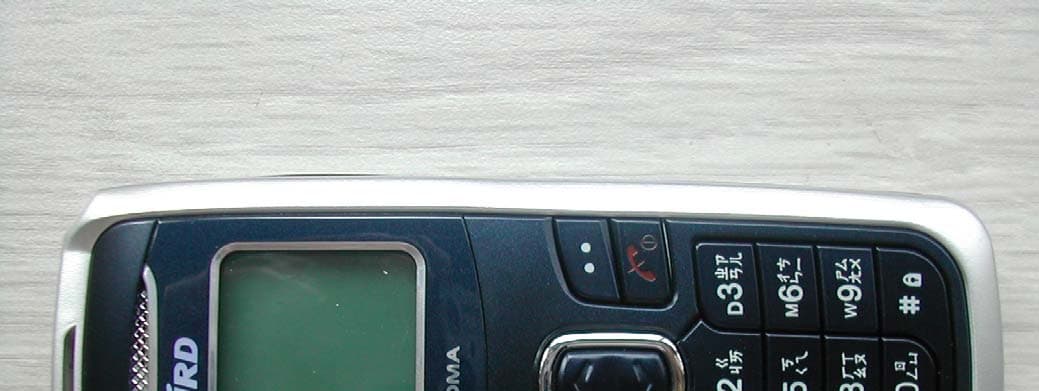
SNMC600
Sep 11, 2006CDMA 1X Digital Mobile Phone
Equipment Class
TNE - Licensed Non-Broadcast Transmitter Held to Ear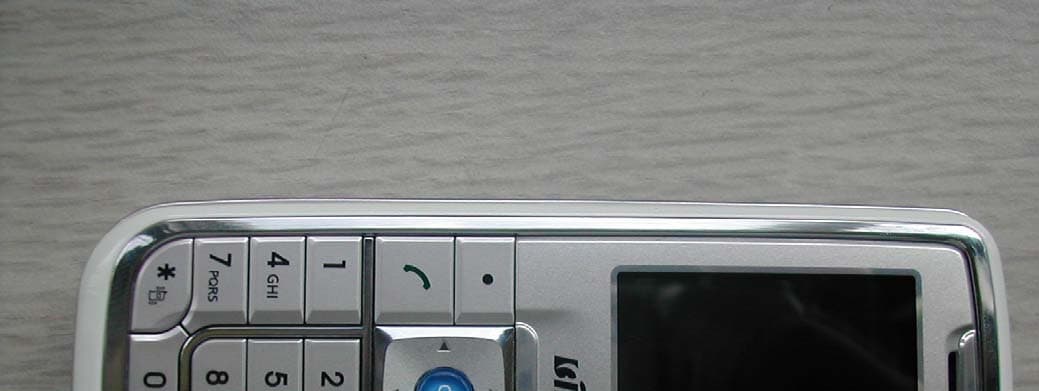
SNMM19
Jul 26, 2006GSM GPRS Mobile Phone
Equipment Class
PCE - PCS Licensed Transmitter held to ear