UZ7MC659BENTERPRISE DIGITAL ASSISTANT (EDA)
Zebra Technologies Corporation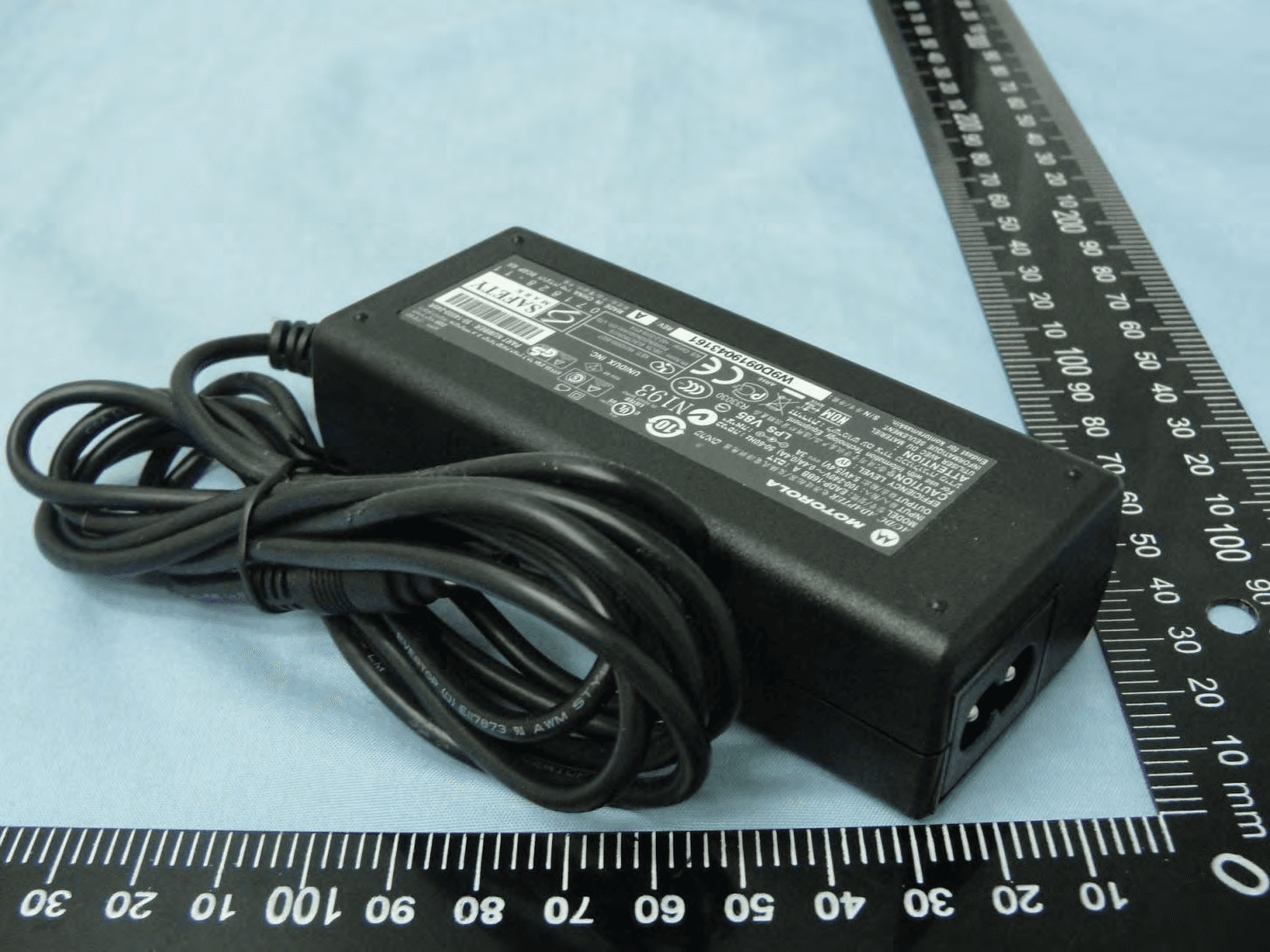
Click to zoom
Application Details
- Equipment Class
- DTS - Digital Transmission System
- Date of Grant
- May 20, 2010
- Application Purpose
- Original Equipment
- Date of Application
- May 11, 2010
- Equipment Note
- ENTERPRISE DIGITAL ASSISTANT (EDA)
- Frequency Range
- 5745.00000000 - 5825.00000000
- Country
- United States
Documents & Files
Document Text
Text extracted from the exhibit documents filed with the FCC. Open a document above to read the original.
Users Manual
MC65 Enterprise Digital Assistant User Guide Preliminary Preliminary MC65 Enterprise Digital Assistant User Guide 72E-133769-01- Rev. 1 March 2010 Preliminary iiMC65 User Guide © 2010 by Motorola, Inc. All rights reserved. No part of this publication may be reproduced or used in any form, or by any electrical or mechanical means, without permission in writing from Motorola. This includes electronic or mechanical means, such as photocopying, recording, or information storage and retrieval systems. The material in this manual is subject to change without notice. The software is provided strictly on an “as is” basis. All software, including firmware, furnished to the user is on a licensed basis. Motorola grants to the user a non-transferable and non-exclusive license to use each software or firmware program delivered hereunder (licensed program). Except as noted below, such license may not be assigned, sublicensed, or otherwise transferred by the user without prior written consent of Motorola. No right to copy a licensed program in whole or in part is granted, except as permitted under copyright law. The user shall not modify, merge, or incorporate any form or portion of a licensed program with other program material, create a derivative work from a licensed program, or use a licensed program in a network without written permission from Motorola. The user agrees to maintain Motorola’s copyright notice on the licensed programs delivered hereunder, and to include the same on any authorized copies it makes, in whole or in part. The user agrees not to decompile, disassemble, decode, or reverse engineer any licensed program delivered to the user or any portion thereof. Motorola reserves the right to make changes to any software or product to improve reliability, function, or design. Motorola does not assume any product liability arising out of, or in connection with, the application or use of any product, circuit, or application described herein. No license is granted, either expressly or by implication, estoppel, or otherwise under any Motorola, Inc., intellectual property rights. An implied license only exists for equipment, circuits, and subsystems contained in Motorola products. MOTOROLA and the Stylized M Logo and Symbol and the Symbol logo are registered in the US Patent & Trademark Office. Bluetooth is a registered trademark of Bluetooth SIG. Microsoft, Windows and ActiveSync are either registered trademarks or trademarks of Microsoft Corporation. All other product or service names are the property of their respective owners. Motorola, Inc. One Motorola Plaza Holtsville, New York 11742-1300 http://www.motorola.com/enterprisemobility Patents This product is covered by one or more of the patents listed on the website: www.motorola.com/ enterprisemobility/patents. Preliminary iii Revision History Changes to the original manual are listed below: ChangeDateDescription Preliminary ivMC65 User Guide Preliminary Table of Contents Patents.................................................................................................................................................. ii Revision History .................................................................................................................................... iii About This Guide Introduction ........................................................................................................................................... xi Documentation Set ......................................................................................................................... xi Configurations....................................................................................................................................... xii Software Versions........................................................................................................................... xii Chapter Descriptions ............................................................................................................................ xiv Notational Conventions......................................................................................................................... xiv Related Documents .............................................................................................................................. xv Service Information ............................................................................................................................... xv Chapter 1: Getting Started Introduction .......................................................................................................................................... 1-1 Unpacking ............................................................................................................................................ 1-2 Accessories ......................................................................................................................................... 1-3 Getting Started ..................................................................................................................................... 1-4 Installing a microSD Card .............................................................................................................. 1-4 Installing the SIM Card ................................................................................................................... 1-5 Installing the Battery ...................................................................................................................... 1-6 Charging the Battery ...................................................................................................................... 1-7 Charging the Main Battery ....................................................................................................... 1-7 Charging Spare Batteries ......................................................................................................... 1-8 Charging Tem…
Text truncated - open the document above for the full version.
Users Manual
Using the MC65 2 - 25 Talk/Start MenuTalk (Green Phone): press to display the phone keypad window or to dial a phone number (from the phone keypad window). When on a phone call, press to place the call on hold. Use this key in conjunction with the Blue key to instantly display the Start menu from any application without tapping the screen. This function is user programmable. Scan (yellow)Activates the scanner/imager in a scan enabled application. End/OK End (Red Phone): press when the phone keypad window displays to stop dialing or end a call. Use this key in conjunction with the Blue key as an OK or close button. This function is user programmable. Scroll Up and LeftMoves up one item. Moves left one item when pressed with the Orange key. Scroll Down and Right Moves down one item. Moves right one item when pressed with the Orange key. Soft KeysAccesses the command or menu above it on the screen. Star Produces an asterisk in default state. Press and release the blue key, then press the Star key to open the Start menu. Alphanumeric In default state, produces the numeric value on the key. In Alpha state, produces the lower case alphabetic characters on the key. Each key press produces the next alphabetic character in sequence. For example, press and release the Orange key and then press the ‘4’ key once to produce the letter ‘g’; press and release the Orange key and then press the ‘4’ key three times to produce the letter ‘i’. Press the SHIFT key in Alpha state to produce the upper case alphabetic characters on the key. For example, press and release the Orange key, press and release the SHIFT key, and then press the ‘4’ key once to produce the letter ‘G’; press and release the Orange key, press and release the SHIFT key and then press the ‘4’ key three times to produce the letter ‘I’. Table 2-6 MC65 Numeric Keypad Descriptions (Continued) KeyDescription Preliminary 2 - 26MC65 User Guide BackspaceProduces a backspace. SHIFTPress and release the SHIFT key to activate the keypad alternate SHIFT functions. A single press displays the following icon at the bottom of the screen, until a second key is pressed: Press the Orange key, then the Shift key to add a temporary shift (that applies only to the next key pressed) to the orange lock state. This displays the following icon at the bottom of the screen: EnterExecutes a selected item or function. Table 2-7 Numeric Keypad Input Modes Key Numeric Mode Orange Key (Alpha Lowercase Mode) Orange + Shift Keys (Alpha Uppercase Mode) Blue+ Key SHIFT + Key 1st Press 2nd Press 3rd Press 4th Press 1st Press 2nd Press 3rd Press 4th Press 11F1! *** * * ** * 22F2@abcA BC 33F3# defD EF 44F4$ ghiG HI 55F5%jklJ KL 66F6^ m noM NO 77F7& pqr s P QRS 88F8* tuvT UV 99F9( w xyz WXYZ 00F10) .> Note: An application can change the key functions. The keypad may not function exactly as described. Table 2-6 MC65 Numeric Keypad Descriptions (Continued) KeyDescription Preliminary Using the MC65 2 - 27 Alpha-numeric Keypad Configurations The three types of alpha-numeric keypads (QWERTY, AZERTY and QWERTZ) produce the 26-character alphabet (A-Z, both lowercase and uppercase), numbers (0-9), and assorted characters. The keypad is color-coded to indicate which modifier key to press to produce a particular character or action. The keypad default is alphabetic, producing lowercase letters. See Table 2-8 for key and button descriptions and Table 2-9 on page 2-30 for the keypad’s special functions. AZERTY keypad is used on configurations installed with the French operating system. QWERTZ keypad is used on configurations installed with the German operating system. Figure 2-33 QWERTY Keypad Configuration UpUpUpHilight Up LeftLeft DownDownDownHilight Down RightRight EnterActionActionActionActionAction Table 2-7 Numeric Keypad Input Modes (Continued) Key Numeric Mode Orange Key (Alpha Lowercase Mode) Orange + Shift Keys (Alpha Uppercase Mode) Blue+ Key SHIFT + Key 1st Press 2nd Press 3rd Press 4th Press 1st Press 2nd Press 3rd Press 4th Press Note: An application can change the key functions. The keypad may not function exactly as described. ok Preliminary 2 - 28MC65 User Guide Figure 2-34 AZERTY Keypad Configuration Figure 2-35 QWERTZ Keypad Configuration ok ok Preliminary Using the MC65 2 - 29 Table 2-8 Alpha-numeric Keypad Descriptions KeyAction Blue KeyPress the Blue key once to activate this mode temporarily, followed by another key. This displays the following icon at the bottom of the screen, until a second key is pressed: Press the Blue key twice to lock this mode. This displays the following icon at the bottom of the screen: Press the Blue key a third time to unlock. Orange KeyAccesses the secondary layer of characters and actions (shown on the keypad in orange). Press the Orange key once to activate this mode temporarily, followed by another key. This displays the following icon at the bottom of the screen, until a second key is pressed: Press the Orange key twice to lock this mode. This displays the following icon at the bottom of the screen: Press the Orange key a third time to unlock. Talk/Start MenuTalk (Green Phone): press to display the phone keypad window or to dial a phone number (from the phone keypad window). When on a phone call, press to place the call on hold. Use this key in conjunction with the Blue key to instantly display the Start menu from any application without tapping the screen. This function is user programmable. Scan (yellow)Activates the scanner/imager in a scan enabled application. End/OK End (Red Phone): press when the phone keypad window displays to stop dialing or end a call. Use this key in conjunction with the Blue key as an OK or close button. This function is user programmable. Scroll Up and LeftMoves up one item. Moves left one item when pressed with the Orange key. Scroll Down and RightMoves down one item. Moves right one item when pressed with the Orange key. ok Preliminary 2 - 30MC65 User Guide Soft KeysAccesses the command or menu above it o…
Text truncated - open the document above for the full version.
Users Manual
5 - 12MC65 User Guide Figure 5-11 Computer Bluetooth Devices Window 6.On the COM Ports tab, click Add. 7.Select the Incoming (device initiates the connection) option, then click OK. Note the number of the COM port that was added. 8.Click OK. 9.Click Start > All Programs > Microsoft ActiveSync. 10.Click File > Connection Settings. Figure 5-12 ActiveSync Connection Settings 11.On the Allow connections to one of the following drop-down list, select the COM port with the number you noted earlier. 12.On the MC65, tap Start > Programs > ActiveSync. 13.Ta p Menu > Connect via Bluetooth. Synchronization is automatically initiated. The ActiveSync icon appears on the lower right corner of the Today screen. Preliminary Using Bluetooth 5 - 13 If an Authentication is required, the Enter Passcode screen appears, type an alphanumeric passkey (PIN code), then tap Next; enter the same passkey on the other device. The passkey is recommended for enhanced security. Your passkey must be between 1 to 16 alphanumeric characters. If you do not want to use a passkey, tap Next. 14.To disconnect the ActiveSync connection, tap the ActiveSync icon on the Today screen. 15.Ta p Disconnect. Phone Book Access Profile Services Phone Book Access profile (PBAP) is used to synchronize contacts between a remote device and the MC65. To establish an PBAP synchronization: 1.Ensure that Bluetooth is enabled and discoverable on both devices. 2.Ensure that the two devices are within 30 feet (10 meters) of one another. 3.Ta p Start > Settings > Connection tab > Bluetooth icon > Devices tab. 4.Ta p Add New Device.The MC65 searches for a Bluetooth device, such as a Car Kit. 5.Select a device from the list. 6.Ta p Next. The Enter Passcode window appears. 7.Enter the Passcode and the tap Next. The device is added to the Bluetooth list. 8.A dialog box appears requesting if you want to transfer contacts to the car kit. 9.Select Yes or No. 10.If Yes is selected, contacts from the MC65 are transferred to the car kit. NOTEIf Smart-pairing is configured and the device is requesting one of the pre-defined PINs, the Enter Passcode window does not appear. Preliminary 5 - 14MC65 User Guide Preliminary Chapter 6 Accessories Introduction MC65 accessories, listed below, provide a variety of product support capabilities. •Four Slot Charge Only Cradle - Charges up to four MC65 devices. •Four Slot Ethernet Cradle - Charges the MC65 main battery and connects the MC65 to an Ethernet network. •Single Slot USB Cradle - Charges the MC65 main battery and a spare battery. Synchronizes the MC65 with a host computer through a USB connection. •Vehicle Cradle - Provides secure mounting of the MC65 in a vehicle and charges the MC65. •Vehicle Holder - Provides an alternative mounting for the MC65 in a vehicle. Requires the Auto Charge cable for charging the MC65 battery. •Four Slot Battery Charger - Charges standard and high capacity batteries. •Auto Charge Cable - Plugs into a vehicle cigarette lighter to charge the MC65 while on the road. •USB Charging Cable - Provides power to the MC65 and USB communication with a host computer. •Charge Only Cable - Provides power to the MC65. •Belt Mounted Rigid Holster - Holds the MC65 when not in use. •Belt Mounted Soft Holster - Holds the MC65 when not in use. •Single Slot Ethernet/Modem/USB Cradle - •Magnetic Stripe Reader - •DEX Cable - Preliminary 6 - 2MC65 User Guide Single Slot USB Cradle This section describes how to use a Single Slot USB cradle with the MC65. For USB communication setup procedures refer to the MC65 Integrator Guide. The Single Slot USB Cradle: •Provides 5.4 VDC power for operating the MC65. •Synchronizes information between the MC65 and a host computer. Refer to the MC65 Integrator Guide for information on setting up a partnership between the MC65 and a host computer. •Charges the MC65’s battery. •Charges a spare battery. Charging the MC65 Battery Connect the cradle to power. Insert the MC65 into the slot to begin charging. Figure 6-1 MC65 Battery Charging Charging/Battery Status LED Preliminary Accessories6 - 3 Charging the Spare Battery Figure 6-2 Spare Battery Charging Battery Charging Indicators The Single Slot USB Cradle charges the MC65’s main battery and a spare battery simultaneously. The MC65’s charge LED indicates the status of the battery charging in the MC65. See Table 1-2 on page 1-8 for charging status indications. The spare battery charging LED on the cradle indicates the status of the spare battery charging in the cradle. See Table 6-1 for charging status indications. The 2400 mAh battery fully charges in less than four hours and the 3600 mAh battery fully charges in less than six hours. Charging Temperature Charge batteries in temperatures from 0°C to 40°C (32°F to 104°F). Charging is intelligently controlled by the MC65. Spare Battery Spare Battery Charging LED Preliminary 6 - 4MC65 User Guide To accomplish this, for small periods of time, the MC65 or accessory alternately enables and disables battery charging to keep the battery at acceptable temperatures. The MC65 or accessory indicates when charging is disabled due to abnormal temperatures via its LED. See Table 1-2 on page 1-8 and Table 6-1. Table 6-1 Spare Battery LED Charging Indicators Spare Battery LED (on cradle) Indication OffBattery is not charging; battery is not inserted correctly in the cradle; cradle is not powered Slow Blinking AmberSpare battery is charging. Solid AmberCharging complete. Fast Blinking AmberCharging error. Preliminary Accessories6 - 5 Four Slot Charge Only Cradle This section describes how to set up and use a Four Slot Charge Only cradle with the MC65. The Four Slot Charge Only cradle: •Provides 5.4 VDC power for operating the MC65. •Simultaneously charges up to four MC65 devices. Charging Insert the MC65 into a slot to begin charging. Figure 6-3 MC65 Battery Charging Battery Charging Indicators The MC65’s charge LED shows the status of the battery charging in the MC65. See Table 1-2 on page 1-8 for …
Text truncated - open the document above for the full version.
Users Manual
Motorola reserves the right to make changes to any product to improve reliability, function, or design. Motorola does not assume any product liability arising out of, or in connection with, the application or use of any product, circuit, or application described herein. No license is granted, either expressly or by implication, estoppel, or otherwise under any patent right or patent, covering or relating to any combination, system, apparatus, machine, material, method, or process in which Motorola products might be used. An implied license exists only for equipment, circuits, and subsystems contained in Motorola products. Warranty For the complete Motorola hardware product warranty statement, go to: http://www.motorola.com/ enterprisemobility/warranty. Service Information If you have a problem using the equipment, contact your facility’s Technical or Systems Support. If there is a problem with the equipment, they will contact the Motorola Enterprise Mobility Support at: http://www.motorola.com/enterprisemobility/contactsupport. For the latest version of this guide go to: http://motorola.com/enterprisemobility/manuals. Motorola, Inc. One Motorola Plaza Holtsville, New York 11742, USA 1-800-927-9626 http://www.motorola.com/enterprisemobility MOTOROLA and the Stylized M Logo and Symbol and the Symbol logo are registered in the U.S. Patent and Trademark Office. All other product or service names are the property of their respective owners. © Motorola, Inc. 2010 72-134232-01 Revision 1 — May 2010 MC65 Regulatory Guide Regulatory Information This guide applies to the following Model: MC659B. All Motorola devices are designed to be compliant with rules and regulations in locations they are sold and will be labeled as required. Any changes or modifications to Motorola equipment, not expressly approved by Motorola, could void the user's authority to operate the equipment. Declared maximum operating temperature: 50°C. This guide is available in local languages, translations can be downloaded from the following website:http://www.motorola.com/enterprisemobility/support/. UL Listed Products with GPS Underwriters Laboratories Inc. (UL) has not tested the performance or reliability of the Global Positioning System (GPS) hardware, operating software or other aspects of this product. UL has only tested for fire, shock or casualties as outlined in UL’s Standard(s) for Safety for Information Technology Equipment, UL60950-1. UL Certification does not cover the performance or reliability of the GPS hardware and GPS operating software. UL MAKES NO REPRESENTATIONS, WARRANTIES OR ERTIFICATIONS WHATSOEVER REGARDING THE PERFORMANCE OR RELIABILITY OF ANY GPS RELATED FUNCTIONS OF THIS PRODUCT. Bluetooth ® Wireless Technology This is an approved Bluetooth product. For more information or to view the End Product Listing, please visit http://www.bluetooth.org/tpg/listings.cfm. Wireless Devices Country Approvals Regulatory markings, subject to certification, are applied to the device signifying the radio(s) are approved for use in the following countries: United States, Canada, Japan, Australia, and Europe 1 . Please refer to the Motorola Declaration of Conformity (DoC) for details of other country markings. This is available at http://www.motorola.com/doc. Note 1: Europe includes Austria, Belgium, Bulgaria, Czech Republic, Cyprus, Denmark, Estonia, Finland, France, Germany, Greece, Hungary, Iceland, Ireland, Italy, Latvia, Liechtenstein, Lithuania, Luxembourg, Malta, Netherlands, Norway, Poland, Portugal, Romania, Slovak Republic, Slovenia, Spain, Sweden, Switzerland and the United Kingdom. Country Roaming This device incorporates the International Roaming feature (IEEE802.11d) which will ensure the product operates on the correct channels for the particular country of use. Ad-Hoc Operation Ad-Hoc operation is limited to Channels 36-48 (5150-5250 MHz). Use of this band is restricted to Indoor Use Only, any other use will make the operation of this device illegal. Frequency of Operation – FCC and IC 5 GHz Only The use in the UNII (Unlicensed National Information Infrastructure) band 1 (5150-5250 MHz) is restricted to Indoor Use Only; any other use will make the operation of this device illegal. Health and Safety Recommendations Ergonomic Recommendations • Reduce or eliminate repetitive motion • Maintain a neutral postures • Reduce or eliminate excessive force • Keep objects that are used frequently within easy reach • Perform tasks at correct heights • Reduce or eliminate vibration • Reduce or eliminate direct pressure • Provide adjustable workstations • Provide adequate clearance • Provide a suitable working environment • Improve work procedures • Alternate hands whenever possible when performing a repetitive task. Vehicle Installation RF signals may affect improperly installed or inadequately shielded electronic systems in motor vehicles (including safety systems). Check with the manufacturer or its representative regarding your vehicle. You should also consult the manufacturer of any equipment that has been added to your vehicle. An air bag inflates with great force. DO NOT place objects, including either installed or portable wireless equipment, in the area over the air bag or in the air bag deployment area. If in-vehicle wireless equipment is improperly installed and the air bag inflates, serious injury could result. Position your device within easy reach. Be able to access your device without removing your eyes from the road. Note: Connection to an alert device that will cause a vehicle horn to sound or lights to flash, on receipt of a call on public roads, is not permitted. Safety on the Road Do not take notes or use the device while driving. Jotting down a “to do” list or flipping through your address book takes attention away from your primary responsibility, driving safely. When driving a car, driving is your first responsibility - Give full attention to driving. Check the laws and regulations on the use of …
Text truncated - open the document above for the full version.
Cover Letter(s)
Symbol Technologies, Inc. A Motorola Company • One Motorola Plaza, Holtsville, NY 11742-1300 • 1.631.738.5134 April 2, 2010 Regulatory Engineering Federal Communications Commission Office of Engineering and Technology Equipment Authorization Division 7345 Oakland Mills Road Columbia MD 21046 Subject: Letter of Attestation To the Commission: We, the undersigned, attest that the (802.11 abg WLAN) radio transmitter in the MC659B approved under FCC ID: UZ7MC659B • Complies with FCC Part 15.202 operating as a Client Device • Does not support any transmission for beacon, ad-hoc, or peer-to-peer modes on non-US frequencies” and/or “on DFS frequencies”. • Does not include a control or switch to disable DFS • Does not include settings or controls to operate on frequencies beyond those specified on the FCC Grant If you have any questions regarding the attestations, please do not hesitate to contact me. Respectfully, Mark S. Luksich DMTS, Regulatory Engineering 631-738-5134 [email protected]
External Photos
Photographs of EUT Report No.: EP010801 Model Name: MC659B SPORTON INTERNATIONAL INC. Page Number : 1 of 52 TEL : 886-3-327-3456 Issued Date : Feb. 22, 2010 FAX : 886-3-328-4978 Report Version : Rev. 01 FCC ID : UZ7MC659B IC : 109AN-MC659B 1. External Photograph of EUT Numeric Keypad Photographs of EUT Report No.: EP010801 Model Name: MC659B SPORTON INTERNATIONAL INC. Page Number : 2 of 52 TEL : 886-3-327-3456 Issued Date : Feb. 22, 2010 FAX : 886-3-328-4978 Report Version : Rev. 01 FCC ID : UZ7MC659B IC : 109AN-MC659B Photographs of EUT Report No.: EP010801 Model Name: MC659B SPORTON INTERNATIONAL INC. Page Number : 3 of 52 TEL : 886-3-327-3456 Issued Date : Feb. 22, 2010 FAX : 886-3-328-4978 Report Version : Rev. 01 FCC ID : UZ7MC659B IC : 109AN-MC659B Photographs of EUT Report No.: EP010801 Model Name: MC659B SPORTON INTERNATIONAL INC. Page Number : 4 of 52 TEL : 886-3-327-3456 Issued Date : Feb. 22, 2010 FAX : 886-3-328-4978 Report Version : Rev. 01 FCC ID : UZ7MC659B IC : 109AN-MC659B Photographs of EUT Report No.: EP010801 Model Name: MC659B SPORTON INTERNATIONAL INC. Page Number : 5 of 52 TEL : 886-3-327-3456 Issued Date : Feb. 22, 2010 FAX : 886-3-328-4978 Report Version : Rev. 01 FCC ID : UZ7MC659B IC : 109AN-MC659B Photographs of EUT Report No.: EP010801 Model Name: MC659B SPORTON INTERNATIONAL INC. Page Number : 6 of 52 TEL : 886-3-327-3456 Issued Date : Feb. 22, 2010 FAX : 886-3-328-4978 Report Version : Rev. 01 FCC ID : UZ7MC659B IC : 109AN-MC659B Photographs of EUT Report No.: EP010801 Model Name: MC659B SPORTON INTERNATIONAL INC. Page Number : 7 of 52 TEL : 886-3-327-3456 Issued Date : Feb. 22, 2010 FAX : 886-3-328-4978 Report Version : Rev. 01 FCC ID : UZ7MC659B IC : 109AN-MC659B Qwerty Keypad Photographs of EUT Report No.: EP010801 Model Name: MC659B SPORTON INTERNATIONAL INC. Page Number : 8 of 52 TEL : 886-3-327-3456 Issued Date : Feb. 22, 2010 FAX : 886-3-328-4978 Report Version : Rev. 01 FCC ID : UZ7MC659B IC : 109AN-MC659B Photographs of EUT Report No.: EP010801 Model Name: MC659B SPORTON INTERNATIONAL INC. Page Number : 9 of 52 TEL : 886-3-327-3456 Issued Date : Feb. 22, 2010 FAX : 886-3-328-4978 Report Version : Rev. 01 FCC ID : UZ7MC659B IC : 109AN-MC659B Photographs of EUT Report No.: EP010801 Model Name: MC659B SPORTON INTERNATIONAL INC. Page Number : 10 of 52 TEL : 886-3-327-3456 Issued Date : Feb. 22, 2010 FAX : 886-3-328-4978 Report Version : Rev. 01 FCC ID : UZ7MC659B IC : 109AN-MC659B Photographs of EUT Report No.: EP010801 Model Name: MC659B SPORTON INTERNATIONAL INC. Page Number : 11 of 52 TEL : 886-3-327-3456 Issued Date : Feb. 22, 2010 FAX : 886-3-328-4978 Report Version : Rev. 01 FCC ID : UZ7MC659B IC : 109AN-MC659B Photographs of EUT Report No.: EP010801 Model Name: MC659B SPORTON INTERNATIONAL INC. Page Number : 12 of 52 TEL : 886-3-327-3456 Issued Date : Feb. 22, 2010 FAX : 886-3-328-4978 Report Version : Rev. 01 FCC ID : UZ7MC659B IC : 109AN-MC659B 720510 Photographs of EUT Report No.: EP010801 Model Name: MC659B SPORTON INTERNATIONAL INC. Page Number : 13 of 52 TEL : 886-3-327-3456 Issued Date : Feb. 22, 2010 FAX : 886-3-328-4978 Report Version : Rev. 01 FCC ID : UZ7MC659B IC : 109AN-MC659B List of Accessory: Specification of Accessory AC Adapter Brand Name MOTOROLA Model Name EADP-16BB A Power Rating I/P:100-240Vac, 50-60Hz, 0.4A; O/P: 5.4Vdc, 3A DC Power Cord Type 1.94 meter shielded cable without ferrite core Battery Brand Name MOTOROLA Model Name 82-111094-01 Power Rating 3.7Vdc, 3600mAh Type Li-ion USB Cable Brand Name MOTOROLA Model Name 25-108022-01R Signal Line Type 1.5 meter shielded cable with ferrite core Camera Brand Name MOTOROLA JABIL Model Name PD6234B Holster 1 Brand Name MOTOROLA Model Name SG-MC5511110-01R Holster 2 Brand Name MOTOROLA Model Name SG-MC5521110-01R LCD Panel Brand Name TPO Model Name TD035SHED1 Remark: For accessories equipped with this EUT, please refer to the following photos. 2. Photograph of Accessory Photographs of EUT Report No.: EP010801 Model Name: MC659B SPORTON INTERNATIONAL INC. Page Number : 14 of 52 TEL : 886-3-327-3456 Issued Date : Feb. 22, 2010 FAX : 886-3-328-4978 Report Version : Rev. 01 FCC ID : UZ7MC659B IC : 109AN-MC659B Photographs of EUT Report No.: EP010801 Model Name: MC659B SPORTON INTERNATIONAL INC. Page Number : 15 of 52 TEL : 886-3-327-3456 Issued Date : Feb. 22, 2010 FAX : 886-3-328-4978 Report Version : Rev. 01 FCC ID : UZ7MC659B IC : 109AN-MC659B Photographs of EUT Report No.: EP010801 Model Name: MC659B SPORTON INTERNATIONAL INC. Page Number : 16 of 52 TEL : 886-3-327-3456 Issued Date : Feb. 22, 2010 FAX : 886-3-328-4978 Report Version : Rev. 01 FCC ID : UZ7MC659B IC : 109AN-MC659B Photographs of EUT Report No.: EP010801 Model Name: MC659B SPORTON INTERNATIONAL INC. Page Number : 17 of 52 TEL : 886-3-327-3456 Issued Date : Feb. 22, 2010 FAX : 886-3-328-4978 Report Version : Rev. 01 FCC ID : UZ7MC659B IC : 109AN-MC659B Photographs of EUT Report No.: EP010801 Model Name: MC659B SPORTON INTERNATIONAL …
Text truncated - open the document above for the full version.
Contact Information
Applicant
Qianlin Zhou(Regulatory Specialist)
Test Firm
Sporton International Inc.Alex Chen
Technical Specifications
| # | Rule Parts | Frequency Range | Power Output |
|---|---|---|---|
| 2 | 15C | 5.75 GHz - 5.83 GHz | 97.00 mW |
Other Applications from Zebra Technologies Corporation
UZ7DS8288R
Jun 29, 2026Cordless Scanner
Equipment Class
DTS - Digital Transmission SystemUZ7DS8208R
Jun 29, 2026Cordless Scanner
Equipment Class
DSS - Part 15 Spread Spectrum TransmitterUZ7TCW01G
Jun 23, 2026Touch Computer
Equipment Class
CBE - Citizens Band End User DevicesUZ7TCW010
May 29, 2026Touch Computer
Equipment Class
NII - Unlicensed National Information Infrastructure TXUZ7TC101B
Apr 29, 2026Touch Computer
Equipment Class
DSS - Part 15 Spread Spectrum Transmitter