WX9RC30006501SWTOR Wireless Gaming Mouse
Razer (Asia Pacific) Pte Ltd
Click to zoom
Application Details
- Equipment Class
- DXX - Part 15 Low Power Communication Device Transmitter
- Date of Grant
- Sep 26, 2011
- Application Purpose
- Original Equipment
- Date of Application
- Sep 26, 2011
- Equipment Note
- SWTOR Wireless Gaming Mouse
- Frequency Range
- 2402.00000000 - 2480.00000000
- Company
- Razer (Asia Pacific) Pte Ltd
- Country
- Singapore
Documents & Files
Document Text
Text extracted from the exhibit documents filed with the FCC. Open a document above to read the original.
Users Manual
1 MN L P Q O PAIRING G H IK J L A C B D E F 123 NUM PAIRING KEY FEATURES: A. Left Click B. Right Click C. Scroll Click / Scroll Up & Down D. Mouse Button 5 E. Mouse Button 4 F. Galactic Republic Faction Emblem G. Thumb Grid – 12 buttons (Action Bar for MMO games) H. Ultraslick Mouse Feet I. Wired and Wireless/Charging Switch * J. Razer Precision 3.5G Laser Sensor K. Basic [123] / Advanced [Num] Switch L. Pairing Button M. Sith Empire Faction Emblem N. Rechargeable Battery O. Cable Connector Jack P. Battery Charging Connector Q. Connector Jack (Charging Dock) WIRED MODE 1. Do ensure that the shown switch is set to the Wired/Charging position. 2. Connect the Cable Connector Jack to the SWTOR Gaming Mouse. 3. Plug mouse into the USB port of your computer. The SWTOR Gaming Mouse is then ready for use as a high performance wired mouse. In addition, its battery will start charging automatically in this wired mode. 4. To remove the cable, pull out the Cable Connector Jack. 7. When the pairing process is completed, the lights on the SWTOR Gaming Mouse will stop blinking. Your SWTOR Gaming Mouse is then ready for use in wireless mode. 8. To charge the SWTOR Gaming Mouse in wireless mode, ensure that the shown switch is set to the Wired/Charging position and place it on the Charging Dock. Alternatively, the SWTOR Gaming Mouse can be charged by plugging it directly into a PC USB port. WIRELESS MODE 1. Connect the Cable Connector Jack to the Charging Dock. 2. Remove the side panel of the SWTOR Gaming Mouse. 3. Slide the lock switch and insert the battery into the battery compartment. (Sliding the lock switch again will allow you to remove the battery). 4. Replace the side panel. 5. Slide the shown switch to the Wireless position. To conserve battery power, always move the switch to the Wired/Charging position when not using your mouse in wireless mode. 6. Press the pairing buttons on the SWTOR Gaming Mouse and Charging Dock. The lights on the SWTOR Gaming Mouse will start flashing to indicate the pairing process. SOFTWARE INSTALLATION INSTRUCTIONS Step 1: Plug your SWTOR Gaming Mouse into the USB port of your computer. Step 2: Download the driver installer from www.razersupport.com. Step 3: Run the installer and follow the onscreen instructions. REGISTRATION Please visit www.razerzone.com/registration/ for online product registration. TECHNICAL SUPPORT What you’ll get: • 2 years limited manufacturer’s warranty • 6 months battery warranty • Free online technical support at www.razersupport.com. For GaMers. by Gamers.™ | 1 www.razerzone.com | 6 2 * For optimum battery life, always move the switch to the Wired/Charging position when not using your mouse in wireless mode. 1 2 PACKAGE CONTENTS • Star Wars™: The Old Republic™ Gaming Mouse by Razer • Galactic Republic Faction Emblem • Sith Empire Faction Emblem • Charging Dock • Lithium-Ion Polymer Battery • USB Cable • Quick Start Guide SYSTEM REQUIREMENTS PC with USB port Windows® 7 / Windows Vista® / Windows® XP Internet connection (for driver installation) 75MB of free hard disk space SETTING UP YOUR SWTOR GAMING MOUSE For best results, please charge the battery fully the first time you use the SWTOR Gaming Mouse. Do check that the left-side switch on the bottom of the SWTOR Gaming Mouse is switched to the Wired/Charging position. A depleted battery will be fully charged in about 6 hours. WIRED MODE 1. Do ensure that the shown switch is set to the Wired/Charging position. 2. Connect the Cable Connector Jack to the SWTOR Gaming Mouse. 3. Plug mouse into the USB port of your computer. The SWTOR Gaming Mouse is then ready for use as a high performance wired mouse. In addition, its battery will start charging automatically in this wired mode. 4. To remove the cable, pull out the Cable Connector Jack. 7. When the pairing process is completed, the lights on the SWTOR Gaming Mouse will stop blinking. Your SWTOR Gaming Mouse is then ready for use in wireless mode. 8. To charge the SWTOR Gaming Mouse in wireless mode, ensure that the shown switch is set to the Wired/Charging position and place it on the Charging Dock. Alternatively, the SWTOR Gaming Mouse can be charged by plugging it directly into a PC USB port. WIRELESS MODE 1. Connect the Cable Connector Jack to the Charging Dock. 2. Remove the side panel of the SWTOR Gaming Mouse. 3. Slide the lock switch and insert the battery into the battery compartment. (Sliding the lock switch again will allow you to remove the battery). 4. Replace the side panel. 5. Slide the shown switch to the Wireless position. To conserve battery power, always move the switch to the Wired/Charging position when not using your mouse in wireless mode. 6. Press the pairing buttons on the SWTOR Gaming Mouse and Charging Dock. The lights on the SWTOR Gaming Mouse will start flashing to indicate the pairing process. SOFTWARE INSTALLATION INSTRUCTIONS Step 1: Plug your SWTOR Gaming Mouse into the USB port of your computer. Step 2: Download the driver installer from www.razersupport.com. Step 3: Run the installer and follow the onscreen instructions. REGISTRATION Please visit www.razerzone.com/registration/ for online product registration. TECHNICAL SUPPORT What you’ll get: • 2 years limited manufacturer’s warranty • 6 months battery warranty • Free online technical support at www.razersupport.com. www.razerzone.com | 2 3 패키지 내용물 • Star Wars™: The Old Republic™ Gaming Mouse by Razer • Galactic Republic Faction Emblem • Sith Empire Faction Emblem • 충전 도크 • 리튬이온 폴리머 배터리 • USB 케이블 • 빠른 시작 안내서 시스템 요구 사항 USB 포트가 있는 PC Windows® 7 / Windows Vista® / Windows® XP 인터넷 연결(드라이버 설치용) 75MB의 여유 하드 디스크공간 SWTOR 게임용 마우스 세팅방법 처음에 배터리를 완전히 충전한 후SWTOR 게임용 마우스을 사용하세요. SWTOR 게임용 마우스의 왼쪽 하단에 있는 스위치가 끄기 위치에 있는지 확인 하세요(Off). 다 쓴 배터리를 완전히 충전하는 데 약 xx시간이 걸립니다. 日本語 주요 특징 A 왼쪽 클릭 B 오른쪽 클릭 C 스크롤 클릭/스크롤 위로 및 스크롤 아래로 D 마우스 버튼 5 E 마우스 버튼 4 F Galactic Republic Faction Emblem G 썸 그리드 – 12개 버튼(MMO 게임용 액션바) H Ultraslick 마우스 피트 I 무선[Wireless] 및 유선/ 충전[Wired/Charging] 스위치 * J R…
Text truncated - open the document above for the full version.
External Photos
Page 1 CONSTRUCTION PHOTOS OF EUT Page 2
ID Label/Location Info
LABEL LOCATION Label Location
Internal Photos
Page 3 Page 4 Page 5 Page 6 Page 7 Page 8 Page 9 Page 10 Page 11 Page 12 Page 13
Operational Description
FCC ID: WX9RC30006501 Report No.: RF110728D05 Operational Description The transmitter of the EUT (SWTOR Wireless Gaming Mouse) is powered by 3.7Vdc from battery. The type of antenna is Printed antenna. The output power of this device is very low. Under normal use condition, the transmitter and the receiver are quite close, so high EIRP power is neither necessary nor allowed because of interference.
Test Report
Report No.: RF110728D05 1 Report Format Version 4.0.0 FCC TEST REPORT REPORT NO.: RF110728D05 MODEL NO.: RC30-006501 FCC ID: WX9RC30006501 RECEIVED: Jul. 28, 2011 TESTED: Jul. 29 ~ Aug. 1, 2011 ISSUED: Sep. 16, 2011 APPLICANT: RAZER (ASIA-PACIFIC) PTE LTD ADDRESS: 514 CHAI CHEE LANE #07-01 ~ 06. SINGAPORE 469029 ISSUED BY: Bureau Veritas Consumer Products Services (H.K.) Ltd., Taoyuan Branch LAB LOCATION: No. 47, 14th Ling, Chia Pau Vil., Lin Kou Dist., New Taipei City, 244 Taiwan This test report consists of 33 pages in total. It may be duplicated completely for legal use with the approval of the applicant. It should not be reproduced except in full, without the written approval of our laboratory. The client should not use it to claim product endorsement by TAF or any government agencies. The test results in the report only apply to the tested sample. Report No.: RF110728D05 2 Report Format Version 4.0.0 Table of Contents RELEASE CONTROL RECORD..............................................................................3 1. CERTIFICATION..........................................................................................4 2. SUMMARY OF TEST RESULTS..................................................................5 2.1 MEASUREMENT UNCERTAINTY...............................................................5 3. GENERAL INFORMATION..........................................................................6 3.1 GENERAL DESCRIPTION OF EUT............................................................6 3.2 DESCRIPTION OF TEST MODES..............................................................7 3.2.1 CONFIGURATION OF SYSTEM UNDER TEST.........................................8 3.2.2 TEST MODE APPLICABILITY AND TESTED CHANNEL DETAIL:.............9 3.3 GENERAL DESCRIPTION OF APPLIED STANDARDS...........................11 3.4 DESCRIPTION OF SUPPORT UNITS......................................................11 4. TEST TYPES AND RESULTS....................................................................12 4.1 RADIATED EMISSION MEASUREMENT.................................................12 4.1.1 LIMITS OF RADIATED EMISSION MEASUREMENT...............................12 4.1.2 TEST INSTRUMENTS..............................................................................13 4.1.3 TEST PROCEDURES...............................................................................14 4.1.4 DEVIATION FROM TEST STANDARD.....................................................14 4.1.5 TEST SETUP............................................................................................15 4.1.6 EUT OPERATING CONDITIONS..............................................................15 4.1.7 TEST RESULTS........................................................................................16 4.2 CONDUCTED EMISSION MEASUREMENT............................................23 4.2.1 LIMITS OF CONDUCTED EMISSION MEASUREMENT..........................23 4.2.2 TEST INSTRUMENTS..............................................................................23 4.2.3 TEST PROCEDURES...............................................................................24 4.2.4 DEVIATION FROM TEST STANDARD.....................................................24 4.2.5 TEST SETUP............................................................................................25 4.2.6 EUT OPERATING CONDITIONS..............................................................25 4.2.7 TEST RESULTS........................................................................................26 4.3 BAND EDGES MEASUREMENT..............................................................28 4.3.1 LIMITS OF BAND EDGES MEASUREMENT............................................28 4.3.2 TEST INSTRUMENTS..............................................................................28 4.3.3 TEST PROCEDURE.................................................................................28 4.3.4 DEVIATION FROM TEST STANDARD.....................................................28 4.3.5 EUT OPERATING CONDITION................................................................28 4.3.6 TEST RESULTS........................................................................................28 5. PHOTOGRAPHS OF THE TEST CONFIGURATION.................................31 6. INFORMATION ON THE TESTING LABORATORIES...............................32 7. APPENDIX A – MODIFICATIONS RECORDERS FOR ENGINEERING CHANGES TO THE EUT BY THE LAB......................................................33 Report No.: RF110728D05 3 Report Format Version 4.0.0 RELEASE CONTROL RECORD ISSUE NO. REASON FOR CHANGE DATE ISSUED RF110728D05 Original release Sep. 16, 2011 Report No.: RF110728D05 4 Report Format Version 4.0.0 1. CERTIFICATION PRODUCT: SWTOR Wireless Gaming Mouse BRAND NAME: RAZER MODEL NO.: RC30-006501 APPLICANT: RAZER (ASIA-PACIFIC) PTE LTD TESTED: Jul. 29 ~ Aug. 1, 2011 TEST ITEM: ENGINEERING SAMPLE STANDARDS: FCC Part 15, Subpart C (Section 15.249) ANSI C63.4-2003 ANSI C63.10-2009 The above equipment has been tested by Bureau Veritas Consumer Products Services (H.K.) Ltd., Taoyuan Branch, and found compliance with the requirement of the above standards. The test record, data evaluation & Equipment Under Test (EUT) configurations represented herein are true and accurate accounts of the measurements of the sample’s EMC characteristics under the conditions specified in this report. PREPARED BY : , DATE: ( Annie Chang / Senior Specialist ) APPROVED BY : , DATE: ( Ken Liu / Manager ) Report No.: RF110728D05 5 Report Format Version 4.0.0 2. SUMMARY OF TEST RESULTS The EUT has been tested according to the following specifications: APPLIED STANDARD: FCC Part 15, Subpart C (Section 15.249) STANDARD SECTION TEST TYPE AND LIMIT RESULT REMARK 15.207 Conducted Emission Test PASS Minimum passing margin is –10.68dB at 0.244MHz 15.209 15.249 15.249 (d) Radiated Emission Test Band Edge Measurement Limit: 50dB less than the peak value of funda…
Text truncated - open the document above for the full version.
Test Setup Photos
1 PHOTOGRAPHS OF THE TEST CONFIGURATION CONDUCTED EMISSION TEST (Mode B) 2 RADIATED EMISSION TEST (Mode A) 3 RADIATED EMISSION TEST (Mode B)
Contact Information
Applicant
Johnsen Tia(Sr. Regulatory Compliance Engineer (Asia Pacific))
Technical Contact
Bureau Veritas CPS (H.K.) Ltd. Taoyuan BranchKen Liu
[email protected]886-2-2605-2180
No. 47, 14 Ling, Chia Pau Tsuen, Lin Kou Hsiang, · Linkou, Taipei · Taiwan
Non-Technical Contact
Bureau Veritas CPS (H.K.) Ltd. Taoyuan BranchWendy Liao
[email protected]886-3-3183232
Test Firm
Bureau Veritas CPS (H.K.) Ltd. Taoyuan BranchTommy Wu
Technical Specifications
| # | Rule Parts | Frequency Range | Power Output |
|---|---|---|---|
| 1 | 15C | 2.40 GHz - 2.48 GHz | - |
Other Applications from Razer (Asia Pacific) Pte Ltd
WX9RC30007702
May 15, 2012Charging Dock
Equipment Class
DXX - Part 15 Low Power Communication Device Transmitter
WX9RC30007701
May 15, 2012Razer Gaming Mouse
Equipment Class
DXX - Part 15 Low Power Communication Device Transmitter
WX9RC30006502
Sep 26, 2011SWTOR Charging Dock
Equipment Class
DXX - Part 15 Low Power Communication Device Transmitter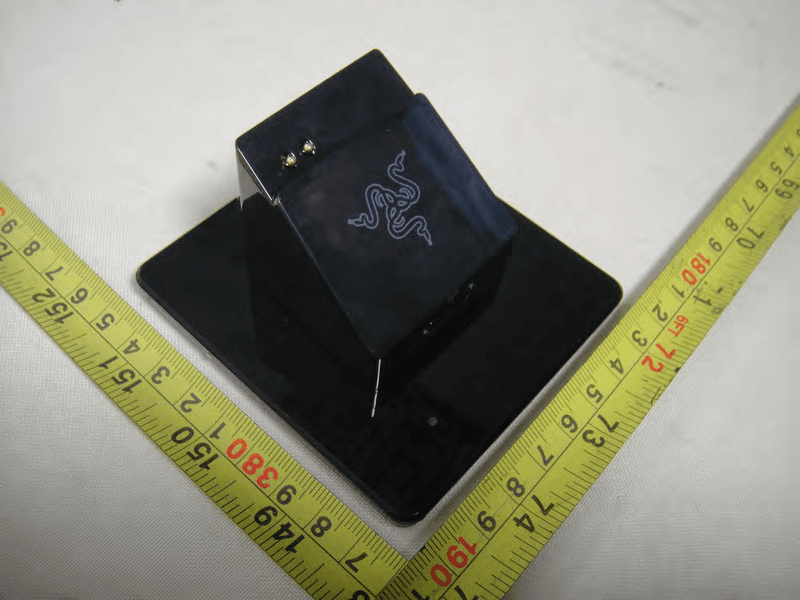
WX9RC30001207
May 29, 2011Razer Charging Dock
Equipment Class
DXT - Part 15 Low Power Transceiver, Rx Verified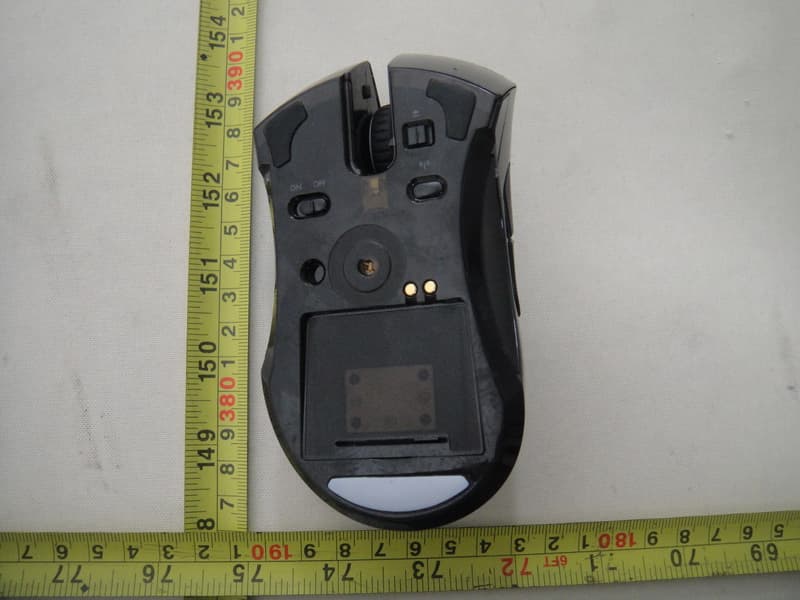
WX9RC30001206
May 29, 2011Razer Mamba Elite Ergonomic Gaming Mouse
Equipment Class
DXT - Part 15 Low Power Transceiver, Rx Verified