XJN-PA7810XMobile Internet Devices
SHUOYING INDUSTRIAL (SHENZHEN) CO., LTD.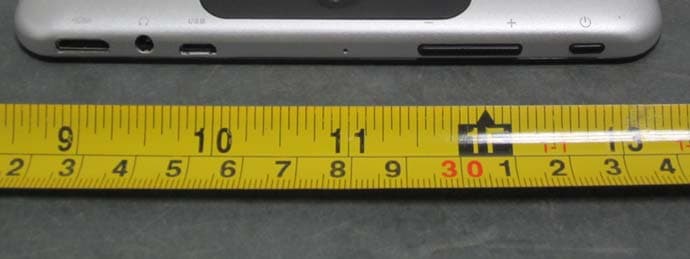
Click to zoom
Application Details
- Equipment Class
- DSS - Part 15 Spread Spectrum Transmitter
- Date of Grant
- Jun 26, 2014
- Application Purpose
- Original Equipment
- Date of Application
- Jun 26, 2014
- Equipment Note
- Mobile Internet Devices
- Frequency Range
- 2402.00000000 - 2480.00000000
- Country
- China
Documents & Files
Document Text
Text extracted from the exhibit documents filed with the FCC. Open a document above to read the original.
Users Manual
Mobile Internet Devices PA7810 USER MANUAL Thanks for purchasing the PA7810 Mobile Internet Devices This user manual has been specially designed to guide you through the functions and features of your device. • Please read this manual carefully before using your device to ensure safe and correct use. • The descriptions in this manual are based on the default settings of your device. • Please keep this manual for future reference. Table of Contents Chapter One (overview) 1.1 Appearance 1.2 Buttons 1.3 Power on / off 1.4 Lock / Unlock Screen 1.5 Home Screen Icons 1.6 Text input 1.7 Reset 1.8 USB Connection 1.9 Accessories Chapter Two (Internet) 2.1 Browser Chapter Three (Applications) 3.1 Camera 3.2 Gallery 3.3 Video 3.4 Music 3.5 Explorer 3.6 APK Installer 3.7 Downloads Chapter Four ( System setting) 4.1 Wireless networks setting 4.2 Bluetooth setting 4.3 Display setting 4.4 Date & Time setting 4.5 Language and input setting Chapter Five Warnings Chapter One: Overview 1.1 Appearance Micro SD HDMI Headphone Jack Micro ‐ USB VOL+ / ‐ Power Front Camera 1.2 Buttons Power button Hold down the power button for 2 ‐ 3 seconds to turn on the tablet When tablet is on, short press this button to turn off the screen and another short press to turn the screen back on Volume Press Volume+/ ‐ to adjust the volume 1.3 Power on / off Power on Hold down the power button (see 1.1) for 2 ‐ 3 seconds, your tablet will boot up Power off Hold down the power button, a prompt with the words would you like to shut down will display, press ok to shut down While charging, a short press of the power button will show the tablet is current charging ; if you hold the power button, the tablet will turn on. 1.4 Lock and unlock screen Lock You can set a lock timer under the display option. After a period of inactivity as dictated by the time out option, the system will automatically lock the screen and go into standby mode. Unlock Move the sign to unlock, show as below Drag this to unlock the screen and enter the application interface 1.5 Home Screen Icons 1.6 Text input When using the tablet, you can use the virtual keyboard to enter text, number, and symbols directly by touching screen. The default keyboard is shown below: To switch the numbers and letters, please press this To switch the capital and lowercase letter, please press 1.7 Reset Press and hold the power button on the right side of the device for 1 minute, then you device will reset and restart. 1.8 USB connection Connect your tablet to your PC with the provided Micro USB to USB cable. And you will see icon appear on your tablet, choose this option and after that choose the turn on USB storage option to connect your device. Choose Turn off USB storage to disconnect your device with PC 1.9 Accessories Item Use Power Adapter Use power adapter to pr ovide power and charge the battery USB Cable Use USB cable to connect device with USB device Chapter Two: Internet 2.1 Browser Please select to set up the WIFI so you can use the browser normally. See the pictures below: Touch in the App Drawer to start browsing the internet; the default homepage is the Recently Viewed page showing recently viewed pages. The browser supports the following features Bookmark —click to add the current webpage into your bookmarks. Touch to see a list of bookmarks Touch to search the internet Touch to add new browser tab Touch to close the tab Chapter Three: Application 3.1 Camera Touch this in the app drawer to use the camera app. Camera Touch the to get take a photo Touch the to set up white balance, scene mode, save Video Choose to take videos. Touch to set up white balance, time lapse interval, save 3.2 Gallery Choose in the app drawer to launch the gallery. Click to organize pictures by time and place. Click this to use the camera. Click to choose the album to edit or delete Click to use the slides show feature when in the album 3.3 Video Use the app to Play videos 3.4 Music Use the app to play music. Music can be sorted by artists or album. List Random play Repeat 3.5 Explorer Choose in the app drawer; this app is used to organize the various files inside your tablet. Touch the button to do multi operations and edit files Touch to cut/copy/paste/delete files 3.6 APK Installer Choose in the app drawer, it searches for APK file from the SD Card and internal Memory. Install Click Install to install application. Manage Click Manage in the APK Installer interface, click the application that need to be managed to do Launch, Export, Uninstall. 3.7 Downloads Choose in the app drawer; you can check the status of current downloads as well as your download history. Click download file to stop or delete the downloaded contents Chapter Four: System setting Click here to enter the system setting interface 4.1 Wireless networks setting To connect your tablet to the internet, please follow the following instructions 1. Please turn on your WiFi which can be accessed via the Wireless and Network under settings 2. Please find the wireless network you are trying to connect to and choose that network 3. Enter your password when prompted – if you do not have the password that is a closed network and you cannot access it. 4.2 Bluetooth setting 1. Turn on the bluetooth if it is not already on. To trun on the bluetooth: 1. Go to the Home screen: Touch the Settings icon. 2. Open the launcher screen: Touch the launcher Tab, then touch Settings. 3. Open the notification bar menu: Touch bluetooth icon When bluetooth is on, the tablet will look for and display a list of avalable bluetooth devices. Select an available bluetooth device in the list to connect to. If the bluetooth device is secured (as indicated by a Lock icon), the tablet will prompt you to enter a password or other credentials.Touch the bluetooth password box to show the on ‐ screen keyboard and then use it to enter the password. Touch OK to confirm. When you have successfully connected to a bluetooth device the notification bar at the bottom of t…
Text truncated - open the document above for the full version.
External Photos
EXHIBIT B - EUT EXTERNAL PHOTOGRAPHS EUT – All View EUT – Top View EUT – Bottom View EUT – Left Side View EUT – Right Side View EUT –Port View EUT – Adapter Label View
ID Label/Location Info
EXHIBIT A - FCC ID LABELING AND LOCATION FCC ID Label Proposed FCC ID Label Location The label shown shall be permanently affixed at a conspicuous location on the device and be readily visible to the user at the time purchase (Labeling requirements per 2.925) FCC ID: XJN-PA7810X This device complies with Part 15 of the FCC Rules. Operation is subject to the following two conditions : (1) this device may not cause harmful interference, and (2) this device must accept any interference received, including interference that may cause undesired o peration. Label Here
Internal Photos
EXHIBIT C - EUT INTERNAL PHOTOGRAPHS EUT – Uncover View 1 EUT – Uncover View 2 EUT – Battery off View EUT – Main Board Top View EUT –Main Board Bottom View EUT –RF Module View EUT –Screen Bottom View EUT –Sub Board Top View EUT –Sub Board Bottom View EUT –Antenna View EUT –Battery View
Test Report
Note: This test report is prepared for the customer shown above and for the device described herein. It may not be duplicated or used in part without prior written consent from Bay Area Compliance Laboratories Corp. (Dongguan). This report is valid only with a valid digital signature. The digital signature may be available only under the Adobe software above version 7.0. FCC PART 15.247 TEST REPORT For SHUOYING INDUSTRIAL(SHENZHEN)CO.,LTD NO.1 Shuoying Rd.,Hebei Industry Area,Dalang,Longhua Town,Baoan,Shenzhen,China R e p o r t T y p e : O r i gi n a l R e p o r t P r o d u c t T y p e : M o b i l e In t e r n e t D e v i c e s Test Engineer: Leon Chen Report Number: R2DG140605002-00B Report Date: 2014-06-24 Reviewed By: Sula Huang RF Engineer Test Laboratory: Bay Area Compliance Laboratories Corp. (Dongguan) No.69 Pulongcun, Puxinhu Industrial Zone, Tangxia, Dongguan, Guangdong, China Tel: +86-769-86858888 Fax: +86-769-86858891 www.baclcorp.com.cn FCC ID: XJN-PA7810X Bay Area Compliance Laboratories Corp. (Dongguan) Report No.: R2DG140605002-00B FCC Part 15.247 Page 2 of 67 TABLE OF CONTENTS GENERAL INFORMATION ....................................................................................................................................... 4 PRODUCT DESCRIPTION FOR EQUIPMENT UNDER TEST (EUT) ..................................................................................... 4 OBJECTIVE ................................................................................................................................................................... 4 RELATED SUBMITTAL(S)/GRANT(S) ............................................................................................................................. 4 TEST METHODOLOGY .................................................................................................................................................. 4 TEST FACILITY ............................................................................................................................................................. 4 SYSTEM TEST CONFIGURATION .......................................................................................................................... 5 DESCRIPTION OF TEST CONFIGURATION ...................................................................................................................... 5 EUT EXERCISE SOFTWARE .......................................................................................................................................... 5 EQUIPMENT MODIFICATIONS ....................................................................................................................................... 5 SUPPORT EQUIPMENT LIST AND DETAILS .................................................................................................................... 5 EXTERNAL CABLE ........................................................................................................................................................ 5 BLOCK DIAGRAM OF TEST SETUP ................................................................................................................................ 6 SUMMARY OF TEST RESULTS ............................................................................................................................... 7 FCC §15.247 (i) & §2.1093 – RF EXPOSURE ............................................................................................................ 8 APPLICABLE STANDARD .............................................................................................................................................. 8 FCC §15.203 - ANTENNA REQUIREMENT ............................................................................................................. 9 APPLICABLE STANDARD .............................................................................................................................................. 9 ANTENNA CONNECTOR CONSTRUCTION ...................................................................................................................... 9 FCC §15.207 – AC LINE CONDUCTED EMISSIONS ........................................................................................... 10 MEASUREMENT UNCERTAINTY .................................................................................................................................. 10 EUT SETUP ................................................................................................................................................................ 10 EMI TEST RECEIVER SETUP ....................................................................................................................................... 11 TEST PROCEDURE ...................................................................................................................................................... 11 CORRECTED AMPLITUDE & MARGIN CALCULATION ................................................................................................. 11 TEST EQUIPMENT LIST AND DETAILS ......................................................................................................................... 12 TEST RESULTS SUMMARY .......................................................................................................................................... 12 TEST DATA ................................................................................................................................................................ 12 FCC §15.209, §15.205 & §15.247(d) - SPURIOUS EMISSIONS............................................................................. 15 APPLICABLE STANDARD ............................................................................................................................................ 15 MEASUREMENT UNCERTAINTY ................................................................................................................…
Text truncated - open the document above for the full version.
Test Setup Photos
EXHIBIT D - TEST SETUP PHOTOGRAPHS Conducted Emissions - Front View Conducted Emissions –Side View Radiated Emission Below 1GHz -Front View Radiated Emission Below 1GHz - Rear View Radiated Emission Above 1GHz -Front View Radiated Emission Above 1GHz- Rear View
Contact Information
Applicant
Tony Pan
Test Firm
Bay Area Compliance Laboratories Corp. (Dongguan)John Chan
[email protected]86-769-86858888
Technical Specifications
| # | Rule Parts | Frequency Range | Power Output |
|---|---|---|---|
| 1 | 15C | 2.40 GHz - 2.48 GHz | 600.00 µW |
Other Applications from SHUOYING INDUSTRIAL (SHENZHEN) CO., LTD.
XJN-IPC019
Sep 07, 2015IP Camera
Equipment Class
DTS - Digital Transmission System
XJN-PA7062X
Dec 27, 2014Mobile Internet Devices
Equipment Class
JBP - Part 15 Class B Computing Device PeripheralXJN-PX4032
Sep 20, 2014Mobile internet device
Equipment Class
DTS - Digital Transmission System
XJN-PR7062X
May 06, 2014Mobile Internet Device
Equipment Class
DTS - Digital Transmission System
XJN-PA7807X
Feb 20, 2014Mobile Internet Device
Equipment Class
DTS - Digital Transmission System