XJN-PR7062XMobile Internet Device
SHUOYING INDUSTRIAL (SHENZHEN) CO., LTD.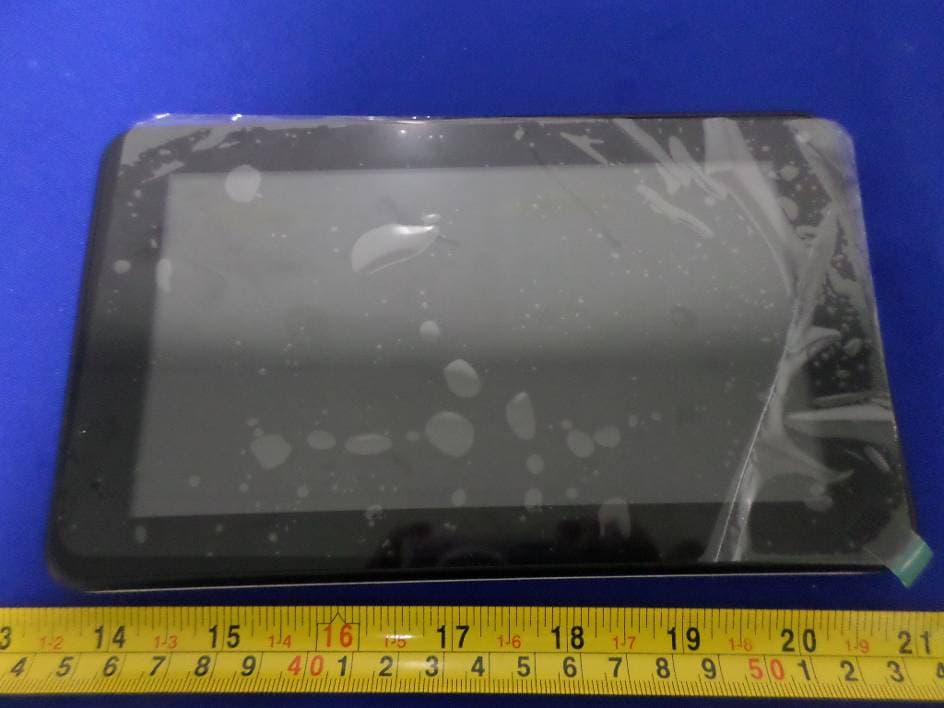
Click to zoom
Application Details
- Equipment Class
- DTS - Digital Transmission System
- Date of Grant
- May 06, 2014
- Application Purpose
- Original Equipment
- Date of Application
- May 06, 2014
- Equipment Note
- Mobile Internet Device
- Frequency Range
- 2422.00000000 - 2452.00000000
- Country
- China
Documents & Files
Document Text
Text extracted from the exhibit documents filed with the FCC. Open a document above to read the original.
Users Manual
1 PR7062 " Digital Mobile Internet Device User ’ s Manual Version-01-201301123 1. Appearance ....................................................... 2 2 Power Switch ....................................................... 2 3 Touch Screen ....................................................... 2 4 SD Using SD Card ................................................... 3 5 Getting Started ...................................................... 3 6. Desktop ........................................................... 4 7. Lock Screen ....................................................... 4 8 Reinstalled applications ............................................... 5 9 .Desktop menu function ............................................... 8 10.Managing Applications ............................................. 8 11 Clock ............................................................ 9 12 Installing Software Online ........................................... 10 13 Browser ......................................................... 11 14 Calendar ........................................................ 11 15 Camera .......................................................... 12 16 .Calculator ....................................................... 13 17. Sound Recorder ................................................... 13 18 Email and Gmail .................................................. 14 20.Music ........................................................... 17 21 Video player ................................................... 18 22 Settings .......................................................... 19 FAQ ............................................................... 21 Battery management .................................................. 22 Important safety instruction ............................................ 22 FCC Statement ..................................................... 23 2 1. Appearance 2 Power Switch Switch on: press and hold the power switch for 3 seconds and wait for startup. Switch off: press and hold the power switch for 3 seconds → click Power off → click OK. Lock/unlock screen: briefly press the po wer switch to lock/unlock the screen. Forced shout down: if the device has no response, press and hold the power switch for 7 seconds to switch off the device by force. Warning: forced shut down may caus e unexpected errors of the system! Reset: press this key to reset the device. Reset will restart the device. The result is same as startup after forced shutdown. Please be careful with it. 3 Touch Screen The touch screen is easy and convenient to use. You can use the touch screen in the following methods: Single click: briefly touch the screen with the finger and then move away. Click and hold: click the screen with the finger and hold for about 2 seconds. Drag: click a certain icon in the screen and hold, then move the finger, the icon will move accordingly. ☆ To avoid damage the screen, never put anything on the it. 3 4 SD Using SD Card ☆ The device supports up to 32GB storage card. Insert the card into the card slot, and push it in wi th your finger until a “click” is heard. Now the card is ready for use. Removing SD card Close all programs or files on the card first. Click Settings → Storage → Remove SD card → OK. Then press the card with your finger, and simply remove it when it is ejected. ☆ Do not insert and remove the card repeatedly in a short time, this may cause damage to the card. ☆ We suggest you use the card of famous brand to ensure compatibility. 5 Getting Started Charging the device ☆ Charge the device with USB cable is not recommended. ☆ You may operate the device while charging it, but this may prolong the charging time. Connect one end of the AC adaptor to the mains supply and the other end to the power jack on the device to charge it (it may take about 5 hours to fully charge the device). Starting the device Press and hold the power switch for 3 se conds and wait for system startup. Wi-Fi setting We suggest you configure your Wi-Fi network before using, as many functions require for it to work normally. 1. Click Settings → Wireless and Network 2. Switch the Wi-Fi on. The device will search and list all available Wi-Fi network. If an icon is displayed, you need to enter a password to connect to such Wi-Fi network. 3. Click the desired Wi-Fi network → Enter the password (if any) → Click Connect. 4. Click or press “ BACK ” key to return to desktop. ☆ The Wi-Fi set as hidden will not be se arched automatically. In this case you need to click Add Wi-Fi Network and enter necessary information to add your Wi-Fi . 4 6. Desktop ○ 1 ○ 2 ○ 3 ○ 4 ○ 5 ○ 6 ○ 7 ○ 8 ○ 1Search ○ 2 Battery status ○ 3 Current time - ○ 4 Volume – ○ 5 Return ○ 6 Return to desktop directly ○ 7Task ○ 8 Volume + ☆ Click any icon to run it. ☆ Press and hold to drag the procedure or s hortcut icon to other places on the screen. ☆ Press and hold to drag the procedure or shortcut icon to for deleting it from desktop. 7. Lock Screen You can set auto lock screen or lock screen manually by pressing the power switch. The lock screen interface is as follow. Slide at the right to unlock the screen. 5 8 Reinstalled applications 6 Play Store Download applications conveniently. Email Send and receive e-mail with existing e-mail address. HD Player Play and manage videos. Calculator Make four arithmetic operation. Browser Connect to Internet. Sound recorder Record and play recorded sound. Calendar A calendar where you can set agendas. Settings Make personalized settings. 7 Clock Make personalized settings. Search Google search tools Resource manager View and manage files and applications. Install Android applications and backup files in SD card. Downloaded files Records of downloaded files. Camera Take photos. Music Play and manage music files. Gmail Send and receive e-mail with existing e-mail address. Voice search Internet searching through voice identification Gallery View the photos Navigation Google search to…
Text truncated - open the document above for the full version.
External Photos
EXHIBIT B - EUT EXTERNAL PHOTOGRAPHS EUT—All View EUT—Top View EUT—Bottom View EUT—Side View EUT- Side View EUT- Ports View EUT—Adapter View EUT—Adapter Label View
ID Label/Location Info
EXHIBIT A - FCC ID LABELING AND LOCATION FCC ID Label Proposed FCC ID Label Location The label shown shall be permanently affixed at a conspicuous location on the device and be readily visible to the user at the time purchase (Labeling requirements per 2.925) Label Here
Internal Photos
EXHIBIT B - EUT INTERNAL PHOTOGRAPHS EUT- Cover off View 1 EUT- Cover off View 2 WiFi Antenna EUT- Cover off View 3 EUT- Main Board Top View EUT-Main Board Bottom View EUT-RF Module View EUT- LCD off View EUT-LCD Top View EUT-LCD Bottom View EUT- WiFi Antenna View EUT- Battery View
Test Report
Note: This test report is prepared for the customer shown above and for the device described herein. It may not be duplicated or used in part without prior written consent from Bay Area Compliance Laboratories Corp. This report must not be used by the customer to claim product certification, approval, or endorsement by NVLAP*, or any agency of the Federal Government. * This report may contain data that are not covered by the NVLAP accreditation and shall be marked with an asterisk “★” (Rev.2). This report is valid only with a valid digital signature. The digital signature may be available only under the Adobe software above version 7.0. FCC PART 15.247 TEST REPORT For SHUOYING INDUSTRIAL(SHENZHEN)CO.,LTD. NO.1 Shuoying Rd.,Hebei Industry Area,Dalang,Longhua Town,Baoan,Shenzhen,China. Report Type: Original Report Product Type: Mobile Internet Devices Test Engineer: Dean Liu Report Number: R2DG140410002-00A Report Date: 2014-04-28 Reviewed By: Ivan Cao RF Leader Test Laboratory: Bay Area Compliance Laboratories Corp. (Dongguan) No.69 Pulongcun, Puxinhu Industrial Zone, Tangxia, Dongguan, Guangdong, China Tel: +86-769-86858888 Fax: +86-769-86858891 www.baclcorp.com.cn FCC ID: XJN-PR7062X Bay Area Compliance Laboratories Corp. (Dongguan) Report No.: R2DG140410002-00A FCC Part 15.247 Page 2 of 58 TABLE OF CONTENTS GENERAL INFORMATION.......................................................................................................................................4 PRODUCT DESCRIPTION FOR EQUIPMENT UNDER TEST (EUT) .....................................................................................4 OBJECTIVE...................................................................................................................................................................4 RELATED SUBMITTAL(S)/GRANT(S).............................................................................................................................4 TEST METHODOLOGY..................................................................................................................................................4 TEST FACILITY.............................................................................................................................................................5 SYSTEM TEST CONFIGURATION ..........................................................................................................................6 DESCRIPTION OF TEST CONFIGURATION......................................................................................................................6 EUT EXERCISE SOFTWARE..........................................................................................................................................6 EQUIPMENT MODIFICATIONS.......................................................................................................................................7 SUPPORT EQUIPMENT LIST AND DETAILS....................................................................................................................7 EXTERNAL I/O CABLE..................................................................................................................................................7 BLOCK DIAGRAM OF TEST SETUP................................................................................................................................8 SUMMARY OF TEST RESULTS...............................................................................................................................9 FCC §15.247 (i) & §2.1093 – RF EXPOSURE ..........................................................................................................10 APPLICABLE STANDARD............................................................................................................................................10 FCC §15.203 - ANTENNA REQUIREMENT...........................................................................................................11 APPLICABLE STANDARD............................................................................................................................................11 ANTENNA CONNECTOR CONSTRUCTION....................................................................................................................11 FCC §15.207 (a) – AC LINE CONDUCTED EMISSIONS .....................................................................................12 APPLICABLE STANDARD............................................................................................................................................12 MEASUREMENT UNCERTAINTY..................................................................................................................................12 EUT SETUP................................................................................................................................................................12 EMI TEST RECEIVER SETUP.......................................................................................................................................13 TEST PROCEDURE......................................................................................................................................................13 CORRECTED AMPLITUDE & MARGIN CALCULATION.................................................................................................13 TEST EQUIPMENT LIST AND DETAILS.........................................................................................................................14 TEST RESULTS SUMMARY..........................................................................................................................................14 TEST DATA................................................................................................................................................................14 FCC §15.209, §15.205 & §15.247(d) - SPURIOUS EMISSIONS...........................................................…
Text truncated - open the document above for the full version.
Test Setup Photos
EXHIBIT D - TEST SETUP PHOTOGRAPHS Conducted Emissions - Front View Conducted Emissions –Side View Radiated Emission Below 1GHz -Front View Radiated Emission Below 1GHz - Rear View Radiated Emission Above 1GHz -Front View Radiated Emission Above 1GHz- Rear View
Contact Information
Applicant
Tony Pan
Test Firm
Bay Area Compliance Laboratories Corp. (Dongguan)John Chan
[email protected]86-769-86858888
Technical Specifications
| # | Rule Parts | Frequency Range | Power Output |
|---|---|---|---|
| 2 | 15C | 2.42 GHz - 2.45 GHz | 9.10 mW |
Other Applications from SHUOYING INDUSTRIAL (SHENZHEN) CO., LTD.
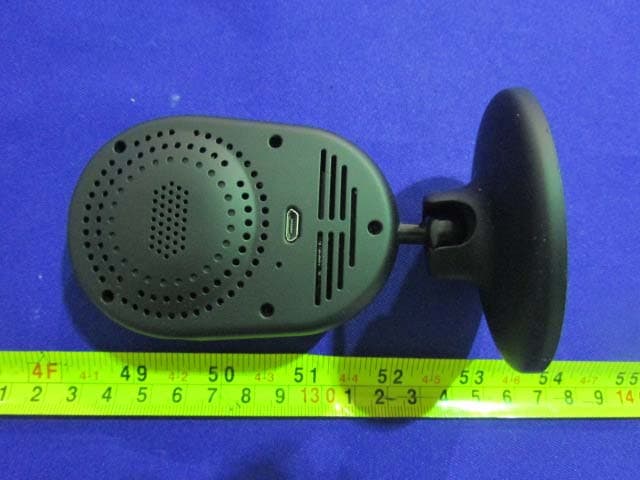
XJN-IPC019
Sep 07, 2015IP Camera
Equipment Class
DTS - Digital Transmission System
XJN-PA7062X
Dec 27, 2014Mobile Internet Devices
Equipment Class
JBP - Part 15 Class B Computing Device PeripheralXJN-PX4032
Sep 20, 2014Mobile internet device
Equipment Class
DTS - Digital Transmission System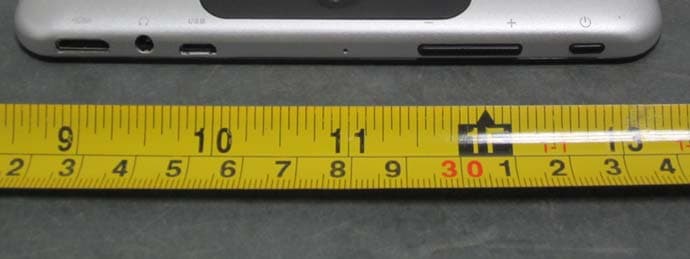
XJN-PA7810X
Jun 26, 2014Mobile Internet Devices
Equipment Class
DSS - Part 15 Spread Spectrum Transmitter
XJN-PA7807X
Feb 20, 2014Mobile Internet Device
Equipment Class
DTS - Digital Transmission System