YHLBLUB130DLSmart Phone
BLU Products, Inc.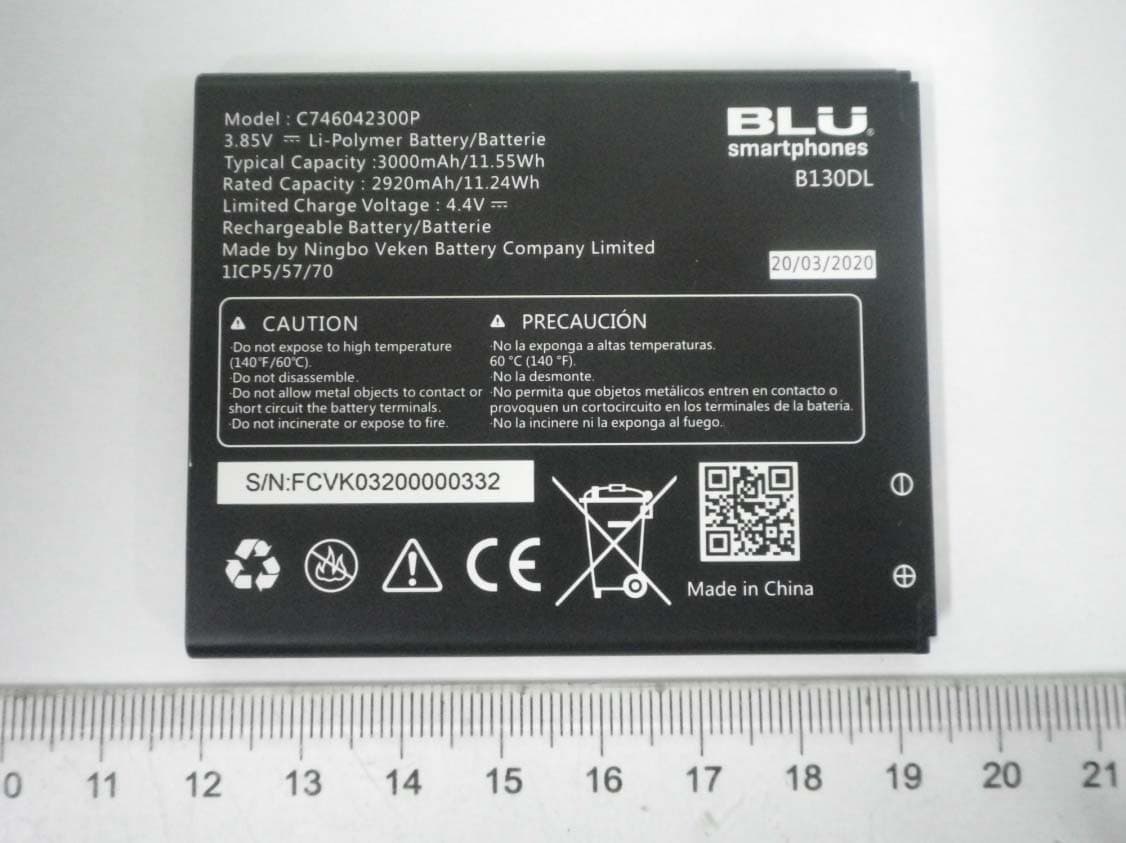
Click to zoom
Application Details
- Equipment Class
- JBP - Part 15 Class B Computing Device Peripheral
- Date of Grant
- Jul 11, 2020
- Application Purpose
- Original Equipment
- Date of Application
- Jul 01, 2020
- Equipment Note
- Smart Phone
- Company
- BLU Products, Inc.
- Country
- United States
Documents & Files
Document Text
Text extracted from the exhibit documents filed with the FCC. Open a document above to read the original.
Users Manual
OEM LOGO w/ Name Vanity Name TBD BC LOGO Included in this package Device * Battery Charger * USB Cable Quick Guide * Pending TF Req Initial Phone Setup Charging the Battery (INSERT ARTWORK) Turning the phone on When the power is turned off, press and hold the power button Turning the phone off While on, press and hold the power button and confirm the prompt Selecting the Language You may select a language while setting up your device via the Welcome Screen or you may change the language in the device settings: 1. While on the Welcome screen, scroll through the languages and click to select. 2. While in Settings, scroll down to System then select Languages & Input. Set up your Google ™ Account Create or Sign-in to your Google TM account in order to keep accounts streamlined with Google services. Your account will be needed for programs such as Google Play TM , Gmail, and Google Play S tore. Create Your Account Your Google account can be created both via the Welcome Screen when initially setting up your phone or the Settings menu Welcome Screen - Click Create Account - Enter First and Last Name and click Next - Enter birthday and gender and click Next - Click one of the preloaded usernames or create your own and click next. If it is unavailable, you will be asked to enter another username. - Create your password and enter it a second time to confirm. Click Next - Confirm the remaining steps and create your account Menu Screen - Click on Settings, then scroll down and select Accounts. Click on Add Account - Click on Google then on Create Account and click Next - Enter First and Last Name and click Next - Enter birthday and gender and click Next - Click one of the preloaded usernames or create your own and click next. If it is unavailable, you will be asked to enter another username. - Create your password and enter it a second time to confirm. Click Next - Confirm the remaining steps and create your account Sign into your Account You may sign into your account from the Welcome Screen when initially setting up your device as well as the settings menu Welcome Screen - Enter your Email Address and click Next - Enter your password and click Next - Follow the prompts to finish sign in Menu Screen - Click on Settings, then scroll down and select Accounts, Click on Add Account - Click on Google, then enter your email address and click Next - Enter your password and click Next The device will then automatically sync Google Services Security Settings Establishing security settings is essential to keeping your device and personal information safe. Welcome Screen - Enter PIN or click on Lock Screen Options and click Next Menu Screen - Click on Settings, then scroll down to Security. Click on Screen Lock Lock Screen Options Swipe: Swipe to unlock the screen. Pattern: Draw a pattern to unlock the screen. PIN: Enter a numeric password to unlock the screen. Password: Enter an alphanumeric password to unlock the screen B130DL How to Make and Receive Calls Making a Call - Open the Dialer and click on keypad icon - Enter a phone number and click on Dial icon Other Options - From Contacts list click on the contact name then on Dial Icon - From the Recents l ist click on Dial Icon Receiving a Call - To receive a call, simply swipe the call icon during and incoming call Other Options To receive phone calls with shortcuts: - Click on Settings Icon then scroll down and select Accessibility. Click on Power Button Ends Call option. Adding Contacts - Open Contacts - Click on + icon - Enter the contact information and click Save You many also create a new contact from the Contacts tab on the Dial Interface Importing Contacts - Click on Contacts Menu Icon, then click Settings. Scroll down and select Import - Select the source (VCF or SIM) and select the location to be saved Contact Lookup You may lookup contacts several ways: - Click on the search bar and enter the contact name or letter - Click on the Dial Icon, then on the Contacts tab. Once on the Contacts tab enter the contact name on the search bar to complete the lookup. You may also scroll up and down to search for your contact Voicemail Preferences - Click on Dial icon, then on settings button. Scroll down and select the Voicemail option Text Messaging Creating a Message - Click on Messages icon - Click on Start Chat icon - Select the recipient and compose the message - Click send icon when completed Message Options - Click on (+) to include attachments - Click on the Camera icon to take a picture or attach one from the Gallery Reading a Message - Click on Messages icon - Click on the unread message Quick Settings Notification Panel The notification panel displays useful information regarding your device such as Current time, Battery, Bluetooth, and Wi-Fi indicators. Incoming notifications such as messages, emails, and missed calls will also be displayed. (INSERT ARTWORK OF PANEL) Shortcut buttons The shortcut buttons on the notification panel allows easy access to WiFi, Bluetooth, Location Access, among other settings and can be rearranged to the users liking. Configure the shortcut buttons - Drag down the notification panel - Click on edit icon - Drag to rearrange icons Using your Mobile Internet Accessing the web - From the home screen, click on chrome icon to browse the internet Enabling Mobile Data - Click on settings icon, then on Mobile Network. Toggle Mobile Data on/off Connecting to Wi-Fi Wi-Fi allows mobile phones to connect to the internet wirelessly - Click on settings icon, then Network & Internet. Click on WiFi and select a Network. Bluetooth® Connectivity Bluetooth is a wireless technology that allows your device to connect to peripherals such as headsets and speakers Turn on/off - Scroll down notification panel and click on Bluetooth icon Pairing devices - Click on settings icon, then click on Connected Devices. - Click on Pair new device (Bluetooth will power on if its currently off) - Click on the device to pair Notification and Status Icons:…
Text truncated - open the document above for the full version.
External Photos
YHLBLUB130DL C746042300P US-CR-1000 US-CR-1000 JCT024-F022
ID Label/Location Info
Confidential Page 1 of 1 Exhibit 01 Type Label Location FCC ID: YHLBLUB130DL B130DL Type Label Location
Internal Photos
YHLBLUB130DL
Test Report
TEST REPORT No. I20Z60640-EMC01 for BLU Products, Inc. Smart Phone Model Name: B130DL FCC ID: YHLBLUB130DL with Hardware Version: V1.0 Software Version: BLU_B130DL_V10.0.02.05.02.02 Issued Date: 2020-6-28 Note: The test results in this test report relate only to the devices specified in this report. This report shall not be reproduced except in full without the written approval of CTTL. The report must not be used by the client to claim product certification, approval, or endorsement by NVLAP, NIST, or any agency of the U.S.Government. Test Laboratory: CTTL-Telecommunication Technology Labs, CAICT No. 52, Huayuan North Road, Haidian District, Beijing, P. R. China 100191. Te l:+86(0)10-62304633-2512, Fax:+86(0)10-62304633-2504 Email: [email protected], website: www.caict.ac.cn ©Copyright. All rights reserved by CTTL. No. I20Z60640-EMC01 REPORT HISTORY Report Number Revision Description Issue Date I20Z60640-EMC01 R ev.0 1 st edition 2020-06-28 Note: the latest revision of the test report supersedes all previous versions. ©Copyright. All rights reserved by CTTL. Page 2 of 32 No. I20Z60640-EMC01 CONTENTS 1. TEST LABORATORY ............................................................................................................... 4 1.1. INTRODUCTION & ACCREDITATION ................................................................................. 4 1.2. TESTING LOCATION ........................................................................................................... 4 1.3. TESTING ENVIRONMENT ................................................................................................... 4 1.4. PROJECT DATA ................................................................................................................... 4 1.5. SIGNATURE .......................................................................................................................... 4 2. CLIENT INFORMATION ........................................................................................................... 5 2.1. APPLICANT INFORMATION ................................................................................................ 5 2.2. MANUFACTURER INFORMATION ...................................................................................... 5 3. EQUIPMENT UNDER TEST (EUT) AND ANCILLARY EQUIPMENT (AE) ............................ 6 3.1. ABOUT EUT .......................................................................................................................... 6 3.2. INTERNAL IDENTIFICATION OF EUT USED DURING THE TEST ................................... 6 3.3. INTERNAL IDENTIFICATION OF AE USED DURING THE TEST ...................................... 6 3.4. GENERAL DESCRIPTION ................................................................................................... 7 3.5. EUT SET-UPS ....................................................................................................................... 7 4. REFERENCE DOCUMENTS .................................................................................................... 8 4.1. REFERENCE DOCUMENTS FOR TESTING....................................................................... 8 5. LABORATORY ENVIRONMENT .............................................................................................. 9 6. SUMMARY OF TEST RESULTS ............................................................................................ 10 7. TEST EQUIPMENTS UTILIZED ............................................................................................. 11 ANNEX A: MEASUREMENT RESULTS ....................................................................................... 12 ANNEX B: PERSONS INVOLVED IN THIS TESTING ................................................................. 32 ©Copyright. All rights reserved by CTTL. Page 3 of 32 No. I20Z60640-EMC01 1. Test Laboratory 1.1. Introduction & Accreditation Telecommunication Technology Labs, CAICT is an ISO/IEC 17025:2005 accredited test laboratory under NATIONAL VOLUNTARY LABORATORY ACCREDITATION PROGRAM (NVLAP) with lab code 600118-0, and is also an FCC accredited test laboratory (CN5017), and ISED accredited test laboratory (CN0066). The detail accreditation scope can be found on NVLAP website. 1.2. Testing Location CTTL (BDA) Address: No.18A, Kangding Street, Beijing Economic-Technology Development Area, Beijing, P. R. China 100176 1.3. Testing Environment Normal Temperature: 15-35°C Relative Humidity: 20-75% 1.4. Project data Testing Start Date: 2020-06-01 Testing End Date: 2020-06-24 1.5. Signature Li Yan (Prepared this test report) Zhang Ying (Reviewed this test report) Liu Baodian Deputy Director of the laboratory (Approved this test report) ©Copyright. All rights reserved by CTTL. Page 4 of 32 No. I20Z60640-EMC01 2. Client Information 2.1. Applicant Information Company Name: BLU Products, Inc. Address /Post: 10814 NW 33rd St # 100 Doral, FL 33172, USA. City: / Postal Code: / Country: USA Telephone: 305.715.7171 Fax: 305.436.8819 2.2. Manufacturer Information Company Name: BLU Products, Inc. Address /Post: 10814 NW 33rd St # 100 Doral, FL 33172, USA. City: / Postal Code: / Country: USA Telephone: 305.715.7171 Fax: 305.436.8819 ©Copyright. All rights reserved by CTTL. Page 5 of 32 No. I20Z60640-EMC01 3. Equipment Under Test (EUT) and Ancillary Equipment (AE) 3.1. About EUT Description Smart Phone Model Name B130DL FCC ID YHLBLUB130DL Extreme vol. Limits 3.65VDC to 4.2VDC (nominal: 3.9VDC) Note: Components list, please refer to documents of the manufacturer; it is also included in the original test record of CTTL, Telecommunication Technology Labs, CAICT. 3.2. Internal Identification of EUT used during the test EUT ID* SN or IMEI HW Version SW Version EUT3 355140110009672 V1.0 BLU_B130DL_V10.0.02.05.02.02 *EUT ID: is used to identify the test sample in the lab internally. 3.3. Internal Identification of AE used during the test AE ID* Description SN Remarks AE1 Battery …
Text truncated - open the document above for the full version.
Test Setup Photos
FCC ID: YHLBLUB130DL Part15B RE CE Part15C RE CE Radiated Spurious Emission and Output Power
Contact Information
Applicant
Wei Zeng(Senior Manager)
Technical Contact
CTTL, Telecommunication Technology Labs, CAICTXue Zhen
[email protected]86-10-62304633
No. 52, Huayuan Bei Road, Haidian District, · Beijing · China
Test Firm
Telecommunication Technology Labs, CAICTYaqin Shen
Technical Specifications
| # | Rule Parts | Frequency Range | Power Output |
|---|---|---|---|
| 1 | 15B | - | - |
Other Applications from BLU Products, Inc.
YHLBLU96GC
Aug 13, 2026Smart Phone
Equipment Class
CXX - Communications Rcvr for use w/ licensed Tx and CBsYHLBLUB1680V
Aug 03, 2026Smart Phone
Equipment Class
DTS - Digital Transmission SystemYHLBLUT500B
Jun 26, 2026Tablet
Equipment Class
NII - Unlicensed National Information Infrastructure TX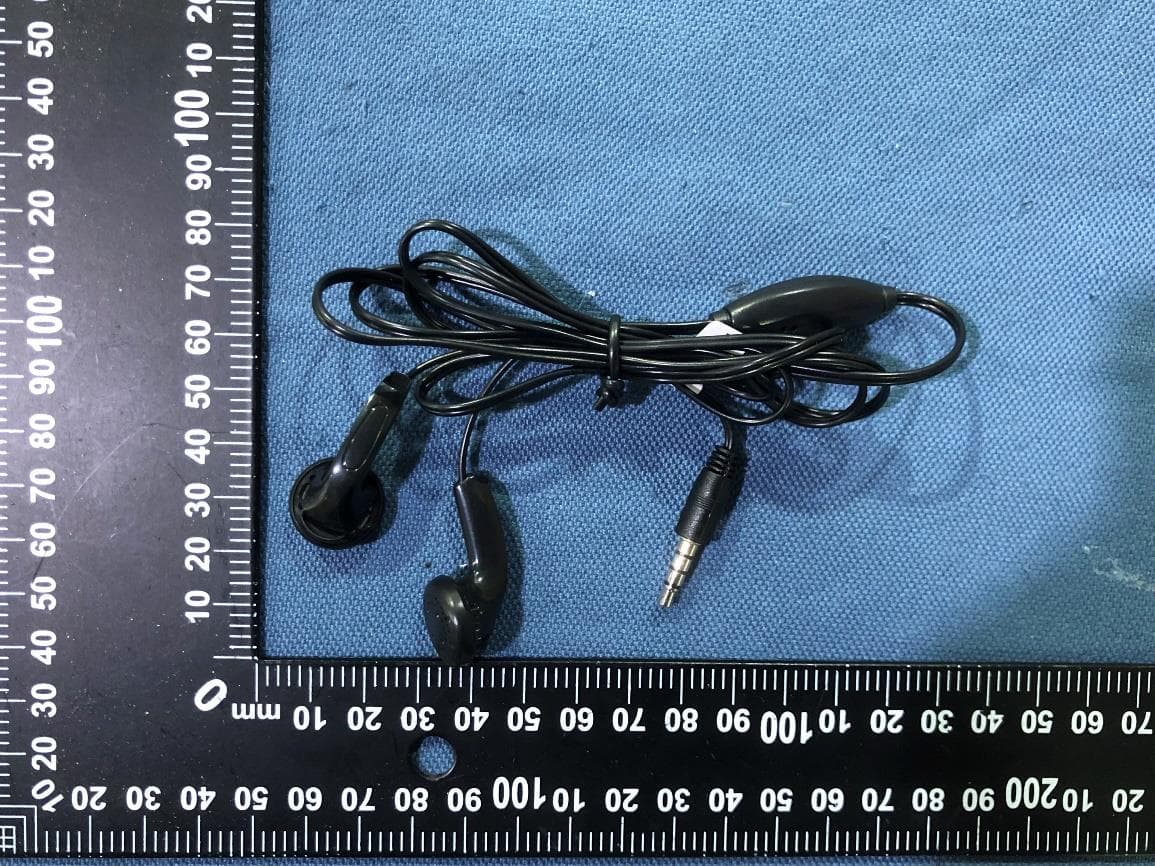
YHLBLU9CMAX
Apr 13, 2026Smart phone
Equipment Class
CXX - Communications Rcvr for use w/ licensed Tx and CBsYHLBLU2KW
Sep 12, 2025Smart Phone
Equipment Class
DSS - Part 15 Spread Spectrum Transmitter