ZLN-DGP1105BTBlue Tooth Keyboard
GREAT PLEASURE ELECTRONICS CO.,LTD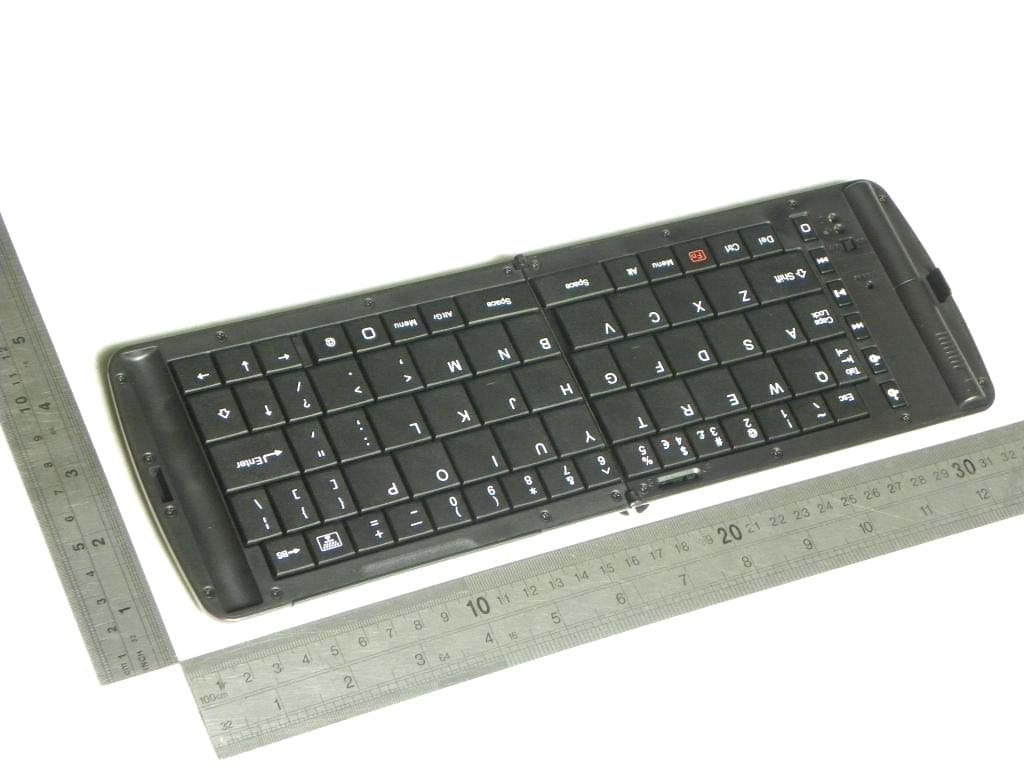
Click to zoom
Application Details
- Equipment Class
- DSS - Part 15 Spread Spectrum Transmitter
- Date of Grant
- Jun 08, 2011
- Application Purpose
- Original Equipment
- Date of Application
- Jun 08, 2011
- Equipment Note
- Blue Tooth Keyboard
- Frequency Range
- 2402.00000000 - 2480.00000000
- Country
- China
Documents & Files
Document Text
Text extracted from the exhibit documents filed with the FCC. Open a document above to read the original.
Users Manual
1 Freedom ICX-2 Keyboard Quick Start Guide Table Of Contents Page Keyboard hardware 2 Connecting to an iPhone/iPad/iPod Touch 3 Connecting to Samsung Galaxy S and Galaxy Tab 7 Connecting to a Windows Mobile Pocket PC 9 Connecting to a Windows based Desktop/Laptop/Netbook/Tablet. 10 Trouble shooting 11 2 Your Freedom ICX-2 Keyboard Thank you for purchasing the Freedom i-Connex Keyboard. Before we proceed with installing the keyboard on your phone/PDA/Pocket PC let’s take a brief look at the hardware. 1) Bluetooth Pairing Reset: Used for putting the keyboard into pairing mode when it is first paired. 2) Hinge Lock: Slide the hinge locking mechanism to the right to lock the hinge in place and stop the keyboard from folding. Slide it to the left to unlock the hinge and fold the keyboard. Please ensure that the slide mechanism is pushed fully to the left (unlocked) position before attempting to close the keyboard. 3) Pull out easel: The folding device easel pulls out completely from the keyboard to hold your phone/PDA/Pocket PC. 4) Battery Cover: Slide the battery cover upwards to open. The Freedom i-Connex Keyboard takes two AAA batteries. Typical AAA batteries will give up to 80 hours of continuous operation before they need to be replaced. The keyboard will automatically go into power saving mode (switch itself off) if it is left turned on for 15 minutes without any input. To take the keyboard out of power saving mode simply switch the keyboard off and then switch it back on again 5) Bluetooth Indicator Light: Flashes rapidly when in pairing/waiting to connect mode (once per second). Flashes slowly when connected (once every 8 seconds). 6) Power Warning Light: Flashes when batteries need to be replaced. 7) Power Switch: Switches the keyboard on and off. 8) SPP/HID Mode Switch: This has no function on the i-Connex keyboard. The i-Connex keyboard only uses HID mode. 9) FN (Function) Key: This key is used in combination with other keys on the keyboard to emulate buttons on the phone or to quick launch applications. Full function key combinations for each device can be found in their relevant installation instructions. Please note that FN key combinations do not work on all devices. 10) Quick Keys: These keys give quick access to commonly used controls such as volume, media playback and action button press. 3 Connecting to an iPhone/iPad/iPod touch. Please note that your device must be running the 4.0 operating system for the keyboard to be able to connect. Pairing the Keyboard 1) Turn the keyboard on and press the recessed pairing button down for 5 seconds. 2) On your iPhone, iPad or iPod touch, go to “Settings". Then from the settings screen select “General”. 3) Now under the “General” settings select “Bluetooth”. Once your device finds the keyboard select “Freedom ICX-2 Keyboard” from the list. 4 4) Your device will now give you a 4 digit passkey. Enter this key onto the Freedom i-Connex and press enter to complete the pairing (also on the Freedom ICX-2). 5) Now go back to the “Settings” page and select “Keyboard”. 5 6) Select “International Keyboards”. Now select “QWERTY” and “US International – PC”. Optional: You can also add additional keyboard layouts for other language inputs. Select the “International Keyboards” button again and then select the “Add New Keyboard” option. 7) Now your Freedom ICX-2 keyboard will be connected. From this point forward you just need to switch the keyboard on and off when you need it. It will automatically reconnect when switched on. 6 Shortcut Keys for the iPhone and iPad Switching input language: If you have defined more than one input language (Page 5, step 6) you can quickly switch between them using the keyboard shortcut combination below. 1) Press and hold the “Menu” key. 2) Press the “Space Bar” to bring up the input language selection menu. 3) Press the “Space Bar” to toggle between input languages. 4) When the desired input language is selected release the “Menu” key. Additional Shortcut Keys Please note that some programs may not recognise all shortcut keys. Shortcut key combination Effect Menu+C Copy Selected Text Menu+V Paste Text Menu+Z Undo Menu+X Cut Selected text Shift+Cursor keys Highlight/Select Text Menu+A Select all Menu+Cursor Up Top of Page Menu+Cursor Down Bottom Of Page Double press “Home” button Open Task Switcher Hold “Home” button Open Voice Control Press “Home” button Return to Home Screen Press “Home” button when on Home Screen. Switch to “Search” bar. 7 Connecting to Samsung Galaxy S and Galaxy Tab (and other Android devices which have built in HID support). Paring the keyboard. 1) Turn the keyboard on and press the recessed pairing button down for 5 seconds. 2) On your Android Device, go to “Settings". Then from the settings screen select “Wireless and network”. 3) Now select “Bluetooth Settings”. Once your device finds the keyboard select “Freedom ICX-2” from the list. 8 4) Your device will now give you a 6 digit passkey. Enter this key onto the Freedom ICX-2 and press enter to complete the pairing (also on the Freedom ICX-2). 5) Now your Freedom ICX-2 Keyboard will be connected. From this point forward you just need to switch the Freedom ICX-2 on and off when you need it. It will automatically reconnect when switched on. 9 Connecting to a Windows Mobile device. Phones Using HTC Touch Flow interface: 1) Turn the keyboard on and press the recessed pairing button down for 5 seconds. 2) Click on Start. 3) Click on “Settings” icon. 4) Click on “All Settings” from the left hand menu. 5) Click on the “Bluetooth” icon. 6) Click on “Menu” and select “Add Device”. The phone will now search for nearby Bluetooth devices. 7) Once it has finished searching select “Freedom ICX-2” from the list. 8) The phone will now give you a passkey. Enter this passkey onto the keyboard and press enter (also on the keyboard) to complete the pairing. 9) Now your Freedom ICX-2 keyboard will be connected. From this point forward you just need to switch the …
Text truncated - open the document above for the full version.
Block Diagram
Bluetooth HID module Block Diagram
External Photos
General Appearance of the EUT
ID Label/Location Info
This device complies with part 15 of the FCC Rules. Operation is subject to the following two conditions: (1) this device may not cause harmful interference, and (2) this device must accept any interference received, including interference that may cause undesired operation.
ID Label/Location Info
FCC ID Lable Location On EUT
Internal Photos
Antenna
Operational Description
Operation Description This product is a kind of Bluetooth keyboard. In accept the utensil with the blue tooth erect after linking, according to go to the corresponding button, the keyboard dispatches the corresponding standard and delivered through the wireless to computer or mobile phone, then realize the function.
RF Exposure Info
FCC ID : ZLN-DGP1105BT (Portable device) According to §15.247(e)(i) and §1.1307(b)(1), systems operating under the provisions of this section shall be operated in a manner that ensures that the public is not exposed to radio frequency energy level in excess of the Commission’s guidelines. According to KDB 447498 (2)(a)(i) Frequency Range Low Frequency (MHz) High Frequency(MHz) Center frequency (MHz) 60/f SAR Limitation (mw) 2402 2480 2441 25 Maximum measured transmitter power: Conducted Power (mw) 0.52 Threshold at which no SAR required is 25 mw. Maximum Tx power is 0.97mw EIRP. Conclusion: No SAR is required. SIMULTANEOUS TRANSMISSION EVALUATION Wish N/A Signature
Test Report
DONGGUAN EMTEK CO., LTD. REPORT NO:KAD110516034F FCC ID: ZLN-DGP1105BT DATE: 05/30/2011 Page 1 of 34 ELECTROMAGNETIC EMISSIONS COMPLIANCE REPORT INTENTIONAL RADIATOR CERTIFICATION TO FCC PART 15 SUBPART C REQUIREMENT OF Blue Tooth Keyboard MODEL No.: ICX-2 BRAND NAME: N/A FCC ID: ZLN-DGP1105BT REPORT NO: KAD110516034F ISSUE DATE: May 30, 2011 Prepared for GREAT PLEASURE ELECTRONICS CO., LTD Quantang management Area, Liaobu Town, Dongguan City, Guangdong Province Prepared by DONGGUAN EMTEK CO., LTD. No.281, Guantai Road, Nancheng District, Dongguan, Guangdong, China TEL: 86-769-22807078 FAX: 86-769-22807079 DONGGUAN EMTEK CO., LTD. REPORT NO:KAD110516034F FCC ID: ZLN-DGP1105BT DATE: 05/30/2011 Page 2 of 34 VERIFICATION OF COMPLIANCE Applicant: GREAT PLEASURE ELECTRONICS CO., LTD Quantang management Area, Liaobu Town, Dongguan City, Guangdong Province Manufacturer: GREAT PLEASURE ELECTRONICS CO., LTD Quantang management Area, Liaobu Town, Dongguan City, Guangdong Province Product Description: Blue Tooth Keyboard Brand Name: N/A Model Number: ICX-2 Serial Number: N/A File Number: KAD110516034F Date of Test: May 16, 2011 to May 28, 2011 We hereby certify that: The above equipment was tested by DONGGUAN EMTEK CO., LTD. The test data, data evaluation, test procedures, and equipment configurations shown in this report were made in accordance with the procedures given in ANSI C63.4 (2009) and the energy emitted by the sample EUT tested as described in this report is in compliance with conducted and radiated emission limits of FCC Rules Part 15.247. The test results of this report relate only to the tested sample identified in this report. Approved By Sam Lv / Q.A. Manager DONGGUAN EMTEK CO., LTD. DONGGUAN EMTEK CO., LTD. REPORT NO:KAD110516034F FCC ID: ZLN-DGP1105BT DATE: 05/30/2011 Page 3 of 34 Ta b l e o f C o n t e n t s 1. GENERAL INFORMATION ................................................................................................. 5 1.1 PRODUCT DESCRIPTION........................................................................................................................... 5 1.2 RELATED SUBMITTAL(S) / GRANT (S) ..................................................................................................... 5 1.3 TEST METHODOLOGY.............................................................................................................................. 5 1.4 SPECIAL ACCESSORIES............................................................................................................................ 5 1.5 EQUIPMENT MODIFICATIONS.................................................................................................................. 5 1.6 TEST FACILITY........................................................................................................................................ 6 2. SYSTEM TEST CONFIGURATION .................................................................................... 7 2.1 EUT CONFIGURATION............................................................................................................................. 7 2.2 EUT EXERCISE........................................................................................................................................ 7 2.3 TEST PROCEDURE.................................................................................................................................... 7 2.4 LIMITATION............................................................................................................................................. 7 2.5 CONFIGURATION OF TESTED SYSTEM................................................................................................... 11 3. SUMMARY OF TEST RESULTS ....................................................................................... 12 4. DESCRIPTION OF TEST MODES .................................................................................... 12 5. RADIATED EMISSION TEST ............................................................................................ 13 5.1 MEASUREMENT PROCEDURE................................................................................................................. 13 5.2 TEST SET-UP (BLOCK DIAGRAM OF CONFIGURATION) ....................................................................... 14 5.3 MEASUREMENT EQUIPMENT USED: ...................................................................................................... 15 5.4 MEASUREMENT RESULT........................................................................................................................ 15 5.5 RADIATED MEASUREMENT PHOTOS:.................................................................................................... 19 6. CHANNEL SEPARATION TEST ....................................................................................... 20 6.1 MEASUREMENT PROCEDURE................................................................................................................. 20 6.2 TEST SET-UP (BLOCK DIAGRAM OF CONFIGURATION) ....................................................................... 20 6.3 MEASUREMENT EQUIPMENT USED: ...................................................................................................... 20 6.4 MEASUREMENT RESULTS:..................................................................................................................... 20 7. 20DB BANDWIDTH TEST .................................................................................................. 23 7.1 MEASUREMENT PROCEDURE................................................................................................................. 23 7.2 TEST SET-UP (BLOCK DIAGRAM OF CONFIGURATION) ....................................................................... 23 7.3 MEASUREMENT EQUIPMENT USED: ...................................................................................................... 23 7.4 MEASUREMENT RESULTS:.........…
Text truncated - open the document above for the full version.
Test Setup Photos
Radiated Emission Setup Photos
Contact Information
Applicant
Long Zhi LI(Engineer)
Test Firm
EMTEK (DONGGUAN) CO.,LTDSam Lv
Technical Specifications
| # | Rule Parts | Frequency Range | Power Output |
|---|---|---|---|
| 1 | 15C | 2.40 GHz - 2.48 GHz | 520.00 µW |
Other Applications from GREAT PLEASURE ELECTRONICS CO.,LTD
ZLN-DGP1201BT
Feb 13, 2012Bluetooth Keyboard
Equipment Class
DSS - Part 15 Spread Spectrum Transmitter
ZLN-DGP1112BT
Nov 30, 2011Freedom I-Connex2 Keyboard
Equipment Class
DSS - Part 15 Spread Spectrum Transmitter