ZLN-DGP1201BTBluetooth Keyboard
GREAT PLEASURE ELECTRONICS CO.,LTD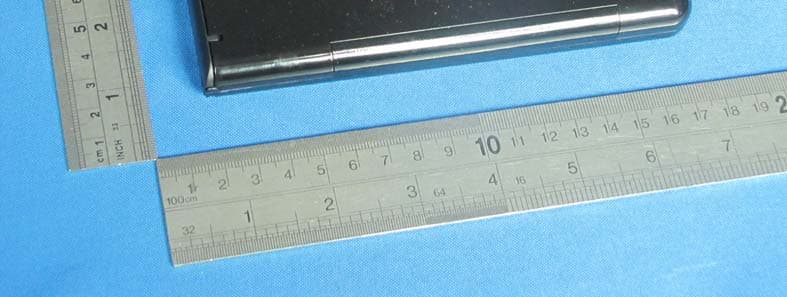
Click to zoom
Application Details
- Equipment Class
- DSS - Part 15 Spread Spectrum Transmitter
- Date of Grant
- Feb 13, 2012
- Application Purpose
- Original Equipment
- Date of Application
- Feb 12, 2012
- Equipment Note
- Bluetooth Keyboard
- Frequency Range
- 2402.00000000 - 2480.00000000
- Country
- China
Documents & Files
Document Text
Text extracted from the exhibit documents filed with the FCC. Open a document above to read the original.
Users Manual
1 Freedom Pro Keyboard Quick Start Guide Table Of Contents Page Keyboard hardware 2 BlackBerry Installation 4 Windows Mobile Pocket PC Installation 9 Windows Mobile Smartphone Installation 14 Android Installation 18 Symbian Installation (Nokia, Sony, etc). 21 Apple iOS (iPhone, iPad, iPod) 25 2 Your Freedom Pro Keyboard Thank you for purchasing the Freedom Pro Keyboard. Before we proceed with installing the keyboard on your phone/PDA/Pocket PC let’s take a brief look at the hardware. 1) Bluetooth Pairing Reset: Used for putting the keyboard into pairing mode when it is first paired. 2) Hinge Lock: Slide the hinge locking mechanism to the right to lock the hinge in place and stop the keyboard from folding. Slide it to the left to unlock the hinge and fold the keyboard. Please ensure that the slide mechanism is pushed fully to the left (unlocked) position before attempting to close the keyboard. 3) Pull out easel: The folding device easel pulls out completely from the keyboard to hold your phone/PDA/Pocket PC. See Page 3 for more information. 4) Battery Cover: Slide the battery cover upwards to open. The Freedom Pro Keyboard takes two AAA batteries. Typical AAA batteries will give up to 80 hours of continuous operation before they need to be replaced. The keyboard will automatically go into power saving mode (switch itself off) if it is left turned on for 15 minutes without any input. To take the keyboard out of power saving mode simply switch the keyboard off and then switch it back on again 5) Bluetooth Indicator Light: Flashes rapidly when in pairing/waiting to connect mode (once per second). Flashes slowly when connected (once every 8 seconds). 6) Power Warning Light: Flashes when batteries need to be replaced. 7) Power Switch: Switches the keyboard on and off. 8) Mode Selection Switch: Push the switch to the left to select SPP Mode (used by BlackBerry’s). Push the switch to the right to select HID mode (used by all other devices). 9) FN (Function) Key: This key is used in combination with other keys on the keyboard to emulate buttons on the phone or to quick launch applications. Full function key combinations for each device can be found in their relevant installation instructions. 10) SK1-SK6 Control Keys: These keys directly emulate the main control keys on your Smartphone (i.e. select, back, etc). 11) Quick Keys: These keys give quick access to commonly used applications and functions such as answering the phone, opening your message inbox, etc. 3 4 BlackBerry Smartphone Users Installation Guide. 5 Installing and connecting your Keyboard to a BlackBerry Before installation: 1) There are two methods you can use to install the drivers on your BlackBerry. These are: Option A) Via the OTA (Over the Air) Website. This is the preferred method and requires an active data connection on your BlackBerry. OR Option B) Via your PC using the PC installation package. To download the latest PC driver installation package please visit www.freedominput.com (for more information see next page) 2) The three simple steps to using your keyboard are: 1. Download and install the drivers (via the OTA site or www.freedominput.com) 2. Pair the keyboard. 3. Run the drivers and connect the keyboard. 3) When turning the keyboard on please select the following: BlackBerry devices - SPP Mode (Mode selection switch to the left) 4) BlackBerry devices may require a change to be made to the Keystroke Injection/Input Simulation setting. This will be done automatically when you first run the drivers. 5) BlackBerry devices connected to a BlackBerry Enterprise Server may require permissions from the BES administrator to change the Keystroke Injection/Input Simulation setting on the device (details on the BES settings can also be found on http://freedom.helpserve.com). BlackBerry Keys and Terminology: (1) Push to “Select” (2) Push to “Open Menu” (3) Push to go “Back” Note: (“Scroll wheel” BlackBerrys use the scroll wheel press to both open menus and select items). 6 Installing the Drivers – Via the OTA website (Option A) To install the drivers on your BlackBerry via the OTA (over the air) website follow the instructions below. 1) Open the internet browser on your BlackBerry and go to www.otadrivers.com 2) When asked which keyboard you have, select Freedom Pro Keyboard. 3) The website will detect that you have a BlackBerry and give you a link to download the drivers. Click on the link to go to the download and install page. 4) Click the Download Button: 5) Once the drivers are installed click the OK button and exit the browser application. You will now see a new icon on your application menu for Freedom Pro Keyboard on the newer BlackBerrys (such as the Bold and Storm) this will be located in the Downloads folder. When asked if you wish to grant the application trusted status click on yes. Installing the Drivers – Via a PC (Option B) If you do not have a data connection on your BlackBerry or would prefer to install the drivers via your PC please visit www.freedominput.com to download the latest PC installation package. Pairing the Keyboard. 1) Switch the keyboard on and put it in SPP Mode. Press the pairing button and ensure that the Bluetooth LED is flashing rapidly (once per second). 2) On the main application menu of the BlackBerry click on “Setup Bluetooth”. On the newer BlackBerrys select “Search for device”. Click OK and the BlackBerry will search for nearby Bluetooth devices. 3) Once the BlackBerry finishes searching click on “Freedom Pro Keyboard” from the list. When it asks for the passkey enter “0000” (four zeros). Once you have finished you will see the keyboard listed under paired devices. 7 Connecting the keyboard: 1) Ensure that your Freedom Pro Keyboard is paired to your BlackBerry and switched on. From the main application menu on your BlackBerry (or in the “Downloads” folder on the newer BlackBerrys) click on the “Freedom Pro Keyboard Icon”. You will then see a screen similar to the one below. 2) For …
Text truncated - open the document above for the full version.
External Photos
General Appearance of the EUT
ID Label/Location Info
This device complies with part 15 of the FCC Rules. Operation is subject to the following two conditions: (1) This device may not cause harmful interference, and (2) this device must accept any interference received, including interference that may cause undesired operation.
ID Label/Location Info
This device complies with part 15 of the FCC Rules. Operation is subject to the following two conditions: (1) This device may not cause harmful interference, and (2) this device must accept any interference received, including interference that may cause undesired operation.
Test Setup Photos
Radiated Emission Setup Photos
Contact Information
Applicant
Long Zhi LI(Engineer)
Technical Contact
TeleconformityMark Koop
[email protected]+31 84 8395876
Rietven 31 · Enschede, Overyssel · Netherlands
Test Firm
EMTEK (DONGGUAN) CO.,LTDSam Lv
Technical Specifications
| # | Rule Parts | Frequency Range | Power Output |
|---|---|---|---|
| 1 | 15C | 2.40 GHz - 2.48 GHz | 1.60 mW |
Other Applications from GREAT PLEASURE ELECTRONICS CO.,LTD

ZLN-DGP1112BT
Nov 30, 2011Freedom I-Connex2 Keyboard
Equipment Class
DSS - Part 15 Spread Spectrum Transmitter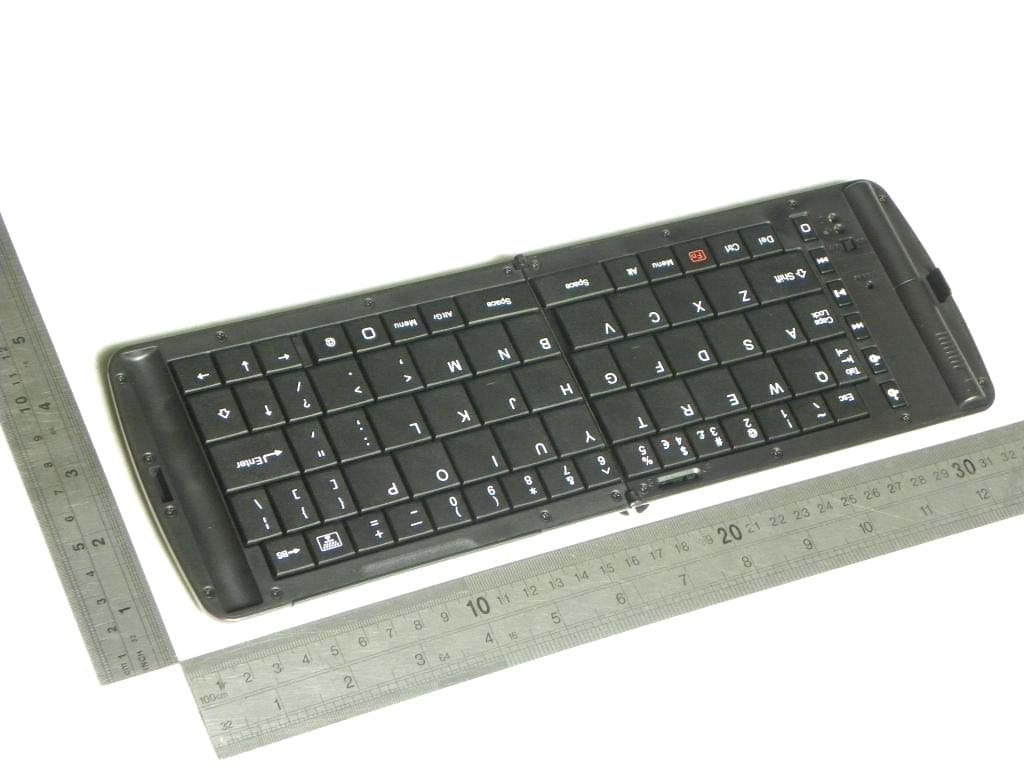
ZLN-DGP1105BT
Jun 08, 2011Blue Tooth Keyboard
Equipment Class
DSS - Part 15 Spread Spectrum Transmitter