2AUOUC10Tablet
Rhino Mobility LLC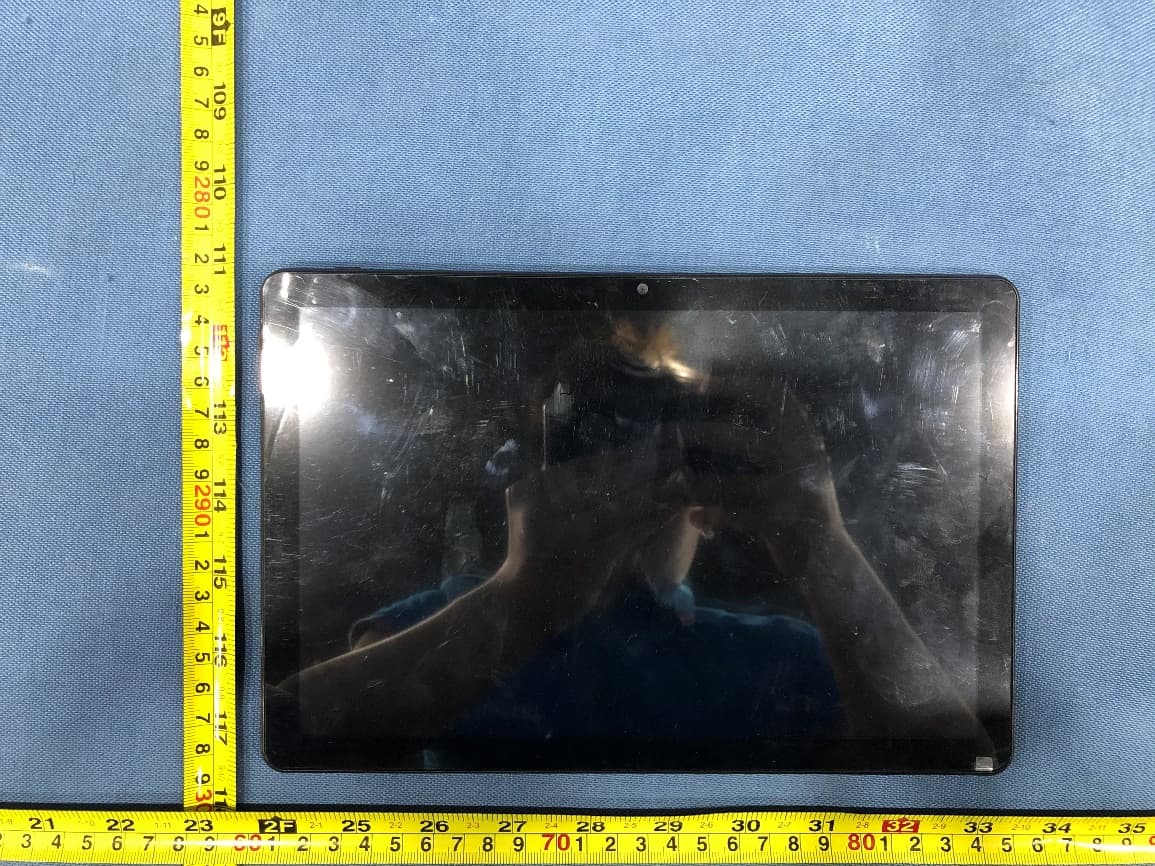
Click to zoom
Application Details
- Equipment Class
- DSS - Part 15 Spread Spectrum Transmitter
- Date of Grant
- Jul 26, 2020
- Application Purpose
- Original Equipment
- Date of Application
- Jul 26, 2020
- Equipment Note
- Tablet
- Frequency Range
- 2402.00000000 - 2480.00000000
- Company
- Rhino Mobility LLC
- Country
- United States
Documents & Files
Document Text
Text extracted from the exhibit documents filed with the FCC. Open a document above to read the original.
Users Manual
Rhino C10 2 Contents Contents .......................................................................................................................................... 2 Appearance .......................................................................................................................................... 3 Accessories Included ............................................................................................................................. 4 Keypad Operations ............................................................................................................................... 4 Transferring media between computer and device................................................................................. 4 Wi-Fi .................................................................................................................................................... 5 Bluetooth ............................................................................................................................................. 6 Phone Dialer ......................................................................................................................................... 7 Messages ............................................................................................................................................. 8 Contacts ............................................................................................................................................... 9 Clock .................................................................................................................................................. 10 Calculator ........................................................................................................................................... 11 Camera ............................................................................................................................................... 11 Settings ............................................................................................................................................ 122 Notices for the use of the device ....................................................................................................... 144 Frequency Bands & Power ................................................................................................................ 145 SAR Values ......................................................................................................................................... 15 Disposal Instructions......................................................................................................................... 145 3 Appearance 4 Accessories Included 1. Tablet 2. USB-C cable 3. Fast charging power adapter 4. Foldable stand 5. Tempered glass screen protector 6. Sim Key 7. Protective case Keypad Operations Keys Functions Home Press this button to return home from any application or interface. Long press it to open Google™ Assistant. Recent Located to the right of home button. Press it to open the recent items. Back Located to the left of home button. Press this icon to return to the previous screen. Power Located on the top left of the device. Long press on the button when off to turn on or to open the menu of “Power off & Restart” when on. Short press when on to switch the display in and out of sleep. Up Press to increase the volume. Down Press to decrease the volume. Transferring media between computer and device Should you want to transfer music, pictures or other files to or from device storage via a computer, you must set “Use USB to” to Transfer Files: Connect your device to a computer with the USB cable. A notification icon will appear in the status bar and will show Charging this device via USB. Pulling down the notification bar, tap the Tap for more options prompt and in the new window, select Transfer files. The device will now show on your computer as a usable drive. 5 Wi-Fi WiFi provides as much as 300feet (100M) range of wireless network access and supports both 2.4GHz and 5GHz bands. If you use your device to connect to the internet, you should connect to a wireless access point. How to connect to a wireless network: Open settings and select Network & Internet, toggle the WiFi setting on. Your device will automatically scan all wireless networks near you. Alternatively, pull down the notification bar and long-tap on the WiFi icon. A list of WiFi networks will display along with authentication in use (e.g. WPA). If you enable the notification in WiFi settings, the status box will show this icon () when an open available wireless network is found. NB: Open WiFi networks can be dangerous, please use caution when connecting to any connection you cannot immediately trust. When the device connects to a wireless network, the status box will show this Wi-Fi icon(), with the approximate signal strength (the number of lit bars). If you touch the connected network, it will display the name of WiFi network, status, speed, signal, strength, security, information, and IP address. If you want to delete the wireless settings, please touch “FORGET” as shown in the image below. 6 Bluetooth How to turn on Bluetooth: Enter settings. Select Connected devices and toggle Bluetooth on, the status box will show this icon: . Touch Pair new device, and all devices found will display in the list under the icon. Pairing of a Bluetooth headset: Open Settings and select Connected devices, then open Bluetooth, touch Pair new device, then your device will scan for the Bluetooth devices within range and show discovered devices in the list beneath the icon. 7 Choose any device in the discovered list to initiate pairing. Bluetooth devices need a password to be paired, please ensure this information is to hand in order to successfully pair. The pairing and connected status will show under the headset in the Bluetooth devices list. W…
Text truncated - open the document above for the full version.
Cover Letter(s)
Rhino Mobility LLC Agent Authorization Company: Rhino Mobility LLC Address: 8 The Green, Suite A, Dover, Delaware, 19901, USA Product Name: Tablet Model Number(s): C10 Product Description: Tablet We authorize MiCOM Labs Inc., 575 Boulder Court, Pleasanton, California 94566, USA, to act on our behalf on all matters concerning the certification of above named equipment. We declare that MiCOM Labs Inc. is allowed to forward all information related to the approval and certification of equipment to the regulatory agencies as required and to discuss any issues concerning the approval application. Any and all acts carried out by MiCOM Labs on our behalf shall have the same effect as acts of our own. Signature: Date: 2020/7/22 Name: Mejd Azzeh Title: Director Company: Rhino Mobility LLC
Cover Letter(s)
Rhino Mobility LLC Office of Engineering Technology Federal Communications Commission 7435 Oakland Mills Road Columbia, MD 21046 USA Date: 2020/7/22 Subject; Request for Long Term Confidentiality FCC ID: 2AUOUC10 To Whom It May Concern, Pursuant to the provisions of the Commission’s rules Title 47 Sections §0.457 and §0.459, we are requesting the Commission to withhold the following attachment(s) as confidential documents from public disclosure indefinitely. These documents contain detailed system and equipment descriptions and are considered as proprietary information in operation of the equipment. The public disclosure of these documents might be harmful to our company and would give competitors an unfair advantage in the market. Schematic Diagram Block Diagram Parts List Operational Description Tune-up Procedure U-NII software security requirement It is our understanding that all measurement test reports, FCC ID label format and correspondence during the certification review process cannot be granted as confidential documents and this information will be available for public review once the grant of equipment authorization is issued. Sincerely, Signature: Name: Mejd Azzeh Title: Director
External Photos
Page 1 of 5 FCC ID: 2AUOUC10 Shenzhen UnionTrust Quality and Technology Co., Ltd. Address: 16/F, Block A, Building 6, Baoneng Science and Technology Park, Qingxiang Road No.1, Longhua New District, Shenzhen, China Tel: +86-755-28230888 Fax: +86-755-2823088 6 E-mail: [email protected] Http://www.uttlab.com APPENDIX 2 PHOTOS OF EUT CONSTRUCTIONAL DETAILS EUT EXTERNAL PHOTOS EUT Photo EUT Photo Page 2 of 5 FCC ID: 2AUOUC10 Shenzhen UnionTrust Quality and Technology Co., Ltd. Address: 16/F, Block A, Building 6, Baoneng Science and Technology Park, Qingxiang Road No.1, Longhua New District, Shenzhen, China Tel: +86-755-28230888 Fax: +86-755-2823088 6 E-mail: [email protected] Http://www.uttlab.com EUT Photo EUT Photo Page 3 of 5 FCC ID: 2AUOUC10 Shenzhen UnionTrust Quality and Technology Co., Ltd. Address: 16/F, Block A, Building 6, Baoneng Science and Technology Park, Qingxiang Road No.1, Longhua New District, Shenzhen, China Tel: +86-755-28230888 Fax: +86-755-2823088 6 E-mail: [email protected] Http://www.uttlab.com EUT Photo EUT Photo Page 4 of 5 FCC ID: 2AUOUC10 Shenzhen UnionTrust Quality and Technology Co., Ltd. Address: 16/F, Block A, Building 6, Baoneng Science and Technology Park, Qingxiang Road No.1, Longhua New District, Shenzhen, China Tel: +86-755-28230888 Fax: +86-755-2823088 6 E-mail: [email protected] Http://www.uttlab.com EUT Photo EUT Photo Page 5 of 5 FCC ID: 2AUOUC10 Shenzhen UnionTrust Quality and Technology Co., Ltd. Address: 16/F, Block A, Building 6, Baoneng Science and Technology Park, Qingxiang Road No.1, Longhua New District, Shenzhen, China Tel: +86-755-28230888 Fax: +86-755-2823088 6 E-mail: [email protected] Http://www.uttlab.com EUT Photo EUT Photo
ID Label/Location Info
如何3步找到FCC ID的e-label? How about find e-label of FCC ID by 3 steps? 第一步,点桌面的”Settings”图标. 1 st step: click “Settings” icon in desktop interface. 第二步,点底部的”System”栏. 2nd step: click “System” item in bottom. 第三步, 展开底部的”Advanced”栏. 3 rd step: unfold “Advanced” item in bottom. 可以看到”certification”栏FCC ID的e-label The e-label of FCC ID can be found in “Certification” item.
Internal Photos
Page 1 of 7 FCC ID: 2AUOUC10 Shenzhen UnionTrust Quality and Technology Co., Ltd. Address: 16/F, Block A, Building 6, Baoneng Science and Technology Park, Qingxiang Road No.1, Longhua New District, Shenzhen, China Tel: +86-755-28230888 Fax: +86-755-28230886 E-mail: [email protected] Http://www.uttlab.com APPENDIX 2 PHOTOS OF EUT CONSTRUCTIONAL DETAILS EUT INTERNAL PHOTOS EUT Photo EUT Photo NFC Antenna WIFI/BT /GPS Antenna LTE Antenna (Aux) GSM/WCDMA/ LTE Antenna (Main) Page 2 of 7 FCC ID: 2AUOUC10 Shenzhen UnionTrust Quality and Technology Co., Ltd. Address: 16/F, Block A, Building 6, Baoneng Science and Technology Park, Qingxiang Road No.1, Longhua New District, Shenzhen, China Tel: +86-755-28230888 Fax: +86-755-28230886 E-mail: [email protected] Http://www.uttlab.com EUT Photo EUT Photo Page 3 of 7 FCC ID: 2AUOUC10 Shenzhen UnionTrust Quality and Technology Co., Ltd. Address: 16/F, Block A, Building 6, Baoneng Science and Technology Park, Qingxiang Road No.1, Longhua New District, Shenzhen, China Tel: +86-755-28230888 Fax: +86-755-28230886 E-mail: [email protected] Http://www.uttlab.com EUT Photo EUT Photo Page 4 of 7 FCC ID: 2AUOUC10 Shenzhen UnionTrust Quality and Technology Co., Ltd. Address: 16/F, Block A, Building 6, Baoneng Science and Technology Park, Qingxiang Road No.1, Longhua New District, Shenzhen, China Tel: +86-755-28230888 Fax: +86-755-28230886 E-mail: [email protected] Http://www.uttlab.com EUT Photo EUT Photo Page 5 of 7 FCC ID: 2AUOUC10 Shenzhen UnionTrust Quality and Technology Co., Ltd. Address: 16/F, Block A, Building 6, Baoneng Science and Technology Park, Qingxiang Road No.1, Longhua New District, Shenzhen, China Tel: +86-755-28230888 Fax: +86-755-28230886 E-mail: [email protected] Http://www.uttlab.com EUT Photo EUT Photo Page 6 of 7 FCC ID: 2AUOUC10 Shenzhen UnionTrust Quality and Technology Co., Ltd. Address: 16/F, Block A, Building 6, Baoneng Science and Technology Park, Qingxiang Road No.1, Longhua New District, Shenzhen, China Tel: +86-755-28230888 Fax: +86-755-28230886 E-mail: [email protected] Http://www.uttlab.com EUT Photo EUT Photo Page 7 of 7 FCC ID: 2AUOUC10 Shenzhen UnionTrust Quality and Technology Co., Ltd. Address: 16/F, Block A, Building 6, Baoneng Science and Technology Park, Qingxiang Road No.1, Longhua New District, Shenzhen, China Tel: +86-755-28230888 Fax: +86-755-28230886 E-mail: [email protected] Http://www.uttlab.com EUT Photo
Test Report
Page 2 of 48 Report No.: 200405001RFC-2 Shenzhen UnionTrust Quality and Technology Co., Ltd. Address: 16/F, Block A, Building 6, Baoneng Science and Technology Park, Qingxiang Road No.1, Longhua New District, Shenzhen, China Tel: +86-755-28230888 Fax: +86-755-2823088 6 E-mail: [email protected] http://www.uttlab.com UTTR-RF-FCCPART15.247-V1.0 Version Version No. Date Description V1.0 July 20, 2020 Original Page 3 of 48 Report No.: 200405001RFC-2 Shenzhen UnionTrust Quality and Technology Co., Ltd. Address: 16/F, Block A, Building 6, Baoneng Science and Technology Park, Qingxiang Road No.1, Longhua New District, Shenzhen, China Tel: +86-755-28230888 Fax: +86-755-2823088 6 E-mail: [email protected] http://www.uttlab.com UTTR-RF-FCCPART15.247-V1.0 CONTENTS 1. GENERAL INFORMATION ....................................................................................................................................... 4 1.1 CLIENT INFORMATION ........................................................................................................................................ 4 1.2 EUT INFORMATION ............................................................................................................................................ 4 1.2.1 GENERAL DESCRIPTION OF EUT ............................................................................................................ 4 1.2.2 DESCRIPTION OF ACCESSORIES .............................................................................................................. 5 1.3 PRODUCT SPECIFICATION SUBJECTIVE TO THIS STANDARD ................................................................................. 6 1.4 OTHER INFORMATION ......................................................................................................................................... 6 1.5 DESCRIPTION OF SUPPORT UNITS ...................................................................................................................... 6 1.6 TEST LOCATION ................................................................................................................................................. 7 1.7 TEST FACILITY ................................................................................................................................................... 7 1.8 DEVIATION FROM STANDARDS ............................................................................................................................ 7 1.9 ABNORMALITIES FROM STANDARD CONDITIONS .................................................................................................. 7 1.10 OTHER INFORMATION REQUESTED BY THE CUSTOMER ........................................................................................ 7 1.11 MEASUREMENT UNCERTAINTY ........................................................................................................................... 8 2. TEST SUMMARY ...................................................................................................................................................... 8 3. EQUIPMENT LIST .................................................................................................................................................... 9 4. TEST CONFIGURAT I O N ........................................................................................................................................ 10 4.1 ENVIRONMENTAL CONDITIONS FOR TESTING ...................................................................................................... 10 4.1.1 NORMAL OR EXTREME TEST CONDITIONS ............................................................................................. 10 4.1.2 RECORD OF NORMAL ENVIRONMENT..................................................................................................... 10 4.2 TEST CHANNELS ............................................................................................................................................. 10 4.3 EUT TEST STAT U S .......................................................................................................................................... 10 4.4 PRE-SCAN .................................................................................................................................................... 11 4.4.1 PRE-SCAN UNDER ALL PACKETS AT MIDDLE CHANNEL .............................................................................. 11 4.4.2 WORST-CASE DATA PACKETS ................................................................................................................ 11 4.4.3 TESTED CHANNEL DETAIL ...................................................................................................................... 11 4.5 TEST SETUP .................................................................................................................................................... 12 4.5.1 FOR RADIATED EMISSIONS TEST SETUP ................................................................................................ 12 4.5.2 FOR CONDUCTED EMISSIONS TEST SETUP ............................................................................................ 13 4.5.3 FOR CONDUCTED RF TEST SETUP ........................................................................................................ 14 4.6 SYSTEM TEST CONFIGURATION ........................................................................................................................ 14 4.7 DUTY CYCLE ................................................................................................................................................... 15 5. RADIO TECHNICAL REQUIREMENTS SPECIFICATION .................................................................................... 16 5.1 REFERENCE DOCUMENTS FOR TESTING ............................................................................................................ 16 5.2 ANTENNA REQUIREMENT ......................…
Text truncated - open the document above for the full version.
Test Setup Photos
Page 1 of 2 FCC ID: 2AUOUC10 Shenzhen UnionTrust Quality and Technology Co., Ltd. Address: 16/F, Block A, Building 6, Baoneng Science and Technology Park, Qingxiang Road No.1, Longhua New District, Shenzhen, China Tel: +86-755-28230888 Fax: +86-755-2823088 6 E-mail: [email protected] Http://www.uttlab.com APPENDIX 1 PHOTOS OF TEST SETUP Radiated emission Test Setup (30 MHz~1 GHz) Radiated emission Test Setup (Above 1 GHz) Page 2 of 2 FCC ID: 2AUOUC10 Shenzhen UnionTrust Quality and Technology Co., Ltd. Address: 16/F, Block A, Building 6, Baoneng Science and Technology Park, Qingxiang Road No.1, Longhua New District, Shenzhen, China Tel: +86-755-28230888 Fax: +86-755-2823088 6 E-mail: [email protected] Http://www.uttlab.com Conducted Emission Test Setup RF Conducted Test Setup
Contact Information
Applicant
Saqib Ghouri(Director)
Technical Contact
Test Firm
Shenzhen UnionTrust Quality and Technology Co., LtGeorge Luo
[email protected]+86-755-28230888
Technical Specifications
| # | Rule Parts | Frequency Range | Power Output |
|---|---|---|---|
| 1 | 15C | 2.40 GHz - 2.48 GHz | 3.93 mW |
Other Applications from Rhino Mobility LLC
2AUOUC6R
Nov 30, 2023Smartphone with BT, WIFI, GSM, WCDMA, LTE and NFC
Equipment Class
DXX - Part 15 Low Power Communication Device Transmitter
2AUOUC6D
Nov 08, 2023Tablet with BT, WIFI, WCDMA, LTE and NFC
Equipment Class
DTS - Digital Transmission System
2AUOUT80
Jul 10, 2023Tablet with BT, WIFI, WCDMA, LTE and NFC
Equipment Class
NII - Unlicensed National Information Infrastructure TX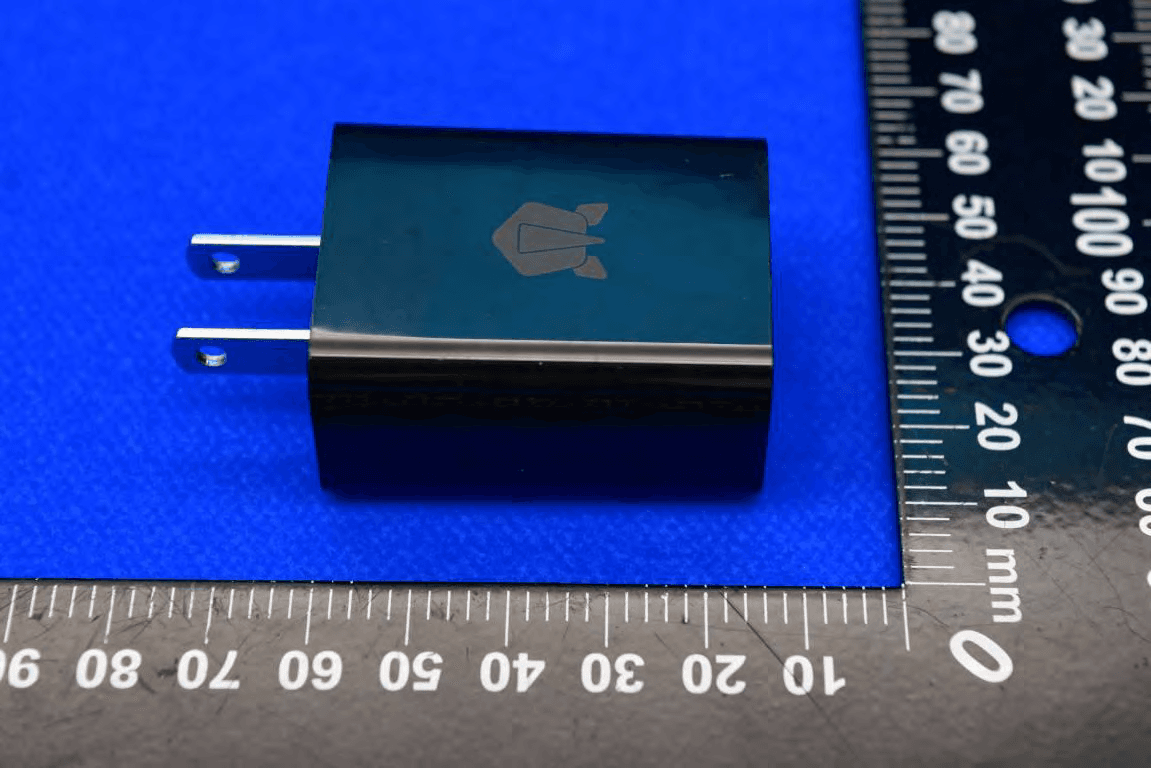
2AUOUC6
Jul 08, 2023Smartphone with BT, WIFI, GSM, WCDMA, LTE and NFC
Equipment Class
DSS - Part 15 Spread Spectrum Transmitter2AUOUPA1NA
Jul 27, 2022Smart Phone
Equipment Class
JBP - Part 15 Class B Computing Device Peripheral