CJ6UPA3459WL802.11ag Half Size Mini-PCI WLAN Module
Dynabook Inc.
Click to zoom
Application Details
- Equipment Class
- DTS - Digital Transmission System
- Date of Grant
- Jun 16, 2005
- Application Purpose
- Original Equipment
- Date of Application
- May 31, 2005
- Equipment Note
- 802.11ag Half Size Mini-PCI WLAN Module
- Frequency Range
- 5745.00000000 - 5825.00000000
- Company
- Dynabook Inc.
- Country
- Japan
Documents & Files
Document Text
Text extracted from the exhibit documents filed with the FCC. Open a document above to read the original.
Users Manual
802.11a/b/g Combo Mini PCI WLAN Card User’s Manual 2003 All rights reserved. No part of this document may be reproduced or transmitted in any form or by any means, electronic or mechanical, for any purpose, without the express written permission of the seller. Disclaimer Information in this document is subject to change without notice. The material contained herein is supplied without representation or warranty of any kind. The seller therefore assumes no responsibility and shall have no liability of any kind arising from the supply or use of this document or the material contained herein. Trademarks Microsoft and Windows are registered trademarks of Microsoft Corporation. GUI and Ethernet is a registered trademark of Xeros Corporation. Atheros and the Atheros logo are registered trademarks of Atheros Communications, Inc. Cisco, Cisco Systems, and the Cisco Systems logo are registered trademarks of Cisco Systems, Inc. and/or its affiliates in the U.S. and certain other countries. All other trademarks mentioned in this document are the property of their respective owners. Date: April 2003 Part No. A230XPRev01 I Contents Chapter 1 Introduction....................................................................................................................................1 Wireless LAN Basics.......................................................................................................................................2 Local Area Network (LAN)............................................................................................................................2 Wireless Network Topologies........................................................................................................................3 802.11a, 802.11b and 802.11g.....................................................................................................................6 Chapter 2 Installing the Driver and Utility Software.........................................................................................7 System Requirements......................................................................................................................................8 Installing the driver and software......................................................................................................................8 Chapter 3 Utility Configuration.......................................................................................................................15 Accessing the Atheros Configuration Utility......................................................................................................15 Note to Windows XP Users..........................................................................................................................16 Network Basic Configuration...........................................................................................................................17 General Tab...............................................................................................................................................17 Security Tab...............................................................................................................................................19 Advanced Tab............................................................................................................................................24 Connecting to an Existing Network..................................................................................................................27 802.11a/b/g Combo Mini PCI WLAN Card User’s Manual II Modifying a Configuration Profile.....................................................................................................................29 Removing a Configuration Profile....................................................................................................................29 Chapter 4 Checking Status or Statistics.........................................................................................................31 Status Monitor Tray Icon.................................................................................................................................31 Current Status Tab.........................................................................................................................................33 Advanced Status.........................................................................................................................................36 Diagnostics Tab.............................................................................................................................................37 Advanced Statistics.....................................................................................................................................38 Driver Information.......................................................................................................................................40 Chapter 5 ACU Toolbar..................................................................................................................................43 Action Menu...................................................................................................................................................43 Options Menu.................................................................................................................................................44 Help Menu.....................................................................................................................................................45 Chapter 6 Uninstalling the Wireless LAN Card...............................................................................................47 Chapter 7 Troubleshooting.............................................................................................................................50 Appendix A Setting Up TCP/IP.........................…
Text truncated - open the document above for the full version.
Users Manual
libretto U100 TOSHIBA libretto U100 Portable Personal Computer User’s Manual iiUser’s Manual User’s Manual Copyright © 2005 by TOSHIBA Corporation. All rights reserved. Under the copyright laws, this manual cannot be reproduced in any form without the prior written permission of TOSHIBA. No patent liability is assumed, with respect to the use of the information contained herein. TOSHIBA libretto U100 Portable Personal Computer User’s Manual First edition April 2005 Copyright authority for music, movies, computer programs, data bases and other intellectual property covered by copyright laws belongs to the author or to the copyright owner. Copyrighted material can be reproduced only for personal use or use within the home. Any other use beyond that stipulated above (including conversion to digital format, alteration, transfer of copied material and distribution on a network) without the permission of the copyright owner is a violation of copyright or author’s rights and is subject to civil damages or criminal action. Please comply with copyright laws in making any reproduction from this manual. Disclaimer This manual has been validated and reviewed for accuracy. The instructions and descriptions it contains are accurate for the TOSHIBA libretto U100 Portable Personal Computer at the time of this manual’s production. However, succeeding computers and manuals are subject to change without notice. TOSHIBA assumes no liability for damages incurred directly or indirectly from errors, omissions or discrepancies between the computer and the manual. Graphics processor performance may vary considerably from specifications due to design configuration. Trademarks IBM is a registered trademark and IBM PC is a trademark of International Business Machines Corporation. Intel, Intel SpeedStep, Pentium and Centrino are trademarks or registered trademarks of Intel Corporation or its subsidiaries in the United States and other countries/regions. Windows and Microsoft are registered trademarks of Microsoft Corporation. Photo CD is a trademark of Eastman Kodak. Sonic RecordNow! is registered trademarks of Sonic Solutions. Bluetooth is a trademark owned by its proprietor and used by TOSHIBA under license. i.LINK is trademark and registered trademark of Sony Corporation. InterVideo and WinDVD are registered trademarks of the InterVideo Inc. WinDVD Creator is trademark of the InterVideo Inc. Other trademarks and registered trademarks not listed above may be used in this manual. User’s Manualiii User’s Manual FCC information Product Name : libretto U100 Model number : PLU10 FCC notice "Declaration of Conformity Information" This equipment has been tested and found to comply with the limits for a Class B digital device, pursuant to part 15 of the FCC rules. These limits are designed to provide reasonable protection against harmful interference in a residential installation. This equipment generates, uses and can radiate radio frequency energy and, if not installed and used in accordance with the instructions, may cause harmful interference to radio communications. However, there is no guarantee that interference will not occur in a particular installation. If this equipment does cause harmful interference to radio or television reception, which can be determined by turning the equipment off and on, the user is encouraged to try to correct the interference by one or more of the following measures: ■Reorient or relocate the receiving antenna. ■Increase the separation between the equipment and receiver. ■Connect the equipment into an outlet on a circuit different from that to which the receiver is connected. ■Consult the dealer or an experienced radio/TV technician for help. FCC conditions This device complies with part 15 of the FCC Rules. Operation is subject to the following two conditions: 1. This device may not cause harmful interference. 2. This device must accept any interference received, including interference that may cause undesired operation. Contact Address:TOSHIBA America Information Systems, Inc. 9740 Irvine Boulevard Irvine, California 92618-1697 Only peripherals complying with the FCC class B limits may be attached to this equipment. Operation with non-compliant peripherals or peripherals not recommended by TOSHIBA is likely to result in interference to radio and TV reception. Shielded cables must be used between the external devices and the computer’s Mini-RGB port, USB port, i.LINK (IEEE1394) port and microphone jack. And a cable with ferrite core must be used between the external devices and the computer's Modular jack. Changes or modifications made to this equipment, not expressly approved by TOSHIBA or parties authorized by TOSHIBA could void the user’s authority to operate the equipment. ivUser’s Manual User’s Manual Telephone:(949) 583-3000 EU Declaration of Conformity TOSHIBA declares, that the product: PLU10* conforms to the following Standards: This product is carrying the CE-Mark in accordance with the related European Directives. Responsible for CE-Marking is TOSHIBA Europe, Hammfelddamm 8, 41460 Neuss, Germany. VCCI Class B Information Modem warning notice Conformity Statement The equipment has been approved to [Commission Decision “CTR21”] for pan-European single terminal connection to the Public Switched Telephone Network (PSTN). However, due to differences between the individual PSTNs provided in different countries/regions the approval does not, of itself, give an unconditional assurance of successful operation on every PSTN network termination point. In the event of problems, you should contact your equipment supplier in the first instance. Supplementary Information: “The product complies with the requirements of the Low Voltage Directive 73/23/EEC, the EMC Directive 89/336/EEC and/or the R&TTE Directive 1999/05/EEC.” User’s Manualv User’s Manual Network Compatibility Statement This product is designed to work with, and is compatible with the following networks. It has been tested to…
Text truncated - open the document above for the full version.
Users Manual
User’s Manual8-1 libretto U100 Chapter 8 Optional Devices Optional devices can expand the computer’s capabilities and its versatility. This chapter describes connection or installation of the following devices, which are available from your TOSHIBA dealer: Cards/memory ■PC card ■SD card ■Memory expansion Power devices ■Battery pack ■AC adaptor Peripheral devices ■USB floppy disk drive ■External monitor ■Parallel printer ■i.LINK (IEEE1394) ■libretto DVD Dock 8-2User’s Manual Optional Devices PC card The computer is equipped with a PC card slot that can accommodate a Type II card. Any PC card that meets industry standards (manufactured by TOSHIBA or other vendor) can be installed. The slot supports 16-bit PC cards, including PC card 16’s multifunction card and CardBus PC cards. CardBus supports the new standard of 32-bit PC cards. The bus provides superior performance for the greater demands of multimedia data transmission. Inserting a PC card The PC card slot is located on the left side of the computer. Windows hot-install feature lets you insert PC cards while the computer’s power is on. To insert a PC card, follow the steps below: 1. Slide the extended eject latch to pop the Dummy card out slightly. 2. Grasp the Dummy card and draw it out. 3. Insert a PC card in the PC card slot. 4. Press gently to ensure a firm connection. Figure 8-1 Inserting the PC card 5. After inserting the PC card, refer to the PC card’s documentation and check the configuration in Windows to make sure it is appropriate for your PC card. ■PC cards can sometimes become hot during PC operation. Before you remove a PC card always wait for it to cool. You could get burned removing a hot PC card. ■Keep foreign objects out of the PC card slot. Never allow metal objects, such as screws, staples and paper clips, to enter the PC or keyboard. Foreign metal objects can create a short circuit, which can cause PC damage and fire, possibly resulting in serious injury. Do not insert a PC card while the computer is in standby or hibernation mode. Some cards might not work properly. PC card PC card slot User’s Manual8-3 Optional Devices Removing a PC card To remove the PC card, follow the steps below. 1. Open the Safely Remove Hardware icon on the Task Bar. 2. Point to PC card and click. 3. Slide the PC card eject lever to extend it. 4. Grasp the PC card and draw it out. Figure 8-2 Removing the PC card SD card The computer is equipped with an SD card slot that can accommodate Secure Digital flash memory cards with various memory capacities. SD cards let you easily transfer data from devices, such as digital cameras and Personal Digital Assistants, that use SD card flash-memory. The cards have a high level of security and copy protection features. The slot cannot accommodate Multi Media cards. PC card PC card eject lever When you do not use a PC card, please be sure to insert a Dummy card. Keep foreign objects out of the SD card slot. Never allow metal objects, such as screws, staples and paper clips, to enter the PC or keyboard. Foreign metal objects can create a short circuit, which can cause PC damage and fire, possibly resulting in serious injury. SD memory cards comply with SDMI (Secure Digital Music Initiative), which is a technology adopted to prevent unlawful copy or playback of digital music. For this reason, you cannot copy or playback protected material on another computer or other device. You may not use the reproduction of any copyrighted material except for your personal enjoyment. 8-4User’s Manual Optional Devices Formatting an SD memory card SD memory cards are sold with format in conformity to the Standards of SD memory card. If you format the SD card again, be sure to format it with the utility of TOSHIBA SD memory card format, not in the format defined as the Windows standard format. In order to run TOSHIBA SD memory card format, click start, point to All Programs, point to TOSHIBA, point to Utilities and click SD memory card Format. TOSHIBA SD memory card format does not format the protected area of SD memory card. When you format all area of the SD memory card including the protected area, use the application that responds to the copy protection system. Inserting an SD card To insert an SD card, follow the steps below. 1. Insert an SD card in the SD card slot. 2. Press gently to ensure a firm connection. Figure 8-3 Inserting an SD card Removing an SD card To remove an SD card, follow the steps below. 1. Open the Safely Remove Hardware icon on the Task Bar. 2. Point to SD card and click. 3. Push in the SD card and release it to pop the card out slightly. SD card SD card slot Make sure the SD card is oriented properly before you insert it. User’s Manual8-5 Optional Devices 4. Grasp the SD card and remove it. Figure 8-4 Removing an SD card SD card care 1. Do not write to an SD card if the battery power is low. Low power could affect writing accuracy. 2. Do not remove an SD card while read/write is in progress. 3. The SD card is designed so that it can be inserted only one way. Do not try to force the SD card into the SD card slot. 4. Do not leave an SD card partially inserted in the slot. Press the SD card until you hear it click into place. 5. Do not twist or bend SD cards. 6. Do not expose SD cards to liquids or store in humid areas or lay media close to containers of liquid. 7. After using an SD card, return it to its case. 8. Do not touch the metal part or expose it to liquids or let it get dirty. Creation of a boot disk In TOSHIBA SD Memory Boot Utility, a boot disk can be created with SD memory card. Refer to the Utilities of Chapter 1, Introduction for details. SD card SD card slot Do not remove an SD card while the computer is in Standby or Hibernation mode. The computer could become unstable or data in the SD card could be lost. Set the write-protect switch to the lock position, if you do not want to record data. 8-6User’s Manual Optional Devices Memory expansion This computer has equipped the underside o…
Text truncated - open the document above for the full version.
Users Manual
TOSHIBA Portégé M200 Portable Personal Computer User’s Manual Copyright © 2003 by TOSHIBA Corporation. All rights reserved. Under the copyright laws, this manual cannot be reproduced in any form without the prior written permission of TOSHIBA. No patent liability is assumed, with respect to the use of the informa- tion contained herein. TOSHIBA Portégé M200 Portable Personal Computer User’s Manual First edition November 2003 Disclaimer This manual has been validated and reviewed for accuracy. The instructions and descriptions it contains are accurate for the TOSHIBA Portégé M200 Portable Personal Computer at the time of this manual’s production. However, succeeding computers and manuals are subject to change without notice. TOSHIBA assumes no liability for damages incurred directly or indirectly from errors, omissions or discrepancies between the computer and the manual. Trademarks IBM is a registered trademark of International Business Machines Corporation. Intel, Pentium and Centrino are registered trademarks and SpeedStep is a trademark of Intel Corporation. Windows and Microsoft are registered trademarks of Microsoft Corporation. Bluetooth is a trademark owned by its proprietor and used by TOSHIBA under licence. Other trademarks and registered trademarks not listed above may be used in this manual. FCC information Product Name : Portégé M200 Model number : PPM20 FCC notice "Declaration of Conformity Information" This equipment has been tested and found to comply with the limits for a Class B digital device, pursuant to part 15 of the FCC rules. These limits are designed to provide reasonable protection against harmful interference in a residential installa- tion. This equipment generates, uses and can radiate radio frequency energy and, if not installed and used in accordance with the instructions, may cause harmful interference to radio communications. However, there is no guarantee that interfer- ence will not occur in a particular installation. If this equipment does cause harmful interference to radio or television reception, which can be determined by turning the equipment off and on, the user is encouraged to try to correct the interference by one or more of the following measures: ❑Reorient or relocate the receiving antenna. ❑Increase the separation between the equipment and receiver. ❑Connect the equipment into an outlet on a circuit different from that to which the receiver is connected. ❑Consult the dealer or an experienced radio/TV technician for help. WARNING: Only peripherals complying with the FCC class B limits may be attached to this equipment. Operation with non-compliant peripher- als or peripherals not recommended by TOSHIBA is likely to result in interference to radio and TV reception. Shielded cables must be used between the external devices and the computer’s external monitor port, USB port and microphone jack. Changes or modifications made to this equipment, not expressly approved by TOSHIBA or parties authorized by TOSHIBA could void the user’s authority to operate the equipment. The modular cable that comes with the computer must be used to connect a modem. FCC conditions This device complies with part 15 of the FCC Rules. Operation is subject to the following two conditions: 1. This device may not cause harmful interference. 2. This device must accept any interference received, including interference that may cause undesired operation. Contact Address:TOSHIBA America Information Systems, Inc. 9740 Irvine Boulevard Irvine, California 92618-1697 Telephone:(949) 583-3000 EU Declaration of Conformity TOSHIBA declares, that the product: PPM20* conforms to the following Standards: Supplementary Information:“The product complies with the requirements of the Low Voltage Directive 73/23/EEC, the EMC Directive 89/336/EEC and/or the R&TTE Directive 1999/05/EEC.” This product is carrying the CE-Mark in accordance with the related European Directives. Responsible for CE-Marking is TOSHIBA Europe, Hammfelddamm 8, 41460 Neuss, Germany. VCCI Class B Information Modem warning notice Conformity Statement The equipment has been approved to [Commission Decision “CTR21”] for pan- European single terminal connection to the Public Switched Telephone Network (PSTN). However, due to differences between the individual PSTNs provided in different countries/regions the approval does not, of itself, give an unconditional assurance of successful operation on every PSTN network termination point. In the event of problems, you should contact your equipment supplier in the first instance. Network Compatibility Statement This product is designed to work with, and is compatible with the following networks. It has been tested to and found to conform with the additional require- ments conditional in EG 201 121. GermanyATAAB AN005,AN006,AN007,AN009,AN010 and DE03,04,05,08,09,12,14,17 GreeceATAAB AN005,AN006 and GR01,02,03,04 PortugalATAAB AN001,005,006,007,011 and P03,04,08,10 SpainATAAB AN005,007,012, and ES01 SwitzerlandATAAB AN002 All other countries/regionsATAAB AN003,004 Specific switch settings or software setup are required for each network, please refer to the relevant sections of the user guide for more details. The hookflash (timed break register recall) function is subject to separate national type approvals. It has not been tested for conformity to national type regulations, and no guarantee of successful operation of that specific function on specific national networks can be given. Japan regulations Region selection If you are using the computer in Japan, technical regulations described in the Telecommunications Business Law require that you select the Japan region mode. It is illegal to use the modem in Japan with any other selection. Redial Up to two redial attempts can be made. If more than two redial attempts are made, the modem will return Black Listed. If you are experiencing problems with the Black Listed code, set the interval between redials at one minute or longer. Japan’…
Text truncated - open the document above for the full version.
Cover Letter(s)
Remittance ID:719381 Authorization Number:001120 -- Successful Authorization -- FILE COPY ONLY!! -- READ INSTRUCTIONS CAREFULLY BEFORE PROCEEDING (1) LOCKBOX #358315 FEDERAL COMMUNICATIONS COMMISSION REMITTANCE ADVICE PAGE NO 1 OF 1 APPROVED BY OMB 3060-058 SPECIAL USE FCC USE ONLY SECTION A - Payer Information (2) PAYER NAME (if paying by credit card, enter name exactly as it appears on your card) COMPLIANCE CERTIFICATION SERVI (3) TOTAL AMOUNT PAID (dollars and cents) $1235.00 (4) STREET ADDRESS LINE NO. 1 561F Monterey Road (5) STREET ADDRESS LINE NO. 2 (6) CITY Morgan Hill (7) STATE CA (8) ZIP CODE 95037 (9) DAYTIME TELEPHONE NUMBER (INCLUDING AREA CODE) 408 - 4630885 x 105 (10) COUNTRY CODE (IF NOT IN U.S.A.) US FCC REGISTRATION NUMBER (FRN) AND TAX IDENTIFICATION NUMBER (TIN) REQUIRED (11) PAYER (FRN) 0003758182 (12) FCC USE ONLY IF PAYER NAME AND THE APPLICANT NAME ARE DIFFERENT, COMPLETE SECTION B IF MORE THAN ONE APPLICANT, USE CONTINUATION SHEETS (FORM 159-C) (13) APPLICANT NAME Toshiba Corporation (14) STREET ADDRESS LINE NO. 1 Digital Media Network Company (15) STREET ADDRESS LINE NO. 2 Ome Complex, 2-9, Suehiro-cho (16) CITY Tokyo 198-8710 (17) STATE (18) ZIP CODE (19) DAYTIME TELEPHONE NUMBER (INCLUDING AREA CODE) 81 3 3457-2565 (20) COUNTRY CODE (IF NOT IN U.S.A.) JP FCC REGISTRATION NUMBER (FRN) AND TAX IDENTIFICATION NUMBER (TIN) REQUIRED (21) APPLICANT (FRN) (22) FCC USE ONLY COMPLETE SECTION C FOR EACH SERVICE, IF MORE BOXES ARE NEEDED, USE CONTINUATION SHEET (23A) FCC Call Sign/Other ID (24A) Payment Type Code(PTC) EBC (25A) Quantity 1 (26A) Fee Due for (PTC) $155.00 (27A) Total Fee $155.00 FCC Use Only (28A) FCC CODE 1 CJ6UPA3459WL (29A) FCC CODE 2 13EA476289 (23B) FCC Call Sign/Other ID (24B) Payment Type Code(PTC) EGC (25B) Quantity 1 (26B) Fee Due for (PTC) $1,080.00 (27B) Total Fee $1080.00 FCC Use Only (28B) FCC CODE 1 CJ6UPA3459WL (29B) FCC CODE 2 13EA476289
External Photos
REPORT NO: 05U3390-5 DATE: May 25, 2005 FCC ID: CJ6UPA3459WL COMPLIANCE CERTIFICATION SERVICES Page: 34 of 42 This report shall not be reproduced except in full, without the written approval of CCS. 13 EUT PHOTOS EUT PHOTOS (1/1) REPORT NO: 05U3390-5 DATE: May 25, 2005 FCC ID: CJ6UPA3459WL COMPLIANCE CERTIFICATION SERVICES Page: 35 of 42 This report shall not be reproduced except in full, without the written approval of CCS. H OST DEVICE (1/2) REPORT NO: 05U3390-5 DATE: May 25, 2005 FCC ID: CJ6UPA3459WL COMPLIANCE CERTIFICATION SERVICES Page: 36 of 42 This report shall not be reproduced except in full, without the written approval of CCS. H OST DEVICE (2/2) REPORT NO: 05U3390-5 DATE: May 25, 2005 FCC ID: CJ6UPA3459WL COMPLIANCE CERTIFICATION SERVICES Page: 37 of 42 This report shall not be reproduced except in full, without the written approval of CCS. WLAN MODULE AND BLUETOOTH MODULE Bluetooth Module Half Size Mini PCI WLAN Module REPORT NO: 05U3390-5 DATE: May 25, 2005 FCC ID: CJ6UPA3459WL COMPLIANCE CERTIFICATION SERVICES Page: 38 of 42 This report shall not be reproduced except in full, without the written approval of CCS. A NTENNAS LOCATION Antennas Aux Bluetooth Main
ID Label/Location Info
Bottom side view Regulatory Label
ID Label/Location Info
Label positions Regulatory Label of Wireless LAN on bottom of PC WLAN:MB62HL BT:BC04 Regulatory Label WLAN Regulatory Label BT Regulatory Label on Mini PCI Wireless LAN Card Label with P/N and Country of Origin MAC Address Label Serial Number Label Label with P/N and Country of Origin MAC Address Label Serial Number Label
ID Label/Location Info
Bottom side view Regulatory Label of Wireless LAN on bottom of PC W-LAN:MB62HL BT:BC04 BT:BC02 Regulatory Label WLAN Regulatory Label BT Regulatory Label on Mini PCI Wireless LAN Card Label with P/N and Country of Origin MAC Address Label Serial Number Label Label with P/N and Country of Origin MAC Address Label Serial Number Label
RF Exposure Info
IN ACCORDANCE WITH THE REQUIREMENTS OF FCC REPORT AND ORDER: ET DOCKET 93-62, AND OET BULLETIN 65 SUPPLEMENT C FOR MB62HL 802.11ag Half Size Mini-PCI WLAN Module MODEL: PA3459U-1MPC MODEL (Optional): PA3461U/E-1MPC FCC ID: CJ6UPA3459WL REPORT NUMBER: 05U3390-5 ISSUE DATE: May 25, 2005 Prepared for Toshiba Corporation Digital Media Network Company Ome Complex, 2-9, Suehiro-cho Tokyo, 198-8710, Japan Prepared by COMPLIANCE CERTIFICATION SERVICES 561F MONTEREY ROAD, MORGAN HILL, CA 95037, USA TEL: (408) 463-0885 REPORT NO: 05U3390-5 DATE: May 25, 2005 FCC ID: CJ6UPA3459WL COMPLIANCE CERTIFICATION SERVICES Page: 2 of 2 This report shall not be reproduced except in full, without the written approval of CCS. Revision History Rev. Revisions Revised By REPORT NO: 05U3390-5 DATE: May 25, 2005 FCC ID: CJ6UPA3459WL COMPLIANCE CERTIFICATION SERVICES Page: 3 of 3 This report shall not be reproduced except in full, without the written approval of CCS. CERTIFICATE OF COMPLIANCE (SAR EVALUATION) DATES OF TEST: May 21 - 25, 2005 APPLICANT: Toshiba Corporation Digital Media Network Company ADDRESS: Ome Complex, 2-9, Suehiro-cho, Tokyo, 198-8710, Japan FCC ID: CJ6UPA3459WL or PA3461U/E-1MPC (Optional) MODEL: PA3459U-1MPC DEVICE CATEGORY: Portable Device EXPOSURE CATEGORY: General Population/Uncontrolled Explosure MB62HL 802.11ag Half Size Mini-PCI WLAN Module installed in Toshiba Firebolt 10 (PortegeM200) Laptop, including co-location with the Toshiba PA3232U-1BTM (BC02) and PA3418U-1BTM (BC04) Bluetooth radio cards. Test Sample is a: Production unit Modulation type: Direct Sequence Spread Spectrum (DSSS) for 802.11b Orthogonal Frequency Division Multiplexing (OFDM) for 802.11ag Antenna(s) The radio utilizes two antennas for diversity (main and auxiliary). HTL008 (PIFA Film Antenna): 2.89 dBi @ 2.4GHz w/o cable loss HTL017 (PIFA Film Antenna): 4.24 dBi @ 2.4GHz w/o cable loss TIAN01 (PIFA Film Antenna): 4.02 dBi @ 2.4GHz w/o cable loss FCC Rule Parts Frequency Range [MHz] The Highest SAR Values [1g_mW/g] Max. Average Output Power [dBm] 15.247 2412 - 2462 0.047 18.30 5180 - 5320 0.090 15.40 15.401 5745 - 5825 0.131 15.40 This wireless portable device has been shown to be capable of co…
Text truncated - open the document above for the full version.
Contact Information
Applicant
Ryuichi Kamimura(Senior Manager)
Technical Contact
Compliance Certification ServicesMichael Heckrotte
[email protected]408-463-0885
561F Monterey Road · Morgan Hill, California · United States
Test Firm
Compliance Certification Services IncSteve Cheng
Technical Specifications
| # | Rule Parts | Frequency Range | Power Output |
|---|---|---|---|
| 2 | 15C | 5.75 GHz - 5.83 GHz | 176.60 mW |
Other Applications from Dynabook Inc.
CJ6PA5347RT
Oct 20, 2022dynabook Wireless Optical Silent Mouse
Equipment Class
DXX - Part 15 Low Power Communication Device Transmitter
CJ6PYT0XPC
Apr 28, 2021Notebook Computer
Equipment Class
DSS - Part 15 Spread Spectrum Transmitter
CJ6UPA5238WL
Sep 01, 2015dynadock WiAC
Equipment Class
NII - Unlicensed National Information Infrastructure TX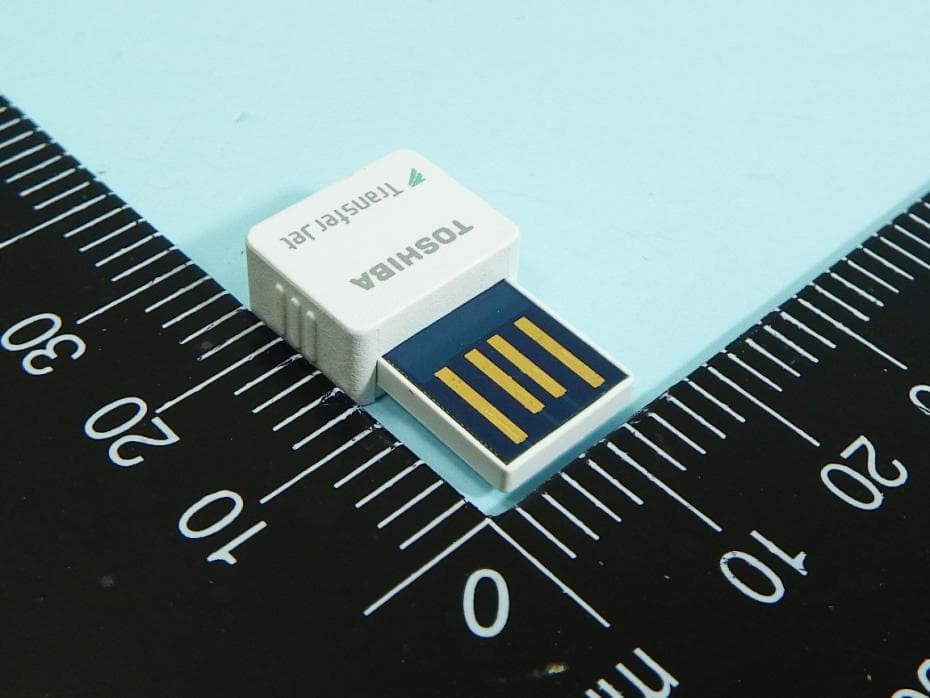
CJ6UPA5144TJ
Aug 07, 2014TransferJet USB Adapter
Equipment Class
JBP - Part 15 Class B Computing Device Peripheral
CJ6UPA5145TJ
Aug 07, 2014TransferJet MicroUSB Adapter
Equipment Class
UWB - Ultra Wideband Transmitter