FDI-09101731-0Wireless LAN Card
BUFFALO INC.
Click to zoom
Application Details
- Equipment Class
- DTS - Digital Transmission System
- Date of Grant
- Mar 21, 2002
- Application Purpose
- Original Equipment
- Date of Application
- Mar 21, 2002
- Equipment Note
- Wireless LAN Card
- Frequency Range
- 2412.00000000 - 2462.00000000
- Company
- BUFFALO INC.
- Country
- Japan
Documents & Files
Document Text
Text extracted from the exhibit documents filed with the FCC. Open a document above to read the original.
Users Manual
Inform Letter Dear Customer, According to FCC’s regulation, the following Declaration of Conformity has to be made by a company located in USA. They are: This device has been confirmed to be in compliance with the requirements of ANSI C63.4 & FCC part 15 regulations. The test result has been shown in the ADT test report with number RF901211R06A. And this compliance is subject to the following two conditions: This device may not cause harmful interference and, This device must accept any interference received, including interference that may cause undesired operation. This declaration can be a separate sheet and be sure that the following message will be also included in this declaration: Product name, model name and trade name. Company name, and address of the one who is responsible for this declaration. Name, title, telephone and fax number as well as the signature of the contact person. Thanks for your attention.
Users Manual
Wireless LAN Card WLI-CF-S11G User's Manual Before Operation 1 Windows CE Settings 2 Windows Me/98 3 Windows 2000 Settings 4 Troubleshooting 5 Glossary 6 Specifications 7 WLI-CF-S11G.book i ページ 2002年3月1日 金曜日 午後6時16分 ■ Precautions for radio signals ● The wireless LAN card WLI-CF-S11G has been approved for conformity to the engineering standards as the wireless facility for a radio station with the low power data communication system based on the Wireless Telegraphy Act. Therefore, use of this LAN card does not require any radio station license. The WLI-CF-S11G is allowed to be used in Japan only. ● Never use the WLI-CF-S11G near the magnetic field around a microwave oven or in an area where static electricity and/or radio noise is generated. The radio signals may not be normally transmitted in these areas. * When the WLI-CF-S11G is used near a wireless printer buffer (BUFFALO's RYP-G or similar products by other manufacturers) that use radio signals around 2.4 GHz, the processing speed of both devices may be adversely affected. ● As the WLI-CF-S11G has been approved for conformity to the engineering standards, the following may be regarded as unlawful. • Disassembling/remodeling the WLI-CF-S11G • Removing the approval label from the rear of the WLI-CF-S11G ● When it is necessary to set a radio channel other than the initial setting in the WLI-CF-S11G, use the same frequency band as the following equipment or wireless stations • Industrial, scientific, or medical equipment • Radio station for mobile identification used such as on a manufacture line in a factory ①On-premise radio station (requiring a license) ②Specific low power radio station (requiring no license) ● Operating the WLI-CF-S11G may cause interference with the above equipment or radio stations. Thus, take precautions for the following points 1Before using the WLI-CF-S11G, verify that no on-premise radio station for mobile identification or no specific low power radio station is operating near the WLI-CF-S11G. 2If an event of interference should be taken place by the WLI-CF- S11G with an on-premise radio station for mobile identification, WLI-CF-S11G.book 0 ページ 2002年3月1日 金曜日 午後6時16分 WLI-CF-S11G User's Manual1 immediately change the frequency for this product to prevent the interference. 3If you notice any trouble such as an event of interference caused by the WLI-CF-S11G with a specific radio station for mobile identification, contact your nearest sales representative. Operating frequency band 2.4GHz Modulation method DS-SS Assumed interference distance 40 m or less Frequency changeability Uses the entire bandwidth, and can avoid the "on-premise radio station" and "specific lower power radio station" bands. WLI-CF-S11G.book 1 ページ 2002年3月1日 金曜日 午後6時16分 WLI-CF-S11G User's Manual2 Foreword Thank you for purchasing BUFFALO's wireless LAN card WLI-CF-S11G. The WLI-CF-S11G is installed for wireless LAN communication in computers equipped with a CompactFlash slot (type II) or PC card slot (type II). Read this manual carefully before using the wireless LAN card to ensure correct operation. ■ For your safety, be sure to follow the instructions given below. The following describes the instructions to avoid harming yourself, other people, and properties, and to ensure safe operation of this product. Be sure to read and understand them thoroughly before using this product. This manual also contains instructions concerning general operation of the computer system to which this product is connected as well as those concerning the product. Please take note that our warranty will not cover any failures and problems of the computer, any losses and failures of data, or failures and problems of this product caused by misuse. Meanings of warning signs Warning Failure to follow the instructions shown with this sign may result in a hazard or serious injury to the user. CAUTION Failure to follow the instructions shown with this sign may result in injury to the user or property damage. WLI-CF-S11G.book 2 ページ 2002年3月1日 金曜日 午後6時16分 WLI-CF-S11G User's Manual3 ■ Meanings of symbols This indicates warnings and cautions. Specific instructions are given in or around △. (E.g., Exercise care to avoid an electric shock.) This indicates prohibited matters. Specific instructions are given in or around ○. (E.g., Do not disassemble.) This indicates compulsory rules. Specific instructions are given in or around ●. (E.g., Disconnect the plug from the receptacle.) WARNING No disassembly Do not disassemble or modify the product. It may cause fire or electric shock. Unplugging Turn off the power to the computer and peripheral devices immediately and unplug them if you drop the product or it receives a severe physical shock. If you continue using them under such circumstances, a short circuit resulting in fire or electric shock may occur. Please contact your nearest sales representative. Compulsory Be sure to observe instructions by manufacturers of personal computers and peripherals when installing and using this product. Unplugging Turn off the power to the computer and peripheral devices immediately and unplug them if smoke or heat is generated. If you continue using them under such circumstances, a short circuit resulting in fire or electric shock may occur. Please contact your nearest sales representative. WLI-CF-S11G.book 3 ページ 2002年3月1日 金曜日 午後6時16分 WLI-CF-S11G User's Manual4 CAUTION Compulsory Never touch this product with wet hands when the power cable of this product is connected to the power outlet. It will cause electric shock. Compulsory Touch something made of metal (a door knob or aluminum window frame, for example) and release static electricity before touching the product to avoid damage caused by static electricity. Static electricity generated around the human body may damage this product or delete or damage digital data. Compulsory Follow the local rules or regulations when disposing of this product. Inquire of your local government about the applicabl…
Text truncated - open the document above for the full version.
Users Manual
■Overview Chapter 3 Capter 3 Windows Me/98Settings This chapter describes how to make the settings for connecting your Windows Me/98 computer to a wireless LAN. 3.1 Making the Wireless LAN Card Available Step 1 Before installing the wireless LAN card ............ 34p Step 2 Installing the wireless LAN card ......................... 40p Step 3 Installing the wireless LAN card drivers ................................................................... 43p Step 4 Confirming that the installed wireless LAN card is normally operating .......................... 47p 3.2 Preparing for Connecting to the Network Step 5 Confirming "TCP/IP" and "Client for Microsoft Networks" ............................................ 49p Step 6 Adding "File and printer sharing for Microsoft Networks" ............................................56p Step 7 Checking the computer name and workgroup name .................................................. 57p Step 8 Installing Client Manager .................................... 58p 3.3 Connecting to the Network Step 9 -a Communicating via AirStation ........................... 62p Step 9 -b Communicating with wireless LAN computers ............................................................ 64p Step 10 Making your computer shared ........................... 66p Step 11 Starting communication ...................................... 67p WLI-CF-S11G.book 31 ページ 2002年3月1日 金曜日 午後6時16分 WLI-CF-S11G User’s Manual32 Follow the procedure in the illustration below to connect your Windows Me/ 98 computer to a wireless LAN. WindowsMe/98Operation Flow Making the wireless LAN card available Preparing for connecting to the network Connecting to the network Check the configuration of the drives on your Windows computer and confirm that its PC card driver operates normally. Install the wireless LAN card in the Windows comput- er. Make the settings for access to the net- work. a...AirStation b...Wireless LAN computers Make the wireless LAN computer shared. Confirm that the "TCP/IP" and "Client for Micro- soft Networks" are installed. Add "File and print- er sharing for Mi- crosoft Networks." Step 1Step 2 Step 9-a, bStep 10 Step 5Step 6 (from page 62) (from page 34) (from page 49) WLI-CF-S11G.book 32 ページ 2002年3月1日 金曜日 午後6時16分 3 Windows Me/98 Settings WLI-CF-S11G User’s Manual33 Install the wireless LAN card drivers in the Windows comput- er. Confirm that the in- stalled wireless LAN card operates nor- mally. Communicate with other computers on the network. Check the computer name and workgroup name. Install Client Manager for communicating with other wireless LAN computers. To make the AirSta- tion settings, refer to the AirStation manual. Step 3Step 4 Step 11 Step 7Step 8 WLI-CF-S11G.book 33 ページ 2002年3月1日 金曜日 午後6時16分 WLI-CF-S11G User’s Manual34 3.1Making the Wireless LAN Card Available Install the wireless LAN card to connect your Windows Me/98 computer to a wireless LAN. Step 1Before installing the wireless LAN card Checking the configuration of your drives Follow the procedure below to check the configuration of the drivers on your Windows computer in which the wireless LAN card will be installed. The following procedure uses Windows Me for example. 1 Turn on the computer to boot Windows. 2 Double-click [My Computer] on Desktop. 3 These displayed drive names will be necessary in the subse- quent procedures. Be sure to take note of these drive names in the table on the upper right of the next page. Check the drive names listed in the window. Select [View]-[Detail]. WLI-CF-S11G.book 34 ページ 2002年3月1日 金曜日 午後6時16分 3 Windows Me/98 Settings WLI-CF-S11G User’s Manual35 Drive names on your computer If your computer has only one PC card slot If the CD-ROM drive is connected via the PC card to a computer with only one PC card slot, the CD-ROM drive and this wireless LAN card cannot be used at the same time. Execute the following steps before installing the PC card driver. 1 Connect the CD-ROM drive to the computer. 2 Insert the "AirStation Driver CD" into the CD-ROM drive. 3 Create a new folder (directory) on the hard disk, and copy all files from the CD-ROM to that folder. When you are prompted for the "AirStation Drier CD" during installation, specify the folder to which the files were copied in the above Step 3. ⇒ Continued on next page Drive TypeIcon Drive Name (e.g.) 3.5" FDD (A:) HDD (local disk) (C:) CD-ROM (D:) WLI-CF-S11G.book 35 ページ 2002年3月1日 金曜日 午後6時16分 WLI-CF-S11G User’s Manual36 Checking the PC card driver Follow the procedure below to verify that the PC card driver on the computer in which the wireless LAN card will be installed is operating normally. 1 Right-click [My Computer] on Desktop. Click [Properties]. 2 Click the [Device Manager] tab. 3 Click the "+" mark on the left of [PCMCIA socket]. 4 The displayed PCMCIA socket name varies with the computer model. Confirm that the "x" mark is not indicated for the icon under [PCMCIA socket]. WLI-CF-S11G.book 36 ページ 2002年3月1日 金曜日 午後6時16分 3 Windows Me/98 Settings WLI-CF-S11G User’s Manual37 If such an error mark as "!" or "x" is not indicated, the PC card driver is operating normally. If the icon displayed under [PCMCIA socket] appears with the ! or x mark, refer to the manual included in the computer and activate the PC card driver. Checking the browser settings (only for using the AirStation) When you use the AirStation, invalidate the dial-up settings and proxy settings under the browser settings. The following procedure uses Internet Explorer 5.0 or later for example. 1 Select [Start]-[Settings]-[Control Panel]. 2 Double-click [Internet Options]. 3 Double-click the [Connections] tab. 4 ⇒ Continued on next page When the provider information is listed in the [Dial-up settings] area, click the ○ mark on the left side of [Never dial a connection] below the area to put a dot mark. Click [LAN settings] in the "Local Area Network (LAN) settings" area. WLI-CF-S11G.book 37 ページ 2002年3月1日 金曜日 午後6時16分 WLI-CF-S11G User’s Manual38 5 Confirm the it…
Text truncated - open the document above for the full version.
Users Manual
■Overview Chapter 4 Capter 4 Windows 2000 Settings This chapter describes how to make the settings for connecting your Windows 2000 computer to a wireless LAN. 4.1 Making the Wireless LAN Card Available Step 1 Before installing the wireless LAN card ................ 72p Step 2 Installing the wireless LAN card ............................. 77p Step 3 Installing the wireless LAN card drivers ....................................................................... 79p Step 4 Confirming that the installed wireless LAN card is normally operating ................................ 82p 4.2 Preparing for Connecting to the Network Step 5 Making the network settings ................................... 85p Step 6 Installing Client Manager ........................................ 85p 4.3 Connecting to the Network Step 7 -a Communicating via AirStation ........................... 89p Step 7 -bCommunicating with wireless LAN computers ....................................................... 91p Step 8 Starting communication .......................................... 93p WLI-CF-S11G.book 69 ページ 2002年3月1日 金曜日 午後6時16分 WLI-CF-S11G User’s Manual70 Follow the procedure in the illustration below to connect your Windows 2000 computer to a wireless LAN. Windows2000Operation Flow Making the wireless LAN card available Preparing for connecting to the network Connecting to the network Check the configuration of the drives on your Windows computer and confirm that its PC card driver operates normally. Install the wireless LAN card in the Windows computer. Make the settings for connecting the Windows computer to the network. Step 1Step 2 Step 7 Step 5 Make the settings for access to the network. a...AirStation b...Wireless LAN computers -a, b (from page 72) (from page 85) (from page 89) WLI-CF-S11G.book 70 ページ 2002年3月1日 金曜日 午後6時16分 4 Windows 2000 Settings WLI-CF-S11G User’s Manual71 Install the wireless LAN card drivers in the Windows com- puter. Confirm that the in- stalled wireless LAN card operates nor- mally. Communicate with other computers on the network. Install Client Man- ager for communi- cating with other wireless LAN com- puters. Step 3Step 4 Step 8 Step 6 To make the Air- Station settings, refer to the AirSta- tion manual. WLI-CF-S11G.book 71 ページ 2002年3月1日 金曜日 午後6時16分 WLI-CF-S11G User’s Manual72 4.1Making the Wireless LAN Card Available Install the wireless LAN card to connect your Windows 2000 computer to a wireless LAN. Step 1Before installing the wireless LAN card Checking the configuration of your drives Follow the procedure below to check the configuration of the drivers on your Windows computer in which the wireless LAN card will be installed. 1 Turn on the computer to boot Windows 2000. Log in with the log- in name having the administrator authority (Administrator, etc.). 2 Double-click [My Computer] on Desktop. 3 These displayed drive names will be necessary in the subsequent procedures. Be sure to take note of these drive names in the table on the upper right of the next page. Select [View]-[Detail]. Check the drive names listed in the window. WLI-CF-S11G.book 72 ページ 2002年3月1日 金曜日 午後6時16分 4 Windows 2000 Settings WLI-CF-S11G User’s Manual73 Drive names on your computer Checking the PC card driver Follow the procedure below to verify that the PC card driver on the computer in which the wireless LAN card will be installed is operating normally. 1 Right-click [My Computer] on Desktop. Click [Properties]. 2 Click [Hardware]-[Device Manager]. 3 Click the "+" mark on the left of [PCMCIA adapters]. 4 The displayed PCMCIA controller name varies with the computer model. ⇒ Continued on next page Drive TypeIcon Drive Name (e.g.) 3.5" FDD (A:) HDD (local disk) (C:) CD-ROM (D:) Confirm that the "x" mark is not indicated for the icon under [PCMCIA adapters]. WLI-CF-S11G.book 73 ページ 2002年3月1日 金曜日 午後6時16分 WLI-CF-S11G User’s Manual74 If such an error mark as "!" or "x" is not indicated, the PC card driver is operating normally. If the icon displayed under [PCMCIA adapters] appears with the ! or x mark, refer to the manual included in the computer and activate the PC card driver. Checking the browser settings (only for using the AirStation) When you use the AirStation, invalidate the dial-up settings and proxy settings under the browser settings. The following procedure uses Internet Explorer 5.0 or later for example. 1 Select [Start]-[Settings]-[Control Panel]. 2 Double-click [Internet Option]. 3 Double-click the [Connections] tab. 4 When the provider information is listed in the [Dial-up settings] area, click the ○ mark on the left side of [Never dial a connection] below the area to put a dot mark. Click [LAN setings] in the "Local Area Network(LAN) settings" area. WLI-CF-S11G.book 74 ページ 2002年3月1日 金曜日 午後6時16分 4 Windows 2000 Settings WLI-CF-S11G User’s Manual75 5 Confirm the items with a checkmark. For memorandum, put a checkmark for the same items below. □ Automatically detect settings □ Use automatic configuration script □ Use a proxy server □ Bypass proxy server for local addresses 6 Upon completion of confirming the items with the checkmark, remove the checkmark from all the items. Checking the network adapter Confirm the current settings of the network function. 1 Select [Start]-[Settings]-[Control Panel]. 2 Double-click [System]. 3 Click [Hardware]-[Device Manager]. 4Click the "+" mark on the left side of [Network adapters], showing the current adapter as listed in the illustration. ⇒ Continued on next page WLI-CF-S11G.book 75 ページ 2002年3月1日 金曜日 午後6時16分 WLI-CF-S11G User’s Manual76 5 Disable a LAN board or card if any name. If there is no LAN board or card name listed, proceed to Step 6. 6 If any name beginning with "AOL" is found under [Device Manager]-[Network adapters], disable it in the same manner as Step 5. 7 Click [OK] to close the [Device Manager]. If you have disabled any driver in Steps 5 and/or 6, restart the computer. Select "Do not use this device(disable)." Click [OK]. WLI-CF-S11G.book 76 ページ 200…
Text truncated - open the document above for the full version.
Users Manual
■Overview Chapter 5 Chapter 5 Trouble shooting This chapter describes problems that may occur during operation of the wireless LAN card, possible causes, and solutions for these problems. 5.1 Trouble in the Wireless LAN Card Setting ■ The wireless LAN card installation window does not appear. ......................................... 96p ■ The ! mark is attached to the wireless LAN card icon. ............................................ 98p ■ The wireless LAN card cannot be removed from the Windows 2000 computer. .................... 98p ■ Communication is disabled when the wireless LAN card is re-installed after removal. .............................................. 98p ■ When Client Manager is started, the message "Cannot find a WLI-PCM card" appears. ..................................................... 99p ■ The wireless LAN card drivers cannot be installed. ..................................... 99p ■ I want to uninstall the wireless LAN card. .......................................................... 100p ■ AirStation cannot be found by AirStation Manager(when you are using AirStation). ....................................... 104p ■ AirStation cannot be found during execution of the Simple InstallationWizard. ................ 104p 5.2 Trouble in Communica tion With Wireless LAN Computers ■ The wireless LAN card drivers are successfully configured in the computer, but the AirStation is not detected. ................105p ■ Other computers are not listed (during communication without the AirStation). .......................................... 106p ■ I want to check the IP address/MAC address. .......................... 111p ■ II do not know how to assign the IP address. ..........................................113p AirStation Related Problems Refer to the manual included in AirStation. WLI-CF-S11G.book 95 ページ 2002年3月1日 金曜日 午後6時16分 WLI-CF-S11G User’s Manual96 5.1Trouble in the Wireless LAN Card Setting You have verified with the confirmation procedure shown below that the PC card driver is operating normally, but the installation window does not appear after the wireless LAN card is installed. • Windows Me/98: "Checking the PC card driver" on page 36 in Chapter 3 • Windows 2000: "Checking the PC card driver" on page 73 in Chapter 4 Possible cause①: The wireless LAN card is not firmly inserted to the PC card slot on the computer. Alternatively, it is inserted in the reverse direction. Solution①: After confirming the connector side of the wireless LAN card, completely insert the card. Possible cause②: The wireless LAN card drivers are not correctly installed. Solution②: Uninstall the wireless LAN card drivers, and re- install them according to the instructions. ■ The wireless LAN card installation window does not appear. WLI-CF-S11G.book 96 ページ 2002年3月1日 金曜日 午後6時16分 5 Troubleshooting WLI-CF-S11G User’s Manual97 《Re-installing the wireless LAN card drivers》 The following describes the procedure for re-installing the wireless LAN card drivers. 1 Carefully read the section "I want to uninstall the wireless LAN card" on page 100, and uninstall the wireless LAN card drivers. 2 Remove the installed wireless LAN card from your computer. 3 Follow the instruction below according to your Windows type, and confirm that the PC card driver is operating normally. WindowsCE: You do not have to check the PC card driver. WindowsMe/98: "Checking the PC card driver" on page 36. Windows2000: See "Checking the PC card driver" on page 73. 4 Install the wireless LAN card drivers. See the appropriate page shown below according to you Windows type. WindowsCE: See " Installing the wireless LAN card drivers" on page 18 in Chapter 2. WindowsMe/98: See " Installing the wireless LAN card drivers" on page 43 in Chapter 3. Windows2000: See " Installing the wireless LAN card drivers" on page 79 in Chapter 4. Step 1 Step 2 Step 1 Step 3 Step 1 Step 3 WLI-CF-S11G.book 97 ページ 2002年3月1日 金曜日 午後6時16分 WLI-CF-S11G User’s Manual98 When the procedure shown below is executed, the ! mark appears next to the wireless LAN card icon. •"Capter 3 Windows Me/98Settings" " Confirming that the wireless LAN card is normally operating" on page 47 in Chapter 3 •"Capter 4 Windows 2000 Settings" " Confirming that the wireless LAN card is normally operating" on page 82 in Chapter 4 Solution: See Solution (2) for the problem "The wireless LAN card installation window does not appear" on page 96. When you try to remove the wireless LAN card from your Windows 2000 computer, the message "The device "BUFFALO WLI-PCM-L11G Wireless LAN adapter #2" cannot be stopped because a program is still accessing it." appears. Possible cause:Client Manager is active. Solution:Quit Client Manager before removing the wireless LAN card. Solution:Make the connection settings using Client Manager. ■ The ! mark is attached to the wireless LAN card icon. ■ The wireless LAN card cannot be removed from the Windows 2000 computer. ■ Communication is disabled when the wireless LAN card is re-installed after removal. Step 1 Step 4 Step 1 Step 4 WLI-CF-S11G.book 98 ページ 2002年3月1日 金曜日 午後6時16分 5 Troubleshooting WLI-CF-S11G User’s Manual99 Possible cause:You are using an old version of Client Manager. Solution:Uninstall the current Client Manager. Then, install Client Manager from the "AirStation Driver CD". For the Client Manager uninstall procedure, see "To uninstall Client Manager" on page 61. Possible cause:You are using an old version of the "AirStation Driver CD." Solution:When installing the wireless LAN card drivers, be sure to use the "AirStation Driver CD". ■ When Client Manager is started, the message "Cannot find a WLI-PCM card " appears. ■ The wireless LAN card drivers cannot be installed. WLI-CF-S11G.book 99 ページ 2002年3月1日 金曜日 午後6時16分 WLI-CF-S11G User’s Manual100 《WindowsCE》 Be sure to remove the wireless LAN card from your Windows CE device before staring the procedure below. 1 Select [Start]-[Settings]-[System]-[Add/Remove Programs]. 2 1. Tap [BUFFALO WLI-CF-S11G]. …
Text truncated - open the document above for the full version.
Users Manual
Wireless LAN Card WLI-CF-S11G User's Manual Before Operation 1 Windows CE Settings 2 Windows Me/98 3 Windows 2000 Settings 4 Troubleshooting 5 Glossary 6 Specifications 7 WLI-CF-S11G.book i ページ 2002年3月1日 金曜日 午後6時16分 ■ Precautions for radio signals ● The wireless LAN card WLI-CF-S11G has been approved for conformity to the engineering standards as the wireless facility for a radio station with the low power data communication system based on the Wireless Telegraphy Act. Therefore, use of this LAN card does not require any radio station license. The WLI-CF-S11G is allowed to be used in Japan only. ● Never use the WLI-CF-S11G near the magnetic field around a microwave oven or in an area where static electricity and/or radio noise is generated. The radio signals may not be normally transmitted in these areas. * When the WLI-CF-S11G is used near a wireless printer buffer (BUFFALO's RYP-G or similar products by other manufacturers) that use radio signals around 2.4 GHz, the processing speed of both devices may be adversely affected. ● As the WLI-CF-S11G has been approved for conformity to the engineering standards, the following may be regarded as unlawful. • Disassembling/remodeling the WLI-CF-S11G • Removing the approval label from the rear of the WLI-CF-S11G ● When it is necessary to set a radio channel other than the initial setting in the WLI-CF-S11G, use the same frequency band as the following equipment or wireless stations • Industrial, scientific, or medical equipment • Radio station for mobile identification used such as on a manufacture line in a factory ①On-premise radio station (requiring a license) ②Specific low power radio station (requiring no license) ● Operating the WLI-CF-S11G may cause interference with the above equipment or radio stations. Thus, take precautions for the following points 1Before using the WLI-CF-S11G, verify that no on-premise radio station for mobile identification or no specific low power radio station is operating near the WLI-CF-S11G. 2If an event of interference should be taken place by the WLI-CF- S11G with an on-premise radio station for mobile identification, WLI-CF-S11G.book 0 ページ 2002年3月1日 金曜日 午後6時16分 WLI-CF-S11G User's Manual1 immediately change the frequency for this product to prevent the interference. 3If you notice any trouble such as an event of interference caused by the WLI-CF-S11G with a specific radio station for mobile identification, contact your nearest sales representative. Operating frequency band 2.4GHz Modulation method DS-SS Assumed interference distance 40 m or less Frequency changeability Uses the entire bandwidth, and can avoid the "on-premise radio station" and "specific lower power radio station" bands. WLI-CF-S11G.book 1 ページ 2002年3月1日 金曜日 午後6時16分 WLI-CF-S11G User's Manual2 Foreword Thank you for purchasing BUFFALO's wireless LAN card WLI-CF-S11G. The WLI-CF-S11G is installed for wireless LAN communication in computers equipped with a CompactFlash slot (type II) or PC card slot (type II). Read this manual carefully before using the wireless LAN card to ensure correct operation. ■ For your safety, be sure to follow the instructions given below. The following describes the instructions to avoid harming yourself, other people, and properties, and to ensure safe operation of this product. Be sure to read and understand them thoroughly before using this product. This manual also contains instructions concerning general operation of the computer system to which this product is connected as well as those concerning the product. Please take note that our warranty will not cover any failures and problems of the computer, any losses and failures of data, or failures and problems of this product caused by misuse. Meanings of warning signs Warning Failure to follow the instructions shown with this sign may result in a hazard or serious injury to the user. CAUTION Failure to follow the instructions shown with this sign may result in injury to the user or property damage. WLI-CF-S11G.book 2 ページ 2002年3月1日 金曜日 午後6時16分 WLI-CF-S11G User's Manual3 ■ Meanings of symbols This indicates warnings and cautions. Specific instructions are given in or around △. (E.g., Exercise care to avoid an electric shock.) This indicates prohibited matters. Specific instructions are given in or around ○. (E.g., Do not disassemble.) This indicates compulsory rules. Specific instructions are given in or around ●. (E.g., Disconnect the plug from the receptacle.) WARNING No disassembly Do not disassemble or modify the product. It may cause fire or electric shock. Unplugging Turn off the power to the computer and peripheral devices immediately and unplug them if you drop the product or it receives a severe physical shock. If you continue using them under such circumstances, a short circuit resulting in fire or electric shock may occur. Please contact your nearest sales representative. Compulsory Be sure to observe instructions by manufacturers of personal computers and peripherals when installing and using this product. Unplugging Turn off the power to the c…
Text truncated - open the document above for the full version.
Contact Information
Applicant
Mr. Masaya Ishimaru(General Manager)
Technical Contact
Advance Data Technology CorporationAlan Lane
[email protected]+886-3-327-0910
13-1, Lane 19, WenShan 3rd., St. · Taoyuan · Taiwan
Non-Technical Contact
Advance Data Technology CorporationAlan Lane
[email protected]+886-3-327-0910
Test Firm
Bureau Veritas CPS (H.K.) Ltd. Taoyuan BranchTommy Wu
Technical Specifications
| # | Rule Parts | Frequency Range | Power Output |
|---|---|---|---|
| 1 | 15C | 2.41 GHz - 2.46 GHz | 44.50 mW |
Other Applications from BUFFALO INC.
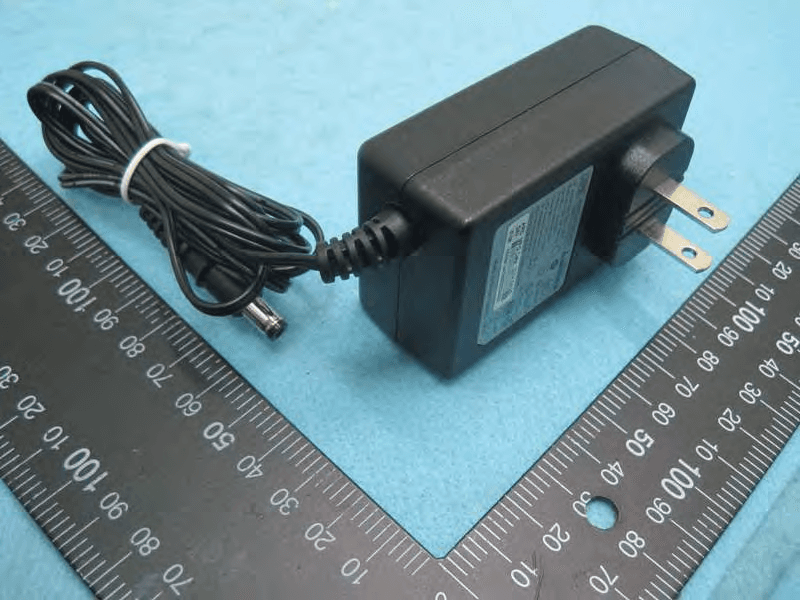
FDI000000028
Mar 15, 2015AirStation
Equipment Class
DTS - Digital Transmission System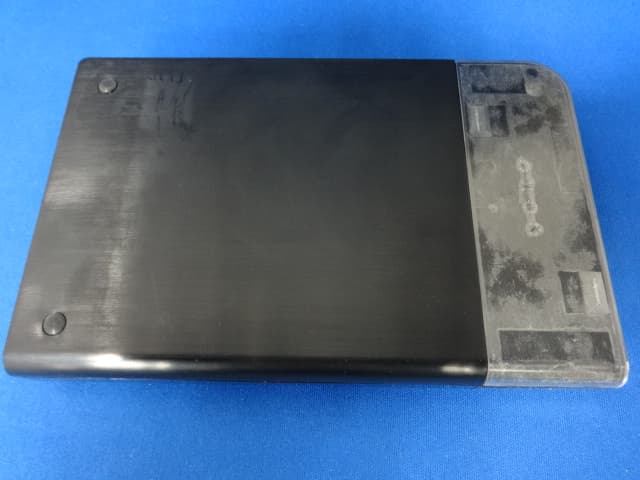
FDI000000027
Jan 22, 2015MiniStation
Equipment Class
DXX - Part 15 Low Power Communication Device Transmitter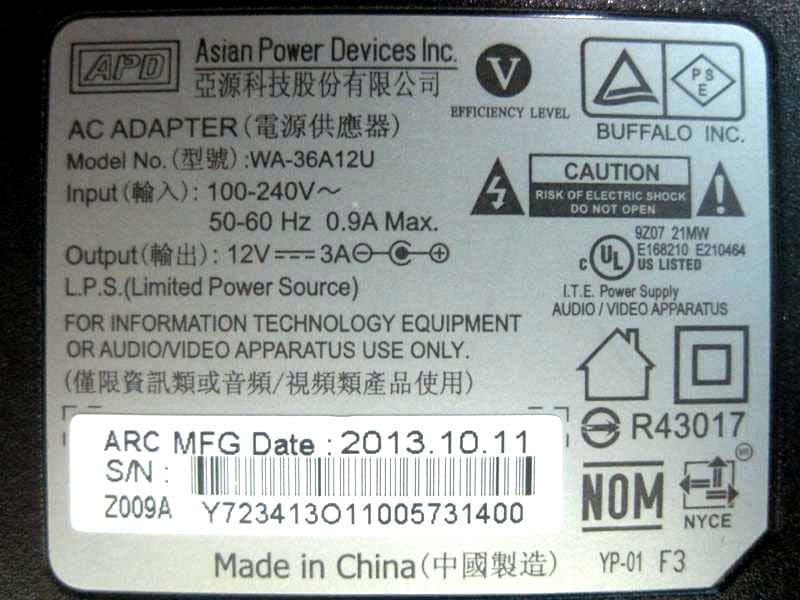
FDI000000022
Oct 12, 2014AirStation
Equipment Class
DTS - Digital Transmission System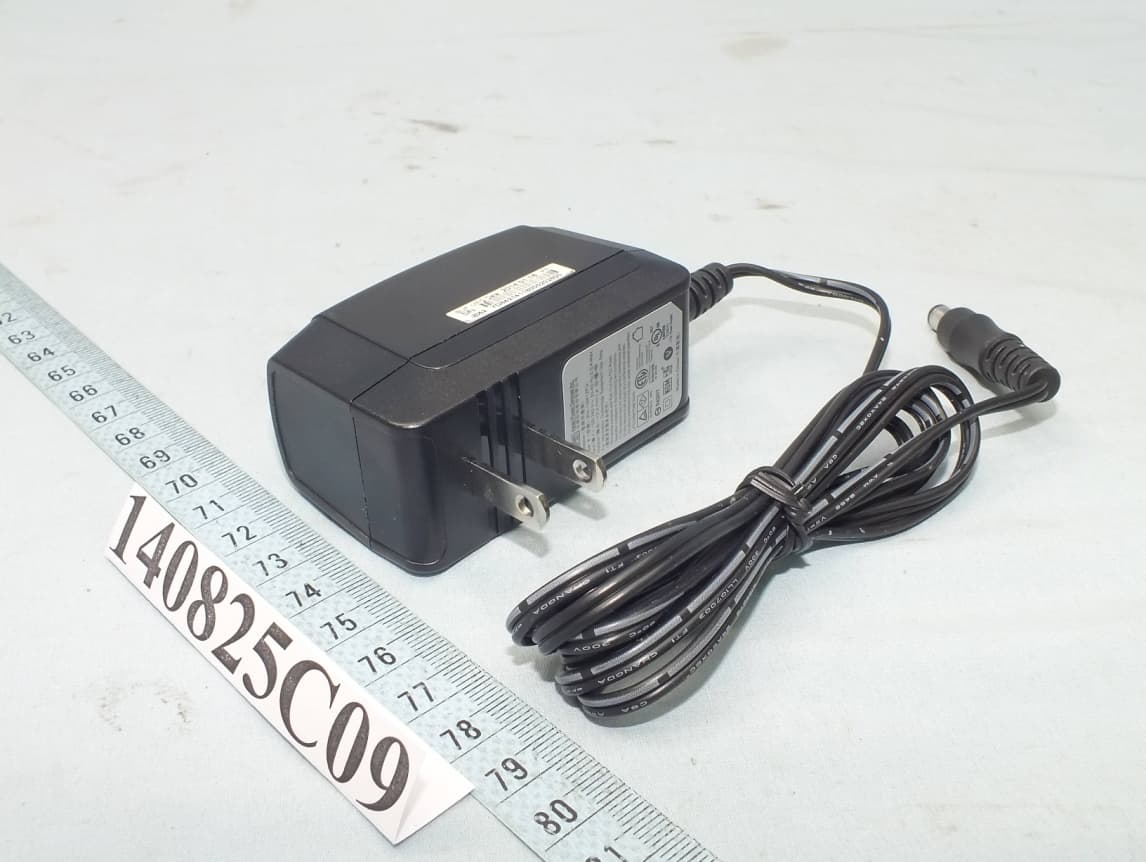
FDI000000026
Oct 01, 2014AirStation
Equipment Class
DTS - Digital Transmission System
FDI000000024
Apr 21, 2014AirStation
Equipment Class
DTS - Digital Transmission System