FKGT7MTablet PC
Twinhead International Corporation
Click to zoom
Application Details
- Equipment Class
- NII - Unlicensed National Information Infrastructure TX
- Date of Grant
- May 24, 2010
- Application Purpose
- Original Equipment
- Date of Application
- May 06, 2010
- Equipment Note
- Tablet PC
- Frequency Range
- 5500.00000000 - 5700.00000000
- Country
- Taiwan
Documents & Files
Document Text
Text extracted from the exhibit documents filed with the FCC. Open a document above to read the original.
Users Manual
1 U U s s e e r r ’ ’ s s M M a a n n u u a a l l ii Table of Contents CHAPTER 1 GETTING STARTED 1 Getting Started ................................................................................... 2 Inventory ............................................................................................. 3 Safety and Maintenance .................................................................... 4 Checklists ........................................................................................... 5 Features .............................................................................................. 6 Where to Look For Information ........................................................ 6 Quick Start .......................................................................................... 7 Loading Windows .............................................................................. 8 Turning off Your Computer ............................................................... 9 CHAPTER 2 GETTING STARTED 10 Hardware and Software ................................................................... 11 Front View ......................................................................................... 12 Right View ......................................................................................... 13 Top View............................................................................................ 14 Bottom View ..................................................................................... 15 LED Indicators .................................................................................. 16 Function Keys .................................................................................. 17 CHAPTER 3 MAKING CONNECTIONS 18 Right Side and Bottom Side Connectors ....................................... 19 Left Side Connectors ....................................................................... 20 Top Side Connectors ....................................................................... 21 CHAPTER 4 POWER MANAGEMENT AND USING SOFTWARE 22 Power Management ......................................................................... 23 When to Replace the Battery .......................................................... 24 Heat Considerations ........................................................................ 25 Using Software ................................................................................. 26 iii APPENDIX A STATEMENTS 27 Statements ........................................................................................ 28 European Notice ............................................................................... 30 Safety Caution .................................................................................. 31 BATTERY CAUTION ......................................................................... 32 REGULATORY INFORMATION........................................................ 32 1 C C h h a a p p t t e e r r 1 1 I I n n t t r r o o d d u u c c t t i i o o n n 2 Getting Started Congratulations on your purchase of this Tablet PC. This Tablet PC is a fully functional PC with built-in wireless Connectivity. With your Tablet PC, you will be able to organize and access important business and personal information. In addition, you will be able to send and receive e-mail and access the Internet. This Manual contains all the information you need to set up and use your Tablet PC. It describes all the features of the Tablet PC in an easy-to-read yet thorough manner. 3 Inventory This Tablet PC is designed for years of productive and pleasurable computing. Use this section to keep details of your purchase. This information will be required should you need to make repairs to your Tablet PC during the warranty period. Update this section when you add new options. DATE OF PURCHASE: PLACE OF PURCHASE: DEALER'S NAME: DEALER'S ADDRESS: TELEPHONE: E-MAIL ADDRESS/WWW: CONTACT PERSON: MODEL NUMBER: SERIAL NUMBER: 4 Safety and Maintenance You can use your Tablet PC under a wide range of environmental conditions. However, to ensure long use and continued high performance, consider the following factors when setting up your Tablet PC: • Follow all warnings and instructions noted in this documentation and in the Windows Help program. • The first time you use your Tablet PC, we recommend that you carefully read the Making Connections section of this manual and initialize the battery to ensure optimum battery performance. • Unplug the Tablet PC from the power outlet before cleaning. Use a damp cloth for cleaning. Do not use aerosols, solvents, or strong detergents. • Slots and openings in the system cabinet are for ventilation purposes. Do not block or cover these openings or the system could overheat. Do not use or store the Tablet PC near a source of heat or dust. • On the bottom of this Tablet PC, there is a label with information on the power requirements of this system. These requirements must be followed. If you are unsure of your local power supply, consult your dealer or local Power Company. • Do not step on or place anything on the power cord. • If you use the Tablet PC with an extension cord, ensure that the total ampere ratings of all the devices sharing the extension do not exceed the rating of the extension cord or the rating of the wall outlet. • Never push foreign objects into the Tablet PC through any of the slots or openings. Dangerous voltages are present, which could cause electric shock or fire, or damage sensitive components. 5 Checklists After opening the package, carefully inspect the contents. If any of the items is missing or appear damaged, contact your dealer. The shipping carton should contain the following: STANDARD • A Tablet PC with a hard disk drive • Two standard battery packs • An AC adapter with power cord • Stylus OPTIONS The following items are normally optional, but some vendors may include them in the standard package. Some items may not …
Text truncated - open the document above for the full version.
Users Manual
1 U U s s e e r r ’ ’ s s M M a a n n u u a a l l ii Table of Contents CHAPTER 1 GETTING STARTED 1 Getting Started ................................................................................... 2 Inventory ............................................................................................. 3 Safety and Maintenance .................................................................... 4 Checklists ........................................................................................... 5 Features .............................................................................................. 6 Where to Look For Information ........................................................ 6 Quick Start .......................................................................................... 7 Loading Windows .............................................................................. 8 Turning off Your Computer ............................................................... 9 CHAPTER 2 GETTING STARTED 11 Hardware and Software ................................................................... 12 Front View ......................................................................................... 13 Right View ......................................................................................... 14 Top View............................................................................................ 15 Bottom View ..................................................................................... 16 LED Indicators .................................................................................. 17 Quick Start Button ........................................................................... 18 Touch Pen ......................................................................................... 19 CHAPTER 3 MAKING CONNECTIONS 20 Right Side and Bottom Side Connectors ....................................... 21 Left Side Connectors ....................................................................... 22 Top Side Connectors ....................................................................... 23 CHAPTER 4 POWER MANAGEMENT AND USING SOFTWARE 24 Power Management ......................................................................... 24 When to Replace the Battery .......................................................... 25 Heat Considerations ........................................................................ 26 Using Software ................................................................................. 27 iii APPENDIX A STATEMENTS 29 Statements ........................................................................................ 30 European Notice ............................................................................... 31 Safety CAUTION ............................................................................... 32 Battery Disposal ............................................................................... 33 CAUTION FOR ADAPTER ................................................................ 33 BATTERY CAUTION ......................................................................... 33 REGULATORY INFORMATION........................................................ 34 1 C C h h a a p p t t e e r r 1 1 I I n n t t r r o o d d u u c c t t i i o o n n 2 Getting Started Congratulations on your purchase of this Tablet PC. This Tablet PC is a fully functional PC with built-in wireless Connectivity. With your Tablet PC, you will be able to organize and access important business and personal information. In addition, you will be able to send and receive e-mail and access the Internet. This Manual contains all the information you need to set up and use your Tablet PC. It describes all the features of the Tablet PC in an easy-to-read yet thorough manner. 3 Inventory This Tablet PC is designed for years of productive and pleasurable computing. Use this section to keep details of your purchase. This information will be required should you need to make repairs to your Tablet PC during the warranty period. Update this section when you add new options. DATE OF PURCHASE: PLACE OF PURCHASE: DEALER'S NAME: DEALER'S ADDRESS: TELEPHONE: E-MAIL ADDRESS/WWW: CONTACT PERSON: MODEL NUMBER: SERIAL NUMBER: 4 Safety and Maintenance You can use your Tablet PC under a wide range of environmental conditions. However, to ensure long use and continued high performance, consider the following factors when setting up your Tablet PC: • Follow all warnings and instructions noted in this documentation and in the Windows Help program. • The first time you use your Tablet PC, we recommend that you carefully read the Making Connections section of this manual and initialize the battery to ensure optimum battery performance. • Unplug the Tablet PC from the power outlet before cleaning. Use a damp cloth for cleaning. Do not use aerosols, solvents, or strong detergents. • Slots and openings in the system cabinet are for ventilation purposes. Do not block or cover these openings or the system could overheat. Do not use or store the Tablet PC near a source of heat or dust. • On the bottom of this Tablet PC, there is a label with information on the power requirements of this system. These requirements must be followed. If you are unsure of your local power supply, consult your dealer or local Power Company. • Do not step on or place anything on the power cord. • If you use the Tablet PC with an extension cord, ensure that the total ampere ratings of all the devices sharing the extension do not exceed the rating of the extension cord or the rating of the wall outlet. • Never push foreign objects into the Tablet PC through any of the slots or openings. Dangerous voltages are present, which could cause electric shock or fire, or damage sensitive components. 5 Checklists After opening the package, carefully inspect the contents. If any of the items is missing or appear damaged, contact your dealer. The shipp…
Text truncated - open the document above for the full version.
Users Manual
U U s s e e r r ’ ’ s s M M a a n n u u a a l l Table Of Contents CHAPTER 1 GETTING STARTED 1 Getting Started ................................................................................... 2 Inventory ............................................................................................. 3 Safety and Maintenance .................................................................... 4 Checklists ........................................................................................... 5 Features .............................................................................................. 6 Where to Look For Information ........................................................ 6 Quick Start .......................................................................................... 7 Loading Windows .............................................................................. 8 Adjusting the Volume and Brightness ............................................. 9 Adjusting the Brightness .................................................................. 9 Turning off Your Computer ............................................................. 10 CHAPTER 2 GETTING STARTED 11 Hardware and Software ................................................................... 12 Top View............................................................................................ 13 Right View ......................................................................................... 14 Front Side View ................................................................................ 15 Left Side View ................................................................................... 15 Button View ..................................................................................... 16 Button View ..................................................................................... 17 Front View Button indicators ......................................................... 18 Function Keys .................................................................................. 19 Touch pen ........................................................................................ 19 CHAPTER 3 MAKING CONNECTIONS 20 Making Connections ........................................................................ 21 CHAPTER 4 SYSTEM SOFTWARE 22 System Software .............................................................................. 23 System Recovery ............................................................................. 23 CHAPTER 5 POWER MANAGEMENT AND USING SOFTWARE 27 Power Management ......................................................................... 28 When to Replace the Battery .......................................................... 29 Heat Considerations ........................................................................ 30 Using Software ................................................................................. 31 APPENDIX A STATEMENTS 38 Statements ........................................................................................ 39 European Notice ............................................................................... 40 Safety CAUTION ............................................................................... 41 Battery Disposal ............................................................................... 42 CAUTION FOR ADAPTER ................................................................ 43 BATTERY CAUTION ......................................................................... 43 REGULATORY INFORMATION(INTEL WIFI) .................................. 44 1 C C h h a a p p t t e e r r 1 1 I I n n t t r r o o d d u u c c t t i i o o n n 2 Getting Started Congratulations on your purchase of this Tablet PC. This Tablet PC is a fully functional PC with built-in wireless Connectivity. With your Tablet PC, you will be able to organize and access important business and personal information. In addition, you will be able to send and receive e-mail and access the Internet. This Manual contains all the information you need to set up and use your Tablet PC. It describes all the features of the Tablet PC in an easy-to-read yet thorough manner. 3 Inventory This Tablet PC is designed for years of productive and pleasurable computing. Use this section to keep details of your purchase. This information will be required should you need to make repairs to your Tablet PC during the warranty period. Update this section when you add new options. DATE OF PURCHASE: PLACE OF PURCHASE: DEALER'S NAME: DEALER'S ADDRESS: TELEPHONE: E-MAIL ADDRESS/WWW: CONTACT PERSON: MODEL NUMBER: SERIAL NUMBER: 4 Safety and Maintenance You can use your Tablet PC under a wide range of environmental conditions. However, to ensure long use and continued high performance, consider the following factors when setting up your Tablet PC: • Follow all warnings and instructions noted in this documentation and in the Windows Help program. • The first time you use your Tablet PC, we recommend that you carefully read the Making Connections section of this manual and initialize the battery to ensure optimum battery performance. • Unplug the Tablet PC from the power outlet before cleaning. Use a damp cloth for cleaning. Do not use aerosols, solvents, or strong detergents. • Slots and openings in the system cabinet are for ventilation purposes. Do not block or cover these openings or the system could overheat. Do not use or store the Tablet PC near a source of heat or dust. • On the bottom of this Tablet PC, there is a label with information on the power requirements of this system. These requirements must be followed. If you are unsure of your local power supply, consult your dealer or local Power Company. • Do not step on or place anything on the power cord. • If you use the Tablet PC with an extension cord, ensure that the total ampere ratings of all the devices sharing the extension do not exceed the rating of th…
Text truncated - open the document above for the full version.
External Photos
Page 1 CONSTRUCTION PHOTOS OF EUT Model: T7MK1 Page 2 Page 3 Model: T7ML1 Page 4 Page 5 Model: T7MD1 Page 6
Operational Description
FCC ID: FKGT7M Report No.: RF981005A05/ -1/-3/-4 OPERATIONAL DESCRIPTION This device is a Tablet PC with built-in WLAN IEEE802.11a/b/g/n card & Bluetooth module. For WLAN IEEE802.11a/b/g/n card: This device operates in the 2.4GHz & 5GHz frequency spectra with throughput of up to 300Mbps which OFDM technique will be applied. If the signal to noise ratio is too poor which could not support 300Mbps, the 11Mbps data rate with DSSS technique will be applied. For Bluetooth: The device is a Frequency Hopping device with 79 hopping frequencies. The device contains a Bluetooth radio module. Bluetooth is a short-range wireless technology operating in the 2.4GHz band. It enables devices to have the ability to form networks and exchange information. The transmitter of the EUT is powered by 19Vdc from the AC adapter or by 7.4Vdc from the battery. The antenna used in this product is PIFA antenna with U.FL connector. The other instruction, please have a look at the users manual.
RF Exposure Info
Report No: SA981005A05-1 1 Report Format Version 3.0.1 RF EXPOSURE REPORT REPORT NO.: SA981005A05-1 MODEL NO.: T7Mxxxxxx, a72xxxx, xTablet ® T7000XXXX, Pacebook RD7 series, FIELDBOOK ACCORDING: FCC Guidelines for Human Exposure IEEE C95.1 APPLICANT : TWINHEAD INTERNATIONAL CORP. ADDRESS : 10F, No. 550, Rueiguang Rd., Neihu Chiu, Taipei, Taiwan 114, R.O.C. ISSUED BY : Bureau Veritas Consumer Products Services (H.K.) Ltd., Taoyuan Branch LAB ADDRESS : No. 47, 14th Ling, Chia Pau Tsuen, Lin Kou Hsiang, Taipei Hsien, 244 Taiwan Report No: SA981005A05-1 2 Report Format Version 3.0.1 Conclusion No Evaluation Required if power is below this threshold: F(GHz) mW Low 2.402 High 2.480 24.58 Maximum measured transmitter power: Pout (dBm) Pout (mW) Conducted Power 3.1 2.0 EIRP Power 2.4 1.7 *Note: The antenna is PIFA Antenna with -0.68dBi gain Threshold for no SAR evaluation is 24.58mW Transmitter power is 2.0mW Conclusion: No SAR evaluation required since Transmitter Pout is below FCC threshold ---END---
RF Exposure Info
31 Date/Time: 2010/2/10 06:39:00 Test Laboratory: Bureau Veritas ADT M28-11a Band4-Ch165 / D1 DUT: Tablet PC ; Type: T7M Communication System: 802.11a ; Frequency: 5825 MHz ; Duty Cycle: 1:1 ; Modulation type: BPSK Medium: MSL5800 Medium parameters used : f = 5825 MHz; σ = 6.1 mho/m; ε r = 49.3; ρ = 1000 kg/m 3 Phantom section: Flat Section ; Separation distance : 0 mm (The back side of the EUT to the Phantom) DASY5 Configuration: • Probe: EX3DV3 - SN3504; ConvF(3.95, 3.95, 3.95); Calibrated: 2010/1/26 • Sensor-Surface: 2mm (Mechanical Surface Detection) • Electronics: DAE3 Sn510; Calibrated: 2009/12/16 • Phantom: Flat Phantom ELI4.0; Type: QDOVA001BA; Serial: 1043 • Measurement SW: DASY5, V5.2 Build 157; SEMCAD X Version 14.0 Build 57 Channel 165/Area Scan (8x27x1): Measurement grid: dx=10mm, dy=10mm Maximum value of SAR (measured) = 0.026 mW/g Channel 165/Zoom Scan (7x7x9)/Cube 0: Measurement grid: dx=4mm, dy=4mm, dz=2.5mm Reference Value = 6.72 V/m; Power Drift = -0.089 dB Peak SAR (extrapolated) = 0.076 W/kg SAR(1 g) = 0.032 mW/g; SAR(10 g) = 0.018 mW/g Maximum value of SAR (measured) = 0.036 mW/g Channel 165/Zoom Scan (7x7x9)/Cube 1: Measurement grid: dx=4mm, dy=4mm, dz=2.5mm Reference Value = 6.72 V/m; Power Drift = -0.089 dB Peak SAR (extrapolated) = 0.076 W/kg SAR(1 g) = 0.031 mW/g; SAR(10 g) = 0.016 mW/g Maximum value of SAR (measured) = 0.035 mW/g 32 Date/Time: 2010/2/10 09:58:42 Test Laboratory: Bureau Veritas ADT M29-11aN 20M Band4-Ch165 / D1 DUT: Tablet PC ; Type: T7M Communication System: 11aN 20MHz ; Frequency: 5825 MHz ; Duty Cycle: 1:1 ; Modulation type: BPSK Medium: MSL5800 Medium parameters used : f = 5825 MHz; σ = 6.1 mho/m; ε r = 49.3; ρ = 1000 kg/m 3 Phantom section: Flat Section ; Separation distance : 0 mm (The back side of the EUT to the Phantom) DASY5 Configuration: • Probe: EX3DV3 - SN3504; ConvF(3.95, 3.95, 3.95); Calibrated: 2010/1/26 • Sensor-Surface: 2mm (Mechanical Surface Detection) • Electronics: DAE3 Sn510; Calibrated: 2009/12/16 • Phantom: Flat Phantom ELI4.0; Type: QDOVA001BA; Serial: 1043 • Measurement SW: DASY5, V5.2 Build 157; SEMCAD X Version 14.0 Build 57 Channel 165/Area Scan (8x27x1): Measurement grid: dx=10mm, dy=10mm Maximum value of SAR (measured) = 0.029 mW/g Channel 165/Zoom Scan (7x7x9)/Cube 0: Measurement grid: dx=4mm, dy=4mm, dz=2.5mm Reference Value = 7.11 V/m; Power Drift = -0.134 dB Peak SAR (extrapolated) = 0.074 W/kg SAR(1 g) = 0.031 mW/g; SAR(10 g) = 0.016 mW/g Maximum value of SAR (measured) = 0.034 mW/g Channel 165/Zoom Scan (7x7x9)/Cube 1: Measurement grid: dx=4mm, dy=4mm, dz=2.5mm Reference Value = 7.11 V/m; Power Drift = -0.134 dB Peak SAR (extrapolated) = 0.077 W/kg SAR(1 g) = 0.032 mW/g; SAR(10 g) = 0.017 mW/g Maximum value of SAR (measured) = 0.037 mW/g 33 Date/Time: 2010/2/10 13:20:43 Test Laboratory: Bureau Veritas ADT M30-11aN 40M-band4-Ch159 / D1 DUT: Tablet PC ; Type: T7M Communication System: 11aN 40MHz ; Frequency: 5795 MHz ; Duty Cycle: 1:1 ; Modulation type: BPSK Medium: MSL5800 Medium parameters used: f = 5795 MHz; σ = 6.06 mho/m; ε r = 49.3; ρ = 1000 kg/m 3 Phantom section: Flat Section ; Separation distance : 0 mm (The back side of the EUT to the Phantom) DASY5 Configuration: • Probe: EX3DV3 - SN3504; ConvF(3.95, 3.95, 3.95); Calibrated: 2010/1/26 • Sensor-Surface: 2mm (Mechanical Surface Detection) • Electronics: DAE3 Sn510; Calibrated: 2009/12/16 • Phantom: Flat Phantom ELI4.0; Type: QDOVA001BA; Serial: 1043 • Measurement SW: DASY5, V5.2 Build 157; SEMCAD X Version 14.0 Build 57 Channel 159/Area Scan (8x27x1): Measurement grid: dx=10mm, dy=10mm Maximum value of SAR (measured) = 0.033 mW/g Channel 159/Zoom Scan (7x7x9)/Cube 0: Measurement grid: dx=4mm, dy=4mm, dz=2.5mm Reference Value = 6.99 V/m; Power Drift = -0.104 dB Peak SAR (extrapolated) = 0.075 W/kg SAR(1 g) = 0.031 mW/g; SAR(10 g) = 0.017 mW/g Maximum value of SAR (measured) = 0.035 mW/g Channel 159/Zoom Scan (7x7x9)/Cube 1: Measurement grid: dx=4mm, dy=4mm, dz=2.5mm Reference Value = 6.99 V/m; Power Drift = -0.104 dB Peak SAR (extrapolated) = 0.074 W/kg SAR(1 g) = 0.030 mW/g; SAR(10 g) = 0.016 mW/g Maximum value of SAR (measured) = 0.034 mW/g 34 Date/Time: 2010/2/10 15:45:17 Test Laboratory: Bureau Veritas ADT M31-11a Band4-Ch165 / K1 DUT: Tablet PC ; Type: T7M Communication System: 802.11a ; Frequency: 5825 MHz ; Duty Cycle: 1:1 ; Modulation type: BPSK Medium: MSL5800 Medium parameters used : f = 5825 MHz; σ = 6.1 mho/m; ε r = 49.3; ρ = 1000 kg/m 3 Phantom section: Flat Section ; Separation distance : 0 mm (The Tip side of the EUT to the Phantom) DASY5 Configuration: • Probe: EX3DV3 - SN3504; ConvF(3.95, 3.95, 3.95); Calibrated: 2010/1/26 • Sensor-Surface: 2mm (Mechanical Surface Detection) • Electronics: DAE3 Sn510; Calibrated: 2009/12/16 • Phantom: Flat Phantom ELI4.0; Type: QDOVA001BA; Serial: 1043 • Measurement SW: DASY5, V5.2 Build 157; SEMCAD X Version 14.0 Build 57 Channel 165/Area Scan (7x27x1): Measurement grid: dx=10mm, dy=10mm Maximum value of SAR (measured) = 0.426 mW/g Channel 165/Zoom Scan (7x7x9)/Cube 0: Measurement grid: dx=4mm, dy=4mm, dz=2.5mm Reference Value = 6.18 V/m; Power Drift = 0.014 dB Peak SAR (extrapolated) = 0.944 W/kg SAR(1 g) = 0.397 mW/g; SAR(10 g) = 0.201 mW/g Maximum value of SAR (measured) = 0.487 mW/g 35 Date/Time: 2010/2/10 22:30:29 Test Laboratory: Bureau Veritas ADT M32-11aN 20M Band4-Ch165 / K1 DUT: Tablet PC ; Type: T7M Communication System: 11aN 20MHz ; Frequency: 5825 MHz ; Duty Cycle: 1:1 ; Modulation type: BPSK Medium: MSL5800 Medium parameters used : f = 5825 MHz; σ = 6.1 mho/m; ε r = 49.3; ρ = 1000 kg/m 3 Phantom section: Flat Section ; Separation distance : 0 mm (The Tip side of the EUT to the Phantom) DASY5 Configuration: • Probe: EX3DV3 - SN3504; ConvF(3.95, 3.95, 3.95); Calibrated: 2010/1/26 • Sensor-Surface: 2mm (Mechanical Surface Detection) • Electronics: DAE3 Sn510; Calibrated: 2009/12/16 • Phantom: Flat Phantom ELI4.0; Type: QDOVA001BA; Serial: 1043 • Measurement SW: DASY5, V5.2 Build 157; SEMCA…
Text truncated - open the document above for the full version.
RF Exposure Info
Report No.: SA981005A05-1 1 Report Format Version 3.0.1 SAR TEST REPORT (15.407) REPORT NO.: SA981005A05-1 MODEL NO.: T7MD1 (refer to item 2.2 for more details) RECEIVED: Oct. 05, 2009 TESTED: Feb. 09 ~ Feb. 12, 2010 ISSUED: Mar. 31, 2010 APPLICANT: TWINHEAD INTERNATIONAL CORP. ADDRESS: 10F, No. 550, Rueiguang Rd., Neihu Chiu, Taipei, Taiwan 114, R.O.C. ISSUED BY: Bureau Veritas Consumer Products Services (H.K.) Ltd., Taoyuan Branch LAB ADDRESS: No. 47, 14th Ling, Chia Pau Tsuen, Lin Kou Hsiang, Taipei Hsien 244, Taiwan, R.O.C. TEST LOCATION: No. 19, Hwa Ya 2nd Rd, Wen Hwa Tsuen, Kwei Shan Hsiang, Taoyuan Hsien 333, Taiwan, R.O.C. This test report consists of 40 pages in total except Appendix. It may be duplicated completely for legal use with the approval of the applicant. It should not be reproduced except in full, without the written approval of our laboratory. The client should not use it to claim product endorsement by TAF or any government agencies. The test results in the report only apply to the tested sample. Report No.: SA981005A05-1 2 Report Format Version 3.0.1 TABLE OF CONTENTS 1. CERTIFICATION ..................................................................................................................3 2. GENERAL INFORMATION ..................................................................................................4 2.1 GENERAL DESCRIPTION OF EUT.....................................................................................4 2.2 GENERAL DESCRIPTION OF APPLIED STANDARDS ......................................................6 2.3 GENERAL INOFRMATION OF THE SAR SYSTEM ............................................................6 2.4 GENERAL DESCRIPTION OF THE SPATIAL PEAK SAR EVALUATION .........................10 3. DESCRIPTION OF SUPPORT UNITS...............................................................................13 4. DESCRIPTION OF TEST MODES AND CONFIGURATIONS ...........................................14 4.1. ENHANCED ENERGY COUPLING AT INCREASED SEPARATION DISTANCES ..........14 5. TEST RESULTS .................................................................................................................15 5.1 TEST PROCEDURES ........................................................................................................15 5.2 MEASURED SAR RESULTS .............................................................................................20 5.3 SAR LIMITS .......................................................................................................................23 5.4 RECIPES FOR TISSUE SIMULATING LIQUIDS ...............................................................24 5.5 TEST EQUIPMENT FOR TISSUE PROPERTY.................................................................34 6. SYSTEM VALIDATION.......................................................................................................35 6.1 TEST EQUIPMENT ............................................................................................................35 6.2 TEST PROCEDURE ..........................................................................................................36 6.3 VALIDATION RESULTS .....................................................................................................38 6.4 SYSTEM VALIDATION UNCERTAINTIES .........................................................................39 7. INFORMATION ON THE TESTING LABORATORIES.......................................................40 APPENDIX A: TEST CONFIGURATIONS AND TEST DATA APPENDIX B: ADT SAR MEASUREMENT SYSTEM APPENDIX C: PHOTOGRAPHS OF SYSTEM VALIDATION APPENDIX D: SYSTEM CERTIFICATE & CALIBRATION Report No.: SA981005A05-1 3 Report Format Version 3.0.1 1. CERTIFICATION PRODUCT: Tablet PC MODEL: T7MD1 (refer to item 2.2 for more details) BRAND NAME: DURABOOK (refer to item 2.2 for more details) APPLICANT: TWINHEAD I…
Text truncated - open the document above for the full version.
Contact Information
Applicant
James Lai(Manager, Systems Engineering Dept)
Technical Contact
Bureau Veritas CPS (H.K.) Ltd. Taoyuan BranchKen Liu
[email protected]886-2-2605-2180
No. 47, 14 Ling, Chia Pau Tsuen, Lin Kou Hsiang, · Linkou, Taipei · Taiwan
Non-Technical Contact
Bureau Veritas CPS (H.K.) Ltd. Taoyuan BranchZoe Chang
[email protected]886-3-3183232
Test Firm
Bureau Veritas CPS (H.K.) Ltd. Taoyuan BranchRichard Chen
Technical Specifications
| # | Rule Parts | Frequency Range | Power Output |
|---|---|---|---|
| 2 | 15E | 5.50 GHz - 5.70 GHz | 18.00 mW |
Other Applications from Twinhead International Corporation
FKGCA10
Feb 04, 2013Tablet PC
Equipment Class
DSS - Part 15 Spread Spectrum Transmitter
FKGTA10I
Dec 06, 2012Tablet PC
Equipment Class
DTS - Digital Transmission System
FKGT7Q
Jun 27, 2012Tablet PC
Equipment Class
DSS - Part 15 Spread Spectrum Transmitter
FKGPN1H
Sep 18, 2011Plug-In PC
Equipment Class
DTS - Digital Transmission System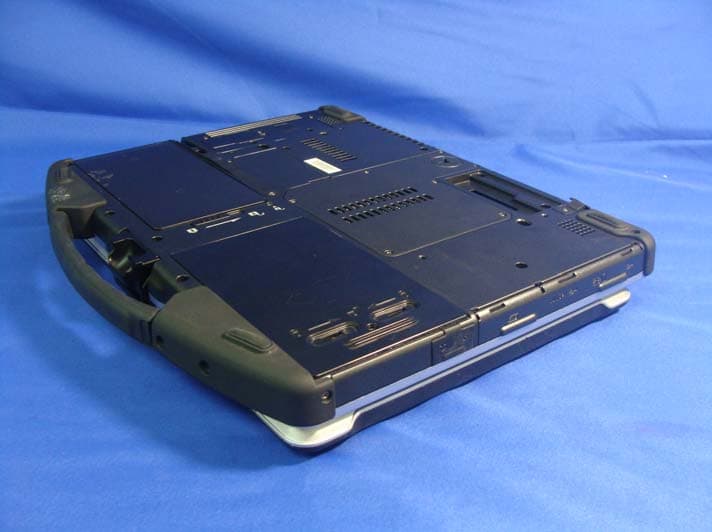
FKGU12C
Nov 03, 2010Notebook PC
Equipment Class
DTS - Digital Transmission System