H9PMC3574EDA (Enterprise Digital Assistant)
Symbol Technologies Inc
Click to zoom
Application Details
- Equipment Class
- DTS - Digital Transmission System
- Date of Grant
- Feb 08, 2007
- Application Purpose
- Original Equipment
- Date of Application
- Dec 10, 2006
- Equipment Note
- EDA (Enterprise Digital Assistant)
- Frequency Range
- 2412.00000000 - 2462.00000000
- Company
- Symbol Technologies Inc
- Country
- United States
Documents & Files
Document Text
Text extracted from the exhibit documents filed with the FCC. Open a document above to read the original.
Users Manual
MC35 Series EDA User Guide MC3504/MC3574 User Guide MC35 Series Enterprise Digital Assistant COPYRIGHT Copyright © 2006. Symbol Technologies Inc. All Rights Reserved. MC35 Series User Guide Original issue: November 2006 Symbol and the Symbol logo are registered trademarks of Symbol Technologies, Inc. Microsoft, ActiveSync, Outlook, Pocket Outlook, Windows, Windows NT, and the Windows logo are either registered trademarks or trademarks of Microsoft Corporation in the United States and/or other countries. Microsoft products are licensed to OEMs by Microsoft Licensing, Inc., a wholly owned subsidiary of Microsoft Corporation. Other company’s product names or trademarks are used herein for identification purpose only and belong to their respective companies. Changes may be made periodically to the information in this publication without obligation to notify any person of such revision or changes. Such changes will be incorporated in new editions of this User Guide or supplementary documents and publications. No part of this publication may be reproduced, stored in a retrieval system, or transmitted, in any form or by any means, electronic, mechanical, photocopy, recording, or otherwise, without the prior written permission of Symbol Technologies. DISCLAIMER AND LIMITATION OF LIABILITY Symbol Technologies and its subsidiaries makes no representations or warranties, either expressed or implied, with respect to the contents hereof and specifically disclaims the implied warranties of merchantability or fitness for a particular purpose. Symbol Technologies and its subsidiaries assume no responsibility for any damage or loss resulting from the use of this MC35 Series User Guide. NOTES Record the serial number, purchase date, and place of purchase information in the space provided below. The serial number is recorded on the label affixed to your device. Cor- respondence concerning your unit should include the serial number and purchase information. MC35 Series (MC3504/MC3574) S/N: _____________________________________ Date of purchase: ____________________________ Place of Purchase: _________________________ About this User Guide iii About this User Guide Thank you for making MC35 your choice for your mobile computing and communication needs. Your new sleek MC35 is a fully integrated PDA-mobile phone device. It combines the power of high-performance PDA applications for organizing personal and work- related information with the functionality of a mobile phone for communication with your contacts and a high-speed GPRS technology, you can connect to the Internet, your corporate networks, and send and receive email while on the go. It also provides high quality Global Positioning System (GPS) solution and features a digital camera for bar code scanning and image capture and flexible voice and data communication with wireless technologies for selected models. Read through this User Guide to help you get up and running quickly with your new Enterprise Digital Assistant (EDA). It describes all you need to know about how to use your new EDA as well as the application programs that came with it. About this User Guide iv v About this User Guideiii 1 First Things First1 Package contents. . . . . . . . . . . . . . . . . . . . . . . . . . . . . . . . . . . . . . . . . . . . . . . . . . . . . . . 1 Preparing to use your MC35 . . . . . . . . . . . . . . . . . . . . . . . . . . . . . . . . . . . . . . . . . . . . . . 1 Installing the battery pack . . . . . . . . . . . . . . . . . . . . . . . . . . . . . . . . . . . . . . . . . . . . 2 Charging the MC35 . . . . . . . . . . . . . . . . . . . . . . . . . . . . . . . . . . . . . . . . . . . . . . . . . 3 Starting up MC35 . . . . . . . . . . . . . . . . . . . . . . . . . . . . . . . . . . . . . . . . . . . . . . . . . . 4 System procedures . . . . . . . . . . . . . . . . . . . . . . . . . . . . . . . . . . . . . . . . . . . . . . . . . . . . . 4 Recalibrating the screen . . . . . . . . . . . . . . . . . . . . . . . . . . . . . . . . . . . . . . . . . . . . . 4 Creating backup files . . . . . . . . . . . . . . . . . . . . . . . . . . . . . . . . . . . . . . . . . . . . . . . . 5 Resetting the device . . . . . . . . . . . . . . . . . . . . . . . . . . . . . . . . . . . . . . . . . . . . . . . . 6 Securing your device . . . . . . . . . . . . . . . . . . . . . . . . . . . . . . . . . . . . . . . . . . . . . . . . 7 2 Getting Started11 Features summary . . . . . . . . . . . . . . . . . . . . . . . . . . . . . . . . . . . . . . . . . . . . . . . . . . . . . 11 Performance . . . . . . . . . . . . . . . . . . . . . . . . . . . . . . . . . . . . . . . . . . . . . . . . . . . . . 11 Display. . . . . . . . . . . . . . . . . . . . . . . . . . . . . . . . . . . . . . . . . . . . . . . . . . . . . . . . . . 11 Audio . . . . . . . . . . . . . . . . . . . . . . . . . . . . . . . . . . . . . . . . . . . . . . . . . . . . . . . . . . . 11 Phone features . . . . . . . . . . . . . . . . . . . . . . . . . . . . . . . . . . . . . . . . . . . . . . . . . . . 11 Connectivity. . . . . . . . . . . . . . . . . . . . . . . . . . . . . . . . . . . . . . . . . . . . . . . . . . . . . . 12 GPS technology . . . . . . . . . . . . . . . . . . . . . . . . . . . . . . . . . . . . . . . . . . . . . . . . . . 12 Battery pack . . . . . . . . . . . . . . . . . . . . . . . . . . . . . . . . . . . . . . . . . . . . . . . . . . . . . 12 Design and ergonomics . . . . . . . . . . . . . . . . . . . . . . . . . . . . . . . . . . . . . . . . . . . . 12 MC35 tour . . . . . . . . . . . . . . . . . . . . . . . . . . . . . . . . . . . . . . . . . . . . . . . . . . . . . . . . . . .13 Front view . . . . . . . . . . . . . . . . . . . . . . . . . . . . . . . . . . . . . . . . . . . . . . . . . . . . . . . 13 Rear view . . . . . . . . . . . . . . . . . . . . . . . . . . . . . . . . . . . . . . . . . . . . . . . . . . . . . . . 16 Left view . . . . . . . . . . . . . . . . . . . . . . . . . . . . . . . . . . . . . . . . . . …
Text truncated - open the document above for the full version.
Users Manual
5 Using The Phone Function Making phone calls 56 Making a call using Microsoft Contacts There are several ways to make a call in Contacts. In this section, only the method using the hardware buttons is described. For instructions on other methods, see page 120. 1 Tap , then Contacts . Contacts opens to the contact list. 2Type a name or number, or move the joystick up or down to scroll through the contact list and select the contact you want to call. 3Press the Send button twice—once to launch Phone and another to make the call. The call will be made to that contact’s priority number. Making a call using Speed Dial Speed Dial is a list you create for numbers you call regularly. Only numbers stored in Microsoft Contacts can be added to this list. To make a call using Speed Dial: You can make a call in two ways: •By memorizing a phone number’s position in the Speed Dial list, you can dial the number by entering its location number. In the picture above, Natasha Lambert is at position 2. To dial her number, tap and hold 2 on the Dialer keypad until you hear a beep. 5 Using The Phone Function Making phone calls 57 If a number holds a position of 10 or higher tap the first number, and then tap and hold the second to dial. For instance, to call the number in position 12, tap 1 then tap and hold 2. •Alternatively, if you don’t remember the position of a number in the Speed Dial list follow the steps below: (a)Tap Speed Dial . (b)On the Speed Dial window, press the joystick to go through the list to find the number you want to call. (c)Once the number is selected, you can either press the joystick or the Send button to initiate the call. Making a call using Call History Call History is a record of all incoming, outgoing, and missed calls. 1 Tap Call History . 2Find the number you want to call. You can select a call category—All Calls, Missed, Outgoing, Incoming, and By Caller—by tapping the pick list in the top-left corner of the screen. 3Once the number has been selected, make the call by doing any of the following: •Press the joystick. •Press the Send button . Tap to adjust voice mail settings. Tap to edit contact details. Tap to add a contact to the Speed Dial list. Tap a Speed Dial number to call that contact. 5 Using The Phone Function Making phone calls 58 •Tap the category icon on the left of the selected number. Making a call using SIM Manager SIM Manager is a program you can use to view and manage the contents of your SIM card. 1 Tap , then Settings. 2On the System tab, tap SIM Manager . Wait for the SIM card contents to load. 3Select the number you want to call. 4Once the number has been selected, make the call by doing any of the following: •Press the joystick. •Press the Send button. •Tap and hold the selected number, then select Call from the pop-up menu. Tap a category icon to call the number opposite it. 5 Using The Phone Function Making phone calls 59 Making a call from a Bluetooth-enabled headset You can use a Bluetooth-enabled headset with your device when you create a partnership between your device and the headset. 1 Make sure that the two devices are turned on, discoverable, and within close range. 2Tap , then Settings. 3On the Connections tab, tap Bluetooth . 4On the Devices tab, tap Add new device. Your device will search for other Bluetooth devices and displays them in the device list. 5Tap the name of the Bluetooth-enabled hands-free device in the list, then tap Next. 6If you want to use a passcode, enter the alphanumeric passcode for the Bluetooth- enabled hands-free device, then tap Next. You can find the passcode in the manufacturer’s documentation for your hands-free device. 7Tap Finish. 8Select the check box for the Hands Free service, and tap Finish. Making an International call For making a call to an overseas number that is not stored either in your SIM card or on your device, follow the steps below. 1 Tap and hold the 0 key until the ‘+’ sign appears. ‘‘+’ replaces the international number prefix ‘00’. 2Enter the full phone number you want to dial. It includes the country code, area code (without the leading zero), and phone number. 3Tap Talk or press the Send button. Making an emergency call MC35 supports the international emergency number 112, and for US/Canada residents, the emergency number 911 as well. You can call these numbers for emergency police, fire, and medical assistance. 5 Using The Phone Function Phone features 60 NOTE:In some cases, additional local emergency numbers may be provided by your mobile phone service provider. Generally, you can make a call to these emergency numbers, with or without a SIM card installed on your device, as long as a mobile phone service network is available in your area. However, some mobile phone service providers may require that a SIM card is inserted, and in some cases that the PIN has been entered as well, before an emergency call can be made. Contact your mobile service provider for the requirements applicable to your mobile subscription. To make an emergency call: 1 Dial the emergency number by using Dialer. •For international emergency calls, dial 112. •For US/Canada emergency calls, dial 911. 2Tap Talk or press the Send button. Phone features Flexibility is a hallmark of your device’s phone function. This is best exemplified in such features as Call Notification, Call Hold and Conference Call, which allows you to attend to more than one call simultaneously—all with a simple tap of your stylus. Variety is another hallmark of your device’s phone function. This is implemented in such range of features as Call Notes, text/email messaging, Voice Mail, and Contacts Integration. NOTE:The availability of some of the phone features described in this section may depend on your mobile service subscription. Contact your mobile service provider for information. Call notification and identification The Call Notification feature lets you know if another person is trying to call you when you are talking on the phone. When this…
Text truncated - open the document above for the full version.
Users Manual
8 Microsoft Pocket Outlook Calendar 116 NOTE:You can customize the Calendar display, such as changing the first day of the week, by tapping Menu, then Options. Scheduling an appointment You can use Calendar to create an appointment schedule. To create an appointment 1 If you are in Day or Week view, tap the desired date and time for the appointment. 2Tap Menu, then New Appointment. 3Using the soft keyboard, enter a description and a location. To select a field, tap it. 4If needed, tap the date and time to change them. 5Enter other desired information. Hide the input panel to see all available fields. 6To add notes, tap the Notes tab. You can enter text, draw, or create a recording. 7After completing the details, tap OK. If you select “Remind me” in an appointment, your device reminds you according to the options set in , Settings, Personal tab, Sounds & Notifications . Viewing an appointment You can view an appointment schedule in all views except for Year and Agenda view. •To see the details of an appointment, tap the appointment. •To see a pop-up menu of available actions for an appointment, tap and hold the appointment. •In Agenda view, upcoming appointments are displayed in bold text. •In Month view, the time of appointments are indicated by symbols. An upward triangle means a morning appointment; a downward triangle means an afternoon appointment. A solid square indicates an appointment that overlaps the noon day border. Notes is a good place for maps, directions, or meeting reminders. Tap to choose a previously entered location. Tap to select a time. Tap to choose from a predefined text. Tap to select a date. 8 Microsoft Pocket Outlook Calendar 117 Finding an appointment There are two ways to find an appointment: •Tap , Programs, then Search , enter the appointment name, select Calendar for the type, then tap Search. •In Calendar, tap Menu, Filter, All Appointments, then select the check box opposite the type of appointment you want displayed. Beaming an appointment You can send an appointment to another IR or Bluetooth-enabled device by beaming it. 1 In Agenda, Day or Month view, tap and hold the appointment. 2Tap Menu, then Beam Appointment on the pop-up menu. 3Do either one of the following: •Select a Bluetooth-enabled device, then tap the Tap to send link. •Align the IR port of your device with that of the other IR-enabled device so that they are unobstructed and within close range, then select the IR-enabled device and tap the Tap to send link. Using the Calendar summary screen When you tap an appointment in Agenda or Day view, a summary screen is displayed. To change the appointment, tap Edit. Creating a meeting request You can use Calendar to set up meetings with users of Outlook or Pocket Outlook. The meeting request is created automatically and is sent when you synchronize Inbox or when you connect to your email server. Indicate how you want meeting requests sent by tapping Menu, then Options. To schedule a meeting: 1 Create an appointment. 2In the appointment details, hide the input panel, then tap Attendees. 3Select the check box before the email address of the contacts you want to send a meeting request to. 4Tap OK twice—once to return to the appointment details page and another to save the appointment. The meeting request is created automatically and placed in the Outbox folder. 5Tap OK. 8 Microsoft Pocket Outlook Contacts 118 Contacts Keeping track of friends and colleagues Contacts maintains a list of your friends’ and colleagues’ contact information. Using your device’s infrared (IR) port, you can quickly share this list with other Windows-based, IR- enabled device users. To open Contacts: Do either of the following: •On the Today screen, press the right soft button or tap Contacts. •Tap , then Contacts . Contacts opens to the contact list. To change the way information is displayed in the list, tap Menu, then Options. Creating a contact 1 Tap New. Enter the name of the contact you’re searching for. Tap to create a new contact. Tap one of the letter blocks to display only contact names starting with such letters. Tap a field to enter contact information. Notes is a good place for additional contact information. Scroll to see more fields. Tap to return to the Contacts list (the new contact is saved automatically). 8 Microsoft Pocket Outlook Contacts 119 2Using the soft keyboard, enter a name and other contact information. Scroll down to see all available fields. 3To assign the contact to a category, scroll down, tap Categories, then select a category from the list. 4In the contact list, you can display contacts by category by tapping the pick list on the top-left corner of the screen. 5To add notes, tap the Notes tab. 6After completing the details, tap OK. Finding a contact There are several ways to find a contact. You can do any of the following. In the contact list: •Using the QWERTY keypad, press the starting letter of the contact name •Tap one of the letter blocks displayed across the top of the screen. •Use the Smart Lookup function by entering the first few letters of the contact you’re looking for in the search box under the navigation bar. To show all contacts again, clear text from the box or tap the button to the right of the box. •Tap the category pick list on the top-left corner of the screen and select the type of contact that you want displayed. •To show all contacts, tap Menu, Filter, then All Contacts. •To view a contact that is not assigned to a category, tap Menu, Filter, then No Categories. •To view the names of companies your contacts work for, in the command bar, tap View By, then Company. The number of contacts that work for that company displays to the right of the company name. •Tap , Programs, then Search , enter the contact name, select Contacts for the type, then tap the Go button. Using the Contacts summary screen When you tap a contact in the contact list (or select it using the joystick), a summary screen displays. This is referred to as…
Text truncated - open the document above for the full version.
Cover Letter(s)
November 8, 2006 Federal Communications Commission Authorization and Evaluation Division 7435 Oakland Mills Road Columbia , Maryland 21046 Subject: Short-term confidentiality request regarding application for certification of FCC ID: H9PMC3574 To whom it may concern: Pursuant to DA 04-1705 of the Commission’s public notice, we request short- term confidential treatment for the following information until 45 days after the Grant Date of Equipment Authorization in order to ensure sensitive business information remains confidential until the actual marketing of the device: • External Photos • Test Setup Photos • User’s Manual • Internal Photos Sincerely ----------------------------------------- Alan Mears, Regulatory Engineer Symbol Technologies, Inc. TEL:631-738-5941 FAX:631-738-5520 [email protected]
Cover Letter(s)
FCC Declaration.doc General Declaration To whom it may concern: We, Symbol Technologies, Inc. declare that the device does not have “Ad Hoc on non-US frequency’ while applying for the following product. Type designation: Pocket PC Phone Trademark: Symbol Model: MC3574 If you have any questions regarding the authorization, please don’t hesitate to contact us. Thank you! Sincerely yours, Alan Mears, Regulatory Engineer Symbol Technologies, Inc. TEL:631 738 5941 FAX:631 738 5520 [email protected]
Cover Letter(s)
FCC Confidentiality_long term.doc FCC ID: H9PMC3574 Federal Communications Commission Authorization and Evaluation Division Confidentiality Request Pursuant to Sections 0.457 and 0.459 of the Commission’s Rules, the Applicant hereby requests confidential treatment of information accompanying this Application as outlined below: Bom Block Diagram Schematics Tune up procedure Operation Description The above materials contain trade secrets and proprietary information not customarily released to the public. The public disclosure of these matters might be harmful to the Applicant and provide unjustified benefits to its competitors. The Applicant understands that pursuant to Rule 0.457, disclosure of this Application and all accompanying documentation will not be made before the date of the Grant for this application. Sincerely ----------------------------------------- Alan Mears, Regulatory Engineer Symbol Technologies, Inc. TEL:631-738-5941 FAX:631-738-5520 [email protected]
Cover Letter(s)
FCC POA.doc Authorization Letter To whom it may concern: We, the undersigned, Symbol Technologies, Inc. hereby authorize Advance Data Technology Corp. (ADT) of Taiwan to act on our behalf, as our agent, in the following matters related to the FCC approval of our products: report submittal, related correspondence, the signing of all documents relating to these matters, and any other lawful activity necessary to obtain such certification. Any act carried out by ADT within the scope of this authorization shall have the same effects as our own. This authorization is limited to the Symbol Technologies Enterprise Digital Assistant, Model : MC3574 . If you have any questions regarding the authorization, please don’t hesitate to contact us. Thank you! Sincerely ----------------------------------------- Alan Mears, Regulatory Engineer Symbol Technologies, Inc. TEL:631-738-5941 FAX:631-738-5520 [email protected]
External Photos
Page 1 CONSTRUCTION PHOTOS OF EUT Without CCD Page 2 Page 3 With CCD Page 4 Page 5
ID Label/Location Info
Label location Model: MC3574
ID Label/Location Info
Model No.: MC3574 IMEI: XXXXXXXXXXXXXXX P/N: XXXXXX-XXXXXXXXXXX (S) S/N: XXXXXXXXXXXXXXX MFD: 07OCT05 5 V / 2 A MADE IN PHILIPPINES MODEL NO.: PART NAME: A/W NO.: SCALE: UNIT : SHEET OF DRAWN:REVIEWED: APPROVED: REVDESCRIPTIONSIGN DATE 1 : 1 mm 1 1 1 : 1 mm 1 1 1. MATERIAL: POLYESTER,THICKNESS= 0.075MM 2. COLOR: BACKGROUND----WHITE LETTERS-----------BLACK 3. ADHESIVE: SPEC REFER TO ES-811-R06, SONY 303 OR TOYO DF2700MR OR EQUIV 4. FINISH: PRINT FRONT SIDE 5. PRINT TOLERANCE OF DIMENSION: +0.3mm/-0.3mm 6. PRINTER TYPE: THERMAL TRANSFER LABEL PRINTER (WEBER 80 OR FARGO PRODIGY), SPEC REFER TO ED-715-F09 7. FACTORY INDENTIFICATION OF CSA MUST BE PRINTED SP310 (MC35) 40.17C14.001 MFG LBL _MC3574 M0VG00 Benny Chen 11/08/2006 FCC ID: H9PMC3574 IC: 1549D-MC3574 0168
Internal Photos
Page 6 Without CCD Page 7 Page 8 Page 9 Page 10 Page 11 Page 12 Page 13 Page 14 Page 15
Internal Photos
Page 16 Page 17 Page 18 Page 19 Page 20 Page 21 Page 22 Page 23 Page 24 Page 25 Page 26 Page 27 Page 28 With CCD Page 29
RF Exposure Info
1 APPENDIX A: TEST DATA Liquid Level Photo Tissue HSL835MHz D=150mm Tissue MSL835MHz D=152mm 2 Tissue HSL1900MHz D=155mm Tissue MSL1900MHz D=150mm 3 Tissue HSL2450MHz D=151mm Tissue MSL2450MHz D=155mm 4 Tissue HSL2450MHz D=151mm 5 Date/Time: 2006/11/8 10:48:34 Test Laboratory: Advance Data Technology Right Head-Cheek-GSM850-Ch128-Mode 1 DUT: Pocket PC Phone ; Type: MC3574 ; Test Frequency: 824.2 MHz Communication System: PCS 850 ; Frequency: 824.2 MHz ; Duty Cycle: 1:8.3 Medium: HSL835 Medium parameters used: f = 824.2 MHz; σ = 0.9 mho/m; ε r = 42.9; ρ = 1000 kg/m 3 ; Liquid level: 150 mm Phantom section: Right Section ; DUT test position : Cheek ; Modulation type: GMSK Antenna type : Internal Antenna ; Air temp. : 22.3 degrees ; Liquid temp. : 21.4 degrees DASY4 Configuration: - Probe: EX3DV4 - SN3578 ; ConvF(8.38, 8.38, 8.38) ; Calibrated: 2006/3/20 - Sensor-Surface: 4mm (Mechanical Surface Detection) - Electronics: DAE3 Sn579; Calibrated: 2006/3/15 - Phantom: SAM 12; Type: SAM V4.0; Serial: TP 1202 - Measurement SW: DASY4, V4.7 Build 44; Postprocessing SW: SEMCAD, V1.8 Build 171 Touch position - Low Channel 128/Area Scan (7x11x1): Measurement grid: dx=15mm, dy=15mm Maximum value of SAR (measured) = 0.141 mW/g Touch position - Low Channel 128/Zoom Scan (7x7x7) (7x7x7)/Cube 0: Measurement grid: dx=5mm, dy=5mm, dz=5mm Reference Value = 11.3 V/m Peak SAR (extrapolated) = 0.217 W/kg SAR(1 g) = 0.128 mW/g; SAR(10 g) = 0.088 mW/g Maximum value of SAR (measured) = 0.139 mW/g Touch position - Low Channel 128/Zoom Scan (7x7x7) (7x7x7)/Cube 1: Measurement grid: dx=5mm, dy=5mm, dz=5mm Reference Value = 11.3 V/m Peak SAR (extrapolated) = 0.183 W/kg SAR(1 g) = 0.136 mW/g; SAR(10 g) = 0.101 mW/g Maximum value of SAR (measured) = 0.143 mW/g 6 Date/Time: 2006/11/8 11:28:27 Test Laboratory: Advance Data Technology Right Head-Cheek-GSM850-Ch190-Mode 1 DUT: Pocket PC Phone ; Type: MC3574 ; Test Frequency: 836.6 MHz Communication System: PCS 850 ; Frequency: 836.6 MHz ; Duty Cycle: 1:8.3 Medium: HSL835 Medium parameters used: f = 836.6 MHz; σ = 0.92 mho/m; ε r = 42.6; ρ = 1000 kg/m 3 ; Liquid level: 150 mm Phantom section: Right Section ; DUT test position : Cheek ; Modulation type: GMSK Antenna type : Internal Antenna ; Air temp. : 22.3 degrees ; Liquid temp. : 21.4 degrees DASY4 Configuration: - Probe: EX3DV4 - SN3578 ; ConvF(8.38, 8.38, 8.38) ; Calibrated: 2006/3/20 - Sensor-Surface: 4mm (Mechanical Surface Detection) - Electronics: DAE3 Sn579; Calibrated: 2006/3/15 - Phantom: SAM 12; Type: SAM V4.0; Serial: TP 1202 - Measurement SW: DASY4, V4.7 Build 44; Postprocessing SW: SEMCAD, V1.8 Build 171 Touch position - Mid Channel 190/Area Scan (7x11x1): Measurement grid: dx=15mm, dy=15mm Maximum value of SAR (measured) = 0.244 mW/g Touch position - Mid Channel 190/Zoom Scan (7x7x7) (7x7x7)/Cube 0: Measurement grid: dx=5mm, dy=5mm, dz=5mm Reference Value = 14.4 V/m Peak SAR (extrapolated) = 0.360 W/kg SAR(1 g) = 0.220 mW/g; SAR(10 g) = 0.150 mW/g Maximum value of SAR (measured) = 0.241 mW/g Touch position - Mid Channel 190/Zoom Scan (7x7x7) (7x7x7)/Cube 1: Measurement grid: dx=5mm, dy=5mm, dz=5mm Reference Value = 14.4 V/m Peak SAR (extrapolated) = 0.325 W/kg SAR(1 g) = 0.235 mW/g; SAR(10 g) = 0.174 mW/g Maximum value of SAR (measured) = 0.249 mW/g 7 Date/Time: 2006/11/8 12:01:17 Test Laboratory: Advance Data Technology Right Head-Cheek-GSM850-Ch251-Mode 1 DUT: Pocket PC Phone ; Type: MC3574 ; Test Frequency: 848.8 MHz Communication System: PCS 850 ; Frequency: 848.8 MHz ; Duty Cycle: 1:8.3 Medium: HSL835 Medium parameters used: f = 848.8 MHz; σ = 0.93 mho/m; ε r = 42.4; ρ = 1000 kg/m 3 ; Liquid level: 150 mm Phantom section: Right Section ; DUT test position : Cheek ; Modulation type: GMSK Antenna type : Internal Antenna ; Air temp. : 22.3 degrees ; Liquid temp. : 21.4 degrees DASY4 Configuration: - Probe: EX3DV4 - SN3578 ; ConvF(8.38, 8.38, 8.38) ; Calibrated: 2006/3/20 - Sensor-Surface: 4mm (Mechanical Surface Detection) - Electronics: DAE3 Sn579; Calibrated: 2006/3/15 - Phantom: SAM 12; Type: SAM V4.0; Serial: TP 1202 - Measurement SW: DASY4, V4.7 Build 44; Postprocessing SW: SEMCAD, V1.8 Build 171 Touch position - High Channel 251/Area Scan (7x11x1): Measurement grid: dx=15mm, dy=15mm Maximum value of SAR (measured) = 0.384 mW/g Touch position - High Channel 251/Zoom Scan (7x7x7) (7x7x7)/Cube 0: Measurement grid: dx=5mm, dy=5mm, dz=5mm Reference Value = 17.8 V/m Peak SAR (extrapolated) = 0.486 W/kg SAR(1 g) = 0.366 mW/g; SAR(10 g) = 0.272 mW/g Maximum value of SAR (measured) = 0.386 mW/g Touch position - High Channel 251/Zoom Scan (7x7x7) (7x7x7)/Cube 1: Measurement grid: dx=5mm, dy=5mm, dz=5mm Reference Value = 17.8 V/m Peak SAR (extrapolated) = 0.560 W/kg SAR(1 g) = 0.341 mW/g; SAR(10 g) = 0.234 mW/g Maximum value of SAR (measured) = 0.371 mW/g 8 Date/Time: 2006/11/8 13:25:49 Test Laboratory: Advance Data Technology Right Head-Tilt-GSM850-Ch128-Mode 2 DUT: Pocket PC Phone ; Type: MC3574 ; Test Frequency: 824.2 MHz Communication System: PCS 850 ; Frequency: 824.2 MHz; Duty Cycle: 1:8.3 Medium: HSL835 Medium parameters used: f = 824.2 MHz; σ = 0.9 mho/m; ε r = 42.9; ρ = 1000 kg/m 3 ; Liquid level: 150 mm Phantom section: Right Section ; DUT test position : Tilt ; Modulation type: GMSK Antenna type : Internal Antenna ; Air temp. : 22.3 degrees ; Liquid temp. : 21.4 degrees DASY4 Configuration: - Probe: EX3DV4 - SN3578 ; ConvF(8.38, 8.38, 8.38) ; Calibrated: 2006/3/20 - Sensor-Surface: 4mm (Mechanical Surface Detection) - Electronics: DAE3 Sn579; Calibrated: 2006/3/15 - Phantom: SAM 12; Type: SAM V4.0; Serial: TP 1202 - Measurement SW: DASY4, V4.7 Build 44; Postprocessing SW: SEMCAD, V1.8 Build 171 Tilt position - Low Channel 128/Area Scan (7x11x1): Measurement grid: dx=15mm, dy=15mm Maximum value of SAR (measured) = 0.114 mW/g Tilt position - Low Channel 128/Zoom Scan (7x7x7) (7x7x7)/Cube 0: Measurement grid: dx=5mm, dy=5mm, dz=5mm Reference Value = 9.6 V/m Peak SAR (extrapolated) = 0.191 W/kg SAR(1 g) =…
Text truncated - open the document above for the full version.
RF Exposure Info
B - 1 APPENDIX B: ADT SAR MEASUREMENT SYSTEM C - 1 APPENDIX C: PHOTOGRAPHS OF SYSTEM VALIDATION APPENDIX D: SYSTEM CERTIFICATE & CALIBRATION D1: SAM PHANTOM D2: DOSIMETRIC E-FIELD PROBE D3: DAE
RF Exposure Info
D4: SYSTEM VALIDATION DIPOLE
RF Exposure Info
Report No.: SA951016L20 1 Report Format Version 2.0.5 SAR TEST REPORT REPORT NO.: SA951016L20 MODEL NO.: MC3574 RECEIVED: Oct. 16, 2006 TESTED: Nov. 08 ~ 17, 2006 ISSUED: Nov. 28, 2006 APPLICANT: Symbol Technologies, Inc. ADDRESS: One Symbol Plaza, Holtsville, NY 11742, U.S.A. ISSUED BY: Advance Data Technology Corporation LAB ADDRESS: No. 47, 14th Ling, Chia Pau Tsuen, Lin Kou Hsiang 244, Taipei Hsien, Taiwan, R.O.C. TEST LOCATION: No. 19, Hwa Ya 2 nd Rd., Wen Hwa Tsuen, Kwei Shan Hsiang, Taoyuan Hsien 333, Taiwan, R.O.C. This test report consists of 67 pages in total except Appendix. It may be duplicated completely for legal use with the approval of the applicant. It should not be reproduced except in full, without the written approval of our laboratory. The client should not use it to claim product endorsement by CNLA, A2LA or any government agencies. The test results in the report only apply to the tested sample. Report No.: SA951016L20 2 Report Format Version 2.0.5 TABLE OF CONTENTS 1. CERTIFICATION..................................................................................................................3 2. GENERAL INFORMATION...................................................................................................4 2.1 GENERAL DESCRIPTION OF EUT.............................................................................4 2.2 GENERAL DESCRIPTION OF APPLIED STANDARDS...............................................6 2.3 GENERA…
Text truncated - open the document above for the full version.
Contact Information
Applicant
Qianlin Zhou(Regulatory Specialist)
Technical Contact
Advance Data Technology Corporation (Hwa Ya)Gary Chang
[email protected]886-3-3183232
No. 19, Hwa Ya 2nd Rd., Kwei Shan Hsiang · Taoyuan Hsien · Taiwan
Non-Technical Contact
Advance Data Technology CorporationEllis Wu
[email protected]886-3-3183232
Test Firm
Bureau Veritas CPS (H.K.) Ltd. Taoyuan BranchRichard Chen
Technical Specifications
| # | Rule Parts | Frequency Range | Power Output |
|---|---|---|---|
| 1 | 15C | 2.41 GHz - 2.46 GHz | 38.00 mW |
Other Applications from Symbol Technologies Inc

H9PCCHUB1
Jun 30, 2015Customer Concierge
Equipment Class
NII - Unlicensed National Information Infrastructure TX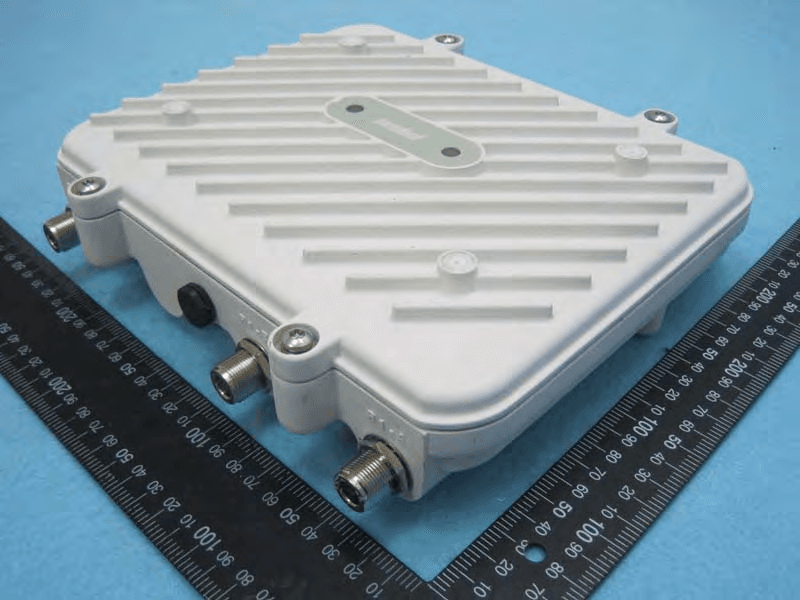
H9PAP7562
May 10, 2015802.11 abgn/ac Access Point
Equipment Class
DTS - Digital Transmission System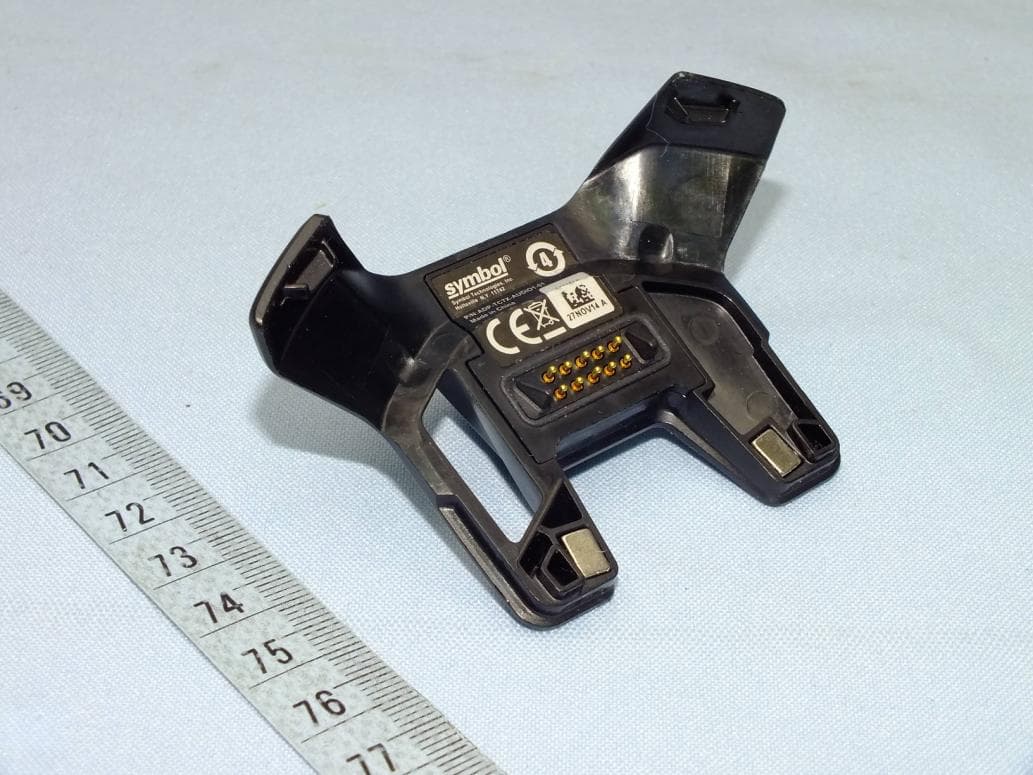
H9PTC75AH
Mar 26, 2015Touch Computer
Equipment Class
NII - Unlicensed National Information Infrastructure TX
H9PRA1202
Sep 24, 2014UHF Narrowband Radio Module
Equipment Class
TNB - Licensed Non-Broadcast Station Transmitter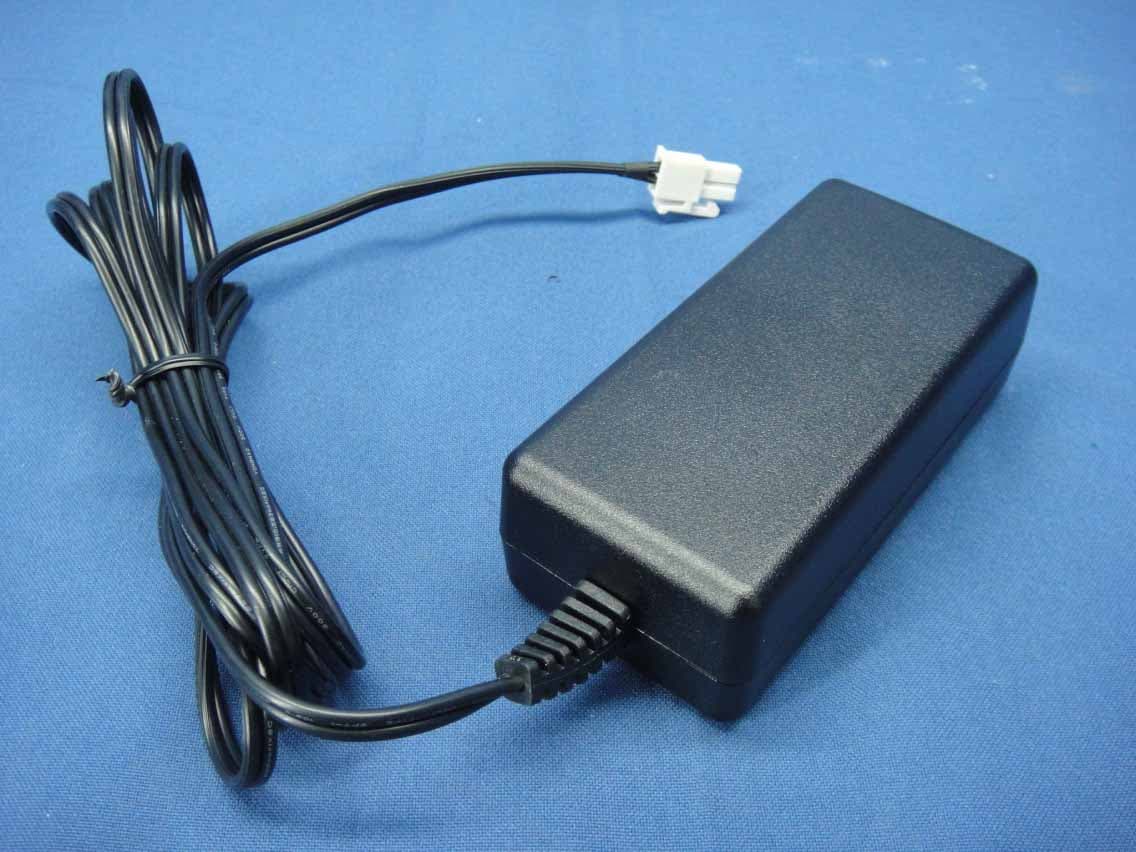
H9PEMG101
Aug 26, 2014802.15.4 Gateway
Equipment Class
DTS - Digital Transmission System