H9PMC5574AEDA (Enterprise Digital Assistant)
Symbol Technologies Inc
Click to zoom
Application Details
- Equipment Class
- DSS - Part 15 Spread Spectrum Transmitter
- Date of Grant
- Feb 18, 2009
- Application Purpose
- Original Equipment
- Date of Application
- Dec 01, 2008
- Equipment Note
- EDA (Enterprise Digital Assistant)
- Frequency Range
- 2400.00000000 - 2483.50000000
- Company
- Symbol Technologies Inc
- Country
- United States
Documents & Files
Document Text
Text extracted from the exhibit documents filed with the FCC. Open a document above to read the original.
Users Manual
Motorola reserves the right to make changes to any product to improve reliability, function, or design. Motorola does not assume any product liability arising out of, or in connection with, the application or use of any product, circuit, or application described herein. No license is granted, either expressly or by implication, estoppel, or otherwise under any patent right or patent, covering or relating to any combination, system, apparatus, machine, material, method, or process in which Motorola products might be used. An implied license exists only for equipment, circuits, and subsystems contained in Motorola products. Warranty For the complete Motorola hardware product warranty statement, go to: http:// www.symbol.com/warranty. Patents This product is covered by one or more patents. For patent information go to: http://www.symbol.com/patents. Service Information If you have a problem using the equipment, contact your facility’s Technical or Systems Support. If there is a problem with the equipment, they will contact the Motorola Enterprise Mobility Support at: http://www.symbol.com/ contactsupport. For the latest version of this guide go to: http://www.symbol.com/manuals. Motorola, Inc. One Motorola Plaza Holtsville, New York 11742, USA 1-800-927-9626 http://www.symbol.com MOTOROLA and the Stylized M Logo and Symbol and the Symbol logo are registered in the U.S. Patent and Trademark Office. All other product or service names are the property of their respective owners. © Motorola, Inc. 2008 72-10108860-01 Revision 1 — March 2008 Regulatory Guide MC55 Windows Mobile ® 6 Regulatory Information This device is approved under the Symbol Technologies brand; Symbol Technologies, Inc., is the Enterprise Mobility business of Motorola, Inc. (“Motorola”). All Symbol devices are designed to be compliant with rules and regulations in locations they are sold and will be labeled as required. Any changes or modifications to Symbol equipment, not expressly approved by Symbol, could void the user's authority to operate the equipment. Declared maximum operating temperature: 50°C. This guide is available in local languages, translations can be downloaded from the following website:http://www.symbol.com/support/. UL Listed Products with GPS Underwriters Laboratories Inc. (UL) has not tested the performance or reliability of the Global Positioning System (GPS) hardware, operating software or other aspects of this product. UL has only tested for fire, shock or casualties as outlined in UL’s Standard(s) for Safety for Information Technology Equipment, UL60950-1. UL Certification does not cover the performance or reliability of the GPS hardware and GPS operating software. UL MAKES NO REPRESENTATIONS, WARRANTIES OR ERTIFICATIONS WHATSOEVER REGARDING THE PERFORMANCE OR RELIABILITY OF ANY GPS RELATED FUNCTIONS OF THIS PRODUCT. Bluetooth ® Wireless Technology This is an approved Bluetooth product. For more information or to view the End Product Listing, please visit http://www.bluetooth.org/tpg/ listings.cfm. Wireless Devices Country Approvals Regulatory markings, subject to certification, are applied to the device signifying the radio(s) are approved for use in the following countries: United States, Canada, Japan, S. Korea, Australia, and Europe 1 . Please refer to the Motorola / Symbol Declaration of Conformity (DoC) for details of other country markings. This is available at http:// www2.symbol.com/doc/. Note 1: Europe includes Austria, Belgium, Bulgaria, Czech Republic, Cyprus, Denmark, Estonia, Finland, France, Germany, Greece, Hungary, Iceland, Ireland, Italy, Latvia, Liechtenstein, Lithuania, Luxembourg, Malta, Netherlands, Norway, Poland, Portugal, Romania, Slovak Republic, Slovenia, Spain, Sweden, Switzerland and the United Kingdom. Country Roaming This device incorporates the International Roaming feature (IEEE802.11d) which will ensure the product operates on the correct channels for the particular country of use. Ad-Hoc Operation Ad-Hoc operation is limited to Channels 36-48 (5150-5250 MHz). Use of this band is restricted to Indoor Use Only, any other use will make the operation of this device illegal. Frequency of Operation – FCC and IC 5 GHz Only The use in the UNII (Unlicensed National Information Infrastructure) band 1 5150-5250 MHz band is restricted to Indoor Use Only; any other use will make the operation of this device illegal. 2.4 GHz Only The available channels for 802.11 b/g operation in the US are Channels 1 to 11. The range of channels is limited by firmware. Health and Safety Recommendations Ergonomic Recommendations •Reduce or eliminate repetitive motion •Maintain a neutral postures •Reduce or eliminate excessive force •Keep objects that are used frequently within easy reach •Perform tasks at correct heights •Reduce or eliminate vibration •Reduce or eliminate direct pressure •Provide adjustable workstations •Provide adequate clearance •Provide a suitable working environment •Improve work procedures CAUTIONOnly use Motorola approved and UL Listed accessories, battery packs and battery chargers. Do NOT attempt to charge damp/wet mobile computers or batteries. All components must be dry before connecting to an external power source. CAUTIONIn order to avoid or minimize the potential risk of ergonomic injury follow the recommendations below. Consult with your local Health & Safety Manager to ensure that you are adhering to your company’s safety programs to prevent employee injury. •Alternate hands whenever possible when performing a repetitive task. Vehicle Installation RF signals may affect improperly installed or inadequately shielded electronic systems in motor vehicles (including safety systems). Check with the manufacturer or its representative regarding your vehicle. You should also consult the manufacturer of any equipment that has been added to your vehicle. An air bag inflates with great force. DO NOT place objects, including either installed or portable wireless equipment, in th…
Text truncated - open the document above for the full version.
Users Manual
MC75 Poster BLACK PANTONE 285 24hr* 6 11 5 8 1 2 3 7 4 (Note 1) 9 10 12 7 3 4 3 1 2 3 4 3 2 5 1 2 3 4 3 5 7 2 6 8 8 6 10 9 10 18 17 15 13 14 20 16 19 21 9 1 2 3 4 3 5 2 Create a Partnership 4-Slot Cradle Insert the Battery Charge the MC55 Install ActiveSync ® Communicate with Host 1-Slot Cradle Slow Blinking Amber = Charging Charging/Battery Status LED Solid Amber = Fully Charged * It is recommended that this product be charged for 24 hours before the first use to ensure that the internal battery is fully charged. Fast Blinking Amber = Charging Error 1 Scan/Action Button 2 Up/Down Button 3 Microphone 4 Power Button 5 I/O Connector 6 Keypad 7 Scan/Action Button 8 Touch Screen (with screen protector) 9 Scan/Decode LED 10 Charging/Battery Status LED 11 Radio Status LED 12 Phone Speaker 13 Battery Pack 14 Battery Latch 15 Speaker 16 Camera Flash 17 Camera 18 Exit Window (see Data Capture Options) 19 Scan/Action Button 20 Action Button 21 Stylus 1 Talk 2 Navigation 3 Soft Key 4 Scan/Action Button 5 End 6 Orange Key 7 Backlight 8 Blue Key 9 OK 10 Start Menu 4-Slot Battery Charger Blue Key Use this key to launch applications and select items (shown on the keypad in blue). > Press the key once to activate this mode followed by another key. Orange Key Use this key to access the secondary layer of characters and actions. > Press the key once to lock the keypad in the Alpha state. > Press the key a second time to return to the normal state. Note 1: To reset the MC55, press and hold the Power button for five (5) seconds. FEATURES PHONE SETUP COMMUNICATION GETTING STARTED - BATTERY INSTALLATION Notifications Charging LED: GSM Status/Notification LED: Flashing orange: Battery charging Solid orange: Charging complete Fast flashing green: GSM activity Solid green: Voice call in progress Flashing red: System notification Numeric Keypad Alpha-Numeric Keypad PIM Keypad CHARGING SIM Card Installation 1. Remove battery pack. 2. Slide SIM card holder to the left. 3. Lift card holder. 4. Insert SIM card into SIM holder. NOTE : The proper position of the SIM card—the card connector (i.e., gold area) should be facing outward with the bevelled corner facing away. 5. Lower the SIM card holder down. 6. Slide SIM card holder to the right to lock into place. 7. Reinstall battery pack. Enter Your PIN After installing the SIM card activate your mobile service connection. In most cases, SIM cards are preset with a PIN (Personal Identity Number), provided by your service provider. 1. Press the Power button to turn on the MC55. 2. Tap Start > Phone. 3. Enter the PIN from your service provider. 4. Tap Enter. Turn On the Phone Function 1. Launch the Wireless Manager application. • On the Today screen, tap the Wireless Manager icon. or • On the Today screen, tap the signal icon and select Wireless Manager. 2. On the Wireless Manager screen, tap Phone to turn on the phone function. The signal icon changes indicating the MC55 is searching for a mobile connection. This may take a few seconds. The signal icon changes to and to once a mobile connection is established. Turn Off the Phone Function 1. Launch the Wireless Manager application. • On the Today screen, tap the Wireless Manager icon. or • On the Today screen, tap the signal icon and select Wireless Manager. 2. On the Wireless Manager screen, tap Phone to turn off phone function. MC55 Quick Start Guide Remove the Battery 1 Download ActiveSync ® 4.5 or higher from http://www.microsoft.com and follow the instructions to install ActiveSync onto the host computer. Follow the on-screen ActiveSync instructions to establish a connection between the MC55 and the host computer. PRELIMINARY
Users Manual
MC75 PosterMC75 Poster BLACK PANTONE 285 Motorola, Inc. One Motorola Plaza Holtsville, New York 11742-1300, USA 012345012345012345012345012345012345012345012345012345012345 012345 012345012345012345012345012345012345012345012345012345012345012345 012345012345012345012345012345012345012345012345012345012345012345 012345012345012345012345012345012345012345012345012345012345 012345 012345012345012345012345012345012345012345012345012345012345012345 012345012345012345012345012345012345012345012345012345012345 012345 Laser Scanning AVOID EXTREME WRIST ANGLES GPS Information Screen Protector Vehicle Cradle Motorola recommends the use of a screen protector to minimize wear and tear. Screen protectors enhance the usability and durability of touch screen displays. Benefits include: • Protection from scratches and gouges • Durable writing and touch surface with tactile feel • Abrasion and chemical resistance • Glare reduction • Keeping the device’s screen looking like new • Quick and easy installation. An initial screen protector is already applied to your MC55. Contact your local account manager or Motorola, Inc. for more information and purchasing details. Part number: KT-67525-01R Screen Protector 3/pk. Not using a screen protector can affect your warranty coverage. MC55 Quick Start Guide MOTOROLA and the Stylized M Logo and Symbol and the Symbol logo are registered in the U.S. Patent and Trademark Office. All other product or service names are the property of their respective owners. © Motorola, Inc. 2008 72-108862-01 Rev. 1 — June 2008 • Acquiring satellite signals may take a few minutes. It is best to be outside and have a clear, unobstructed view of the sky. • Without a clear view, acquisition takes much longer and could result in the MC55 being unable to compute the initial position quickly. • Obtain a satellite fix before moving. • Shutdown GPS application when not in use. When using the GPS feature of the MC55: AVOID EXTREME WRIST ANGLES DATA CAPTURE OPTIONS http://www.motorola.com/MC55 MicroSD Card Installation ACCESSORIES Auto Charge Cable USB/Charge Cable Four-slot Battery Charger Single-slot USB Cradle Vehicle Holder Four-slot Charge Only Cradle Imaging Camera Decode Camera Photo 1. Launch a bar code reading application on the MC55. 2. Point the MC55 toward the bar code. 3. Press the Scan button. 4. In the image window align the red taget over the bar code. When the MC55 decodes the bar code the taget turns green. 5. Release the Scan button. 1 2 3 4 5 More Information on the MC55 Visit the Motorola Web site at http://www.motorola.com/MC55 Setting up, using and troubleshooting the MC55 MC55 User Guide MC55 Integrator Guide Available at: http://www.motorola.com/MC55 Additional Software Check Motorola web site for approved applications. http://www.motorola.com/MC55 Connecting and synchronizing with the host computer ActiveSync ® Help on the host computer. To view help, start ActiveSync ® , Click Help - Microsoft ActiveSync Help. Information on using programs on the MC55 Tap Start – Help within the specific program. Service and Warranty MC55 Regulatory Guide 1. Remove battery pack. 2. Slide SIM card holder to the left. 3. Lift card holder. 4. Lift microSD card holder. 5. Insert microSD card into card holder. NOTE : The proper position of the microSD card—the card connector (i.e., gold area) should be facing inward. 6. Close the microSD card holder. 7. Close the SIM card holder. 8. Slide the SIM card holder to the right to lock into place. 9. Reinstall battery pack. Exit Window Laser scanner or Imager PRELIMINARY
Users Manual
MC55 Enterprise Digital Assistant User Guide DRAFT DRAFT MC55 Enterprise Digital Assistant User Guide 72E-108859-01 Rev. 060608 June 2008 DRAFT iiMC55 User Guide © 2008 by Motorola, Inc. All rights reserved. No part of this publication may be reproduced or used in any form, or by any electrical or mechanical means, without permission in writing from Motorola. This includes electronic or mechanical means, such as photocopying, recording, or information storage and retrieval systems. The material in this manual is subject to change without notice. The software is provided strictly on an “as is” basis. All software, including firmware, furnished to the user is on a licensed basis. Motorola grants to the user a non-transferable and non-exclusive license to use each software or firmware program delivered hereunder (licensed program). Except as noted below, such license may not be assigned, sublicensed, or otherwise transferred by the user without prior written consent of Motorola. No right to copy a licensed program in whole or in part is granted, except as permitted under copyright law. The user shall not modify, merge, or incorporate any form or portion of a licensed program with other program material, create a derivative work from a licensed program, or use a licensed program in a network without written permission from Motorola. The user agrees to maintain Motorola’s copyright notice on the licensed programs delivered hereunder, and to include the same on any authorized copies it makes, in whole or in part. The user agrees not to decompile, disassemble, decode, or reverse engineer any licensed program delivered to the user or any portion thereof. Motorola reserves the right to make changes to any software or product to improve reliability, function, or design. Motorola does not assume any product liability arising out of, or in connection with, the application or use of any product, circuit, or application described herein. No license is granted, either expressly or by implication, estoppel, or otherwise under any Motorola, Inc., intellectual property rights. An implied license only exists for equipment, circuits, and subsystems contained in Motorola products. MOTOROLA and the Stylized M Logo and Symbol and the Symbol logo are registered in the US Patent & Trademark Office. Bluetooth is a registered trademark of Bluetooth SIG. Microsoft, Windows and ActiveSync are either registered trademarks or trademarks of Microsoft Corporation. All other product or service names are the property of their respective owners. Motorola, Inc. One Motorola Plaza Holtsville, New York 11742-1300 http://www.motorola.com Patents This product is covered by one or more of the patents listed on the website: www.symbol.com/patents. DRAFT iii Revision History Changes to the original manual are listed below: ChangeDateDescription -01 Rev 0605086/5/08Beta release. DRAFT ivMC55 User Guide DRAFT Table of Content Patents.................................................................................................................................................. ii Revision History .................................................................................................................................... iii About This Guide Introduction ........................................................................................................................................... 7 Documentation Set 7 Configurations....................................................................................................................................... 8 Software Versions 8 Chapter Descriptions ............................................................................................................................ 11 Notational Conventions......................................................................................................................... 11 Related Documents .............................................................................................................................. 11 Service Information ............................................................................................................................... 12 Chapter 1: Getting Started Introduction .......................................................................................................................................... 1-1 Unpacking ............................................................................................................................................ 1-2 Accessories ......................................................................................................................................... 1-4 Getting Started ..................................................................................................................................... 1-5 Installing the SIM Card ................................................................................................................... 1-5 Installing the Main Battery .............................................................................................................. 1-6 Charging the Battery ...................................................................................................................... 1-7 Charging the Main Battery and Memory Backup Battery ......................................................... 1-7 Charging Spare Batteries ......................................................................................................... 1-8 Charging Temperature ............................................................................................................. 1-8 Powering On the MC55 .................................................................................................................. 1-9 Calibrating the Screen ................................................................................................................... 1-9 Checking Battery Status ............................…
Text truncated - open the document above for the full version.
Users Manual
Chapter 2 Using the MC55 Introduction This chapter explains the buttons, status icons, and controls on the MC55, and provides basic instructions for using the MC55, including powering on and resetting the MC55, and entering and capturing data. Today Screen The Today screen displays important information, such as upcoming appointments and status indicators. Tap a section on the screen to open the associated program. Alternatively, tap Start > Today to display the Today screen. Figure 2-1 To d a y S c r e e n To customize the Today screen, tap Start > Settings > Today icon. Use the Appearance tab to customize the background and the Items tab to change the list and order of items that appear on the screen. Open the Start Menu Adjust volume Change the date and time Soft Keys Battery Status Command Bar WAN Signal Strength Turn on or off radios Change the date and time, set up the alarm, and more BTExplorer Wireless Applications Notification Connectivity DRAFT 2 - 2MC55 User Guide Status Icons The Navigation bar at the top of the screen can contain the status icons listed in Table 2-1. Table 2-1 Status Icons IconFunctionDescription NotificationBackup Battery Low. Notification that one or more instant messages were received. Notification that one or more e-mail/text messages were received. Notification that one or more voice messages were received. There are more notification icons than can be displayed. Tap to display remaining icons. Indicates a reminder of an upcoming calendar event. ConnectivityConnection is active. Connection is not active. Synchronization is occurring. Wi-Fi available. Wi-Fi in use. GPRS available. (MC5504 and MC5574) GPRS connecting. (MC5504 and MC5574) EGPRS available. (MC5504 and MC5574) EGPRS connecting. (MC5504 and MC5574) WANCall missed. Dialing while no SIM card is installed. Voice call in progress. Calls are forwarded. Call on hold. DRAFT Using the MC552 - 3 The command bar at the bottom of the screen can contain the task tray icons listed in Table 2-2. WAN (Continued)Speakerphone is on. Antenna/signal icon: wireless on/good signal. Antenna/signal icon: wireless off. Antenna/signal icon: no service or searching. GPRS in use. (MC5504 and MC5574) EGPRS in use. (MC5504 and MC5574) Roaming. SIM Card not installed. SpeakerAll sounds are on. All sounds are off. Vibrate is on. BatteryMain battery is charging. Battery power completely depleted. Main battery is low. Main battery level. Time and Next Appointment Displays current time in analog or digital format. Table 2-2 Task Tray Icons IconDescription Wireless connection status Indicates WLAN signal strength. Bluetooth EnabledBluetooth radio is on. Bluetooth DisabledBluetooth radio is off. Bluetooth ConnectionBluetooth radio is connected to another Bluetooth device. ActiveSyncActive serial connection between the MC55 and the host computer. Table 2-1 Status Icons (Continued) IconFunctionDescription DRAFT 2 - 4MC55 User Guide Programs Table 2-3 lists the default programs on the Start menu. Table 2-3 Programs in the Start Menu IconNameDescription Office Mobile Use the complete suite of Microsoft ® Office applications for your mobile device. Excel Mobile - Create new workbooks or view and edit Microsoft ® Excel ® workbooks. OneNote Mobile - Create new notes or view existing notes. PowerPoint Mobile - View Microsoft ® PowerPoint ® slides and presentations. Word Mobile - Create, view, and edit Microsoft ® Word documents. CalendarKeep track of appointments and create meeting requests. ContactsKeep track of friends and colleagues. Internet Explorer Mobile Browse Web and WAP sites as well as download new programs and files from the Internet. MessagingSend and receive e-mail, MMS, and text messages. PhoneMake and receive calls, switch between calls, and set up conference calling. HelpSee Help topics for the current screen or program. DRAFT Using the MC552 - 5 Table 2-4 lists programs that are listed in the Programs window. Table 2-4 Programs in Program Window IconNameDescription ActiveSyncSynchronize information between the MC55 and a host computer or the Exchange Server. AirBEAMAllows specially designed software packages to be transferred between a host server and the MC55. Refer to the MC55 Integrator Guide for more information. BTExplorerManages Bluetooth connections. CalculatorPerform basic arithmetic and calculations, such as addition, subtraction, multiplication, and division. Get GoodLink to download Good Mobile Messaging software. File ExplorerOrganize and manage files on your device. Internet SharingConnect a notebook computer to the Internet using the MC55's data connection. MessengerUse this mobile version of Windows Live Messenger. MSP AgentInteracts with MSP agents to collect monitoring and asset information to enable the configuration, provisioning, monitoring and troubleshooting of the MC55. Refer to the MC55 Integrator Guide for more information. NotesCreate handwritten or typed notes, drawings, and voice recordings. Pictures & VideosView and manage pictures, animated GIFs, and video files. Rapid DeploymentFacilitates software downloads from a Mobility Services Platform Console FTP server to the MC55. Refer to the MC55 Integrator Guide for more information. Remote DesktopLog onto Windows NT server type computers and use all of the programs that are available on that computer from the MC55. DRAFT 2 - 6MC55 User Guide Settings Table 2-5 lists control applications pre installed on the MC55. Tap Start > Settings to open the Settings window. SearchSearch contacts, data, and other information on your MC55. SIM ToolkitManage the contacts that are stored on your SIM card. Copy SIM contents to Contacts on the MC55. TasksKeep track of your tasks. Windows LiveUse this mobile version of Windows Live™ to find information on the web. Windows Media Player Mobile Play back audio and video files. Table 2-4 Programs in Program Window (Continued) IconNameDescription Table 2-5 Settings in the Setting Window IconNameDescription Personal…
Text truncated - open the document above for the full version.
External Photos
Photographs of EUT Report No.: EP8O2811 Model Name: MC5574 EUT with 1D Scanner and Numeric Keypad SPORTON INTERNATIONAL INC. Page Number : 1 of 63 TEL : 886-3-327-3456 Issued Date : Dec. 01, 2008 FAX : 886-3-328-4978 Report Version : Rev. 01 1. External Photographs of EUT Photographs of EUT Report No.: EP8O2811 Model Name: MC5574 EUT with 1D Scanner and Numeric Keypad SPORTON INTERNATIONAL INC. Page Number : 2 of 63 TEL : 886-3-327-3456 Issued Date : Dec. 01, 2008 FAX : 886-3-328-4978 Report Version : Rev. 01 Photographs of EUT Report No.: EP8O2811 Model Name: MC5574 EUT with 1D Scanner and Numeric Keypad SPORTON INTERNATIONAL INC. Page Number : 3 of 63 TEL : 886-3-327-3456 Issued Date : Dec. 01, 2008 FAX : 886-3-328-4978 Report Version : Rev. 01 Photographs of EUT Report No.: EP8O2811 Model Name: MC5574 EUT with 1D Scanner and Numeric Keypad SPORTON INTERNATIONAL INC. Page Number : 4 of 63 TEL : 886-3-327-3456 Issued Date : Dec. 01, 2008 FAX : 886-3-328-4978 Report Version : Rev. 01 Photographs of EUT Report No.: EP8O2811 Model Name: MC5574 EUT with 1D Scanner and Numeric Keypad SPORTON INTERNATIONAL INC. Page Number : 5 of 63 TEL : 886-3-327-3456 Issued Date : Dec. 01, 2008 FAX : 886-3-328-4978 Report Version : Rev. 01 Photographs of EUT Report No.: EP8O2811 Model Name: MC5574 EUT with 1D Scanner and Numeric Keypad SPORTON INTERNATIONAL INC. Page Number : 6 of 63 TEL : 886-3-327-3456 Issued Date : Dec. 01, 2008 FAX : 886-3-328-4978 Report Version : Rev. 01 Photographs of EUT Report No.: EP8O2811 Model Name: MC5574 EUT with 2D Scanner and QWERTY Keypad SPORTON INTERNATIONAL INC. Page Number : 7 of 63 TEL : 886-3-327-3456 Issued Date : Dec. 01, 2008 FAX : 886-3-328-4978 Report Version : Rev. 01 Photographs of EUT Report No.: EP8O2811 Model Name: MC5574 EUT with 2D Scanner and QWERTY Keypad SPORTON INTERNATIONAL INC. Page Number : 8 of 63 TEL : 886-3-327-3456 Issued Date : Dec. 01, 2008 FAX : 886-3-328-4978 Report Version : Rev. 01 Photographs of EUT Report No.: EP8O2811 Model Name: MC5574 EUT with 2D Scanner and QWERTY Keypad SPORTON INTERNATIONAL INC. Page Number : 9 of 63 TEL : 886-3-327-3456 Issued Date : Dec. 01, 2008 FAX : 886-3-328-4978 Report Version : Rev. 01 Photographs of EUT Report No.: EP8O2811 Model Name: MC5574 EUT with 2D Scanner and QWERTY Keypad SPORTON INTERNATIONAL INC. Page Number : 10 of 63 TEL : 886-3-327-3456 Issued Date : Dec. 01, 2008 FAX : 886-3-328-4978 Report Version : Rev. 01 Photographs of EUT Report No.: EP8O2811 Model Name: MC5574 EUT with 2D Scanner and QWERTY Keypad SPORTON INTERNATIONAL INC. Page Number : 11 of 63 TEL : 886-3-327-3456 Issued Date : Dec. 01, 2008 FAX : 886-3-328-4978 Report Version : Rev. 01 Photographs of EUT Report No.: EP8O2811 Model Name: MC5574 EUT with 2D Scanner and QWERTY Keypad SPORTON INTERNATIONAL INC. Page Number : 12 of 63 TEL : 886-3-327-3456 Issued Date : Dec. 01, 2008 FAX : 886-3-328-4978 Report Version : Rev. 01 Photographs of EUT Report No.: EP8O2811 Model Name: MC5574 Battery 1 SPORTON INTERNATIONAL INC. Page Number : 13 of 63 TEL : 886-3-327-3456 Issued Date : Dec. 01, 2008 FAX : 886-3-328-4978 Report Version : Rev. 01 2. Photographs of Accessories Photographs of EUT Report No.: EP8O2811 Model Name: MC5574 Battery 1 SPORTON INTERNATIONAL INC. Page Number : 14 of 63 TEL : 886-3-327-3456 Issued Date : Dec. 01, 2008 FAX : 886-3-328-4978 Report Version : Rev. 01 Photographs of EUT Report No.: EP8O2811 Model Name: MC5574 Battery 2 SPORTON INTERNATIONAL INC. Page Number : 15 of 63 TEL : 886-3-327-3456 Issued Date : Dec. 01, 2008 FAX : 886-3-328-4978 Report Version : Rev. 01 Photographs of EUT Report No.: EP8O2811 Model Name: MC5574 Battery 2 SPORTON INTERNATIONAL INC. Page Number : 16 of 63 TEL : 886-3-327-3456 Issued Date : Dec. 01, 2008 FAX : 886-3-328-4978 Report Version : Rev. 01 Photographs of EUT Report No.: EP8O2811 Model Name: MC5574 SPORTON INTERNATIONAL INC. Page Number : 17 of 63 TEL : 886-3-327-3456 Issued Date : Dec. 01, 2008 FAX : 886-3-328-4978 Report Version : Rev. 01 Photographs of EUT Report No.: EP8O2811 Model Name: MC5574 SPORTON INTERNATIONAL INC. Page Number : 18 of 63 TEL : 886-3-327-3456 Issued Date : Dec. 01, 2008 FAX : 886-3-328-4978 Report Version : Rev. 01 Photographs of EUT Report No.: EP8O2811 Model Name: MC5574 SPORTON INTERNATIONAL INC. Page Number : 19 of 63 TEL : 886-3-327-3456 Issued Date : Dec. 01, 2008 FAX : 886-3-328-4978 Report Version : Rev. 01 Photographs of EUT Report No.: EP8O2811 Model Name: MC5574 SPORTON INTERNATIONAL INC. Page Number : 20 of 63 TEL : 886-3-327-3456 Issued Date : Dec. 01, 2008 FAX : 886-3-328-4978 Report Version : Rev. 01 Photographs of EUT Report No.: EP8O2811 Model Name: MC5574 SPORTON INTERNATIONAL INC. Page Number : 21 of 63 TEL : 886-3-327-345…
Text truncated - open the document above for the full version.
Contact Information
Applicant
Qianlin Zhou(Regulatory Specialist)
Technical Contact
Sporton International Inc.Jones Tsai
[email protected],[email protected]886-3-327-3456
No.52, HwaYa 1st Rd., Kwei-Shan Hsiang, · Tauyuan Hsien, · Taiwan
Non-Technical Contact
Sporton International Inc.Jones Tsai
[email protected],[email protected]886-3-327-3456
Test Firm
Sporton International Inc.Alex Chen
Technical Specifications
| # | Rule Parts | Frequency Range | Power Output | Tolerance |
|---|---|---|---|---|
| 1 | 15C | 2.40 GHz - 2.48 GHz | 3.00 mW | 2.5000000000 ppm |
Other Applications from Symbol Technologies Inc

H9PCCHUB1
Jun 30, 2015Customer Concierge
Equipment Class
NII - Unlicensed National Information Infrastructure TX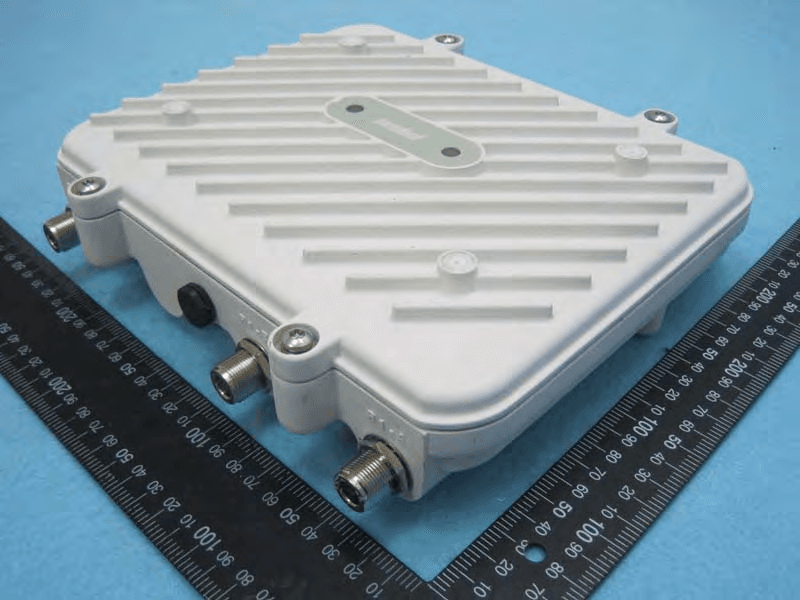
H9PAP7562
May 10, 2015802.11 abgn/ac Access Point
Equipment Class
DTS - Digital Transmission System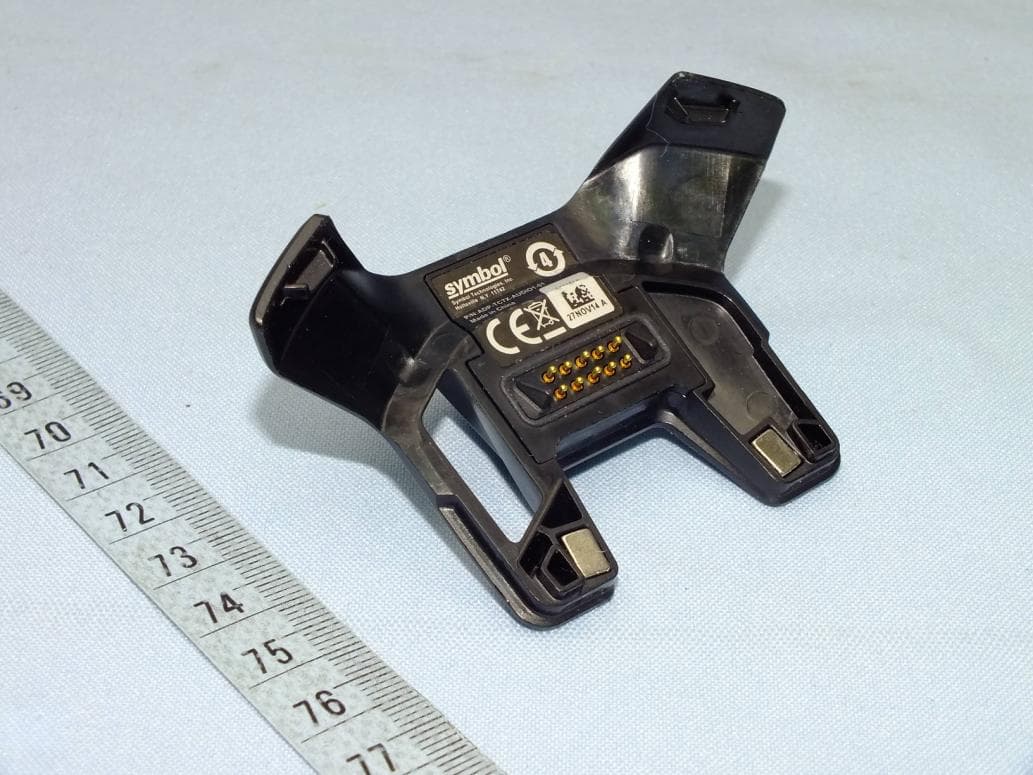
H9PTC75AH
Mar 26, 2015Touch Computer
Equipment Class
NII - Unlicensed National Information Infrastructure TX
H9PRA1202
Sep 24, 2014UHF Narrowband Radio Module
Equipment Class
TNB - Licensed Non-Broadcast Station Transmitter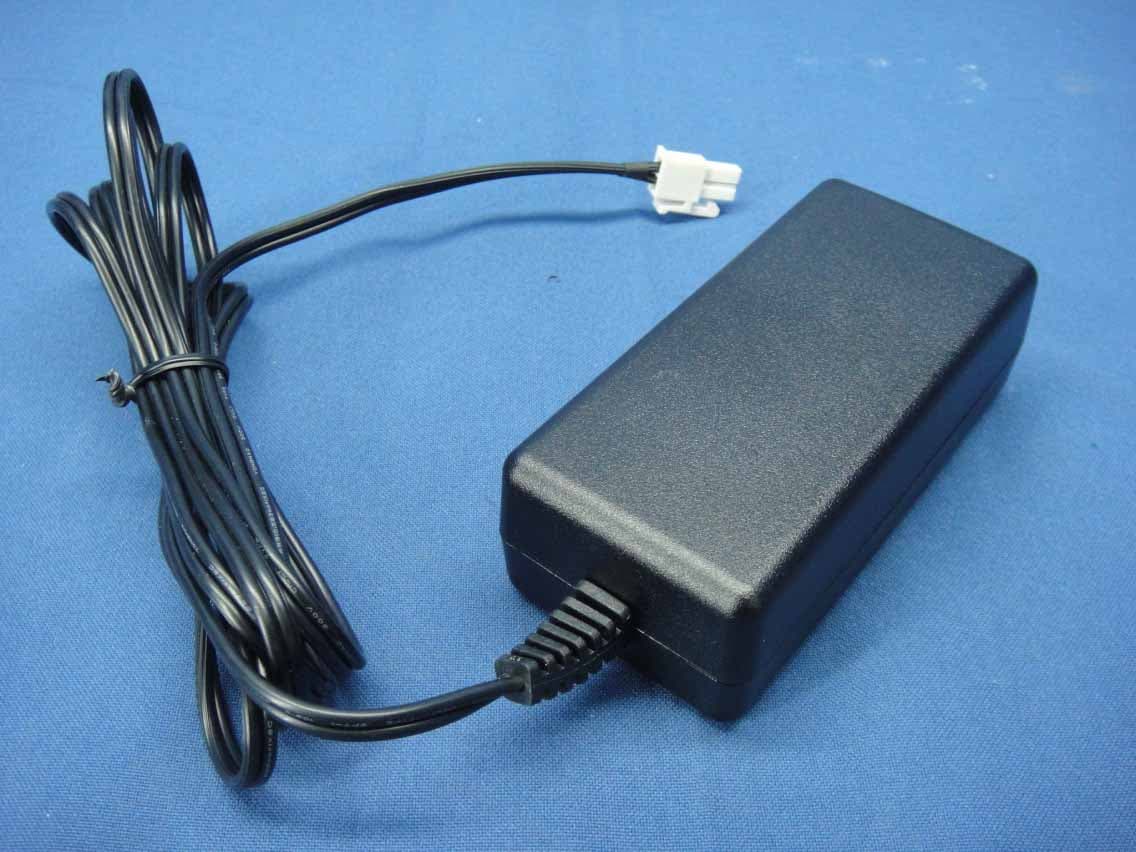
H9PEMG101
Aug 26, 2014802.15.4 Gateway
Equipment Class
DTS - Digital Transmission System