I28MD-ZBR5QLNZebra Embedded BT radio
Zebra Technologies Corporation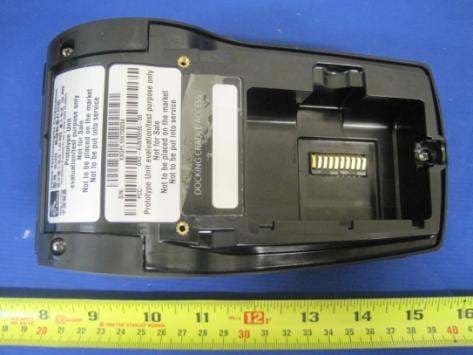
Click to zoom
Application Details
- Equipment Class
- DSS - Part 15 Spread Spectrum Transmitter
- Date of Grant
- Mar 28, 2011
- Application Purpose
- Original Equipment
- Date of Application
- Mar 28, 2011
- Equipment Note
- Zebra Embedded BT radio
- Frequency Range
- 2402.00000000 - 2480.00000000
- Country
- United States
Documents & Files
Document Text
Text extracted from the exhibit documents filed with the FCC. Open a document above to read the original.
Users Manual
P1028026-001 November 2010 Zebra QLn320 Mobile Printer OK ZEBRA QLn320 2 QLn Series User Guide Table of Contents Proprietary Statements ............................................................................................4 Document Conventions ...........................................................................................6 Introduction to the QLn320™ Printer ..................................................................7 Unpacking and Inspection ...............................................................7 Reporting Damage ...........................................................................7 QLn320 Technology ...................................................................................................8 Smart Battery .................................................................................................8 Printing Technology ......................................................................................9 Direct Thermal ...............................................................................................9 QLn320 Overview ...................................................................................................10 Getting Ready to Print ...........................................................................................12 Battery .............................................................................................12 Installing the Battery ...................................................................................12 Smart Charger-2 (SC2) Single Battery Charger ............................13 Model UCLI72-4 Quad Charger ...................................................................15 Battery Safety ..............................................................................................16 Charger Safety .............................................................................................17 QLn-EC Ethernet Cradle .................................................................18 AC Power Adapter (included in kit p/n P1031365-024) ..............................21 Loading the Media in the QLn320 ........................................22 Loading Media in Peel-off Mode .................................................................24 Operator Controls ..........................................................................25 Standard Control Panel ...............................................................................25 LCD Control Panel .......................................................................................27 Status Bar Icons ..........................................................................................28 Main Menu Screen ......................................................................................30 Programmable LCD Settings ......................................................................31 Verify the Printer Is Working .........................................................32 Printing a Configuration Label ....................................................................32 Connecting the Printer ...................................................................32 Cable Communication .................................................................................33 RS-232C Communications ..........................................................................33 USB Communications ................................................................................33 Providing Strain Relief for Communications Cable ...................................34 Wireless Communications with Bluetooth™ ..............................................36 Bluetooth Networking Overview ................................................................36 WLAN Overview .............................................................................37 Setting Up the Software ................................................................37 Using the Accessories.............................................................................................38 Swivel Belt Clip ............................................................................................38 Hand Strap ...................................................................................................40 Preventive Maintenance .......................................................................................41 Extending Battery Life ...................................................................41 General Cleaning Instructions .......................................................41 QLn320 Cleaning ......................................................................................42 Troubleshooting ......................................................................................................44 Front Control Panel ........................................................................44 LCD Control Panel Indicators ........................................................45 Troubleshooting Tests ...................................................................48 3 QLn Series User Guide Printing a Configuration Label ....................................................................48 Communications Diagnostics .....................................................................48 Contacting Technical Support .....................................................................49 Specifications ............................................................................................................53 Printing Specifications ...............................................................................53 Memory and Communications Specifications ...........................................53 Label Specifications ....................................................................................54 CPCL Font and Bar Code Specifications and Commands .........................55 ZPL Font and Bar Code Specifications and Commands ............................56…
Text truncated - open the document above for the full version.
Users Manual
31 QLn Series User Guide Programmable LCD Settings In addition to the status icons, the LCD control panel can display other printer settings and functions as text. Applications can be writ- ten to allow the user to view and /or modify these settings using the scroll and select keys on the display. The menu that comes with the printer provides access to the most commonly used parameters. Refer to the CPCL Programming Manual for a complete list of the param- eters, and for details on how to change the front panel display (p/n PROMAN-CPCL at www.zebra.com/manuals). The LCD backlighting option allows viewing of the screen in a dark environment, or provides better contrast in a very bright environ- ment. The QLn320 can be programmed to enter a low power mode (Backlight Off) during periods of front panel inactivity. While in low power mode, the screen is populated with menus and status icons, data which may or may not be readable depending on ambient light conditions. The QLn320 provides a configurable time delay from the time the backlight is turned on to when it turns off. The time range for this de- lay is 5 to 1200 seconds with a default time of 10 seconds. The back- light can be activated within one second after any of the cursor, select, or soft keys is pressed. (The feed button does not activate the back- light.) The status bar icons, the user space content, and the navigation bar will remain on the screen with the backlight off. Extensive use of the display backlight will decrease the time the printer can run between charges. Refer to the section “Extending Battery Life” for more information. Soft Keys 32 QLn Series User Guide Verify the Printer Is Working Before you connect the printer to your computer or portable data terminal, make sure that the printer is in proper working order. You can do this by printing a configuration label using the “two key” meth- od. If you can’t get this label to print, refer to “Troubleshooting”. Printing a Configuration Label 1. Turn the printer off. Load the media compartment with journal media (media with no black bars printed on the back) 2. Press and hold the Feed Button. 3. Press and release the Power button and keep the Feed button pressed. When printing starts, release the Feed button. The unit will print a line of interlocking “x” characters to ensure all elements of the print head are working, print out the version of software loaded in the printer and then print two re- ports. The report indicates model, serial number, baud rate, and more detailed information on the printer’s configuration and parameter set- tings. (See the Troubleshooting Section for sample printouts and a fur- ther discussion on how to use the configuration label as a diagnostic tool.) Connecting the Printer The printer must establish communications with a host ter- minal which sends the data to be printed. Communications occur in four basic ways: • QLn320 printers can communicate by cable via either RS-232C or USB 2.0 protocols. USB drivers are included in the Zebra Designer Driver which can be downloaded from www.zebra.com/drivers . • By means of a Bluetooth™ short range radio frequency link. (Optional) • By means of a wireless LAN (Local Area Network) per 802.11 spec- ifications. (Optional) • By means of the Ethernet when docked on the Ethernet cradle. (Optional) 33 QLn Series User Guide Cable Communication Caution • The printer should be turned off before connecting or disconnecting a communications cable. The QLn320 printer can communicate by cable; the specific cable supplied with your printer will vary with the host termi- nal and your model printer. RS-232C Communications The 14-pin serial connector on your communications cable plugs into the serial communications port on the side of the printer. QLn320 model printers also have a USB port. USB Communications The small 5-pin connector on the USB cable plugs into the printer. The connectors are keyed to assure correct align- ment; do not try to force the cable if it does not plug in. The Communications Cable to Terminal Part numbers vary. Refer to Appendix A. RS-232C or USB Communications Cable to Computer Refer to Appendix A for part numbers. Figure 17: Cable Communications Figure 18: Communications with a P.C. Communications Port 34 QLn Series User Guide other end of the cable must be plugged into the host terminal as shown in Figure 18, or to a serial or USB port on a comput- er (Figure 18). The QLn320 series is configured with the USB Open HCI interface driver allowing it to communicate with Windows ® based devices. USB drivers are included in the Zebra Designer Driver which can be downloaded from the Zebra Web site. Other terminals or communica- tions devices may require the installation of special drivers to use the USB connection. Consult the factory for further details. Providing Strain Relief for Communications Cable If you are connecting either a USB or RS-232 communications cable to the printer permanently, access the communications port on the side of the printer next to the latch release lever. Plug the connector into the appropriate port and align the plastic locking cap with the cut outs shown below. Rotate the locking cap clockwise to lock the cable in place. (Turn counterclockwise to unlock the cable.) Once locked in place, this provides strain relief for the cable and will prevent the cable from disconnecting from the printer. Note: Only one cable can be present in the USB/RS-232 USB Port RS-232 Port Align locking connector with these cut-outs. Figure 19: Communications Port 35 QLn Series User Guide Figure 20: Communications Port Strain Relief Rotate locking cap in a clockwise direction to lock cable in place. 36 QLn Series User Guide Wireless Communications with Bluetooth™ Bluetooth is a worldwide standard for the exchange of data be- tween two devices via radio frequencies. Bluetooth radios are relatively low powered to help prevent interference with other de- vices running at similar radio frequenci…
Text truncated - open the document above for the full version.
Users Manual
Paquette, Louis (lpaquette)2011-03-09 12:05:18 Title Block.Number:FOLDER0341846Title Block.Lifecycle Phase:
External Photos
HOST EUT –QLn3 20 EUT - Top View EUT - Back View EUT - Front View EUT - Rear View EUT - Right View EUT - Left View HOST EUT –QLn 220 EUT - Top View EUT - Back View EUT - Front View EUT - Rear View EUT - Right View EUT - Left View Host EUT Accessories Power Supply USB Cable Serial Cable Battery View- Top Battery View- Bottom
ID Label/Location Info
Label Drawing Label location FCC ID: I28MD-ZBR5QLN IC: 3798B-ZBR5QLN Model: EYSMACAXX FCC ID: I28MD-ZBR5QLN IC: 3798B-ZBR5QLN Model: EYSMACAXX
Internal Photos
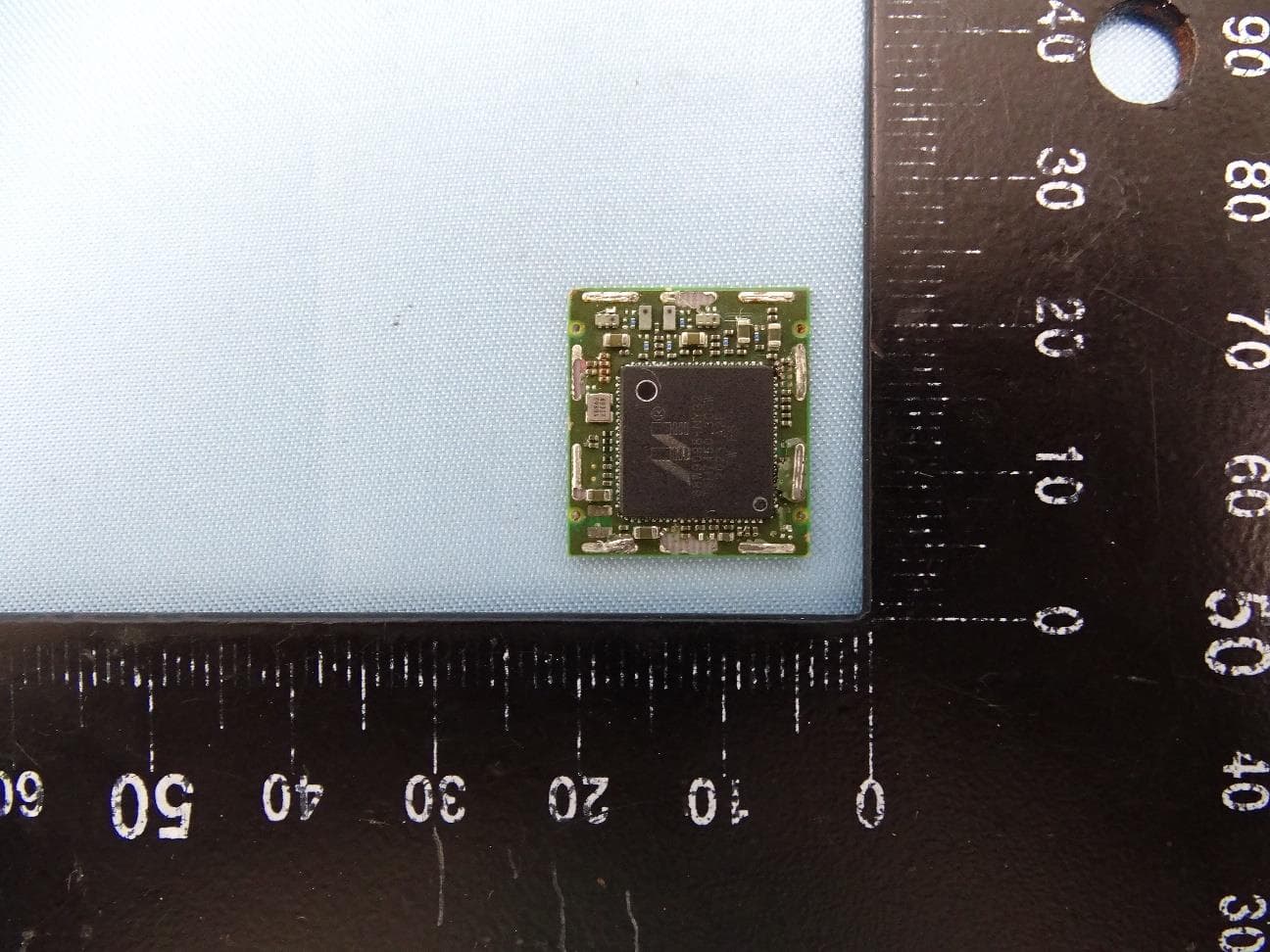
EUT Photo EUT – Top View EUT – Bottom View EUT – without RF shield EUT – Antenna
RF Exposure Info
According to §15.247(e)(i) and §1.1307(b)(1), systems operating under the provisions of this section shall be operated in a manner that ensures that the public is not exposed to radio frequency energy level in excess of the Commission’s guidelines. According to KDB 447498, no SAR required if power is lower than the flowing threshold: Frequency Range Center frequency (MHz) 60/f SAR Limitation (mw) Low Frequency (MHz) Low Frequency(MHz) 2402 2480 2441 24.58 Maximum measured transmitter power: Conducted Power (mw) Max Antenna Gain (dBi) EIRP (mw) 0.398 3.81 0.96 Threshold at which no SAR required is 24.58 mw. Maximum Tx power is 0.96 mw EIRP. Conclusion: No SAR is required.
Test Report
ZEBRA TECHNOLOGIES CORP BLUETOOTH MODULE Model: EYSMACAXX Mar 02 2011 Report No.: SL11012304%ZBR%003(FCC FHSS) rev 1.0 (This report supersedes SL11012304%ZBR%003(FCC FHSS)) This Test Report is Issued Under the Authority of: Choon Sian Ooi Compliance Engineer Leslie Bai Director of Certification Modifications made to the product : None This test report may be reproduced in full only. All Test Data Presented in this report is only applicable to presented Test sample. Title: RF Test Report of Zebra Technologies Corp Model : EYSMACAXX To FCC 15.247:2010 & RSS(210 Issue 8 : 2010 Serial# SL11012304(ZBR(003(FCC FHSS) rev 1.0 Issue Date Mar 02 2011 Page 2 of 80 www.siemic.com Laboratory Introduction SIEMIC, headquartered in the heart of Silicon Valley, with superior facilities in US and Asia, is one of the leading independent testing and certification facilities providing customers with one(stop shop services for Compliance Testing and Global Certifications. In addition to testing and certification, SIEMIC provides initial design reviews and compliance management through out a project. Our extensive experience with China, Asia Pacific, North America, European, and international compliance requirements, assures the fastest, most cost effective way to attain regulatory compliance for the global markets . Accreditations for Conformity Assessment Country/Region Accreditation Body Scope USA FCC, A2LA EMC , RF/Wireless , Telecom Canada IC, A2LA, NIST EMC, RF/Wireless , Telecom Taiwan BSMI , NCC , NIST EMC, RF, Telecom , Safety Hong Kong OFTA , NIST RF/Wireless ,Telecom Australia NATA, NIST EMC, RF, Telecom , Safety Korea KCC/RRA, NIST EMI, EMS, RF , Telecom, Safety Japan VCCI, JATE, TELEC, RFT EMI, RF/Wireless, Telecom Mexico NOM, COFETEL, Caniety Safety, EMC , RF/Wireless, Telecom Europe A2LA, NIST EMC, RF, Telecom , Safety Accreditations for Product Certifications Country Accreditation Body Scope USA FCC TCB, NIST EMC , RF , Telecom Canada IC FCB , NIST EMC , RF , Telecom Singapore iDA, NIST EMC , RF , Telecom EU NB, NIST EMC,RF,Safety,Telecom Title: RF Test Report of Zebra Technologies Corp Model : EYSMACAXX To FCC 15.247:2010 & RSS(210 Issue 8 : 2010 Serial# SL11012304(ZBR(003(FCC FHSS) rev 1.0 Issue Date Mar 02 2011 Page 3 of 80 www.siemic.com This page has been left blank intentionally. Title: RF Test Report of Zebra Technologies Corp Model : EYSMACAXX To FCC 15.247:2010 & RSS(210 Issue 8 : 2010 Serial# SL11012304(ZBR(003(FCC FHSS) rev 1.0 Issue Date Mar 02 2011 Page 4 of 80 www.siemic.com CONTENTS 1 EXECUTIVE SUMMARY & EUT INFORMATION ............................................................................................................. 6 2 TECHNICAL DETAILS .................................................................................................................................................. 7 3 MODIFICATION ............................................................................................................................................................ 8 4 TEST SUMMARY .......................................................................................................................................................... 9 5 MEASUREMENTS, EXAMINATION AND DERIVED RESULTS ...................................................................................... 10 ANNEX A. TEST INSTRUMENT & METHOD......................................................................................................................... 48 ANNEX B EUT AND TEST SETUP PHOTOGRAPHS ........................................................................................................... 52 ANNEX C. TEST SETUP AND SUPPORTING EQUIPMENT ................................................................................................... 52 ANNEX D USER MANUAL, BLOCK DIAGRAM, CIRCUIT DIAGRAM .................................................................................. 56 ANNEX E SIEMIC ACCREDITATION ................................................................................................................................... 57 Title: RF Test Report of Zebra Technologies Corp Model : EYSMACAXX To FCC 15.247:2010 & RSS(210 Issue 8 : 2010 Serial# SL11012304(ZBR(003(FCC FHSS) rev 1.0 Issue Date Mar 02 2011 Page 5 of 80 www.siemic.com This page has been left blank intentionally. Title: RF Test Report of Zebra Technologies Corp Model : EYSMACAXX To FCC 15.247:2010 & RSS(210 Issue 8 : 2010 Serial# SL11012304(ZBR(003(FCC FHSS) rev 1.0 Issue Date Mar 02 2011 Page 6 of 80 www.siemic.com 1 Executive Summary & EUT information The purpose of this test programmed was to demonstrate compliance of the Zebra Technologies Corp , Zebra Embedded BT radio, Model: EYSMACAXX with host QLn220 and QLn320 again st the current Stipulated Standards. The Bluetooth Module have demonstrated compliance with the FCC 15.247:2010 & RSS(210 Issue 8 : 2010. The test has demonstrated that this unit complies with stipulated standards. EUT Information EUT Description : Bluetooth Module Model No : EYSMACAXX Serial No : Input Power : 3.3VDC, 42mA Classification Per Stipulated Test Standard : Spread Spectrum System / Device Title: RF Test Report of Zebra Technologies Corp Model : EYSMACAXX To FCC 15.247:2010 & RSS(210 Issue 8 : 2010 Serial# SL11012304(ZBR(003(FCC FHSS) rev 1.0 Issue Date Mar 02 2011 Page 7 of 80 www.siemic.com 2 TECHNICAL DETAILS Purpose Compliance testing of Bluetooth Module model EYSMACAXX with stipulated standard Applicant / Client Zebra Technologies Corp Manufacturer Zebra Technologies Corp 333 Corporate Woods Parkway. Vernon Hills, IL 60061 Laboratory performing the tests SIEMIC Laboratories Test report reference number SL11012304%ZBR%003(FCC FHSS) rev 1.0 Date EUT received Feb 10th 2011 Standard applied See Page 9 Dates of test (from – to) 14 Feb 2011 ~ 1 March 2011 No of Units: 1 Equipment Category: DSS Trade Name: Zebra Technologies Corp Model Name: EYSMACAXX RF Operating Frequency (ies) Bluetooth : 2402MHz % 2…
Text truncated - open the document above for the full version.
Test Setup Photos
Radiated Emission 30MHz to 1GHz QLN320 QLN220 Above 1GHz QLN320 QLN220 Conducted Emission QLN320 QLN220
Contact Information
Applicant
Jay Cadiz(Sr. Manager, Regulatory)
Test Firm
Bureau Veritas Consumer Products Services, Inc.Sarb Shelopal
[email protected]+1 925 963 4420
Technical Specifications
| # | Rule Parts | Frequency Range | Power Output |
|---|---|---|---|
| 1 | 15C | 2.40 GHz - 2.48 GHz | 400.00 µW |
Other Applications from Zebra Technologies Corporation
I28-WYSBHVDXP
May 19, 2021WLAN/BTLE module
Equipment Class
DTS - Digital Transmission System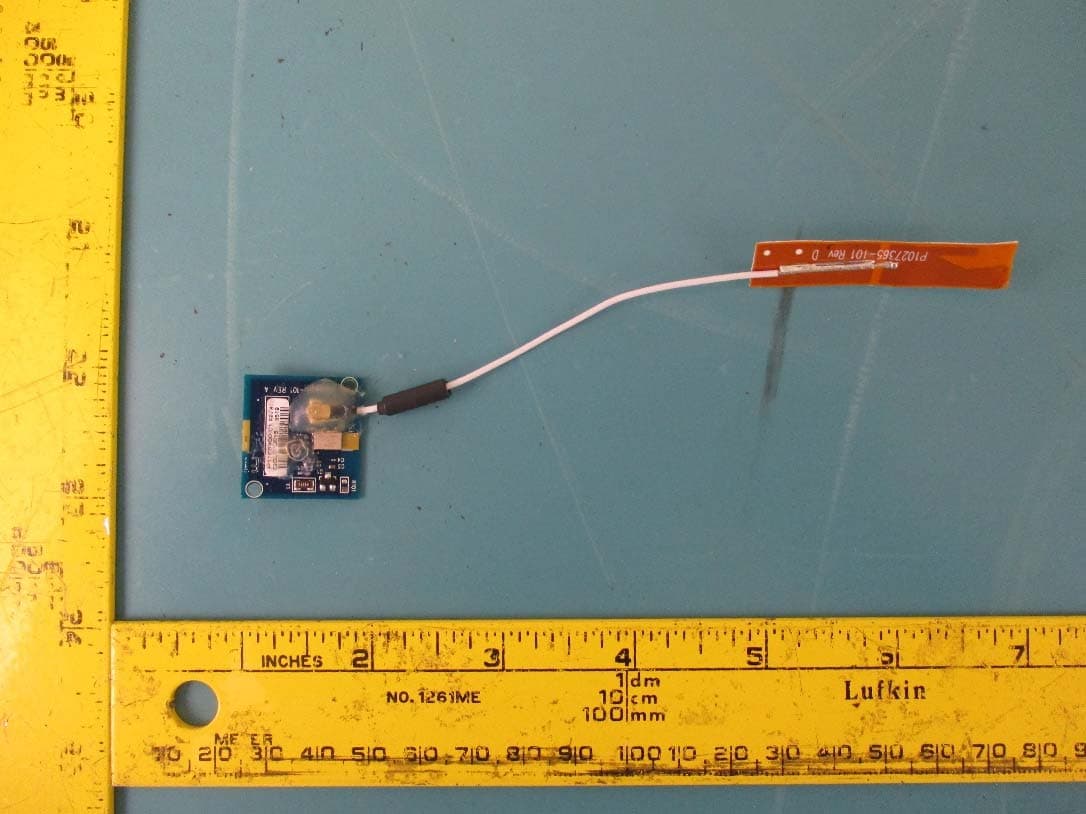
I28-EYSNSNZWWZ1
May 04, 2021BT5 Radio Module
Equipment Class
DTS - Digital Transmission System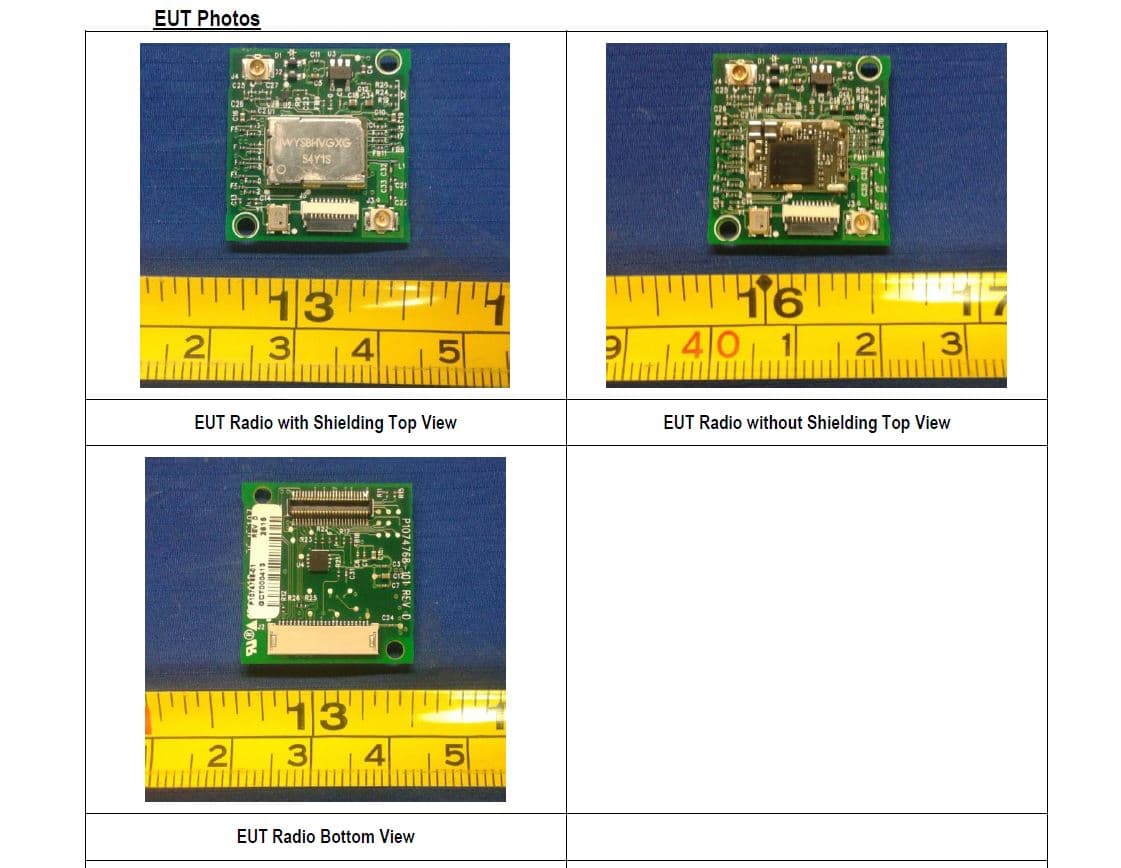
I28MD-FXLAN11AC
Nov 22, 2015Wireless 802.11ac + Bluetooth Module
Equipment Class
DSS - Part 15 Spread Spectrum Transmitter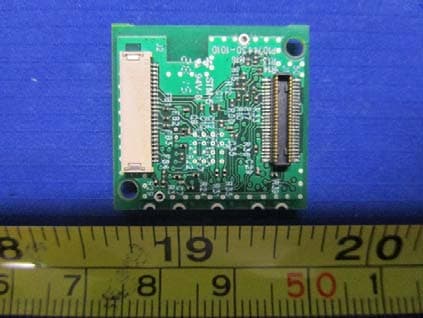
I28MD-ZBRBLE
Nov 19, 2015Bluetooth Low Energy Module
Equipment Class
DTS - Digital Transmission System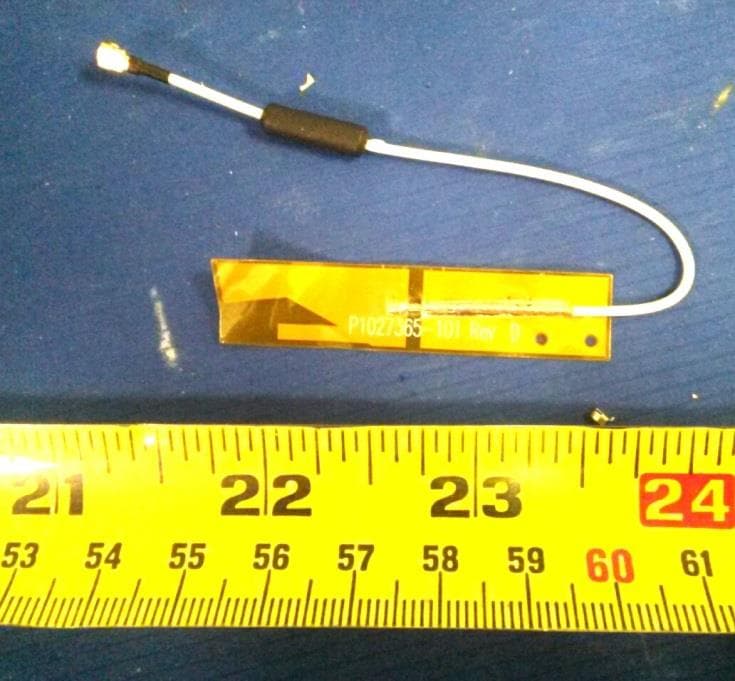
I28MD-ZBR7BTLE
Jan 19, 2015Bluetooth 4.0 LE Module
Equipment Class
DSS - Part 15 Spread Spectrum Transmitter