L7MR250Wireless Keyboard
Wireless Computing Inc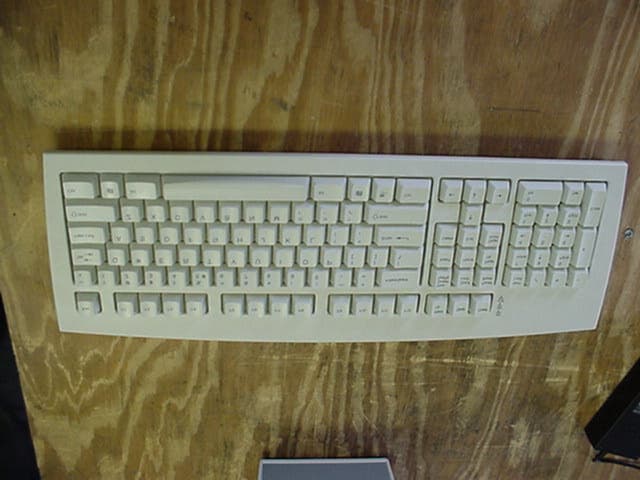
Click to zoom
Application Details
- Equipment Class
- DXX - Part 15 Low Power Communication Device Transmitter
- Date of Grant
- Jul 31, 2002
- Application Purpose
- Original Equipment
- Date of Application
- Jul 31, 2002
- Equipment Note
- Wireless Keyboard
- Frequency Range
- 916.50000000 - 916.50000000
- Company
- Wireless Computing Inc
- Country
- United States
Documents & Files
Document Text
Text extracted from the exhibit documents filed with the FCC. Open a document above to read the original.
Users Manual
Getting Started Setting the Keyboard’s Address When shipped, all RF-250’s come with a preset address of 0:0. If the RF-250 Wireless Keyboard will be used near another one, the address will need to be set so they won’t interfere with each other. To set the address, do the following: 1. Using an installed RF-000 Wireless Receiver, press the address button on the bottom of the receiver. The LED on the top of the receiver will blink rapidly for 30 seconds. After 30 seconds, the receiver will return to normal mode. 2. Press the ‘Addr’ key on the RF-250 Wireless Keyboard. If the green ‘sending’ LED blinks, the keyboard has acquired a new address from the receiver. If the red ‘no signal’ LED blinks, the keyboard is probably too close to the receiver. Try again from slightly farther away. 3. If no keyboard ‘Addr’ button is pressed within 30 seconds, the receiver’s address does not change. Using a Third-Party Mouse You can use any PS/2-compatible mouse (including wheel mice) with the RF-250 Wireless Keyboard. To install a third-party mouse, do the following: 1. Disconnect the RF-000 Wireless Receiver from the computer. (This prevents accidental key presses.) 2. Turn the RF-250 Wireless Keyboard over and disconnect the touch pad’s PS/2 cable. (The cable can be stored in the cable run on the underside of the wrist rest. 3. Detach the wrist rest from the keyboard, if desired. 4. Connect the third-party mouse’s PS/2 plug to the keyboard connector. 5. Route the mouse cord through the cable run on the underside of the keyboard with the cable exiting on the desired side. 6. Turn the keyboard over and press the ‘Mouse On’ button on the keyboard. (The red ‘no signal’ LED should blink when the mouse is moved.) 7. Reconnect the receiver to the computer. When using a third-party mouse, it’s important to remember, that the keyboard will put the mouse port to sleep after 20 minutes. This helps ensure long battery life. The mouse can also be put to sleep by pressing the ‘Mouse Off’ key. When the mouse is asleep, neither the green ‘sending’ LED, nor the red ‘no signal’ LED will blink when the mouse is moved. To wake up the mouse, press the ‘Mouse On’ key. Macintosh Note: The right mouse button and wheel are only supported on MacOS 10.1 and later. Under MacOS 9.x, all mouse buttons act alike. 1. Start the computer. 2. Insert the two AA batteries into the RF-250 Wireless Keyboard. 3. Plug the RF-000 Wireless Receiver’s USB plug into the computer. Note: When the receiver is plugged into a computer for the first time, the computer will automatically create the USB drivers needed to use it. During this time, Windows 98 will display a series of dialogs. All of these can be handled simply by pressing enter for each. Windows 2000 and XP will display informational pop-ups. MacOS will perform the driver creation silently. 4. Plug the wrist rest / touch pad PS/2 plug into the keyboard. Macintosh Note: If the keyboard will be used with a Macintosh computer, see ‘Configuring the RF-250 Wireless Keyboard for use with a Macintosh.’ When you press a key or use the touch pad, the LED on the receiver will blink. Also, the green ‘sending’ LED on the keyboard should blink. If the red ‘no signal’ LED blinks, the keyboard is probably too close to the receiver. In general the receiver should be at least a foot away from the keyboard. Using Multiple RF-250 Wireless Keyboards with a Single Computer It is possible to use multiple RF-250 Wireless Keyboards with a single RF-000 Wireless Receiver. Do the following: 1. Install batteries in all the keyboards. 2. Using an installed RF-000 Wireless Receiver, press the address button on the bottom of the receiver as you would to set a single keyboard’s address. 3. Press the ‘Addr’ key on each of the RF-250 Wireless Keyboards. Each time a keyboard gets an address from the receiver, the receiver will wait an extra 30 seconds for additional keyboards. Configuring the RF-250 Wireless Keyboard for use with a Macintosh Configuring the RF-250 Wireless Keyboard for use with a Macintosh computer is a simple process. 1. Disconnect the RF-000 Wireless Receiver from the computer to prevent accidental key presses. 2. Remove the two ‘Win’ and two ‘Alt’ keys from the keyboard by pulling forward on the back of the key until it pops out. 3. Replace these keys with the enclosed two ‘Command’ (clover) and two ‘Option/Alt’ keys. These will snap into place. 4. Reconnect the receiver to the computer. 5. Press both ‘Command’ and both ‘Option/Alt’ keys as the same time. This will swap the key assignments to Macintosh standard. space Win Alt Option Alt Command Windows Macintosh Windows Macintosh Win Alt Option Alt Command Troubleshooting • No GREEN light on RF-000 Wireless Receiver ÿ Unplug the USB cable and plug it back into the computer • Keystrokes and Mouse moves not getting through ÿ If no LEDs blink when you type a key or move the mouse, replace the batteries ÿ If the RED ‘no signal’ LED blinks when you type a key or move the mouse, reposition the keyboard or receiver. For best operation the keyboard should be between 1 and 75 feet from the receiver. If this is ineffective, set the keyboard address again. ÿ If the GREEN ‘sending’ LED blinks when you type a key or move the mouse, unplug the RF-000 Wireless Receiver cable from the computer and plug it back in. • Keystrokes appear or the mouse moves by itself ÿ The keyboard address has probably not been changed from the default. Set the keyboard address. • The mouse won’t move ÿ If no LED’s blink when you move the mouse, press the ‘Mouse On’ button on the keyboard. If this is ineffective, check to be sure that the mouse PS/2 connector is firmly in place. • The ‘Windows’ menu comes up when the ‘Alt’ key is pressed (Windows) ÿ The keyboard is configured for use with the Macintosh. Press both left and right ‘Win’ and ‘Alt’ keys at the same time. This will set the keyboard for use with Windows. • The ‘Option’ and ‘Command’ keys are backwards (Macintosh) ÿ The keyboard is…
Text truncated - open the document above for the full version.
Cover Letter(s)
Exhibit K – Letter of Confidentiality Wireless Computing RF-250 Wireless Keyboard
Cover Letter(s)
Exhibit J – Letter of Authorization and Anti- Drug Wireless Computing RF-250 Wireless Keyboard
Cover Letter(s)
American Telecommunications Certification Body Inc. 6731 Whittier Ave, McLean, VA 22101 July 27, 2002 RE: FCC ID: L7MR250 Attention: Nicole Golden / Jeffrey Lenk I have a few comments on this Application. 1 The manual provided contains no FCC statements. Please provide a manual that has the required 15.21 (no unauthorized modifications), 15.105 (Information to the User) statements. 2 The FCC ID on the 731 form does not agree with the label. The 731 says L7MR250, the Label says L7MRF250. Which is correct, the label or the 731? xx 3 The 731 form gives a frequency of 906 to 1008 MHz. This is not possible. First, because 15.249 in this band is only for 902 –928 MHz. Second, because the device was only tested at one frequency and therefore only a one MHz band is allowed with the frequency tested being the middle of that band.. If it is desired to have more than this frequency, testing will have to be done in accordance with the guidelines of 15.31m., otherwise the grant will be for 916.55 MHz xx Dennis Ward mailto:[email protected] The items indicated above must be submitted before processing can continue on the above referenced application. Failure to provide the requested information may result in application termination. Correspondence should be considered part of the permanent submission and may be viewed from the Internet after a Grant of Equipment Authorization is issued. Please do not respond to this correspondence using the email reply button. In order for your response to be processed expeditiously, you must submit your documents through the AmericanTCB.com website. Also, please note that partial responses increase processing time and should not be submitted. Any questions about the content of this correspondence should be directed to the sender.
External Photos
Exhibit E– EUT External Photographs Wireless Computing RF-250 Wireless Keyboard Wireless Computing RF-250 Wireless Keyboard External – Top View External – Bottom View
ID Label/Location Info
Exhibit C – Equipment ID Labels and Locations Wireless Computing RF-250 Wireless Keyboard This device complies with Part 15 of the FCC rules. Operation is subject to the following conditions: (1) this device may not cause harmful interference, and (2) this device must accept any interference received, including interference that may cause undesired operation. RF-250 Wireless Keyboard FCC:L7MR250 916.5 MHz Made in China Wireless Computing RF-250 Wireless Keyboard Top View External – Bottom View w/label
Internal Photos
Exhibit E– EUT Photographs Wireless Computing RF-250 Wireless Keyboard Wireless Computing RF-250 Wireless Keyboard External – Top View External – Bottom View Wireless Computing RF-250 Wireless Keyboard Internal – Top View Internal – Bottom View Wireless Computing RF-250 Wireless Keyboard Main Board – Up View Main View – Down View
Operational Description
FCC ID: L7MR250 _____________________________________________________________________________________________ Professional Testing (EMI), Inc. Page 4 1.0 EUT Description The Equipment Under Test (EUT) is the Wireless Computing RF-250 Wireless Keyboard. The RF-250 Wireless Keyboard is battery-powered wireless 900 MHz FM Keyboard. The EUT operates at 916.55 MHz and is designed for compliance with 47 CFR 15.249 of the FCC rules. Specific test requirements for this device include the following: 47 CFR 15.249 Fundamental Transmit Power 47 CFR 15.249 & 15.209 Spurious Radiated Power 47 CFR 15.249 & 2.1049 Occupied Bandwidth (2.989 used as Procedural Reference) 47 CFR 15.203 Antenna Requirement The system tested consisted of the following: Manufacturer & Model Serial # FCC ID # Description Wireless Computing, RF250KBD-A B None KeyboardTransmitter Sony VAB PCG-Z505HE 2830563232404 14 Laptop 1.1 EUT Operation The RF-250 Wireless Keyboard was operated using two new AA batteries. The EUT was turned on and ran automatically. Setup and operational modes cover worst-case configuration and operational modes for the device. The frequency of the transmitting signal is 916.55 MHz. 2.0 Electromagnetic Emissions Testing Professional Testing (EMI), Inc. (PTI), follows the guidelines of NIST for all uncertainty calculations, estimates and expressions thereof for EMC testing. Radiated emission measurements were made of the Fundamental and Spurious Emission levels for the RF-250 Wireless Keyboard. Measurements of the occupied bandwidth were also made for the equipment. Measurements of the maximum emission levels for the fundamental and the spurious/harmonic emissions of the RF-250 Wireless Keyboard were made at the Professional Testing "Open Field" Site 3, located in Round Rock, Texas to determine the radio noise radiated from the EUT. A “Description of Measurement Facilities” has been submitted to the FCC and approved pursuant to Section 2.948 of CFR 47 of the FCC rules. Tests of the fundamental and spurious emissions for the device were performed to determine the worst-case polarization of the devices. The fundamental and spurious emissions of the device were measured with the antennas of the devices vertical and horizontal to the ground plane.
Test Report
FCC ID: L7MR250 _____________________________________________________________________________________________ Professional Testing (EMI), Inc. Page 1 Project Number: 02454-10 Prepared for: WIRELESS COMPUTING 14101 West Hwy 290 Bldg 700. Ausrin, TX 78737 By Professional Testing (EMI), Inc. 1601 FM 1460, Suite B Round Rock, Texas 78664 June 2002 CERTIFICATION Electromagnetic Interference Test Report WIRELESS COMPUTING RF-250 Wireless Keyboard (Intentional Radiator Portion) FCC ID: L7MR250 _____________________________________________________________________________________________ Professional Testing (EMI), Inc. Page 2 Table of Contents Title Page....................................................................................................................................1 Table of Contents........................................................................................................................2 Certificate of Compliance...........................................................................................................3 1.0 EUT Description.................................................................................................................4 1.1 EUT Operation....................................................................................................................4 2.0 Electromagnetic Emissions Testing.....................................................................................4 2.1 TEST PROCEDURE.............................................................................................................5 2.2 TEST CRITERIA................................................................................................................5 2.3 TEST RESULTS.................................................................................................................5 3.0 Occupied Bandwidth Measurements....................................................................................5 3.1 TEST PROCEDURE.............................................................................................................5 3.2 TEST CRITERIA.................................................................................................................6 3.3 TEST RESULTS.................................................................................................................6 4.0 Antenna Requirement..........................................................................................................6 4.1 EVALUATION PROCEDURE................................................................................................6 4.2 EVALUATION CRITERIA....................................................................................................6 4.3 EVALUATION RESULTS.....................................................................................................6 5.0 Modifications to Equipment................................................................................................7 6.0 List of Test Equipment........................................................................................................7 Figures Figure 1: Radiated Emissions Test Setup.....................................................................................8 Appendices Appendix A: Fundamental Emissions Test Data..........................................................................9 Appendix B: Spurious Emissions Test Data..............................................................................11 Appendix C: Occupied Bandwidth Test Data............................................................................14 THIS REPORT SHALL NOT BE REPRODUCED EXCEPT IN FULL, WITHOUT THE WRITTEN APPROVAL OF PROFESSIONAL TESTING (EMI), INC. FCC ID: L7MR250 1601 FM 1460, Suite B Round Rock, Texas 78664 512/244-3371 Fax 512/244-1846 Applicant: Wireless Computing Applicant’s Address: 14101 West Hwy 290 Bldg 700 Ausrin, TX 78737 Model: RF-250 Wireless Keyboard Serial Number: B Project Number: 02454-10 I, Jeffrey A. Lenk, for Professional Testing (EMI), Inc., being familiar with the FCC rules and test procedures have reviewed the test setup, measured data and this report. I believe them to be true and accurate. The Wireless Computing RF-250 Wireless Keyboard was tested to and found to be in compliance with FCC Part 15 Subpart C for an Intentional Radiator. The highest emissions generated by the above equipment are listed below: Frequency (MHz) Level (dBμV/m) Limit (dBμV/m) Margin (dB) Fundamental 916.55 84.8 94 -9.2 Spurious 2749 46.9 54 -7.1 Frequency (kHz) Occupied Bandwidth 620 ______________________________ Jeffrey A. Lenk President Certificate of Compliance FCC ID: L7MR250 _____________________________________________________________________________________________ Professional Testing (EMI), Inc. Page 4 1.0 EUT Description The Equipment Under Test (EUT) is the Wireless Computing RF-250 Wireless Keyboard. The RF-250 Wireless Keyboard is battery-powered wireless 900 MHz FM Keyboard. The EUT operates at 916.55 MHz and is designed for compliance with 47 CFR 15.249 of the FCC rules. Specific test requirements for this device include the following: 47 CFR 15.249 Fundamental Transmit Power 47 CFR 15.249 & 15.209 Spurious Radiated Power 47 CFR 15.249 & 2.1049 Occupied Bandwidth (2.989 used as Procedural Reference) 47 CFR 15.203 Antenna Requirement The system tested consisted of the following: Manufacturer & Model Serial # FCC ID # Description Wireless Computing, RF250KBD-A B None KeyboardTransmitter Sony VAB PCG-Z505HE 2830563232404 14 Laptop 1.1 EUT Operation The RF-250 Wireless Keyboard was operated using two new AA batteries. The EUT was turned on and ran automatically. Setup and operational modes cover worst-case configuration and operational modes for the device. The frequency of the transmitting signal is 916.55 MHz. 2.0 Electromagnetic Emissions Testing Professional Testing (EMI), Inc. (PTI), follows the guidelines of NIST for all uncertainty calculations…
Text truncated - open the document above for the full version.
Test Setup Photos
Exhibit D – Test Setup Photographs Wireless Computing RF-250 Wireless Keyboard Wireless Computing RF-250 Wireless Keyboard Radiated Emission – Front View Radiated Emission – Back View
Contact Information
Applicant
Martin Phillips
Technical Contact
Professional Testing (EMI), Inc.Jeffrey A Lenk
[email protected]512-244-3371
1601 FM 1460 Suite B · Round Rock, Texas · United States
Non-Technical Contact
Professional Testing (EMI), Inc.Nicole Golden
[email protected]512-244-3371
Test Firm
Professional Testing (EMI), Inc.Jeff Link
Technical Specifications
| # | Rule Parts | Frequency Range | Power Output |
|---|---|---|---|
| 1 | 15C | 916.5 MHz - 916.5 MHz | - |
Other Applications from Wireless Computing Inc
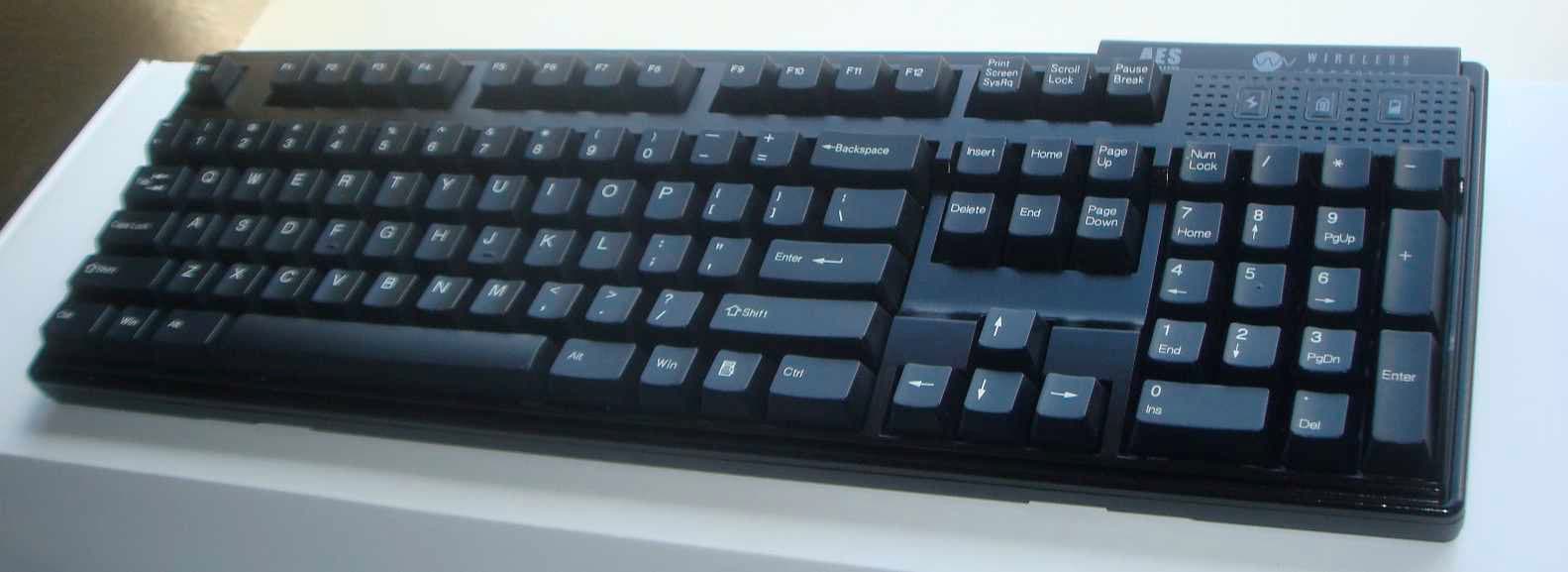
L7MR600
Apr 04, 2011Mechanical Wireless Keyboard
Equipment Class
DXT - Part 15 Low Power Transceiver, Rx Verified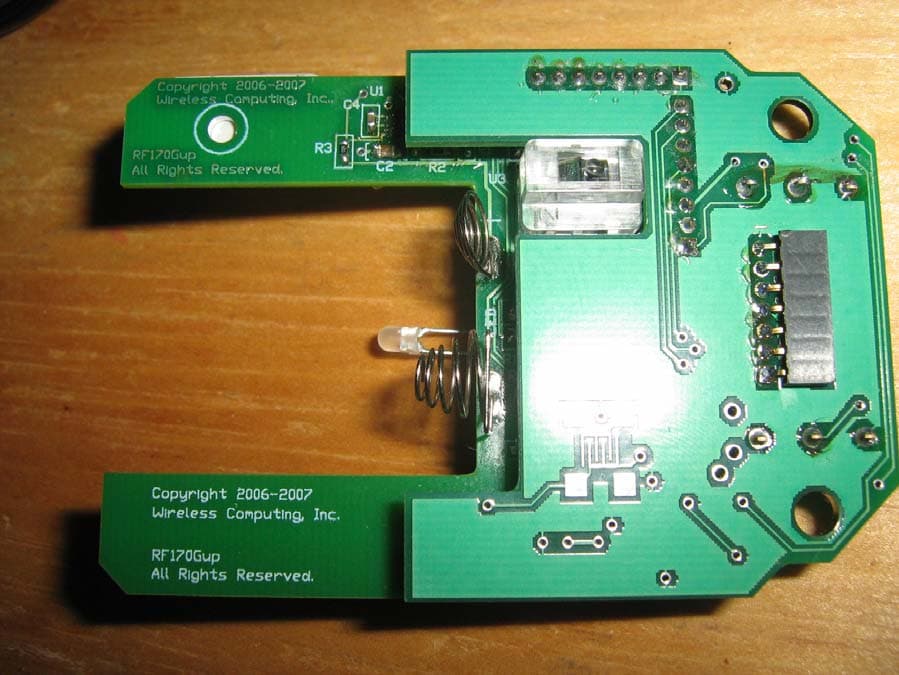
L7MR170
Mar 13, 2008Wireless Mouse
Equipment Class
DXX - Part 15 Low Power Communication Device Transmitter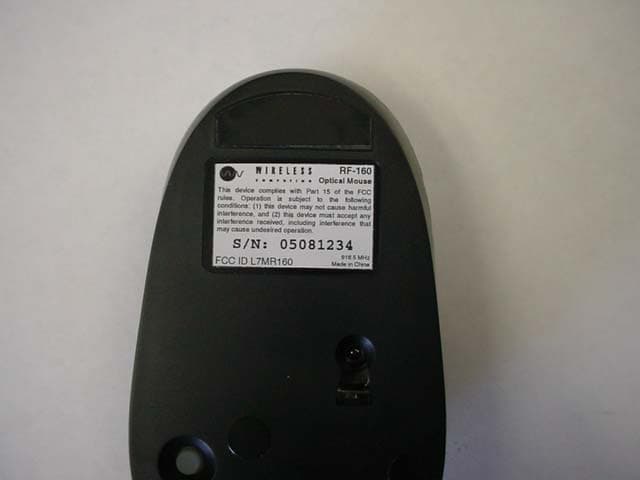
L7MR160
Sep 27, 2005Optical Mouse
Equipment Class
DXT - Part 15 Low Power Transceiver, Rx Verified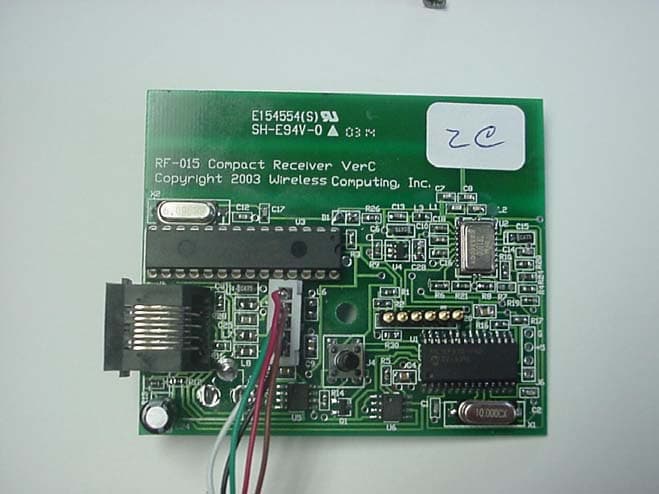
L7MR015
Jul 01, 2003Wireless Receiver
Equipment Class
DXX - Part 15 Low Power Communication Device Transmitter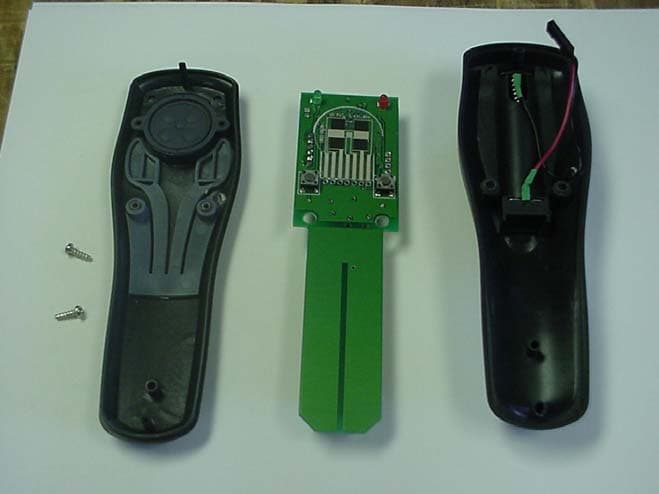
L7MR150
Jul 01, 2003RF 150 Wireless Mouse
Equipment Class
DXX - Part 15 Low Power Communication Device Transmitter