LE2UDSC15DIGITAL WIRELESS SURVEILLANCE SYSTEM
JSW Pacific Corporation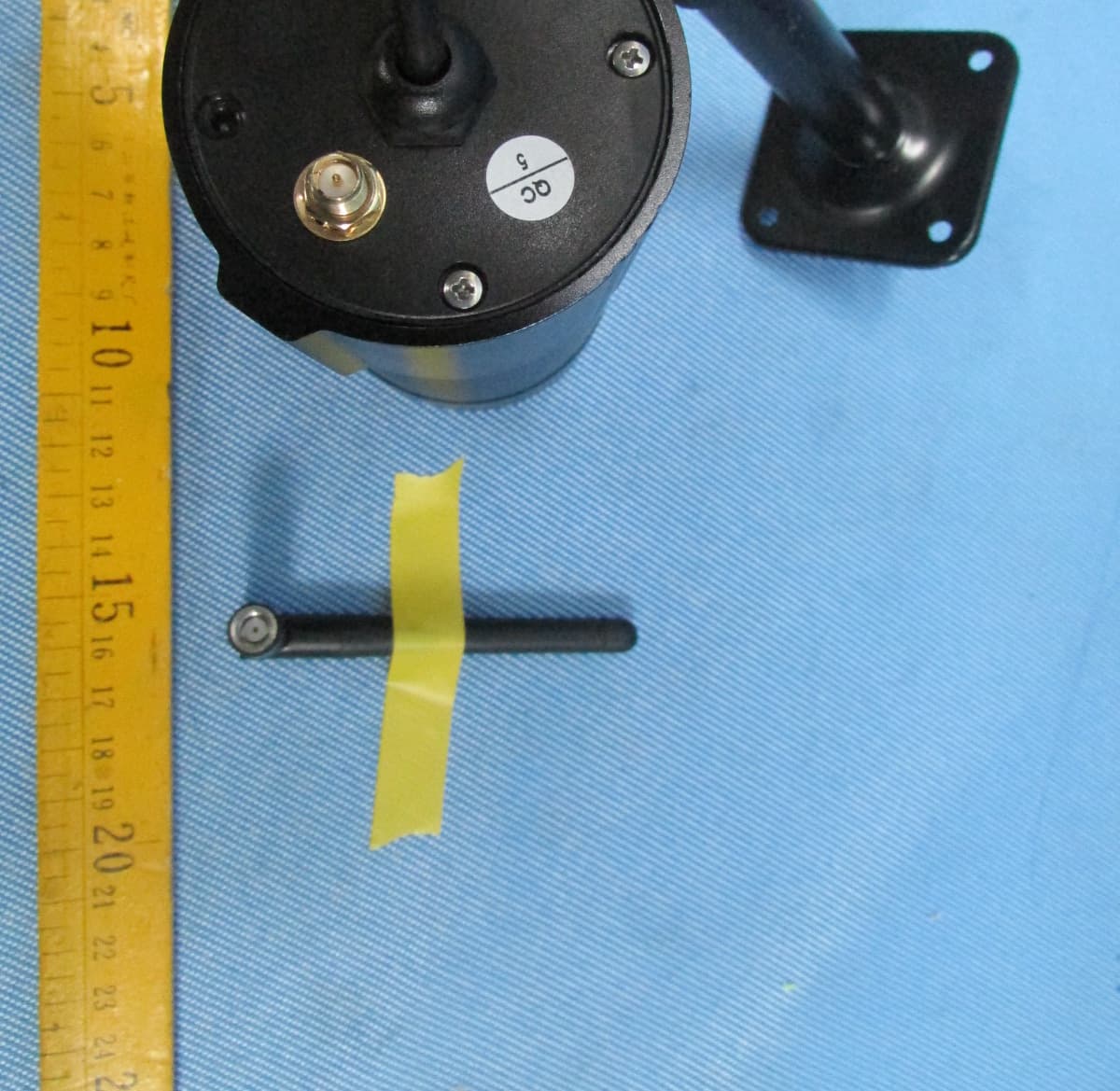
Click to zoom
Application Details
- Equipment Class
- DSS - Part 15 Spread Spectrum Transmitter
- Date of Grant
- Jan 28, 2013
- Application Purpose
- Original Equipment
- Date of Application
- Jan 28, 2013
- Equipment Note
- DIGITAL WIRELESS SURVEILLANCE SYSTEM
- Frequency Range
- 2408.00000000 - 2474.00000000
- Company
- JSW Pacific Corporation
- Country
- Taiwan
Documents & Files
Document Text
Text extracted from the exhibit documents filed with the FCC. Open a document above to read the original.
Users Manual
UDS655 Wireless Video Surveillance System Customer Care At Uniden®, we care about you! If you need assistance, please do NOT return this product to your place of purchase. Our customer care specialists are available to serve you. Quickly find answers to your questions by: 1. Reading your owner’s manual, included with this product. 2. Visiting our customer support website at www.uniden.com. 3. Calling our customer care specialists at 1-817-858-2900 or 1-800-658-8068. Uniden surveillance products are not manufactured and/or sold with the intent to be used for illegal purposes. Uniden expects consumer’s use of these products to be in compliance with all local, state and federal law. For further information on video surveillance and audio recording legal requirements, please consult your local, state and federal law. © 2013. All rights allowed by law are hereby reserved. Contents Getting started ...........................................................................4 Using This Manual ......................................................................................4 What’s Included ...........................................................................................5 Setting Up the Equipment ......................................................................6 Set Up the Camera .................................................................................6 Set Up the Monitor ................................................................................8 Pairing Accessory Cameras to The Monitor ......................................9 BasIC oPeratIon ..................................................................10 Getting to Know Your Monitor ..........................................................10 Screen icons ..........................................................................................11 Getting to Know Your Camera ............................................................13 Basic Operation Rules .............................................................................13 Using your UDS655 .................................................................................14 uDs655 screen Descriptions ..................................................16 UDS655 Main Menu Screen .................................................................16 Camera Setup Screen .............................................................................18 Pair a New Device ................................................................................19 Image Brightness.................................................................................20 Activate/Deactivate ............................................................................21 Recorder Setup .........................................................................................21 Record Schedule ..................................................................................22 Motion Detection Sensitivity ..........................................................24 Format Storage ....................................................................................25 Setup Masking Area ...........................................................................25 Event List .....................................................................................................27 Play Back Recorded File ....................................................................28 Delete Recorded Files ........................................................................29 System Setup.............................................................................................29 Date and Time ......................................................................................30 TV Output ...............................................................................................30 Power Saving ........................................................................................30 Multi Channel Idle Display ...............................................................31 Default .....................................................................................................32 Alarm Buzzer..............................................................................................33 Pan Tilt Zoom ............................................................................................33 Scan Activated Cameras ........................................................................35 Memory Card OverWrite .......................................................................35 sPeCIaL Features ..................................................................37 Remote Access ..........................................................................................37 System Requirements ........................................................................37 Install Uniden Remote Service Software.....................................38 Setting up a Portal Account ............................................................41 Using Remote Access ........................................................................44 Record Video Through the Portal ......................................................44 Take A Snapshot Through the Portal ................................................45 Play Back Recorded Files on Your PC ................................................45 View Live Video on TV ............................................................................45 Downloading and using the apps .........................................47 Android TM ................................................................................................................................................................................47 Download ..............................................................................................47 App Operation .....................................................................................48 iPhone® ...................................…
Text truncated - open the document above for the full version.
Users Manual
31 or to not have a bright LCD when sleeping. If Power Saving mode is on, motion detection events will turn the LCD screen back on. 1. From the SySteM SetuP screen, use VoL+ and VoL- to select poWeR SAvinG; press m. The poWeR SAvinG screen displays. 2. Use Ch+ and Ch- to choose between 5 min, or 10 min; the third option is ALWAyS on, which keeps the system from entering Power Saving mode. Press m to accept the setting and return to the poWeR SAvinG screen. multi Channel Idle Display This screen lets you decide if the channels will display in quad mode or if they will cycle individually in 5, 10, or 15 second intervals. 1. From the SySteM SetuP screen, use VoL+ and VoL- to select muLti cHAnneL idLe diSpLAy ; press m. The muLti cHAnneL idLe diSpLAy screen displays. 32 2. Use Ch+ and Ch- to choose between QuAd and 5, 10, and 15 second intervals. Press m to accept the change and return to the Multi ChAnnel diSPlAy screen. • The Activate or Deactivate setting ( CAMerA SetuP screen) affects which cameras display in Scan mode. • Audio is available from camera 1 in Quad mode, from whatever camera is a previously viewed channel, or from a channel triggered by motion detection. Default The deFAult screen gives you the options of selecting a default language. Options are English, French (Français) or Spanish (Espanol). 1. From the SySteM SetuP screen, use VoL+ and VoL- to select deFAuLt and press m. The deFAuLt screen displays. The language selected when setting the deFAuLt will be the system language after any system restoration. 33 2. Use Ch+ and Ch- to choose between English, French (Français), or Spanish (Espanol). Press m to confirm and back out. The deFAult screen will also alert you when it detects a new firmware upgrade on the SD card. Go to page 52 for details. aLarm BuZZer You can set the alarm buzzer to go off when a camera detects motion and begins recording. 1. From the main menu, use Ch+, Ch-, VoL+, and VoL- to select ALARm BuZZeR. 2. Press m to toggle the setting between on and oFF. Pan tILt Zoom This setting lets you change the orientation of the camera (pan and tilt) and the zoom distance. 34 1. From the main menu, use CH+, CH-, VOL+, and VOL- to select PAN TILT ZOOM and press M. The first camera displays in single camera mode. 2. Press Zoom. The camera zooms into Level 1. Press Zoom again to zoom into Level 2. (Sample actually goes into QUAD mode, then press Zoom and into camera 1.) 3. Press Ch+ and Ch- to pan the camera from left to right and back or VoL+ and VoL- to tilt the camera up and down. 4. Press esC to return to the the main menu. The system will exit Zoom mode after it is idle for 2 minutes. 35 sCan aCtIVateD Cameras 1. From the the main menu, press Ch+, Ch-, VoL+, and VoL- to select ScAn ActivAted cAmeRAS and press m to enter Scanning mode. 2. The screen scans between the cameras according to the scan time set up in the Multi ChAnnelS idle diSPlAy screen (refer to page 31). If a recording session started during SCAN mode (Schedule or Motion recording), the system resumes display in quad mode. memorY CarD oVerWrIte Turning on Memory Card Overwrite allows you to overwrite the oldest files when your memory card is full. If you turn this function off, an error message displays when you have no more room to save files. 1. From the main menu, press Ch+, Ch-, VoL+, and VoL- to select memoRy cARd oveRWRite and press m. 36 2. Press m again to toggle the overwrite setting between on and oFF. Press m. The system overwrites the oldest files first. The system displays the following SD card detail information. • SD card available storage space • If no space is available, 0.00GB displays. • Error indicator displays if: —SD card not present —SD card is locked. —SD card is unformatted —SD card is damaged. Please use well-known brands of micro SD cards to avoid operation errors. The UDS655 supports up to 32GB microSD cards. 37 sPeCIaL Features This section provides Remote Access requirements and software installation, setup, and usage procedures for accessing your live feeds from a number of wired and wireless devices. It also provides information on other special features such as: •Recording video and taking pictures through the Portal account •Viewing live video on TV •Playing back recorded files on a PC remote aCCess The Uniden USD655 let you view live video from your system on your television or PC (home or remote) or on wireless devices such as an iPhone®, iPad®, or Android TM smartphone or tablet. A free Uniden Guardian app is available through the iTunes® App Store or the Android Market. You can also view your recorded video files on any PC with Uniden Media Player installed. The Uniden Remote System software CD in your kit provides the software you need to install. You will also need to set up a Uniden Portal account. Multiple user accounts on your PC can access live video on their accounts through the Portal account as long as they have the Device ID (DID) code and security code to log in and you have specified that the Portal can provide access to multiple users on that PC when you set up the account. The number of remote viewers is determined by the amount of “available upload bandwidth” on your home network. Each remote viewer requires ~350kbps of bandwidth on the network. system requirements •Microsoft® Windows XP, Vista, or Windows 7 Uniden Remote Service software operates in a Windows environment only. •Internet Explorer® 8 or greater. 38 •iPhone® or •iPad® or •Android TM smartphone or tablet Install uniden remote service software 1. Insert the UDS655 Remote Software CD in your PC's CD ROM. 2. Select Uniden Remote Service and double-click to install. 3. The WelCoMe window appears. Click next to select an installation folder. 4. The default folder is located at C:\ Program Files\. If you want to store it in a different installation location, click BroWSe. When you have selected an installation location, click next to proceed. 39 If the computer has more than one user accou…
Text truncated - open the document above for the full version.
External Photos
Page 1 of 6 Page 2 of 6 Page 3 of 6 Page 5 of 6 Page 5 of 6
ID Label/Location Info
FCC Label Location for model: UDSC15 The Label must not be a stick-on paper. The Label on these products must be permanently affixed to the product and readily visible at the time of purchase and must last the expected lifetime of the equipment not be readily detachable. FCC ID: LE2UDSC15 This device complies with Part 15 of the FCC Rules. Operation is subject to the following two conditions: (1) this device may not cause harmful interference, and (2) this device must accept any interference received, including interference that may cause undesired operation.
ID Label/Location Info
FCC Label Sample for model: UDSC15 FCC ID: LE2UDSC15 This device complies with Part 15 of the FCC Rules. Operation is subject to the following two conditions: (1) this device may not cause interference, and (2) this device must accept any interference, including interference that may cause undesired operation of the device.
Internal Photos
Reference No.: WT12117917-D-S-F Page 52 of 61 Waltek Services (Shenzhen) Co.,Ltd. http://www.waltek.com.cn Reference No.: WT12117917-D-S-F Page 53 of 61 Waltek Services (Shenzhen) Co.,Ltd. http://www.waltek.com.cn Reference No.: WT12117917-D-S-F Page 54 of 61 Waltek Services (Shenzhen) Co.,Ltd. http://www.waltek.com.cn 17.3 EUT – PCB View
Test Report
Reference No.: WT12117917-D-S-F Page 1 of 61 FCC TEST REPORT Waltek Services (Shenzhen) Co.,Ltd. http://www.waltek.com.cn FCC ID : LE2UDSC15 Applicant : JSW Pacific Corporation Address : 3F-3, No. 700, Chung-Zheng Rd, Chung Ho City, Taipei Hsien, Taiwan 235 Manufacturer : JSW Pacific (China) Co., Ltd. Address : 3F-3, No. 700, Chung-Zheng Rd, Chung Ho City, Taipei Hsien, Taiwan 235 Equipment Under Test (EUT) : Product Name : Digital Wireless Surveillance System Model No. : UDSC15 Rules : FCC CFR47 Part 15 Section 15.247:2010 Date of Test : Dec. 04~06, 2012 Date of Issue : Dec. 17, 2012 Test Result : PASS Remark: * The sample described above has been tested to be in compliance with the requirements of ANSI C63.4:2003. The test results have been reviewed and comply with the rules listed above and found to meet their essential requirements. The results shown in this test report refer only to the sample(s) tested, this test report cannot be reproduced, except in full, without prior written permission of the company. The report would be invalid without specific stamp of test institute and the signatures of compiler and approver. Prepared By: Waltek Services (Shenzhen) Co., Ltd. 1/F, Fukangtai Building, West Baima Rd., Songgang Street, Baoan District, Shenzhen 518105, China Tel: +86-755-83551033 Fax: +86-755-83552400 Compiled by: Approved by: Zero Zhou / Project Engineer Philo Zhong / Manager Reference No.: WT12117917-D-S-F Page 2 of 61 Waltek Services (Shenzhen) Co.,Ltd. http://www.waltek.com.cn 2 Test Summary Test Items Test Requirement Result Conducted Emission 15.207 PASS Radiated Emissions 15.205(a) 15.209 15.247(d) PASS Band Edge Measurement 15.205(c) 15.209 15.247(d) PASS 20dB Bandwidth 15.247(a)(1) PASS Maximum Peak Output Power 15.247(b)(1) PASS Channel Separated 15.247(a)(1) PASS Hopping Channel Number 15.247(a)(1)(iii) PASS Dwell time 15.247(a)(1)(iii) PASS Antenna Requirement 15.203 PASS Maximum Permissible Exposure (Exposure of Humans to RF Fields) 1.1307(b)(1) PASS Reference No.: WT12117917-D-S-F Page 3 of 61 Waltek Services (Shenzhen) Co.,Ltd. http://www.waltek.com.cn 3 Contents Page 1 COVER PAGE .......................................................................................................................................... 1 2 TEST SUMMARY................................................................................................................................................... 2 3 CONTENTS............................................................................................................................................................. 3 4 GENERAL INFORMATION.................................................................................................................................. 5 4.1 GENERAL DESCRIPTION OF E.U.T............................................................................................................. 5 4.2 DETAILS OF E.U.T...................................................................................................................................... 5 4.3 DESCRIPTION OF SUPPORT UNITS............................................................................................................. 5 4.4 TEST FACILITY............................................................................................................................................ 5 4.5 TEST LOCATION.......................................................................................................................................... 5 5 EQUIPMENT USED DURING TEST................................................................................................................... 6 5.1 EQUIPMENTS LIST....................................................................................................................................... 6 5.2 MEASUREMENT UNCERTAINTY................................................................................................................... 6 5.3 TEST EQUIPMENT CALIBRATION................................................................................................................. 6 6 CONDUCTED EMISSIONS.................................................................................................................................. 7 6.1 E.U.T. OPERATION..................................................................................................................................... 7 6.2 TEST PROCEDURE...................................................................................................................................... 7 6.3 TEST SETUP................................................................................................................................................ 7 6.4 CONDUCTED EMISSION TEST RESULT....................................................................................................... 8 7 RADIATED EMISSIONS..................................................................................................................................... 14 7.1 EUT OPERATION :.................................................................................................................................... 14 7.2 TEST SETUP.............................................................................................................................................. 15 7.3 SPECTRUM ANALYZER SETUP.................................................................................................................. 16 7.4 TEST PROCEDURE.................................................................................................................................... 16 7.5 CORRECTED AMPLITUDE & MARGIN CALCULATION................................................................................. 17 7.6 SUMMARY OF TEST RESULTS................................................................................................................... 18 8 BAND EDGE MEASUREMENT.....................................…
Text truncated - open the document above for the full version.
Test Setup Photos
Reference No.: WT12117917-D-S-F Page 45 of 61 Waltek Services (Shenzhen) Co.,Ltd. http://www.waltek.com.cn 16 Photographs – Test Setup 16.1 Photograph –Conducted Emission Test Setup 16.2 Photograph –Radiated Emissions Test Setup Below 30MHz Reference No.: WT12117917-D-S-F Page 46 of 61 Waltek Services (Shenzhen) Co.,Ltd. http://www.waltek.com.cn 30MHz ~ 1GHz Above 1GHz
Contact Information
Applicant
Min Hui Chen(Vice President)
Test Firm
Waltek Services(Shenzhen) Co., Ltd.Philo zhong
Technical Specifications
| # | Rule Parts | Frequency Range | Power Output |
|---|---|---|---|
| 1 | 15C | 2.41 GHz - 2.47 GHz | 7.00 mW |
Other Applications from JSW Pacific Corporation
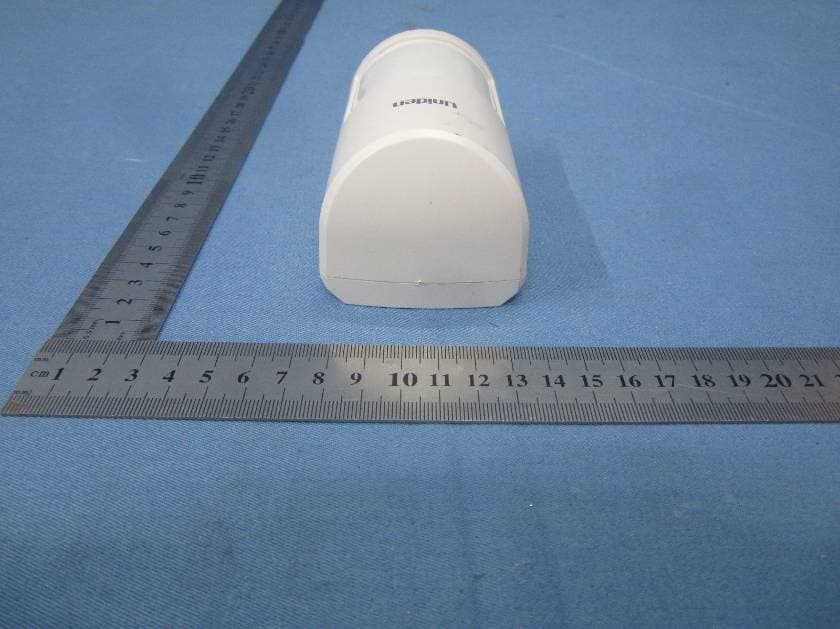
LE2PIR31
Nov 21, 2015Wireless portable / wall-mount area motion alert sensor
Equipment Class
DXX - Part 15 Low Power Communication Device Transmitter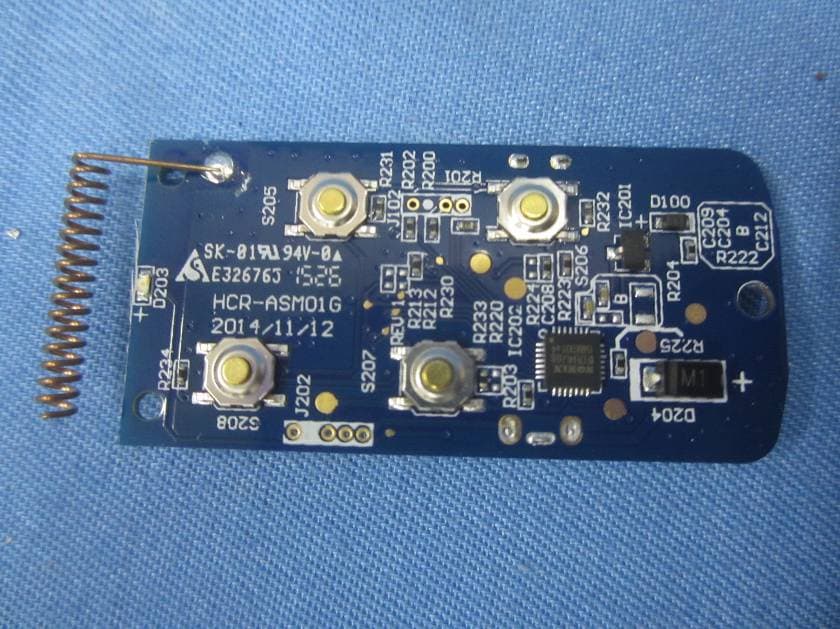
LE2RC41
Nov 21, 2015Wireless multi-functional panic remote controller
Equipment Class
DXX - Part 15 Low Power Communication Device Transmitter
LE2APPCAM26PTA
Jun 13, 2015720p PT WIFI Camera
Equipment Class
DTS - Digital Transmission System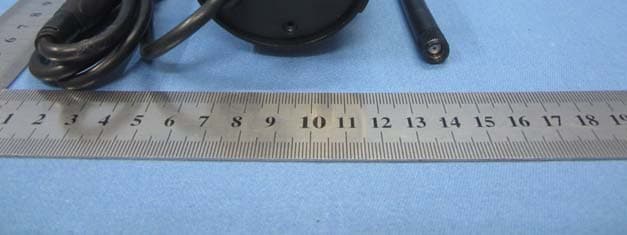
LE2APPCAM25HDA
May 25, 2015720p WIFI Camera
Equipment Class
DTS - Digital Transmission System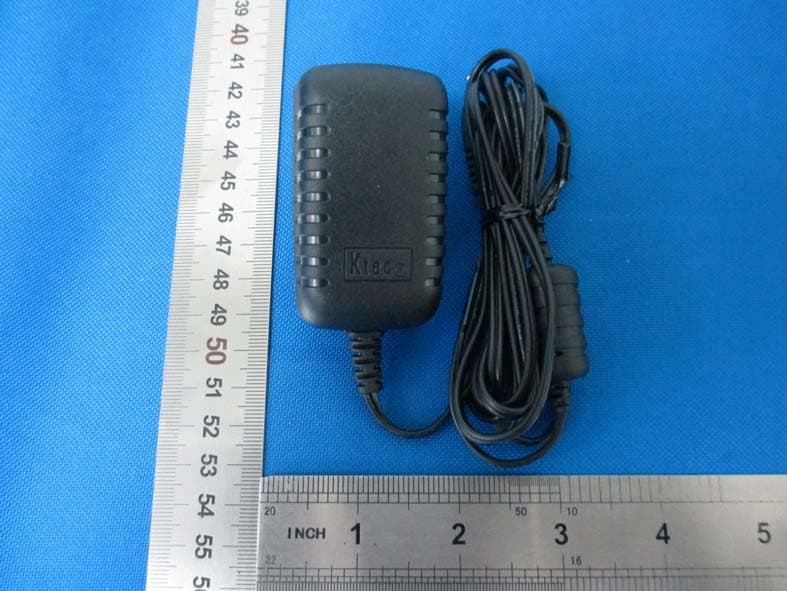
LE2APPCAM24HD
May 24, 2015720p WIFI Camera
Equipment Class
DTS - Digital Transmission System