N7NAC5751XEVDO Dual Band Wireless Modem
Sierra Wireless, ULC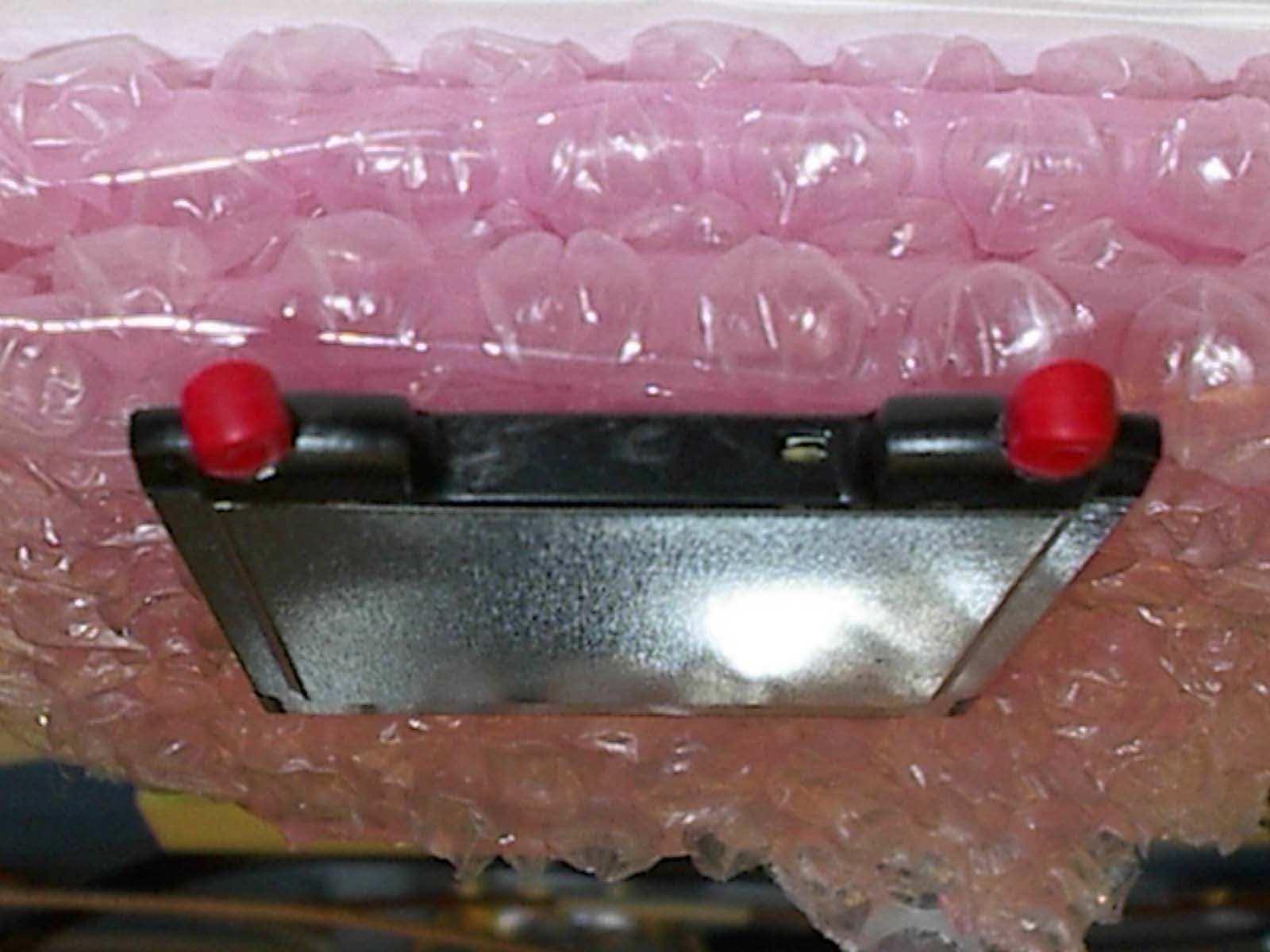
Click to zoom
Application Details
- Equipment Class
- TNB - Licensed Non-Broadcast Station Transmitter
- Date of Grant
- Nov 12, 2002
- Application Purpose
- Original Equipment
- Date of Application
- Jul 01, 2002
- Equipment Note
- 1XEVDO Dual Band Wireless Modem
- Frequency Range
- 1851.25000000 - 1908.75000000
- Company
- Sierra Wireless, ULC
- Country
- Canada
Documents & Files
Document Text
Text extracted from the exhibit documents filed with the FCC. Open a document above to read the original.
Users Manual
Notebook PCs no 1. Install the AirCard software and the driver, following the instructions below. (These instructions must be followed in order.) 2. Activate an account and configure the AirCard to use your account, unless your AirCard has been pre-activated. (Instructions on activating and configuring your account are on the back of this card.) Pocket PCs See the instructions on the back. AirCard ® 575 Wireless Network Card Quick Start Guide AirCard ® 575 Wireless Network Card This quick reference gives basic installation and configuration instructions, as well as data connection instructions for using the AirCard 575. Getting Started Notebook Installation: Windows 2000 Follow these instructions to install Watcher, the Network Adapter Manager, and the AirCard driver. Do not insert the AirCard until prompted. Users must log on with administrative privileges. 1. Close all Windows programs and insert the AirCard installation CD in your CD-ROM drive. If the CD does not auto-run and display a menu, select Start > Runand enter d:\Launchwhere dis your CD- ROM drive letter. 2. Select notebook installation and documentation, then notebook software installationto launch the InstallShield wizard which guides you through the installation of Watcher and the Network Adapter Manager. (Use the Nextand Backbuttons to navigate the wizard.) 3. A series of dialog boxes guides you through the driver installation. Insert the AirCard when prompted. 4. Click OKon the Digital Signature Not Found window each time it appears. 5. Click Finishon the final two windows. 6. Click OKat the prompt to install the AirCard 575 drivers. The Found New Hardware window is displayed. 7. Click Yeson the Digital Signature Not Found window each time it appears. 8. You may be prompted to restart your PC. If prompted, restart your PC from the Start menu. On completion of this step, the installation is complete. You can proceed to activate your account and configure the AirCard to use your account. (See the other side of this card.) Warning: Do NOT insert the AirCard into your PC card slot before installing the software. Notebook Installation: Windows XP Follow these steps to install Watcher, the Network Adapter Manger, and the AirCard driver. Depending on your installation, you may need to log on with adminis- trative privileges. 1. Close all Windows programs and insert the AirCard installation CD in your CD-ROM drive. If the CD does not auto-run and display a menu, select Start > Runand enter d:\Launchwhere dis your CD- ROM drive letter. 2. Select notebook installation and documentation, then notebook software installationto launch the InstallShield wizard which guides you through the installation of Watcher and the Network Adapter Manager. (Use the Nextand Backbuttons to navigate the wizard and click Finishon the final window.) 3. Click OKon the Setup window and click Continue Anywayeach time the Software Installation window appears. 4. Extend both antennas until they click into place, then insert the AirCard into your PC card slot. Windows launches the Found New Hardware wizard. Use the Nextand Backbuttons to navigate, making these selections: • Select Install from a list or specific location (Advanced). • Select Search for the best driver in these locations. • Enter d:\Drivers\WinXPwhere dis your CD-ROM drive letter. • Click Continue Anywayon the Hardware Installation window. • Click Finishon the final window of the wizard. Note: Each window in the wizard appears three times (because the AirCard is a multi-function card). Select the same options each time. • When the wizard completes, click Finish. 5.Click OKat the prompt that indicates that the AirCard 575 has been successfully installed. Once the installation is complete, you can proceed to activate your account. (See the other side of this card.) Establish a Data Connection 1. Select the connection you want to use from the Dial-Up Manager window or from the drop-down list in the main Watcher window. 2. Click Connect. The status of the connection is displayed in the main Watcher window. This quick reference gives basic installation and configuration instructions. Before you can use the AirCard 575 on a Pocket PC, you must: 1. Install Watcher and the driver to a host PC. 2. Download the software and driver to your Pocket PC. 3. Activate an account and configure the AirCard to use your account (unless your AirCard has been pre-activated). 1. Ensure that high-speed service is available 2. From the main Watcher window or the Dial-Up Manager window, select the High Speed Data connection. Your package should contain: • AirCard 575 wireless network card 3. Click Connect. • Installation CD containing the AirCard software • This quick reference card Contact your wireless service provider for technical support of this product. For more information about Sierra Wireless products, see our web site: www.sierrawireless.com Establish a High-Speed Data Call Pocket PC 2002 Installation You require a host computer (desktop or note- book) with ActiveSync installed, and a connection (serial, USB, or infrared) between the Pocket PC and the host. Installing to the Host 1. Close all Windows programs and insert the AirCard installation CD in your CD-ROM drive. If the CD does not auto-run and display a menu, select Start > Runand enter d:\Launchwhere dis your CD- ROM drive letter. 2. Select Pocket PC 2002 installation and documentation, then Pocket PC 2002 software installation(Windows CE 3.0 MS Pocket PC 2002 ). This launches the InstallShield wizard which guides you through the software installation. Downloading to the Pocket PC 3. Connect your Pocket PC to the host to launch ActiveSync. (Note: you do not need to establish a partnership to download the software.) ActiveSync prompts you that there is software to download. 4. Click Yesto start the download. 5. Once the download is complete, reset the Pocket PC. 6. Attach the PCMCIA jacket to the Pocket PC, extend both antennas from the AirCard until t…
Text truncated - open the document above for the full version.
Users Manual
Verizon Wireless High Verizon Wireless High Verizon Wireless High Verizon Wireless High Speed Wireless Data Trial Speed Wireless Data TrialSpeed Wireless Data Trial Speed Wireless Data Trial Sierra Wireless AirCard 575 Set Up Instructions V1.2a VERIZON WIRELESS HIGH SPEED WIRELESS DATA TRIAL SECTION 4: SIERRA WIRELESS AIRCARD 575 SET UP INSTRUCTION 2 Contents SECTION 1: PC PREPARATION ............................................................................................................................ 3 1.1 PC P REPARATION .................................................................................................................................................. 3 1.1.1 Device............................................................................................................................................................. 3 1.1.2 Operating System .......................................................................................................................................... 3 1.1.3 Memory .......................................................................................................................................................... 3 1.1.4 Disk Space...................................................................................................................................................... 3 1.1.5 Other .............................................................................................................................................................. 3 1.2 S OFTWARE P REPARATION ..................................................................................................................................... 3 SECTION 2: SETUP ................................................................................................................................................... 3 2.1 W IRELESS D EVICE S ETUP .................................................................................................................................... 3 2.1.1 Installing the AirCard 575 Wireless Network Card & Drivers .................................................................. 3 SECTION 3: CONNECT........................................................................................................................................... 11 3.1 C ONNECT TO W IRELESS N ETWORK USING 1 X EVDO (W IRELESS H IGH S PEED D ATA ) ................................... 11 3.2 C ONNECT TO W IRELESS N ETWORK USING CDMA 1 X RTT (E XPRESS N ETWORK ) ......................................... 13 3.2.1 1xRTT Account Activation and Configuration........................................................................................... 13 3.2.2 1xRTT Wireless Connection........................................................................................................................ 14 3.3 V ERIFY C ONNECTIVITY ....................................................................................................................................... 15 3.3.1 Access a website via your browser ............................................................................................................. 15 3.3.2 Ping an Internet address ............................................................................................................................. 15 3.4 Disconnect from Wireless Network ............................................................................................................... 16 APPENDICES ............................................................................................................................................................. 17 APPENDIX A: T ECHNICAL S PECIFICATIONS .......................................................................................................... 17 APPENDIX B: R EGULATORY I NFORMATION ......................................................................................................... 18 VERIZON WIRELESS HIGH SPEED WIRELESS DATA TRIAL SECTION 4: SIERRA WIRELESS AIRCARD 575 SET UP INSTRUCTION 3 Section 1: PC Preparation 1.1 PC Preparation 1.1.1 Device Only PCs or Laptops will be supported during the trial. 1.1.2 Operating System You must have Windows 2000. 1.1.3 Memory You must have a minimum of 128 MB or the recommended 256 MB RAM 1.1.4 Disk Space You must have at least 10 MB disk space on your hard drive. 1.1.5 Other You must have one available PCMCIA Card Slot 1.2 Software Preparation If you are an enterprise user, please check with your Information Technology (IT) department regarding obtaining and installing other software such as VPN clients. It is required that the user installing the software have administrator rights to the computer. Please logon to your computer using an account that has administrator rights (e.g., administrator) before attempting to install software on your computer. Section 2: Setup 2.1 Wireless Device Setup 2.1.1 Installing the AirCard 575 Wireless Network Card & Drivers Do not insert the AirCard 575 Wireless Card into the PCMCIA slot of your notebook computer until you are asked to. 1. Gather the following items: a. Sierra Wireless AirCard 575 VERIZON WIRELESS HIGH SPEED WIRELESS DATA TRIAL SECTION 4: SIERRA WIRELESS AIRCARD 575 SET UP INSTRUCTION 4 b. Sierra Wireless AirCard 575 Installation & Software CD 2. Insert the AirCard 575 CD in your CD drive. A program will auto-run displaying a menu as shown below. ! If the menu program does not auto-run, click on the Windows Start Menu, then click Run. In the box next to Open, type in “d:\launch” (where d: is the drive letter of your CD-ROM drive). Click OK when complete. 3. From the AirCard 575 Wireless Network Card Menu, click on “notebook installation.” A screen will appear warning you to install the Sierra Wireless software before inserting the AirCard. Click on “notebook software installation.” This will launch the InstallShield Wizard and begin the installation of the AirCard 575 software. VERIZON WIRELESS HIGH…
Text truncated - open the document above for the full version.
Users Manual
Verizon Wireless High Verizon Wireless High Verizon Wireless High Verizon Wireless High Speed Wireless Data Trial Speed Wireless Data TrialSpeed Wireless Data Trial Speed Wireless Data Trial Sierra Wireless AirCard 575 Set Up Instructions V1.2a VERIZON WIRELESS HIGH SPEED WIRELESS DATA TRIAL SECTION 4: SIERRA WIRELESS AIRCARD 575 SET UP INSTRUCTION 2 Contents SECTION 1: PC PREPARATION ............................................................................................................................ 3 1.1 PC P REPARATION .................................................................................................................................................. 3 1.1.1 Device............................................................................................................................................................. 3 1.1.2 Operating System .......................................................................................................................................... 3 1.1.3 Memory .......................................................................................................................................................... 3 1.1.4 Disk Space...................................................................................................................................................... 3 1.1.5 Other .............................................................................................................................................................. 3 1.2 S OFTWARE P REPARATION ..................................................................................................................................... 3 SECTION 2: SETUP ................................................................................................................................................... 3 2.1 W IRELESS D EVICE S ETUP .................................................................................................................................... 3 2.1.1 Installing the AirCard 575 Wireless Network Card & Drivers .................................................................. 3 SECTION 3: CONNECT........................................................................................................................................... 11 3.1 C ONNECT TO W IRELESS N ETWORK USING 1 X EVDO (W IRELESS H IGH S PEED D ATA ) ................................... 11 3.2 C ONNECT TO W IRELESS N ETWORK USING CDMA 1 X RTT (E XPRESS N ETWORK ) ......................................... 13 3.2.1 1xRTT Account Activation and Configuration........................................................................................... 13 3.2.2 1xRTT Wireless Connection........................................................................................................................ 14 3.3 V ERIFY C ONNECTIVITY ....................................................................................................................................... 15 3.3.1 Access a website via your browser ............................................................................................................. 15 3.3.2 Ping an Internet address ............................................................................................................................. 15 3.4 Disconnect from Wireless Network ............................................................................................................... 16 APPENDICES ............................................................................................................................................................. 17 APPENDIX A: T ECHNICAL S PECIFICATIONS .......................................................................................................... 17 APPENDIX B: R EGULATORY I NFORMATION ......................................................................................................... 18 VERIZON WIRELESS HIGH SPEED WIRELESS DATA TRIAL SECTION 4: SIERRA WIRELESS AIRCARD 575 SET UP INSTRUCTION 3 Section 1: PC Preparation 1.1 PC Preparation 1.1.1 Device Only PCs or Laptops will be supported during the trial. 1.1.2 Operating System You must have Windows 2000. 1.1.3 Memory You must have a minimum of 128 MB or the recommended 256 MB RAM 1.1.4 Disk Space You must have at least 10 MB disk space on your hard drive. 1.1.5 Other You must have one available PCMCIA Card Slot 1.2 Software Preparation If you are an enterprise user, please check with your Information Technology (IT) department regarding obtaining and installing other software such as VPN clients. It is required that the user installing the software have administrator rights to the computer. Please logon to your computer using an account that has administrator rights (e.g., administrator) before attempting to install software on your computer. Section 2: Setup 2.1 Wireless Device Setup 2.1.1 Installing the AirCard 575 Wireless Network Card & Drivers Do not insert the AirCard 575 Wireless Card into the PCMCIA slot of your notebook computer until you are asked to. 1. Gather the following items: a. Sierra Wireless AirCard 575 VERIZON WIRELESS HIGH SPEED WIRELESS DATA TRIAL SECTION 4: SIERRA WIRELESS AIRCARD 575 SET UP INSTRUCTION 4 b. Sierra Wireless AirCard 575 Installation & Software CD 2. Insert the AirCard 575 CD in your CD drive. A program will auto-run displaying a menu as shown below. ! If the menu program does not auto-run, click on the Windows Start Menu, then click Run. In the box next to Open, type in “d:\launch” (where d: is the drive letter of your CD-ROM drive). Click OK when complete. 3. From the AirCard 575 Wireless Network Card Menu, click on “notebook installation.” A screen will appear warning you to install the Sierra Wireless software before inserting the AirCard. Click on “notebook software installation.” This will launch the InstallShield Wizard and begin the installation of the AirCard 575 software. VERIZON WIRELESS HIGH…
Text truncated - open the document above for the full version.
Users Manual
Verizon Wireless High Verizon Wireless High Verizon Wireless High Verizon Wireless High Speed Wireless Data Trial Speed Wireless Data TrialSpeed Wireless Data Trial Speed Wireless Data Trial Sierra Wireless AirCard 575 Set Up Instructions V1.2a VERIZON WIRELESS HIGH SPEED WIRELESS DATA TRIAL SECTION 4: SIERRA WIRELESS AIRCARD 575 SET UP INSTRUCTION 2 Contents SECTION 1: PC PREPARATION ............................................................................................................................ 3 1.1 PC P REPARATION .................................................................................................................................................. 3 1.1.1 Operating System .......................................................................................................................................... 3 1.1.2 Memory .......................................................................................................................................................... 3 1.1.3 Disk Space...................................................................................................................................................... 3 1.1.4 Other .............................................................................................................................................................. 3 1.2 S OFTWARE P REPARATION ..................................................................................................................................... 3 SECTION 2: SETUP ................................................................................................................................................... 3 2.1 W IRELESS D EVICE S ETUP .................................................................................................................................... 3 2.1.1 Installing the AirCard 575 Wireless Network Card & Drivers .................................................................. 3 SECTION 3: CONNECT........................................................................................................................................... 11 3.1 C ONNECT TO W IRELESS N ETWORK USING 1 X EVDO (W IRELESS H IGH S PEED D ATA ) ................................... 11 3.2 C ONNECT TO W IRELESS N ETWORK USING CDMA 1 X RTT (E XPRESS N ETWORK ) ......................................... 12 3.2.1 1xRTT Account Activation and Configuration........................................................................................... 12 3.2.2 1xRTT Wireless Connection........................................................................................................................ 13 3.3 V ERIFY C ONNECTIVITY ....................................................................................................................................... 14 3.3.1 Access a website via your browser ............................................................................................................. 14 3.3.2 Ping an Internet address ............................................................................................................................. 14 3.4 Disconnect from Wireless Network ............................................................................................................... 15 APPENDICES ............................................................................................................................................................. 17 APPENDIX A: T ECHNICAL S PECIFICATIONS .......................................................................................................... 17 APPENDIX B: R EGULATORY I NFORMATION ......................................................................................................... 18 VERIZON WIRELESS HIGH SPEED WIRELESS DATA TRIAL SECTION 4: SIERRA WIRELESS AIRCARD 575 SET UP INSTRUCTION 3 Section 1: PC Preparation 1.1 PC Preparation 1.1.1 Operating System You must have Windows 2000. 1.1.2 Memory You must have a minimum of 128 MB or the recommended 256 MB RAM 1.1.3 Disk Space You must have at least 10 MB disk space on your hard drive. 1.1.4 Other You must have one available PCMCIA Card Slot 1.2 Software Preparation If you are an enterprise user, please check with your Information Technology (IT) department regarding obtaining and installing other software such as VPN clients. It is required that the user installing the software have administrator rights to the computer. Please logon to your computer using an account that has administrator rights (e.g., administrator) before attempting to install software on your computer. Section 2: Setup 2.1 Wireless Device Setup 2.1.1 Installing the AirCard 575 Wireless Network Card & Drivers Do not insert the AirCard 575 Wireless Card into the PCMCIA slot of your notebook computer until you are asked to. 1. Gather the following items: a. Sierra Wireless AirCard 575 b. Sierra Wireless AirCard 575 Installation & Software CD 2. Insert the AirCard 575 CD in your CD drive. A program will auto-run displaying a menu as shown below. VERIZON WIRELESS HIGH SPEED WIRELESS DATA TRIAL SECTION 4: SIERRA WIRELESS AIRCARD 575 SET UP INSTRUCTION 4 ! If the menu program does not auto-run, click on the Windows Start Menu, then click Run. In the box next to Open, type in “d:\launch” (where d: is the drive letter of your CD-ROM drive). Click OK when complete. 3. From the AirCard 575 Wireless Network Card Menu, click on “notebook installation.” A screen will appear warning you to install the Sierra Wireless software before inserting the AirCard. Click on “notebook software installation.” This will launch the InstallShield Wizard and begin the installation of the AirCard 575 software. VERIZON WIRELESS HIGH SPEED WIRELESS DATA TRIAL SECTION 4: SIERRA WIRELESS AIRCARD 575 SET UP INSTRUCTION 5 4. From the InstallShield Wizard window, click Next to continue. 5. From the License Agreement window, click Yes to continue. 6. From the Choose Destinati…
Text truncated - open the document above for the full version.
Cover Letter(s)
July 4, 2002 Federal Communications Commission Authorization and Standards Division 7435 Oakland Mills Road Columbia, M.D. 21046 Dear Sir/Madam: Re: Confidentiality Request for FCC ID N7NAC575 We hereby request that the documentation listed below, submitted with our application for certification, be withheld from public disclosure. This request is made under the provisions of Section 0.457(d) of the Commission’s Rules, and Section 552(b)(4) of the Freedom of Information Act. We cite trade secrets as the reason and purpose of the request. 1. AC575 Schematics (AC575SCH.PDF) 2. AC575 Block Diagram (AC575BLK.PDF) 3. AC575 Parts List (AC575BOM.PDF) 4. AC575 Detailed Circuit Description (AC575DCD.PDF) Sincerely Ying Wang Senior RF Engineer
Cover Letter(s)
July 19, 2002 Federal Communications Commission Authorization and Standards Division 7435 Oakland Mills Road Columbia, M.D. 21046 RE: Remove Test Firm Contact Information from Form 731 for EA791647 Dear Sir/Madam: When we filled in the online Form 731, we unnecessarily entered the test firm contact information under Item 15 of Form 731. Sierra Wireless, Inc. is hereby requesting the Commission to remove the test firm contact information from the Form 731, so future correspondence regarding this application will only be sent to the applicant. Thank you very much! Sincerely, Ying Wang Senior RF Engineer
Cover Letter(s)
To: Ying Wang, Sierra Wireless Inc. From: Stan Lyles [email protected] FCC Application Processing Branch Re: FCC ID N7NAC575 Applicant: Sierra Wireless Inc. Correspondence Reference Number: 23677 731 Confirmation Number: EA791647 1.) What are the exact frequencies for the low and high channels for both modes? On page 12 of CCS test report, it appears from page 12 of CCS test report that this device can be tune to the band edge. Please clarify. [Reply] During normal operation, the frequencies for the lowest channel and the highest channel in cellular band are 824.700 MHz and 848.310 MHz respectively, and the frequencies for the lowest channel and the highest channel in PCS band are 1851.250 MHz and 1908.750 MHz respectively. With special software the EUT can be set to diagnostic mode. Only in diagnostic mode the EUT can be tuned to any channel in the band including the channel at the band edge. The diagnostic mode is only intended for engineering testing and is not accessible by the end users of this product. 2.) For 800 MHz band the conducted power is 0.549 watts and the ERP power is 0.0822 watts. For 1900 MHz band the conducted power is 0.562 watts and the EIRP power is 0.136 watts. Please explain this large difference between the radiated power and conducted power. [Reply] Because of CDMA’s unique spread spectrum technology, the RF energy is spread over a bandwidth of 1.25MHz. The large difference between the radiated power and conducted power is due to a smaller resolution bandwidth being used in the measurement. The ERP and EIRP was measured again using a wider RBW after consulting Mr. Tom Phillips of FCC on the RBW. Please see the attached file (ERP EIRP 9-9-02.pdf) for the test result. 3.) User manual. Only a "quick start guide" was found. Please include in the manual appropriate RF safety information. [Reply] Please see the attached file AC575_User_Guide.pdf. 4.) Clarification of maximum conducted power. EMC report on page 6 of 42 states 27 dBm maximum and 23 dBm average. Please clarify. [Reply] Because of CDMA’s unique spread spectrum technology, the RF energy is spread over a bandwidth of 1.25MHz. In CDMA system the transmitting power is expressed as channel power, which is the averaged power in the frequency bandwidth of the signal. On page 6 of 42 of the EMC report, the EUT was set to transmit PN (Pseudorandom Noise) sequence. The channel power was adjusted to 23 dBm (measured by an Average Power Meter) and the peak power (about 27dBm) was recorded by the spectrum analyzer using its Max. Hold feature. (Note: this peak power is not a power at any particular frequency, but an integrated power over the frequency band. ) The difference between peak power and average power is the peak-to-average ratio, which is common on any digitally modulated transmitters. 5.) General details of host devices. [Reply] The SAR evaluation was performed on two hosts. One is an IBM ThinkPad, which has a dimension of 30cm x 25cm x 3.5cm and the other is a Compaq iPaq Pocket PC, which has a dimension of 13cm x 8.5cm x 3cm. 6.) Details of any voice modes for the device. Please include details of any potential user positions for voice use. [Reply] This device does not support voice, therefore there is no voice mode. 7.) Discussion of how the EUT was operated/controlled during the test to assure the testing of all appropriate modes, maximum power. [Reply] Special commands were used to set the EUT in testing mode. The conducted output power was measured before and after each test. 8.) New uncertainty budget information. Please use draft P1528 template. [Reply] Please see the attached file com_P1528_Aug02-1.pdf provided by CCS. 9.) Additional test data according to the following criteria. [Reply] We choose Option A for this application– No additional data provided. A) No additional data required. Proposed grant comment similar to The SAR data in this filing is not applicable to demonstrate compliance for final host products other than as shown in this filing. Installation of this device into other host products requires the submission of a Class II permissive change application containing data demonstrating compliance for SAR, spurious emissions, and EIRP. Otherwise, any new host devices will be considered unauthorized equipment. Marketing of unauthorized equipment is prohibited by Section 2.803 of the FCC Rules. Compliance of this device in any final host configuration is the responsibility of the Grantee. The antenna(s) used for this transmitter must not be co-located or must not operate in conjunction with any other antenna or transmitter within a host device. The user must be provid…
Text truncated - open the document above for the full version.
Contact Information
Applicant
Ying Wang(Director, Regulatory Compliance)
Test Firm
Compliance Certification Services IncSteve Cheng
Technical Specifications
| # | Rule Parts | Frequency Range | Power Output | Emission | Tolerance |
|---|---|---|---|---|---|
| 2 | 24E | 1.85 GHz - 1.91 GHz | 432.00 mW | 1M25F9W | 2.5 ppm |
Other Applications from Sierra Wireless, ULC
N7NHL79E
Feb 23, 2026Radio Module
Equipment Class
PCB - PCS Licensed Transmitter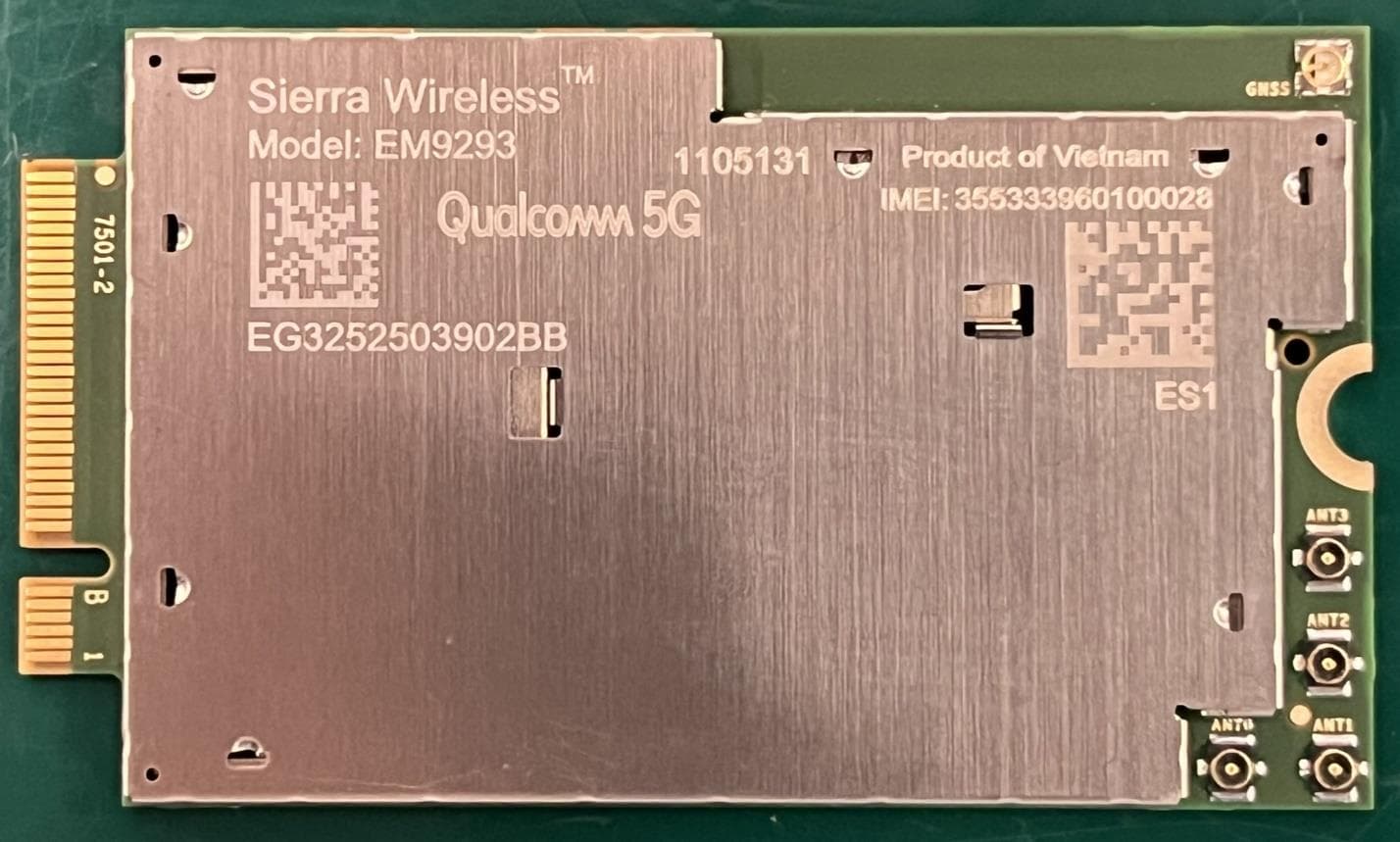
N7NEM92P
Sep 04, 2025Radio Module
Equipment Class
CBE - Citizens Band End User DevicesN7NHL79
Aug 15, 2024Module
Equipment Class
PCB - PCS Licensed Transmitter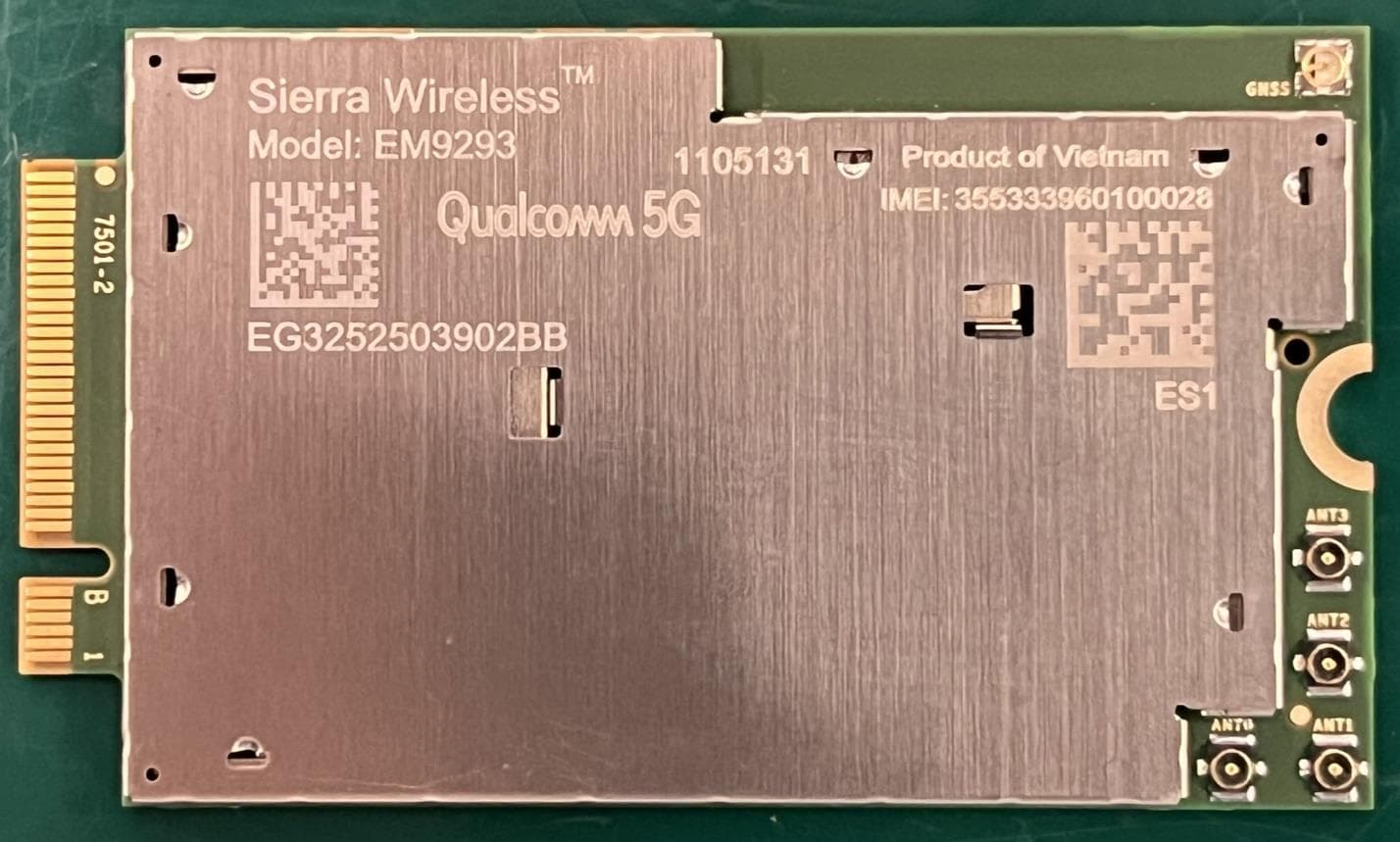
N7NEM92
Sep 26, 2023Radio Module
Equipment Class
CBE - Citizens Band End User Devices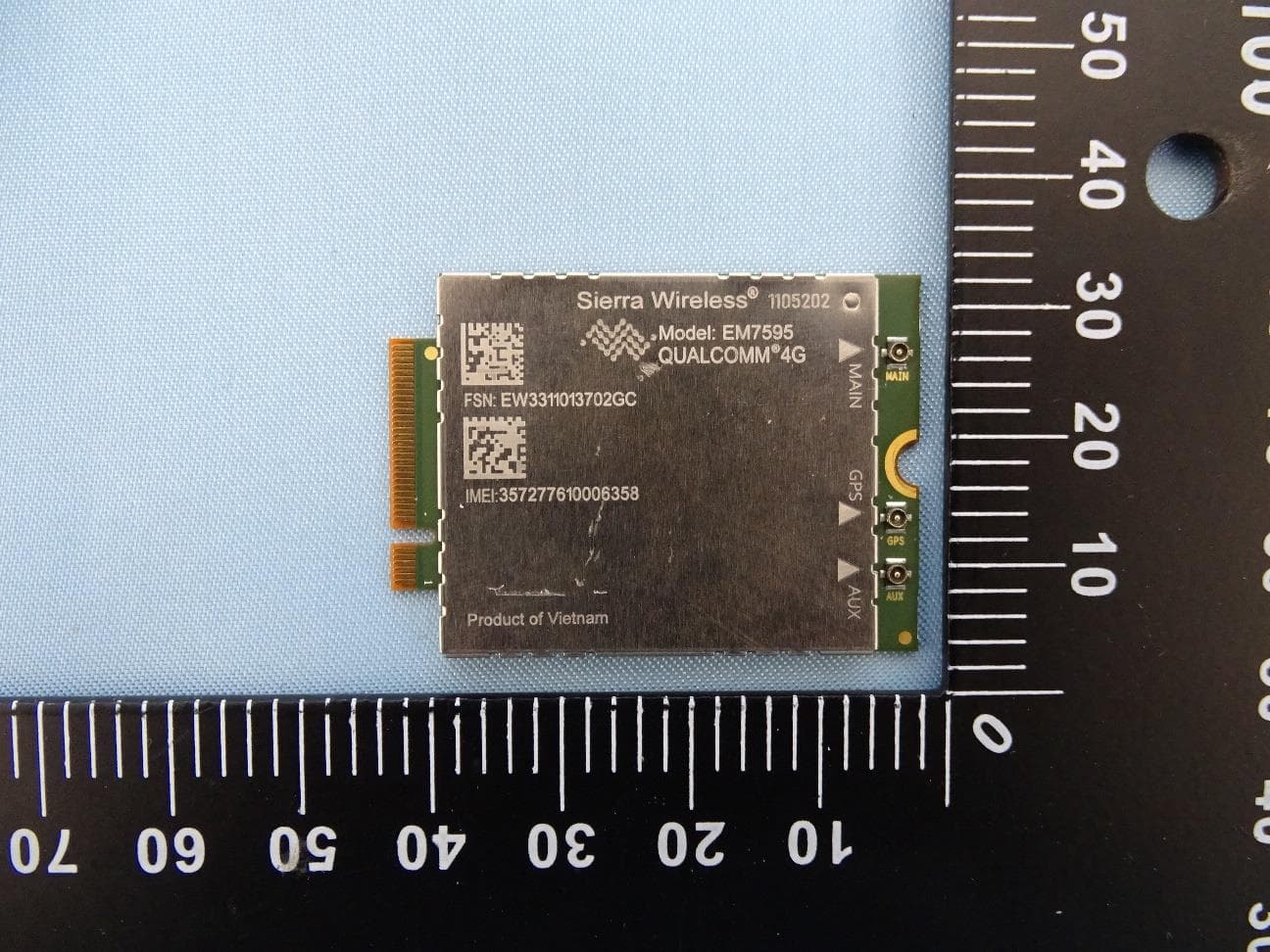
N7NEM75Y
Sep 10, 2023Radio Module
Equipment Class
PCB - PCS Licensed Transmitter