NM80P82300Tablet
HTC Corporation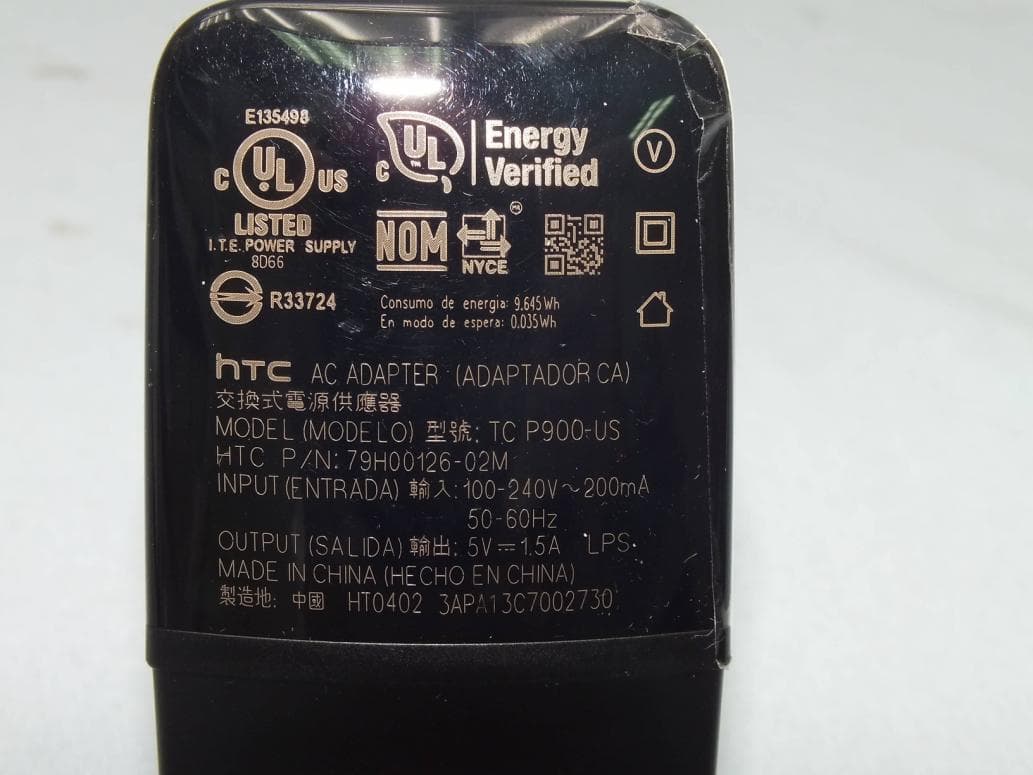
Click to zoom
Application Details
- Equipment Class
- DXX - Part 15 Low Power Communication Device Transmitter
- Date of Grant
- Nov 02, 2014
- Application Purpose
- Original Equipment
- Date of Application
- Oct 22, 2014
- Equipment Note
- Tablet
- Frequency Range
- 13.56000000 - 13.56000000
- Company
- HTC Corporation
- Country
- Taiwan
Documents & Files
Document Text
Text extracted from the exhibit documents filed with the FCC. Open a document above to read the original.
Users Manual
Safety and regulatory guide 2 Safety and regulatory guide Important health information and safety precautions To reduce the risk of bodily injury, fire, and damage to the equipment, please read the following precautions before using your Nexus 9. Electrical safety Your Nexus 9 is intended for use when supplied with power from the designated battery and power supply unit. Use of an unqualified battery or charger may create a risk of fire, explosion, leakage or other hazard. Safety precautions for proper grounding CAUTION: Connecting to improperly grounded equipment can result in an electric shock to your Nexus 9. Your Nexus 9 is equipped with a USB Cable for connecting with a desktop or laptop computer. Be sure your computer is properly grounded (earthed) before connecting your Nexus 9 to the computer. The power supply cord of a desktop or laptop computer has an equipment-grounding conductor and a grounding plug. The plug must be plugged into an appropriate outlet which is properly installed and grounded in accordance with all local codes and ordinances. Safety precautions for battery pack and power supply You should only use the following battery pack and battery charger/power source with your Nexus 9. Battery pack: HTC, Model Number B0P82100 AC adapter: HTC, Model Number TC P900-US NOTE: Your Nexus 9 is intended for use only with a certified Class 2 Limited Power Source, rated 5 Volts DC, maximum 1.5 Amp battery charger/power source. Handle the battery pack carefully, as it contains a lithium-ion polymer and there is a risk of fire and/or burns if it is handled improperly. Your tablet's normal operating temperature is between 0°C to 40°C (32°F to 104°F). WARNING: To reduce risk of fire or burns, do not disassemble, crush, puncture, short external contacts or circuits, expose to temperature above 60° C (140° F), or dispose of in fire or water. Recycle or dispose of used batteries according to the local regulations or reference guide supplied with your product. Safety and regulatory guide 3 Additional precautions The tablet should only be connected to products that bear the USB-IF logo or have completed the USB-IF compliance program. Do not connect with incompatible products or accessories. Do not touch the SIM card’s metal connectors as this may cause an electrostatic discharge. Only use the battery with a charging system that has been qualified with the system per the IEEE-Std-1725 standard. If the battery is damaged or leaks: Contact HTC’s customer support via our website (www.htc.com) to locate a service center where your tablet can be inspected and repaired. Do not allow the leaking fluid to come in contact with skin or clothing. If already in contact, flush the affected area immediately with clean water and seek medical advice. Do not allow the leaking fluid to come in contact with eyes. If already in contact, DO NOT rub; rinse with clean water immediately and seek medical advice. Take extra precautions to keep a leaking battery away from fire, as there is a danger of ignition or explosion. Usage Precautions Prevention of hearing loss CAUTION: Permanent hearing loss may occur if earphones or headphones are used at high volume for prolonged periods of time. Turn down the volume before using headphones or other audio devices. Using while flying Use of tablets may be restricted on aircraft. Please check with your airline to see what restrictions may apply. You may be required to turn off your Nexus 9 at certain times. Use of your tablet’s Wi-Fi connection may be prohibited by law or airline policy. For your safety and the safety of other passengers, always follow crew instructions regarding the use of your Nexus 9. Road safety To reduce the risk of an accident, give your full attention to driving at all times. You must comply with local laws and regulations restricting the use of wireless devices while driving. Do not use Nexus 9 while driving if it distracts you from the road. Using a hands-free kit does not guarantee that you will avoid distractions or accidents. General precautions You alone are responsible for how you use your Nexus 9 and any consequences of its use. You should follow any signs or posted notices regarding the use of devices and switch off your Nexus 9 wherever the use of devices is prohibited. 4 Safety and regulatory guide Avoid dropping, throwing, or applying excessive pressure to your Nexus 9 It is also recommended that you store your Nexus 9 in a protective case and only use your finger when interacting with the touch screen. Cracked display screens due to improper handling are not covered by the warranty. Protect your Nexus 9 Always treat your Nexus 9 and its accessories with care and keep them in a clean and dust-free place. Do not expose your Nexus 9 or its accessories to open flames or lit tobacco products. Do not use harsh chemicals, cleaning solvents, or aerosols to clean the tablet or its accessories. Do not paint your tablet or its accessories. Do not attempt to disassemble your tablet or its accessories; only authorised personnel should do so. Store your tablet or its accessories at temperatures between 0°C to 40°C (32° F to 140° F). Avoid hot areas Do not place your Nexus 9 near heat sources such as radiators, heat registers, stoves, or other products (including amplifiers) that produce heat. Do not leave your Nexus 9 inside a vehicle or in places where the temperature may exceed 60° C (140° F), such as on a car dashboard, window sill, or behind glass that is exposed to direct sunlight for extended period of time. This may damage the product, overheat the battery, or pose a risk to the vehicle. Avoid wet areas Never use your Nexus 9 in rain, or near washbasins or other wet or high humidity locations. If your Nexus 9 gets wet, do not try to dry the product with the use of an oven or dryer, as this may damage it. Avoid using your Nexus 9 after a dramatic change in temperature When you move your Nexus 9 between environments wit…
Text truncated - open the document above for the full version.
Users Manual
ANDROID TM Quick Start Guide Android Mobile Technology Platform 4.4, KitKat® ANDROID QUICK START GUIDE ii Copyright © 2013 Google Inc. All rights reserved. E dition 1.05. Google, Android, Gmail, Google Maps, Chrome, Nexus, Google Play, You- Tube, Google+, and other trademarks are property of Google Inc. A list of Google trademarks is available at http://www.google.com/permissions/ trademark/our-trademarks.html. All other marks and trademarks are prop- erties of their respective owners. This book introduces Android 4.4 for Nexus and Google Play edition devices. Its content may differ in some details from some of the products described or the software that runs on them. All information provided here is subject to change without notice. For best results, make sure you’re running the latest Android system up- date. To find your device’s version number or check for the latest system update, go to Settings > System > About phone or About tablet and look for Android version or System updates. If you don’t have a Nexus or Google Play edition phone or tablet and are running Android 4.4 on some other device, some details of the system as described in this book may vary. For comprehensive online help and support, including details about Nexus and Google Play edition hardware running the software described in this book and links to information about other Android devices, visit support. google.com/android. ANDROID QUICK START GUIDE iii Table of contents 1 Welcome to Android 1 About Android 4.4 1 Set up your device 1 Make yourself at home 2 Get around 3 Organize your Home screens 5 Touch & type 7 Help & support 8 Android version & updates 9 2 Essentials 10 Google Now 10 Tell Google what to do 13 Notifications & settings 15 Lock screen 18 Android Beam 20 Tap & pay 20 Printing 21 Chromecast 22 File storage 23 Android Device Manager 24 Screenshots 25 3 Use the keyboard 26 Enter & edit text 26 Gesture Typing 29 Keyboard dictionaries 30 Type by speaking 31 ANDROID QUICK START GUIDE iv 4 Try some apps 33 All Apps 33 Google Play 34 Phone 35 Gmail 36 Gallery 39 Photos 40 People 41 Hangouts & SMS 42 Calendar 43 5 Settings 45 6 Accessibility 48 ANDROID QUICK START GUIDE WELCOME TO ANDROID 1 1 Welcome to Android About Android 4.4 Android 4.4 (KitKat ® ) is the latest version of the world’s favorite operating system for mobile phones and tablets. This guide introduces the Android 4.4 software available on Nex- us and Google Play edition mobile devices. It doesn’t describe hardware details such as SIM card instructions, battery informa- tion, specs, and so on. For comprehensive information about all types of Android phones and tablets, including more details about Nexus and Google Play edition devices, visit support.google.com/android. Set up your device When you first turn on your phone or tablet, you’ll see a Welcome screen. Choose the language you want and touch Start or the Start icon. IMPORTANT: To complete the setup process, you must have a Wi-Fi or mobile Internet connection. ANDROID QUICK START GUIDE WELCOME TO ANDROID 2 When prompted, you can sign in with your Google Account or create one at that time. You can also choose to skip this step and create one later. An email address that you use for any of the following counts as a Google Account: • Gmail • YouTube • Google Apps • AdWords • Any other Google product When you sign in with a Google Account, all the email, contacts, Calendar events, and other data associated with that account are automatically synced with your device. If you have more than one Android device, they are all kept in sync. For example, if you change a friend’s phone number on your phone, that change also appears on your tablet and on any com- puters where you’re logged into your Google Account. If you have multiple Google Accounts, you can add others later from Settings > Accounts > Add account. Make yourself at home After you finish setting up your device, the Home screen appears for the first time: • To move between Home screens, swipe left or right. • To use Google Now, swipe up from the bottom of the screen or, on some Google Play edition devices, press and hold the Home button. On Nexus 5, you can also swipe to the leftmost Home screen. ANDROID QUICK START GUIDE WELCOME TO ANDROID 3 • To send an SMS message from a phone, use Hangouts. • From the Home screen, say “Ok Google” to search your phone or the Internet and start telling Google what to do (Nexus 5 only). Or touch Google at the top of the screen to do the same thing. On brand new devices, you may also see your Google Play library widget on one of your Home screens. This widget displays some of the Google Play content that you already own or that’s available in your library for free. Touch the item you want to view or play, or touch the categories to explore. Get around At the bottom of every Home screen you’ll find the Favorites tray: another quick way to get to your apps. Here’s what it looks like on a Nexus 7. ANDROID QUICK START GUIDE WELCOME TO ANDROID 4 To open an app, touch it. To drag an app in or out of the Favorites tray or anywhere else on a Home screen, touch & hold it, then move it with your finger into position. Nexus navigation buttons At the bottom of every Nexus screen, no matter what you’re do- ing, you’ll always find the navigation bar with three buttons: Back Opens the previous screen you were working in, even if it was in a different app. Once you back up to the Home screen, you can’t go back any further. Home Opens the central Home screen. To open Google Now, swipe up. Recent apps Opens a list of thumbnail images of apps you’ve worked with recently. To open an app, touch it. To re- move a thumbnail from the list, swipe it left or right. Some apps hide these buttons temporarily, or fade them to small dots in the same position. To bring them back, touch the dots, touch the screen in the middle, or swipe up from the bottom. ANDROID QUICK START GUIDE WELCOME TO ANDROID 5 Google Play edition navigation butt…
Text truncated - open the document above for the full version.
Cover Letter(s)
宏達國際電子股份有限公司 宏達國際電子股份有限公司宏達國際電子股份有限公司 宏達國際電子股份有限公司 No. 23, Xinghua Rd., HTC Corporation Taoyuan City 330, Taiwan Date: August 12, 2014 Power of Attorney To whom it may concern, Please be notified that I, Lucy Shih, have designated Daniel Lee of Bureau Veritas Consumer Products Services (H.K.) Ltd., Taoyuan Branch (BV CPS Taoyuan Branch) of Taiwan and Jessica Yang in HTC Corporation as the persons being responsible for this project and to sign the form 731 and other documentation. Any and all acts carried out by Daniel Lee of Bureau Veritas Consumer Products Services (H.K.) Ltd., Taoyuan Branch (BV CPS Taoyuan Branch) of Taiwan and Jessica Yang in HTC Corporation on the matters relating to all processes required in the FCC approval and any communication needed with the national authority, shall have the same legal authority as acts on our own behalf. As defined in 47 CFR Ch. 1.2002 (b), we further certify that neither the applicant nor any party to this application is subject to a denial to Federal benefits, including FCC benefits, pursuant to section 5301 of the Anti-Drug Abuse Act of 1998, 21 U.S.C. 835(a). This authorization is limited to the product of as following: FCC ID: NM80P82300 If you have any acknowledgement and response, please send it to Daniel Lee of Bureau Veritas Consumer Products Services (H.K.) Ltd., Taoyuan Branch (BV CPS Taoyuan Branch) of Taiwan directly. Should you have any question or comment regarding this matter, please have my best attention. Sincerely yours, Lucy Shih HTC Corporation Fax: 886-2-8912-6307 Tel: 886-2-8912-4138 E-mail: [email protected]
External Photos
Page 1 CONSTRUCTION PHOTOS OF EUT The EUT has following accessories. Product Brand MODEL Description Adapter 1 PHIHONG TC P900-XX (XX= AU, CN, EU, UK or US) I/P: 100-240Vac, 200mA O/P: 5Vdc, 1.0A Adapter 2 SALCOMP TC P900-XX (XX= AU, CN, EU, UK or US) I/P: 100-240Vac, 200mA O/P: 5Vdc, 1.0A Battery 1 FORMOSA B0P82100 Rating: 3.8Vdc, 6700mAh Type: Li-ion Battery 2 ATL B0P82100 Rating: 3.8Vdc, 6700mAh Type: Li-ion Earphone 1 MERRY Max-301 1.1m non-shielded cable w/o core Earphone 2 COTRON Max-301 1.1m non-shielded cable w/o core USB Cable 1 COXOC DC MSR600 1.0m shielded cable w/o core USB Cable 2 FOXCONN DC MSR600 1.0m shielded cable w/o core USB Cable 3 Foxlink DC MSR600 1.0m shielded cable w/o core LCD Panel JDI LPM089 -- Photo Camera LITEON 3BA804P1 -- Video Camera LITEON 3BF105P1 -- Page 2 Page 3 Page 4 Page 5 Page 6 Page 7
Internal Photos
Page 8 Page 9 Page 10 Page 11 Page 12 Page 13 Page 14 Page 15 Page 16 Page 17 Page 18 Page 19 Page 20 Page 21 Page 22 Page 23 Page 24 Page 25
Test Report
Report No.: RF140624C19-9 1 of 37 Report Format Version 5.0.0 FCC TEST REPORT (NFC) REPORT NO.: RF140624C19-9 MODEL NO.: 0P82300 FCC ID: NM80P82300 RECEIVED: Jun. 24, 2014 TESTED: Aug. 06, 2014 ~ Aug. 14, 2014 ISSUED: Aug. 26, 2014 APPLICANT: HTC Corporation ADDRESS: 1F, 6-3 Baoqiang Road, Xindian District, New Taipei City, Taiwan 231 ISSUED BY: Bureau Veritas Consumer Products Services (H.K.) Ltd., Taoyuan Branch LAB ADDRESS: No. 47, 14th Ling, Chia Pau Vil., Lin Kou Dist., New Taipei City, Taiwan, R.O.C. TEST LOCATION: No. 19, Hwa Ya 2nd Rd, Wen Hwa Tsuen, Kwei Shan Hsiang, Taoyuan Hsien 333, Taiwan, R.O.C. This report is for your exclusive use. Any copying or replication of this report to or for any other person or entity, or use of our name or trademark, is permitted only with our prior written permission. This report sets forth our findings solely with respect to the test samples identified herein. The results set forth in this report are not indicative or representative of the quality or characteristics of the lot from which a test sample was taken or any similar or identical product unless specifically and expressly noted. Our report includes all of the tests requested by you and the results thereof based upon the information that you provided to us. You have 60 days from date of issuance of this report to notify us of any material error or omission caused by our negligence, provided, however, that such notice shall be in writing and shall specifically address the issue you wish to raise. A failure to raise such issue within the prescribed time shall constitute your unqualified acceptance of the completeness of this report, the tests conducted and the correctness of the report contents. Unless specific mention, the uncertainty of measurement has been explicitly taken into account to declare the compliance or non-compliance to the specification. This report should not be used by the client to claim product certification, approval, or endorsement by TAF or any government agencies. Report No.: RF140624C19-9 2 of 37 Report Format Version 5.0.0 Table of Contents RELEASE CONTROL RECORD .............................................................................................................. 3 1. CERTIFICATION ................................................................................................................................. 4 2. SUMMARY OF TEST RESULTS ......................................................................................................... 5 2.1 MEASUREMENT UNCERTAINTY ................................................................................................ 5 3. GENERAL INFORMATION ................................................................................................................. 6 3.1 GENERAL DESCRIPTION OF EUT ............................................................................................ 6 3.2 DESCRIPTION OF TEST MODES .............................................................................................. 7 3.2.1 TEST MODE APPLICABILITY AND TESTED CHANNEL DETAIL ................................... 7 3.3 DESCRIPTION OF SUPPORT UNITS ........................................................................................ 8 3.3.1 CONFIGURATION OF SYSTEM UNDER TEST............................................................... 8 3.4 GENERAL DESCRIPTION OF APPLIED STANDARDS ............................................................. 9 4. TEST TYPES AND RESULTS ...........................................................................................................10 4.1 RADIATED EMISSION MEASUREMENT .................................................................................10 4.1.1 LIMITS OF RADIATED EMISSION MEASUREMENT ....................................................10 4.1.2 TEST INSTRUMENTS .................................................................................................... 11 4.1.3 TEST PROCEDURES .....................................................................................................12 4.1.4 DEVIATION FROM TEST STANDARD ...........................................................................12 4.1.5 TEST SETUP ..................................................................................................................13 4.1.6 EUT OPERATING CONDITIONS ....................................................................................13 4.1.7 TEST RESULTS ..............................................................................................................14 4.2 CONDUCTED EMISSION MEASUREMENT ............................................................................26 4.2.1 LIMITS OF CONDUCTED EMISSION MEASUREMENT ...............................................26 4.2.2 TEST INSTRUMENTS ....................................................................................................26 4.2.3 TEST PROCEDURES .....................................................................................................27 4.2.4 DEVIATION FROM TEST STANDARD ...........................................................................27 4.2.5 TEST SETUP ..................................................................................................................27 4.2.6 EUT OPERATING CONDITIONS ....................................................................................27 4.2.7 TEST RESULTS ..............................................................................................................28 4.3 FREQUENCY STABILITY .........................................................................................................30 4.3.1 LIMITS OF FREQUENCY STABILITY MEASUREMENT ...............................................30 4.3.2 TEST INSTRUMENTS ....................................................................................................30 4.3.3 TEST PROCEDURE .....................................................................................…
Text truncated - open the document above for the full version.
Test Setup Photos
1 PHOTOGRAPHS OF THE TEST CONFIGURATION CONDUCTED EMISSION TEST (For Bluetooth) 2 CONDUCTED EMISSION TEST (For WLAN 2.4GHz) 3 RADIATED EMISSION TEST (For WLAN 2.4GHz) 4 RADIATED EMISSION TEST (For WLAN 5GHz) (5180-5240MHz) 5 RADIATED EMISSION TEST (For WLAN 5GHz) (5260-5320MHz & 5745-5805MHz) 6 RADIATED EMISSION TEST (For Bluetooth) 7 (WWAN) (PART 22) RADIATED EMISSION TEST (GPRS/EDGE/WDCMA/CDMA/LTE Band 5) 8 RADIATED EMISSION TEST (LTE Band 26) 9 ERP POWER TEST 10 (PART 24) RADIATED EMISSION TEST (GPRS/EDGE/WCDMA/CDMA/LTE BAND 25) 11 RADIATED EMISSION TEST (LTE BAND 2) 12 EIRP POWER TEST 13 (PART 27) RADIATED EMISSION TEST (WCDMA/LTE BAND 17/LTE BAND 4) 14 RADIATED EMISSION TEST (LTE BAND 12/LTE BAND 13) 15 RADIATED EMISSION TEST (LTE BAND 7/LTE BAND 41) (MODE A) 16 RADIATED EMISSION TEST (LTE BAND 7_MODE B) 17 RADIATED EMISSION TEST (LTE BAND 41_MODE B) 18 ERP POWER TEST 19 EIRP POWER TEST 20 (PART 90) RADIATED EMISSION TEST (CDMA) 21 RADIATED EMISSION TEST (LTE) 22 ERP POWER TEST
Contact Information
Applicant
Sylvia Shen
Test Firm
Bureau Veritas CPS (H.K.) Ltd., Taoyuan BranchRichard Chen
Technical Specifications
| # | Rule Parts | Frequency Range | Power Output |
|---|---|---|---|
| 1 | 15C | 13.56 MHz - 13.56 MHz | - |
Other Applications from HTC Corporation
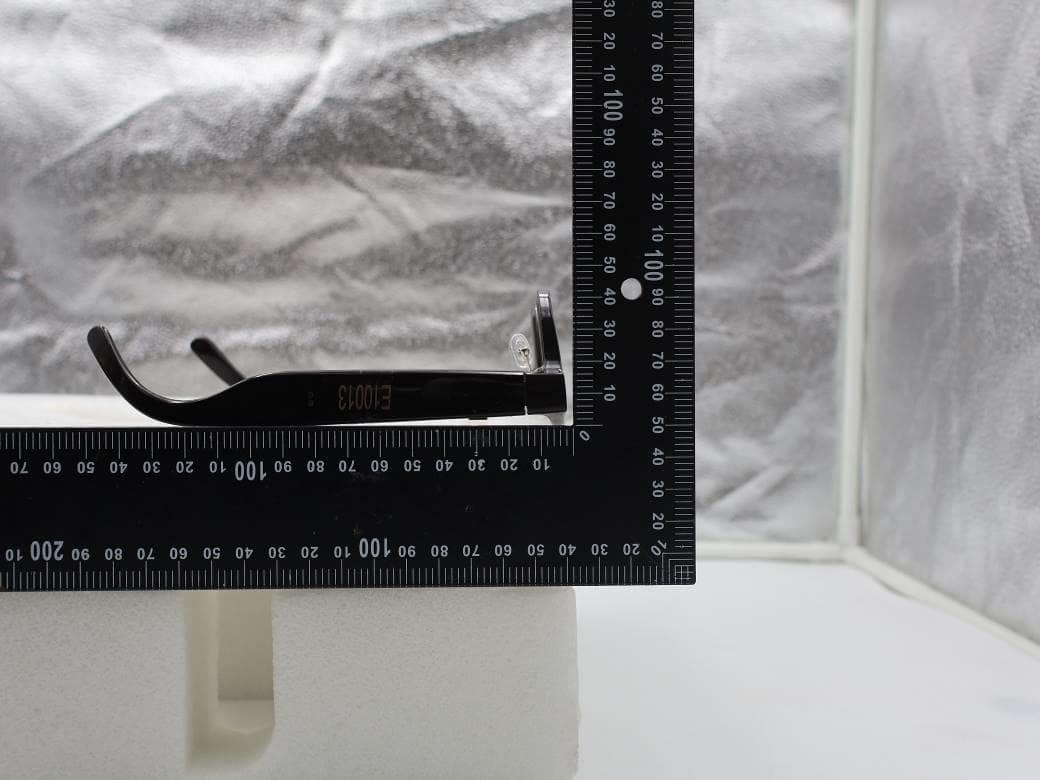
NM82QDJ100
Dec 31, 2025VIVE Headset
Equipment Class
DSS - Part 15 Spread Spectrum TransmitterNM82QD4100
Sep 01, 2024Headset
Equipment Class
6XD - 15E 6 GHz Low Power Indoor Client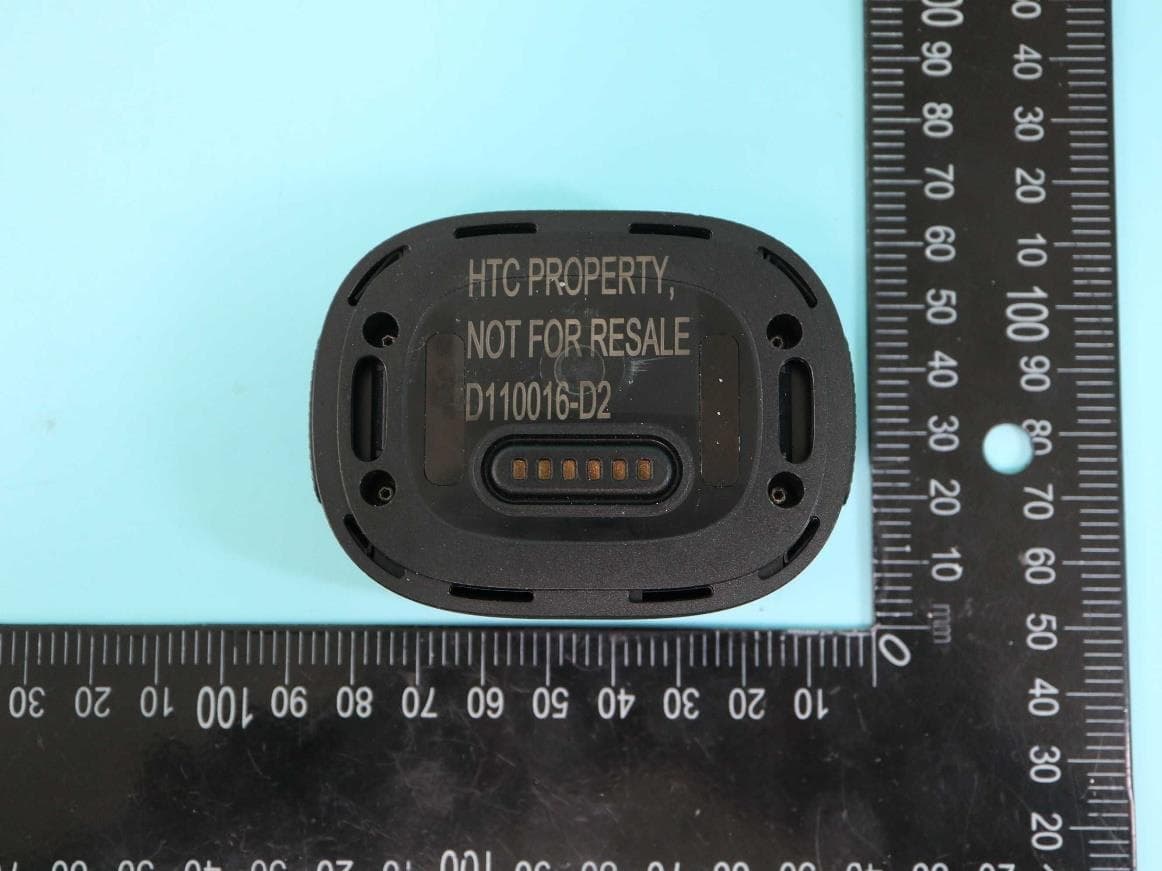
NM82QBP100
May 10, 2023Tracker
Equipment Class
DTS - Digital Transmission System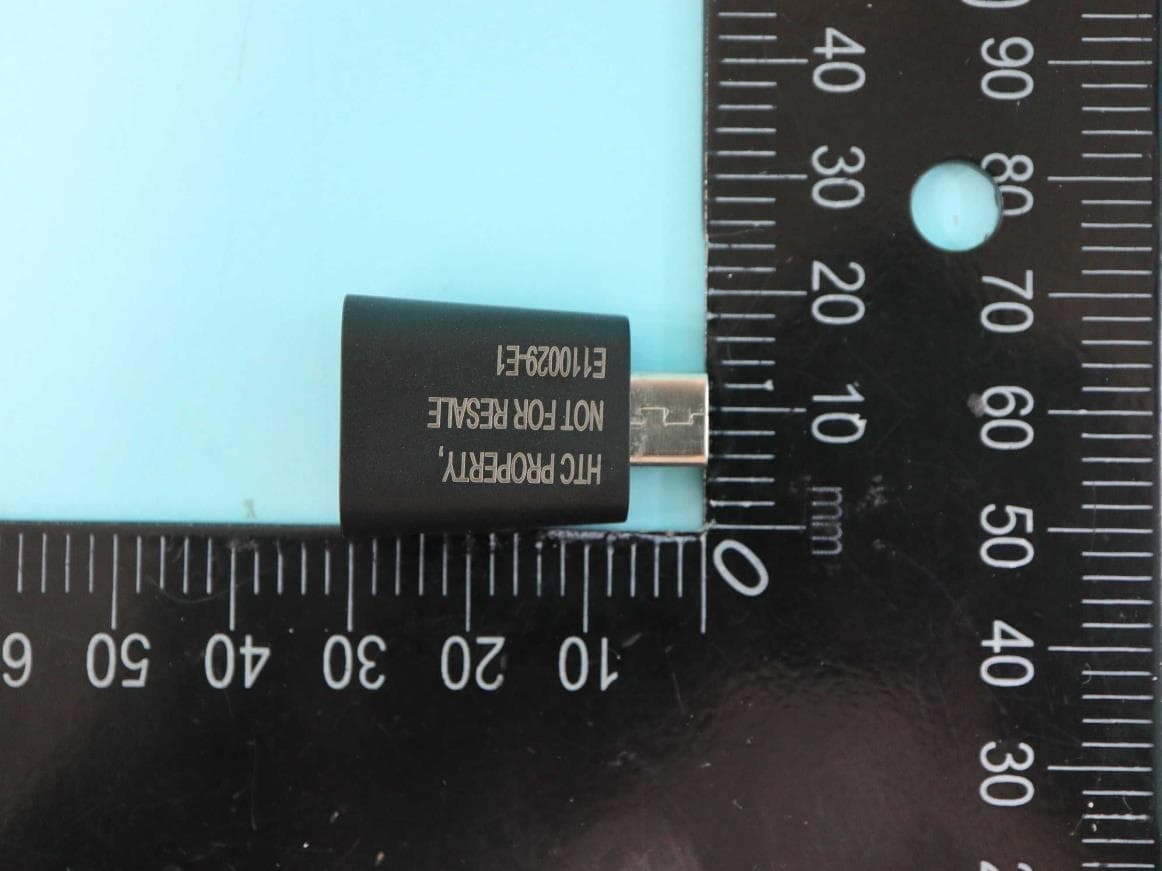
NM82QCD100
May 07, 2023Dongle
Equipment Class
DTS - Digital Transmission System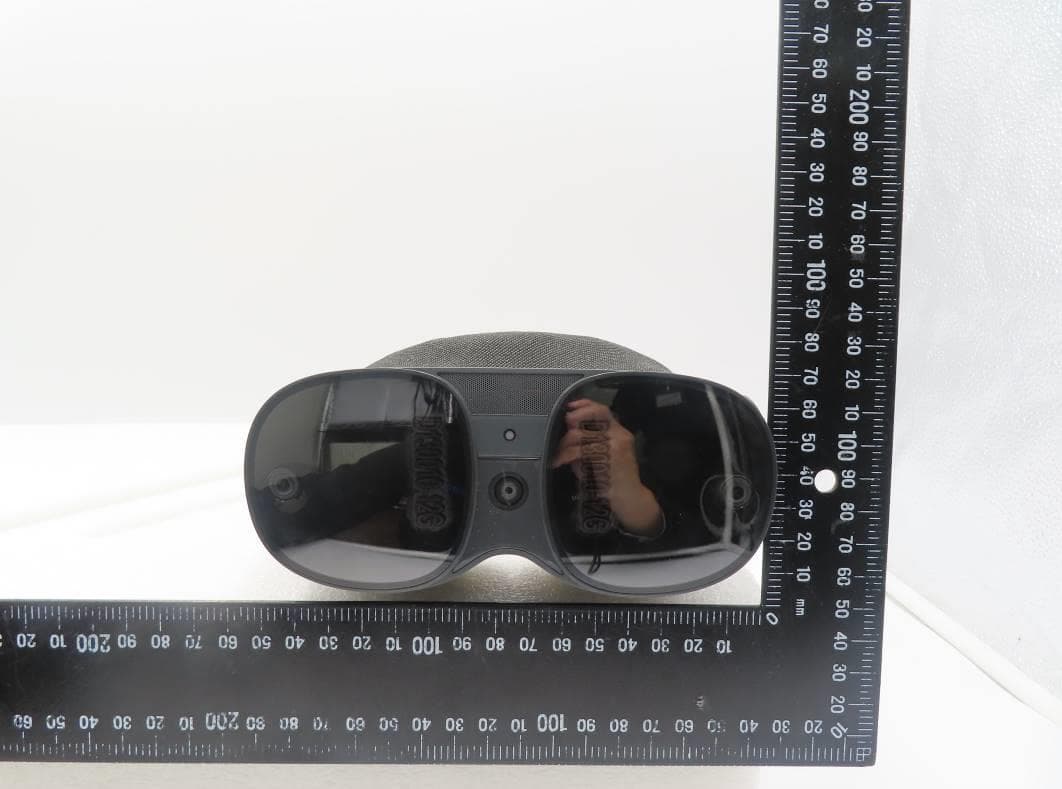
NM82QBB100
Jan 08, 2023Headset
Equipment Class
DTS - Digital Transmission System