NM8HERM200Pocket PC Phone
HTC Corporation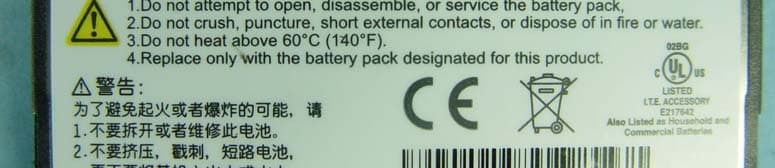
Click to zoom
Application Details
- Equipment Class
- PCE - PCS Licensed Transmitter held to ear
- Date of Grant
- Nov 06, 2006
- Application Purpose
- Original Equipment
- Date of Application
- Aug 24, 2006
- Equipment Note
- Pocket PC Phone
- Frequency Range
- 1850.20000000 - 1909.80000000
- Company
- HTC Corporation
- Country
- Taiwan
Documents & Files
Document Text
Text extracted from the exhibit documents filed with the FCC. Open a document above to read the original.
Users Manual
Pocket User Manual 2 | Please Read Before Proceeding THIS DEVICE IS NOT CHARGED WHEN YOU TAKE IT OUT OF THE BOX. DO NOT REMOVE THE BATTERY PACK WHEN THE DEVICE IS CHARGING. YOUR WARRANTY IS INVALIDATED IF YOU OPEN OR TAMPER WITH THE DEVICE’S OUTER CASING. PRIVACY RESTRICTIONS Some countries require full disclosure of recorded telephone conversations, and stipulate that you must inform the person with whom you are speaking that the conversation is being recorded. Always obey the relevant laws and regulations of your country when using the recording feature of your Pocket PC Phone. COPYRIGHT INFORMATION Microsoft, MS-DOS, Windows, Windows NT, Windows Server, Windows Mobile, ActiveSync, Excel, Internet Explorer, Outlook, PowerPoint, and Word are either registered trademarks or trademarks of Microsoft Corporation in the United States and/or other countries. Important Health Information and Safety Precautions When using this product, the safety precautions below must be taken to avoid possible legal liabilities and damages. Retain and follow all product safety and operating instructions. Observe all warnings in the operating instructions on the product. To reduce the risk of bodily injury, electric shock, fire, and damage to the equipment, observe the following precautions. ELECTRICAL SAFETY This product is intended for use when supplied with power from the designated battery or power supply unit.Other usage may be dangerous and will invalidate any approval given to this product. SAFETY PRECAUTIONS FOR PROPER GROUNDING AND CONNECTION | 3 CAUTION: Improper grounding when connecting the product to an associated equipment can result in a risk of electric shock. This product is equipped with a USB cable for connecting the product to a desktop or notebook computer. Be sure your computer is properly grounded (earthed) before connecting the product to the computer. The power supply cord of a desktop or notebook computer has an equipment-grounding conductor and a grounding plug. The plug must be plugged into an appropriate outlet which is properly installed and grounded in accordance with all local codes and ordinances. SAFETY PRECAUTIONS FOR POWER SUPPLY UNIT • Use the correct external power source A product should be operated only from the type of power source indicated on the electrical ratings label. If you are not sure of the type of power source required, consult your authorized service provider or local power company. For a product that operates from battery power or other sources, refer to the operating instructions that are included with the product. • Handle battery packs carefully This product contains a Li-ion Polymer battery. There is a risk of fire and burns if the battery pack is handled improperly. Do not attempt to open or service the battery pack. Do not disassemble, crush, puncture, short external contacts or circuits, dispose of in fire or water, or expose a battery pack to temperatures higher than 60 ̊C (140 ̊F). WARNING: DANGER OF EXPLOSION IF BATTERY IS INCORRECTLY REPLACED. TO REDUCE RISK OF FIRE OR BURNS, DO NOT DISASSEMBLE, CRUSH, PUNCTURE, SHORT EXTERNAL CONTACTS, EXPOSE TO TEMPERATURE ABOVE 60 ̊C (140 ̊F), OR DISPOSE OF IN FIRE OR WATER. REPLACE ONLY WITH SPECIFIED BATTERIES. RECYCLE OR DISPOSE OF USED BATTERIES ACCORDING TO THE LOCAL REGULATIONS OR REFERENCE GUIDE SUPPLIED WITH YOUR PRODUCT. 4 | SAFETY PRECAUTIONS FOR DIRECT SUNLIGHT Keep this product away from excessive moisture and extreme temperatures. Do not leave the product or its battery inside a vehicle or in places where the temperature may exceed 60°C (140°F), such as on a car dashboard, window sill, or behind a glass that is exposed to direct sunlight or strong ultraviolet light for extended periods of time. This may damage the product, overheat the battery, or pose a risk to the vehicle. SAFETY PRECAUTIONS FOR ACOUSTIC PRESSURE CAUTION: Using earphones or headphones and prolonged listening at high volume levels may cause permanent hearing loss. NOTE: For France, mobile headphones or earphones (manufactured by Merry, model number EMC220) for this device have been tested to comply with the Sound Pressure Level requirement laid down in NF EN 50332-1:2000 standard as required by French Article L. 5232-1. SAFETY IN AIRCRAFTS Due to the possible interference caused by this product to an aircraft’s navigation system and its communications network, using this device’s phone function on board an airplane is against the law in most countries. If you want to use this device when on board an aircraft, remember to turn off your phone by switching to Flight Mode. ENVIRONMENT RESTRICTIONS Do not use this product in gas stations, fuel depots, chemical plants or where blasting operations are in progress, or in potentially explosive atmospheres such as fuelling areas, fuel storehouses, below deck on boats, fuel or chemical transfer or storage facilities, and areas where the air contains chemicals or particles, such as grain, dust, or metal powders. Please be aware that sparks in such areas could cause an explosion or fire resulting in bodily injury or even death. | 5 EXPLOSIVE ATMOSPHERES When in any area with a potentially explosive atmosphere or where flammable materials exist, the product should be turned off and the user should obey all signs and instructions. Sparks in such areas could cause an explosion or fire resulting in bodily injury or even death. Users are advised not to use the equipment at refueling points such as service or gas stations, and are reminded of the need to observe restrictions on the use of radio equipment in fuel depots, chemical plants, or where blasting operations are in progress. Areas with a potentially explosive atmosphere are often, but not always, clearly marked. These include fueling areas, below deck on boats, fuel or chemical transfer or storage facilities, and areas where the air contains chemicals or particles, such as grain, dust, or metal powders. ROAD SAFETY Vehicle drivers in motion …
Text truncated - open the document above for the full version.
Users Manual
Getting Connected | 101 The passkey is fixed and cannot be changed on a Bluetooth headset. Before you connect it to your device, check for the proper passkey in the manufacturer’s documentation. To connect a Bluetooth hands-free headset 1. Make sure that both your device and the Bluetooth headset are turned on and within close range, and that the headset is discoverable. Refer to the manufacturer’s documentation to find out how to set the headset in discoverable mode. 2. Tap Start > Settings > Connections tab > Bluetooth. 3. Tap New Partnership on the Devices tab. Your device searches for other Bluetooth-enabled devices and displays them in the list. 4. Tap the name of the Bluetooth headset, then tap Next. 5. Enter the passkey of the Bluetooth headset, then tap Next. 6. Select the check box for the Hands Free service, then tap Finish. Beam information using Bluetooth You can beam information, such as contacts, calendar items, and tasks, as well as files from your device to your computer or to another Bluetooth-enabled device. Note If your computer does not have built-in Bluetooth capability, you need to connect and use a Bluetooth adapter or dongle on your computer. To beam information from your device to a computer 1. Turn on Bluetooth on your device, and make your device discoverable. For information about this, see “To turn Bluetooth on and make your device discoverable”. 2. You also need to set Bluetooth on your computer to discoverable mode. Do one of the following: • If your computer has Windows XP SP2 and your computer’s built-in or external Bluetooth adapter is supported by Windows XP SP2, open Bluetooth Devices from the Control Panel. Click the Options tab, then select the Turn discovery on and the Allow Bluetooth devices to connect to this computer options. 102 | Getting Connected • If the Bluetooth adapter on your computer was installed using a third-party provided driver, open the Bluetooth software that came with the Bluetooth adapter. This software varies by manufacturer, but in most cases, you will find a Bluetooth Configuration utility which you can open from the Control Panel. After Bluetooth Configuration opens, click the Accessibility tab, then select Let other Bluetooth devices to discover this computer. Refer to the Bluetooth adapter’s documentation for more information. 3. Create a Bluetooth partnership between the two devices. For information about creating a partnership, see “Bluetooth partnerships”. After a partnership has been created successfully, your computer is ready to receive Bluetooth beams. 4. On your device, tap and hold an item to beam. The item can be an appointment in your calendar, a task, a contact card, or a file. 5. Tap Beam [type of item]. 6. Tap the device name to which you want to send the beam. 7. If you beamed an Outlook item and it is not automatically added to Outlook, select File > Import and Export in Outlook to import it. To beam information to a Bluetooth-enabled device such as another Pocket PC, follow steps 3 and onwards in the above procedure. Notes • If the computer or device you want to beam to cannot be detected by your device, make sure that its Bluetooth is turned on, set to discoverable mode, and it is within close range (10 meters) of your device. • If you beamed an Outlook item to the computer and it is not automatically added to Outlook, select File > Import and Export on your computer to import it into Outlook. Use the device as a Bluetooth modem You can connect your device to a notebook or desktop computer through Bluetooth and use the device as a modem for the computer. Getting Connected | 103 To connect your device to the computer through Bluetooth, you need a Bluetooth radio adapter (or USB Bluetooth dongle) for your computer. To set up a Bluetooth connection between the device and the computer (in Windows XP SP2) 1. On your device, turn on Bluetooth and set it to discoverable mode. 2. Connect a Bluetooth radio adapter on your computer. (Refer to the manufacturer’s documentation for details on how to install). After a Bluetooth radio adapter is installed on your computer, the Control Panel and System Tray will have the Bluetooth Devices icon. Double-click this icon. 3. In the Bluetooth Devices window, click Add. 4. The Add Bluetooth Device Wizard opens. Select the My device is set up and ready to be found check box, then click Next. 5. The wizard then detects your device and displays its name in the dialog box. Select the device name, then click Next. 6. Select Let me choose my own passkey, then enter a passkey (1 up to 16 digits) that will serve as an identification number for establishing a secure connection between your device and the computer. Click Next. 7. A confirmation message then appears on your device. Tap Yes to accept the connection, enter the same passkey, then tap Next. 8. On the computer, click Finish to exit the wizard. 9. On your device’s Partnership Settings screen, you can change the display name for the computer, then tap Finish. 10. Now, open the Wireless Modem program on your device. Tap Start > Programs > Tools > Wireless Modem. 11. Select Bluetooth as the Connection Type. 12. To use your phone as a GPRS modem, set the Access point name (APN). To set, tap Menu > APN Setting, enter the access point name, then tap Done. 13. Tap Menu > Start on your device. 104 | Getting Connected After successfully connecting your phone to the computer via Bluetooth, the next thing to do is to add your device as a Bluetooth modem to your computer. To add the device as a Bluetooth modem 1. On the computer, tap Start > Control Panel > Phone and Modem Options. 2. Click the Modems tab. Check if there is a Bluetooth modem, “Generic Bluetooth Modem” or “Standard Modem over Bluetooth Link”, listed. If there is, skip to step 6. 3. If there is no Bluetooth modem listed in the Modems tab, click Add. 4. In the Add Hardware Wizard, click Next. 5. In the Select Bluetooth Device screen, select the device name then click OK. 6. …
Text truncated - open the document above for the full version.
Users Manual
Pocket User Manual 2 | Please Read Before Proceeding THIS DEVICE IS NOT CHARGED WHEN YOU TAKE IT OUT OF THE BOX. DO NOT REMOVE THE BATTERY PACK WHEN THE DEVICE IS CHARGING. YOUR WARRANTY IS INVALIDATED IF YOU OPEN OR TAMPER WITH THE DEVICE’S OUTER CASING. PRIVACY RESTRICTIONS Some countries require full disclosure of recorded telephone conversations, and stipulate that you must inform the person with whom you are speaking that the conversation is being recorded. Always obey the relevant laws and regulations of your country when using the recording feature of your Pocket PC Phone. COPYRIGHT INFORMATION Microsoft, MS-DOS, Windows, Windows NT, Windows Server, Windows Mobile, ActiveSync, Excel, Internet Explorer, Outlook, PowerPoint, and Word are either registered trademarks or trademarks of Microsoft Corporation in the United States and/or other countries. Important Health Information and Safety Precautions When using this product, the safety precautions below must be taken to avoid possible legal liabilities and damages. Retain and follow all product safety and operating instructions. Observe all warnings in the operating instructions on the product. To reduce the risk of bodily injury, electric shock, fire, and damage to the equipment, observe the following precautions. ELECTRICAL SAFETY This product is intended for use when supplied with power from the designated battery or power supply unit.Other usage may be dangerous and will invalidate any approval given to this product. SAFETY PRECAUTIONS FOR PROPER GROUNDING AND CONNECTION | 3 CAUTION: Improper grounding when connecting the product to an associated equipment can result in a risk of electric shock. This product is equipped with a USB cable for connecting the product to a desktop or notebook computer. Be sure your computer is properly grounded (earthed) before connecting the product to the computer. The power supply cord of a desktop or notebook computer has an equipment-grounding conductor and a grounding plug. The plug must be plugged into an appropriate outlet which is properly installed and grounded in accordance with all local codes and ordinances. SAFETY PRECAUTIONS FOR POWER SUPPLY UNIT • Use the correct external power source A product should be operated only from the type of power source indicated on the electrical ratings label. If you are not sure of the type of power source required, consult your authorized service provider or local power company. For a product that operates from battery power or other sources, refer to the operating instructions that are included with the product. • Handle battery packs carefully This product contains a Li-ion Polymer battery. There is a risk of fire and burns if the battery pack is handled improperly. Do not attempt to open or service the battery pack. Do not disassemble, crush, puncture, short external contacts or circuits, dispose of in fire or water, or expose a battery pack to temperatures higher than 60 ̊C (140 ̊F). WARNING: DANGER OF EXPLOSION IF BATTERY IS INCORRECTLY REPLACED. TO REDUCE RISK OF FIRE OR BURNS, DO NOT DISASSEMBLE, CRUSH, PUNCTURE, SHORT EXTERNAL CONTACTS, EXPOSE TO TEMPERATURE ABOVE 60 ̊C (140 ̊F), OR DISPOSE OF IN FIRE OR WATER. REPLACE ONLY WITH SPECIFIED BATTERIES. RECYCLE OR DISPOSE OF USED BATTERIES ACCORDING TO THE LOCAL REGULATIONS OR REFERENCE GUIDE SUPPLIED WITH YOUR PRODUCT. 4 | SAFETY PRECAUTIONS FOR DIRECT SUNLIGHT Keep this product away from excessive moisture and extreme temperatures. Do not leave the product or its battery inside a vehicle or in places where the temperature may exceed 60°C (140°F), such as on a car dashboard, window sill, or behind a glass that is exposed to direct sunlight or strong ultraviolet light for extended periods of time. This may damage the product, overheat the battery, or pose a risk to the vehicle. SAFETY PRECAUTIONS FOR ACOUSTIC PRESSURE CAUTION: Using earphones or headphones and prolonged listening at high volume levels may cause permanent hearing loss. NOTE: For France, mobile headphones or earphones (manufactured by Merry, model number EMC220) for this device have been tested to comply with the Sound Pressure Level requirement laid down in NF EN 50332-1:2000 standard as required by French Article L. 5232-1. SAFETY IN AIRCRAFTS Due to the possible interference caused by this product to an aircraft’s navigation system and its communications network, using this device’s phone function on board an airplane is against the law in most countries. If you want to use this device when on board an aircraft, remember to turn off your phone by switching to Flight Mode. ENVIRONMENT RESTRICTIONS Do not use this product in gas stations, fuel depots, chemical plants or where blasting operations are in progress, or in potentially explosive atmospheres such as fuelling areas, fuel storehouses, below deck on boats, fuel or chemical transfer or storage facilities, and areas where the air contains chemicals or particles, such as grain, dust, or metal powders. Please be aware that sparks in such areas could cause an explosion or fire resulting in bodily injury or even death. | 5 EXPLOSIVE ATMOSPHERES When in any area with a potentially explosive atmosphere or where flammable materials exist, the product should be turned off and the user should obey all signs and instructions. Sparks in such areas could cause an explosion or fire resulting in bodily injury or even death. Users are advised not to use the equipment at refueling points such as service or gas stations, and are reminded of the need to observe restrictions on the use of radio equipment in fuel depots, chemical plants, or where blasting operations are in progress. Areas with a potentially explosive atmosphere are often, but not always, clearly marked. These include fueling areas, below deck on boats, fuel or chemical transfer or storage facilities, and areas where the air contains chemicals or particles, such as grain, dust, or metal powders. ROAD SAFETY Vehicle drivers in motion …
Text truncated - open the document above for the full version.
Users Manual
Getting Connected | 101 The passkey is fixed and cannot be changed on a Bluetooth headset. Before you connect it to your device, check for the proper passkey in the manufacturer’s documentation. To connect a Bluetooth hands-free headset 1. Make sure that both your device and the Bluetooth headset are turned on and within close range, and that the headset is discoverable. Refer to the manufacturer’s documentation to find out how to set the headset in discoverable mode. 2. Tap Start > Settings > Connections tab > Bluetooth. 3. Tap New Partnership on the Devices tab. Your device searches for other Bluetooth-enabled devices and displays them in the list. 4. Tap the name of the Bluetooth headset, then tap Next. 5. Enter the passkey of the Bluetooth headset, then tap Next. 6. Select the check box for the Hands Free service, then tap Finish. Beam information using Bluetooth You can beam information, such as contacts, calendar items, and tasks, as well as files from your device to your computer or to another Bluetooth-enabled device. Note If your computer does not have built-in Bluetooth capability, you need to connect and use a Bluetooth adapter or dongle on your computer. To beam information from your device to a computer 1. Turn on Bluetooth on your device, and make your device discoverable. For information about this, see “To turn Bluetooth on and make your device discoverable”. 2. You also need to set Bluetooth on your computer to discoverable mode. Do one of the following: • If your computer has Windows XP SP2 and your computer’s built-in or external Bluetooth adapter is supported by Windows XP SP2, open Bluetooth Devices from the Control Panel. Click the Options tab, then select the Turn discovery on and the Allow Bluetooth devices to connect to this computer options. 102 | Getting Connected • If the Bluetooth adapter on your computer was installed using a third-party provided driver, open the Bluetooth software that came with the Bluetooth adapter. This software varies by manufacturer, but in most cases, you will find a Bluetooth Configuration utility which you can open from the Control Panel. After Bluetooth Configuration opens, click the Accessibility tab, then select Let other Bluetooth devices to discover this computer. Refer to the Bluetooth adapter’s documentation for more information. 3. Create a Bluetooth partnership between the two devices. For information about creating a partnership, see “Bluetooth partnerships”. After a partnership has been created successfully, your computer is ready to receive Bluetooth beams. 4. On your device, tap and hold an item to beam. The item can be an appointment in your calendar, a task, a contact card, or a file. 5. Tap Beam [type of item]. 6. Tap the device name to which you want to send the beam. 7. If you beamed an Outlook item and it is not automatically added to Outlook, select File > Import and Export in Outlook to import it. To beam information to a Bluetooth-enabled device such as another Pocket PC, follow steps 3 and onwards in the above procedure. Notes • If the computer or device you want to beam to cannot be detected by your device, make sure that its Bluetooth is turned on, set to discoverable mode, and it is within close range (10 meters) of your device. • If you beamed an Outlook item to the computer and it is not automatically added to Outlook, select File > Import and Export on your computer to import it into Outlook. Use the device as a Bluetooth modem You can connect your device to a notebook or desktop computer through Bluetooth and use the device as a modem for the computer. Getting Connected | 103 To connect your device to the computer through Bluetooth, you need a Bluetooth radio adapter (or USB Bluetooth dongle) for your computer. To set up a Bluetooth connection between the device and the computer (in Windows XP SP2) 1. On your device, turn on Bluetooth and set it to discoverable mode. 2. Connect a Bluetooth radio adapter on your computer. (Refer to the manufacturer’s documentation for details on how to install). After a Bluetooth radio adapter is installed on your computer, the Control Panel and System Tray will have the Bluetooth Devices icon. Double-click this icon. 3. In the Bluetooth Devices window, click Add. 4. The Add Bluetooth Device Wizard opens. Select the My device is set up and ready to be found check box, then click Next. 5. The wizard then detects your device and displays its name in the dialog box. Select the device name, then click Next. 6. Select Let me choose my own passkey, then enter a passkey (1 up to 16 digits) that will serve as an identification number for establishing a secure connection between your device and the computer. Click Next. 7. A confirmation message then appears on your device. Tap Yes to accept the connection, enter the same passkey, then tap Next. 8. On the computer, click Finish to exit the wizard. 9. On your device’s Partnership Settings screen, you can change the display name for the computer, then tap Finish. 10. Now, open the Wireless Modem program on your device. Tap Start > Programs > Tools > Wireless Modem. 11. Select Bluetooth as the Connection Type. 12. To use your phone as a GPRS modem, set the Access point name (APN). To set, tap Menu > APN Setting, enter the access point name, then tap Done. 13. Tap Menu > Start on your device. 104 | Getting Connected After successfully connecting your phone to the computer via Bluetooth, the next thing to do is to add your device as a Bluetooth modem to your computer. To add the device as a Bluetooth modem 1. On the computer, tap Start > Control Panel > Phone and Modem Options. 2. Click the Modems tab. Check if there is a Bluetooth modem, “Generic Bluetooth Modem” or “Standard Modem over Bluetooth Link”, listed. If there is, skip to step 6. 3. If there is no Bluetooth modem listed in the Modems tab, click Add. 4. In the Add Hardware Wizard, click Next. 5. In the Select Bluetooth Device screen, select the device name then click OK. 6. …
Text truncated - open the document above for the full version.
Cover Letter(s)
Applicant: High Tech Computer Corp FCC ID: NM8HERM200 Correspondence Reference Number: 31790 731 Confirmation Number: EA988709 Date of Original E-Mail: 10/12/2006 Dear Stanley, Regarding to your RT dated 10/12/2006, please see our response below in blue. Thanks. Q1) Related to end-use compliance with RF exposure requirements, user manual has: "This product should be operated in the suggested normal condition only to ensure the radiative performance and safety of the interference," however "suggested normal condition" does not appear to be described - please explain how this instruction applies, or revise if appropriate. <Response> The "suggested normal condition" refers to all the functional descriptions of the device in the user's manual. I have also added "described throughout this manual" to the sentence in page 5 of the attached manual. Please kindly advice if this is acceptable to the commission. Thanks. Q2a) 3GPP Release number applicable for this device (99, 5, or ...)? <Response> R99+HSDPA Q2b) Was default test configuration used, i.e., measure SAR with an established radio link between the DUT and a communication test set using a 12.2 kbps RMC (reference measurement channel) configured in Test Loop Mode 1. If no, why not? If no, what was used? <Response> Yes, we follow FCC "SAR measurement procedures for 3g devices”, June, 2006 Q2c) Was maximum output power verified on the High, Middle and Low channels according to the general descriptions in section 5.2 of 3GPP TS 34.121, using the appropriate RMC or AMR with TPC (transmit power control) set to all "1"s. If no, why not? If no, what was used? <Response> Yes, we follow FCC "SAR measurement procedures for 3G devices”, June, 2006 Q2d) Are power test results for all applicable physical channel configurations (DPCCH, DPDCH_n and spreading codes) tabulated in the test report? If no, please amend filing. <Response> We have revised the test report to include this info, please see revised report part 22: P19,P20 ; part24: P19,P20 ; SAR: P8,P9 Q2e) Are all WCDMA configurations that are not supported by the DUT or cannot be measured due to technical or equipment limitations clearly identified? If no, please amend filing. <Response> The UE support only band II , band V , band I in the following table. Thanks. Q 2f) Op desc mentions HSDPA mode - body SAR is required for handsets with HSDPA capabilities when the maximum average output of each RF channel with HSDPA active is more than 0.25 dB higher than that measured without HSDPA using 12.2 kbps RMC. Please amend filing where appropriate. <Response> maximum average output of each RF channel with HSDPA active is no more than 0.25 dB higher than that measured without HSDPA, so we do not test HSDPA active mode. Please refer to table below for detail. Best regards Gary CHANG ADT [email protected]
Cover Letter(s)
Applicant: High Tech Computer Corp FCC ID: NM8HERM200 Correspondence Reference Number: 31881 731 Confirmation Number: EA988709 Date of Original E-Mail: 10/25/2006 Subject: FCC Equipment Authorization System 3) This device needs additional line items for PCE WCDMA mode for both frequency bands. What line items are to be added to the Grant (frequencies, power, tolerance, and emissions designator) for WCDMA mode? Dear Stan, Please use following table for two WCDMA line entries. Thank you very much for your help. cc 24E 1852.4-1907.6 0.227 0.1 ppm 4M68F9W cc 22H 826.4-846.6 0.140 0.1 ppm 4M68F9W Best regards, Gary ADT Email: [email protected]
Cover Letter(s)
Re: FCC ID NM8HERM200 Applicant: High Tech Computer Corp Correspondence Reference Number: 31931 731 Confirmation Number: EA988709 3) This device needs additional line items for PCE E-GPRS (EDGE) mode for both frequency bands. What line items are to be added to the Grant (frequencies, power, tolerance, and emissions designator) for WCDMA mode? Dear Stan, Sorry for the inconvenience, we are not aware need to provide this info and will correct it next time. Please use following table for two EDGE modes in 22/24 bands. Thank you very much for your help. cc 22H 824.12-848.76 0.764 0.1 ppm 312KG7W cc 24E 1850.2-1909.8 0.618 0.1 ppm 300KG7W Best regards, Gary ADT Email: [email protected]
External Photos
Page 1 CONSTRUCTION PHOTOS OF EUT Page 2 Page 3 Page 4 Page 5
ID Label/Location Info
PROPOSED FCC ID LABEL AND LOCATION High Tech Computer Corp. FCC ID: NM8HERM200 This device complies with Part 15 of the FCC Rules. Operation is subject to the following two conditions: (1) this device may not cause harmful interference, and (2) this device must accept any interference received, including interference that may cause undesired operation. Back of the EUT FCC ID Label
Internal Photos
Page 6 Page 7 Page 8 Page 9 Page 10 Page 11 Page 12 Page 13 Page 14 Page 15 Page 16 Page 17 Page 18 Page 19 Page 20 Page 21 Page 22 Page 23 Page 24 Page 25 Page 26 Page 27
RF Exposure Info
D4: SYSTEM VALIDATION DIPOLE
RF Exposure Info
D4: SYSTEM VALIDATION DIPOLE
RF Exposure Info
D4:ET3DV6 E-Field Probe (Cal Date:September 15.2005)
RF Exposure Info
D3: DAE
RF Exposure Info
APPENDIX D: SYSTEM CERTIFICATE & CALIBRATION D1: SAM PHANTOM
RF Exposure Info
1 APPENDIX A: TEST DATA Liquid Level Photo Tissue HSL835MHz D=151mm Tissue MSL835MHz D=150mm 2 Tissue HSL1900MHz D=152mm Tissue MSL1900MHz D=151mm 3 Tissue HSL2450MHz D=150mm Tissue HSL2450MHz D=152mm 4 Tissue MSL2450MHz D=151mm 5 Date/Time: 2006/8/7 10:56:27 Test Laboratory: Advance Data Technology Right Head-Cheek-GSM850-CH128-Mode 1 DUT: Pocket PC Phone ; Type: HERM200 ; Test Frequency: 824.2 MHz Communication System: PCS 850 ; Frequency: 824.2 MHz ; Duty Cycle: 1:8.3 Medium: HSL835 Medium parameters used: f = 824.2 MHz; σ = 0.87 mho/m; ε r = 41; ρ = 1000 kg/m 3 ; Liquid level: 151 mm Phantom section: Right Section ; DUT test position : Cheek ; Modulation type: GMSK Antenna type : Internal Antenna ; Air temp. : 23.2 degrees ; Liquid temp. : 22.4 degrees DASY4 Configuration: - Probe: ET3DV6 - SN1687; ConvF(6.34, 6.34, 6.34) ; Calibrated: 2005/9/15 - Sensor-Surface: 4mm (Mechanical Surface Detection) - Electronics: DAE3 Sn579; Calibrated: 2006/3/15 - Phantom: SAM 12; Type: SAM V4.0; Serial: TP 1202 - Measurement S…
Text truncated - open the document above for the full version.
Contact Information
Applicant
Sylvia Shen
Technical Contact
Advance Data Technology CorporationGary Chang
[email protected]886-3-3183232
No. 19, Hwa Ya 2nd Rd., Kwei Shan Hsiang · Taoyuan Hsien · Taiwan
Non-Technical Contact
Advance Data Technology CorporationEllis Wu
[email protected]886-3-3183232
Test Firm
Bureau Veritas CPS (H.K.) Ltd. Taoyuan BranchRichard Chen
Technical Specifications
| # | Rule Parts | Frequency Range | Power Output | Emission | Tolerance |
|---|---|---|---|---|---|
| 6 | 24E | 1.85 GHz - 1.91 GHz | 618.00 mW | 300KG7W | 0.1 ppm |
Other Applications from HTC Corporation
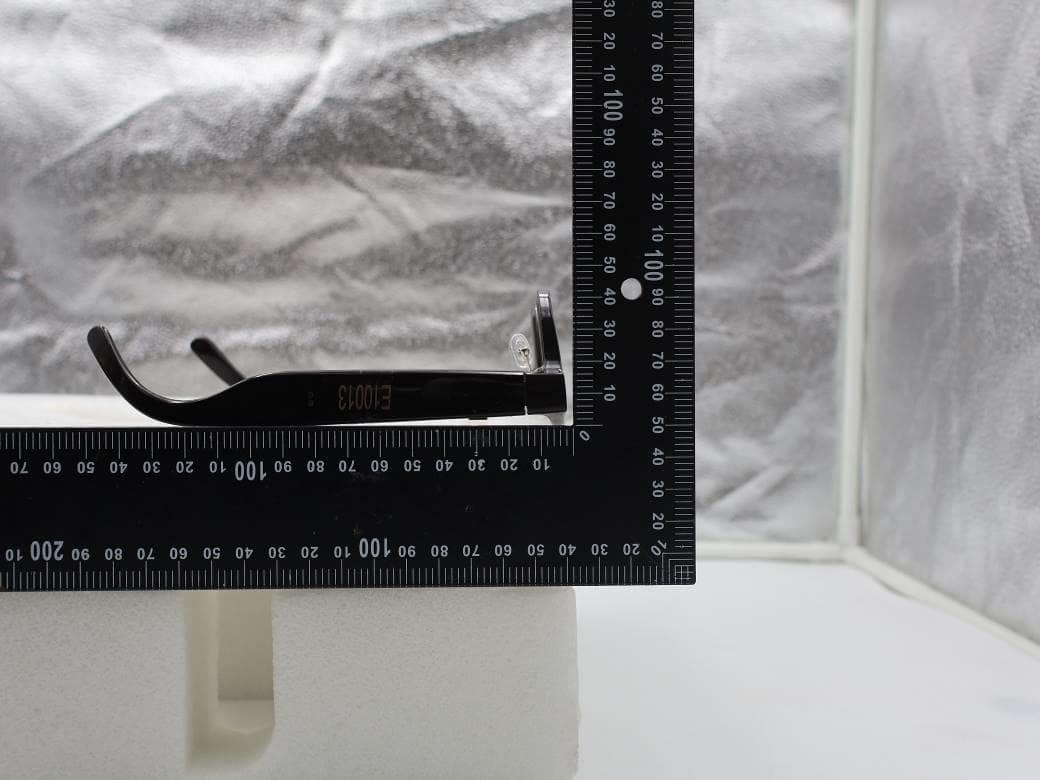
NM82QDJ100
Dec 31, 2025VIVE Headset
Equipment Class
DSS - Part 15 Spread Spectrum TransmitterNM82QD4100
Sep 01, 2024Headset
Equipment Class
6XD - 15E 6 GHz Low Power Indoor Client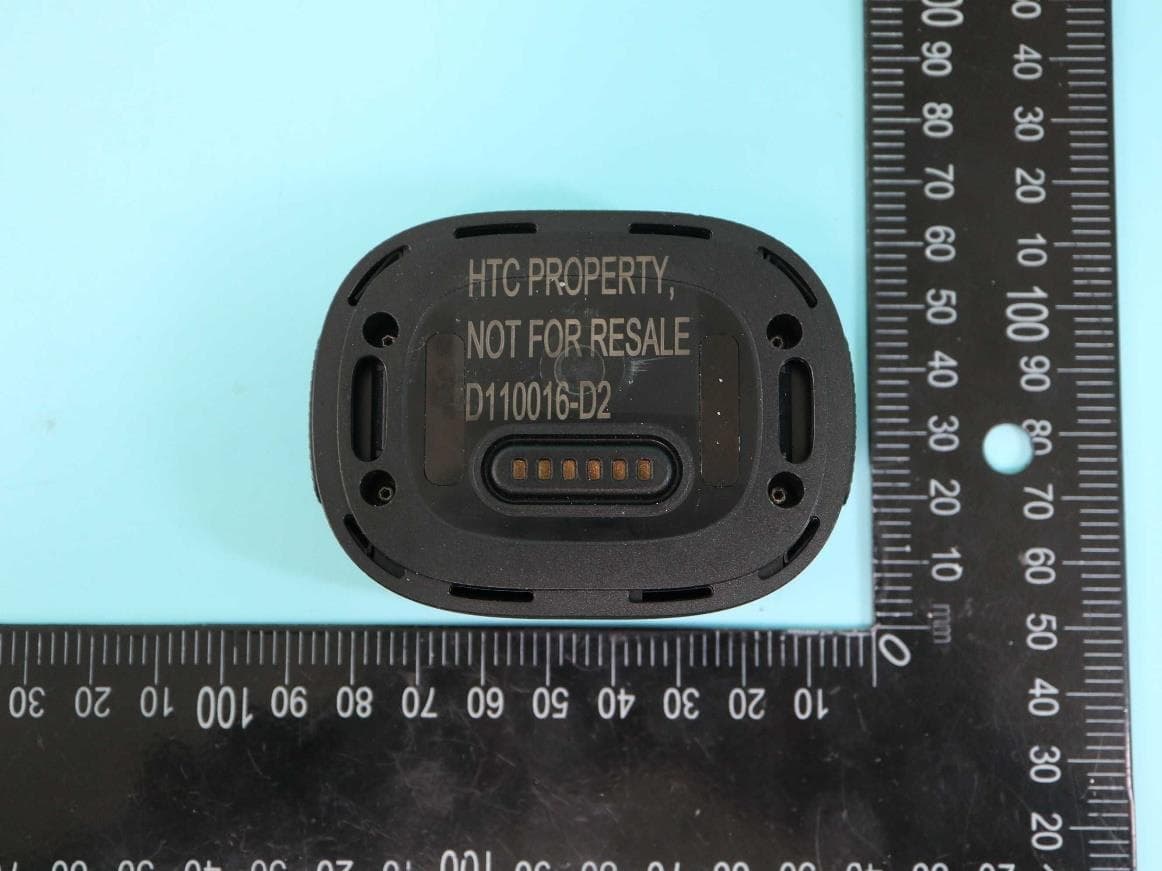
NM82QBP100
May 10, 2023Tracker
Equipment Class
DTS - Digital Transmission System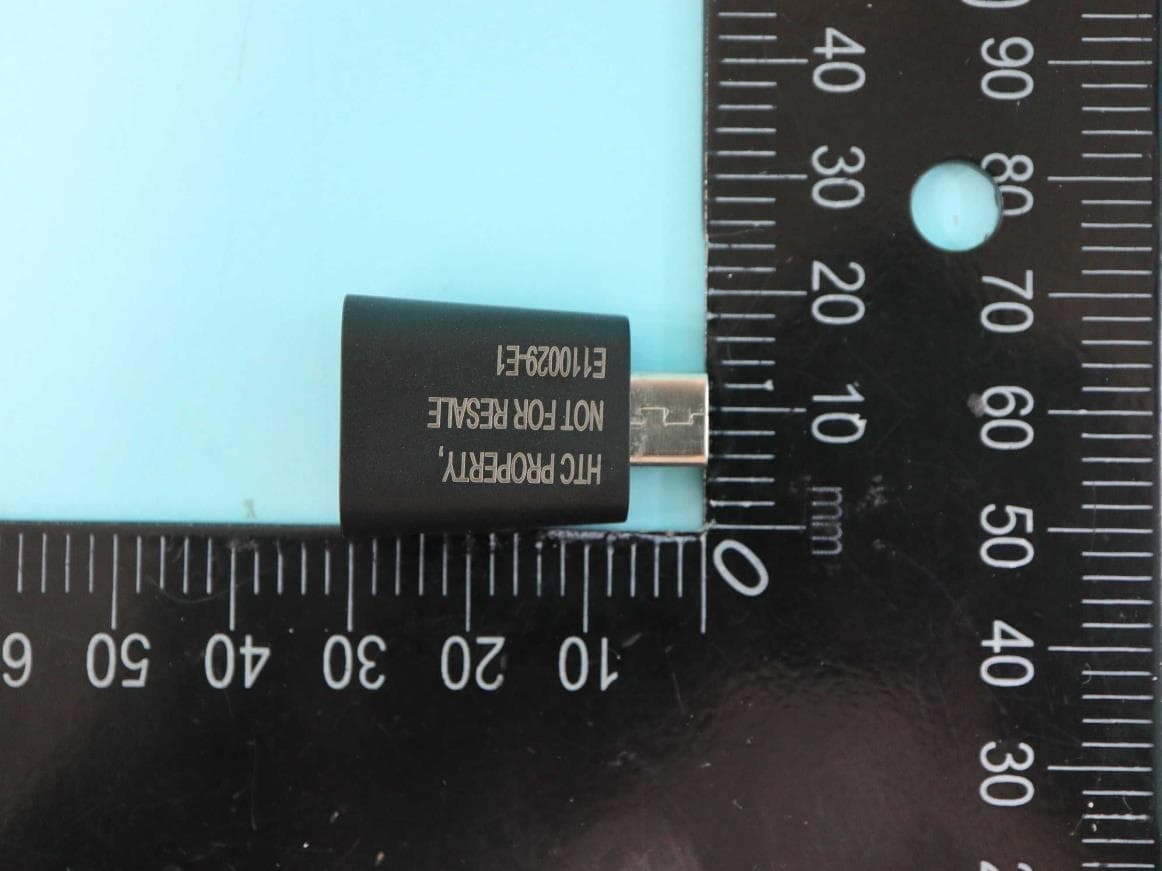
NM82QCD100
May 07, 2023Dongle
Equipment Class
DTS - Digital Transmission System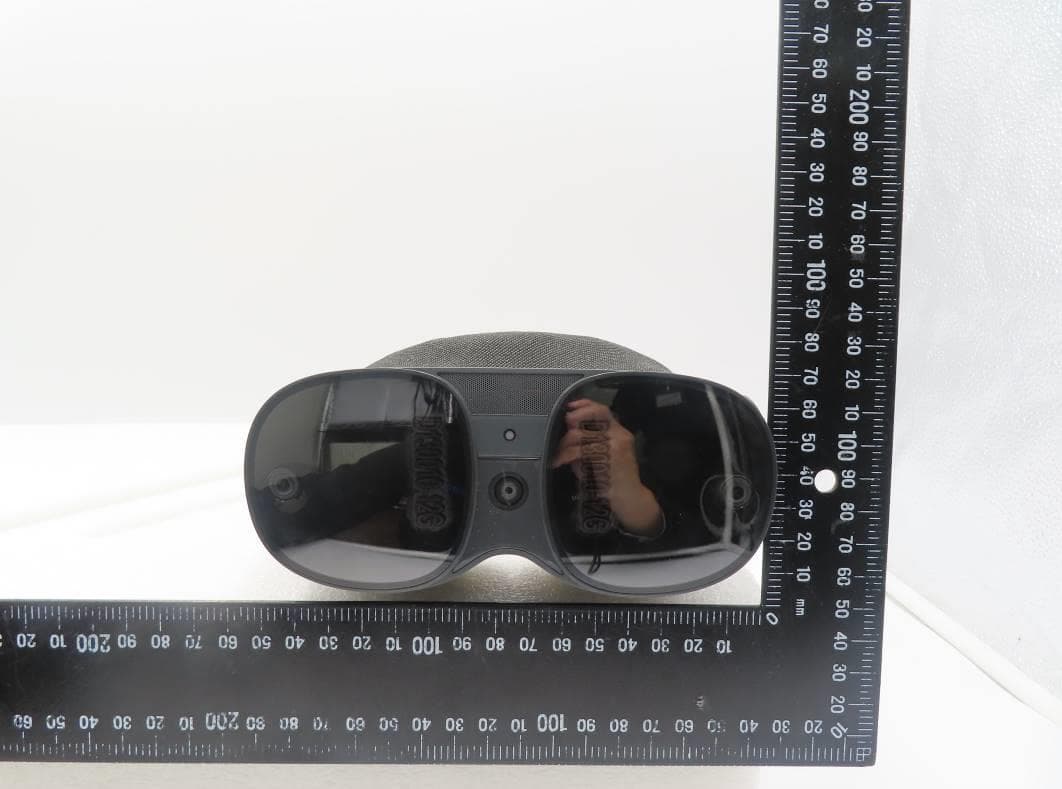
NM82QBB100
Jan 08, 2023Headset
Equipment Class
DTS - Digital Transmission System