NM8TNDSmartphone
HTC Corporation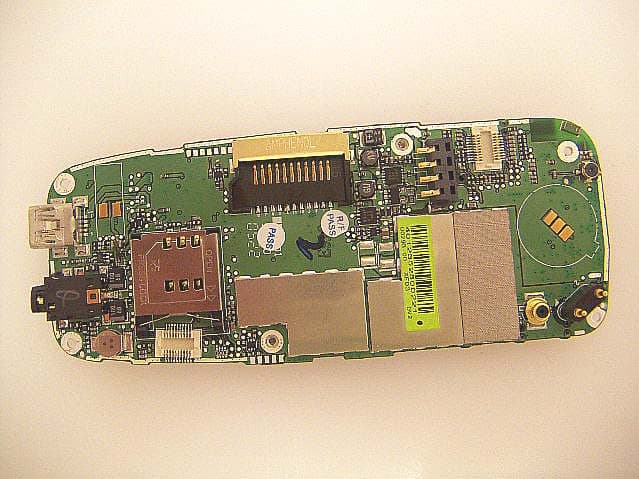
Click to zoom
Application Details
- Equipment Class
- DTS - Digital Transmission System
- Date of Grant
- Aug 22, 2005
- Application Purpose
- Original Equipment
- Date of Application
- Jul 11, 2005
- Equipment Note
- Smartphone
- Frequency Range
- 2402.00000000 - 2480.00000000
- Company
- HTC Corporation
- Country
- Taiwan
Documents & Files
Document Text
Text extracted from the exhibit documents filed with the FCC. Open a document above to read the original.
Users Manual
User Manual 2 Congratulations on the purchase of your new Windows Mobile™ Smartphone! Microsoft, MS-DOS, Windows, Windows NT, Windows Server, Windows Mobile, ActiveSync, Excel, Internet Explorer, MSN, Outlook, PowerPoint, and Word are either registered trademarks or trademarks of Microsoft Corporation in the United States and/or other countries. Please read before operating your device. THE DEVICE IS NOT CHARGED WHEN YOU TAKE IT OUT OF THE BOX. DO NOT REMOVE THE BATTERY PACK WHEN THE DEVICE IS CHARGING. WHEN INSERTING YOUR SIM CARD, MAKE SURE THE DEVICE IS POWERED OFF, AND THAT THE SIM CARD SNAPS INTO THE SOCKET SECURELY. YOUR WARRANTY IS INVALIDATED IF YOU OPEN OR TAMPER WITH THE DEVICE’S OUTER CASING. (For more information, see the enclosed warranty statement.) EXPLOSIVE ATMOSPHERES When in any area with a potentially explosive atmosphere or where flammable materials exist, the product should be turned off and the user should obey all signs and instructions. Sparks in such areas could cause an explosion or fire resulting in bodily injury or even death. Users are advised not to use the equipment at refueling points such as service or gas stations. Users are reminded of the need to observe restrictions on the use of radio equipment in fuel depots, chemical plants or where blasting operations are in progress. Areas with a potentially explosive atmosphere are often, but not always, clearly marked. These include fueling areas, below deck on boats, fuel or chemical transfer or storage facilities, and areas where the air contains chemicals or particles, such as grain, dust, or metal powders. 3 Contents Chapter 1 Getting Started 1.1 The Home Screen ............................................8 1.2 Status Indicators and Program Icons ............9 1.3 Using the Start Menu ..................................... 12 1.4 Using the Quick List ...................................... 12 1.5 Entering Information ..................................... 13 1.6 Battery Information ....................................... 16 Chapter 2 Using Phone Features 2.1 Using the Phone ............................................20 2.2 Making a Call .................................................21 2.3 Receiving a Call .............................................25 2.4 In-Call Options ...............................................25 2.5 Additional Dialing Information .....................27 2.6 Using Voice Tags ...........................................29 4 Chapter 3 Synchronizing your Phone 3.1 About ActiveSync ..........................................32 3.2 Setting Up A ctiveSync ..................................32 3.3 Synchronizing Information ........................... 33 3.4 Synchronizing via Infrared and Bluetooth .. 36 3.5 Synchronizing Music, Video, and Pictures ..37 Chapter 4 Managing your Phone 4.1 Personalizing your Phone ............................40 4.2 Adding and Removing Programs ................. 46 4.3 Using Task Manager and Managing Memory .................................48 4.4 Managing and Backing Up Files .................. 49 4.5 Protecting your Phone .................................. 54 4.6 Resetting your Phone ................................... 56 Chapter 5 Getting Connected 5.1 Connecting to the Internet ............................58 5.2 Using Internet Explorer Mobile .................... 61 5.3 Using Bluetooth ............................................. 64 5.4 Using Modem Link .........................................68 5.5 Using Wireless Manager ............................... 73 5 Chapter 6 Exchanging Messages and Using Outlook 6.1 Using E-mail and Text Messages .................78 6.2 Using MMS Messages ...................................84 6.3 Using Pocket MSN Messenger ..................... 90 6.4 Using Calendar ..............................................92 6.5 Using Contacts ............................................. 93 6.6 Using Tasks .................................................... 96 6.7 Using Voice Notes .........................................97 Chapter 7 Experiencing Multimedia 7.1 Using Camera and Camcorder ...................100 7.2 Using Pictures & Videos .............................108 7.3 Using Windows Media Player .....................112 7.4 Using MIDlet Manager .................................124 Appendix A.1 Regulatory Notices ......................................130 A.2 PC Requirement to Run ActiveSync 4.x ..........137 A.3 Specifications ..............................................137 A.4 Index ............................................................. 140 6 Chapter 1 Getting Started 1.1 The Home Screen 1.2 Status Indicators and Program Icons 1.3 Using the Start Menu 1.4 Using the Quick List 1.5 Entering Information 1.6 Battery Information 8 1 Getting Started 1.1 The Home Screen The Home screen displays important information, such as upcoming appointments, status indicators, the current date, time, and profile, and icons of programs that you have recently used. You can open a program directly by selecting its icon and pressing ENTER. • To access the Home screen from anywhee, press HOME. • To customize the Home screen display, including the background, click Start > Settings > Home Screen. 7 Click to open the Messages folder. 8. Click to display all program icons. 9. Displays notifications, such as missed calls or new messages. 10. Displays the GPRS or GSM network status. 11. Displays the power status. 12. Displays the network signal strength. 13. Click to open Contacts, Call History, or Messages. 1. Select a recently-used program, and open it directly from the Home screen. 2. Displays the name of your wireless service provider. 3. Displays the current date and time. 4. Click to view the details of a missed call. 5. Click to see the time of your next appointment. 6. Displays the current profile. Click to change the profile. Home Screen 2 1 3 4 5 6 7 8 12 13 91011 9 1 Getting Started 1.2 Status Indicators and Program Icons The following table …
Text truncated - open the document above for the full version.
Users Manual
Smart Quick Start Guide 2 1. What’s in the Box? Phone Quick User Guide and User Manual Battery Carrying Pouch Getting Started CD AC Adapter Headset Sync Cable 3 2. Your Phone at a Glance 1. LED IndicatorsThe left bi-color LED Indicator (amber/ red/green) notifies you of the battery and network status of your phone respectively, while the right blue LED Indicator notifies you of the Bluetooth connectivity status. For more information about LED Indicators, see the table at the end of this section. 2. Display Screen 3. HomePress to go to the Home Screen. 4. Left Soft KeyPress to perform the command shown in the label above the button. 5. Media Player Buttons The Previous, Play/Pause/Stop, Next button of Windows Media Player. 6. Talk Press to dial a phone number, answer a call, switch to another call, or put a call on hold. 7. *KeyPress and switch to different input modes or press and hold to choose an input mode or symbols from the list. 8. SpeakerListen to audio media or a phone call. 9. BackPress to go to the previous screen, or backspace over characters. 10. Right Soft KeyPress to perform the command shown in the label above the button. 11. Navigation Control/Enter Use to scroll left, right, up, or down. Or press straight down to use the Enter button. 12. EndPress to end a call, or press and hold to lock the phone. 13. #KeyPress to add a space or press and hold to display a list of symbols. 1 2 3 4 6 7 9 10 11 12 13 5 8 4 15. Camera Press to launch the camera. If already running, press to capture an image or start capturing a video clip. 16. Power Button Press to turn on and off the phone. 17. Speaker Listen to audio media or a phone call. 18. Infrared PortLets you exchange files or data with other devices wirelessly. 19. Camera Lens 20. Call History Press to open the Call History list. 21. Earpiece Volume Up Press to increase the earpiece volume during a call. 22. Earpiece Volume Down Press to decrease the earpiece volume during a call. 23. Car Antenna Connector Allows you to attach your phone to the car antenna for better network signal reception. Simply peel off the rubber cap and connect the antenna jack. Replace the rubber cap if unused. 24. Self-Portrait Mirror Position the phone until the mirror reflects the image you want to capture. 25. Back CoverRemove to insert battery, SIM card, and Mini-SD card. 26. Strap Ring Use to hold the phone with a strap. 27. Light Sensor 28. Sync Connector Use for synchronizing data or recharging the battery. 29. Earphone Jack Listen to audio media or use the phone’s hands-free kit. 30. Microphone Speak into the microphone when receiving or making a phone call or voice recording. 16 30 27 29 17 18 15 19 20 21 22 25 23 24 28 26 5 LED Indicator Lights Various colors that might display in the two LED Indicators are summarized here. Left LEDStatus Solid greenBattery is fully charged. BlankBattery case is empty. Solid amberBattery is charging or the phone is using ActiveSync to synchronize with a PC. Flashing greenConnected to the network. Flashing redBattery very low (less than 4%). Flashing amberBattery temperature is hotter or colder than the functional limits of 0 to 48 degrees Celsius, and has stopped charging. Amber/green LED off Battery fault. The “Battery Fault” indicator ( ) is displayed. In this case, the flashing green LED can be recovered by unplugging the AC adapter. DimDisconnected from the network. Right LEDStatus Flashing blueBluetooth mode set to “On” or “Discoverable” mode. 6 3. Set up Your Phone in 6 Steps Insert the SIM Card Your SIM (Subscriber Identity Module) card is given to you by your wireless service provider and contains your basic subscriber information such as your phone number and your address book. Before you begin, ensure that the phone is turned off. Open the cover and remove the battery 1. Hold the phone in one hand with the keypad facing down in the palm of your hand. With your other hand, press down on the back cover and slide it open in the direction of the arrow shown in the illustration. 2. Remove the battery by lifting it up from the bottom end. 7 Insert the SIM card 1. Open the SIM card door located on the lower right. 2. Insert the SIM card into the door with its gold-plated contacts facing down. 3. Close the door and press down to lock it. Replace the battery 1. Align the exposed metal contacts on the edge of the battery with the prongs in the body of the phone and gently push the bottom of the battery into place. 2. Slide the cover on the phone. 8 Installing the Mini-SD Card Use only the provided Mini-SD (Secure Digital) card in your phone to store images, video clips, music, and other data you may have obtained. To install the Mini-SD card 1. Remove the back cover and battery. 2. Slide the Mini-SD card into the SD card slot with its gold contacts facing down. 3. Push the card down and slide the metal latch over the Mini-SD card to secure it. 4. Replace the battery and back cover. Charge the battery The battery must be fully charged before you use your phone for the first time. The battery can be charged when the phone is turned on or turned off. The time it takes for a battery to fully charge depends on a number of factors. In general it takes about two to three hours. 1. Plug the AC adapter into the mini USB connector at the base of the phone. 2. Plug the AC power cable into an electrical outlet. 3. Charging is indicated by an amber LED. You will know your phone is fully charged when the LED is green. 9 Turn on your phone The power button is located at the top and left of the phone. •Press and hold the POWER button to turn on the phone. Install ActiveSync ActiveSync synchronizes information between your phone and your PC, keeping information up to date in both devices. Before you connect your phone to your PC, you must install ActiveSync on the PC. ActiveSync is already installed on your phone. 1. Insert the Getting Started CD into the CD drive of your PC. 2. Follow the instructions on the installation wizard…
Text truncated - open the document above for the full version.
Users Manual
Smart User Manual 2 Congratulations on the purchase of your new Windows Mobile™ Smartphone! Microsoft, MS-DOS, Windows, Windows NT, Windows Server, Windows Mobile, ActiveSync, Excel, Internet Explorer, MSN, Outlook, PowerPoint, and Word are either registered trademarks or trademarks of Microsoft Corporation in the United States and/or other countries. Please read before operating your device. THE DEVICE IS NOT CHARGED WHEN YOU TAKE IT OUT OF THE BOX. DO NOT REMOVE THE BATTERY PACK WHEN THE DEVICE IS CHARGING. WHEN INSERTING YOUR SIM CARD, MAKE SURE THE DEVICE IS POWERED OFF, AND THAT THE SIM CARD SNAPS INTO THE SOCKET SECURELY. YOUR WARRANTY IS INVALIDATED IF YOU OPEN OR TAMPER WITH THE DEVICE’S OUTER CASING. (For more information, see the enclosed warranty statement.) EXPLOSIVE ATMOSPHERES When in any area with a potentially explosive atmosphere or where flammable materials exist, the product should be turned off and the user should obey all signs and instructions. Sparks in such areas could cause an explosion or fire resulting in bodily injury or even death. Users are advised not to use the equipment at refueling points such as service or gas stations. Users are reminded of the need to observe restrictions on the use of radio equipment in fuel depots, chemical plants or where blasting operations are in progress. Areas with a potentially explosive atmosphere are often, but not always, clearly marked. These include fueling areas, below deck on boats, fuel or chemical transfer or storage facilities, and areas where the air contains chemicals or particles, such as grain, dust, or metal powders. 3 Contents Chapter 1 Getting Started 1.1 The Home Screen ............................................8 1.2 Status Indicators and Program Icons ............9 1.3 Using the Start Menu .....................................12 1.4 Using the Quick List ......................................12 1.5 Entering Information .....................................13 1.6 Battery Information .......................................16 Chapter 2 Using Phone Features 2.1 Using the Phone ............................................20 2.2 Making a Call .................................................21 2.3 Receiving a Call .............................................25 2.4 In-Call Options ...............................................25 2.5 Additional Dialing Information .....................27 2.6 Using Voice Tags ...........................................29 4 Chapter 3 Synchronizing your Phone 3.1 About ActiveSync ..........................................32 3.2 Setting Up ActiveSync ..................................32 3.3 Synchronizing Information ...........................33 3.4 Synchronizing via Infrared and Bluetooth ..36 3.5 Synchronizing Music, Video, and Pictures .37 Chapter 4 Managing your Phone 4.1 Personalizing your Phone ............................40 4.2 Adding and Removing Programs .................46 4.3 Using Task Manager and Managing Memory ..................................................48 4.4 Managing and Backing Up Files ..................49 4.5 Protecting your Phone ..................................54 4.6 Restarting your Phone ..................................56 4.7 Resetting your Phone ...................................56 5 Chapter 5 Getting Connected 5.1 Connecting to the Internet ............................58 5.2 Using Internet Explorer Mobile ....................61 5.3 Using Modem Link .........................................63 5.4 Using Comm Manager ..................................66 5.5 Using Bluetooth .............................................67 5.6 Using Wi-Fi Connection ................................71 Chapter 6 Exchanging Messages and Using Outlook 6.1 Using E-mail and Text Messages .................76 6.2 Using MMS Messages ...................................82 6.3 Using Pocket MSN Messenger .....................88 6.4 Using Calendar ..............................................90 6.5 Using Contacts .............................................91 6.6 Using Tasks ....................................................94 6.7 Using Voice Notes .........................................95 6 Chapter 7 Experiencing Multimedia 7.1 Using Camera and Camcorder .....................98 7.2 Using Pictures & Videos .............................105 7.3 Using Windows Media Player .....................110 7.4 Using MIDlet Manager .................................119 Appendix A.1 Regulatory Notices ......................................126 A.2 PC Requirement to Run ActiveSync 4.x ..........133 A.3 Specifications ..............................................133 Index Chapter 1 Getting Started 1.1 The Home Screen 1.2 Status Indicators and Program Icons 1.3 Using the Start Menu 1.4 Using the Quick List 1.5 Entering Information 1.6 Battery Information 8 1 Getting Started 1.1 The Home Screen The Home screen displays important information, such as upcoming appointments, status indicators, the current date, time, and profile, and icons of programs that you have recently used. You can open a program directly by selecting its icon and pressing ENTER. • To access the Home screen from anywhere, press HOME. • To customize the Home screen display, including the background, click Start > Settings > Home Screen. 7 Click to open the Messages folder. 8. Click to display all program icons. 9. Displays notifications, such as missed calls or new messages. 10. Displays the GPRS or GSM network status. 11. Displays the power status. 12. Displays the network signal strength. 13. Click to open Contacts, Call History, or Messages. 1. Select a recently-used program, and open it directly from the Home screen. 2. Displays the name of your wireless service provider. 3. Displays the current date and time. 4. Click to view the details of a missed call. 5. Click to see the time of your next appointment. 6. Displays the current profile. Click to change the profile. Home Screen 2 1 3 4 5 6 7 8 12 13 91011 9 1 Getting Started…
Text truncated - open the document above for the full version.
Cover Letter(s)
Dear Stanley, We would like to request for an extension on the existing Short-term Confidentiality Request submitted to FCC for the following equipment authorization application: Applicant: High Tech Computer Corp FCC ID: NM8TND 731 Confirmation Number: EA926531 (DTS package) and EA964648 (PCE package) Attached please find an updated Confidentiality Request Letter from applicant which has extended the short-term confidentiality date to September 30, 2005. Your review and approval of the extension request would be greatly appreciated. Best regards, Danielle Zhan Compliance Certification Services 561 F Monterey Road Morgan Hill, CA 95037 Tel: (408) 463 0885 Fax: (408) 463 0888 CC: Michael Heckrotte Engineering Manager Compliance Certification Services Inc [email protected]
External Photos
REPORT NO: 05T3459-4 DATE: July 09, 2005 FCC ID: NM8TND COMPLIANCE CERTIFICATION SERVICES Page: 1 of 33 This report shall not be reproduced except in full, without the written approval of CCS. This document may be altered or revised by Compliance Certification Services personnel only, and shall be noted in the revision section of the document. Equipment under Test (EUT) REPORT NO: 05T3459-4 DATE: July 9, 2005 FCC ID: NM8TND COMPLIANCE CERTIFICATION SERVICES Page 2 of 6 REPORT NO: 05T3459-4 DATE: July 9, 2005 FCC ID: NM8TND COMPLIANCE CERTIFICATION SERVICES Page 3 of 6 Interior View GSM & WiFi Antenna REPORT NO: 05T3459-4 DATE: July 9, 2005 FCC ID: NM8TND COMPLIANCE CERTIFICATION SERVICES Page 4 of 6 BT antenna location Bluetooth Antenna REPORT NO: 05T3459-4 DATE: July 9, 2005 FCC ID: NM8TND COMPLIANCE CERTIFICATION SERVICES Page 5 of 6 EUT with Pouch – model: HTC-180-3 REPORT NO: 05T3459-4 DATE: July 9, 2005 FCC ID: NM8TND COMPLIANCE CERTIFICATION SERVICES Page 6 of 6 Headset – model: TS888-03206N
Parts List/Tune Up Info
H/W Specification PROPRIETARY NOTE THIS DOCUMENT CONTAINS INFORMATION CONFIDENTIAL AND PROPRIETARY TO HIGH TECH COMPUTER CORP. AND SHALL NOT BE REPRODUCED OR TRANSFERRED TO OTHER DOCUMENTS OR DISCLOSED TO OTHERS OR USED FOR ANY PURPOSE OTHER THAN THAT FOR WHICH IT WAS OBTAINED WITHOUT THE EXPRESSED WRITTEN CONSENT OF HIGH TECH COMPUTER CORP. HTC CONFIDENTIAL Page 1 of 10 IS-DCC-GEN-009-1.2 High Tech Computer, Antenna H/W Specification Project Name : Dunton Date: 07/07/2005 Project Manager: Mason Chiang Rev.: 1.2 Countersign: Chung-I Chou H/W Specification PROPRIETARY NOTE THIS DOCUMENT CONTAINS INFORMATION CONFIDENTIAL AND PROPRIETARY TO HIGH TECH COMPUTER CORP. AND SHALL NOT BE REPRODUCED OR TRANSFERRED TO OTHER DOCUMENTS OR DISCLOSED TO OTHERS OR USED FOR ANY PURPOSE OTHER THAN THAT FOR WHICH IT WAS OBTAINED WITHOUT THE EXPRESSED WRITTEN CONSENT OF HIGH TECH COMPUTER CORP. HTC CONFIDENTIAL Page 2 of 10 IS-DCC-GEN-009-1.2 High Tech Computer, Revision History Revision Revision History Date Author(s) 1.0 01/24/2005 Chung-I Chou 1.1 Spec modification 06/24/2005 Chung-I Chou 1.2 Spec modification 07/07/2005 Chung-I Chou H/W Specification PROPRIETARY NOTE THIS DOCUMENT CONTAINS INFORMATION CONFIDENTIAL AND PROPRIETARY TO HIGH TECH COMPUTER CORP. AND SHALL NOT BE REPRODUCED OR TRANSFERRED TO OTHER DOCUMENTS OR DISCLOSED TO OTHERS OR USED FOR ANY PURPOSE OTHER THAN THAT FOR WHICH IT WAS OBTAINED WITHOUT THE EXPRESSED WRITTEN CONSENT OF HIGH TECH COMPUTER CORP. HTC CONFIDENTIAL Page 3 of 10 IS-DCC-GEN-009-1.2 High Tech Computer, CONTENTS Embedded Penta-Band Antenna Specification ................................... P.4 Embedded Bluetooth Antenna Specification...................................... P.10 H/W Specification PROPRIETARY NOTE THIS DOCUMENT CONTAINS INFORMATION CONFIDENTIAL AND PROPRIETARY TO HIGH TECH COMPUTER CORP. AND SHALL NOT BE REPRODUCED OR TRANSFERRED TO OTHER DOCUMENTS OR DISCLOSED TO OTHERS OR USED FOR ANY PURPOSE OTHER THAN THAT FOR WHICH IT WAS OBTAINED WITHOUT THE EXPRESSED WRITTEN CONSENT OF HIGH TECH COMPUTER CORP. HTC CONFIDENTIAL Page 4 of 10 IS-DCC-GEN-009-1.2 High Tech Computer, Embedded Penta-Band Antenna 1. Overview The document is the specification of the embedded Penta-band antenna for PHONE applications. Penta-band includes GSM850, GSM900, DCS1800, PCS1900, WLAN2400. 1.1 Denotations dBi: Decibel relative isotropic antenna VSWR: Voltage Standing Wave Ratio Tx: Transmit frequency Rx: Receive frequency GSM: Global Service for Mobile communication PCS: Personal Communication System DCS: Digital Communication System WLAN: Wireless Local Area Network SAR: Specific Absorption Rate Peak Gain: The peak value of the antenna gain Average Gain: The average value of the antenna gain 2. Measurement Parameters 2.1 VSWR VSWR indicates the matching characteristics of the antenna. VSWR can be measured by a network analyzer. 2.2 Antenna Gain and Pattern Antenna gain and far-field pattern can be determined by two measurement skills, depending on the own equipments. One is the far-field measurement; the other is the 3-D measurement system. H/W Specification PROPRIETARY NOTE THIS DOCUMENT CONTAINS INFORMATION CONFIDENTIAL AND PROPRIETARY TO HIGH TECH COMPUTER CORP. AND SHALL NOT BE REPRODUCED OR TRANSFERRED TO OTHER DOCUMENTS OR DISCLOSED TO OTHERS OR USED FOR ANY PURPOSE OTHER THAN THAT FOR WHICH IT WAS OBTAINED WITHOUT THE EXPRESSED WRITTEN CONSENT OF HIGH TECH COMPUTER CORP. HTC CONFIDENTIAL Page 5 of 10 IS-DCC-GEN-009-1.2 High Tech Computer, 3. Electrical Requirements 3.1 VSWR GSM850 GSM900 DCS1800 PCS1900 WLAN2400 Free space 2.5:1 2.5:1 2.5:1 2.5:1 2.5:1 Notably: The VSWR value will be degraded due to mechanical and space constrains. 3.2 Gain and Patterns (Total Field) GSM850 GSM900 DCS1800 PCS1900 WLAN2400 Peak gain 0.0 dBi 0.0 dBi 0.0 dBi 0.0 dBi 0.0 dBi Average gain -4.0 dBi -4.0 dBi -4.0 dBi -4.0 dBi -4.0 dBi Notably: The target values (peak and average gains) will be degraded due to mechanical and space constrains. 3.3 Total Efficiency GSM900 DCS1800 PCS1900 WLAN2400 Total efficiency 50% 40% 40% 40% Notably: The antenna total efficiency will be degraded due to mechanical and space constrains. H/W Specification PROPRIETARY NOTE THIS DOCUMENT CONTAINS INFORMATION CONFIDENTIAL AND PROPRIETARY TO HIGH TECH COMPUTER CORP. AND SHALL NOT BE REPRODUCED OR TRANSFERRED TO OTHER DOCUMENTS OR DISCLOSED TO OTHERS OR USED FOR ANY PURPOSE OTHER THAN THAT FOR WHICH IT WAS OBTAINED WITHOUT THE EXPRESSED WRITTEN CONSENT OF HIGH TECH COMPUTER CORP. HTC CONFIDENTIAL Page 6 of 10 IS-DCC-GEN-009-1.2 High Tech Computer, 4. Environmental Performance 4.1 Test Methods All of the tests should be carried out with the antenna mounted on the real PHONE to the maximum extent that is possible. Notably, T o is 20 o C±3 o C (T o : room temperature). 4.1.1 Temperature (steady state) The test is according to IEC 60068-2-1 Test Ab (Cold) and IEC 60068-2-2 Test Bb (Dry heat). The antenna is stored in a climatic camber with the following climate and time periods (Figs. 1 and 2): Low temperature/Duration: T 1 =-5 o C/t 1 =48hr (Fig. 1) High temperature/Duration: T 2 =+45 o C/t 2 =48hr (Fig. 2) t 1 T 1 T o Time Temperature ( o C) Fig. 1 H/W Specification PROPRIETARY NOTE THIS DOCUMENT CONTAINS INFORMATION CONFIDENTIAL AND PROPRIETARY TO HIGH TECH COMPUTER CORP. AND SHALL NOT BE REPRODUCED OR TRANSFERRED TO OTHER DOCUMENTS OR DISCLOSED TO OTHERS OR USED FOR ANY PURPOSE OTHER THAN THAT FOR WHICH IT WAS OBTAINED WITHOUT THE EXPRESSED WRITTEN CONSENT OF HIGH TECH COMPUTER CORP. HTC CONFIDENTIAL Page 7 of 10 IS-DCC-GEN-009-1.2 High Tech Computer, 4.1.2 Temperature (cycling) The test is according to IEC 60068-2-14 Test Na (Change of temperature, Fig. 3) Low temperature (T 1 ): -5 o C High temperature (T 2 ): +45 o C Steady state time (t 1 ): 1hr Transition time (t 2 ): <5 min Duration: 4cycles t 2 T o T 2 Time Temperature ( o C) Fig. 2 H/W Specification PROPRIETARY NOTE THIS DOCUMENT CONTAINS INFORMATION CONFIDENTIAL AND…
Text truncated - open the document above for the full version.
RF Exposure Info
IN ACCORDANCE WITH THE REQUIREMENTS OF FCC REPORT AND ORDER: ET DOCKET 93-62, AND OET BULLETIN 65 SUPPLEMENT C FOR Smart Phone MODEL: ST22A FCC ID: NM8TND REPORT NUMBER: 05T3459-4 ISSUE DATE: July 15, 2005 Prepared for High Tech Computer Corp. 23 Hsin Hua Road Taoyuan 330, Taiwan, R. O. C. Prepared by COMPLIANCE CERTIFICATION SERVICES 561F MONTEREY ROAD, MORGAN HILL, CA 95037, USA TEL: (408) 463-0885 REPORT NO: 05T3459-4 DATE: July 15, 2005 FCC ID: NM8TND COMPLIANCE CERTIFICATION SERVICES Page: 2 of 2 This report shall not be reproduced except in full, without the written approval of CCS. Revision History Rev. Revisions Revised By A Initial issue HS REPORT NO: 05T3459-4 DATE: July 15, 2005 FCC ID: NM8TND COMPLIANCE CERTIFICATION SERVICES Page: 3 of 3 This report shall not be reproduced except in full, without the written approval of CCS. CERTIFICATE OF COMPLIANCE (SAR EVALUATION) DATES OF TEST: July 7, 8, 9 and 15 2005 APPLICANT: High Tech Computer Corp. ADDRESS: 23 Hsin Hua Road, Taoyuan 330, Taiwan, R. O. C FCC ID: NM8TND MODEL: ST22A DEVICE CATEGORY: Portable Device EXPOSURE CATEGORY: General Population/Uncontrolled Exposure Smart Phone (GSM850/1900 with WiFi 802.11b and Bluetooth radio) Test Sample is a: Production unit FCC Rule Parts Frequency Range [MHz] The Highest SAR Values 22H 824.2 – 848.8 • The highest reported SAR values are: Head: 0.591W/kg and Body-worn: 0.955 W/kg • The highest reported collocated SAR values are Head: 0.651 W/kg and body: 1.009W/kg. 24E 1850.2 – 1909.8 • The highest reported SAR values are Head: 0.829W/kg; Body-worn: 0.978 W/kg • The highest reported collocated SAR values are Head: 0.886 W/kg and body: 1.032 W/kg. 15C 2412 - 2462 • The highest reported SAR values are head: 0.058 W/kg and body: 0.054 W/kg This wireless portable device has been shown to be capable of compliance for localized specific absorption rate (SAR) for General Population/Uncontrolled Exposure limits specified in ANSI/IEEE Std. C95.1-1992 and had been tested in accordance with the measurement procedures specified in FCC OET 65 Supplement C (Edition 01-01). And RSS-102 Issue 1 (Provisional) September 25, 1999. The maximum 1g SAR level measured for all the tests performed did not exceed the limits for General Population/Uncontrolled Exposure (W/kg) Partial Body of 1.6 W/kg. Level defined in Supplement C (Edition 01-01) to OET Bulletin 65 (97-01). Note: The results documented in this report apply only to the tested sample, under the conditions and modes of operation as described herein. This document may not be altered or revised in any way unless done so by Compliance Certification Services and all revisions are duly noted in the revisions section. Any alteration of this document not carried out by Compliance Certification Services will constitute fraud and shall nullify the document. No part of this report may be used to claim product certification, approval, or endorsement by NVLAP, NIST, or any government agency. Released for CCS By: Hsin Fu Shih (Sunny Shih) COMPLIANCE CERTIFICATION SERVICES REPORT NO: 05T3459-4 DATE: July 15, 2005 FCC ID: NM8TND COMPLIANCE CERTIFICATION SERVICES Page: 4 of 4 This report shall not be reproduced except in full, without the written approval of CCS. TABLE OF CONTENTS 1 Equipment Under Test (EUT) Description............................................................................................ 6 2 FACILITIES AND ACCREDITATION ................................................................................................... 6 3 System Description............................................................................................................................... 7 4 System Component .............................................................................................................................. 8 4.1 DASY4 Measurement Server........................................................................................................ 8 4.2 Data Acquisition Electronics (DAE)............................................................................................... 8 4.3 EX3DV3 Isotropic E-Field Probe for Dosimetric Measurements .........................................…
Text truncated - open the document above for the full version.
Contact Information
Applicant
Sylvia Shen
Technical Contact
Compliance Certification ServicesMichael Heckrotte
[email protected]408-463-0885
561F Monterey Road · Morgan Hill, California · United States
Test Firm
Compliance Certification Services IncSteve Cheng
Technical Specifications
| # | Rule Parts | Frequency Range | Power Output |
|---|---|---|---|
| 2 | 15C | 2.40 GHz - 2.48 GHz | 1.78 mW |
Other Applications from HTC Corporation
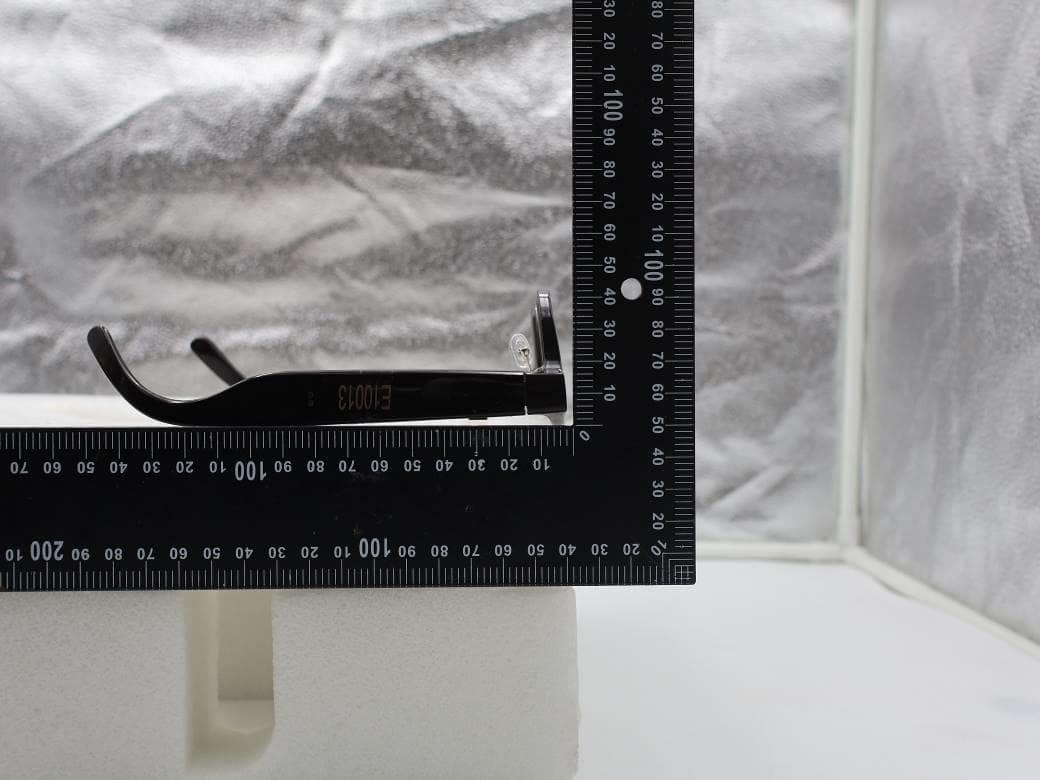
NM82QDJ100
Dec 31, 2025VIVE Headset
Equipment Class
DSS - Part 15 Spread Spectrum TransmitterNM82QD4100
Sep 01, 2024Headset
Equipment Class
6XD - 15E 6 GHz Low Power Indoor Client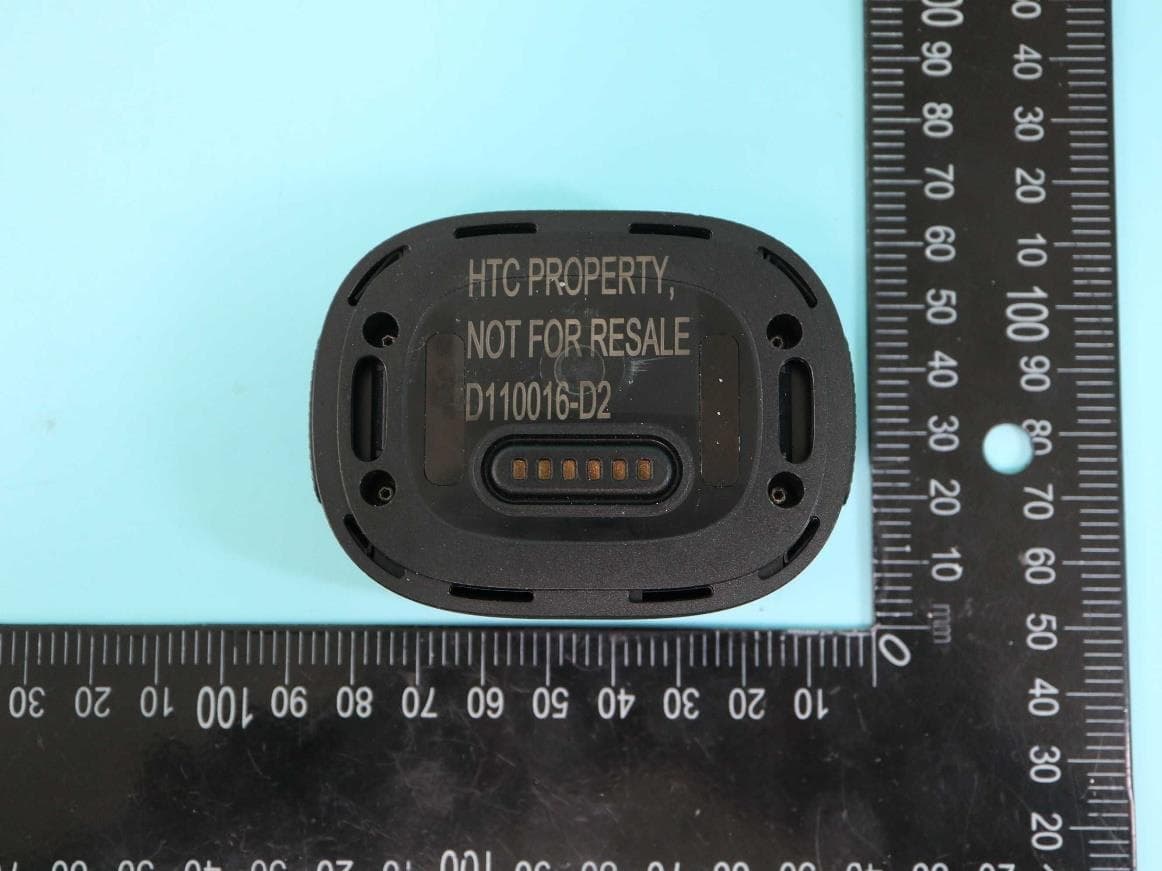
NM82QBP100
May 10, 2023Tracker
Equipment Class
DTS - Digital Transmission System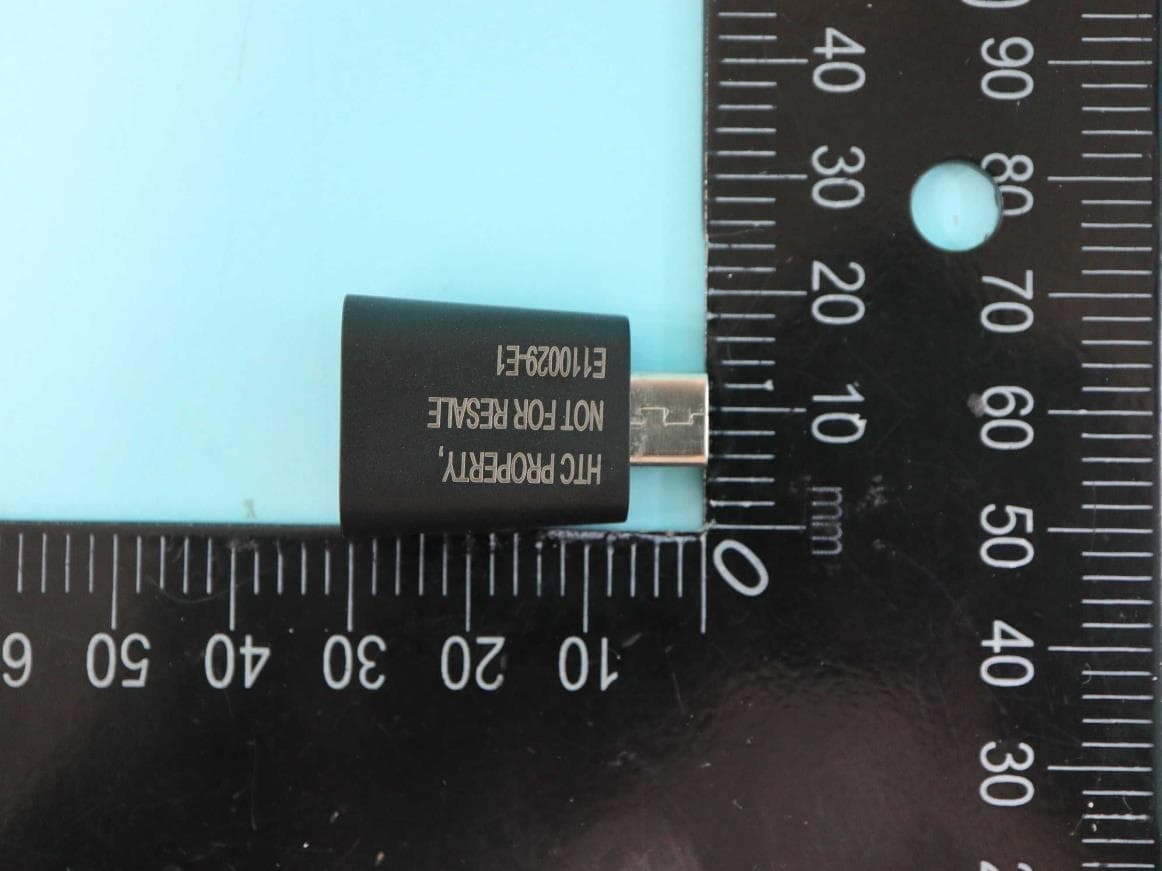
NM82QCD100
May 07, 2023Dongle
Equipment Class
DTS - Digital Transmission System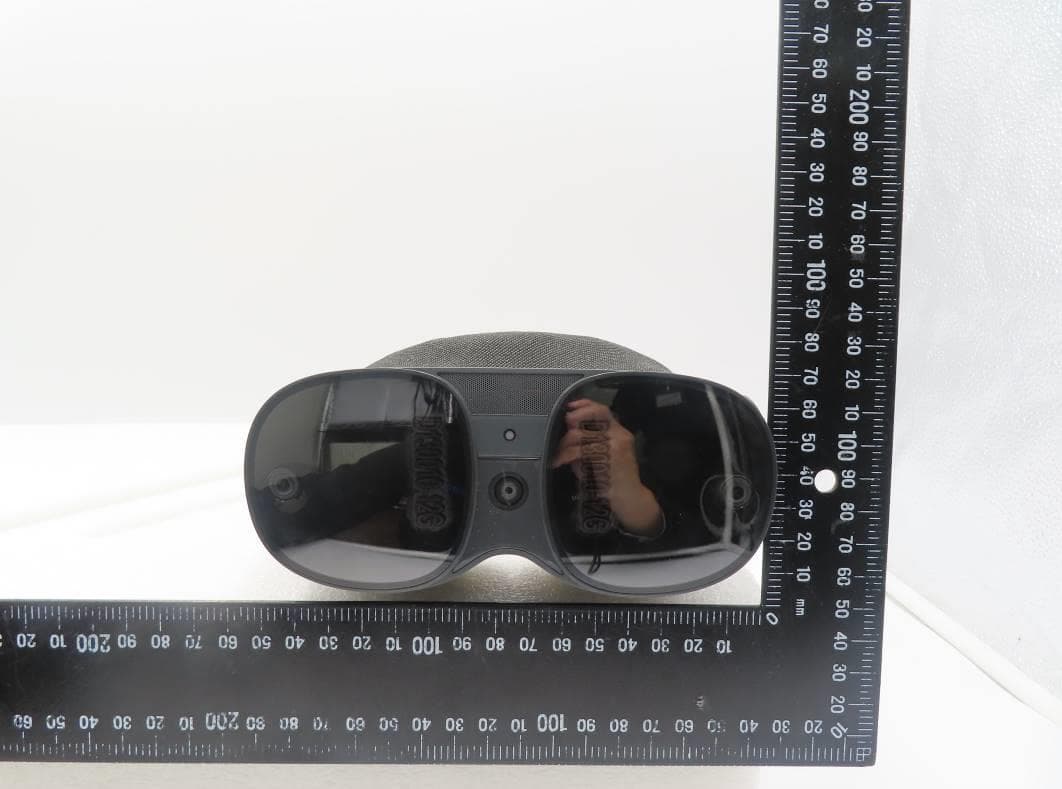
NM82QBB100
Jan 08, 2023Headset
Equipment Class
DTS - Digital Transmission System