P6XSBX-166LHGE-5Safe@Office/VPN-1 Edge
SofaWare Technologies Ltd.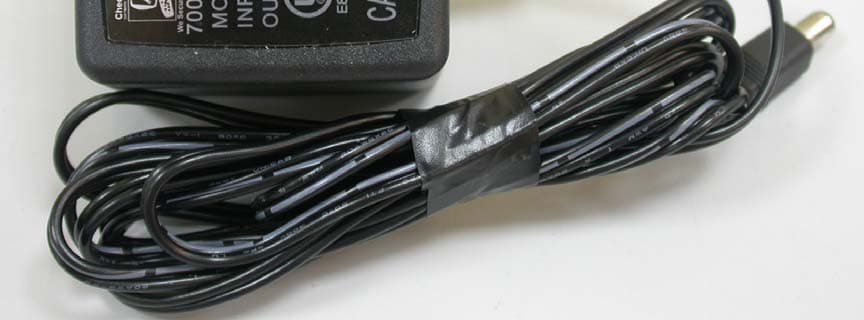
Click to zoom
Application Details
- Equipment Class
- JBP - Part 15 Class B Computing Device Peripheral
- Date of Grant
- Nov 13, 2006
- Application Purpose
- Original Equipment
- Date of Application
- Nov 13, 2006
- Equipment Note
- Safe@Office/VPN-1 Edge
- Company
- SofaWare Technologies Ltd.
- Country
- Israel
Documents & Files
Document Text
Text extracted from the exhibit documents filed with the FCC. Open a document above to read the original.
Users Manual
Check Point Safe@Office Internet Security Appliance User Guide Version 6.5 Part No: 700797, April 2006 COPYRIGHT & TRADEMARKS Copyright © 2006 SofaWare, All Rights Reserved. No part of this document may be reproduced in any form or by any means without written permission from SofaWare. Information in this document is subject to change without notice and does not represent a commitment on part of SofaWare Technologies Ltd. SofaWare, Safe@Home and Safe@Office are trademarks, service marks, or registered trademarks of SofaWare Technologies Ltd. Check Point, the Check Point logo, FireWall-1, FireWall-1 SecureServer, FireWall-1 SmallOffice, FloodGate-1, INSPECT, IQ Engine, Meta IP, MultiGate, Open Security Extension, OPSEC, Provider-1, SecureKnowledge, SecureUpdate, SiteManager-1, SVN, UAM, User-to-Address Mapping, UserAuthority, Visual Policy Editor, VPN-1, VPN-1 Accelerator Card, VPN-1 Gateway, VPN-1 SecureClient, VPN-1 SecuRemote, VPN-1 SecureServer, and VPN-1 Edge are trademarks, service marks, or registered trademarks of Check Point Software Technologies Ltd. or its affiliates. All other product names mentioned herein are trademarks or registered trademarks of their respective owners. The products described in this document are protected by U.S. Patent No. 5,606,668 and 5,835,726 and may be protected by other U.S. Patents, foreign patents, or pending applications. GNU GENERAL PUBLIC LICENSE Version 2, June 1991 Copyright © 1989, 1991 Free Software Foundation, Inc. 59 Temple Place, Suite 330, Boston, MA 02111-1307 USA Everyone is permitted to copy and distribute verbatim copies of this license document, but changing it is not allowed. PREAMBLE The licenses for most software are designed to take away your freedom to share and change it. By contrast, the GNU General Public License is intended to guarantee your freedom to share and change free software--to make sure the software is free for all its users. This General Public License applies to most of the Free Software Foundation's software and to any other program whose authors commit to using it. (Some other Free Software Foundation software is covered by the GNU Library General Public License instead.) You can apply it to your programs, too. When we speak of free software, we are referring to freedom, not price. Our General Public Licenses are designed to make sure that you have the freedom to distribute copies of free software (and charge for this service if you wish), that you receive source code or can get it if you want it, that you can change the software or use pieces of it in new free programs; and that you know you can do these things. To protect your rights, we need to make restrictions that forbid anyone to deny you these rights or to ask you to surrender the rights. These restrictions translate to certain responsibilities for you if you distribute copies of the software, or if you modify it. For example, if you distribute copies of such a program, whether gratis or for a fee, you must give the recipients all the rights that you have. You must make sure that they, too, receive or can get the source code. And you must show them these terms so they know their rights. We protect your rights with two steps: (1) copyright the software, and (2) offer you this license which gives you legal permission to copy, distribute and/or modify the software. Also, for each author's protection and ours, we want to make certain that everyone understands that there is no warranty for this free software. If the software is modified by someone else and passed on, we want its recipients to know that what they have is not the original, so that any problems introduced by others will not reflect on the original authors' reputations. Finally, any free program is threatened constantly by software patents. We wish to avoid the danger that redistributors of a free program will individually obtain patent licenses, in effect making the program proprietary. To prevent this, we have made it clear that any patent must be licensed for everyone's free use or not licensed at all. The precise terms and conditions for copying, distribution and modification follow. GNU GENERAL PUBLIC LICENSE TERMS AND CONDITIONS FOR COPYING, DISTRIBUTION AND MODIFICATION 0. This License applies to any program or other work which contains a notice placed by the copyright holder saying it may be distributed under the terms of this General Public License. The "Program", below, refers to any such program or work, and a "work based on the Program" means either the Program or any derivative work under copyright law: that is to say, a work containing the Program or a portion of it, either verbatim or with modifications and/or translated into another language. (Hereinafter, translation is included without limitation in the term "modification".) Each licensee is addressed as "you". Activities other than copying, distribution and modification are not covered by this License; they are outside its scope. The act of running the Program is not restricted, and the output from the Program is covered only if its contents constitute a work based on the Program (independent of having been made by running the Program). Whether that is true depends on what the Program does. 1. You may copy and distribute verbatim copies of the Program's source code as you receive it, in any medium, provided that you conspicuously and appropriately publish on each copy an appropriate copyright notice and disclaimer of warranty; keep intact all the notices that refer to this License and to the absence of any warranty; and give any other recipients of the Program a copy of this License along with the Program. You may charge a fee for the physical act of transferring a copy, and you may at your option offer warranty protection in exchange for a fee. 2. You may modify your copy or copies of the Program or any portion of it, thus forming a work based on the Program, and copy and distribute such modifications or work under the ter…
Text truncated - open the document above for the full version.
Users Manual
Configuring High Availability Chapter 5: Managing Your Network 135 The Step 2: Computer Details dialog box appears. If you chose Single Computer, the dialog box includes the Perform Static NAT option. If you chose Network, the dialog box does not include this option. 11. Complete the fields using the information in the tables below. 12. Click Next. Configuring High Availability 136 Check Point Safe@Office User Guide The Step 3: Save dialog box appears. 13. Type a name for the network object in the field. 14. Click Finish. To add or edit a network object via the Active Computers page 1. Click Reports in the main menu, and click the Active Computers tab. Configuring High Availability Chapter 5: Managing Your Network 137 The Active Computers page appears. If a computer has not yet been added as a network object, the Add button appears next to it. If a computer has already been added as a network object, the Edit button appears next to it. 2. Do one of the following: • To add a network object, click Add next to the desired computer. • To edit a network object, click Edit next to the desired computer. The Safe@Office Network Object Wizard opens, with the Step 1: Network Object Type dialog box displayed. 3. Do one of the following: • To specify that the network object should represent a single computer or device, click Single Computer. Configuring High Availability 138 Check Point Safe@Office User Guide • To specify that the network object should represent a network, click Network. 4. Click Next. The Step 2: Computer Details dialog box appears. The computer's IP address and MAC address are automatically filled in. 5. Complete the fields using the information in the tables below. 6. Click Next. The Step 3: Save dialog box appears with the network object's name. If you are adding a new network object, this name is the computer's name. 7. To change the network object name, type the desired name in the field. 8. Click Finish. The new object appears in the Network Objects page. Configuring High Availability Chapter 5: Managing Your Network 139 Table 16: Network Object Fields for a Single Computer In this field... Do this... IP Address Type the IP address of the local computer, or click This Computer to specify your computer. Reserve a fixed IP address for this computer Select this option to assign the network object's IP address to a MAC address, and to allow the network object to connect to the WLAN when MAC Filtering is used. For information about MAC Filtering, see Configuring a Wireless Network on page 163. MAC Address Type the MAC address you want to assign to the network object's IP address, or click This Computer to specify your computer's MAC address. Perform Static NAT (Network Address Translation) Select this option to map the local computer's IP address to an Internet IP address. You must then fill in the External IP field. External IP Type the Internet IP address to which you want to map the local computer's IP address. Exclude this computer from HotSpot enforcement Select this option to exclude the network object from HotSpot enforcement. Configuring High Availability 140 Check Point Safe@Office User Guide Table 17: Network Object Fields for a Network In this field... Do this... IP Range Type the range of local computer IP addresses in the network. Perform Static NAT (Network Address Translation) Select this option to map the network's IP address range to a range of Internet IP addresses of the same size. You must then fill in the External IP Range field. External IP Range Type the Internet IP address range to which you want to map the network's IP address range. Exclude this network from HotSpot enforcement Select this option to exclude this network from HotSpot enforcement. Viewing and Deleting Network Objects To view or delete a network object 1. Click Network in the main menu, and click the Network Objects tab. The Network Objects page appears with a list of network objects. 2. To delete a network object, do the following: a. In the desired network object's row, click the Erase icon. A confirmation message appears. b. Click OK. The network object is deleted. Using Static Routes Chapter 5: Managing Your Network 141 Using Static Routes A static route is a setting that explicitly specifies the route for packets originating in a certain subnet and/or destined for a certain subnet. Packets with a source and destination that does not match any defined static route will be routed to the default gateway. To modify the default gateway, see Using a LAN Connection on page 67. A static route can be based on the packet's destination IP address, or based on the source IP address, in which case it is a source route. Source routing can be used, for example, for load balancing between two Internet connections. For example, if you have an Accounting department and a Marketing department, and you want each to use a different Internet connection for outgoing traffic, you can add a static route specifying that traffic originating from the Accounting department should be sent via WAN1, and another static route specifying that traffic originating from the Marketing department should be sent via WAN2. The Static Routes page lists all existing routes, including the default, and indicates whether each route is currently "Up" (reachable) or not. Adding and Editing Static Routes To add a static route 1. Click Network in the main menu, and click the Routes tab. Using Static Routes 142 Check Point Safe@Office User Guide The Static Routes page appears, with a list of existing static routes. 2. Do one of the following: • To add a static route, click New Route. • To edit an existing static route, click Edit next to the desired route in the list. Using Static Routes Chapter 5: Managing Your Network 143 The Static Route Wizard opens displaying the Step 1: Source and Destination dialog box. 3. To select a specific source network (source routing), do the following: a) In the Source drop-down list, select Specified Net…
Text truncated - open the document above for the full version.
Users Manual
Connecting to a Service Center Chapter 11: Using Subscription Services 285 The Safe@Office Services Wizard opens, with the Service Center dialog box displayed. 3. Make sure the Connect to a different Service Center check box is selected. 4. Do one of the following: • To connect to the SofaWare Service Center, choose usercenter.sofaware.com. • To specify a Service Center, choose Specified IP and then in the Specified IP field, enter the desired Service Center’s IP address, as given to you by your system administrator. 5. Click Next. • The Connecting... screen appears. Connecting to a Service Center 286 Check Point Safe@Office User Guide • If the Service Center requires authentication, the Service Center Login dialog box appears. Enter your gateway ID and registration key in the appropriate fields, as given to you by your service provider, then click Next. • The Connecting... screen appears. • The Confirmation dialog box appears with a list of services to which you are subscribed. Connecting to a Service Center Chapter 11: Using Subscription Services 287 6. Click Next. The Done screen appears with a success message. 7. Click Finish. The following things happen: • If a new firmware is available, the Safe@Office appliance may start downloading it. This may take several minutes. Once the download is complete, the Safe@Office appliance restarts using the new firmware. • The Welcome page appears. Connecting to a Service Center 288 Check Point Safe@Office User Guide • The services to which you are subscribed are now available on your Safe@Office appliance and listed as such on the Account page. See Viewing Services Information on page 289 for further information. • The Services submenu includes the services to which you are subscribed. Viewing Services Information Chapter 11: Using Subscription Services 289 Viewing Services Information The Account page displays the following information about your subscription. Table 62: Account Page Fields This field... Displays... Service Center Name The name of the Service Center to which you are connected (if known). Gateway ID Your gateway ID. Subscription will end on The date on which your subscription to services will end. Service The services available in your service plan. Subscription The status of your subscription to each service: • Subscribed • Not Subscribed Status The status of each service: • Connected. You are connected to the service through the Service Center. • Connecting. Connecting to the Service Center. • N/A. The service is not available. Refreshing Your Service Center Connection 290 Check Point Safe@Office User Guide This field... Displays... Information The mode to which each service is set. If you are subscribed to Dynamic DNS, this field displays your gateway's domain name. For further information, see Web Filtering on page 292, Virus Scanning on page 296, and Automatic and Manual Updates on page 300. Refreshing Your Service Center Connection This option restarts your Safe@Office appliance’s connection to the Service Center and refreshes your Safe@Office appliance’s service settings. To refresh your Service Center connection 1. Click Services in the main menu, and click the Account tab. The Account page appears. 2. In the Service Account area, click Refresh. The Safe@Office appliance reconnects to the Service Center. Your service settings are refreshed. Configuring Your Account This option allows you to access your Service Center's Web site, which may offer additional configuration options for your account. Contact your Service Center for a user ID and password. Disconnecting from Your Service Center Chapter 11: Using Subscription Services 291 To configure your account 1. Click Services in the main menu, and click the Account tab. The Account page appears. 2. In the Service Account area, click Configure. Note: If no additional settings are available from your Service Center, this button will not appear. Your Service Center's Web site opens. 3. Follow the on-screen instructions. Disconnecting from Your Service Center If desired, you can disconnect from your Service Center. To disconnect from your Service Center 1. Click Services in the main menu, and click the Account tab. The Account page appears. 2. In the Service Account area, click Connect. The Safe@Office Services Wizard opens, with the first Subscription Services dialog box displayed. 3. Clear the Connect to a different Service Center check box. 4. Click Next. The Done screen appears with a success message. 5. Click Finish. The following things happen: • You are disconnected from the Service Center. Web Filtering 292 Check Point Safe@Office User Guide • The services to which you were subscribed are no longer available on your Safe@Office appliance. Web Filtering When the Web Filtering service is enabled, access to Web content is restricted according to the categories specified under Allow Categories. Authorized users will be able to view Web pages with no restrictions, only after they have provided the administrator password via the Web Filtering pop-up window. Note: Web Filtering is only available if you are connected to a Service Center and subscribed to this service. Enabling/Disabling Web Filtering Note: If you are remotely managed, contact your Service Center to change these settings. To enable/disable Web Filtering 1. Click Services in the main menu, and click the Web Filtering tab. Web Filtering Chapter 11: Using Subscription Services 293 The Web Filtering page appears. 2. Drag the On/Off lever upwards or downwards. Web Filtering is enabled/disabled. Selecting Categories for Blocking You can define which types of Web sites should be considered appropriate for your family or office members, by selecting the categories. Categories marked with will remain visible, while categories marked with will be blocked and will require the administrator password for viewing. Note: If you are remotely managed, contact your Service Center to change these settings. Web Filtering 294 Check …
Text truncated - open the document above for the full version.
External Photos
NEUTRON EMC LAB. Project No.:0602056C 3/14 0602056C 0602056C NEUTRON EMC LAB. Project No.:0602056C 7/14 0602056C 0602056C Model No.: SBX-166LHGE-5 NEUTRON EMC LAB. Project No.:0602056C 13/14 Adaptor Model No.: AA-091A5 0602056C 0602056C NEUTRON EMC LAB. Project No.:0602056C 14/14 0602056C 0602056C 0602056C 0602056C Adaptor Model No.: SYS1308-2412W2
ID Label/Location Info
NEUTRON EMC LAB. Report No.:NEI- FCCE-1-0602056C 30/31 Attachment - B Product Labeling NEUTRON EMC LAB. Report No.:NEI- FCCE-1-0602056C 31/31 z FCC ID label – The remained portion of label statement required by FCC is attached in the user’s manual. -- Location of Label on EUT -- Model No.: SBXD-166LHGE-5 Model No.: SBX-166LHGE-5 Model No.: SBXD-166LHGE-5Model No.: SBX-166LHGE-5 2cm 0.5cm 2cm 0.5cm
ID Label/Location Info
FCCID:P6XSBX-166LHGE-5
ID Label/Location Info
FCCID:P6XSBX-166LHGE- 5
Internal Photos
NEUTRON EMC LAB. Project No.:0602056C 4/14 0602056C NEUTRON EMC LAB. Project No.:0602056C 5/14 0602056C 0602056C NEUTRON EMC LAB. Project No.:0602056C 6/14 0602056C 0602056C NEUTRON EMC LAB. Project No.:0602056C 8/14 0602056C NEUTRON EMC LAB. Project No.:0602056C 9/14 0602056C 0602056C NEUTRON EMC LAB. Project No.:0602056C 10/14 0602056C Transformer(U17) Model No.: TM1701MN 0602056C Transformer(U17) Model No.: LFE8505 NEUTRON EMC LAB. Project No.:0602056C 11/14 Transformer(U17) Model No.: HN16012SG 0602056C NEUTRON EMC LAB. Project No.:0602056C 12/14 Power Inductor Model No.: PDB3316101MZF Power Inductor Model No.: PDB3340101MZF 0602056C 0602056C
Test Report
NEUTRON EMC LAB. Report No.:NEI- FCCE-1-0602056C 2/31 Declaration Neutron represents to the client that testing is done in accordance with standard procedures as applicable and that test instruments used has been calibrated with the standards traceable to National Measurement Laboratory., or National Institute of Standards and Technology (NIST) of U.S.A. Neutron's reports apply only to the specific samples tested under conditions. It is manufacture’s responsibility to ensure that additional production units of this model are manufactured with the identical electrical and mechanical components. Neutron shall have no liability for any declarations, inferences or generalizations drawn by the client or others from Neutron issued reports. Neutron’s reports must not be used by the client to claim product endorsement by the authorities or any agency of the Government. This report is the confidential property of the client. As a mutual protection to the clients, the public and Neutron-self, extracts from the test report shall not be reproduced except in full with Neutron’s authorized written approval. Neutron’s laboratory quality assurance procedures are in compliance with the ISO Guide 17025 requirements, and accredited by the conformity assessment authorities listed in this test report. Limitation For the use of the authority's logo is limited unless the Test Standard(s)/Scope(s)/Item(s) mentioned in this test report is (are) included in the conformity assessment authorities acceptance respective. NEUTRON EMC LAB. Report No.:NEI- FCCE-1-0602056C 3/31 Table of Contents Page 1 . General Information 5 1.1 Applicant / Manufacturer 5 1.2 Factory 5 1.3 Equipment Under Tested 5 1.4 OEM Brand/Model 5 1.5 Model Difference 5 1.6 Product Descriptions 6 1.7 Connecting I/O Port(s) 6 1.8 Power Supplied 6 1.9 Products Covered 6 1.10 Description of Test Mode(s) 6 1.11 EUT Modifications 6 1.12 Summary of Test Results 7 2 . RFI Emissions Measurement 8 2.1 Test Facility 8 2.2 Standard Compliance 8 2.3 Test Methodology 8 2.4 Deviations from Standard Test Method 8 2.5 Sample(s) Tested 8 2.6 Measurement Instruments 8 2.7 Measurement Uncertainty 9 2.8 Tested System Set-Up/Configuration Details 9 2.9 EUT Operating Conditions 13 3 . Justification 14 3.1 Limitations 14 3.1.1 Power Line Conducted Emission 14 3.1.2 Radiated Emission Limits 14 3.2 Measurement Justification 15 3.2.1 Conducted Emission 15 3.2.2 Radiated Emission 15 3.3 Measurement Data 15 Table 4 Conducted Emission Data 16 Table 5 Radiated Emission Data 20 NEUTRON EMC LAB. Report No.:NEI- FCCE-1-0602056C 4/31 Table of Contents Page Attachment 24 Attachment - A 25 Attachment - B 30 NEUTRON EMC LAB. Report No.:NEI- FCCE-1-0602056C 5/31 1. General Information 1.1 Applicant / Manufacturer Name : SofaWare Technology Ltd. Address : 3 Hilazon St, Ramat-Gan, 52522, Israel 1.2 Factory Name : Turbocomm Address : No. 369. Sec. 3. Chun Cheng East Road. Wu Chuan Tsun. Ta Yuan Hsiang, Tao Yuan Hsien 337. Taiwan. 1.3 Equipment Under Tested Name : Safe@Office/VPN-1 Edge Trade Name : SofaWare Model No. : SBXD-166LHGE-5; SBX-166LHGE-5 1.4 OEM Brand/Model (if applicable) OEM Brand(s)/Model(s) except the basic model in sub-clause 1.3 is (are) the follows: OEM Brand/Model : Check Point / SBXD-166LHGE-5; SBX-166LHGE-5 NOKIA / IP60\UTM appliance base 1.5 Model Difference (Series, Versions, if any) Except the basic model no. (model designation of the sample tested in this test report), additional model no. covered is(are) : 1. There are three models based on similar electrical circuit except the difference of list below: Function Model No.: ADSL USB Router SBXD-166LHGE-5 { { { SBX-166LHGE-5 X X { IP60\UTM appliance base X X { All the above models were tested and used for final testing and collecting test data included in this report. 2. The EUT include some component parts and they are put on similar position except the difference of manufactory and Model. Component Manufactory Model DELTA LFE8505 MINGSTAR TM1701MN Transformer (U17) MINGTEK HN16012SG SUPER WORLDPDB3316101MZF Power Inductor SUPER WORLDPDB3340101MZF All the above component parts were tested, and the model: TM1701MN & PDB3340101MZF were found to be the worst case during the pr-scanning test. These component parts of the worst case were used for final testing and collecting test data included in this report. NEUTRON EMC LAB. Report No.:NEI- FCCE-1-0602056C 6/31 1.6 Product Descriptions (Application/Features/Specification) The EUT is a Safe@Office/VPN-1 Edge. Based on the application, features, or specification exhibited in User's Manual, the EUT is considered as an ITE/Computing Device. More details of EUT technical specification, please refer to the User's Manual 1.7 Connecting I/O Port(s) Please refer to the User's Manual 1.8 Power Supplied Power Source : AC Mains. Power Cord : Permanently connected, non-shielded type. Power Rating : AC I/P 120V, 60Hz, 19.3W / AC O/P 9V, 1.5A or DC O/P 12V, 1.5A 1.9 Products Covered (if applicable) The sample tested including the following sub-system/module/accessory: Sub-system/ Module/ Accessory Model/Type No. Model difference AC Adaptor AA-091A5BN AC Adaptor AA-091A5D AC Adaptor AA-091A5E AC Adaptor AA-091A5 AC Adaptor AA-091A5J AC Adaptor AA-091A5P There are six models based on similar electrical circuit except the difference of model designation. DC Adaptor SYS1308-2412W2E DC Adaptor SYS1308-2412W2A DC Adaptor SYS1308-2412W3U DC Adaptor SYS1308-2412W2C DC Adaptor SYS1308-2412W2 There are five models based on similar electrical circuit except the difference of model designation. All the above power adapters were tested, and the model: AA-091A5, was found to be the worst case during the pr-scanning test. This power adapter of the worst case was used for final testing and collecting test data included in this report. 1.10 Description of Test Mode(s) To investigate the maximum EMI emission characteristics generates from EUT, the test system was pre-scanning tested base on the consi…
Text truncated - open the document above for the full version.
Test Setup Photos
NEUTRON EMC LAB. Report No.:NEI- FCCE-1-0602056C 25/31 Attachment - A EUT Test Photos 1. Conducted Measurement Photos 2. Radiated Measurement Photos NEUTRON EMC LAB. Report No.:NEI- FCCE-1-0602056C 26/31 Conducted Measurement Photos Model No.: SBXD-166LHGE-5 NEUTRON EMC LAB. Report No.:NEI- FCCE-1-0602056C 27/31 Conducted Measurement Photos Model No.: SBX-166LHGE-5 NEUTRON EMC LAB. Report No.:NEI- FCCE-1-0602056C 28/31 Radiated Measurement Photos Model No.: SBXD-166LHGE-5 NEUTRON EMC LAB. Report No.:NEI- FCCE-1-0602056C 29/31 Radiated Measurement Photos Model No.: SBX-166LHGE-5
Contact Information
Applicant
Liran Eshel(Director)
Test Firm
BTL Inc.Andy Yeh
Technical Specifications
| # | Rule Parts | Frequency Range | Power Output |
|---|---|---|---|
| 1 | 15B | - | - |
Other Applications from SofaWare Technologies Ltd.
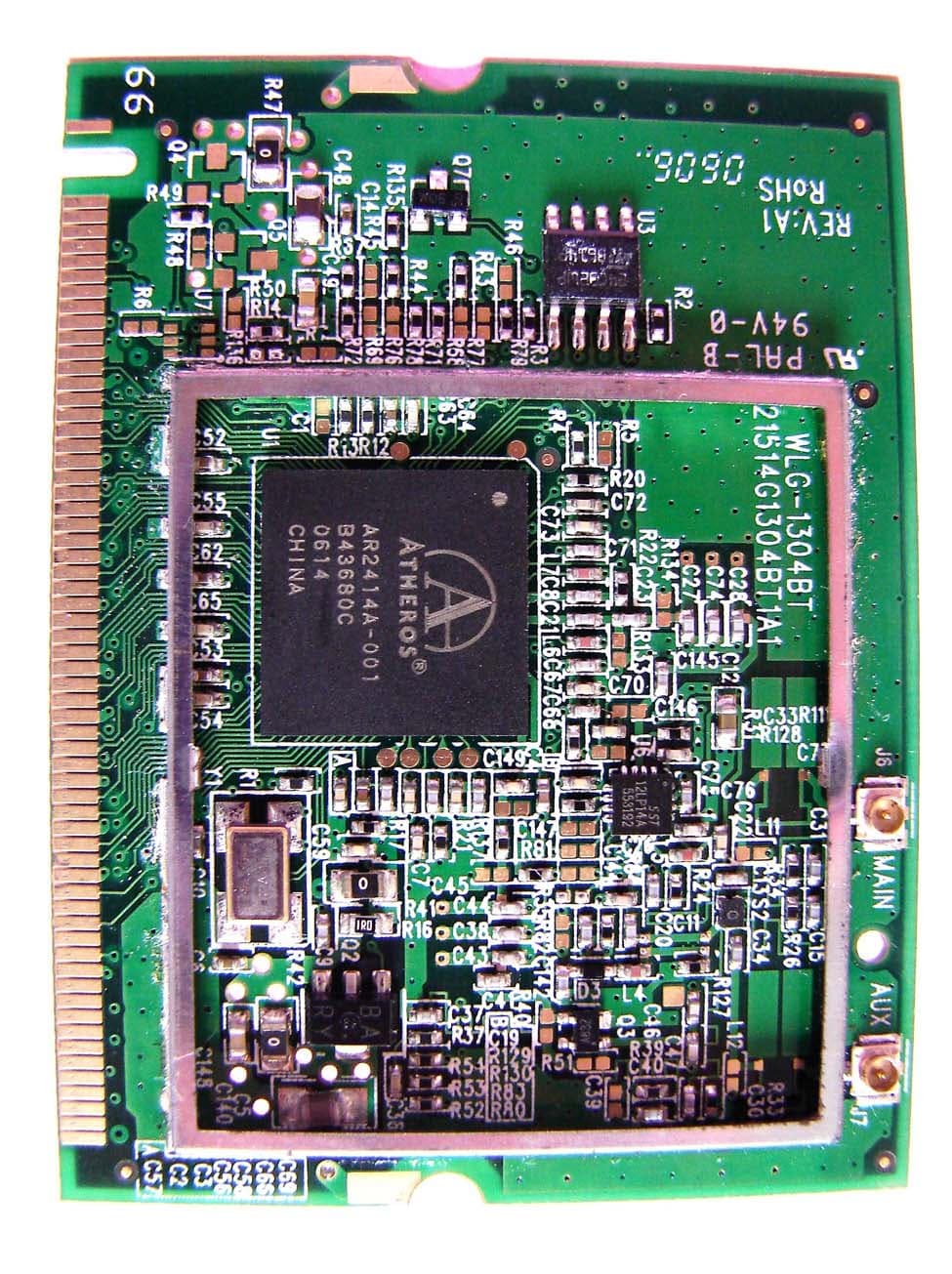
P6XSBX-11GWLAN-5
Oct 24, 20062.4G WLAN MINI PCI MODULAR
Equipment Class
DTS - Digital Transmission System
P6XSBXW-166LHGE-6
Aug 16, 2006Wireless Broadband Router
Equipment Class
DTS - Digital Transmission System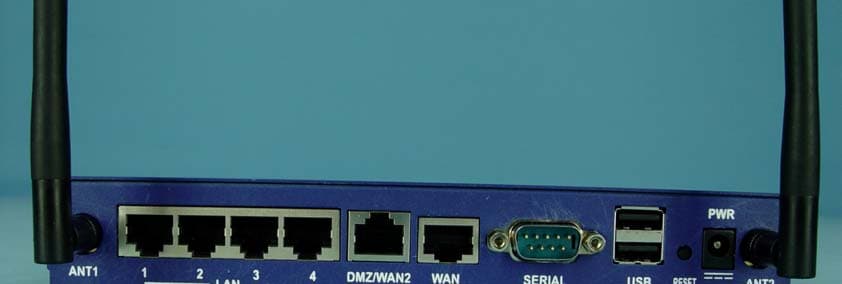
P6XSBXW-166LHGE-4
Oct 05, 2004Wireless Broadband Router
Equipment Class
DTS - Digital Transmission System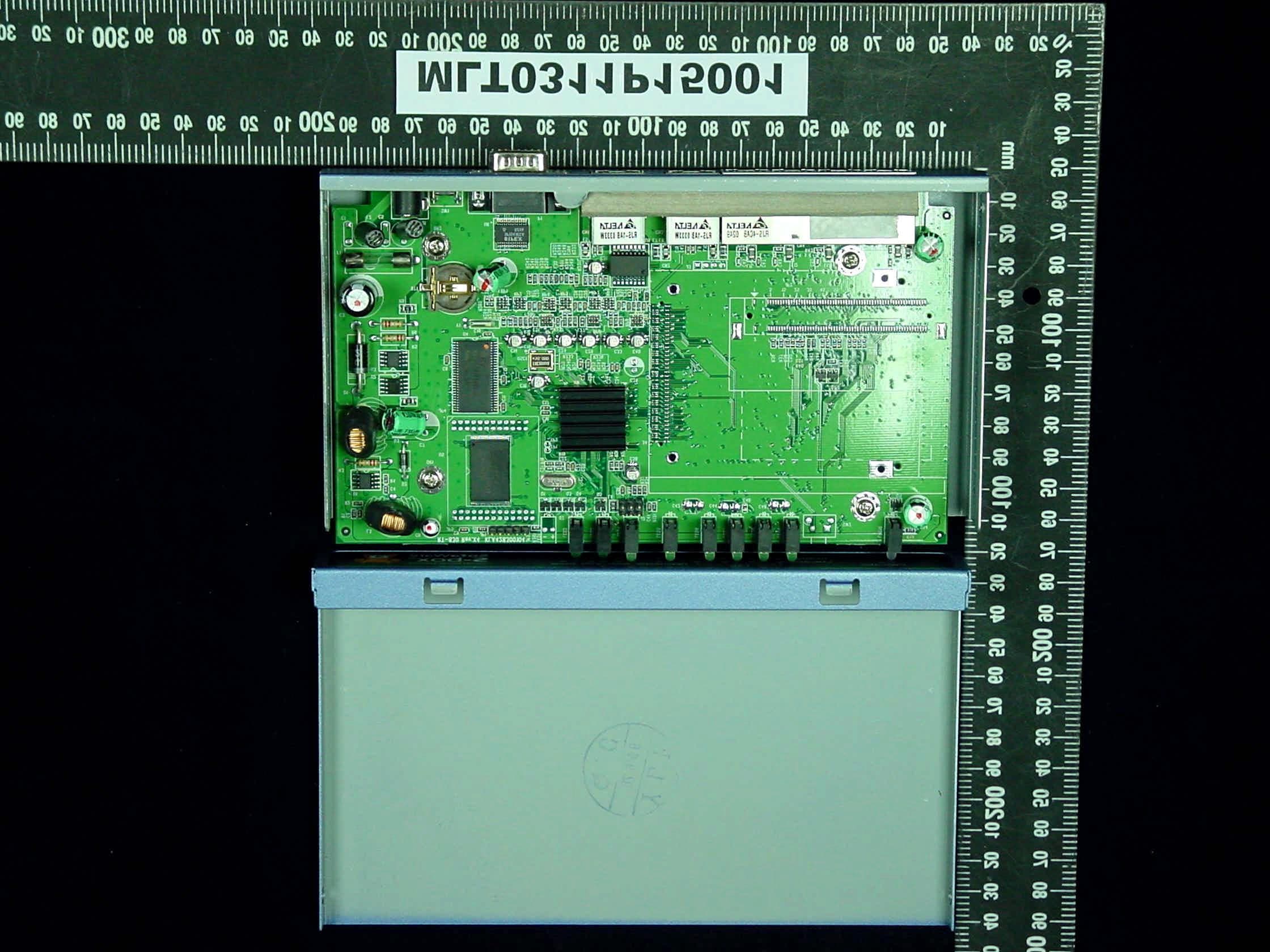
P6XSBX-166LHGE-2
Dec 11, 2003Internet Security Appliance
Equipment Class
JBP - Part 15 Class B Computing Device Peripheral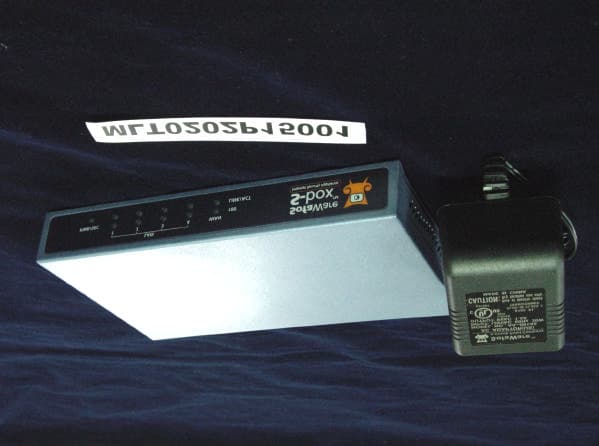
P6XSBX-133LHE-1
Feb 25, 2002Broadband Sharing Router
Equipment Class
JBP - Part 15 Class B Computing Device Peripheral