PJO90013.5G PDA Bluetooth
Arima Communication Corporation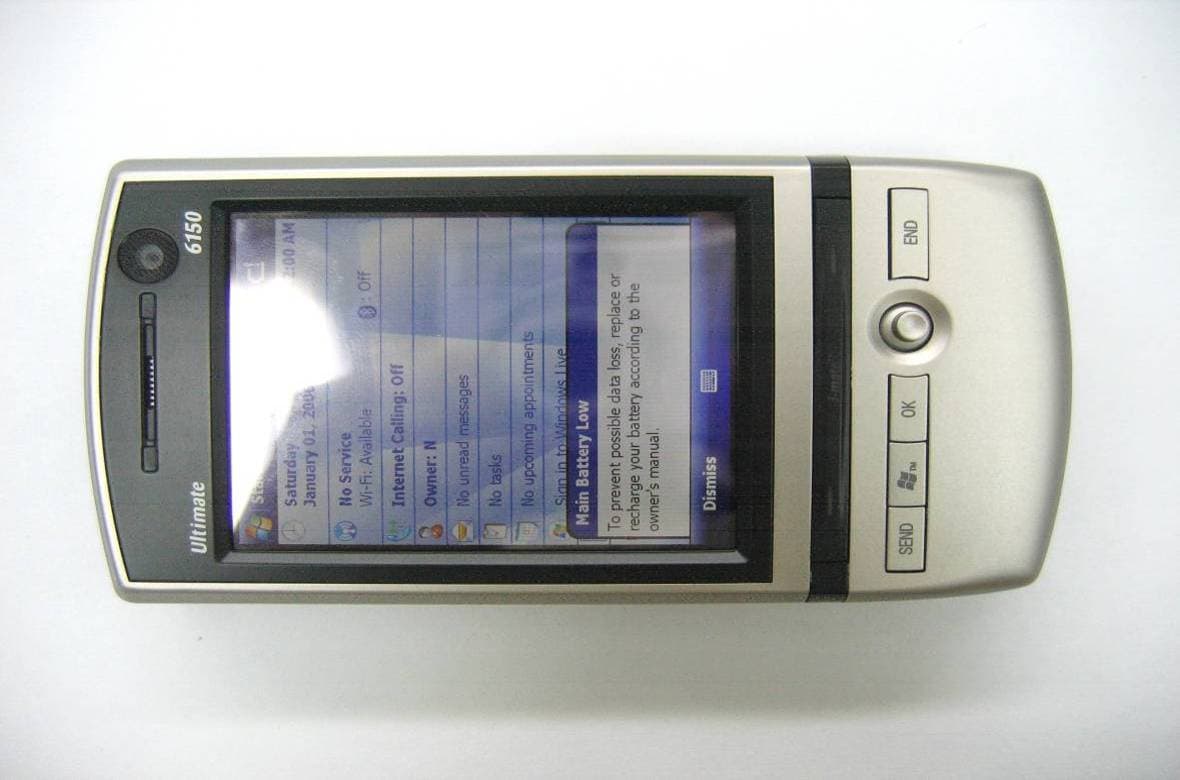
Click to zoom
Application Details
- Equipment Class
- DSS - Part 15 Spread Spectrum Transmitter
- Date of Grant
- Aug 29, 2007
- Application Purpose
- Original Equipment
- Date of Application
- Jul 16, 2007
- Equipment Note
- 3.5G PDA Bluetooth
- Frequency Range
- 2402.00000000 - 2480.00000000
- Country
- Taiwan
Documents & Files
Document Text
Text extracted from the exhibit documents filed with the FCC. Open a document above to read the original.
Users Manual
Chapter 1 1.1 Views of the Device 1.2 Get Started 1.3 Status Indicators 1.4 Enter Information Chapter 2 2.1 Today Screen 2.2 Start Menu 2.3 Ring tones and Notifications 2.4 General Settings 2.5 Security Chapter 3 3.1 Make a Call 3.2 Receive a Call 3.3 Video Telephony 3.4 In-Call Options 3.5 Special Dialing Requirements 3.6 Additional Settings Chapter 4 4.1 Automatic Setup of Your Data Connections 4.2 Manual Setup of Your Data Connections 4.3 Bluetooth 4.4 Beams 4.5 Connect to a Wireless LAN Chapter 5 5.1 Text Messaging 5.2 MMS 5.3 E-mail 5.4 Windows Live Messenger Chapter 6 6.1 Introduction to ActiveSync 6.2 Install and Configure ActiveSync Chapter 7 7.1 Contacts 7.2 Calendar 7.3 Tasks 7.4 Camera and Video Recorder 7.5 Pictures and Videos 7.6 Windows Media Player 7.7 Internet Explorer Mobile 7.8 Java 7.9 Wireless Manager 7.10 Notes 7.11 Office Mobile 7.12 Internet Sharing 7.13 File Explorer 7.14 Windows Live 7.15 Remote Desktop Mobile 7.16 Remote Control 7.17 ClearVue PDF 7.18 Voice Speed Dial 7.19 FM Radio 7.20 Add More Programs to your device Chapter 8 8.1 Maintain Your Phone 8.2 Reset Your Phone 8.3 Manage Your Program Memory Appendix A.1 Regulatory Notices Chapter 1 1.5 Views of the Device 1.6 Get Started 1.7 Status Indicators 1.8 Enter Information 1.1 Views of the Device No. Item Function 1 Stylus Use the stylus to write, draw or select items on the touch screen. 2 Jog Wheel Scroll up or down to move through menus and program instructions. Press for 3 seconds then scroll up or down to adjust the volume. 3 OK Button Press to confirm your data entries or to exit the program in use. 4 Micro SD Card Slot Insert micro SD memory card with metal contacts facing downwards. 5 Wi-Fi Button Press to access the Wireless Manager application. 6 Reset Use the stylus to soft reset the device. 7 LED Displays the status of the phone. 8 Left Soft Key Opens the Calendar from the Today screen and performs the command shown in the label above the button. 9 SEND Key Press this key to answer an incoming phone call or dial a number. 10 Windows Start Menu Button Press to bring up the Start menu. 11 Earpiece For use during phone calls. 12 Video Camera For making video telephone calls with another party who has a 3G phone with this feature. 13 Right Soft Key Opens the Contacts list from the Today screen and performs the command shown in the label above the button. 14 END Key Press to end a phone call. 15 Action Button/ Navigation Controller Action button - confirm the selection from the Navigation controller by pressing the centre button. Navigation controller - press this multi-directional control up, down, left, or right to move through menus or programs. 16 OK Button Short Press – Backspace when typing. Long Press – Confirm your data entries or exit the program in use. 17 Infrared Port Enables you to exchange files or data with other devices without cables or wires or use the device as a remote control. 18 Power Button Press and hold for 2 seconds and then release to put the device in Standby mode. Press and hold for 5 seconds to shut down and turn off the device. 19 Wi-Fi Plug External Wi-Fi antenna plug. 20 Mini-USB Connector Connect the USB data cable to a PC for synchronization of information, data transmission and battery charging or use the device as an earphone jack or use the hands-free kit. 21 TV/VGA Out Connector To send images to a TV, projector or monitor. 22. Camera & Video Button Press to launch the camera function and take a picture or record high quality video. 23 GSM/UMTS Plug External GSM/UMTS antenna plug. 24 Video Microphone Microphone for recording sound whilst recording a video. 25 Flash White LED strobe flash. 26 Camera Lens The CMOS camera supports a 2 mega-pixel resolution with auto-focus function for high quality colour photos or high quality video recording. 27 Battery Cover To remove or replace the battery, push and slide out the battery cover. 1.2 Get Started Install the SIM/USIM Card Follow these steps to install the SIM/USIM card provided by your local network service provider. The SIM/USIM card contains your phone number, service details and phonebook/message memory. Your device supports both 3V and 1.8V SIM/USIM cards. Some legacy SIM/USIM cards will not function within this device. Consult with your service provider for a replacement SIM card. There might be a fee for this service. 1. Make sure your device is turned off. 2. Pull the battery cover catch up (away from the battery cover) and lift the battery cover up to remove it. 3. Lift the battery to remove it. Then, insert the SIM/USIM card into the SIM card slot with its gold contacts facing down (the cut-off corner of the SIM/USIM card should match the cut-off corner in the slot). 4. Replace the battery and gently push down to fit it into place. 5. Replace the battery cover. Turn on the device To turn ON the device, press and hold the Power button for 4 seconds. When you turn on the device for the first time, you will be asked to complete the screen calibration process. Calibrating the device screen involves tapping the centre of a cross with the stylus as the cross moves around the screen. This process ensures that when you tap the screen with your stylus, the tapped item is activated. The Today screen displays important information, such as upcoming appointments and status indicators. You can tap a section on the screen to open the associated program. If at any point you need to access the Today screen, just tap Start > Today. No. Description No.Description 1 Tap to open the Start menu. 9 Displays the current owner information. Tap to change the details. 2 Tap to view the connectivity status. 10Tap to open the related messages, tasks and appointments. 3 Indicates the radio signal strength. Tap to configure the phone settings. 11 Tap to sign into Windows Live.* 4 Tap to control device/ringer volume level. 12Enter the word to search for and your device will connect to the internet and search using Microsoft Live Search. …
Text truncated - open the document above for the full version.
Users Manual
Chapter 7 7.1 Contacts 7.2 Calendar 7.3 Tasks 7.4 Camera and Video Recorder 7.5 Pictures and Videos 7.6 Windows Media Player 7.7 Internet Explorer Mobile 7.8 Java 7.9 Wireless Manager 7.10 Notes 7.11 Office Mobile 7.12 Internet Sharing 7.13 File Explorer 7.14 Windows Live 7.15 Remote Desktop Mobile 7.16 Remote Control 7.17 ClearVue PDF 7.18 Voice Speed Dial 7.19 FM Radio 7.20 Add More Programs to your device Introduction Your Windows Mobile Pocket PC Edition device contains several applications to make you more productive at home, in the office or on the move. Your device comes with mobile versions of Microsoft Office Word Mobile, Excel Mobile, Outlook Mobile and PowerPoint Mobile, as well as Windows Media Player Mobile. You can also take pictures, shoot video, record notes and use Java applications using the built-in programs. This chapter will guide you through use of these applications and let you know how to add more. 7.1 Contacts Contacts is your address book and information storage for the people and businesses you communicate with. Store home numbers and addresses, e-mail addresses and any other information that relates to a contact, such as a birthday or anniversary date. You can also add a picture or assign a ringtone to a contact. From the contact list, you can quickly communicate with people. Tap a contact in the list for a summary of contact information. From there, you can call or send a message to that contact. If you use Outlook on your PC, you can synchronize contacts between your device and PC. If you have synchronized your contacts with an Exchange Server, then your contacts will be updated there too. In the list of contact information, you’ll see where you can add a picture or assign a ringtone to a contact. Create a contact 1. Tap Start > Contacts. 2. Tap New. 3. Enter contact information. When finished, tap OK. Note: If someone not in your list of contacts calls or sends you a message, you can create a contact from Call History or from the message by tapping Menu > Save to Contacts. Change contact information 1. Tap Start > Contacts. 2. Tap the contact. 3. Tap Menu > Edit and enter the changes. 4. When finished, tap OK. Work with the contact list There are several ways to use and customise the contact list. Here are a few: 1. Tap Start > Contacts. 2. In the contact list, do any of the following: • In name view, you can search for a contact by entering a name or number, or by using the alphabetical index. To switch to name view, tap Menu > View By > Name. • To see a list of available actions for a contact, tap and hold the contact. • To see a list of contacts employed by a specific company, tap Menu > View By > Company. Then, tap the company name. Find a contact There are several ways to find a contact: 1. Tap Start > Contacts. 2. If you are not in name view, tap Menu > View By > Name. 3. Do one of the following: • Begin entering a name or phone number in the provided textbox until the contact you want is displayed. To show all contacts again, tap the textbox and clear the text, or tap the arrow to the right of the textbox. • Use the alphabetical index displayed at the top of the contact list. • Filter the list by categories. In the contact list, tap Menu > Filter. Then tap a category you’ve assigned to a contact. To show all contacts again, select All Contacts. 7.2 Calendar Use Calendar to schedule appointments such as meetings and other events. Your appointments for the day can be displayed on the Today screen. If you use Microsoft Outlook on your PC, you can synchronize appointments between your device and PC. If you synchronize your calendar over your cellular connection to your e-mail account, it will also be kept up to date. You can also set Calendar to remind you of appointments through methods such as a sound or flashing light. You can look at your appointments in several different views (Day, Week, Month, Year, and Agenda). To see detailed appointment information in any view, tap the appointment. To schedule an appointment 1. Tap Start > Calendar. 2. Tap Menu > New Appointment. 3. Enter a name for the appointment, and enter information such as start and end times. 4. To schedule an all-day event, in the All Day box, tap Yes. 5. When finished, tap OK to return to the calendar. Note: All-day events do not occupy blocks of time in Calendar. Instead, they appear in banners at the top of the calendar. To cancel an appointment, tap the appointment and then tap Menu > Delete Appointment. To have the time entered automatically in Day view, tap the time slot for the new appointment, and tap Menu > New Appointment. Send a meeting request Use Calendar to schedule meetings via e-mail with contacts who use Microsoft Outlook or Outlook Mobile. 1. Tap Start > Calendar. 2. Schedule a new appointment or open an existing one and tap Edit. 3. Tap Attendees. 4. Tap Required Attendees and/or Optional Attendees. 5. Tap the name of the contact you want to invite. 6. To invite each additional attendee, tap Add and tap the name. 7. Tap OK. 8. The meeting request will be sent to the attendees the next time you synchronize your device with your PC. Note: When attendees accept your meeting request, the meeting is automatically added to their schedules. When their response is sent back to you, your calendar is updated as well. Set a default reminder for all new appointments You can have an automatic reminder for all new appointments. 1. Tap Start > Calendar. 2. Tap Menu > Tools > Options > Appointments tab. 3. Select the Set reminders for new items check box. 4. Set the time when you want the reminder to alert you. 5. Tap OK to return to the calendar. 7.3 Tasks Use Tasks to keep track of things you need to do. A task can occur once or repeatedly (recurring). You can set reminders for your tasks and you can organise them using categories. Your tasks are displayed in a task list. Overdue tasks are displayed in red. Create a task 1. Tap Start > Programs > Tasks. 2. Tap Menu > New Task or th…
Text truncated - open the document above for the full version.
External Photos
Report No.: EH/2007/50012 FCC ID: PJO9001 Issue Date: Jun. 29, 2007 This document is issued by the Company subject to its General Conditions of Service printed overleaf or available on request and accessible at www.sgs.com. Atten- tion is drawn to the limitations of liability, indemnification, and Jurisdictional issued defined therein. Unless otherwise stated, the results shown in this test report refer only to the sample(s) tested. This document cannot be reproduced except in full, without prior approval of Company. Any unauthorized alteration, forgery or falsification of the content or appearance of this report is unlawful and offenders may be prosecuted to the fullest extent of the law. 此報告是遵循本公司訂定之通用服務條款所製作 發放, 請注意此條款列印於背面,亦可在www.sgs.com 中查閱。將本公司之義務,免責,管轄權皆明確規範之。除非另有說明,此報告結果僅對檢驗之樣品負責。本報告 未經本公司書面許可,不可部份複製。對本報告內容或外觀之任何未經授權之變更、偽造、竄改皆屬非法,違犯者將會被依法追訴。 SGS Taiwan Ltd. No. 134, Wu Kung Rd., Wuku Industrial Zone, Taipei Country, Taiwan. / 台北縣五股工業區五工路134號 台灣檢驗科技股份有限公司 t (886-2) 2299-3939 f (886-2) 2298-2698 www.sgs.com.tw APPENDIX 2 EXTERNAL PHOTOGRPHS OF EUT Report No.: EH/2007/50012 FCC ID: PJO9001 Issue Date: Jun. 29, 2007 This document is issued by the Company subject to its General Conditions of Service printed overleaf or available on request and accessible at www.sgs.com. Atten- tion is drawn to the limitations of liability, indemnification, and Jurisdictional issued defined therein. Unless otherwise stated, the results shown in this test report refer only to the sample(s) tested. This document cannot be reproduced except in full, without prior approval of Company. Any unauthorized alteration, forgery or falsification of the content or appearance of this report is unlawful and offenders may be prosecuted to the fullest extent of the law. 此報告是遵循本公司訂定之通用服務條款所製作 發放, 請注意此條款列印於背面,亦可在www.sgs.com 中查閱。將本公司之義務,免責,管轄權皆明確規範之。除非另有說明,此報告結果僅對檢驗之樣品負責。本報告 未經本公司書面許可,不可部份複製。對本報告內容或外觀之任何未經授權之變更、偽造、竄改皆屬非法,違犯者將會被依法追訴。 SGS Taiwan Ltd. No. 134, Wu Kung Rd., Wuku Industrial Zone, Taipei Country, Taiwan. / 台北縣五股工業區五工路134號 台灣檢驗科技股份有限公司 t (886-2) 2299-3939 f (886-2) 2298-2698 www.sgs.com.tw All of EUT Front View of EUT Report No.: EH/2007/50012 FCC ID: PJO9001 Issue Date: Jun. 29, 2007 This document is issued by the Company subject to its General Conditions of Service printed overleaf or available on request and accessible at www.sgs.com. Atten- tion is drawn to the limitations of liability, indemnification, and Jurisdictional issued defined therein. Unless otherwise stated, the results shown in this test report refer only to the sample(s) tested. This document cannot be reproduced except in full, without prior approval of Company. Any unauthorized alteration, forgery or falsification of the content or appearance of this report is unlawful and offenders may be prosecuted to the fullest extent of the law. 此報告是遵循本公司訂定之通用服務條款所製作 發放, 請注意此條款列印於背面,亦可在www.sgs.com 中查閱。將本公司之義務,免責,管轄權皆明確規範之。除非另有說明,此報告結果僅對檢驗之樣品負責。本報告 未經本公司書面許可,不可部份複製。對本報告內容或外觀之任何未經授權之變更、偽造、竄改皆屬非法,違犯者將會被依法追訴。 SGS Taiwan Ltd. No. 134, Wu Kung Rd., Wuku Industrial Zone, Taipei Country, Taiwan. / 台北縣五股工業區五工路134號 台灣檢驗科技股份有限公司 t (886-2) 2299-3939 f (886-2) 2298-2698 www.sgs.com.tw Back View of EUT Side View of EUT – 1 Report No.: EH/2007/50012 FCC ID: PJO9001 Issue Date: Jun. 29, 2007 This document is issued by the Company subject to its General Conditions of Service printed overleaf or available on request and accessible at www.sgs.com. Atten- tion is drawn to the limitations of liability, indemnification, and Jurisdictional issued defined therein. Unless otherwise stated, the results shown in this test report refer only to the sample(s) tested. This document cannot be reproduced except in full, without prior approval of Company. Any unauthorized alteration, forgery or falsification of the content or appearance of this report is unlawful and offenders may be prosecuted to the fullest extent of the law. 此報告是遵循本公司訂定之通用服務條款所製作 發放, 請注意此條款列印於背面,亦可在www.sgs.com 中查閱。將本公司之義務,免責,管轄權皆明確規範之。除非另有說明,此報告結果僅對檢驗之樣品負責。本報告 未經本公司書面許可,不可部份複製。對本報告內容或外觀之任何未經授權之變更、偽造、竄改皆屬非法,違犯者將會被依法追訴。 SGS Taiwan Ltd. No. 134, Wu Kung Rd., Wuku Industrial Zone, Taipei Country, Taiwan. / 台北縣五股工業區五工路134號 台灣檢驗科技股份有限公司 t (886-2) 2299-3939 f (886-2) 2298-2698 www.sgs.com.tw Side View of EUT – 2 Side View of EUT – 3 Report No.: EH/2007/50012 FCC ID: PJO9001 Issue Date: Jun. 29, 2007 This document is issued by the Company subject to its General Conditions of Service printed overleaf or available on request and accessible at www.sgs.com. Atten- tion is drawn to the limitations of liability, indemnification, and Jurisdictional issued defined therein. Unless otherwise stated, the results shown in this test report refer only to the sample(s) tested. This document cannot be reproduced except in full, without prior approval of Company. Any unauthorized alteration, forgery or falsification of the content or appearance of this report is unlawful and offenders may be prosecuted to the fullest extent of the law. 此報告是遵循本公司訂定之通用服務條款所製作 發放, 請注意此條款列印於背面,亦可在www.sgs.com 中查閱。將本公司之義務,免責,管轄權皆明確規範之。除非另有說明,此報告結果僅對檢驗之樣品負責。本報告 未經本公司書面許可,不可部份複製。對本報告內容或外觀之任何未經授權之變更、偽造、竄改皆屬非法,違犯者將會被依法追訴。 SGS Taiwan Ltd. No. 134, Wu Kung Rd., Wuku Industrial Zone, Taipei Country, Taiwan. / 台北縣五股工業區五工路134號 台灣檢驗科技股份有限公司 t (886-2) 2299-3939 f (886-2) 2298-2698 www.sgs.com.tw Adaptor
ID Label/Location Info
FCC ID LABEL FORMAT AND LOCATION Applicant: ARIMA COMMUNICATIONS CORP. FCC ID: PJO9001
Internal Photos
Report No.: EH/2007/50012 FCC ID: PJO9001 Issue Date: Jun. 29, 2007 This document is issued by the Company subject to its General Conditions of Service printed overleaf or available on request and accessible at www.sgs.com. Atten- tion is drawn to the limitations of liability, indemnification, and Jurisdictional issued defined therein. Unless otherwise stated, the results shown in this test report refer only to the sample(s) tested. This document cannot be reproduced except in full, without prior approval of Company. Any unauthorized alteration, forgery or falsification of the content or appearance of this report is unlawful and offenders may be prosecuted to the fullest extent of the law. 此報告是遵循本公司訂定之通用服務條款所製作 發放, 請注意此條款列印於背面,亦可在www.sgs.com 中查閱。將本公司之義務,免責,管轄權皆明確規範之。除非另有說明,此報告結果僅對檢驗之樣品負責。本報告 未經本公司書面許可,不可部份複製。對本報告內容或外觀之任何未經授權之變更、偽造、竄改皆屬非法,違犯者將會被依法追訴。 SGS Taiwan Ltd. No. 134, Wu Kung Rd., Wuku Industrial Zone, Taipei Country, Taiwan. / 台北縣五股工業區五工路134號 台灣檢驗科技股份有限公司 t (886-2) 2299-3939 f (886-2) 2298-2698 www.sgs.com.tw APPENDIX 3 INTERNAL PHOTOGRPHS OF EUT Report No.: EH/2007/50012 FCC ID: PJO9001 Issue Date: Jun. 29, 2007 This document is issued by the Company subject to its General Conditions of Service printed overleaf or available on request and accessible at www.sgs.com. Atten- tion is drawn to the limitations of liability, indemnification, and Jurisdictional issued defined therein. Unless otherwise stated, the results shown in this test report refer only to the sample(s) tested. This document cannot be reproduced except in full, without prior approval of Company. Any unauthorized alteration, forgery or falsification of the content or appearance of this report is unlawful and offenders may be prosecuted to the fullest extent of the law. 此報告是遵循本公司訂定之通用服務條款所製作 發放, 請注意此條款列印於背面,亦可在www.sgs.com 中查閱。將本公司之義務,免責,管轄權皆明確規範之。除非另有說明,此報告結果僅對檢驗之樣品負責。本報告 未經本公司書面許可,不可部份複製。對本報告內容或外觀之任何未經授權之變更、偽造、竄改皆屬非法,違犯者將會被依法追訴。 SGS Taiwan Ltd. No. 134, Wu Kung Rd., Wuku Industrial Zone, Taipei Country, Taiwan. / 台北縣五股工業區五工路134號 台灣檢驗科技股份有限公司 t (886-2) 2299-3939 f (886-2) 2298-2698 www.sgs.com.tw Open View of EUT – 1 Open View of EUT – 2 Report No.: EH/2007/50012 FCC ID: PJO9001 Issue Date: Jun. 29, 2007 This document is issued by the Company subject to its General Conditions of Service printed overleaf or available on request and accessible at www.sgs.com. Atten- tion is drawn to the limitations of liability, indemnification, and Jurisdictional issued defined therein. Unless otherwise stated, the results shown in this test report refer only to the sample(s) tested. This document cannot be reproduced except in full, without prior approval of Company. Any unauthorized alteration, forgery or falsification of the content or appearance of this report is unlawful and offenders may be prosecuted to the fullest extent of the law. 此報告是遵循本公司訂定之通用服務條款所製作 發放, 請注意此條款列印於背面,亦可在www.sgs.com 中查閱。將本公司之義務,免責,管轄權皆明確規範之。除非另有說明,此報告結果僅對檢驗之樣品負責。本報告 未經本公司書面許可,不可部份複製。對本報告內容或外觀之任何未經授權之變更、偽造、竄改皆屬非法,違犯者將會被依法追訴。 SGS Taiwan Ltd. No. 134, Wu Kung Rd., Wuku Industrial Zone, Taipei Country, Taiwan. / 台北縣五股工業區五工路134號 台灣檢驗科技股份有限公司 t (886-2) 2299-3939 f (886-2) 2298-2698 www.sgs.com.tw Open View of EUT – 3 Internal of EUT – 1 BT Antenna WLAN Antenna GSM An- Report No.: EH/2007/50012 FCC ID: PJO9001 Issue Date: Jun. 29, 2007 This document is issued by the Company subject to its General Conditions of Service printed overleaf or available on request and accessible at www.sgs.com. Atten- tion is drawn to the limitations of liability, indemnification, and Jurisdictional issued defined therein. Unless otherwise stated, the results shown in this test report refer only to the sample(s) tested. This document cannot be reproduced except in full, without prior approval of Company. Any unauthorized alteration, forgery or falsification of the content or appearance of this report is unlawful and offenders may be prosecuted to the fullest extent of the law. 此報告是遵循本公司訂定之通用服務條款所製作 發放, 請注意此條款列印於背面,亦可在www.sgs.com 中查閱。將本公司之義務,免責,管轄權皆明確規範之。除非另有說明,此報告結果僅對檢驗之樣品負責。本報告 未經本公司書面許可,不可部份複製。對本報告內容或外觀之任何未經授權之變更、偽造、竄改皆屬非法,違犯者將會被依法追訴。 SGS Taiwan Ltd. No. 134, Wu Kung Rd., Wuku Industrial Zone, Taipei Country, Taiwan. / 台北縣五股工業區五工路134號 台灣檢驗科技股份有限公司 t (886-2) 2299-3939 f (886-2) 2298-2698 www.sgs.com.tw Internal of EUT – 2 Internal of EUT – 3 Report No.: EH/2007/50012 FCC ID: PJO9001 Issue Date: Jun. 29, 2007 This document is issued by the Company subject to its General Conditions of Service printed overleaf or available on request and accessible at www.sgs.com. Atten- tion is drawn to the limitations of liability, indemnification, and Jurisdictional issued defined therein. Unless otherwise stated, the results shown in this test report refer only to the sample(s) tested. This document cannot be reproduced except in full, without prior approval of Company. Any unauthorized alteration, forgery or falsification of the content or appearance of this report is unlawful and offenders may be prosecuted to the fullest extent of the law. 此報告是遵循本公司訂定之通用服務條款所製作 發放, 請注意此條款列印於背面,亦可在www.sgs.com 中查閱。將本公司之義務,免責,管轄權皆明確規範之。除非另有說明,此報告結果僅對檢驗之樣品負責。本報告 未經本公司書面許可,不可部份複製。對本報告內容或外觀之任何未經授權之變更、偽造、竄改皆屬非法,違犯者將會被依法追訴。 SGS Taiwan Ltd. No. 134, Wu Kung Rd., Wuku Industrial Zone, Taipei Country, Taiwan. / 台北縣五股工業區五工路134號 台灣檢驗科技股份有限公司 t (886-2) 2299-3939 f (886-2) 2298-2698 www.sgs.com.tw Internal of EUT – 4 Internal of EUT – 5 Report No.: EH/2007/50012 FCC ID: PJO9001 Issue Date: Jun. 29, 2007 This document is issued by the Company subject to its General Conditions of Service printed overleaf or available on request and accessible at www.sgs.com. Atten- tion is drawn to the limitations of liability, indemnification, and Jurisdictional issued defined therein. Unless otherwise stated, the results shown in this test report refer only to the sample(s) tested. This document cannot be reproduced except in full, without prior approval of Company. Any unauthorized alteration, forgery or falsification of the content or appearance o…
Text truncated - open the document above for the full version.
RF Exposure Info
Report No. : ES/2007/50012 Page : 1 of 98 SAR TEST REPORT Equipment Under Test 3.5G PDA phone Model Name Ultimate 6150 Company Name Arima Communications Corp. Company Address No.16, Lane 658, Ying Tao Road, Yingko, Taipei Hsien, Ta i w a n , R . O . C Date of Receipt 2007.05.21 Date of Test(s) 2007.05.28-2007.06.03 Date of Issue 2007.07.05 Standards: FCC OET Bulletin 65 supplement C, ANSI/IEEE C95.1, C95.3, IEEE 1528 In the configuration tested, the EUT complied with the standards specified above. Remarks: This report details the results of the testing carried out on one sample, the results contained in this test report do not relate to other samples of the same product. The manufacturer should ensure that all products in series production are in conformity with the product sample detailed in this report. This report may only be reproduced and distributed in full. If the product in this report is used in any configuration other than that detailed in the report, the manufacturer must ensure the new system complies with all relevant standards. Any mention of SGS Taiwan EC Services or testing done by SGS Taiwan EC Services in connection with distribution or use of the product described in this report must be approved by SGS Taiwan EC Services in writing. Tested by : LEO HSU Date : 2007.06.26 Approved by : DIKIN YANG Date : 2007.07.05 Report No. : ES/2007/50012 Page : 2 of 98 Contents 1. General Information 1.1 Testing Laboratory 5 1.2 Details of Applicant 5 1.3 Description of EUT(s) 5 1.4 Test Environment 6 1.5 Operation description 6 1.6 The SAR Measurement System 7 1.7 System Components 8 1.8 SAR System Verification 10 1.9 Tissue Simulant Fluid for the Frequency Band 11 1.10 Test Standards and Limits 11 2. Summary of Results 14 3. Instruments List 19 4. Measurements 20 GSM 850MHz 4.1.1 Right-head, cheek, lowest channel 20 4.1.2 Right-head, cheek, middle channel 21 4.1.3 Right-head, cheek, highest channel 22 4.1.4 Left-head, cheek, lowest channel 23 4.1.5 Left-head, cheek, middle channel 24 4.1.6 Left-head, cheek, highest channel 25 4.1.7 Right-head, tilt 15°, lowest channel 26 4.1.8 Right-head, tilt 15°, middle channel 27 4.1.9 Right-head, tilt 15°, highest channel 28 4.1.10 Left-head, tilt 15°, lowest channel 29 4.1.11 Left-head, tilt 15°, middle channel 30 4.1.12 Left-head, tilt 15°, highest channel 31 4.1.13 Right-head, cheek, highest channel_ repeated with Memory Card 32 4.1.14 Right-head, cheek, highest channel_ repeated with BT active 33 4.1.15 Right-head, cheek, highest channel_ repeated with WIFI B active 34 4.1.16 Right-head, cheek, highest channel_ repeated with WIFI G active 36 4.1.17 Body worn, lowest channel 37 4.1.18 Body worn, middle channel 38 4.1.19 Body worn, highest channel 39 4.1.20 Body worn, lowest channel_ repeated in EUT front to Phantom 40 4.1.21 Body worn, lowest channel_ repeated with Headset 41 4.1.22 Body worn, lowest channel_ repeated with Memory Card 42 4.1.23 Body worn, lowest channel_ repeated with Bluetooth active 43 4.1.24 Body worn, lowest channel_ repeated with WIFI B active 44 4.1.25 Body worn, lowest channel_ repeated with WIFI G active 45 Report No. : ES/2007/50012 Page : 3 of 98 DCS 1900MH 4.2.1 Right-head, cheek, lowest channel 46 4.2.2 Right-head, cheek, middle channel 47 4.2.3 Right-head, cheek, highest channel 48 4.2.4 Left-head, cheek, lowest channel 49 4.2.5 Left-head, cheek, middle channel 50 4.2.6 Left-head, cheek, highest channel 51 4.2.7 Right-head, tilt 15°, lowest channel 52 4.2.8 Right-head, tilt 15°, middle channel 53 4.2.9 Right-head, tilt 15°, highest channel 54 4.2.10 Left-head, tilt 15°, lowest channel 55 4.2.11 Left-head, tilt 15°, middle channel 56 4.2.12 Left-head, tilt 15°, highest channel 57 4.2.13 Body worn, lowest channel 58 4.2.14 Body worn, middle channel 59 4.2.15 Body worn, highest channel 60 WCDMA B2 4.3.1 Right-head, cheek, lowest channel 61 4.3.2 Right-head, cheek, middle channel 62 4.3.3 Right-head, cheek, highest channel 63 4.3.4 Left-head, cheek, lowest channel 64 4.3.5 Left-head, cheek, middle channel 65 4.3.6 Left-head, cheek, highest channel 66 4.3.7 Right-head, tilt 15°, lowest channel 67 4.3.8 Right-head, tilt 15°, middle channel 68 4.3.9 Right-head, tilt 15°, highest channel 69 4.3.10 Left-head, tilt 15°, lowest channel 70 4.3.11 Left-head, tilt 15°, middle channel 71 4.3.12 Left-head, tilt 15°, highest channel 72 4.3.13 Body worn, lowest channel 73 4.3.14 Body worn, middle channel 74 4.3.15 Body worn, highest channel 75 WCDMA B5 4.4.1 Right-head, cheek, lowest channel 76 4.4.2 Right-head, cheek, middle channel 77 4.4.3 Right-head, cheek, highest channel 78 4.4.4 Left-head, cheek, lowest channel 79 4.4.5 Left-head, cheek, middle channel 80 4.4.6 Left-head, cheek, highest channel 81 4.4.7 Right-head, tilt 15°, lowest channel 82 4.4.8 Right-head, tilt 15°, middle channel 83 4.4.9 Right-head, tilt 15°, highest channel 84 4.4.10 Left-head, tilt 15°, lowest channel 85 Report No. : ES/2007/50012 Page : 4 of 98 4.4.11 Left-head, tilt 15°, middle channel 86 4.4.12 Left-head, tilt 15°, highest channel 87 4.4.13 Body worn, lowest channel 88 4.4.14 Body worn, middle channel 89 4.4.15 Body worn, highest channel 90 System Verification 4.4.1 GSM 900MHz Head 91 4.4.2 GSM 900MHz Body 93 4.4.3 PCS 1900MHz Head 95 4.4.4 PCS 1900MHz Body 97 Report No. : ES/2007/50012 Page : 5 of 98 1. General Information 1.1 Testing Laboratory SGS Taiwan Ltd. EC Lab 134, Wu Kung Road, Wuku industrial zone Taipei county, Taiwan, R.O.C. Telephone +886-2-2299-3279 Fax +886-2-2298-0488 Internet http://www.tw.sgs.com/ 1.2 Details of Applicant Company Name Arima Communications Corp. Company Address No.16, Lane 658, Ying Tao Road, Yingko, Taipei Hsien, Taiwan, R.O.C Telephone +886-3-5722211 #3861 Fax +886-3-5729922 Contact Person Kent Wu E-mail [email protected] Website http://www.arimacomm.com.tw/ 1.3 Description of EUT EUT Name 3.5G PDA phone Brand Name i-mate TM FCC ID PJ09001 Model Name Ultimate 6150 Marketing Name i-mate TM IMEI Code 35568…
Text truncated - open the document above for the full version.
RF Exposure Info
Report No. : ES/2007/50012 Page : 1 of 25 Contents APPENDIX 1. Photographs of Test Setup 02 2. Photographs of EUT 06 3. Photographs of Accessories of EUT 08 4. DAE & Probe Calibration certificate 11 5. Uncertainty Analysis 20 6. Phantom Description 21 7. System Validation from Original equipment supplier 22 Report No. : ES/2007/50012 Page : 2 of 25 Appendix 1. Photographs of Test Setup Fig.1 Photograph of the SAR measurement System Fig.2.1 Photograph of the Tissue Simulant Fluid liquid depth 15cm for Left-head Side Fig.2.2 Photograph of the Tissue Simulant Fluid liquid depth 15cm for Right-hea…
Text truncated - open the document above for the full version.
Contact Information
Applicant
Jay Chiang(Senior Engineer)
Technical Contact
SGS Taiwan Ltd.Vincent Su
[email protected]886-2-22993279
134, Wu Kung Road, Wuku Industrial Zone · Taipei County · Taiwan
Non-Technical Contact
AmericanTCB Inc.Doug Noble
[email protected]703-847-4700
Test Firm
SGS TAIWAN LTD.NELSON BAI
Technical Specifications
| # | Rule Parts | Frequency Range | Power Output |
|---|---|---|---|
| 1 | 15C | 2.40 GHz - 2.48 GHz | 1.79 mW |
Other Applications from Arima Communication Corporation
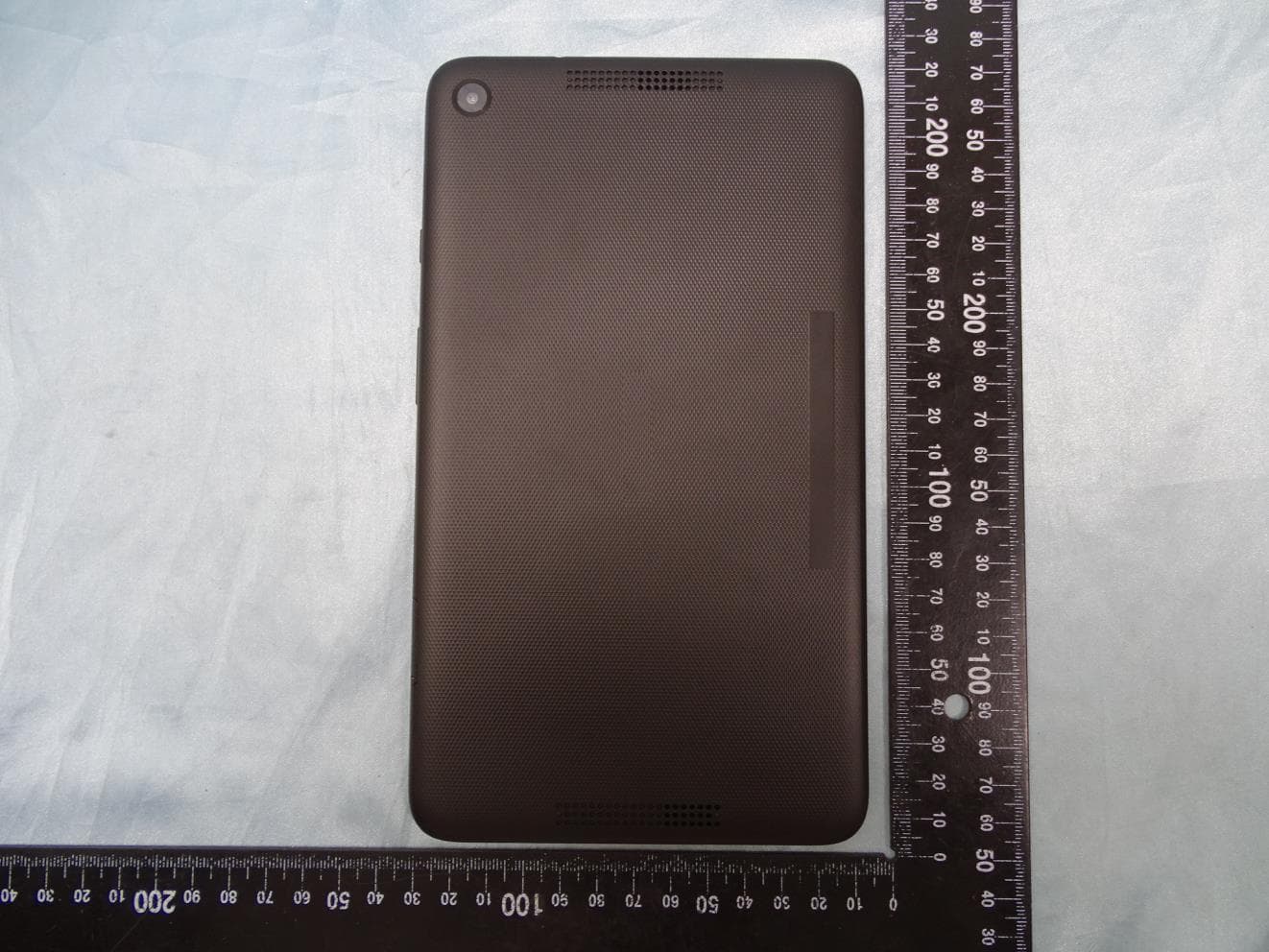
PJO6901
Jun 23, 2020MT-T800
Equipment Class
DTS - Digital Transmission System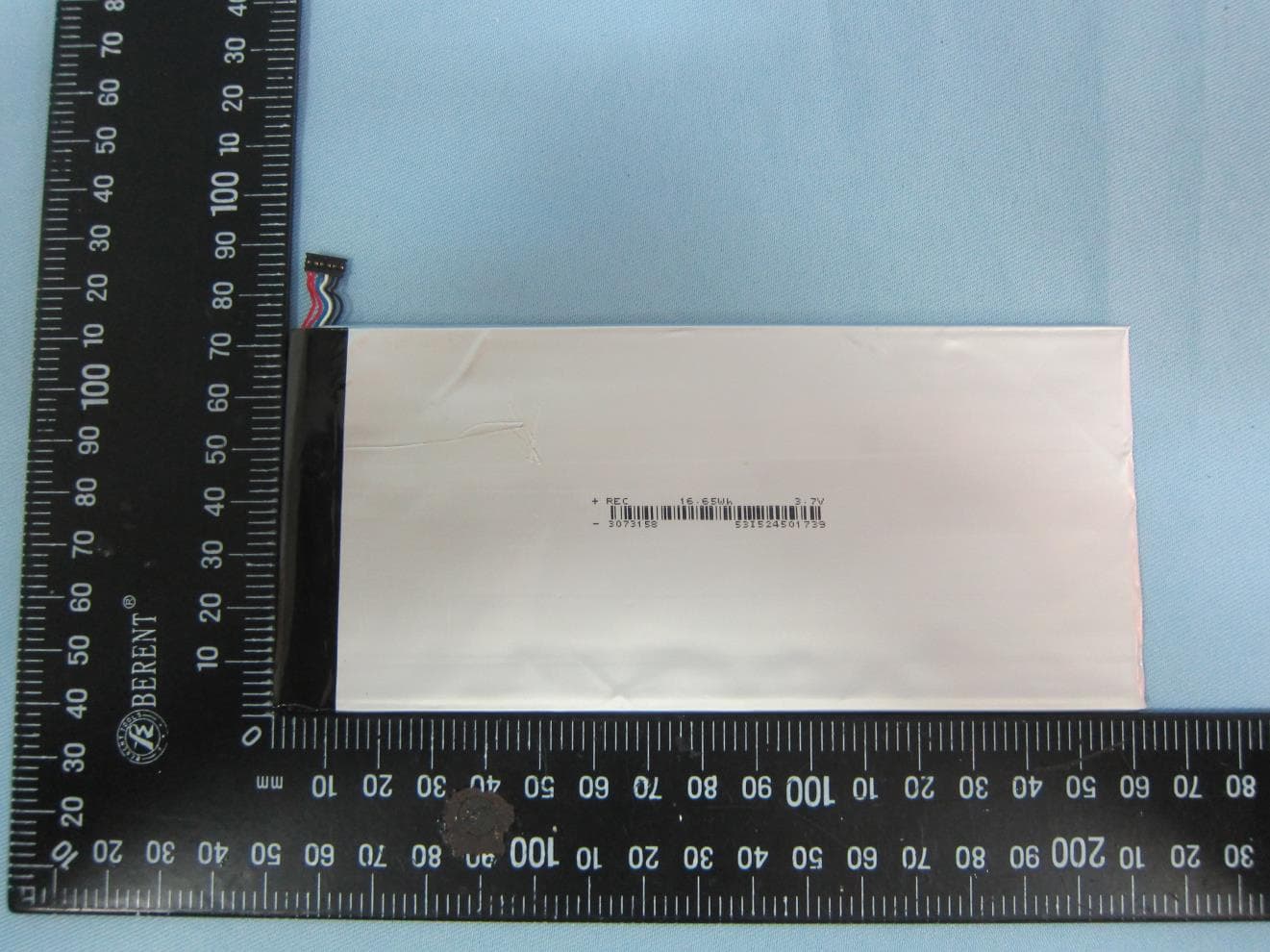
PJONBX208HQCG
Aug 17, 2015tablet
Equipment Class
DXX - Part 15 Low Power Communication Device Transmitter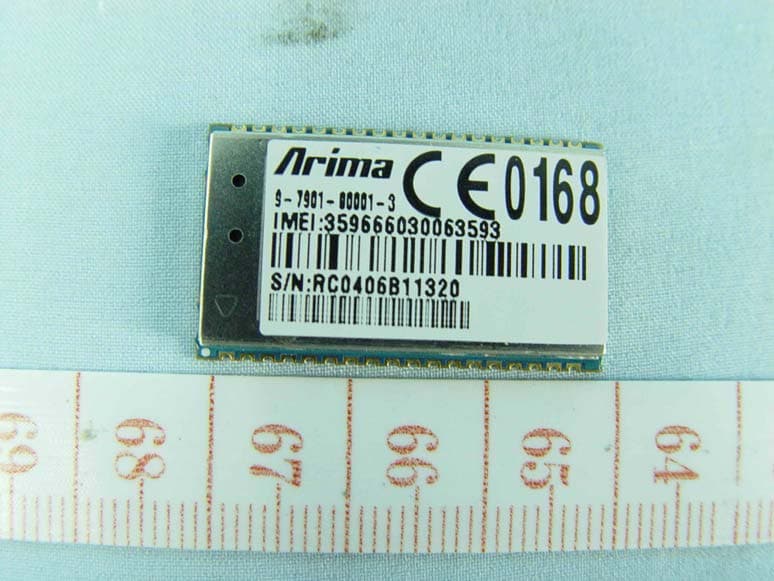
PJO7902
May 04, 2010GPRS 850/1900 module
Equipment Class
PCB - PCS Licensed Transmitter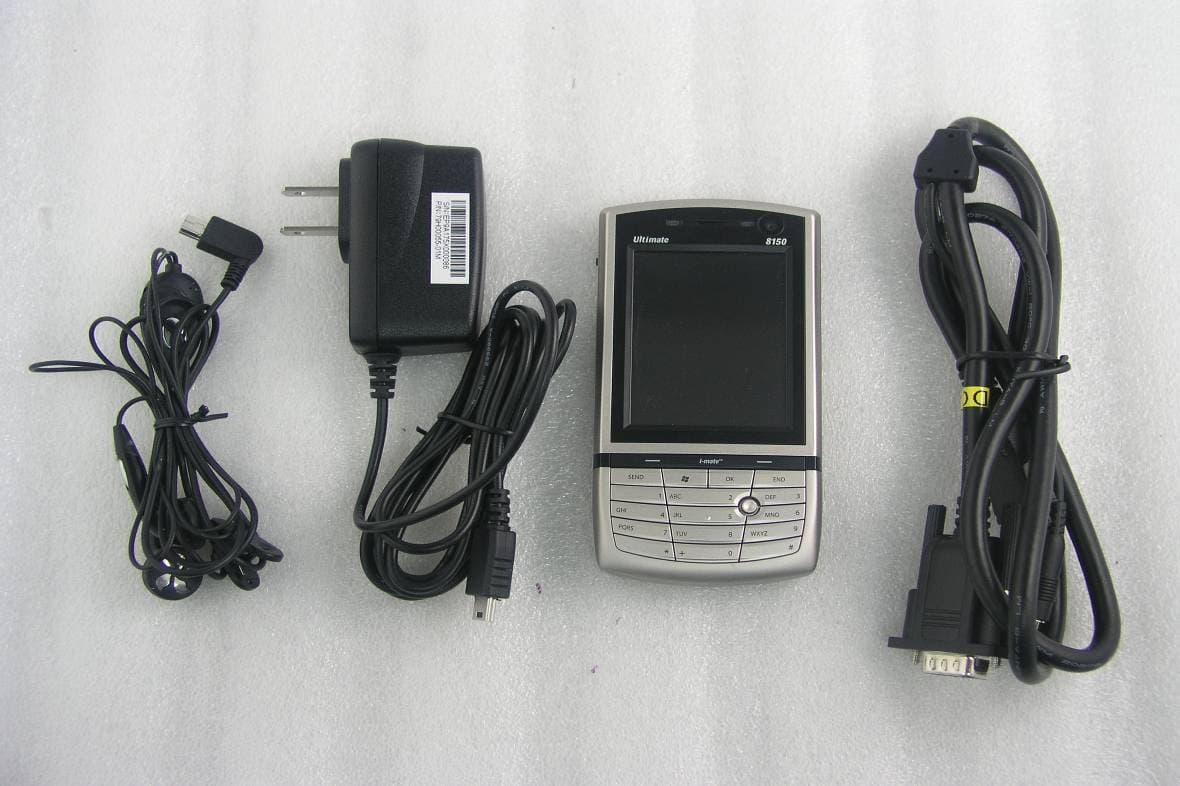
PJO9002
Oct 18, 20073.5G PDA WLAN
Equipment Class
DTS - Digital Transmission System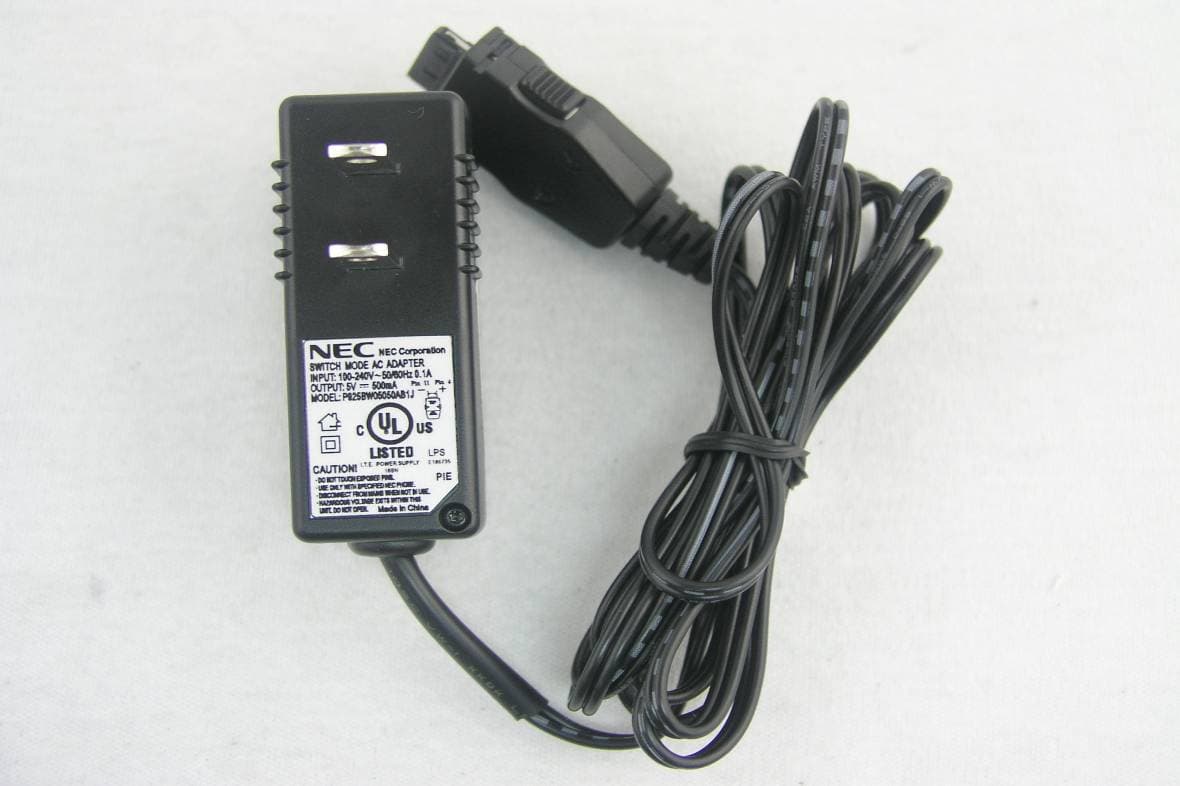
PJO2718
Nov 14, 2006Arima 2718
Equipment Class
PCE - PCS Licensed Transmitter held to ear