Q5TBT007SI2005112BLUETOOTH CLASS 1 USB ADAPTER
Bluetake Technology Co., Ltd.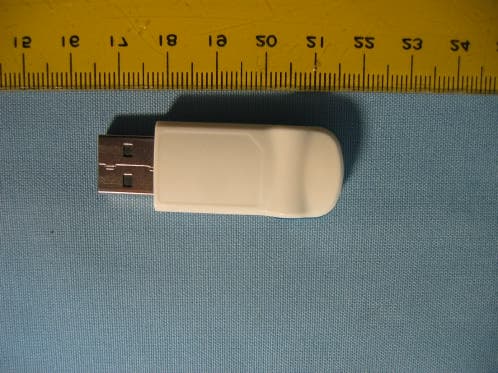
Click to zoom
Application Details
- Equipment Class
- DSS - Part 15 Spread Spectrum Transmitter
- Date of Grant
- Feb 06, 2005
- Application Purpose
- Original Equipment
- Date of Application
- Feb 06, 2005
- Equipment Note
- BLUETOOTH CLASS 1 USB ADAPTER
- Frequency Range
- 2402.00000000 - 2480.00000000
- Country
- Taiwan
Documents & Files
Document Text
Text extracted from the exhibit documents filed with the FCC. Open a document above to read the original.
Users Manual
BT007Si / BT009Si Bluetooth USB Adapter B L U E T A K E User Manual BLUETAKE BT007Si / BT009Si Bluetooth USB Adapter – User Manual DECLARATION No part of this User Manual, including the products and software described in it, may be reproduced, transmitted, transcribed, stored in a retrieval system, or translated into any language in any form or by any means, except documentation kept by the purchaser for backup purposes, without the express written permission of Bluetake Technology Co., Ltd. Product warranty or service will not be extended if: (1) the product is repaired, modified or alt ered, unless such repair, modification of alteration is authorized in writing by Bluetake ; or (2) the serial number of the product is defaced or missing. Bluetake provides this User Manual “as is” without warranty of any kind, either express or implied, including but not limited to the implied warranties or conditions of merchantability or fitness for a particular purpose. In no event shall Bluetake, its directors, officers, employees or agents be liable for any indirect, special, incidental, or consequential damages (including damages for loss of profits, loss of business, loss of use or data, interruption of business and the like), even if Bluetake has been advised of the possibility of such damages arising from any defect or error in this User Manual or product. Products and corporate names appearing in this User Manual may or may not be registered trademarks or copyrights of their respective companies, and are used only for identification or explanation and to the owner’s benefit, without intent to infringe. Copyright ® 2005 Bluetake Technology Co., Ltd. All Rights Reserved. Trademark(s) TM and Registered Trademark(s)® BLUETAKE and the BLUETAKE logo are trademarks of BLUTAKE Technology Co., Ltd. The Bluetooth trademark is owned by the Bluetooth SIG, Inc., and used by BLUETAKE under license. Microsoft, Windows, and Outlook are registered trademarks of Microsoft Corporation. BlueSoleil is registered trademarks of IVT Inc. Other brand and products names may be registered trademarks or trademarks of their respective holders. Rev. 1.4.9 -10 – 01 - 05 1 BLUETAKE BT007Si / BT009Si Bluetooth USB Adapter – User Manual Contents Getting Start...............................................................4 Package Checklist.......................................................4 1. Introduction...............................................5 1.1 Safety Precautions.................................................................6 1.2 System Requirements.............................................................6 1.3 Product Specification.............................................................7 2. Bluetooth Software Installation....................8 2.1 Install the Software................................................................8 2.2 Insert the Bluetooth USB Adapter............................................9 3. BlueSoleil Console...............................11 3.1 Bluetooth Functions.............................................................11 3.2 BlueSoleil Main Window........................................................13 3.3 Start BlueSoleil....................................................................14 3.4 Search for Other Bluetooth Enabled Devices...........................15 3.5 Establish Connection...........................................................17 3.6 Bluetooth Security...............................................................23 2 BLUETAKE BT007Si / BT009Si Bluetooth USB Adapter – User Manual 4. Bluetooth Service Usage............................25 4.1 AV Headphone.....................................................................25 4.2 Basic Imaging.....................................................................26 4.3 Dial-up Networking...............................................................27 4.4 FAX....................................................................................29 4.5 File Transfer........................................................................29 4.6 Headset..............................................................................33 4.7 Human Interface Device........................................................34 4.8 LAN Access........................................................................35 4.9 Object Push........................................................................38 4.10 Personal Area Networking.....................................................42 4.11 Printer................................................................................45 4.12 Serial Port...........................................................................47 4.13 Bluetooth Synchronization...................................................48 Appendix-1 Bluesoleil Manu......................50 A-1.1 BlueSoleil Environment......................................................50 A-1.2 Device Configurations........................................................57 A-1.3 Security Configuration........................................................58 3 BLUETAKE BT007Si / BT009Si Bluetooth USB Adapter – User Manual Getting Start Thank you for purchasing this versatile Bluetooth ® wireless communication product manufactured by Bluetake Technology Co., Ltd. Before starting, please read this User Manual carefully to understand how to properly setup and use this product. Package Checklist Please check all items included in product package with the list below. If there is any component damaged or missing, please contact your local distributor to get necessary support. Package list: - Bluetooth USB Adapter x 1 - Utility CD x 1 . Bluetooth software/driver (BlueSoleil) for Windows XP/2000/ME/98SE . User Manual (English version) . Quick Setup Guide (Multi-language version) - Quick Setup Guide x 1 - Warranty Card x 1 4 BLUETAKE BT007Si / BT009Si Bluetooth USB Adapter – User Manual 1. Introduction Bluetooth ® Technology The Blue…
Text truncated - open the document above for the full version.
Users Manual
BLUETAKE BT007Si / BT009Si Bluetooth USB Adapter – User Manual - Connect to a Mobile Phone Step 1: Connect to the mobile phone's FTP service, following the instructions in Chapter 3. Step 2: The phone's folders are shown in a window. Users can copy/paste/delete files or folders. - Share a Folder on Your Computer with other Bluetooth Enabled Devices Step 1: Select the folder you would like to use for file sharing and define the remote user privileges. Click My Services | Properties. Click on the File Transfer tab. Share this folder: Browse to select the folder you would like to share. Share Permissions: Select Read and Write to allow others to copy, paste or delete files/folders in this folder. Select Read Only to allow others to only browse and copy files/folders from this folder. Step 2: Start the FTP service in BlueSoleil, following the instructions in Chapter 3. Do not initiate the connection in BlueSoleil. Step 3: Browse your computer from the remote device. For 30 BLUETAKE BT007Si / BT009Si Bluetooth USB Adapter – User Manual instructions, refer to the user documentation for the remote device. When the remote device attempts to connect to your computer, the Bluetooth Service Authorization screen may appear. Click Yes. Step 4: After successfully connecting, the remote device can browse, copy, paste, and/or delete files on your computer, depending on the remote folder privileges you allowed. For instructions, refer to the user documentation for the remote device. - Access a Shared Folder on another Bluetooth Enabled Device Step 1: On the remote device, designate the folder/files to share. Enable file sharing on the remote device. For instructions, refer to the user documentation for the remote device. Note: If you do not enable file sharing on the remote device, BlueSoleil will not be able to discover the device’s file sharing service. Step 2: Start the FTP service and initiate the connection in BlueSoleil, following the instructions in Chapter 3. Step 3: A Remote Shared Folder screen will appear, displaying shared files/folders on the remote device, Use the screen to browse, copy, paste, and/or delete files, depending on your folder privileges. 31 BLUETAKE BT007Si / BT009Si Bluetooth USB Adapter – User Manual 32 BLUETAKE BT007Si / BT009Si Bluetooth USB Adapter – User Manual 4.6 Headset The Headset Profile enables users to use a Bluetooth enabled headset as wireless earplug or microphone. Typical Usage - Use Headset as a device for audio input/output. Step 1: Connect to the Bluetooth enabled headset, following the directions in Chapter 3. Step 2: Play music on your computer, or chat using network meeting tools. You may need to press a multifunction button on your headset to transmit audio between the computer and the headset. Note: For most Bluetooth enabled headsets, after you have successfully connected for the first time, you can quickly reconnect to BlueSoleil by simply pressing a multifunction button on the headset. 33 BLUETAKE BT007Si / BT009Si Bluetooth USB Adapter – User Manual 4.7 Human Interface Device The Bluetooth Human Interface Device (HID) Profile enables users to use Bluetooth enabled HID Devices such as keyboards, mice or joysticks to control your computer. Typical Usage - Connect a Bluetooth enabled Mouse and a Keyboard to Your Computer Step 1: Connect the Bluetooth enabled mouse to your computer, following the instructions in Chapter 3. Step 2: Connect the Bluetooth enabled keyboard to your computer, following the instructions in Chapter 3. Before you can use BlueSoleil to connect, you may need to press a button on the keyboard to make it discoverable. Note: - The first time you connect the mouse or keyboard to your computer, the Found New Hardware Wizard will automatically launch. In the first screen of the wizard, DO NOT INSERT ANY CD and click Next. Follow the next 34 BLUETAKE BT007Si / BT009Si Bluetooth USB Adapter – User Manual screens until you complete the wizard. If the wizard reappears, cancel the wizard. You should be able to use the mouse or keyboard with your computer. - The Bluetooth enabled mouse/keyboard can automatically re-connect to your computer after you successfully establish the initial connection. 4.8 LAN Access The Bluetooth LAN Access Profile (LAP) allows users to access a Local Area Network (LAN) via a Bluetooth enabled LAN access point. Typical Usage - Access a Local Area Network via a Bluetooth enabled LAN access point. - Use your computer as a LAN Access Point. - Access a LAN via a Bluetooth enabled Access Point (AP) Step 1: Connect to the LAN AP's LAP service, following the instructions in Chapter 3. Step 2: In the Connect Bluetooth LAP Connection dialog, enter the user name and password if necessary. Click Connect. 35 BLUETAKE BT007Si / BT009Si Bluetooth USB Adapter – User Manual Use your computer as a LAN Access Point (ADVANCED USERS ONLY) Step 1: Start the Bluetooth LAN Access service on BlueSoleil, following the instructions in Chapter 3. Step 2: Specify any static IP addresses necessary for LAP clients. (Alternatively, you can use DHCP to have the system dynamically assign IP addresses). (1) In the Network Connections window, right-click Incoming Connection, then select Properties. 36 BLUETAKE BT007Si / BT009Si Bluetooth USB Adapter – User Manual (2) Select Incoming Connections Properties | Networking -> Internet Protocol (TCP/IP), and click on the Properties button. (3) Select Specify TCP/IP addresses and enter the range of IP addresses assigned to LAP clients. 37 BLUETAKE BT007Si / BT009Si Bluetooth USB Adapter – User Manual Note: In order to use a Windows 98SE/Me system as an access point, you must have already installed a Dial-up Adapter and the Windows Direct Cable Connection component on the system. 4.9 Object Push The Bluetooth Object Push Profile (OPP) enables users to send and receive Personal Information Management (PIM) data objects (including messages, notes, calendar items, and business cards) to and from a Bluetooth e…
Text truncated - open the document above for the full version.
Block Diagram
1. Bluetooth Class 1 USB Adapter 2. BT007Si FIGURE 1.1 1. Key Components Transceiver+BaseBand IC,Siw3000 Main Chip BGA-144P EEPROM 8 KB Crystal XTAL,32MHz,+-10ppm Power Amplifier 13dB Power Supply 3.0, 3.3V Regulator SiliconWave 3000 Crystal_32MHz USB Regulator 3.3V Regulator 3.0V EEPROM Printed_Antenna Power Amplifier RX TX
External Photos
Spectrum Research & Testing Lab., Inc. No. 101-10, Ling 8, Shan-Tong Li, Chung-Li City, Taoyuan, Taiwan, R.O.C. Photo Page: 1 of 1 PHOTOS OF EUT
ID Label/Location Info
Sample of FCC ID Label The device is so small that the 2 parts warning statement does not have to go on the device. It will be really hard to read. We remove the 2 parts statement from the device since we already have it in the manual. FCC ID : Q5TBT007SI2005112
Internal Photos
Spectrum Research & Testing Lab., Inc. No. 101-10, Ling 8, Shan-Tong Li, Chung-Li City, Taoyuan, Taiwan, R.O.C. Photo Page: 1 of 3 PHOTOS OF EUT Spectrum Research & Testing Lab., Inc. No. 101-10, Ling 8, Shan-Tong Li, Chung-Li City, Taoyuan, Taiwan, R.O.C. Photo Page: 2 of 3 PHOTOS OF EUT Spectrum Research & Testing Lab., Inc. No. 101-10, Ling 8, Shan-Tong Li, Chung-Li City, Taoyuan, Taiwan, R.O.C. Photo Page: 3 of 3 PHOTOS OF EUT
Operational Description
FCC ID: Q5TBT007Si2005112 Operational Description of the equipment The Bluetooth® wireless technology is a short-range radio technology being developing by Ericsson, Intel, 3Com, Nokia, Toshiba, and other well-known companies. The Bluetooth® wireless technology is a low-cost and short-range radio link system which connects devices such as: desktops, laptops, telephones, printers, PDAs, fax machines, keyboards, and other similar digital products, without the hassle of cable wires. Meanwhile, it can easily simplify both communication and synchronization between devices. Any digital device that utilizes the Bluetooth® wireless technology will be able to take advantage of this technology. The BLUETAKE BT007Si Bluetooth USB Adapter is a compact and multipurpose product providing an efficient and easy solution for wireless applications. The built-in Bluetooth® wireless technology enables the BT007Si -installed computer to communicate with other Bluetooth-enabled devices freely and effortlessly. Additionally, the BT007Si Bluetooth USB Adapter also bundles a Bluetooth software for performing wireless applications such as file transfer, network access, dial-up networking and so on. Moreover, the innovative Bluetooth® profiles “Human Interface Device (HID) , “Advance Audio Distribution Profile (A2DP), and “Basic Image Profile (BIP) are included to enable your computer to use Bluetooth® keyboard and mouse, stereo headphone, and received pictures from Bluetooth mobile phones directly. PRODUCT Bluetooth Class 1 USB Adapter MODEL NO. BT007Si POWER SUPPLY 5Vdc Computer USB supply CABLE N/A I/O PORT N/A FREQUENCY BAND 2400~2483.5MHz CARRIER FREQUENCY CH0: 2402MHz~CH78: 2480MHz NUMBER OF CHANNEL 79 CHANNEL SPACING 1 MHz RATED RF OUTPUT POWER 1 mW (0dBm) I.F. & L.O. IF=1MHz, LO=RF-IF MODULATION TYPE GFSK BIT RATE OF TRANSMISSION 1Mbps ANTENNA TYPE Printed antenna ANTENNA GAIN 0 dBi
Test Report
Spectrum Research & Testing Lab., Inc. No. 101-10, Ling 8, Shan-Tong Li, Chung-Li City, Taoyuan, Taiwan TEST REPORT Reference No.:B05012103 Report No.:FCCA04010502-01 FCC ID: Q5TBT007Si2005112 Page:2 of 45 Issued Date: Jan. 27, 2005 TABLE OF CONTENTS 1. DOCUMENT POLICY AND TEST STATEMENT...................................................4 1.1 DOCUMENT POLICY.........................................................................................4 1.2 TEST STATEMENT.............................................................................................4 1.3 EUT MODIFICATION...........................................................................................4 2. DESCRIPTION OF EUT AND TEST MODE.......................................................5 2.1 GENERAL DESCRIPTION OF EUT...................................................................5 2.2 DESCRIPTION OF SUPPORT UNIT..................................................................6 2.3 DESCRIPTION OF TEST MODE........................................................................6 3. DESCRIPTION OF APPLIED STANDARDS.......................................................6 4 TECHNICAL CHARACTERISTICS TEST..............................................................7 4.1 CHANNEL SEPARATION TEST.........................................................................7 4.1.1 LIMIT..................................................................................................................7 4.1.2 TEST EQUIPMENT..........................................................................................7 4.1.3 TEST SET-UP..................................................................................................7 4.1.4 TEST PROCEDURE........................................................................................7 4.1.5 EUT OPERATING CONDITION.......................................................................7 4.1.6 TEST RESULT.................................................................................................8 4.2 20DB BANDWIDTH..........................................................................................12 4.2.1 LIMIT..............................................................................................................12 4.2.2 TEST EQUIPMENT........................................................................................12 4.2.3 TEST SET-UP................................................................................................12 4.2.4 TEST PROCEDURE......................................................................................12 4.2.5 EUT OPERATING CONDITION.....................................................................12 4.2.6 TEST RESULT...............................................................................................13 4.3 QUANTITY OF HOPPING CHANNEL TEST....................................................17 4.3.1 LIMIT................................................................................................................17 4.3.2 TEST EQUIPMENT........................................................................................17 4.3.3 TEST SET-UP................................................................................................17 4.3.4 TEST PROCEDURE......................................................................................17 4.3.5 EUT OPERATING CONDITION.....................................................................17 4.3.6 TEST RESULT...............................................................................................18 4.4 TIME OF OCCUPANCY (DWELL TIME)...........................................................19 4.4.1 LIMIT................................................................................................................19 4.4.2 TEST EQUIPMENT........................................................................................19 4.4.3 TEST SET-UP................................................................................................19 4.4.4 TEST PROCEDURE......................................................................................19 4.4.5 EUT OPERATING CONDITION.....................................................................19 4.4.6 TEST RESULT...............................................................................................20 4.5 PEAK POWER TEST........................................................................................24 4.5.1 LIMIT................................................................................................................24 Spectrum Research & Testing Lab., Inc. No. 101-10, Ling 8, Shan-Tong Li, Chung-Li City, Taoyuan, Taiwan TEST REPORT Reference No.:B05012103 Report No.:FCCA04010502-01 FCC ID: Q5TBT007Si2005112 Page:3 of 45 Issued Date: Jan. 27, 2005 4.5.2 TEST EQUIPMENT........................................................................................24 4.5.3 TEST SET-UP................................................................................................25 4.5.4 TEST PROCEDURE......................................................................................25 4.5.5 EUT OPERATING CONDITION.....................................................................25 4.5.6 TEST RESULT...............................................................................................25 4.6 BAND EDGE TEST...........................................................................................28 4.6.1 LIMIT................................................................................................................28 4.6.2 TEST EQUIPMENT........................................................................................29 4.6.3 TEST SET-UP................................................................................................30 4.6.4 TEST PROCEDURE......................................................................................31 4.6.5 EUT OPERATING CONDITION...…
Text truncated - open the document above for the full version.
Test Setup Photos
PHOTOS OF TESTING - Radiated test(RX) - Radiated test(TX)
Contact Information
Applicant
Gavin Chan(Marketing Manager)
Test Firm
Spectrum Research & Testing Lab.Linda Chiang
Technical Specifications
| # | Rule Parts | Frequency Range | Power Output |
|---|---|---|---|
| 1 | 15C | 2.40 GHz - 2.48 GHz | 1.00 mW |
Other Applications from Bluetake Technology Co., Ltd.
Q5TBT220
Mar 28, 2007Bluetooth Printer Adapter
Equipment Class
DSS - Part 15 Spread Spectrum Transmitter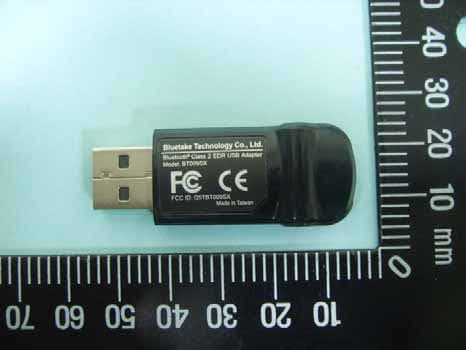
Q5TBT009SX
Nov 01, 2006Bluetooth Class 2 EDR USB Adapter
Equipment Class
DSS - Part 15 Spread Spectrum Transmitter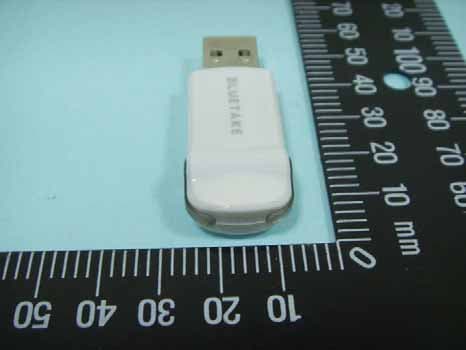
Q5TBT007SX
Oct 29, 2006Bluetooth Class 1 EDR USB Adapter
Equipment Class
DSS - Part 15 Spread Spectrum Transmitter
Q5TBT420RX0511A
Jan 26, 2006Bluetooth Stereo Headphone
Equipment Class
DSS - Part 15 Spread Spectrum Transmitter
Q5TBT430TX0511A
Jan 26, 2006Bluetooth Stereo Headphone
Equipment Class
DSS - Part 15 Spread Spectrum Transmitter