RZSXTBT01Axim Executive keyboard with Bluetooth wireless
Think Outside, Inc.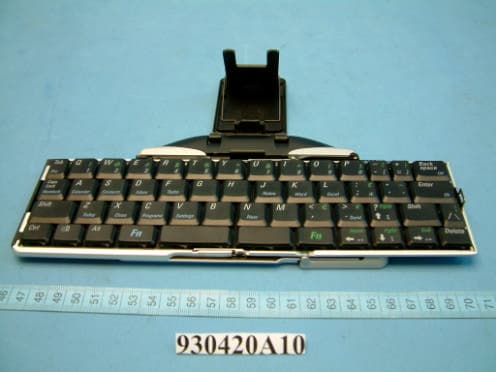
Click to zoom
Application Details
- Equipment Class
- DSS - Part 15 Spread Spectrum Transmitter
- Date of Grant
- May 17, 2004
- Application Purpose
- Original Equipment
- Date of Application
- May 17, 2004
- Equipment Note
- Axim Executive keyboard with Bluetooth wireless
- Frequency Range
- 2402.00000000 - 2480.00000000
- Company
- Think Outside, Inc.
- Country
- United States
Documents & Files
Document Text
Text extracted from the exhibit documents filed with the FCC. Open a document above to read the original.
Users Manual
Axim ™ Executive Keyboard with Bluetooth ® wireless technology Owner’s Manual For Windows Mobile ™ 2003 Includes: Dell Axim Socket SDIO Bluetooth card Socket CF Bluetooth card Keyboard Driver: Stowaway 3.0 Axim Wireless Keyboard Owner’s Manual Page 1 Contents Installing and Configuring the Keyboard..................3 Before You Begin......................................................................................3 Installing the Software...............................................................................3 Configuring the Keyboard to Your Pocket PC Device...............................4 Reconnecting the Axim Bluetooth Keyboard...........................................10 Customizing Your Keyboard...................................................................11 Input Method Toolbar..............................................................................11 Keyboard Control Panel..........................................................................12 Disabling the Axim Bluetooth keyboard..................................................12 Keyboard Status Light.............................................................................13 Secure Connection Overview.................................................................13 Using the Axim Bluetooth keyboard.......................14 Moving the Cursor/Highlighting Text.......................................................14 On-Screen Button and Editing Shortcuts................................................15 Launching and Navigating Applications..................................................15 Menu and Toolbar Navigation.................................................................16 Other Shortcuts.......................................................................................16 International and Extended Character Set..............................................17 Frequently Asked Questions..................................19 Legal Notices.........................................................21 Trademarks.............................................................................................21 Customer Support...................................................................................21 Important notes about Bluetooth devices................................................22 Regulatory Information..............................Error! Bookmark not defined. Features and Technical Specifications Summary.. 23 Axim Wireless Keyboard Owner’s Manual Page 2 Installing and Configuring the Keyboard Before You Begin Before you install the Axim Wireless keyboard software for Windows Mobile ™ 2003: ¾ Disable or remove any other keyboard applications that you have previously installed on your Pocket PC device. (Refer to the User Guide included with your Pocket PC device for instruction on how to do this.) ¾ Ensure there is at least 300 KB of memory on your Pocket PC device. To check the available memory, tap Start =>Settings=>System=>Memory. ¾ Insert the 2 AAA batteries (included) beneath the battery cover of the Axim Wireless keyboard. Installing the Software 1. Connect your Pocket PC device to a computer using the docking cradle or cable. 2. Establish a connection between the computer and your Pocket PC device using ActiveSync and then backup the data stored on the Pocket PC device. (Refer to the User Guide included with your Pocket PC device for instructions on how to do this.) 3. Insert the CD enclosed with your keyboard and select the language preferred from the Language Chooser screen. 4. Double-click the language preferred to start the installation process. Follow the on- screen instructions to successfully install the software. 5. Tap the on-screen button to reset your Pocket PC device to complete the installation. 6. After the driver is successfully installed and the Pocket PC device is reset, the keyboard driver icon will show up in the Programs window. Axim Wireless Keyboard Owner’s Manual Page 3 Configuring the Keyboard to Your Pocket PC Device 1. To enable the Axim Wireless keyboard, tap the Enable button on the Config screen of the keyboard application. This will open the Keyboard Setup Screen. NOTE: After the initial installation the Keyboard Setup Screen is opened automatically. 2. When the Keyboard Setup Screen is shown, select the Bluetooth wireless keyboard option and tap Setup. This will show the Bluetooth Status Page of the Axim Wireless keyboard application. You may also open that page by selecting the BT tab. 3. When the Setup begins, the driver will enable the Pocket PC Bluetooth system software; this is also known as the Bluetooth Stack. Axim Wireless Keyboard Owner’s Manual Page 4 4. The New Connection window is used to connect the Pocket PC device to the Axim Wireless keyboard. Tap New Connection to begin the process. 5. Before starting the scan make sure the keyboard is Discoverable by the Pocket PC device. To do this, press the Ctrl, Left Fn and Right Fn keys together on the keyboard until the green LED flashes (~ 1 second). Then tap the Scan button on the screen. 6. Wait until the Axim Wireless keyboard appears in the list. If the keyboard does not show up: a. Try pressing the Ctrl, Left Fn and Right Fn keys together on the keyboard and tapping the Scan button on the screen again. b. Or, power cycle the keyboard (close and reopen), then press Ctrl, Left Fn and Right Fn and tap Scan again. c. If neither of the above steps work, check that the Red LED on the keyboard is not lit indicating a dead battery condition. Axim Wireless Keyboard Owner’s Manual Page 5 7. Once the Axim Wireless keyboard appears, select it by tapping. Then decide whether you need a secure or unsecured connection. An unsecured connection is vulnerable to eavesdropping. A secure connection requires authentication by entering the same passkey on the Pocket PC device and the keyboard (see #10). If you prefer a secure connection, please check the Secure box - otherwise leave it blank. Then tap t…
Text truncated - open the document above for the full version.
Cover Letter(s)
Federal Communications Commission Authorization and Evaluation Division FCC ID: RZSXTBT01 Confidentiality Request Pursuant to Sections 0.457 and 0.459 of the Commission’s Rules, the Applicant hereby requests confidential treatment of information accompanying this Application as outlined below: Schematics Block Diagram The above materials contain trade secrets and proprietary information not customarily released to the public. The public disclosure of these matters might be harmful to the Applicant and provide unjustified benefits to its competitors. The Applicant understands that pursuant to Rule 0.457, disclosure of this Application and all accompanying documentation will not be made before the date of the Grant for this application. Sincerely, Think Outside Victor Pan / Engineering Tel: 408-551-4545 Fax: 408-551-0660 [email protected] 85 Saratoga Ave. Suite 200, Santa Clara, CA 95051 U.S.A.
Cover Letter(s)
AGENCY AUTHORIZATION LETTER To whom it may concern: We, the undersigned, Think Outside, Inc., hereby authorize Advance Data Technology Corporation (ADT) of Taiwan to act on our behalf in all matters relating to all processes required in the FCC Part 15C approval and any communication needed with the national authority in regards to the “Axim Executive keyboard with Bluetooth wireless technology/Model: XTBT01(FCCID: RZSXTBT01)”. Any and all acts carried out by Advance Data Technology Corporation (ADT) on our behalf shall have the same effects as acts of our own. If you have any questions regarding the authorization, please don’t hesitate to contact us. Thank you! Sincerely yours, Think Outside Victor Pan / Engineering Tel: 408-551-4545 Fax: 408-551-0660 [email protected] 85 Saratoga Ave. Suite 200, Santa Clara, CA 95051, U.S.A.
Cover Letter(s)
FEDERAL COMMUNICATIONS COMMISSION DECLARATION OF CONFORMITY (DoC) FOR THE FOLLOWING EQUIPMENT: PRODUCT NAME: Axim Executive keyboard with Bluetooth wireless technology MODEL NO.: XTBT01 TRADE NAME: Dell IS HEREWITH CONFIRMED AND FOUND TO COMPLY WITH THE REQUIREMENTS OF CFR 47 PART 15 REGULATION. THE RESULTS OF ELECTROMAGNETIC EMISSION EVALUATION ARE SHOWN IN THE REPORT NO.: D930420A10 THIS DEVICE COMPLIES WITH PART 15 OF THE FCC RULES. OPERATION IS SUBJECT TO THE FOLLOWING TWO CONDITIONS: (1) THIS DEVICE MAY NOT CAUSE HARMFUL INTERFERENCE AND, (2) THIS DEVICE MUST ACCEPT ANY INTERFERENCE RECEIVED, INCLUDING INTERFERENCE THAT MAY CAUSE UNDESIRED OPERATION. THE FOLLOWING LOCAL MANUFACTURER/IMPORTER IS RESPONSIBLE FOR THIS DECLARATION Think Outside, Inc. (COMPANY NAME) 85 Saratoga Ave Suite 200 Santa Clara, CA 95051, U.S.A. (COMPANY ADDRESS) TEL 408-551-4545 FAX 408-551-0660 Victor Pan Engineering (NAME)(TITLE) (SIGNATURE)
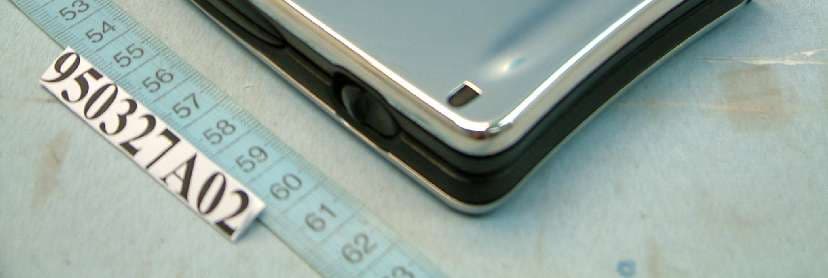
External Photos
Page 1 CONSTRUCTION PHOTOS OF EUT Page 2
ID Label/Location Info
FCC ID LOCATION
ID Label/Location Info
FCC ID : RZSXTBT01
Internal Photos
Page 3 Page 4 Page 5 Page 6 Page 7
Operational Description
FCC ID: RZSXTBT01 Report No. RF930420A10 Operational Description The transmitter of the EUT (Axim Executive keyboard with Bluetooth wireless technology) is powered by 3V Batteries. The type of antenna is printed antenna. The output power of this device is very low. Under normal use condition, the transmitter and the receiver are quite close, so high EIRP power is neither necessary nor allowed because of interference.
Test Report
FCC ID: RZSXTBT01 Report No.: RF930420A101Issued: May 6, 2004 FCC TEST REPORT REPORT NO.: RF930420A10 MODEL NO.: XTBT01 RECEIVED: April 20, 2004 TESTED: April 27 ~ 28, 2004 APPLICANT: Think Outside, Inc. ADDRESS: 85 Saratoga Ave Suite 200 Santa Clara. CA 95051, U.S.A. ISSUED BY: Advance Data Technology Corporation LAB LOCATION: 47 14th Lin, Chiapau Tsun, Linko, Taipei, Taiwan, R.O.C. This test report consists of 54 pages in total. It may be duplicated completely for legal use with the approval of the applicant. It should not be reproduced except in full, without the written approval of our laboratory. The client should not use it to claim product endorsement by CNLA or any government agencies. The test results in the report only apply to the tested sample. 0528 ILAC MRA FCC ID: RZSXTBT01 Report No.: RF930420A102Issued: May 6, 2004 TABLE OF CONTENTS 1CERTIFICATION ............................................................................................4 2SUMMARY OF TEST RESULTS....................................................................5 3GENERAL INFORMATION ............................................................................6 3.1GENERAL DESCRIPTION OF EUT...............................................................6 3.2DESCRIPTION OF TEST MODES.................................................................7 3.3GENERAL DESCRIPTION OF APPLIED STANDARDS ................................7 3.4DESCRIPTION OF SUPPORT UNITS...........................................................8 3.5CONFIGURATION OF SYSTEM UNDER TEST............................................8 4TEST PROCEDURES AND RESULTS ..........................................................9 4.1NUMBER OF HOPPING FREQUENCY USED ..............................................9 4.1.1LIMIT OF HOPPING FREQUENCY USED ................................................... 9 4.1.2TEST INSTRUMENTS .................................................................................. 9 4.1.3TEST PROCEDURES................................................................................. 10 4.1.4DEVIATION FROM TEST STANDARD ....................................................... 10 4.1.5TEST SETUP ...............................................................................................11 4.1.6EUT OPERATING CONDITIONS.................................................................11 4.1.7TEST RESULTS...........................................................................................11 4.2DWELL TIME ON EACH CHANNEL ............................................................14 4.2.1LIMIT OF DWELL TIME USED................................................................... 14 4.2.2TEST INSTRUMENTS ................................................................................ 14 4.2.3TEST PROCEDURES................................................................................. 15 4.2.4DEVIATION FROM TEST STANDARD ....................................................... 15 4.2.5TEST SETUP .............................................................................................. 15 4.2.6TEST RESULTS.......................................................................................... 16 4.3CHANNEL BANDWIDTH .............................................................................19 4.3.1LIMITS OF CHANNEL BANDWIDTH .......................................................... 19 4.3.2TEST INSTRUMENTS ................................................................................ 19 4.3.3TEST PROCEDURE ................................................................................... 20 4.3.4DEVIATION FROM TEST STANDARD ....................................................... 20 4.3.5TEST SETUP .............................................................................................. 20 4.3.6EUT OPERATING CONDITION .................................................................. 20 4.3.7TEST RESULTS.......................................................................................... 21 4.4HOPPING CHANNEL SEPARATION ...........................................................25 4.4.1LIMIT OF HOPPING CHANNEL SEPARATION .......................................... 25 4.4.2TEST INSTRUMENTS ................................................................................ 25 4.4.3TEST PROCEDURES................................................................................. 26 4.4.4DEVIATION FROM TEST STANDARD ....................................................... 26 4.4.5TEST SETUP .............................................................................................. 26 4.4.6TEST RESULTS.......................................................................................... 27 4.5MAXIMUM PEAK OUTPUT POWER –USING POWER METTER...............31 4.5.1LIMITS OF MAXIMUM PEAK OUTPUT POWER MEASUREMENT ........... 31 4.5.2INSTRUMENTS.......................................................................................... 31 4.5.3TEST PROCEDURES................................................................................. 32 FCC ID: RZSXTBT01 Report No.: RF930420A103Issued: May 6, 2004 4.5.4DEVIATION FROM TEST STANDARD ....................................................... 32 4.5.5TEST SETUP .............................................................................................. 33 4.5.6EUT OPERATING CONDITION .................................................................. 33 4.5.7TEST RESULTS.......................................................................................... 34 4.6RADIATED EMISSION MEASUREMENT ....................................................38 4.6.1LIMITS OF RADIATED EMISSION MEASUREMENT................................. 38 4.6.2TEST INSTRUMENTS ................................................................................ 39 4.6.3TEST PROCEDURES................................................................................. 40 4.6.4DEVIATION FROM TEST STANDARD ......…
Text truncated - open the document above for the full version.
Test Setup Photos
FCC ID: RZSXTBT01 Report No.: RF930420A1053Issued: May 6, 2004 5 PHOTOGRAPHS OF THE TEST CONFIGURATION RADIATED EMISSION TEST
Contact Information
Applicant
Victor Pan
Technical Contact
Advance Data Technology CorporationEllis Wu
[email protected]+886 3318 3232
No. 19 Hwa Ya 2nd Rd. · Kueishan Taoyuan · Taiwan
Non-Technical Contact
Advance Data Technology CorporationYemmy Soong
[email protected]+886 2 2605 2180
Test Firm
Bureau Veritas CPS (H.K.) Ltd. Taoyuan BranchTommy Wu
Technical Specifications
| # | Rule Parts | Frequency Range | Power Output |
|---|---|---|---|
| 1 | 15C | 2.40 GHz - 2.48 GHz | 600.00 µW |
Other Applications from Think Outside, Inc.
RZSSTBT01
Apr 18, 2006Stowaway Sierra Bluetooth Keyboard
Equipment Class
DSS - Part 15 Spread Spectrum Transmitter
RZSMSBT01-1
Nov 23, 2005Bluetooth Wireless Mouse
Equipment Class
DSS - Part 15 Spread Spectrum TransmitterRZSMSBT01
Nov 02, 2004Stowaway Travel Bluetooth Mouse
Equipment Class
DSS - Part 15 Spread Spectrum Transmitter