SGE-UBTB1Bluetooth USB Dongle
Cadmus Micro, Inc.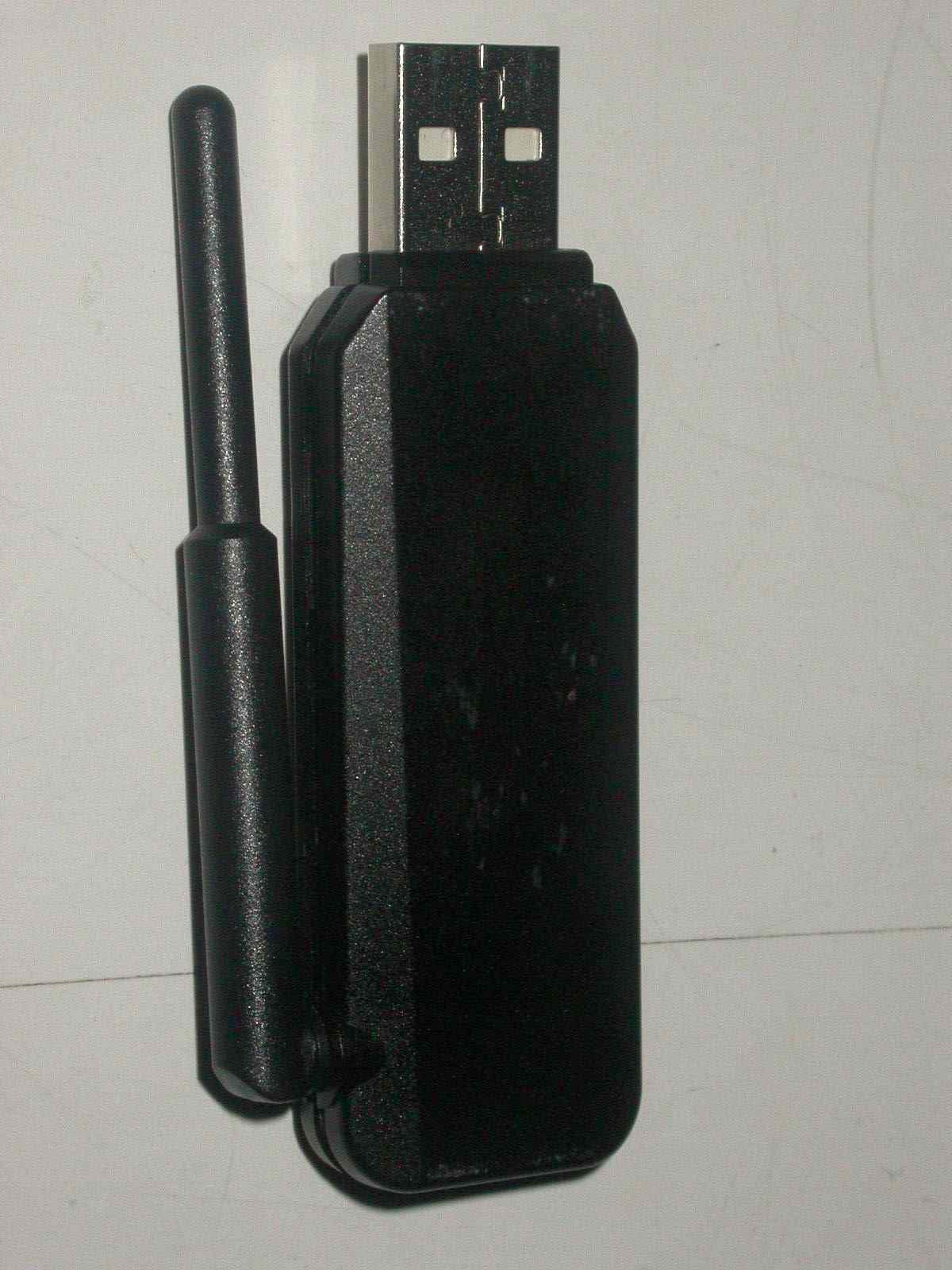
Click to zoom
Application Details
- Equipment Class
- DSS - Part 15 Spread Spectrum Transmitter
- Date of Grant
- Dec 19, 2004
- Application Purpose
- Original Equipment
- Date of Application
- Dec 19, 2004
- Equipment Note
- Bluetooth USB Dongle
- Frequency Range
- 2402.00000000 - 2480.00000000
- Company
- Cadmus Micro, Inc.
- Country
- United States
Documents & Files
Document Text
Text extracted from the exhibit documents filed with the FCC. Open a document above to read the original.
Users Manual
USB Adapter Manual and Application note 3.0 Index INTRODUCTION 1 CHAPTER 1 Package 2 Features 2 Bluetooth profile support 2 Drivers support 3 CHAPTER 2 Setup for Windows 98SE/ME/2000/XP 4 CHAPTER 3 Application note for Windows 98SE/ME/2000/XP 11 Icons used for Bluetooth devices and services 11 Network sharing setting for Windows 13 File transfer setting for Windows 24 Dial-up networking setting for Windows 27 FAX setting 30 PIM Item Transfer setting 31 PIM Synchronization setting 33 Serial Port setting 35 ActiveSync setting 36 Audio Gateway setting for windows 39 Personal area network setting for Windows 41 CHAPTER 4 Advanced features 46 How to setup Hyper Terminal for Bluetooth transfer 46 How to HotSync with Palm Bluetooth SDIO and Tungsten T 52 How to dial-up from Palm Tungsten T to my PCís modem to surf the internet 55 Sending FAX via mobile phone with WinFAXPro 56 TROUBLESHOOTING Troubleshooting 61 1 Introduction Bluetooth is an open specification for a cutting-edge technology that enables short-range wireless connections between desktop and laptop computers, personal digital assistants, cellular phones, printers, scanners, digital cameras and even home appliances ó on a globally available band (2.4GHz) for worldwide compatibility. In a nutshell, Bluetooth unplugs your digital peripherals and makes cable clutter a thing of the past. Now you can connect your PDA or PC to Bluetoothô enabled mobile phone with this Bluetoothô adapter. You can access e-mail & Internet no matter where you are with just a little help from your Bluetoothô mobile phone. Plus, when you are back in the office, you can hook yourself up to your office network as well as communicate with other Bluetoothô-enabled devices. i 2 Chapter1 Package ! One Bluetooth adapter ! One driver and software disk ! This user manual Features ! Bluetooth v1.2 compliant ! USB Bluetooth adapter support full speed USB v1.1 Interface. ! Wireless communication within a radius of 32 Feet (10 Meters) for Class 2 Bluetooth devices. ! Wireless communication within a radius of 328 Feet (100 Meters) for Class 1 Bluetooth devices. ! Connect up to 7 different Bluetooth enabled devices ! Encryption and authentication to ensure safe, secure communications ! Low power consumption Bluetooth profile support Generic Access Profile (GAP) Serial Port Profile (SPP) Service Discovery Application Profile (SDAP) Generic Object Exchange Profile (GOEP) Object Push Profile (OPP) File Transfer Profile (FTP) Dial-up Network Profile (DUN) LAN Access Profile (LAP) 1 3 Fax Profile (FAX) Synchronization Profile Headset Profile Personal Area Network (PAN) Human Interface Device (HID) BIP Basic Image Profile (BBIP) Drivers support Windows 98SE, ME, 2000, XP 4 Chapter 2 Setup for Windows 98SE/ME/2000/XP Installing Bluetooth software for Windows (1) Place installation CD into PC and the setup menu should launch automatically. If the setup menu does not launch automatically, use Windows Explorer to navigate to the appropriate CD-ROM drive and run "bsetup". (2) Select ìInstall Drivers and Application Softwareî. 2 5 (3) Please select your device from the menu. 6 (4) Complete the following steps to install Bluetooth software: (a) Exit all applications. (b) InstallShield Wizard setup dialog box will automatically be displayed. (c) Follow the instructions on screen: (d) On the Welcome screen, click the ìNextì button. 7 (e) When the License Agreement screen is displayed, read the License Agreement, then click the radio button to the left of "I accept the terms in the license agreement" and click the ìNextì button. 8 (f) You can choose the destination folder in your system, if you do not want to change the destination folder please click ìNextì. On the Destination Folder screen, click the Change button to browse to a new destination folder for the Bluetooth software. Otherwise, click the ìNextì button to accept the default folder. 9 (g) The system is ready to install the Bluetooth software. If you need to review or change any settings, click the "Back" button. Click the "Cancel" button to exit the Wizard. Otherwise, click the "Install" button. (h) For Windows 2000/XP users, system will popup a "Driver Signature Notice", please click the "OK" button. 10 (i) During the installation, system will try to detect your Bluetooth device, please plug in your Bluetooth device when the following message is displayed. Then click "OK" to continue, or you can click "Cancel" to continue the installation without the Bluetooth device. (j) When the installation is completed, please click the "Finish" button. For more information of Bluetooth software Configuration & Userís Guide, please refer to Chapter 3 of this application note. 11 Chapter 3 Application note for Windows 98SE/ME/2000/XP 3.1 Icons used for Bluetooth devices and services Bluetooth icons provide at-a-glance feedback about a device or service's status by changing appearance. The Bluetooth icon in the Windows system tray provides feedback about Bluetooth status. Basic Bluetooth Icon Device Icons for Windows 98SE, Me and 2K Service Icons for Windows 98SE, Me and 2K 3 12 Device Icons for Windows XP Service Icons for Windows XP 13 NOTE: Only available services are displayed in the menus 14 3.2. Network sharing setting for Windows The Network Access service permits a Bluetooth enabled PC (client) to access the Internet via another Bluetooth enabled PC (Server) that already has an Ethernet connection. Windows network sharing setting PC to PC (Windows 2000 or Windows XP) 1. To enable Internet Connection Sharing on the server PC. 2. Click on Start menu → Network Connections and find your Local Area Connection (LAN) that is connected to the Internet. 3. Right click the active LAN connection to open the "Properties" dialog box. 15 4. Click on "Advanced" tab and select the "Internet Connection Sharing" checkbox to enable Internet sharing. 16 5. Click on "Settings..." button and select the services you wish to provide other Bluetooth devices. C…
Text truncated - open the document above for the full version.
Users Manual
3.10. Audio Gateway setting for windows The Audio Gateway Application allows a remote Bluetooth device to use this computer's microphone and speakers as the remote device's audio input and output devices. *Remember please switch your Audio device to "Bluetooth Audio" from control panel. Open a connection to the Audio Gateway service that is provided by another Bluetooth device using one of these techniques: • Windows system tray, Bluetooth icon • From Bluetooth Explorer • Using the Bluetooth Setup Wizard 3 From Bluetooth Explorer to connection your headset device. Key in headset pair key or PIN code. (Refer to the Headset's user's manual for reference) Close an audio gateway connection: If the connection was established via the Bluetooth icon in the Windows system tray; click the Bluetooth icon, select Quick Connect, Audio Gateway and then select the device that is providing the service (active connections have a checkmark in front of them). Or No matter how the connection was created, In My Bluetooth Places, right-click the service name and select Disconnect.Configure The Bluetooth Configuration Panel > Client Applications > Audio Gateway > General tab provides options to configure: • The application name-- to change it, highlight the existing name and enter the new name. • Enable or disable secure connection. To enable secure connection, place a checkmark in the box. 3.11. Personal area network setting for windows The Personal Area Networking (PAN) chapter will show you how two or more Bluetooth enabled devices can form an ad-hoc network and how the same mechanism can be used to access a remote network through a network access point. 5 How to setup an Ad-hoc Network 1. On the client, in the Folders pane of "My Bluetooth Places", select "Entire Bluetooth Neighborhood". 2. In the right pane of "Entire Bluetooth Neighborhood", right-click anywhere except on a device name and select Refresh from the pop-up menu. 3. In the right pane of "My Bluetooth Places", right-click the server that will provide the Networking Access Service and select Discover Available Services from the pop-up menu to update the available services list. The available services will be displayed in the right pane of "My Bluetooth Places". Double click Network Access to establish a PAN network. 6 If the system pops up a "Bluetooth PIN Code Request" window please key in the same passkey or PIN code between the two devices. Once connected, you can check your Bluetooth PAN network neighborhood from the file explorer or by the "Search Computers" function. 7 How to setup with Bluetooth Network Access Point The Bluetooth Software makes it easy to join an existing personal network, hosted by another Bluetooth device (PocketPC, desktop, etc.) From the My Bluetooth Places, choose Entire Bluetooth Neighborhood, and select the Bluetooth device that you want to establish a PAN connection and double click the device icon. 8 It will list out all the available services of this device, please select the LAN Access. Right click the LAN Acess and select "Connect to Network Access Point", your PC will initially connect to the Network Access Point. After enter the Buletooth PIN Code, a connection will then be established between your PC and the host over the personal network. 9 Chapter 4 Advanced features 4.1. How to set up HyperTerminal for Bluetooth transfer 1. Install Bluetooth Software on two separate notebooks or desktop PCs (referred to as server and client in the following document). 2. With Bluetooth adapter inserted, do a "Search for devices" on client to find near by Bluetooth devices. 3. Double click on the Bluetooth device you wish to connect to (e.g. COMPAQ1200, the server). 4 4 10 4. Double click on "Bluetooth Serial Port"; take a note of the COM port used by this connection (e.g. COM4). 5. The Bluetooth Serial connection should now be established. 11 12 6. On the client side, open HyperTerminal. Choose the COM port used by the Serial connection in step 4. 7. Set the baud rate and other settings as required. 13 8. On the server side, check the local COM port used by the system in the Bluetooth Configuration window (e.g. COM6). 9. Open HyperTerminal, choose the COM port used by the system in step 8. 14 10. Set the baud rate and other settings as required. 11. The HyperTerminal connection should now be established. Type something on the client side and the same thing will appear on the server. 12. To transfer files, select "Send File" from the menu bar of the client system, and select the file you wish to transfer. 13. The received file should be placed on the C: drive of the server system (default location). 4.2. How to HotSync with Palm Bluetooth SDIO and Tungsten T Please make sure you have installed Bluetooth software and Palm Desktop on your notebook or desktop PC before proceeding to the setup instructions below. 1. From the Palm main panel, tap the HotSync icon. 2. Tap HotSync and select "Connection Setup" from the menu bar. 3. Tap "New". 4. Give the new connection a name, e.g. BTConnection. 5. Change "Connect to:" to "PC". 6. Change "Via:" to "Bluetooth". 7. The "Device:" option will pop up, tap to find the Bluetooth system you wish to HotSync with. 8. Select the Bluetooth system you wish to HotSync with and tap OK. 9. Tap "Yes" when prompted with "Do you want to add *** to your trusted device list?". 10. Key in the same passkey on Palm and your notebook or desktop PC to complete the pairing process. 11. Tap "OK" and "Done" to return to the HotSync panel. 12. Tap the dropdown menu to select the Bluetooth connection you have just created. E.g. BTConnection. 16 13. From the notebook, find out the local COM port used by "Bluetooth Serial Port", e.g. COM4. (My Bluetooth Places->My Device, right click My Bluetooth Serial Port and select Properties) 17 14. Change the COM port setting in Palm HotSync to match the COM port found in step 11, e.g. COM4. 15. Change the connection type to "Local Serial" in the HotSync Manager. 16. T…
Text truncated - open the document above for the full version.
Cover Letter(s)
Cadmus Micro Inc. 1840 Carlos Ave., Ontario CA 91761 Confidentiality Request FCC ID : SGE-UBTB1 Product : Bluetooth USB Dongle Model : UBTB1 Pursuant to Sections 0.457 and 0.459 of the Commissionís Rules, the Applicant hereby requests confidential treatment of information accompanying this Application as outlined below: Schematics Block Diagram The above materials contain trade secrets and proprietary information not customarily released to the public. The public disclosure of these matters might be harmful to the Applicant and provide unjustified benefits to its competitors. The Applicant understands that pursuant to Rule 0.457, disclosure of this Application and all accompanying documentation will not be made before the date of the Grant for this application. Sincerely yours, ------------------------------------------------------------------------------
Cover Letter(s)
Cadmus Micro Inc. 1840 Carlos Ave., Ontario CA 91761 *********************************************************************************** Authorization Agency Letter Product : Bluetooth USB Dongle Model : UBTB1 To Whom It May Concern: Please be advised that Cadmus Micro Inc. authorizes Ecom Sertech Corp. to act on our behalf on the produce certificate applications submitted,(For example:FCC certificate,IC certificate,CE application,& notification) until otherwise notified, for all relation certificated institute. Thank you for your attention to this matter. Sincerely, Signature: (Name / Date)
Cover Letter(s)
1 Mike Kuo From: Roger Sheng () [[email protected]] Sent: December152004Wednesday 11:04 PM To: Mike Kuo; RF_; - (Daphne Liang) Cc: CCS_Lucy; Subject: Re: Cadmus Micro Inc., FCC ID: SGE-UBTB1, Assessment NO.: AN04T4390, Notice#1 Hi Mike Thank you for your kind review. Regarding your questions: Question#1: That is typo. The revised report will resend to you. Question #2: This device is a FHSS device only, not a hybrid with both FHSS and DTS. Per 15.247(e), the power density is required for digitally modulated system. Does a FHSS only device need to do Power density in the future? Per 15.247(a)(1), Oct. 7, 2004, "FHSS operated in 2.4GHz band may have hopping channel carrier frequencies that are separated by 25kHz or 2/3 of the 20dB bandwidth, whichever is greater, provided the systems operated with power no greater than 125mW". For Bluetooth devices, the rated 20dB bamdwidth and channel separation are both 1MHz. Some devices might fail in the test item of channel separation due to the inherent characteristic of Bluetooth spec . Because the power of most bluetooth device are all lower than 125mW, our clients preper to follow this way. Best Regards, Roger Sheng( 2 ¡ ̈, but the result indicated are for transmitting mode, please > make > the proper correction. > > Question #2: Please provide power spectral density test data per 15.247(f) > in the acquisition mode. > > FIR. The applied limit of peak power/number of hopping channels for > frequency hopping systems over 75channels are statement in 15.247 (b)(1) > and > (a)(iii), the limit are 75channels at least and 1W but not 15 channels and > 125mW. > > Best Regards, > > Mike Kuo > The items indicated above must be submitted before processing can continue > on the above referenced application. Failure to provide the requested > information within 30 days of the original e-mail date may result in > application dismissal and forfeiture of the filing fee. Also, please note > that partial responses increase processing time and should not be > submitted. > Any questions about the content of this correspondence should be directed > to > the e-mail address listed below the name of the sender. >
External Photos
Ecom Sertech Corp. Rm. 258, Bldg. 17, NO.195, Sec.4 Chung Hsing Rd., ChuTugn Chen, Hsinchu, Taiwan 310, R.O.C TEL: 886-3-5918012 FAX: 886-3-5825720 Report No.:ER04-10-076FRF Page 1 of 15 External Photo Ecom Sertech Corp. Rm. 258, Bldg. 17, NO.195, Sec.4 Chung Hsing Rd., ChuTugn Chen, Hsinchu, Taiwan 310, R.O.C TEL: 886-3-5918012 FAX: 886-3-5825720 Report No.:ER04-10-076FRF Page 2 of 15 Ecom Sertech Corp. Rm. 258, Bldg. 17, NO.195, Sec.4 Chung Hsing Rd., ChuTugn Chen, Hsinchu, Taiwan 310, R.O.C TEL: 886-3-5918012 FAX: 886-3-5825720 Report No.:ER04-10-076FRF Page 3 of 15 Ecom Sertech Corp. Rm. 258, Bldg. 17, NO.195, Sec.4 Chung Hsing Rd., ChuTugn Chen, Hsinchu, Taiwan 310, R.O.C TEL: 886-3-5918012 FAX: 886-3-5825720 Report No.:ER04-10-076FRF Page 4 of 15 Ecom Sertech Corp. Rm. 258, Bldg. 17, NO.195, Sec.4 Chung Hsing Rd., ChuTugn Chen, Hsinchu, Taiwan 310, R.O.C TEL: 886-3-5918012 FAX: 886-3-5825720 Report No.:ER04-10-076FRF Page 5 of 15
ID Label/Location Info
Company : Cadmus Micro Inc. Model : UBTB1 Product : Bluetooth USB Dongle Bluetooth USB Dongle Model No: UBTB1 FCC ID:SGE-UBTB1 This device complies with part 15 of the FCC Rules. Operation is subject to the following two conditions: [1] this device may not cause harmful interference and [2] this device must accept any interference received, including interference that may cause undesired operation. S/N: Made in Taiwan Label Here
Internal Photos
Ecom Sertech Corp. Rm. 258, Bldg. 17, NO.195, Sec.4 Chung Hsing Rd., ChuTugn Chen, Hsinchu, Taiwan 310, R.O.C TEL: 886-3-5918012 FAX: 886-3-5825720 Report No.:ER04-10-076FRF Page 6 of 15 Internal Photo Ecom Sertech Corp. Rm. 258, Bldg. 17, NO.195, Sec.4 Chung Hsing Rd., ChuTugn Chen, Hsinchu, Taiwan 310, R.O.C TEL: 886-3-5918012 FAX: 886-3-5825720 Report No.:ER04-10-076FRF Page 7 of 15 Ecom Sertech Corp. Rm. 258, Bldg. 17, NO.195, Sec.4 Chung Hsing Rd., ChuTugn Chen, Hsinchu, Taiwan 310, R.O.C TEL: 886-3-5918012 FAX: 886-3-5825720 Report No.:ER04-10-076FRF Page 8 of 15 Ecom Sertech Corp. Rm. 258, Bldg. 17, NO.195, Sec.4 Chung Hsing Rd., ChuTugn Chen, Hsinchu, Taiwan 310, R.O.C TEL: 886-3-5918012 FAX: 886-3-5825720 Report No.:ER04-10-076FRF Page 9 of 15 Ecom Sertech Corp. Rm. 258, Bldg. 17, NO.195, Sec.4 Chung Hsing Rd., ChuTugn Chen, Hsinchu, Taiwan 310, R.O.C TEL: 886-3-5918012 FAX: 886-3-5825720 Report No.:ER04-10-076FRF Page 10 of 15 Ecom Sertech Corp. Rm. 258, Bldg. 17, NO.195, Sec.4 Chung Hsing Rd., ChuTugn Chen, Hsinchu, Taiwan 310, R.O.C TEL: 886-3-5918012 FAX: 886-3-5825720 Report No.:ER04-10-076FRF Page 11 of 15 Ecom Sertech Corp. Rm. 258, Bldg. 17, NO.195, Sec.4 Chung Hsing Rd., ChuTugn Chen, Hsinchu, Taiwan 310, R.O.C TEL: 886-3-5918012 FAX: 886-3-5825720 Report No.:ER04-10-076FRF Page 12 of 15 Ecom Sertech Corp. Rm. 258, Bldg. 17, NO.195, Sec.4 Chung Hsing Rd., ChuTugn Chen, Hsinchu, Taiwan 310, R.O.C TEL: 886-3-5918012 FAX: 886-3-5825720 Report No.:ER04-10-076FRF Page 13 of 15 Ecom Sertech Corp. Rm. 258, Bldg. 17, NO.195, Sec.4 Chung Hsing Rd., ChuTugn Chen, Hsinchu, Taiwan 310, R.O.C TEL: 886-3-5918012 FAX: 886-3-5825720 Report No.:ER04-10-076FRF Page 14 of 15 Ecom Sertech Corp. Rm. 258, Bldg. 17, NO.195, Sec.4 Chung Hsing Rd., ChuTugn Chen, Hsinchu, Taiwan 310, R.O.C TEL: 886-3-5918012 FAX: 886-3-5825720 Report No.:ER04-10-076FRF Page 15 of 15
Operational Description
Technical description(UBTB1) Main chipset : BROADCOM BCM2035 Bluetooth Transceiver & Baseband Processor The features are as below : Radio ■ Bluetooth v1.1 specification compliant ■ Bluetooth v1.2 specification compliant (include AFH, fast connection, etc.) Transmitter ■ Class 2 and Class 3 support without the need for an external power amplifier. ■ Class 1 support using external power amplifier Receiver ■ On-chip channel filtering to ensure reliable operation. ■ 2MHz low IF scheme to down-convert the received signal for demodulation. ■ Provides an RSSI(Receiver signal strength Indicator) signal to the baseband. Modulator & Demodulator ■ The digital modulator performs the data modulation & Gaussian filtering required for GFSK signal ■ The Digital Demodulator & Bit Synchronizer takes the low IF received signal & performs an optimal frequency tracking & bit synchronization algorithm. ■ The calibration & control section provides the radio timing, command, & control functions & these have been optimized for power saving. Physical interfaces ■ Memory Interface ■ UART(Universal Asynchronous Receiver Transmitter) ■ USB(Universal Serial Bus) ■ PIO(Parallel input Output) ■ PCM(Pulse Code Modulation) Function description USB This device is operated the USB(full speed) interface for communicating with other compatible digital device(ex. From a master host controller such as a PC).The device (USB Bluetooth Dongle) with a specific application software can offer the services as below: ■ Audio Gateway ■ File transfer ■ PIM Item transfer ■ Bluetooth serial port ■ Head set ■ PIM synchronization ■ Dual-up Networking ■ Network Access ■ Fax EEPROM The EEPROM contains some configure data like power table, blue address, etc. The configure data can be modified to meet the power or other specific requirement. Crystal The chip uses a fraction-N synthesizer to generate the radio frequencies, clock & data/packet timing. This enables it to operate from any of a multitude of frequency sources. This chip uses an external RF & IF loop filter will use the different values depending on the reference frequency or crystal being used. We use a 15.36MHz crystal here. Switch and Filter and Antenna A switch is used for to separate transmit & receive chain. An external BPF filter is positioned between the switch & antenna to reject other frequencies we donít want. PA Power amplifier is needed for Bluetooth class device to amplify the output power. It amplifies the output power around +20dB gain. The device is placed between the main chip & switch.
Test Report
Ecom Sertech Corp. Rm. 258, Bldg. 17, NO.195, Sec.4 Chung Hsing Rd., ChuTugn Chen, Hsinchu, Taiwan 310, R.O.C TEL: 886-3-5918012 FAX: 886-3-5825720 FCC ID:SGE-UBTB1 Report No.:ER04-10-076FRF Page 1 of 53 RF TEST REPORT Product Name : Bluetooth USB Dongle Model Number : UBTB1 Brand Name : Cadmus Micro FCC ID : SGE-UBTB1 Applicant : Cadmus Micro Inc. Address : 1840 Carlos Ave., Ontario CA 91761 Received Date : October 28, 2004 Tested Date : November 02 ~ 22, 2004 Notes : 1. This report will be invalid if duplicated or photocopied in part. 2. This report refers only to the specimen(s) submitted to testing, and be invalid as seperately used. 3. This report is invalid without examination stamp and signature of this institute. 4. The tested specimen(s) will be preserved for thirty days from the data issued. 5. The report must not be used to claim product certification, approval, or endorsement by NVLAP, NIST, or any agency of the federal government. Ecom Sertech Corp. Rm. 258, Bldg. 17, NO.195, Sec.4 Chung Hsing Rd., ChuTugn Chen, Hsinchu, Taiwan 310, R.O.C TEL: 886-3-5918012 FAX: 886-3-5825720 FCC ID:SGE-UBTB1 Report No.:ER04-10-076FRF Page 2 of 53 Test Report Certification Product Name : Bluetooth USB Dongle Model Number : UBTB1 Brand Name : Cadmus Micro FCC ID : SGE-UBTB1 Applicant : Cadmus Micro Inc. Measurement Standard : FCC 47 C.F.R. Part 15, Subpart B and Subpart C (2004) ANSI C63.4 (2003) WE HEREBY CERTIFY THAT: The measurements shown in the attachment were made in accordance with the procedures indicated, and the energy emitted by the equipment was found to be within the limits applicable. We assume full responsibility for the accuracy and completeness of these measurements and vouch for the qualifications of all persons taking them. Ecom Sertech Corp. Rm. 258, Bldg. 17, NO.195, Sec.4 Chung Hsing Rd., ChuTugn Chen, Hsinchu, Taiwan 310, R.O.C TEL: 886-3-5918012 FAX: 886-3-5825720 FCC ID:SGE-UBTB1 Report No.:ER04-10-076FRF Page 3 of 53 TABLE OF CONTENTS TITLE PAGE NO. 1. GENERAL INFORMATION ................................................................................................... 5 1.1 General Statement ...............................................................................................................................5 1.2 General Description of EUT & Power ................................................................................................5 1.3 Description of Peripherals...................................................................................................................6 1.4 EUT & Peripherals Setup Diagram.....................................................................................................6 1.5 EUT Operating Condition ...................................................................................................................6 1.6 Description of Test Site.......................................................................................................................7 1.7 Summary of Test Results ....................................................................................................................8 2. CONDUCTED POWERLINE TEST....................................................................................... 9 2.1 Test Equipments..................................................................................................................................9 2.2 Test Setup............................................................................................................................................9 2.3 Conducted Power Line Emission Limit ..............................................................................................10 2.4 Test Procedure.....................................................................................................................................10 2.5 Uncertainty of Conducted Emission ...................................................................................................10 2.6 Conducted RF Voltage Measurement .................................................................................................11-12 2.7 Photos of Conduction Test ..................................................................................................................13 3. 20dB BANDWIDTH FOR HOPPING ..................................................................................... 14 3.1 Test Equipments..................................................................................................................................14 3.2 Test Setup............................................................................................................................................14 3.3 Limits of 20db Bandwidth Measurement............................................................................................14 3.4 Test Procedure.....................................................................................................................................14 3.5 Uncertainty of Conducted Emission ...................................................................................................15 3.6 Test Results .........................................................................................................................................15 3.7 Photo of 20db Bandwidth Measurement .............................................................................................16 4. MAXIMUM PEAK OUTPUT POWER .................................................................................. 17 4.1 Test Equipments..................................................................................................................................17 4.2 Test Setup............................................................................................................................................17 4.3 Limits of Maximum Peak Output Power ............................................................................................17 4.4 Te…
Text truncated - open the document above for the full version.
Test Setup Photos
Ecom Sertech Corp. Rm. 258, Bldg. 17, NO.195, Sec.4 Chung Hsing Rd., ChuTugn Chen, Hsinchu, Taiwan 310, R.O.C TEL: 886-3-5918012 FAX: 886-3-5825720 FCC ID:SGE-UBTB1 Report No.:ER04-10-076FRF Page 13 of 50 2.7 Photos of Conduction Test Ecom Sertech Corp. Rm. 258, Bldg. 17, NO.195, Sec.4 Chung Hsing Rd., ChuTugn Chen, Hsinchu, Taiwan 310, R.O.C TEL: 886-3-5918012 FAX: 886-3-5825720 FCC ID :SGE-UBTB1 Report No. :ER04-10-076FRF Page 48 of 50 9.7 Photos of Open Site Ecom Sertech Corp. Rm. 258, Bldg. 17, NO.195, Sec.4 Chung Hsing Rd., ChuTugn Chen, Hsinchu, Taiwan 310, R.O.C TEL: 886-3-5918012 FAX: 886-3-5825720 FCC ID :SGE-UBTB1 Report No. :ER04-10-076FRF Page 49 of 50
Contact Information
Applicant
Derek Ma(President)
Test Firm
ECOM Sertech Corp.C. Wu
Technical Specifications
| # | Rule Parts | Frequency Range | Power Output |
|---|---|---|---|
| 1 | 15C | 2.40 GHz - 2.48 GHz | 6.00 mW |
Other Applications from Cadmus Micro, Inc.
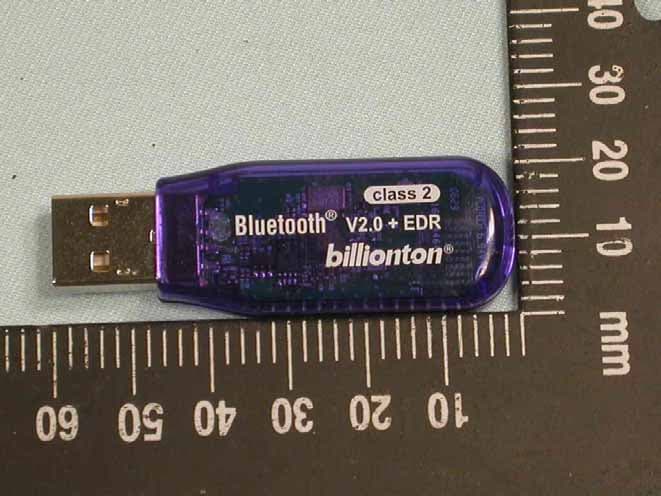
SGE-GUBTBR42
Aug 06, 2006Bluetooth USB Dongle
Equipment Class
DSS - Part 15 Spread Spectrum Transmitter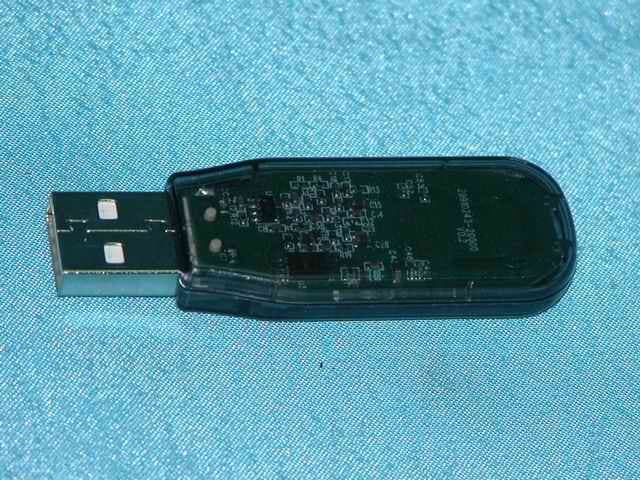
SGE-UBTBR1E
Apr 27, 2005Bluetooth USB Dongle
Equipment Class
DSS - Part 15 Spread Spectrum Transmitter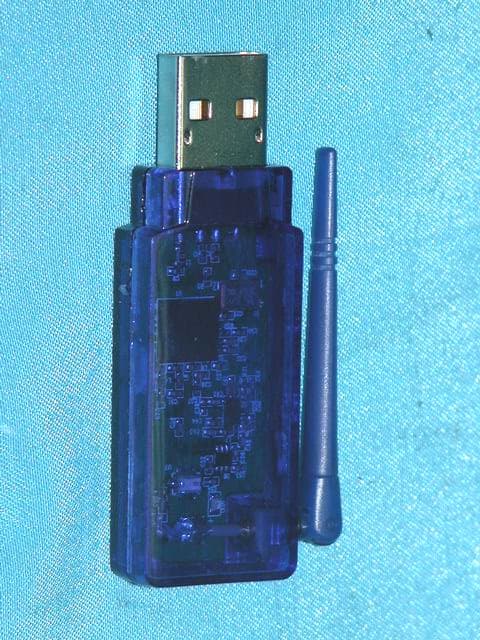
SGE-UBTBR1R
Feb 04, 2005Bluetooth USB Dongle
Equipment Class
DSS - Part 15 Spread Spectrum Transmitter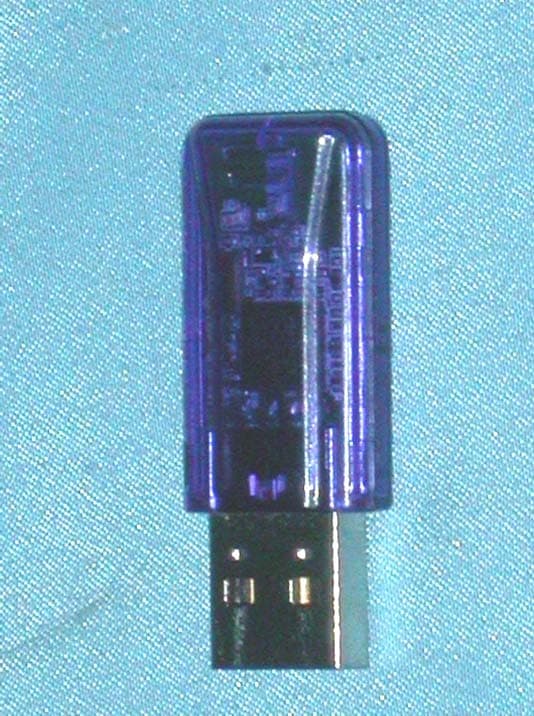
SGE-UBTBR2T
Dec 20, 2004Bluetooth USB Dongle
Equipment Class
DSS - Part 15 Spread Spectrum Transmitter