SGE-UBTBR2TBluetooth USB Dongle
Cadmus Micro, Inc.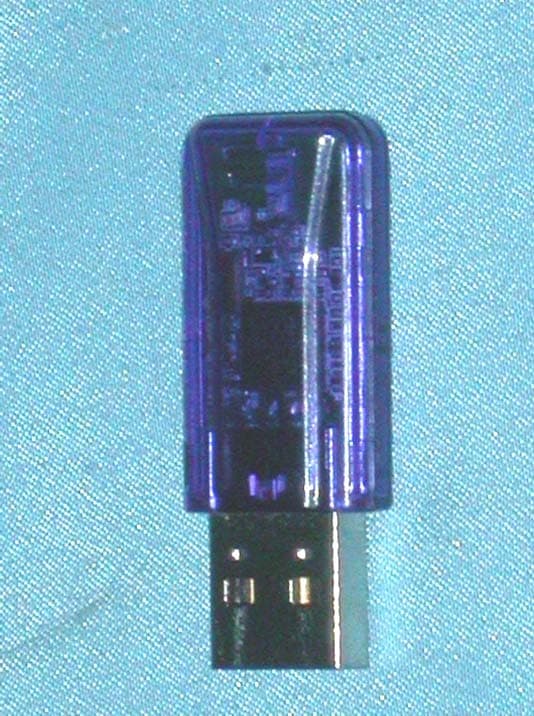
Click to zoom
Application Details
- Equipment Class
- DSS - Part 15 Spread Spectrum Transmitter
- Date of Grant
- Dec 20, 2004
- Application Purpose
- Original Equipment
- Date of Application
- Dec 20, 2004
- Equipment Note
- Bluetooth USB Dongle
- Frequency Range
- 2402.00000000 - 2480.00000000
- Company
- Cadmus Micro, Inc.
- Country
- United States
Documents & Files
Document Text
Text extracted from the exhibit documents filed with the FCC. Open a document above to read the original.
Users Manual
USB Adapter Manual and Application note 3.0 Index INTRODUCTION 1 CHAPTER 1 Package 2 Features 2 Bluetooth profile support 2 Drivers support 3 CHAPTER 2 Setup for Windows 98SE/ME/2000/XP 4 CHAPTER 3 Application note for Windows 98SE/ME/2000/XP 11 Icons used for Bluetooth devices and services 11 Network sharing setting for Windows 13 File transfer setting for Windows 24 Dial-up networking setting for Windows 27 FAX setting 30 PIM Item Transfer setting 31 PIM Synchronization setting 33 Serial Port setting 35 ActiveSync setting 36 Audio Gateway setting for windows 39 Personal area network setting for Windows 41 CHAPTER 4 Advanced features 46 How to setup Hyper Terminal for Bluetooth transfer 46 How to HotSync with Palm Bluetooth SDIO and Tungsten T 52 How to dial-up from Palm Tungsten T to my PC’s modem to surf the internet 55 Sending FAX via mobile phone with WinFAXPro 56 TROUBLESHOOTING Troubleshooting 61 2 Chapter1 Package z One Bluetooth adapter z One driver and software disk z This user manual Features z Bluetooth v1.2 compliant z USB Bluetooth adapter support full speed USB v1.1 Interface. z Wireless communication within a radius of 32 Feet (10 Meters) for Class 2 Bluetooth devices. z Wireless communication within a radius of 328 Feet (100 Meters) for Class 1 Bluetooth devices. z Connect up to 7 different Bluetooth enabled devices z Encryption and authentication to ensure safe, secure communications z Low power consumption Bluetooth profile support Generic Access Profile (GAP) Serial Port Profile (SPP) Service Discovery Application Profile (SDAP) Generic Object Exchange Profile (GOEP) Object Push Profile (OPP) File Transfer Profile (FTP) Dial-up Network Profile (DUN) LAN Access Profile (LAP) 1 3 Fax Profile (FAX) Synchronization Profile Headset Profile Personal Area Network (PAN) Human Interface Device (HID) BIP Basic Image Profile (BBIP) Drivers support Windows 98SE, ME, 2000, XP 4 Chapter 2 Setup for Windows 98SE/ME/2000/XP Installing Bluetooth software for Windows (1) Place installation CD into PC and the setup menu should launch automatically. If the setup menu does not launch automatically, use Windows Explorer to navigate to the appropriate CD-ROM drive and run "bsetup". (2) Select “Install Drivers and Application Software”. 2 5 (3) Please select your device from the menu. 6 (4) Complete the following steps to install Bluetooth software: (a) Exit all applications. (b) InstallShield Wizard setup dialog box will automatically be displayed. (c) Follow the instructions on screen: (d) On the Welcome screen, click the “Next“ button. 7 (e) When the License Agreement screen is displayed, read the License Agreement, then click the radio button to the left of "I accept the terms in the license agreement" and click the “Next“ button. 8 (f) You can choose the destination folder in your system, if you do not want to change the destination folder please click “Next“. On the Destination Folder screen, click the Change button to browse to a new destination folder for the Bluetooth software. Otherwise, click the “Next“ button to accept the default folder. 9 (g) The system is ready to install the Bluetooth software. If you need to review or change any settings, click the "Back" button. Click the "Cancel" button to exit the Wizard. Otherwise, click the "Install" button. (h) For Windows 2000/XP users, system will popup a "Driver Signature Notice", please click the "OK" button. 10 (i) During the installation, system will try to detect your Bluetooth device, please plug in your Bluetooth device when the following message is displayed. Then click "OK" to continue, or you can click "Cancel" to continue the installation without the Bluetooth device. (j) When the installation is completed, please click the "Finish" button. For more information of Bluetooth software Configuration & User’s Guide, please refer to Chapter 3 of this application note. 11 Chapter 3 Application note for Windows 98SE/ME/2000/XP 3.1 Icons used for Bluetooth devices and services Bluetooth icons provide at-a-glance feedback about a device or service's status by changing appearance. The Bluetooth icon in the Windows system tray provides feedback about Bluetooth status. Basic Bluetooth Icon Device Icons for Windows 98SE, Me and 2K Service Icons for Windows 98SE, Me and 2K 3 12 Device Icons for Windows XP Service Icons for Windows XP 13 NOTE: Only available services are displayed in the menus 14 3.2. Network sharing setting for Windows The Network Access service permits a Bluetooth enabled PC (client) to access the Internet via another Bluetooth enabled PC (Server) that already has an Ethernet connection. Windows network sharing setting PC to PC (Windows 2000 or Windows XP) 1. To enable Internet Connection Sharing on the server PC. 2. Click on Start menu Network Connections and find your Local Area Connection (LAN) that is connected to the Internet. 3. Right click the active LAN connection to open the "Properties" dialog box. 15 4. Click on "Advanced" tab and select the "Internet Connection Sharing" checkbox to enable Internet sharing. 16 5. Click on "Settings..." button and select the services you wish to provide other Bluetooth devices. Click "OK" to save the changes. 6. Go back to the “Network Connections" window, right click the "Bluetooth LAN Access Server Driver" and select "Properties". 17 7. Under "General" tab, click on "Internet Protocol (TCP/IP)" and "Properties". 18 8. Under "General" tab, assign a virtual IP as shown in the picture below. Then click "OK" to save the changes. 9. This allows the server PC to act as a DHCP server towards the client PCs. NOTE: For Win98SE and WinMe, please download and install WinRoute (or similar program) on the Server PC to allow DHCP service. 10. On the client PC, launch the Bluetooth software stack by clicking the "My Bluetooth Places" icon located on the desktop. 11. Click the "Search for devices in range" icon to search for other Bluetooth devices nearby. 19 12. After searching is complet…
Text truncated - open the document above for the full version.
Users Manual
34 Synchronize Microsoft Outlook-this item type will be synced with its matching entry in Microsoft Outlook, regardless of the PIM that contains this entry on the remote device. If a matching Outlook entry does not exist, it will be created Synchronize Outlook-Express-this item type will be synced with its matching entry in Express, regardless of the PIM that contains this entry on the remote device. If a matching Express entry does not exist, it will be created Synchronize Lotus Notes-this item type will be synced with its matching entry in Lotus Notes, regardless of the PIM that contains this entry on the remote device. If a matching Notes entry does not exist, it will be created. NOTE: All choices are not available for all items. For example, Notes items can only be synchronized in Microsoft Outlook, therefore Lotus Notes and Outlook Express do not appear as options in the "Notes" item shortcut menu. Personal Information Managers that are not installed on this computer do not appear as options in the shortcut menus. Email attachments. The only option is include or do not include attachments with email that is sent or received on this computer using this service. 35 3.8. Serial port setting The Bluetooth Serial Port service allows two Bluetooth devices to establish a wireless connection through virtual communications ports and then use that connection as if it were a hardwired serial cable between the devices. To establish a Bluetooth serial port connection: Connections are initiated from the client: 1. On the client, in the Folders pane of "My Bluetooth Places", select "Entire Bluetooth Neighborhood". 2. In the right pane of "Entire Bluetooth Neighborhood", right-click anywhere except on a device name and select "Refresh" from the pop-up menu. 3. In the Folders pane of "My Bluetooth Places", right-click the server you want to establish a connection with and select "Discover Available Services" from the popup menu to update the available services list. The available services will be displayed in the right pane of "My Bluetooth Places". 4. In the right pane of "My Bluetooth Places", double-click "Bluetooth Serial Port". A dialog box appears that contains the communications port number assigned to this connection by the client. The application that will use this connection must be configured to send data to this port. Depending on the security configuration, the dialog box that provides communications port information may not appear until after Authentication and Authorization have been accomplished. The application on the server must be configured to use the correct communications port. To determine the communications port being used by the service: * On the server, in the Folders pane of "My Bluetooth Places", right-click "My Device" and select "Properties" from the pop-up menu * In the "Bluetooth Configuration Panel", select the "Local Services" tab. * Double-click the "Bluetooth Serial Port" service to display its "Service Properties" dialog box. The "Service Properties" dialog box shows the communications port the connection is using. To close a Bluetooth serial port connection Connections are normally closed from the client: * On the client, in the Folders pane of "My Bluetooth Places", select (highlight) the device that is providing the "Bluetooth Serial Port" service. * In the right pane of "My Bluetooth Places", right-click "Bluetooth Serial Port" and then select "Disconnect Bluetooth Serial Port" from the pop-up menu. Though not recommended, connections can also be closed from the server: * On the server, in the Folders pane of "My Bluetooth Places", select (highlight) "My Device". * In the right pane of "My Bluetooth Places", right-click "Bluetooth Serial Port" and then select Stop to close the service. The service must be re-started before it will be available to remote devices (right-click Bluetooth Serial Port and select Start from the pop-up menu). 36 3.9. ActiveSync setting ActiveSync setting for Windows 1. Right-click on Bluetooth Configuration icon from the toolbar in the desktop window. Select Setup and then open Configuration window. 2. Select Local Service tab from the Bluetooth Configuration window. In the Service Properties window, please learn by heart the current COM port this computer uses, for example: COM 6, in order to identify this value with the configuration of Microsoft ActiveSync later. 37 3. In the Microsoft ActiveSync window, select Connection Settings... from drop-down list of File menu. 4. Choose the same COM port. (in this case, it is COM 6 that Bluetooth Serial port uses shown in the Step 2.) 38 5. Please refer to the PDA ActiveSync Setting to complete the Bluetooth ActiveSync Configuration Process 39 3.10. Audio Gateway setting for windows The Audio Gateway Application allows a remote Bluetooth device to use this computer's microphone and speakers as the remote device's audio input and output devices. Remember please switch your Audio device to "Bluetooth Audio" from control panel. Open a connection to the Audio Gateway service that is provided by another Bluetooth device using one of these techniques: • Windows system tray, Bluetooth icon • From Bluetooth Explorer • Using the Bluetooth Setup Wizard 40 From Bluetooth Explorer to connection your headset device. Key in headset pair key or PIN code. (Refer to the Headset's user's manual for reference) Close an audio gateway connection: If the connection was established via the Bluetooth icon in the Windows system tray; click the Bluetooth icon, select Quick Connect, Audio Gateway and then select the device that is providing the service (active connections have a checkmark in front of them). Or No matter how the connection was created, In My Bluetooth Places, right-click the service name and select Disconnect.Configure The Bluetooth Configuration Panel > Client Applications > Audio Gateway > General tab provides options to configure: • The application name-- to change it, highlight the existing name a…
Text truncated - open the document above for the full version.
External Photos
Ecom Sertech Corp. Rm. 258, Bldg. 17, NO.195, Sec.4 Chung Hsing Rd., ChuTugn Chen, Hsinchu, Taiwan 310, R.O.C Report No. EC04-12-007FRF Ecom Sertech Corp. Rm. 258, Bldg. 17, NO.195, Sec.4 Chung Hsing Rd., ChuTugn Chen, Hsinchu, Taiwan 310, R.O.C Report No. EC04-12-007FRF
ID Label/Location Info
Product Name Bluetooth USB Dongle Model Number UBTBR2T Brand Name CADMUS MICRO FCC IDSGE-UBTBR2T Product Name Bluetooth USB Dongle Model Number UBTBR2T FCC ID SGE-UBTBR2T This device complies with part 15 of the FCC Rules. Operation is subject to the following two conditions: [1] this device may not cause harmful interference and [2] this device must accept any interference received, including interference that may cause undesired operation. S/N Made in Taiwan Label
Internal Photos
Ecom Sertech Corp. Rm. 258, Bldg. 17, NO.195, Sec.4 Chung Hsing Rd., ChuTugn Chen, Hsinchu, Taiwan 310, R.O.C Report No. EC04-12-007FRF Ecom Sertech Corp. Rm. 258, Bldg. 17, NO.195, Sec.4 Chung Hsing Rd., ChuTugn Chen, Hsinchu, Taiwan 310, R.O.C Report No. EC04-12-007FRF Ecom Sertech Corp. Rm. 258, Bldg. 17, NO.195, Sec.4 Chung Hsing Rd., ChuTugn Chen, Hsinchu, Taiwan 310, R.O.C Report No. EC04-12-007FRF Ecom Sertech Corp. Rm. 258, Bldg. 17, NO.195, Sec.4 Chung Hsing Rd., ChuTugn Chen, Hsinchu, Taiwan 310, R.O.C Report No. EC04-12-007FRF Ecom Sertech Corp. Rm. 258, Bldg. 17, NO.195, Sec.4 Chung Hsing Rd., ChuTugn Chen, Hsinchu, Taiwan 310, R.O.C Report No. EC04-12-007FRF
Operational Description
2 Chapter1 Package z One Bluetooth adapter z One driver and software disk z This user manual Features z Bluetooth v1.2 compliant z USB Bluetooth adapter support full speed USB v1.1 Interface. z Wireless communication within a radius of 32 Feet (10 Meters) for Class 2 Bluetooth devices. z Wireless communication within a radius of 328 Feet (100 Meters) for Class 1 Bluetooth devices. z Connect up to 7 different Bluetooth enabled devices z Encryption and authentication to ensure safe, secure communications z Low power consumption Bluetooth profile support Generic Access Profile (GAP) Serial Port Profile (SPP) Service Discovery Application Profile (SDAP) Generic Object Exchange Profile (GOEP) Object Push Profile (OPP) File Transfer Profile (FTP) Dial-up Network Profile (DUN) LAN Access Profile (LAP) 1 3 Fax Profile (FAX) Synchronization Profile Headset Profile Personal Area Network (PAN) Human Interface Device (HID) BIP Basic Image Profile (BBIP) Drivers support Windows 98SE, ME, 2000, XP
Test Report
Ecom Sertech Corp. Rm. 258, Bldg. 17, NO.195, Sec.4 Chung Hsing Rd., ChuTugn Chen, Hsinchu, Taiwan 310, R.O.C TEL: 886-3-5918012 FAX: 886-3-5825720 FCC ID:SGE-UBTBR2T Report No.:EC04-12-007FRF Page 1 of 50 RF TEST REPORT Product Name : Bluetooth USB Dongle Model Number : UBTBR2T Brand Name : CADMUS MICRO Applicant : CADMUS MICRO, INC. Address : 1840 Carlos Ave. Ontario, CA 91761 Received Date : December 06, 2004 Tested Date : December 06 ~ 14, 2004 Notes : 1. This report will be invalid if duplicated or photocopied in part. 2. This report refers only to the specimen(s) submitted to testing, and be invalid as seperately used. 3. This report is invalid without examination stamp and signature of this institute. 4. The tested specimen(s) will be preserved for thirty days from the data issued. 5. The report must not be used to claim product certification, approval, or endorsement by NVLAP, NIST, or any agency of the federal government. Ecom Sertech Corp. Rm. 258, Bldg. 17, NO.195, Sec.4 Chung Hsing Rd., ChuTugn Chen, Hsinchu, Taiwan 310, R.O.C TEL: 886-3-5918012 FAX: 886-3-5825720 FCC ID:SGE-UBTBR2T Report No.:EC04-12-007FRF Page 2 of 50 Test Report Certification Product Name : Bluetooth USB Dongle Model Number : UBTBR2T Brand Name : CADMUS MICRO Applicant : CADMUS MICRO, INC. Measurement Standard : FCC 47 C.F.R. Part 15, Subpart B and Subpart C (2004) ANSI C63.4 (2003) WE HEREBY CERTIFY THAT: The measurements shown in the attachment were made in accordance with the procedures indicated, and the energy emitted by the equipment was found to be within the limits applicable. We assume full responsibility for the accuracy and completeness of these measurements and vouch for the qualifications of all persons taking them. Ecom Sertech Corp. Rm. 258, Bldg. 17, NO.195, Sec.4 Chung Hsing Rd., ChuTugn Chen, Hsinchu, Taiwan 310, R.O.C TEL: 886-3-5918012 FAX: 886-3-5825720 FCC ID:SGE-UBTBR2T Report No.:EC04-12-007FRF Page 3 of 50 TABLE OF CONTENTS TITLE PAGE NO. 1. GENERAL INFORMATION ................................................................................................... 5 1.1 General Statement ...............................................................................................................................5 1.2 General Description of EUT & Power ................................................................................................5 1.3 Description of Peripherals...................................................................................................................7 1.4 EUT & Peripherals Setup Diagram.....................................................................................................7 1.5 EUT Operating Condition ...................................................................................................................7 1.6 Description of Test Site.......................................................................................................................8 1.7 Summary of Test Results ....................................................................................................................9 2. CONDUCTED POWERLINE TEST....................................................................................... 10 2.1 Test Equipments..................................................................................................................................10 2.2 Test Setup............................................................................................................................................10 2.3 Conducted Power Line Emission Limit ..............................................................................................11 2.4 Test Procedure.....................................................................................................................................11 2.5 Uncertainty of Conducted Emission ...................................................................................................11 2.6 Conducted RF Voltage Measurement .................................................................................................12-13 2.7 Photos of Conduction Test ..................................................................................................................14 3. 20dB BANDWIDTH FOR HOPPING ..................................................................................... 15 3.1 Test Equipments..................................................................................................................................15 3.2 Test Setup............................................................................................................................................15 3.3 Limits of 20db Bandwidth Measurement............................................................................................15 3.4 Test Procedure.....................................................................................................................................15 3.5 Uncertainty of Conducted Emission ...................................................................................................16 3.6 Test Results .........................................................................................................................................16 3.7 Photo of 20db Bandwidth Measurement .............................................................................................17 4. MAXIMUM PEAK OUTPUT POWER .................................................................................. 18 4.1 Test Equipments..................................................................................................................................18 4.2 Test Setup............................................................................................................................................18 4.3 Limits of Maximum Peak Output Power ............................................................................................18 4.4 Test Procedure..........…
Text truncated - open the document above for the full version.
Test Setup Photos
Ecom Sertech Corp. Rm. 258, Bldg. 17, NO.195, Sec.4 Chung Hsing Rd., ChuTugn Chen, Hsinchu, Taiwan 310, R.O.C TEL: 886-3-5918012 FAX: 886-3-5825720 FCC IDSGE-UBTBR2T Report No.EC04-12-007FRF Page 1 of 3 2.7 Photos of Conduction Test Ecom Sertech Corp. Rm. 258, Bldg. 17, NO.195, Sec.4 Chung Hsing Rd., ChuTugn Chen, Hsinchu, Taiwan 310, R.O.C TEL: 886-3-5918012 FAX: 886-3-5825720 FCC IDSGE-UBTBR2T Report No.EC04-12-007FRF Page 2 of 3 9.7 Photos of Open Site Ecom Sertech Corp. Rm. 258, Bldg. 17, NO.195, Sec.4 Chung Hsing Rd., ChuTugn Chen, Hsinchu, Taiwan 310, R.O.C TEL: 886-3-5918012 FAX: 886-3-5825720 FCC IDSGE-UBTBR2T Report No.EC04-12-007FRF Page 3 of 3
Contact Information
Applicant
Derek Ma(President)
Test Firm
Compliance Certification Services Inc.Paul Liau
Technical Specifications
| # | Rule Parts | Frequency Range | Power Output |
|---|---|---|---|
| 1 | 15C | 2.40 GHz - 2.48 GHz | 1.70 mW |
Other Applications from Cadmus Micro, Inc.
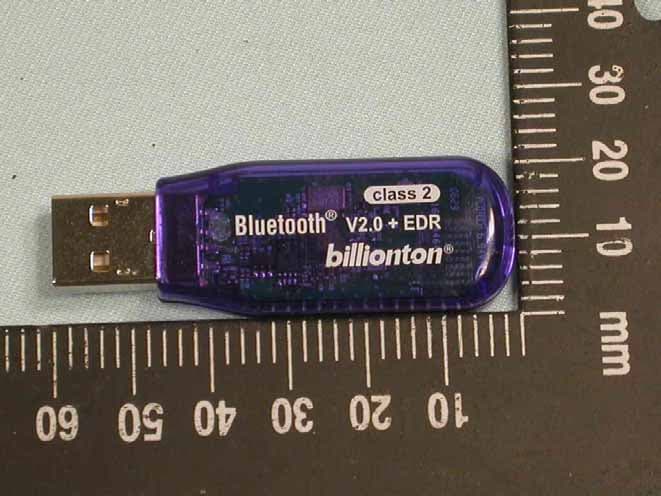
SGE-GUBTBR42
Aug 06, 2006Bluetooth USB Dongle
Equipment Class
DSS - Part 15 Spread Spectrum Transmitter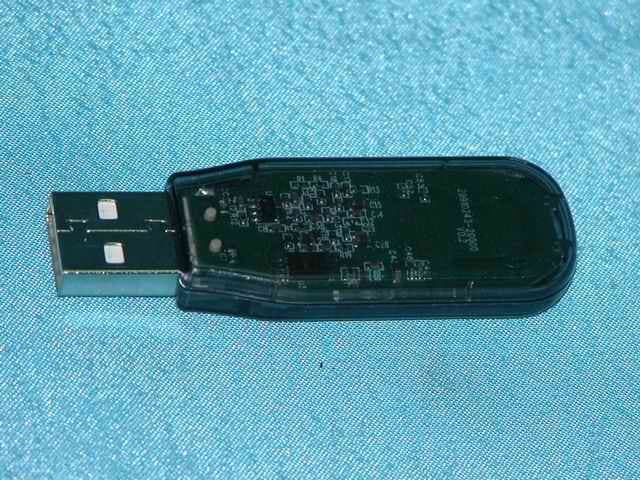
SGE-UBTBR1E
Apr 27, 2005Bluetooth USB Dongle
Equipment Class
DSS - Part 15 Spread Spectrum Transmitter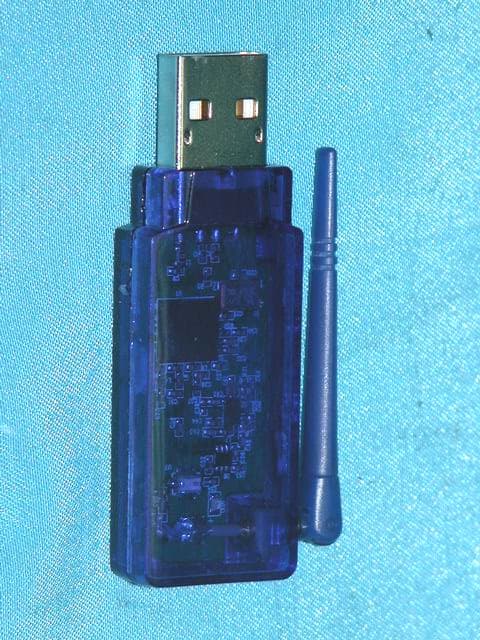
SGE-UBTBR1R
Feb 04, 2005Bluetooth USB Dongle
Equipment Class
DSS - Part 15 Spread Spectrum Transmitter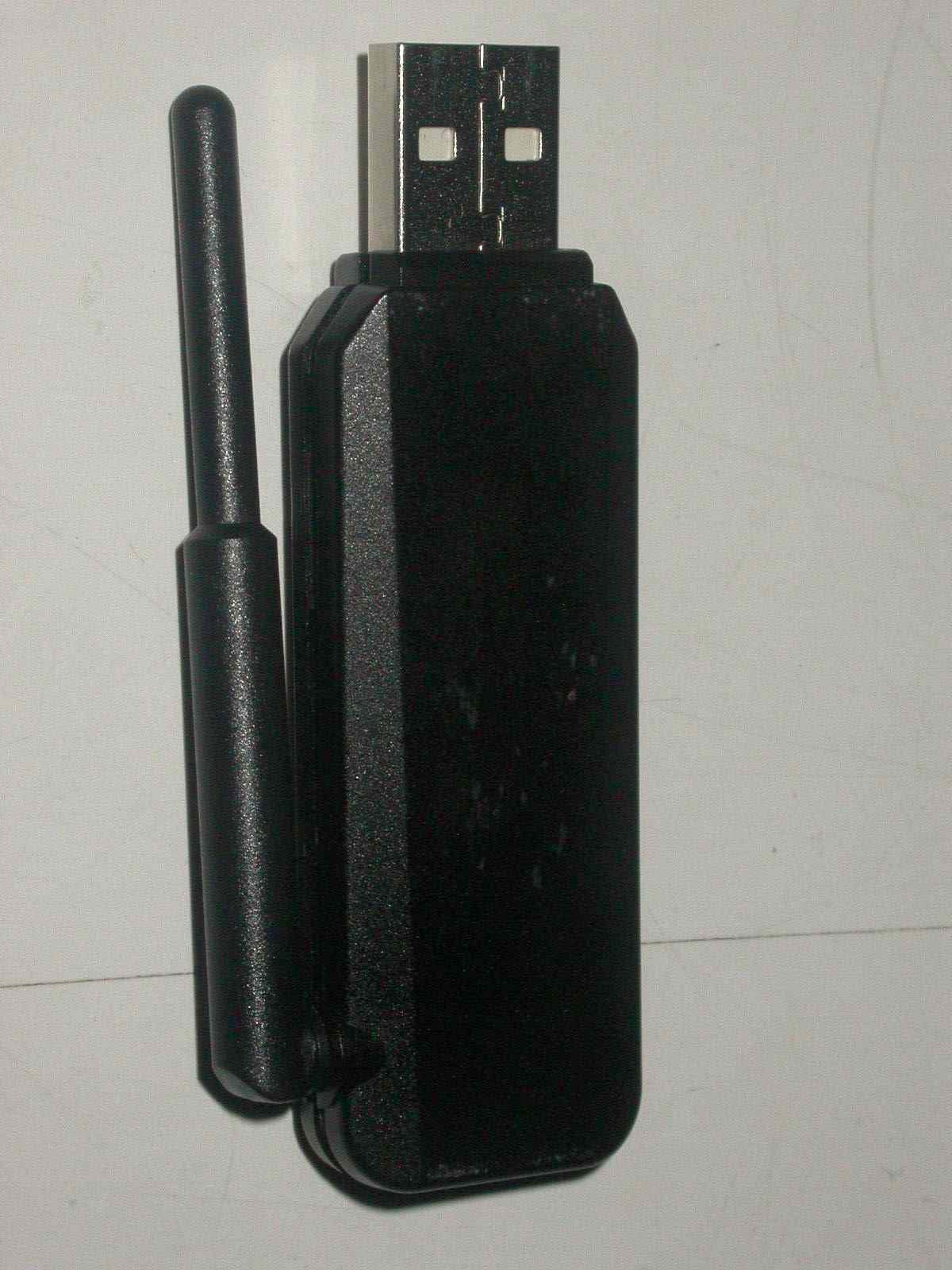
SGE-UBTB1
Dec 19, 2004Bluetooth USB Dongle
Equipment Class
DSS - Part 15 Spread Spectrum Transmitter