SN8N652Wireless DSL Modem
Sagemcom SAS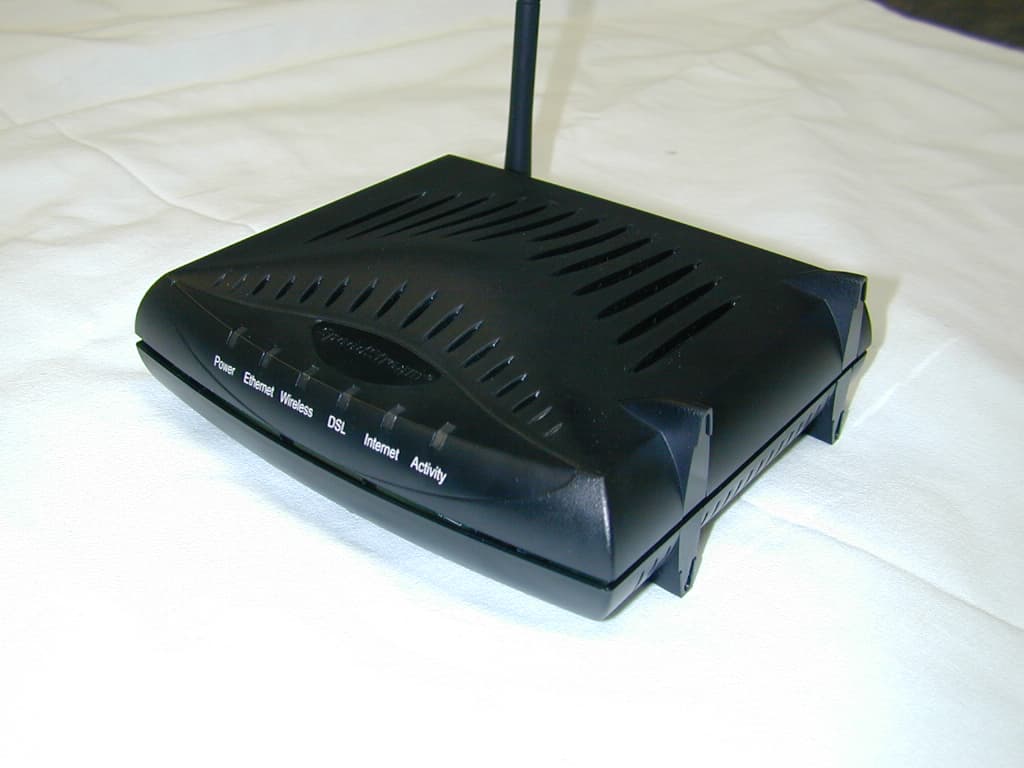
Click to zoom
Application Details
- Equipment Class
- DTS - Digital Transmission System
- Date of Grant
- Aug 24, 2005
- Application Purpose
- Original Equipment
- Date of Application
- Aug 24, 2005
- Equipment Note
- Wireless DSL Modem
- Frequency Range
- 2412.00000000 - 2462.00000000
- Company
- Sagemcom SAS
- Country
- France
Documents & Files
Document Text
Text extracted from the exhibit documents filed with the FCC. Open a document above to read the original.
Users Manual
Safety and Certifications 007-0650-001 1 Important Information about the SpeedStream 6520, SpeedStream 6515: Installation and Safe Usage Instructions: 1. Place the SpeedStream ADSL gateway in an upright horizontal orientation on a flat surface. 2. Connect the manufacturer supplied AC to DC power adapter. The SpeedStream 6xxx series gateways require the use of a 12 VDC, 1 A power adapter. Only use a manufacturer supplied and approved power adapter. 3. Connect the Ethernet cable (provided) to the RJ45 port on the SpeedStream ADSL Gateway labeled "Ethernet". Then connect the other end of the Ethernet Cable then to the Ethernet port of a computer. Repeat as necessary for the available Ethernet ports. 4. If a USB port is available, connect the “B” end of the provided USB cable to the port on the SpeedStream ADSL Gateway labeled "USB". Then connect the “A” end of the USB Cable to the USB host port of a computer. 5. Connect the provided DSL Cable to the port on the SpeedStream ADSL Gateway labeled "DSL". Connect the other end of the DSL Cable to a standard Phone Jack. Always use a DSL cable with a minimum wire gauge of 26AWG. 6. If using a USB port, use the SpeedStream CD to configure the computer’s USB connection. When using this device, basic sa fety precautions should always be followed to reduce the risk of fire, electric shock, and inju ry to persons including the following: 1. Do not use this product near water and avoid contact with moisture. For example, do not use near a bathtub, wash bowl, kitchen sink , laundry tub, in a wet basement, or near a swimming pool. Care should be taken so that liquids are not spilled on this equipment. 2. Never insert objects into the vents of this equipment as this can result in the risk of electrical shock or fire. 3. This equipment should only be operated from the type of power supply indicated on the marking label. 4. Do not overload wall outlets or extension cords. Doing so can result in the risk of fire or electrical shock. 5. Avoid blocking any vent openings or exhaus t exits on this equipment. Do not place equipment in a built-in installation such as a cabinet that may impede the flow of air through the ventilation openings. 6. The equipment should be situated away from heat sources such as radiators, heat registers, stoves, or other heat producing appliances and equipment. 7. Care should be taken to ensure that the power cord is routed, so it is not likely to be walked on or pinched by items placed upon or next to it. 8. Unplug this equipment before cleaning. Do not use liquid cleaners or aerosol cleaners. Use a damp cloth for cleaning only. 9. This equipment is not user serviceable and is to be serviced by qualified personnel only. Do not disassemble this equipment. If servic e is required, disconnect all power and phones lines from the equipment and co nsult qualified service personnel. Save these Instructions! Federal Communications Commission (FCC) Statements This device complies with Part 15 of the FCC Rules. Operation is subject to the following two conditions: (1) This device may not cause harmful interference, and (2) This device must accept any interference received, including interference that may cause undesired operation. Safety and Certifications 007-0650-001 2 Modifications: You are cautioned that changes or modifica tions not expressly approved by the party responsible for compliance could void your authority to operate the equipment. FCC Responsible Party: Siemens Subscriber Networks, Inc. 4849 Alpha Road Dallas, TX 75244 Phone: 972-852-1000 Radio Frequency Interference Statement Note: This equipment has been tested and found to comply with the limits for a Class B digital device, pursuant to Part 15 of the F CC Rules. These limits are designed to provide reasonable protection against harmf ul interference in a residential installation. This equipment generates, uses and can radiate radio frequency energy and, if not installed and used in accordance with the instructions, may cause harmful interference to radio communications. However, ther e is no guarantee that interference will not occur in a particular installation. If this equipment does cause harmful interference to radio or television reception, which can be determined by turning the equipment off and on, the user is encouraged to try to correct the interference by one or more of the following measures: 1. Reorient or relocate the receiving antenna. 2. Increase the separation between the equipment and receiver. 3. Connect the equipment into an outlet on a circui t different from that to which the receiver is connected. 4. Consult the dealer or an experi enced radio/TV technician for help. FCC Terminal Equipment Statements This equipment complies with Part 68 of the FCC rules and the requirements adopted by the ACTA. On the bottom side of this equi pment is a label that contains, among other information, a product identifier in the format US:AAAEQ##TXXXX. If requested, this number must be provided to the Telephone Company . A copy of the Suppliers Declaration of Conformity to the FCC Part 68 and ACTA requirements can be found at: http://www.part68.org. This equipment has a Universal Service Order Code (USOC) of RJ11C, a Facility Interface Code (FIC) of 02LS2, and a Service Order Code (SOC) of 7.0Y. The Telephone Company may request this information when ordering service for this equipment. A plug and jack used to connect this equipmen t to the premises wiring and telephone network must comply with the applicable FCC Part 68 rules and requirements adopted by the ACTA. A compliant telephone cord and modular plug is provided with this product. It is designed to be connected to a compatible modular jack that is also compliant. If this equipment causes harm to the telephone network, the telephone company will notify you in advance that temporary discontinuance of service may be required. But if advance notice isn't practical, the Telephone Company w ill notify the customer as soon…
Text truncated - open the document above for the full version.
Users Manual
SpeedStream ® 6500 Residential Gateway Quick-Start Guide Part # 007-6510-001 2 3 Before you begin, Verify that the following items came with your DSL kit: 1 SpeedStream ® Device 2 Documentation 3 Software Manual CD-ROM 4 Power Supply 5 RJ-45 Straight-through Ethernet Cable 6 RJ-11 DSL Cable 1 2 3 Your service provider may include a wall-mount filter, line filter(s), and an Ethernet adapter in your DSL kit. If you received any of these items, follow the instructions provided in this guide for basic installation. If you need further assistance installing these items, please contact your service provider. A PCI Ethernet adapter B Line filter(s) C Wall-mount filter A B C 4 5 6 Step 1 > Install Line Filters Stand-alone Line Filter Wall-mount Filter Devices such as fax machines, caller ID boxes, or phones that share the same phone line as your DSL account require a line filter, which prevents noise from disrupting the DSL signal on the phone line. Filters can be in the form of a stand-alone line filter or a wall-mount filter. Stand-alone Line Filter For each device that shares the DSL phone line: 1. Unplug the device’s cord from the phone jack. 2. Plug the filter into the phone jack. 3. Plug the phone cord (or other device cord) into the filter. Wall-mount Filter For a wall-mount phone, install a wall-mount filter. 1. Remove the phone. 2. Connect the wall-mount filter to the wall plate. 3. Reconnect the phone. 1 2 3 1 2 3 45 Step 2 > Ethernet Installation Connect the SpeedStream® Gateway 1. Connect the straight- through Ethernet cable (RJ-45) to the Ethernet port on the gateway (yellow port). 2. Connect the other end of the straight-through Ethernet cable (RJ-45) to the Ethernet port on your computer. 3. Plug the DSL cable (RJ-11) into the DSL port on the gateway (gray port). 4. Plug the other end of the DSL cable (RJ-11) into the phone jack. 5. Plug the power adapter into the power outlet and gateway (black port). 6. Ensure gateway is powered on (power switch located on right side of back panel). Install Ethernet Adapter You will need to install an Ethernet adapter if your computer does not already have one installed. Refer to your Ethernet adapter manufacturer’s documentation for complete installation instructions. Internet Connection Ethernet Connection to computer RJ-45 Straight-through Ethernet cable Optional: Use Crossover (Xover) cable when connecting to a hub or switch without an “uplink” port Power Supply Hub RJ-11 DSL cable 1 2 3 4 6 5 Step 3 > Configure the Gateway If your PC has not been connected to a broadband modem or other network device, you will need to perform the PC configuration procedure below. Remember to restart each PC when finished. If your PC has been connected to a broadband modem or other network device, continue to the “Using the Wireless Connection” section below. 1. Start your Web browser. In the Address box, enter the following: http://speedstream. 2. Press Enter. The SpeedStream Simple Setup Wizard will launch. 3. When prompted, enter the Internet connection information provided by your Internet Service Provider. 4. At the end of the Setup Wizard, you will be given the option to either connect to the Internet or further configure the optional settings of the gateway. 5. If additional configuration is desired, select the icon for the service or option you wish to configure: the gateway’s firewall and security settings, User Profiles and content filtering, or home network options. For non-standard configurations or troubleshooting procedures, consult the User Guide on CD-ROM. Using the Wireless Connection By default, the SpeedStream ® Gateway is configured to work seamlessly with other SpeedStream ® wireless products. The default wireless interface settings are: SSID: SpeedStream Channel: 11 Mismatched wireless settings will prevent successful wireless network connections between devices, so you may need to reconfigure some wireless settings to ensure that all settings match between wireless devices if you are: a) Using another manufacturer’s wireless products b) Adding the SpeedStream ® Gateway to an existing wireless network The Setup Wizard will walk you through setting up wireless settings. Wireless Security By default, wireless security is disabled for ease of installation. However, it is recommended you enable wireless security on all wireless devices during installation. You can specify WEP 64-bits, WEP 128-bits, or WPA PSK encryption methods. The Setup Wizard will walk you through setting up wireless security. For more details on setting up wireless connections and security, consult the User Guide on CD-ROM. 7 Macintosh Configuration Procedures Follow the procedures below for OS10: 1. Click System Preferences in the dock. 2. Select Network under the Internet & Network section. 3. Select the correct Ethernet adapter (en0, en1, ...) from the menu. 4. Select Using DHCP from the Configure IPv4 drop-down box. 5. Click Apply Now and quit screen. Follow the procedures below for OS9: 1. Click Apple -> Control Panels -> TCP/IP. 2. Select Ethernet from Connect via drop-down box. 3. Select Using DHCP Server from Configure drop-down box. 4. Close window and save changes. Macintosh Configuration In order to setup the SpeedStream ® Modem, your computer must first be configured to obtain an IP address from a DHCP server. Congratulations! You have completed the installation of your SpeedStream ® device. 6 PC Configuration In order to setup the SpeedStream ® DSL Gateway, your PC must first be configured to obtain an IP address from a DHCP server. Follow the procedure below: Note: The following procedures cover configuration of a PC running Windows ® 2000 or XP. Please refer to the User Guide on the CD-ROM for help configuring other operating systems. 1. Click on Start button. 2. Click on Control Panel. 3. Click on Network and Internet Connections. 4. Click on Network Connections. 5. Double-click on your Network Card. 6. Click on your Network Card Properties. 7. Select …
Text truncated - open the document above for the full version.
Users Manual
SpeedStream® Residential Family User’s Guide 6500 Series Part No. 007-6770-001 Residential Gateway Family User’s Guide © Copyright 2004, Siemens Subscriber Network. All rights reserved. Printed in the U.S.A. Product names mentioned herein may be trademarks and/or registered trademarks of their respective companies. Siemens Subscriber Networks shall not be liable for technical or editorial errors or omissions in this document; nor for incidental or consequential damages resulting from the furnishing, performance, or use of this material. Siemens Subscriber Networks – End User Software License and Limited Warranty INSTALLATION OF THE HARDWARE AND SOFTWARE PROVIDED BY SIEMENS SUBSCRIBER NETWORKS (SIEMENS) CONSTITUTES ACCEPTANCE BY YOU OF THE TERMS OF THE FOLLOWING SOFTWARE LICENSE AND LIMITED WARRANTY. IF YOU DO NOT ACCEPT THESE TERMS, PLEASE RETURN THE HARDWARE AND SOFTWARE IN ITS ORIGINAL PACKAGING TO THE STORE OR OTHER VENDOR FROM WHICH YOU PURCHASED IT FOR A FULL REFUND OF THE PURCHASE PRICE. The following describes your license to use the software (the “Software”) that has been provided with your SIEMENS DSL customer premises equipment (“Hardware”) and the limited warranty that SIEMENS provides on its Software and Hardware. Software License The Software is protected by copyright laws and international copyright treaties. The Software is licensed and not sold to you. Accordingly, while you own the media (CD ROM or floppy disk) on which the Software is recorded, SIEMENS retains ownership of the Software itself. 1. Grant of License. You may install and use one (and only one) copy of the Software on the computer on which the Hardware is being installed. If the Hardware is being installed on a network, you may install the Software on the network server or other server-side device on which the Hardware is being installed and onto the client-side devices connected to the network as necessary. 2. Restrictions. The license granted is a limited license. You may NOT: sublicense, assign, or distribute copies of the Software to others; decompile, reverse engineer, disassemble or otherwise reduce the Software or any part thereof to a human perceivable form; modify, adapt, translate or create derivative works based upon the Software or any part thereof; or rent, lease, loan or otherwise operate for profit the Software. 3. Transfer. You may transfer the Software only where you are also transferring the Hardware. In such cases, you must remove all copies of the Software from any devices onto which you have installed it, and must ensure that the party to whom you transfer the Hardware receives this License Agreement and Limited Warranty. 4. Upgrades Covered. This license covers the Software originally provided to you with the Hardware, and any additional software that you may receive from SIEMENS, whether delivered via tangible media (CD ROM or floppy disk), down loaded from SIEMENS or delivered through customer support. Any such additional software shall be considered “Software” for all purposes under this License. 5. Export Law Assurance. You acknowledge that the Software may be subject to export control laws and regulations of the U.S.A. You confirm that you will not export or re-export the Software to any countries that are subject to export restrictions. 6. No Other Rights Granted. Other than the limited license expressly granted herein, no license, whether express or implied, by estoppel or otherwise, is granted to any copyright, patent, trademark, trade secret, or other proprietary rights of SIEMENS. 7. Termination. Without limiting SIEMENS’s other rights, SIEMENS may terminate this license if you fail to comply with any of these provisions. Upon termination, you must destroy the Software and all copies thereof. Limited Warranty The following limited warranties provided by SIEMENS extend to the original end user of the Hardware/licensee of the Software and are not assignable or transferable to any subsequent purchaser/licensee. 1. Hardware. SIEMENS warrants that the Hardware will be free from defects in materials and workmanship and will perform substantially in compliance with the user documentation relating to the Hardware for a period of one year from the date the original end user received the Hardware. 2. Software. SIEMENS warrants that the Software will perform substantially in compliance with the end user documentation provided with the Hardware and Software for a period of ninety days from the date the original end user received the Hardware and Software. The end user is responsible for the selection of hardware and software used in the end user’s systems. Given the wide range of third-party hardware and applications, SIEMENS does not warrant the compatibility or uninterrupted or error free operation of our Software with the end user’s system. 3. Exclusive Remedy. Your exclusive remedy and SIEMENS’s exclusive obligation for breach of this limited warranty is, in SIEMENS’s sole option, either (a) a refund of the purchase price paid for the Hardware/Software or (b) repair or replacement of the Hardware/Software with new or remanufactured products. Any replacement Hardware or Software will be warranted for the remainder of the original warranty period or thirty (30) days, which ever is longer. 4. Warranty Procedures. If a problem develops during the limited warranty period, the end user shall follow the procedure outlined below: A. Prior to returning a product under this warranty, the end user must first call SIEMENS at (888) 286-9375, or send an email to SIEMENS at [email protected] to obtain a return materials authorization (RMA) number. RMAs are issued between 8:00 a.m. and 5:00 p.m. Central Time, excluding weekends and holidays. The end user must provide the serial number(s) of the products in order to obtain an RMA. B. After receiving an RMA, the end user shall ship the product, including power supplies and cable, where applicable, freight or postage prepaid and insured, to SIEMENS …
Text truncated - open the document above for the full version.
Users Manual
Residential Gateway Family User’s Guide Configuring Advanced Features Server Ports Common applications such as HTTP (Web site traffic), FTP, and Telnet use pre-defined incoming port numbers for compatibility with other services. If you wish to change the ports used by these applications you may do so using this option. This feature is recommended for use by advanced users only. To configure the server port option: 1. Click the Configure the Local SpeedStream Gateway Server Ports hyperlink. This displays the “SpeedStream Gateway Server Ports” window. 2. Optionally, type a port number in HTTP. The default port for this field is 80. 3. Optionally, type a port number in FTP. The default port for this field is 21. 4. Optionally, type a port number in Telnet. The default port for this field is 23. 5. Click Apply. This displays the “Your settings have been saved” window. 6. Optionally, click Reboot if you wish for the settings to immediately be implemented. The system responds by restarting your Gateway. 46 Residential Gateway Family User’s Guide Configuring Advanced Features LAN/WAN Port If your Gateway contains four Ethernet ports, Ethernet port #4 can be used as either a LAN (network) port or as a WAN (Internet connection) port. Select the appropriate option to define whether the port is used as a fourth local network port or as a connection for another broadband device. Note: For configuration of the port as a WAN port, you may be required to consult your Internet Service Provider for the appropriate settings. To configure the LAN/WAN port: 1. Click the Configure the Local SpeedStream Gateway LAN/WAN Port hyperlink. This displays the “SpeedStream Gateway LAN/WAN Port” window. 2. Select one of the following options: • LAN (Local Area Network) Use the port as a connection to the network located in your home or premises. • WAN (Wide Area Network) Use the port as a connection to a large connected network such as the Internet that is spread over a large geographic area. If you select the WAN option, please contact your ISP for instructions on how to configure this option. 3. Click Apply. 47 Residential Gateway Family User’s Guide Configuring Advanced Features Wireless Network Configure the wireless network using this option. The wireless settings on the Gateway must match those of any wireless clients on your network. To configure the wireless network: 1. Click the Configure the Local SpeedStream Gateway Wireless Network hyperlink. This displays the “Wireless Summary” window. 2. Click Begin Wireless Wizard. This displays the “Wireless Setup Configuration” window. 3. Select Enable to enable the Wireless Interface. 4. Type your wireless network ID in SSID (Service Set Identifier). 5. Optionally, select a channel ID from the Channel drop-down menu. This is typically done if you experience any interference with your wireless Gateway. 6. Click Next. This displays the “Wireless Security Configuration” window. 48 Residential Gateway Family User’s Guide Configuring Advanced Features Set the wireless security level from the “Wireless Security Configuration” window. All wireless devices attached to the Gateway MUST have the same wireless security settings for your network to have proper communications and security. 7. From the Security Mode drop-down menu, select one of the following options: • WEP 64-bits Wireless Equivalency Privacy. WEP security offers the same security offered by a wired LAN with encrypted packets. This option offers 64-bit encryption, which is the least secure WEP option. Please see the section in this document titled Wireless Setup WEP 64-Bit Option (Advanced Home Networking) for more information. • WEP 128-bits Wireless Equivalency Privacy. WEP security offers the same security offered by a wired LAN with encrypted packets. This option offers 128-bit encryption, which is a most secure WEP option. Please see the section in this document titled Wireless Setup WEP 128-Bit Option (Advanced Home Networking) for more information. • WPA PSK Wi-Fi Protected Access. WPA security changes encryption keys after a specified amount of time. This is the most secure option for wireless networks. Please see the section in this document titled Wireless Setup WPA PSK Option (Advanced Home Networking) for more information. 8. Optionally, select the Enable SSID Broadcast option so wireless users can see the existence of the wireless Gateway with the associated SSID. 49 Residential Gateway Family User’s Guide Configuring Advanced Features Wireless Setup WEP 64-Bit Option (Advanced Home Network) WEP security offers the same security offered by a wired LAN with encrypted packets. This section assumes you currently have the “Wireless Security Configuration” window displayed on your computer. To use the WEP 64-bit option: 1. From the “ Wireless Security Configuration” window, select WEP 64-bits from the Security Mode drop-down menu. 2. Click Next. This displays the “Wireless 64-bit WEP Configuration” window. 3. Select one of the following Authentication options: • Open System Open system keys are always authenticated at the device level. After authentication, data is encrypted between the Gateway and the connected device. This is the weakest form of security and should not be used for sensitive data. • Shared Key Shared keys accept a string of unencrypted data from a device. The Gateway encrypts with a WEP key and sends back the encrypted data to the attached device. 4. Type a phrase in Passphrase. The passphrase is used to generate the 64-bit keys. The passphrase can be between 1 and 32 characters. 5. Click Generate Keys. The system responds by generating keys that display in the boxes under Passphrase. Four different keys are generated. 6. Select one of the four keys to use for encryption. 7. Click Next. This displays the “ Wireless Filter Configuration” window. 50 Residential Gateway Family User’s Guide Configuring Advanced Features Wireless Setup WEP 128-Bit Option (Advanced Home Network) WEP security o…
Text truncated - open the document above for the full version.
Cover Letter(s)
13 January, 2005 Equipment Autorisation Division Federal Communications Commission 7435 Oakland Mills Road Columbia, MD 21046 FCC ID: SN8N652 Product Name: SpeedStream 6520 and SpeedStream 6515 Request for Confidentiality Pursuant to Sections 0.457 and 0.459 of the commissions rules, we hereby request that the following documents be held confidential: • Schematics • Block diagram • Parts List These materials contain trade secrets and proprietary information and are not customarily released to the public. The public disclosure of this information might be harmful to the company and provide unjustified benefits to our competitors. Dated this 13 th Day of January 20 05 By: Tom Tidwell Signature Printed Title: Frontline Manager On behalf of : Siemens Subscriber Networks Telephone: 972-759-2542
ID Label/Location Info
1345678 B A C D Siemens Subscriber Networks, INC. CONFIDENTIAL AND PROPRIETARY INFORMATION -- INTERNAL DATA All information set forth in this drawing and all rights in and to all patents, trademarks, copyrights, trade secrets and any and all intellectual property disclosed herein are the sole and executive property of Siemens Subscriber Networks, Inc. No disclosure of this drawing and/or the information contained herein shall be made to any other person, entity or organization without the express prior written consent of Siemens Subscriber Networks, Inc. REVDESCRIPTIONDATE REVISION HISTORY UNLESS OTHERWISE SPECIFIED APPROVALS SCALE: NONE PART NO. ¥ DIMS ARE IN INCHES ¥ TOLERANCES: - ANGLES +/- 1 DEGREE - 2-PLACE DECIMALS +/- .02 - 3-PLACE DECIMALS +/- .010 ¥ PARENTHETICAL INFORMATION FOR REFERENCE ONLY B SIZE B A C D 21345678 SpeedStream® 6515 Wireless ADSL Gateway Part Number: 060-N552-A01 2.0 08/23/05 ECO204xxx INITIAL RELEASE DRAWN BY: DINESH CHAUHAN ENGR: DINESH CHAUHAN MFG: SAFETY: CM: DATE: 08/23/05 DATE: 08/23/05 DATE: DATE: DATE: SHEET 1 1OF 763-0074-0XX LABEL, CHASSIS, AGENCY APPROVAL, N552-A01 REV 2.0 763-0074-0XX NOTES: 1. LABEL MATERIAL SHALL BE THERMLfilm SELECT 21940, 2 MIL WHITE POLYESTER WITH 1 MIL CLEAR THERMAL TRANSFER POLYESTER LAMINATE OR UL APPROVED EQUIVALENT. 2. ADHESIVE SHALL BE PERMANENT PSA OR APPROVED EQUIVALENT. 3. PRINTING SHALL BE BLACK, USING RESIN RIBBON OR RIBBON REQUIRED FOR MATERIAL SPECIFIED. 4. TO ENSURE PROPER AND QUALITY PRINTING, THE LABEL SURFACE SHALL BE CLEAN AND FREE OF RESIDUE. RATING:12VDC, 1.0 A C - + 5. ALL AGENCY CERTIFICATION GRAPHICS AND TEXT SHALL APPEAR AS DEFINED PER DRAWING BELOW. Mfg. In CCCCCCC LABEL EDGE DO NOT PRINT TEXT FONT STYLE SHALL BE ARIAL WITH A TEXT SIZE OF 6 PT UNLESS SPECIFIED OTHERWISE. 6. 3.00 1.00 207647 Assembled In CCCCCCC TEXT FONT ARIAL, BOLD ITALIC, 7 PT TEXT FONT ARIAL, BOLD ITALIC, 10 PT FCC ID: SN8N652 US: SSNDLNANN652 0470 IC: 267AJ-N652
ID Label/Location Info
1345678 B A C D Siemens Subscriber Networks, INC. CONFIDENTIAL AND PROPRIETARY INFORMATION -- INTERNAL DATA All information set forth in this drawing and all rights in and to all patents, trademarks, copyrights, trade secrets and any and all intellectual property disclosed herein are the sole and executive property of Siemens Subscriber Networks, Inc. No disclosure of this drawing and/or the information contained herein shall be made to any other person, entity or organization without the express prior written consent of Siemens Subscriber Networks, Inc. REVDESCRIPTIONDATE REVISION HISTORY UNLESS OTHERWISE SPECIFIED APPROVALS SCALE: NONE PART NO. ¥ DIMS ARE IN INCHES ¥ TOLERANCES: - ANGLES +/- 1 DEGREE - 2-PLACE DECIMALS +/- .02 - 3-PLACE DECIMALS +/- .010 ¥ PARENTHETICAL INFORMATION FOR REFERENCE ONLY B SIZE B A C D 21345678 SpeedStream® 6520 Wireless ADSL Gateway Part Number: 060-N652-A01 2.0 08/23/05 ECO204xxx INITIAL RELEASE DRAWN BY: DINESH CHAUHAN ENGR: DINESH CHAUHAN MFG: SAFETY: CM: DATE: 08/23/05 DATE: 08/23/05 DATE: DATE: DATE: SHEET 1 1OF 763-0074-0XX LABEL, CHASSIS, AGENCY APPROVAL, N652-A01 REV 2.0 763-0074-0XX NOTES: 1. LABEL MATERIAL SHALL BE THERMLfilm SELECT 21940, 2 MIL WHITE POLYESTER WITH 1 MIL CLEAR THERMAL TRANSFER POLYESTER LAMINATE OR UL APPROVED EQUIVALENT. 2. ADHESIVE SHALL BE PERMANENT PSA OR APPROVED EQUIVALENT. 3. PRINTING SHALL BE BLACK, USING RESIN RIBBON OR RIBBON REQUIRED FOR MATERIAL SPECIFIED. 4. TO ENSURE PROPER AND QUALITY PRINTING, THE LABEL SURFACE SHALL BE CLEAN AND FREE OF RESIDUE. RATING:12VDC, 1.0 A C - + 5. ALL AGENCY CERTIFICATION GRAPHICS AND TEXT SHALL APPEAR AS DEFINED PER DRAWING BELOW. Mfg. In CCCCCCC LABEL EDGE DO NOT PRINT TEXT FONT STYLE SHALL BE ARIAL WITH A TEXT SIZE OF 6 PT UNLESS SPECIFIED OTHERWISE. 6. 3.00 1.00 207647 Assembled In CCCCCCC TEXT FONT ARIAL, BOLD ITALIC, 7 PT TEXT FONT ARIAL, BOLD ITALIC, 10 PT FCC ID: SN8N652 US: SSNDLNANN652 0470 IC: 267AJ-N652
ID Label/Location Info
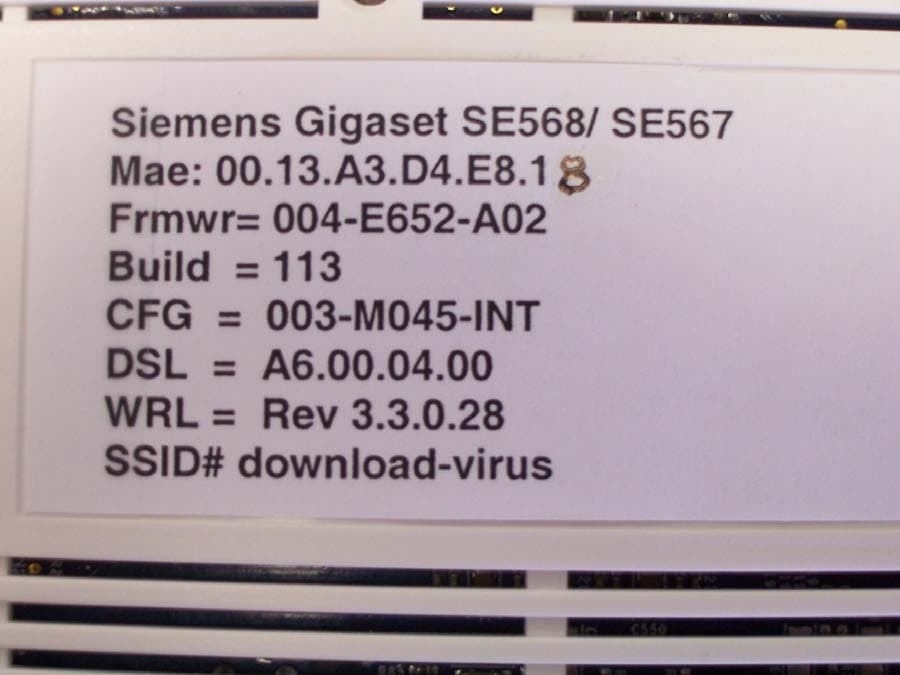
The label mounts on the bottom of the device. Due to venting required in the plastics, the label is too small to include the FCC Part 15 conditional statement. This statement is placed in the Safety and Regulatory Information Sheet provided to the User. Label location
Operational Description
OPERATIONAL DESCRIPTION SpeedStream 6520 The Speedstream 6520 is a wireless DSL modem/router with 4 Ethernet ports and a USB port for connection to a Personal Computer. The wireless interface of the modem is compliant with the IEEE 802.11B and IEEE 802.11G interface standards. The radio circuit is built on the Texas Instruments TNETW2522M integrated transceiver chip with the TNETW1230 802.11 MAC chip.. The radio operates on channels 1 – 11 (2412 – 2462 MHz). The transmit antenna is attaches to the main PC board via a non-standard miniature coaxial connector. The antenna is not detachable by the user. RF Output Power: 44 mW (+16.4 dBm) Antenna Type: Monopole Antenna Gain: 2dBi or 2.5 dBi Type of modulation: DPSK, CCK, DQPSK, and OFDM Data Rates: 11 Mbps, 54 Mbps Duty Cycle: 50% TDD (Time Division Duplex) Channels of Operation: Channel Frequency (MHz) 1 2412 2 2417 3 2422 4 2427 5 2432 6 2437 7 2442 8 2447 9 2452 10 2457 11 2462 SpeedStream 6515 The SpeedStream 6515 is identical to the 6520 model except that the USB …
Text truncated - open the document above for the full version.
Contact Information
Applicant
Jacques LE ROUX(R&D General Methods Dpt Manager)
Technical Contact
Test Firm
Nemko Dallas, Inc.Michael Cantwell
Technical Specifications
| # | Rule Parts | Frequency Range | Power Output |
|---|---|---|---|
| 1 | 15C | 2.41 GHz - 2.46 GHz | 44.00 mW |
Other Applications from Sagemcom SAS
SN8H650
Oct 19, 2006Broadband Wireless Gateway
Equipment Class
DTS - Digital Transmission System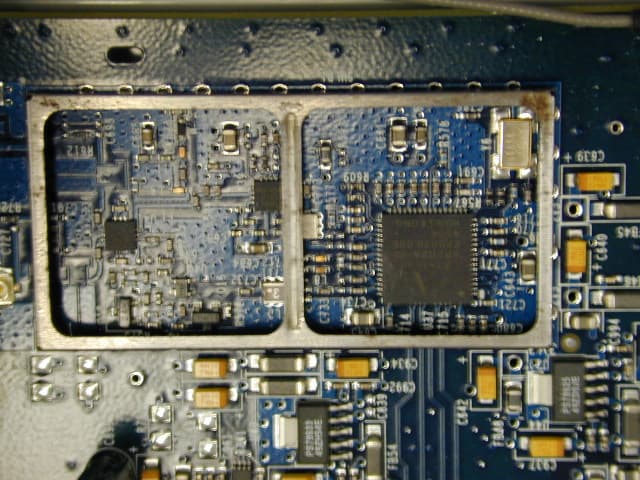
SN85883
Oct 20, 2005Wireless LAN modem
Equipment Class
DTS - Digital Transmission System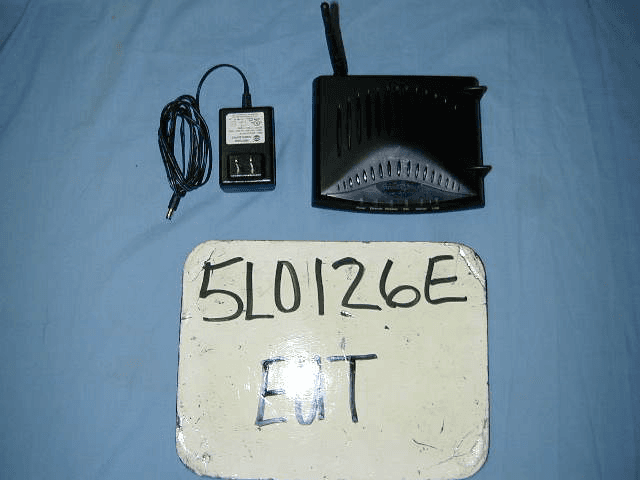
SN8R651
Jun 13, 2005802.11 b/g Wireless DSL Modem
Equipment Class
DTS - Digital Transmission System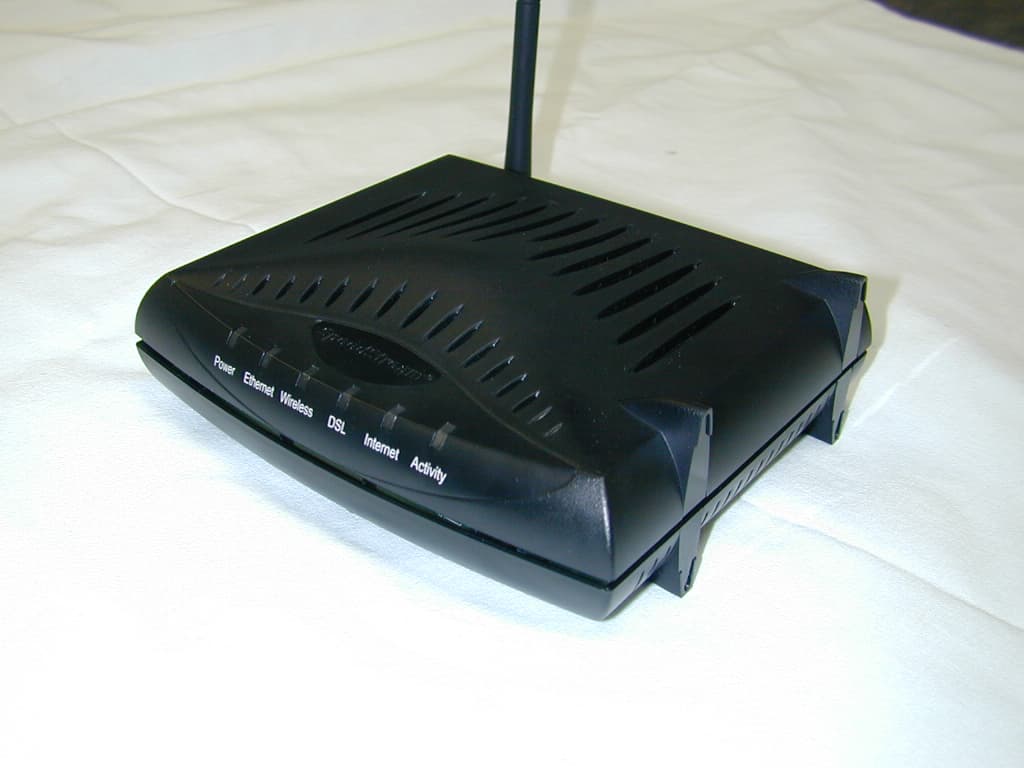
SN8N651
Jan 20, 2005Wireless DSL Modem
Equipment Class
DTS - Digital Transmission System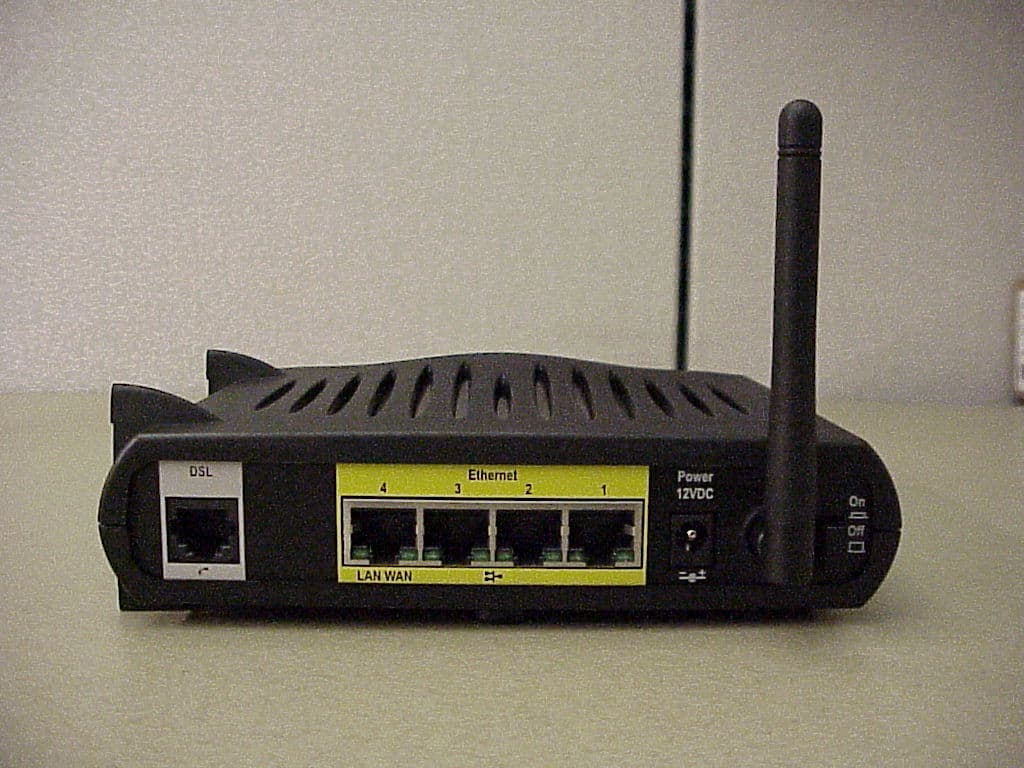
SN8N650A01
Nov 02, 2004Wireless DSL Modem
Equipment Class
DTS - Digital Transmission System