TQN0910RF12Portable FM Transmitter which model name FMPort
Power 7 Technology Corp.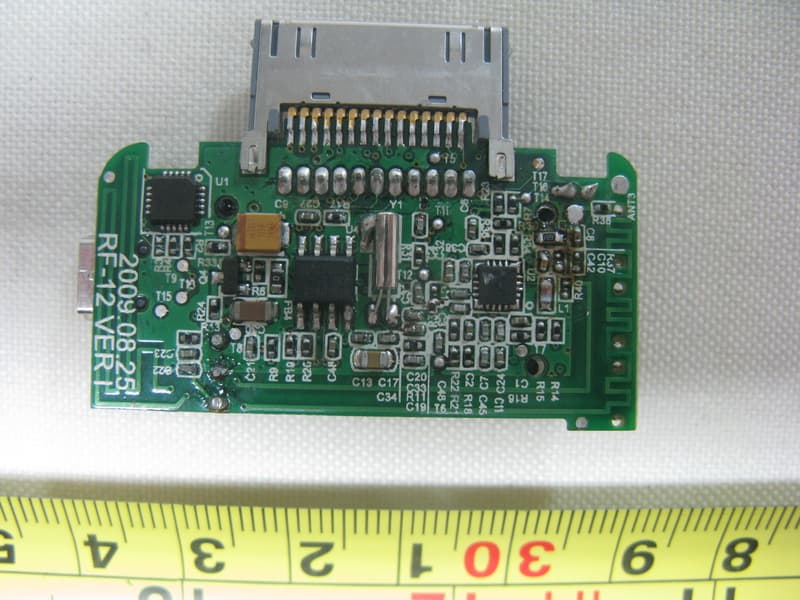
Click to zoom
Application Details
- Equipment Class
- DXX - Part 15 Low Power Communication Device Transmitter
- Date of Grant
- Nov 15, 2009
- Application Purpose
- Original Equipment
- Date of Application
- Nov 15, 2009
- Equipment Note
- Portable FM Transmitter which model name FMPort
- Frequency Range
- 88.10000000 - 107.90000000
- Company
- Power 7 Technology Corp.
- Country
- Taiwan
Documents & Files
Document Text
Text extracted from the exhibit documents filed with the FCC. Open a document above to read the original.
Users Manual
1 FMPort User's Guide Portable full channel FM transmitter with Charger for iPhone and iPod www.macally.com 2 Thank you for purchasing the Macally FMPort . Macally FMPort is a portable full channel FM transmitter with charger for iPhone and iPod. The FMPort supports all models iPhone 2G/3G/3GS, iPod touch 1st/2nd/3 rd Gen, iPod classic, iPod nano 1st/2nd/3 rd /4 th /5th Gen, iPod 5th Gen, iPod 4th Gen and iPod mini. Before you begin using the Macally FMPort, be sure to read this user’s guide in its entirety. Macally Technical Support: Please register this product at www.macally.com/register.html. For tech support, please E-mail us at [email protected] or call 1(909)230-6778 (Mon – Fri 8:30AM – 5:30PM, Pacific standard time, USA) Package Contents: 1) FMPort 2) USB Mini-B Cable 3) Remote Control 4) USB Car Charger 5) User’s Guide 3 FMPort Basics 1 30 Pin Connector (Connect to iPod or iPhone) 2 Built-in QS button - Quick switch among 4 memory channels (Four initial frequency channels are 88.1, 94.1, 100.1 & 106.1MHz, which are changeable to suit your need.) 3 Built-in “+” Channel Up 4 Built-in “-“ Channel Down 5 LCD display(Display Radio Frequency) 6 IR receiver window 7 USB Charging port 4 Remote Control Remote control provides you more control to FMPort and iPod/iPhone conveniently. 5 Using the FMPort 1.Connect the FMPort to your iPod or iPhone. Play music in iPod or iPhone, the FMPort LCD display will turn on. iPod or iPhone provides power to the FMPort, so they are portable to use in car or home where radio is located. 2. You can also charge iPod or iPhone while using the FMPort. At home, please use included USB mini-B cable to connect FMPort to a USB AC charger(not included) or a computer’s USB port(please exit from sync function but remain USB cable connection) to get power. In the car, please use USB mini-B cable to connect FMPort to USB car charger, which goes into cigarette lighter outlet. When you see iPod or iPhone charging, connection is correct. Car charger connection is displayed below. 6 3. The FMPort LCD display shows a frequency channels (For example, 88.1MHz). 4. Turn on your radio, tune to FM channel. We suggest you looking for a station between 88.1 and 107.9MHz that is not currently used or with very weak signal for broadcast in your area. 5. Once you have set a channel in radio, press "+" or "-" buttons to match the frequency channel to FM radio. (For example, if the radio frequency channel is set to 95.1MHz then the FMPort Transmitter should also be set to 95.1MHz). Once both the radio and FMPort Transmitter 's frequency are in-sync, the static noise in radio will change to iPod music. 6. If the sound quality is not good enough, please find another frequency channel following step 4 and 5. Adjust the radio volume to your comfortable level. This is your clear channel, you can update it into new memory channel. 7. You may need to change the channels from time to time due to interference that may occur in some areas while you are driving. For your and other’s safety, you should stop the car to make change. 7 Updating the Memory Channels: FMPort comes with four default memory channels M1 to M4, 88.1, 94.1, 100.1 and 106.1MHz. The memory channel can be updated to your own clear FM channels, so you can quick switch among clear memory channels by pressing QS button. 1. Find a clear frequency channel to play iPod music. 2. Press and hold QS button for 1.5 seconds or longer, the current M1 memory channel will start blinking on the LCD display, press “+” channel up or “-“ channel down button to toggle among M1, M2, M3 and M4. When the memory channel number(M1, 2, 3 or 4) to be updated appears, press the QS button once to save. 3. Repeat step 1 and 2 to update all four clear memory channels in your area to use. 4. With QS button you can quickly switch to another clear channel in FMPort to use if current channel becomes unclear. Tune radio to the same channel to hear iPod music clearly. Please note: (1) IR receiver window can be interfered by strong indoor fluorescent light. In case FMPort turns off by itself due to strong fluorescent light, you can place a small piece of paper or object directly above the IR receiver window to shade it from strong light, but keep the window uncovered so you are still able to use remote control. (2) When FMPort is inserted into iPod or iPhone, its LCD will 8 turn on display, however control of the FMPort and FM transmitter do not work until iPod or iPhone music starts playing. Warranty Macally peripherals warrants that this product will be free from defects in title, materials and manufacturing workmanship for one year from the date of purchase. If the product is found to be defective then, as your sole remedy and as the manufacturer’s only obligation, Macally will repair or replace the product. This warranty shall not apply to products that have been subject to abuse, misuse, abnormal electrical or environmental conditions, or any condition other than what can be considered as normal use. Limitation of Liability The liability of Macally Peripherals arising from this warranty and sale shall be limited to a refund of the purchase price. In no event shall Macally Peripherals be liable for costs of procurement of substitute products or services, or for any lost profit, or for any consequential, incidental, direct or indirect damages, however caused and on any theory of liability, arising from this warranty and sale. These limitations shall apply not with standing any failure of essential purpose of any limited remedy. Copyright® 2009 by Macally Peripherals 9 FCC Statement This equipment has been tested and found to comply with the limits for a Class B digital device, pursuant to part 15 of the FCC rules. These limits are designed to provide reasonable protection against harmful interference in a residential installation. This equipment generates, uses and can radiate radio frequency energy and, if not installed and used in accordance with the …
Text truncated - open the document above for the full version.
Users Manual
1 FMPort User's Guide Portable full channel FM transmitter with Charger for iPhone and iPod www.macally.com 2 Thank you for purchasing the Macally FMPort . Macally FMPort is a portable full channel FM transmitter with charger for iPhone and iPod. The FMPort supports all models iPhone 2G/3G/3GS, iPod touch 1st/2nd/3 rd Gen, iPod classic, iPod nano 1st/2nd/3 rd /4 th /5th Gen, iPod 5th Gen, iPod 4th Gen and iPod mini. Before you begin using the Macally FMPort, be sure to read this user’s guide in its entirety. Macally Technical Support: Please register this product at www.macally.com/register.html. For tech support, please E-mail us at [email protected] or call 1(909)230-6778 (Mon – Fri 8:30AM – 5:30PM, Pacific standard time, USA) Package Contents: 1) FMPort 2) USB Mini-B Cable 3) Remote Control 4) USB Car Charger 5) User’s Guide 3 FMPort Basics 1 30 Pin Connector (Connect to iPod or iPhone) 2 Built-in QS button - Quick switch among 4 memory channels (Four initial frequency channels are 88.1, 94.1, 100.1 & 106.1MHz, which are changeable to suit your need.) 3 Built-in “+” Channel Up 4 Built-in “-“ Channel Down 5 LCD display(Display Radio Frequency) 6 IR receiver window 7 USB Charging port 4 Remote Control Remote control provides you more control to FMPort and iPod/iPhone conveniently. 5 Using the FMPort 1.Connect the FMPort to your iPod or iPhone. Play music in iPod or iPhone, the FMPort LCD display will turn on. iPod or iPhone provides power to the FMPort, so they are portable to use in car or home where radio is located. 2. You can also charge iPod or iPhone while using the FMPort. At home, please use included USB mini-B cable to connect FMPort to a USB AC charger(not included) or a computer’s USB port(please exit from sync function but remain USB cable connection) to get power. In the car, please use USB mini-B cable to connect FMPort to USB car charger, which goes into cigarette lighter outlet. When you see iPod or iPhone charging, connection is correct. Car charger connection is displayed below. 6 3. The FMPort LCD display shows a frequency channels (For example, 88.1MHz). 4. Turn on your radio, tune to FM channel. We suggest you looking for a station between 88.1 and 107.9MHz that is not currently used or with very weak signal for broadcast in your area. 5. Once you have set a channel in radio, press "+" or "-" buttons to match the frequency channel to FM radio. (For example, if the radio frequency channel is set to 95.1MHz then the FMPort Transmitter should also be set to 95.1MHz). Once both the radio and FMPort Transmitter 's frequency are in-sync, the static noise in radio will change to iPod music. 6. If the sound quality is not good enough, please find another frequency channel following step 4 and 5. Adjust the radio volume to your comfortable level. This is your clear channel, you can update it into new memory channel. 7. You may need to change the channels from time to time due to interference that may occur in some areas while you are driving. For your and other’s safety, you should stop the car to make change. 7 Updating the Memory Channels: FMPort comes with four default memory channels M1 to M4, 88.1, 94.1, 100.1 and 106.1MHz. The memory channel can be updated to your own clear FM channels, so you can quick switch among clear memory channels by pressing QS button. 1. Find a clear frequency channel to play iPod music. 2. Press and hold QS button for 1.5 seconds or longer, the current M1 memory channel will start blinking on the LCD display, press “+” channel up or “-“ channel down button to toggle among M1, M2, M3 and M4. When the memory channel number(M1, 2, 3 or 4) to be updated appears, press the QS button once to save. 3. Repeat step 1 and 2 to update all four clear memory channels in your area to use. 4. With QS button you can quickly switch to another clear channel in FMPort to use if current channel becomes unclear. Tune radio to the same channel to hear iPod music clearly. Please note: (1) IR receiver window can be interfered by strong indoor fluorescent light. In case FMPort turns off by itself due to strong fluorescent light, you can place a small piece of paper or object directly above the IR receiver window to shade it from strong light, but keep the window uncovered so you are still able to use remote control. (2) When FMPort is inserted into iPod or iPhone, its LCD will 8 turn on display, however control of the FMPort and FM transmitter do not work until iPod or iPhone music starts playing. Warranty Macally peripherals warrants that this product will be free from defects in title, materials and manufacturing workmanship for one year from the date of purchase. If the product is found to be defective then, as your sole remedy and as the manufacturer’s only obligation, Macally will repair or replace the product. This warranty shall not apply to products that have been subject to abuse, misuse, abnormal electrical or environmental conditions, or any condition other than what can be considered as normal use. Limitation of Liability The liability of Macally Peripherals arising from this warranty and sale shall be limited to a refund of the purchase price. In no event shall Macally Peripherals be liable for costs of procurement of substitute products or services, or for any lost profit, or for any consequential, incidental, direct or indirect damages, however caused and on any theory of liability, arising from this warranty and sale. These limitations shall apply not with standing any failure of essential purpose of any limited remedy. Copyright® 2009 by Macally Peripherals 9 FCC Statement This equipment has been tested and found to comply with the limits for a Class B digital device, pursuant to part 15 of the FCC rules. These limits are designed to provide reasonable protection against harmful interference in a residential installation. This equipment generates, uses and can radiate radio frequency energy and, if not installed and used in accordance with the …
Text truncated - open the document above for the full version.
ID Label/Location Info
Center Center 25.5 mm 13.0 mm R = 1 mm ™ If you have any questions, please contact one of us below: Andy Chen Email:[email protected] Tel: 909-230-6888 ext123 Adrian Chan Email:[email protected] Tel: 909-230-6888 ext126 Christine Li Email:[email protected] Tel: 909-230-6888 ext125 Macally FCC Label Specification FMPort: 100% SCALE: 100% Sample : 100% Macally FCC Label Specifications LOGO: 100% LOGO: 300% Item: FMPORT Color: White(1 Color Printing) Sticker Color : Black Size : please refer to above illustration INFO: Serial #:YWWV000001 Y = Year. "8" means year 2008. WW = Weeks. There are total 52 weeks in a year. V = IC/Firmware version, for all first shipments, the value is "1". 000001 = serial numbers. Example: If the product is made and packaged on April 9th, 2008, the serial number will starts with Year = 8, Week = 15, Version = 1 (verify with engineers for correct version). S/N: 8151000001.
Internal Photos
Neutron Engineering Inc. Project No.: 0909C075 Page 4 of 10 0909C075 0909C075 Neutron Engineering Inc. Project No.: 0909C075 Page 4 of 10 0909C075 0909C075 Neutron Engineering Inc. Project No.: 0909C075 Page 5 of 10 0909C075 0909C075 Neutron Engineering Inc. Project No.: 0909C075 Page 5 of 10 0909C075 0909C075 Neutron Engineering Inc. Project No.: 0909C075 Page 6 of 10 0909C075 0909C075 Neutron Engineering Inc. Project No.: 0909C075 Page 6 of 10 0909C075 0909C075 Neutron Engineering Inc. Project No.: 0909C075 Page 8 of 10 0909C075 0909C075 Neutron Engineering Inc. Project No.: 0909C075 Page 8 of 10 0909C075 0909C075 Neutron Engineering Inc. Project No.: 0909C075 Page 9 of 10 0909C075
Test Setup Photos
Report No.: NEI-FCCP-1-0909C075 Page 41 of 43 Neutron Engineering Inc. 6. EUT TEST PHOTO Conducted Measurement Photos Car Charger Report No.: NEI-FCCP-1-0909C075 Page 41 of 43 Neutron Engineering Inc. 6. EUT TEST PHOTO Conducted Measurement Photos Car Charger Report No.: NEI-FCCP-1-0909C075 Page 42 of 43 Neutron Engineering Inc. Radiated Measurement Photos PC Charger Report No.: NEI-FCCP-1-0909C075 Page 42 of 43 Neutron Engineering Inc. Radiated Measurement Photos PC Charger Report No.: NEI-FCCP-1-0909C075 Page 43 of 43 Neutron Engineering Inc. Radiated Measurement Photos Report No.: NEI-FCCP-1-0909C075 Page 43 of 43 Neutron Engineering Inc. Radiated Measurement Photos
Contact Information
Applicant
Clark Chou(Vice President)
Test Firm
BTL Inc.Andy Yeh
Technical Specifications
| # | Rule Parts | Frequency Range | Power Output |
|---|---|---|---|
| 1 | 15C | 88.1 MHz - 107.9 MHz | - |
Other Applications from Power 7 Technology Corp.
TQN2012ROC0001
Aug 12, 2012WIFI-DISK
Equipment Class
DTS - Digital Transmission System
TQN-FMCUPB0807
Jul 10, 2008FM Transmitter
Equipment Class
DXX - Part 15 Low Power Communication Device Transmitter
TQN-NFCENETPAD
Jul 31, 2006RFID Reader
Equipment Class
DXX - Part 15 Low Power Communication Device Transmitter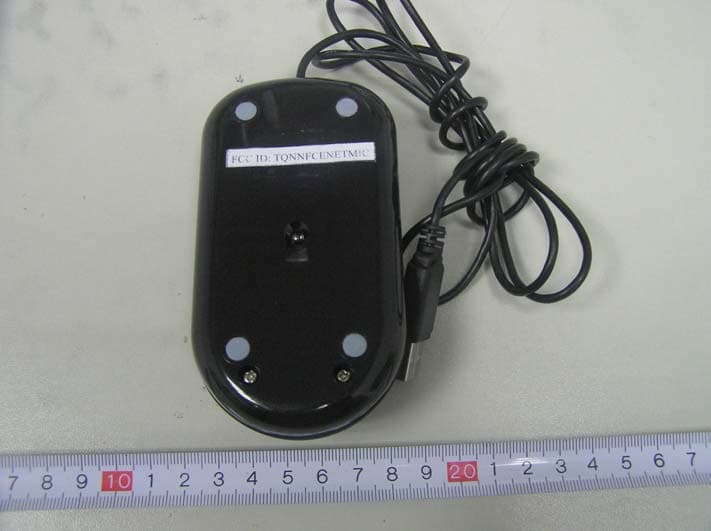
TQNNFCENETMIC
Jun 21, 2006eNetMouse
Equipment Class
DXX - Part 15 Low Power Communication Device Transmitter