WOQARIZ02BLUETOOTH WIRELESS DEVICE
Unify4Life Corporation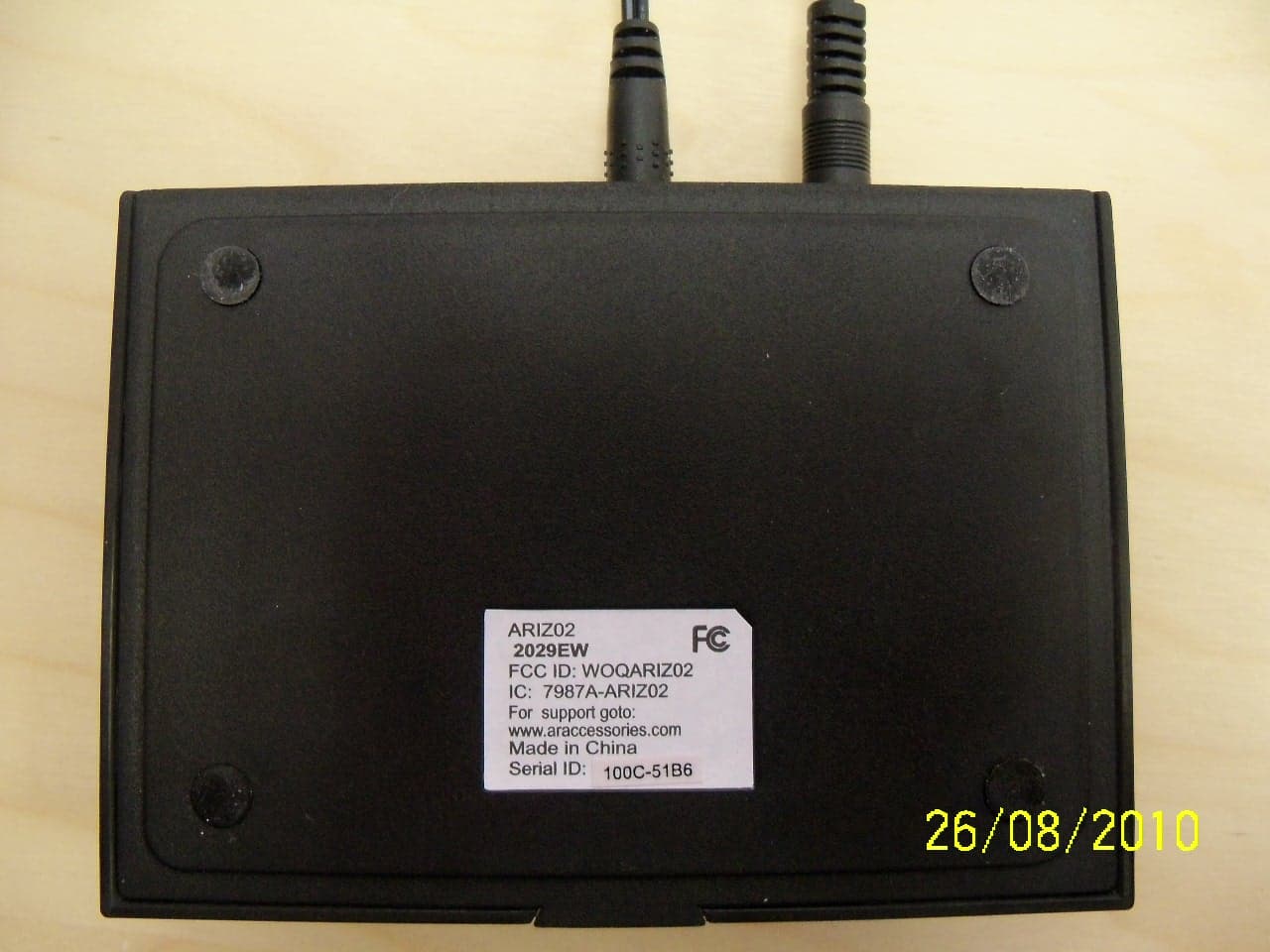
Click to zoom
Application Details
- Equipment Class
- DSS - Part 15 Spread Spectrum Transmitter
- Date of Grant
- Sep 07, 2010
- Application Purpose
- Original Equipment
- Date of Application
- Sep 06, 2010
- Equipment Note
- BLUETOOTH WIRELESS DEVICE
- Frequency Range
- 2402.00000000 - 2480.00000000
- Company
- Unify4Life Corporation
- Country
- Canada
Documents & Files
Document Text
Text extracted from the exhibit documents filed with the FCC. Open a document above to read the original.
Users Manual
Smartphone Jukebox Setup Guide 1. Unpack .........................................................................2 2. Set up the Zentral Receiver ..............................3 3. Pair with the Zentral Receiver .........................4 4. Download the App ...............................................7 5. Set up your Smartphone Jukebox Account ..................................................8 Using the Smartphone Jukebox ...........10 Troubleshooting .............................................11 2 Congratulations! You’re just a few steps from unlocking the true potential of your BlackBerry®, iPhone®, or iPod® touch*, with the Zentral Smartphone Jukebox. Just follow the directions in this Setup Guide—soon you’ll have complete control of your iPod music library over your home audio system—from virtually anywhere in the room. Unpack Before you start, take everything out of the Zentral Smartphone Jukebox package. Make sure you have the following parts: • the Zentral Smartphone Jukebox Receiver • a power adapter • a mini-connector to stereo audio cable • five universal adapter inserts for iPod 1 *Requires iPod touch Second Generation or later. 3 continues on next page ... 2 Set up the Zentral Receiver The Zentral Smartphone Jukebox Receiver is the link between your BlackBerry, iPhone, or iPod touch and your docked iPod, allowing you to play music from your iPod library on your A/V receiver or other audio system while your iPod charges. The Jukebox gives you complete control over playlists and playback, with song info (such as title, artist, etc.) on your BlackBerry, iPhone, or iPod touch screen. Audio In LR A/V Receiver or Audio System Zentral Receiver 1. Connect the mini-connector end of the included audio cable to the Audio Out jack on the back of the Smartphone Jukebox Receiver. 2. Connect the red and white jacks on the other end of the included audio cable to the audio input jacks on your A/V receiver or other audio system. Make sure you match the red jack with the red connector and the white jack with the white connector. 4 3. Plug the Zentral Receiver’s power adapter into the DC Input jack on the back of the Zentral Receiver. Plug the other end into a standard wall outlet or surge protector. Note: This power adapter should stay vertical or lie flat while plugged in. The indicator light on the front of the Zentral Receiver flashes while the Zentral Receiver waits to pair with your BlackBerry, iPhone, or iPod touch. 4. Find the included universal adapter insert that fits your iPod. Place it on top of the Zentral Receiver’s docking connector for iPod. 3 Pair with the Zentral Receiver Once you’ve plugged in your Zentral Receiver, you have 10 minutes to pair it with your BlackBerry, iPhone, or iPod touch. (If you can’t pair it in that time, just unplug the Zentral Receiver and plug it in again. Now you’ve got another 10 minutes to pair.) For BlackBerry Users: Make sure Bluetooth is on... 1. From your BlackBerry home screen, press the menu key ( ) and select Manage Connections. 2. In the Connections menu, locate Bluetooth. If it isn’t already checked, press the select button to turn it on. 5 continues on next page ... 1. From your BlackBerry home screen, press the menu button ( ) and select Setup ( ). 2. In the Setup menu, select Set Up Bluetooth ( ). 3. In the Add Device dialog box, select Search. (Make sure you’re within 15 feet of the Zentral Receiver.) This search may take a few seconds to finish. 4. When your BlackBerry is finished searching, it displays the Bluetooth devices found. Select Jukebox xxxx-xxxx Zentral (“xxxx-xxxx” is the serial number) to connect. 5. The next screen requests a passkey to connect to the Zentral Receiver. Enter “0000” as the passkey and press the select button. 6. Once you’ve entered the passkey, your BlackBerry might ask if you want to connect to the AR Zentral Smartphone Jukebox Receiver. Choose No (the Zentral App will take care of the connection later). For iPhone / iPod touch Users: 1. From the home screen on your iPhone or iPod touch, press the Settings icon. Note: Zentral Apps work with iPod touch second generation or later only. 2. In the Settings screen, press General. 3. In the General screen, press Bluetooth. 6 4. If Bluetooth is not already on, turn it on. Your iPhone or iPod touch searches for Bluetooth devices nearby. (Make sure you’re within 15 feet of the AR Zentral Smartphone Jukebox Receiver.) When your iPhone or iPod touch is finished searching, it displays the Bluetooth devices it’s found. Choose Jukebox xxxx-xxxx Zentral (“xxxx-xxxx” is the serial number) to connect to it. 5. The next screen requests a passkey to connect to the AR Zentral Smartphone Jukebox Receiver. Enter “0000”. 6. Once you’ve entered the passkey, your iPhone or iPod touch asks if you want to connect to the AR Zentral Smartphone Jukebox Receiver. Choose Yes. The final screen shows you that your iPhone or iPod touch is connected. 7 Download the App For BlackBerry Users: 1. On your BlackBerry, point your browser to http://bbdownloads.ZentralApp.com 2. Select Zentral Jukebox to download the App. 3. If download does not start immediately, select your BlackBerry model or select Download to download the App to your BlackBerry. Once downloaded, the App installs automatically. 4. Select Run to start using the App on your BlackBerry. If your BlackBerry asks you to grant AR Smartphone Jukebox trusted App status, select Yes. If it asks to allow the App to connect to the ZentralApp.com site, select Allow. For iPhone / iPod touch Users: Go to the App Store and search for “Acoustic Research Zentral Jukebox.” Click on the FREE button to install. Enter your App Store password. The application starts installing to your iPhone/iPod touch. Note: If you’re getting the app through your computer, you’ll have to connect your iPhone or iPod touch and sync it to access the App. 4 8 2. Press the button and select Create Account. Create Account Delete All Remotes Add New Remote Show Log …
Text truncated - open the document above for the full version.
Cover Letter(s)
August 25, 2010 Federal Communications Commission Authorization and Evaluation Division Confidentiality Request regarding application for certification of FCC ID: WOQARIZ02 Pursuant to Sections 0.457 and 0.459 of the Commission’s Rules, we hereby request confidential treatment of information accompanying this application as outlined below: Exhibit Type File Name Schematics CONF WOQARIZ02-Schematics.PDF Parts List CONF WOQARIZ02-Parts List.PDF Block diagrams CONF WOQARIZ02-Block Diagram.PDF The above materials contain trade secrets and proprietary information not customarily released to the public. The public disclosure of these materials may be harmful to the applicant and provide unjustified benefits to its competitors. The applicant understands that pursuant to Section 0.457 of the Rules, disclosure of this application and all accompanying documentation will not be made before the date of the Grant for this application. Sincerely, ___________________________ Minh Doan
Operational Description
Operational Description Garage Door Opener Sept 7, 2010 1 Overview The Garage Door Opener is a Bluetooth enabled hardware capable of receiving Bluetooth packets from select models of Bluetooth enabled devices and converting it into a relay switch output designed to be compatible with standard hardwire inputs provided on garage door openers 2 Basic Blocks The AV Hub consists of 2 building blocks, these are • Bluetooth Controller • Relay out 3 Theory of Operation 3.1 Bluetooth Controller The Bluetooth controller is configured to receive Bluetooth packets through a 2.4GHz RF link being transmitted from a paired and connected device. The Bluetooth packets received by the Garage Door Opener contains open, close, and optionally light comments. Once the Bluetooth packets are received and processed, the Garage Door Opener then commu nicates through an on board serial protocol to the relay to issue the command. 3.2 Relay output Once the Garage Door Opener processes the Bluetooth packets, it then communicates with the relay via the digital circuitry. The relay will then cause an open or close as per instructions from the Garage Door Opener.
RF Exposure Info
Global EMC Prediction of MPE limit at a given distance Equation from page 18 of OET Bulletin 65, Edition 97-01 where:S = power density P = power input to the antenna G = power gain of the antenna in the direction of interest relative to an isotropic radi a R = distance to the center of radiation of the antenna Maximum peak output power at antenna input terminal:16.00(dBm) Maximum peak output power at antenna input terminal:39.81071706(mW) Antenna gain(typical):0(dBi) Maximum antenna gain:1(numeric) Time Averaging:100(%) Prediction distance:20(cm) Prediction frequency:2450(MHz) MPE limit for uncontrolled exposure at prediction frequency:1(mW/cm^2) Power density at prediction frequency:0.007920(mW/cm^2) Margin of compliance:-21.0(dB) This e quates to0.079200905W/m^2PASS 2 4R PG S π = This equates to0.079200905W/m 2PASS For informationThis equates to5.464315256 V/m 2 4R PG S π = ator
Test Report
LAB REGISTRATION #6844A-1 FCC REGISTRATION #612361 Testing Laboratory Certificate #2555.01 Page 1 of 68 Report issue date: 9/3/2010 GEMC File #:GEMC-FCC-19773R1 © Global EMC Inc. This test report shall not be reproduced except in full, without written approval of Global EMC Inc. This report is based on GEMC Template “FCC 15 247 Rev2.” Global EMC Inc. Labs EMC & RF Test Report As per RSS 210 Issue 7:2007 & FCC Part 15 Subpart C:2010 Unlicensed Intentional Radiators on the ARIZ02 - Smartphone Jukebox Scott Drysdale, Narte Certified Technician Global EMC Inc. 180 Brodie Dr, Unit 2 Richmond Hill, ON L4B 3K8 Canada Ph: (905) 883-3919 Testing produced for See Appendix A for full customer & EUT details . Client Unify4Life Product ARIZ02 - Smartphone Jukebox Standard(s) RSS 210 Issue 7:2007 / FCC Part 15 Subpart C 15:2010 Page 2 of 68 Report issue date: 9/3/2010 GEMC File #: GEMC-FCC-19773R1 © Global EMC Inc. This test report shall not be reproduced except in full, without written approval of Global EMC Inc. Table of Contents Table of Contents ................................................................................................................... 2 Report Scope .......................................................................................................................... 3 Summary ................................................................................................................................ 4 Test Results Summary ....................................................................................................... 5 Justifications, Descriptions, or Deviations......................................................................... 6 Applicable Standards, Specifications and Methods ........................................................... 7 Sample calculation(s) ......................................................................................................... 8 Document Revision Status ................................................................................................. 8 Definitions and Acronyms ..................................................................................................... 9 Testing Facility .................................................................................................................... 10 Calibrations and Accreditations ....................................................................................... 10 Testing Environmental Conditions and Dates ................................................................. 11 Detailed Test Results Section .............................................................................................. 12 Power Line Conducted Emissions ................................................................................... 13 Spurious Radiated Emissions ........................................................................................... 20 Channel Carrier Bandwidth of Frequency Hopping Systems .......................................... 37 Channel Carrier Separation for Frequency Hopping Systems ......................................... 40 Number of Channels for Frequency Hopping Systems ................................................... 43 Frequency Occupancy for Frequency Hopping Systems ................................................. 46 Maximum Peak Envelope Conducted Power .................................................................. 50 Spurious Conducted Emissions........................................................................................ 55 Maximum Permissible Exposure ..................................................................................... 61 Appendix A – EUT Summary.............................................................................................. 63 Appendix B – EUT and Test Setup Photographs................................................................. 64 Client Unify4Life Product ARIZ02 - Smartphone Jukebox Standard(s) RSS 210 Issue 7:2007 / FCC Part 15 Subpart C 15:2010 Page 3 of 68 Report issue date: 9/3/2010 GEMC File #: GEMC-FCC-19773R1 © Global EMC Inc. This test report shall not be reproduced except in full, without written approval of Global EMC Inc. Report Scope This report addresses the EMC verification testing and test results of the ARIZ02 - Smartphone Jukebox, herein referred to as EUT (Equipment Under Test) performed at Global EMC Labs. The EUT was tested for compliance against the following standards: RSS 210 Issue 7:2007 / FCC Part 15 Subpart C 15:2010 Test procedures, results, justifications, and engineering considerations, if any, follow later in this report. The results contained in this report relate only to the item(s) tested. This report does not imply product endorsement by A2LA or any other accreditation agency, any government, or Global EMC Inc. Opinions/interpretations expressed in this report, if any, are outside the scope of Global EMC Inc accreditation. Any opinions expressed do not necessarily reflect the opinions of Global EMC Inc, unless otherwise stated. Client Unify4Life Product ARIZ02 - Smartphone Jukebox Standard(s) RSS 210 Issue 7:2007 / FCC Part 15 Subpart C 15:2010 Page 4 of 68 Report issue date: 9/3/2010 GEMC File #: GEMC-FCC-19773R1 © Global EMC Inc. This test report shall not be reproduced except in full, without written approval of Global EMC Inc. Summary The results contained in this report relate only to the item(s) tested. EUT FCC Certification #, FCC ID: WOQARIZ02 EUT Industry Canada Certification #, IC: 7987A-ARIZ02 EUT Passed all tests performed. Yes (see test results summary) Tests conducted by Scott Drysdale Client Unify4Life Product ARIZ02 - Smartphone Jukebox Standard(s) RSS 210 Issue 7:2007 / FCC Part 15 Subpart C 15:2010 Page 5 of 68 Report issue date: 9/3/2010 GEMC File #: GEMC-FCC-19773R1 © Global EMC Inc. This test report shall not be reproduced except in full, without written approval of Global EMC Inc. Test Results Summary Standard/Metho…
Text truncated - open the document above for the full version.
Test Setup Photos
Radiated Emissions 1 Radiated Emissions 2 Radiated Emissions Close up Antenna Conducted Measurements Power Line Conducted Emissions
Contact Information
Applicant
Winston van Schilt(Director of Operations)
Test Firm
Global EMC Inc.Scott Drysdale
Technical Specifications
| # | Rule Parts | Frequency Range | Power Output |
|---|---|---|---|
| 1 | 15C | 2.40 GHz - 2.48 GHz | 40.00 mW |
Other Applications from Unify4Life Corporation
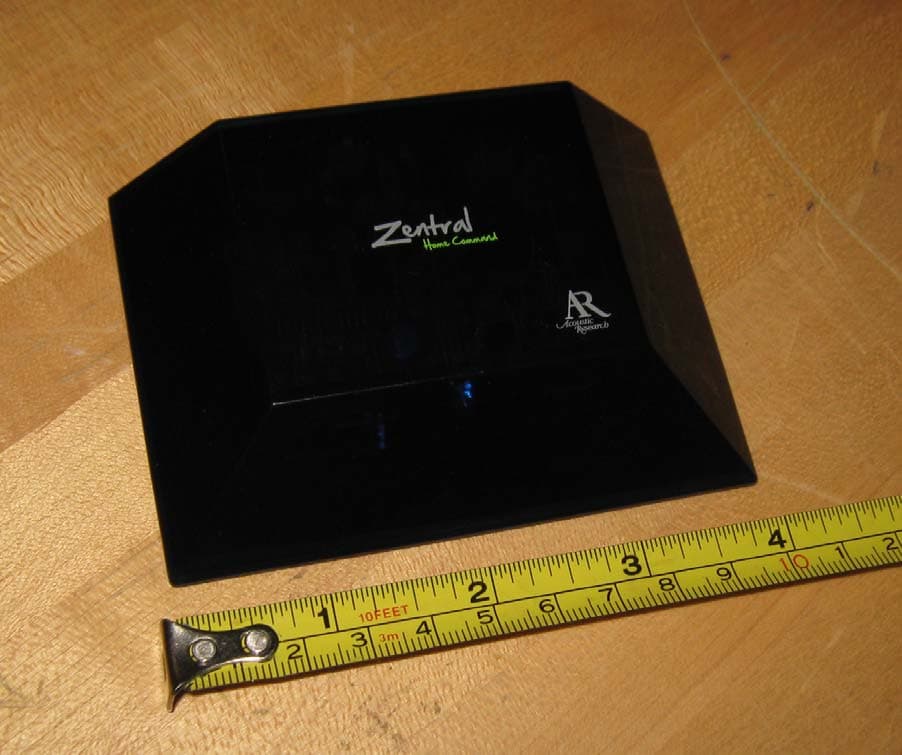
WOQARRZ100BB
Sep 07, 2010BLUETOOTH WIRELESS DEVICE
Equipment Class
DSS - Part 15 Spread Spectrum Transmitter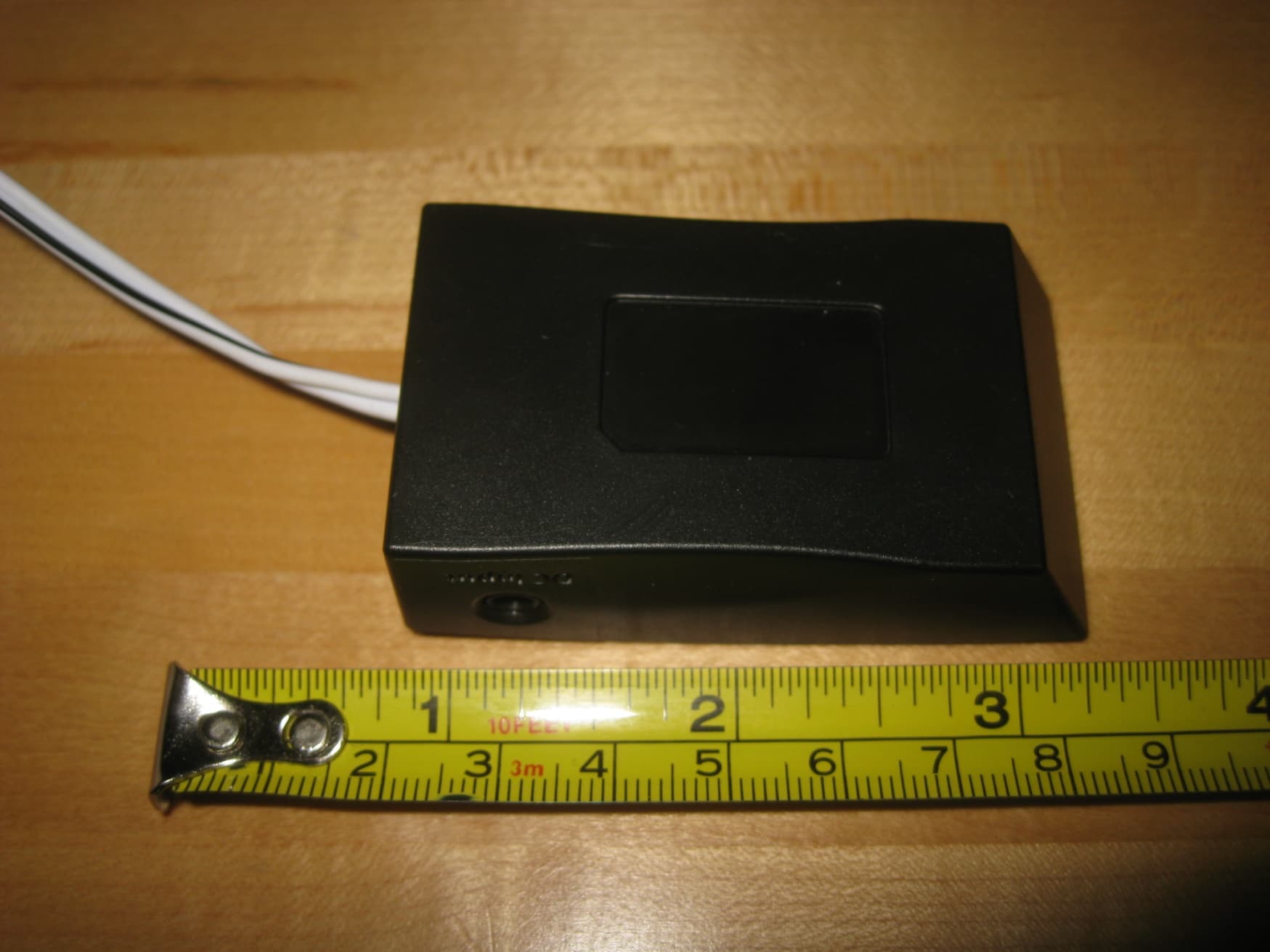
WOQARGZ01
Sep 07, 2010BLUETOOTH WIRELESS DEVICE
Equipment Class
DSS - Part 15 Spread Spectrum Transmitter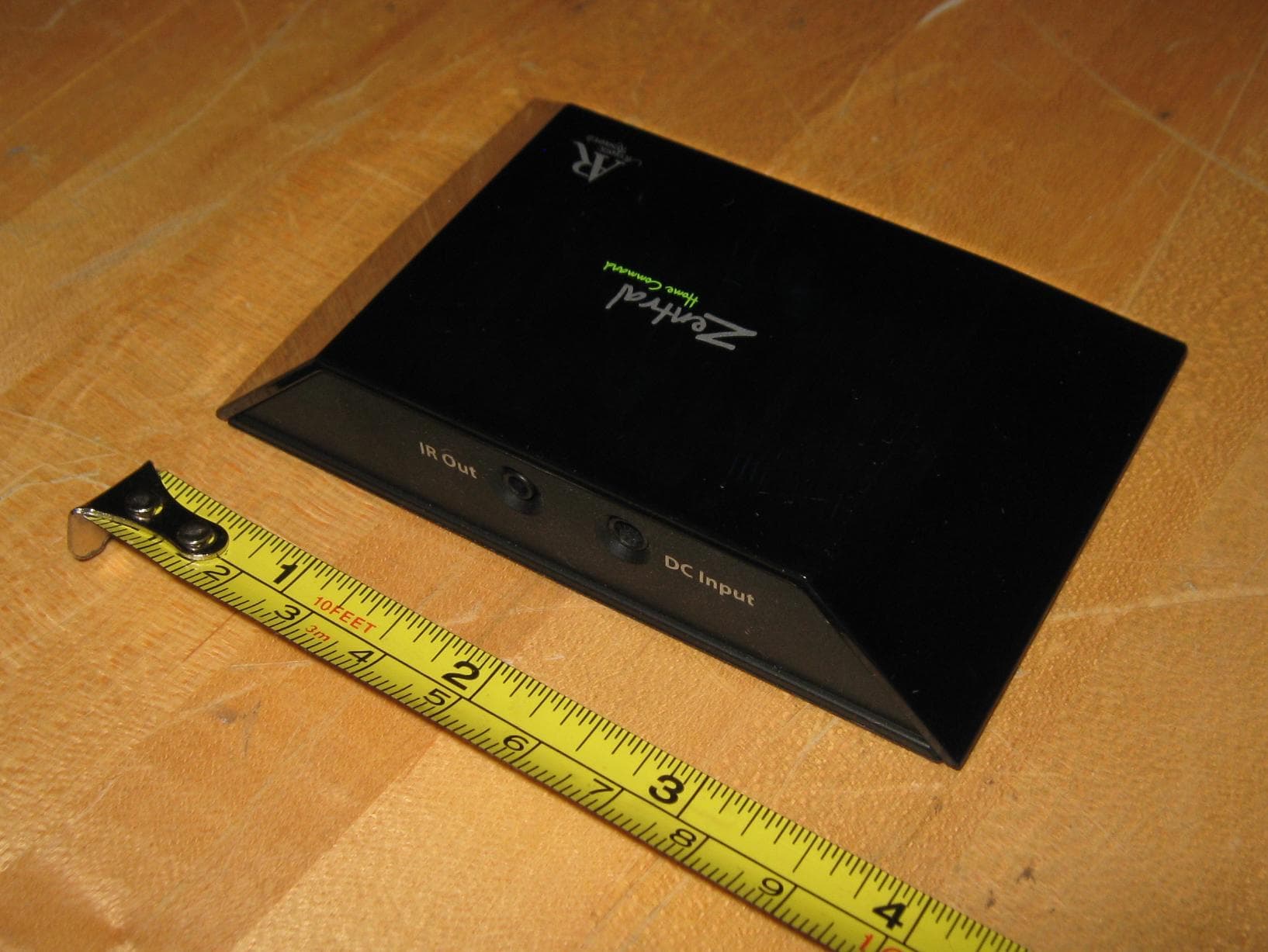
WOQARRZ300IP
Sep 07, 2010BLUETOOTH WIRELESS DEVICE
Equipment Class
DSS - Part 15 Spread Spectrum Transmitter