XU8TEW656BRG3G Mobile Wireless N Router
TRENDNET, Inc.
Click to zoom
Application Details
- Equipment Class
- DTS - Digital Transmission System
- Date of Grant
- Jul 21, 2011
- Application Purpose
- Original Equipment
- Date of Application
- Jul 21, 2011
- Equipment Note
- 3G Mobile Wireless N Router
- Frequency Range
- 2422.00000000 - 2452.00000000
- Company
- TRENDNET, Inc.
- Country
- United States
Documents & Files
Document Text
Text extracted from the exhibit documents filed with the FCC. Open a document above to read the original.
Users Manual
Table of Contents Version 04.05.2010 English1 1. Before You Start 2. Hardware Installation 3 3. Configure the TEW-656BRG4 4. LEDs8 1 Troubleshooting9 Wireless Tips11 2 During the installation of the TEW-656BRG, the Setup Wizard will automatically detect your ISP connection type. If the router cannot detect your ISP connection type, you can manually specify the connection type. Please contact your ISP and ensure you have all the information for one of the following connection types: 1. 3G (Auto Detection) Pin Code (Optional): ________________ 2. 3G (Manual) Country: ________________ Telecom: ________________ 3G Network: ________________ APN (Optional): ________________ Pin Code (Optional): ________________ Dialed Number: ________________ Account (Optional): ________________ Password (Optional): ________________ 3. iBurst Account: _________ Password: ________________ Primary DNS:_____. _____._____._____ Secondary DNS:_____. _____._____._____ Service Name (Optional): ________________ Assigned IP Address (Optional): ________________ Collect Internet Service Provider (ISP) Information 3 2. Hardware Installation 1. Verify that you have an Internet connection when connecting the 3G USB adapter to your computer. Open your browser (e.g. Internet Explorer) and type in a URL (e.g. http://www.trendnet.com) in the address bar. Note: You may need to activate your Internet connection. Please contact your ISP for more information. 3. Connect the power adapter to a power outlet. 3G USB Adapter Internet 7. Connect your computer wirelessly to the TEW-656BRG. The default SSID (Wireless Network Name) of the TEW-656BRG is TRENDnet656. Contact the manufacturer of your wireless network adapter and make sure the wireless network adapter is configured with the proper SSID. 6. Verify that the following panel lights are on: Wireless (Blue) and 3G (USB) (Blue). 5. Move the Power switch to the On position. 4. Connect your 3G USB adapter to the USB port on the TEW-656BRG. 2. Connect the Mini-USB end of the power adapter to the TEW-656BRG. ’ 4 Note: Gather all information related to your Internet Connection before you start. If necessary, contact your Internet Service Provider (ISP). 3. Configure the TEW-656BRG 1. Open your web browser, type http://192.168.10.1 in the Address bar, and then press Enter. 2. Enter the System Password, and then click Login. By default: System Password: admin 3. Select Wizard and then click Enter. 4. Click Next. 5. Enter the Old password (By default, the Password is admin), enter a New Password, reconfirm the New Password and then click Next. Note: 1. Setting a password prevents other users from accessing the TEW-656BRG configuration. 2. It is recommended that you enter a new password. If you decide to change this setting, please write down the new password. 3. Password is limited to up to 8 characters. 5 7. Select 3G or iBurst (the example shown is for 3G). Then click Next. Configure the settings based on information provided by your ISP. Follow the wizard instructions to complete the configuration. Note: Each WAN type may have different options. 6. Select your Time Zone and then click Next. Note: The example below is for Auto-detection. If the Setup Wizard could not automatically detect your Internet connection, select Manual and input the information using the information provided by your ISP. 9. You will need to configure the following: Wireless Module (Enable/Disable): The default setting (Enable) must be selected. Network ID (SSID): The SSID is the wireless network name of your wireless network (e.g. wireless router or access point). Enter a unique SSID. Do not use anything that would be identifying like “Smith Family Network”. Choose something that you would easily identify when searching for available wireless networks. Channel: In most cases, the default setting should be fine. 8. Select Auto-Detection and then click Next. 6 Note: 1. To protect your network from any unauthorized access it is recommended to enable wireless encryption. 2. The example below is for WPA2-PSK (AES) security. If you select WPA-PSK or WPA2-PSK, make sure your wireless adapters support WPA or WPA2. If your wireless adapters do not support WPA or WPA2, then select WEP. 10. Select the desired Authentication mode, select the desired Encryption type, enter characters for your Pre-Shared key and then click Next. For WPA-PSK or WPA2-PSK, the Pre-Shared Key must be between 8 and 63 ASCII or 64 HEX characters. Make sure to copy down the Pre-Shared Key. 11. Click Apply Settings. 12. Click OK. 13. Wait around 40 seconds while the TEW-656BRG reboots. 7 Your Configuration is now complete Register Your Product To ensure the highest level of customer service and support, please take a moment to register your product Online at: www.trendnet.com/register Thank you for choosing TRENDnet For detailed information regarding the TEW-656BRG’s configuration and advanced settings, please refer to the Troubleshooting section, User's Guide CD-ROM, or TRENDnet's website at http://www.trendnet.com. 14. Click Finish. 15. Open up your browser and enter in a URL (e.g. www.trendnet.com) to verify that you have Internet connection. 8 4. LEDs Wireless Blue (Solid): Wireless is enabled. Blue (Blinking): Activity is occurring from this link. Not Illuminated: Wireless is not enabled or no power is being supplied to the TEW-656BRG. 3G(USB) Blue (Solid): 3G connection is established Blue (Blinking): Activity is occurring from this link Not Illuminated: 3G connection is not established.
Users Manual
1. I typed http://192.168.10.1 in my Internet Browser's Address Bar, but an error message says “The page cannot be displayed.” How can I get into the TEW-656BRG's web configuration page? 1.Check your hardware settings again by following the instructions in Section 2. 2.Make sure the Wireless light is lit. 3.Enter http://192.168.10.1 into the browser instead. This is the default IP address of the TEW-656BRG. 4. Make sure your network adapter's TCP/IP settings are set to Obtain an IP address automatically (see the steps below). 5.Reset the TEW-656BRG. To reset the TEW-656BRG, press the WPS button for 20 seconds, then let go. Wait 30 seconds, and then type 192.168.10.1 into your browser. Troubleshooting Windows 7 Windows Vista 1. Go into the Control Panel, click Network and Internet, click Network and Sharing Center, click Manage Network Connections and then right-click the Local Area Connection icon and then click Properties. 2. Click Internet Protocol Version 4(TCP/IPv4) and then click Properties. Then click on Obtain an IP address automatically. 1. Go into the Control Panel, Network and Internet, click Network and Sharing Center, click Change Adapter Settings and then right-click the Local Area Connection icon and then click Properties. 2. Click Internet Protocol Version 4 (TCP/IPv4) and then click Properties. Then click on Obtain an IP address automatically. 9 10 2. I am not sure what type of Internet Account Type I have for my Internet connection. How do I find out? Contact your Internet Service Provider's (ISP) support service for the correct information. 3. I went through the Wizard, but I can not get onto the Internet. What should I do? 1.Verify that you can get onto the Internet by connecting your 3G USB adapter directly to your computer. 2.Contact your ISP and verify all the information that you have in regards to your Internet connection settings is correct. 3.Verify that the 3G USB adapter is firmly connected to the USB port on the TEW-656BRG. 4.Power cycle the TEW-656BRG. Move the power switch to the off position. Wait 30 seconds, then move the power switch back to the on position. 4. I cannot make a wireless connection to the TEW-656BRG. What should I do? 1.Double check that the wireless LED on the TEW-656BRG is lit. 2.Power cycle the TEW-656BRG. Move the power switch to the off position. Wait 30 seconds, then move the power back to the on position. 3. Contact the manufacturer of your wireless network adapter and make sure the wireless network adapter is configured with the proper SSID. The default SSID is TRENDnet656. 4.Please refer to the Wireless tips section if you continue to have wireless connectivity problems. If you still encounter problems or have any questions regarding the TEW-656BRG, please contact TRENDnet's Technical Support Department. 2. Click Internet Protocol (TCP/IP) and then click Properties. Then click on Obtain an IP address automatically. Windows XP/2000 1. Go into the Control Panel, double-click the Network Connections icon and then right-click the Local Area Connection icon and then click Properties. The following are some general wireless tips to help minimize the impact of interference within an environment. Assign your network a unique SSID Do not use anything that would be identifying like “Smith Family Network”. Choose something that you would easily identify when searching for available wireless networks. Do not turn off the SSID broadcast The SSID broadcast is intended to be on and turning it off can cause connectivity issues. The preferred method of securing a wireless network is to choose a strong form of encryption with a strong and varied encryption key. Change the channel Most wireless access points and routers are defaulted to channel 6. If you have a site survey tool that will display the channels you can plan your channel selection around neighboring access points to minimize interference from them. If your site survey tool does not display the channel try using channels 1 or 11. Change the channel bandwidth If you are using an 802.11n router or access point you can also make the following changes. Change the channel bandwidth to 20/40MHz. This will provide the highest possible performance using an 802.11n device. Also, if using 802.11n you should be securing the network with WPA2 security. Avoid stacking hardware on top of each other to prevent overheating issues Maintain enough free space around the hardware for good ventilation and airflow. There should also be plenty of free space around the antennas to allow the wireless signal to propagate. Please also make sure that the wireless hardware is not placed in any type of shelving or enclosures. There are a number of other environmental factors that can impact the range of wireless devices. 1. Adjust your wireless devices so that the signal is traveling in a straight path, rather than at an angle. The more material the signal has to pass through the more signal you will lose. Note: after setting up the SSID, encryption type and encryption key/passphrase, please make a note of them for future reference. You will need this information to connect your wireless computers to the wireless router/access point. Note: Due to Wi-Fi certification considerations if you choose WEP, WPA or WPA2-TKIP encryption this device may operate in legacy wireless mode (802.11b/g). You may not get 802.11n performance as these forms of encryption are not supported by the 802.11n specification. Wireless Tips 11 2.Keep the number of obstructions to a minimum. Each obstruction can reduce the range of a wireless device. Position the wireless devices in a manner that will minimize the amount of obstructions between them. 3.Building materials can have a large impact on your wireless signal. In an indoor environment, try to position the wireless devices so that the signal passes through less dense material such as dry wall. Dense materials like metal, solid wood, glass or even furniture may block or degrade the signal. …
Text truncated - open the document above for the full version.
Users Manual
FCC ID: XU8TEW656BRG Page 11 1. 2. 3. 4. FCC ID: XU8TEW656BRG Page 12 5. 6. 7. Notebook Notebook
Attestation Statements
(PLEASE TYPE THIS LETTER ON YOUR COMPANY(applicant) LETTERHEAD) Date: 2009/8/12 Federal Communications Commission 7435 Oakland Mills Road Columbia MD 21046 c.c. Compliance Certification Services Certification Division 47173 Benicia Street Fremont, CA 94538, USA To whom it may concern: I, the undersigned, hereby authorize Mr. Alex Chiu / Director of Compliance Certification Services Inc. and hereafter referred to as CCS, to act on our behalf in all manners relating to application for equipment authorization, including signing of all documents relating to these matters. Any and all acts carried out by Mr. Alex Chiu / Director of Compliance Certification Services Inc. on our behalf shall have the same effect as acts of our own. In authorizing CCS as our agent, we still recognize that we are responsible to: a) comply with the relevant provisions of the certification program; b) make all necessary arrangements for the conduct of the evaluation, including provision for examining documentation and access to all areas, records (including internal audit reports) and personnel for the purposes of evaluation (e.g. testing, inspection, assessment, surveillance, reassessment) and resolution of complaints; c) make claims regarding certification only in respect of the scope for which certification has been granted; d) do not use our product certification in such a manner as to bring the Certification Division into disrepute and not make any statement regarding our product certification which the Certification Division may consider misleading or unauthorized; e) upon suspension or cancellation of certification, discontinue use of all advertising matter that contains any reference thereto and return any certification documents as required by the Certification Division; f) use certification only to indicate the products are certified as being in conformity with specified standards; g) endeavor to ensure that no certificate or report nor any part thereof is used in a misleading manner; h) ensure that any reference to our product certification in communication media such as documents, brochures or advertising, complies with the requirements of the Certification Division; i) keep a record of all complaints made known to the us relating to the product’s compliance with requirements of the relevant standard and to make these records available to the Certification Division when requested; j) take appropriate action with respect to such complaints and any deficiencies found in products or services that affect compliance with the requirements for certification; k) document the actions taken. This authorization is valid until further written notice from the applicant. Sincerely Yours, (Please type Name and Title of Person to Receive Grant/Certificate) (Please type Company Name) REMARK: 1. This authorization letter will be sent along with your application when filing with the Certification Division. 2. Please follow the format and type it on company letterhead and send original to us. 3. Authorized signature must be in agreement with grantee code contact in FCC database.
Attestation Statements
1 Chris Harvey From: [email protected] Sent: Tuesday, June 28, 2011 2:16 AM To: [email protected] Subject: 回信: 轉寄: TRENDnet , Inc. , //XU8TEW656BRG //AN11T0397 Notice #1-->FCC updated(1000628)test plots Attachments: TEW-656BRG_SAR_Test Plots(1000628).pdf Dear Charvey: Please find the revised SAR test plots(1000628) and reject the old one ,thank you so much. Should you have any question,please feel free to let me know,thanks. 感謝您對程智的支持,若您有任何問題,歡迎您隨時以電話, 傳真或電子郵件與我們連絡,我們將竭誠的為您服務。 寄件人: Daphne.Liang/ccsrf 收件人: <[email protected]> 日期: 2011/06/27 下午 06:03 主旨: 轉寄: TRENDnet , Inc. , //XU8TEW656BRG //AN11T0397 Notice #1-->FCC updated(1000627) mail-3 Dear Charvey: This is for Files-3. [附件檔 "TEW-656BRG_mail-3.zip" 已被 Daphne.Liang/ccsrf 刪除] Should you have any question,please feel free to let me know,thanks. 2 感謝您對程智的支持,若您有任何問題,歡迎您隨時以電話, 傳真或電子郵件與我們連絡,我們將竭誠的為您服務。 ----- 轉寄者 Daphne.Liang/ccsrf 於 2011/06/27 下午 06:06 ----- 寄件人: Daphne.Liang/ccsrf 收件人: <[email protected]> 副本抄送: Leah.Peng/ccsrf@CCSRF, Tino.Lee/ccsrf@CCSRF, Sunny.Chang/ccsrf@CCSRF, Alex.Chiu/ccsrf@CCSRF 日期: 2011/06/27 下午 06:01 主旨: 回信: TRENDnet , Inc. , //XU8TEW656BRG //AN11T0397 Notice #1-->FCC updated(1000627) mail-1 Dear Charvey: Thank you for your e-mail,please see my belowing reply and find all the updated files(1000627). Since the big files, so I separated to 3 files,and this is for Files-1. Thank you. Should you have any question,please feel free to let me know,thanks. 感謝您對程智的支持,若您有任何問題,歡迎您隨時以電話, 傳真或電子郵件與我們連絡,我們將竭誠的為您服務。 3 Should you have any question,please feel free to let me know,thanks. 感謝您對程智的支持,若您有任何問題,歡迎您隨時以電話, 傳真或電子郵件與我們連絡,我們將竭誠的為您服務。 ----- 轉寄者 Daphne.Liang/ccsrf 於 2011/06/07 上午 09:05 ----- 寄件人: <[email protected]> 收件人: <[email protected]> 副本抄送: <[email protected]>, <[email protected]> 日期: 2011/06/07 上午 04:45 主旨: TRENDnet , Inc. , //XU8TEW656BRG //AN11T0397 Notice #1 Dear Daphnie, You are listed as the Technical Contact for the above referenced TCB application. The following items need to be resolved before the review can be continued: 1. Please provide Internal Photo exhibit for this application. The manual has statements about Batteries and charging, but cannot be confirmed since internal photos have not been provided. ANS:After checked with the client , there is no battery and charging attached with this EUT. And also we find no the statements about batteries and charging in the user's manual. May you please help to point out where it is? Thank you. 2. This device is a Mobile Wireless (WiFi) Router, capable of attaching a 3G WWAN USB Dongle. It appears that this device meets the definitions of a Personal Wireless Hot-Spot per FCC. The FCC requires that personal Wireless routers/hot-spots be tested in accordance with FCC KDB# 941225 D06 (updated in April 2011) 4 for RF Exposure compliance. Please either explain how this device is not a Personal Wireless Hot-Spot per FCC definitions, or provide the required RF Exposure documentation. ANS:Please find the SAR test data(1000627) & FCC RF exposure assessment(1000627) 3. The User's Manual exhibit that was submitted is actuall y just a part of the Quick Installation Guide, and does not contain the required text from FCC 15.19 and 15.21. The Quick Installation Guide available on the trendnet.com website does contain this required information. Please submit the User's Manual and the updated Quick Installation Guide that contains this information. ANS:Please find the updated label drawing(1000627) & user's manual_part II(1000627) of page 9&10. 4. The FCC ID label seems to be located on a removable plastic clip. The FCC ID Label must be on a permanent portion of the device enclosure. Please provide a label location exhibit that shows the location of the label on a permanent portion of the enclosure. ANS:After checked with client, they confirm the plastic clip can not be removable and it is fixed. So the FCC ID label will be on the device and enclosure. 5. The label exhibit shows a hanging clip. Please provide information about how this hanging clip will always be used so that there is a minimum of 20cm separation to the users and by-standers bodies. Please provide the Users guidance for the use of the clip(s). ANS:Please find the updated hanging clip user guide(1000627) 6. Please specify the separation distance from the internal PIFA antenna and the USB connector, which will be required for possible reduction of tests for collocation. ANS:Please find the FCC RF exposure assessment(1000627) Please note that due to the items that need to be addressed above that additional review time and further questions may become necessary once your response is received. The items indicated above must be submitted before processing can continue on the above referenced application. Failure to provide the requested information within 30 days of the original e-mail date may result in application dismissal and forfeiture of the filing fee. Also, please note that partial responses increase processing time and should not be submitted. An y questions about the content of this correspondence should be directed to the e-mail address listed below the name of the sender. Revised documentation should not be emailed, but instead should be submitted through "Add Attachment" function at the UL-CCS website. Please have your Assessment Number and FCC ID/IC Certification number handy. You may use the following link: https://cert.ccsemc.com/filing/ Best regards, Chris Harvey [email protected] ______________________________________________________________ This e-mail transmission is confidential and intended solely for being reviewed by the recipient(s) identified above. If you are not an identified recipient, please ensure that this communication remains confidential and promptly return it to the sender. Please contact immediately by phone (Tel: 886-2-2299-9720) for any problem with this transmission. Thank you for your attention. ______________________________________________________…
Text truncated - open the document above for the full version.
External Photos
Compliance Certification Services Inc. Report No.:T110509401 Date of Issue: May 12, 2011 Page A1 / 6 PHOTOGRAPHS OF EUT External Photo (Model: TEW-656BRG) Compliance Certification Services Inc. Report No.:T110509401 Date of Issue: May 12, 2011 Page A2 / 6 Compliance Certification Services Inc. Report No.:T110509401 Date of Issue: May 12, 2011 Page A3 / 6
ID Label/Location Info
TEW-656BRG Product diagram Label location
ID Label/Location Info
TEW-656BRG Product diagram Label location FCC Caution: This device complies with Part 15 of the FCC Rules. Operation is subject to the following two conditions: (1) This device may not cause harmful interference, and (2) this device must accept any interference received, including interference that may cause undesired operation.
Internal Photos
Compliance Certification Services Inc. Report No.:T110509401 Date of Issue: May 12, 2011 Page A4 / 6 Internal Photo Compliance Certification Services Inc. Report No.:T110509401 Date of Issue: May 12, 2011 Page A5 / 6 Compliance Certification Services Inc. Report No.:T110509401 Date of Issue: May 12, 2011 Page A6 / 6
Operational Description
Description of Operation The EUT is a Wireless Router with IEEE 802.11b/g/n . And this device provided of transmitting speed: 802.11b:11, 5.5, 2, 1 Mbps 802.11g : 54, 48 ,36, 24, 18, 12 , 9, 6 Mbps 802.11n HT20 : 65, 58.5 , 52 , 39 , 26 , 19.5 , 13 , 6.5 Mbps 802.11n HT40 : 135 , 121.5 , 108 , 81 , 54 , 40.5 , 27 , 13.5 Mbps the device of RF carrier is CCK, DQPSK, DBPSK, 64QAM, 16QAM, QPSK and BPSK. The device adapts DSSS and OFDM modulation. And the antenna was a PIFA Antenna, and provided diversity function to improve the receiving function. It allows your computer to connect to a wireless network and to share resources, such as files or printers without being bound to the network wires. And this EUT Operation in 2.4GHz Direct Sequence Spread Spectrum (D.S.S.S) and Orthogonal Frequency division Multiplex (O.F.D.M) radio transmission. In addition, its standard compliance ensures that it can communicate with any 802.11b/g/n network. The other instruction, please have a look at the user’s manual.
Parts List/Tune Up Info
PIFA Antenna C381-510152-A Test Data 2009/12/24 Te s t M e m b e r B e n s o n 一、 Return Loss & VSWR 測試線焊接示意圖 Antenna 二、 Radiation Pattern Measurement XY YZ XZ 0° Right Up Up 90° Back Back Right 180° Left Down Down 270° Front Front Left Left Right Down Up Back Front Z X Y DUT待測物 Gain Horn Antenna X-Z Plane (E-total) Y-Z Plane (E-total) X-Y Plane (E-total) 三、Te s t Va l u e 1‐1 Return Loss (dB) 2.40 GHz ‐12.929 2.45 GHz ‐11.908 2.50 GHz ‐11.061 1‐2 Peak Gain Gain (dBi) Efficiency (%) 2.40GHz 2.31 78.26 2.45GHz 2.13 80.74 2.50GHz 1.95 76.02
RF Exposure Info
FCC ID: XU8TEW656BRG Page 1 RF Exposure Evaluation Assessment 3G Mobile Wireless N Router Model Number: TEW-656BRG Brand: TRENDnet Issued for TRENDnet ,Inc. 20675 Manhattan Place , Torrance , CA90501 , U.S.A. FCC ID: XU8TEW656BRG Page 2 1. Product description: 3G Mobile Wireless N Router 1.1. Functions description : -Whiling connecting with any certified 3G dongle, any device with WLAN may then be able to access internet via this mobile router. Please see Figure 1; or - This device (Router) can be connected to the Internet with a external XDSL Modem when a 3G dongle is not available. Please see the Figure 2. For detail product information, please refer to attached user manual. FCC ID: XU8TEW656BRG Page 3 2. EUT photos and antenna locations FCC ID: XU8TEW656BRG Page 4 FCC ID: XU8TEW656BRG Page 5 FCC ID: XU8TEW656BRG Page 6 WLAN antenna location and WLAN antenna distance to the end of USB connector (which is the shortest distance where the certified 3G dongle connected.) Antenna 2 . 5 c m 3 . 8 c m FCC ID: XU8TEW656BRG Page 7 FCC ID: XU8TEW656BRG Page 8 3. Conducted average output power 802.11b mode Frequency Average Power Chain0 Channel (MHz) (dBm) Low 2412 13.35 Middle 2437 13.21 High 2462 13.49 802.11g Normal Mode Frequency Average Power Chain0 Channel (MHz) (dBm) Low 2412 10.56 Middle 2437 10.34 High 2462 10.19 802.11n HT-20 Mode Frequency Average Power Chain0 Channel (MHz) (dBm) Low 2412 9.62 Middle 2437 9.43 High 2462 9.18 802.11n HT-40 Mode Frequency Average Power Chain0 Channel (MHz) (dBm) Low 2422 9.12 Middle 2437 9.03 High 2452 9.17 FCC ID: XU8TEW656BRG Page 9 4. Summary of the RF evaluation result 4.1 Justification of Stand-alone SAR evaluation The maximum average output power of 802.11bgn: b mode: 13.49dBm (22.34mW) g mode: 10.56dBm (11.38mW) HT-20 : 9.62dBm (9.16mW) HT-40 : 9.17dBm (8.26mW) According to KDB 447498 D01 Mobile Portable RF Exposure v04, Stand-alone SAR evaluation for WLAN is not required because the output power is lower than the power threshold=60/f : 60/2.437=24.62mW No stand-alone SAR evaluation required 4.2 Justification of the co-location simultaneous transmission SAR evaluation - 3G dongle is not a part of the EUT - any certified 3G dongle can be connected to the EUT - based on current WLAN antenna distance to the USB connector as indicated in page 6, the min. distance is 2.5cm; - and assume the max. SAR value of 3G dongle is 1.6W/kg - per KDB 447498 D01 Mobile Portable RF Exposure v04, item 3) b) ii) (1): Min. WLAN Antenna- 3G antenna = 2.5cm < 5cm - Since the average output power is below 60/f, according to KDB 648474 procedure, the simultaneous SAR can be exempted. No co-location simultaneous transmission SAR evaluation required.
Test Report
Compliance Certification Services Inc. Reference No: T100202403-RP1 FCC IDXU8TEW656BRG Report No: T110509401-RP1 Page 1 / 117 FCC 47 CFR PART 15 SUBPART C: 2008 AND ANSI C63.4: 2003 TEST REPORT For 3G Mobile Wireless N Router Model Number: TEW-656BRG Brand Name: TRENDnet Issued for TRENDnet , Inc. 20675 Manhattan Place , Torrance , CA 90501 , U.S.A. Issued by Compliance Certification Services Inc. Tainan Lab. No. 8, Jiu Ceng Ling, Jiaokeng Village,Sinhua Township, Tainan Hsien 712, Taiwan (R.O.C.) TEL: 886-6-580-2201 FAX: 886-6-580-2202 Date of Issue: May 12, 2011 Note: This report shall not be reproduced except in full, without the written approval of Compliance Certification Services Inc. Ltd. This document may be altered or revised by Compliance Certification Services Inc. personnel only, and shall be noted in the revision section of the document Compliance Certification Services Inc. Reference No: T100202403-RP1 FCC IDXU8TEW656BRG Report No: T110509401-RP1 Page 2 / 117 REVISION HISTORY Rev. Issue Date Revisions Effect Page Revised By 00 May 12, 2011 Initial Issue ALL Sunny Chang Compliance Certification Services Inc. Reference No: T100202403-RP1 FCC IDXU8TEW656BRG Report No: T110509401-RP1 Page 3 / 117 TABLE OF CONTENTS 1. TEST REPORT CERTIFICATION ...................................................................................4 2. EUT DESCRIPTION ........................................................................................................5 2.1 DESCRIPTION OF EUT & POWER ........................................................................................ 5 2.2. DESCRIPTION OF TEST MODES ......................................................................................... 6 3. TEST METHODOLOGY ..................................................................................................7 4. FACILITIES AND ACCREDITATIONS............................................................................7 4.1 FACILITIES .............................................................................................................................. 7 4.2 EQUIPMENT............................................................................................................................ 7 4.3 LABORATORY ACCREDITATIONS LISTINGS ...................................................................... 7 4.4 TABLE OF ACCREDITATIONS AND LISTINGS ..................................................................... 8 5. CALIBRATION AND UNCERTAINTY.............................................................................9 5.1 MEASURING INSTRUMENT CALIBRATION.......................................................................... 9 5.2 MEASUREMENT UNCERTAINTY .......................................................................................... 9 6. SETUP OF EQUIPMENT UNDER TEST.........................................................................10 6.1 SETUP CONFIGURATION OF EUT........................................................................................ 10 6.2 SUPPORT EQUIPMENT ......................................................................................................... 10 6.3 EUT OPERATING CONDITION .............................................................................................. 11 7. APPLICABLE LIMITS AND TEST RESULTS.................................................................12 7.1 6DB BANDWIDTH ................................................................................................................... 12 7.2 MAXIMUM PEAK OUTPUT POWER....................................................................................... 23 7.3 AVERAGE POWER ................................................................................................................. 34 7.4 MAXIMUM PERMISSIBLE EXPOSURE.................................................................................. 36 7.5 POWER SPECTRAL DENSITY ..........................…
Text truncated - open the document above for the full version.
Contact Information
Applicant
Wen Tsai(Sr. Product Manager)
Test Firm
Compliance Certification Services Inc.Tommy WU
Technical Specifications
| # | Rule Parts | Frequency Range | Power Output |
|---|---|---|---|
| 2 | 15C | 2.42 GHz - 2.45 GHz | 21.00 mW |
Other Applications from TRENDNET, Inc.
XU8TEW921DAP
Apr 29, 2021AX1800 Dual Band WiFi 6 PoE+ Access Point
Equipment Class
DTS - Digital Transmission System
XU8TEW831DR
Jul 19, 2020AC1200 Wireless Dual band Gigabit Router
Equipment Class
NII - Unlicensed National Information Infrastructure TX
XU8TEW740APBOV3
Apr 15, 202010 dBi Wireless N300 Outdoor PoE Access Point, 10 dBi Wireless N300 Outdoor PoE Preconfigured Point-to-Point Bridge Kit
Equipment Class
DTS - Digital Transmission System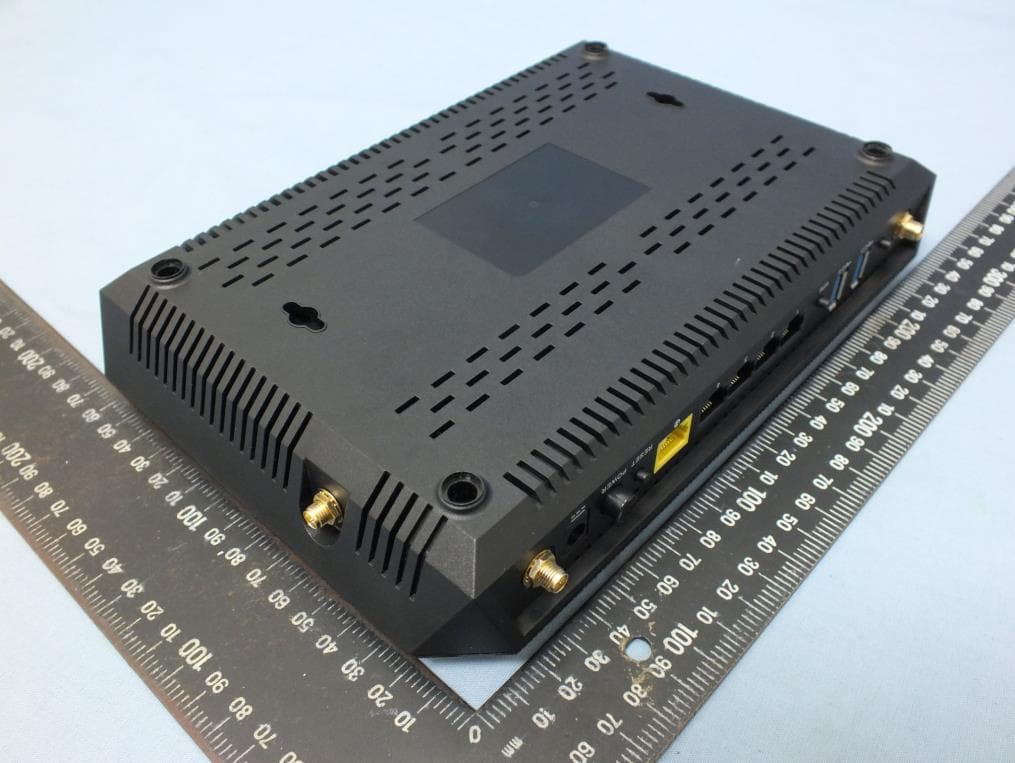
XU8TEW827DRU
Nov 25, 2015AC2600 StreamBoost TM MU-MIMO WiFi Router
Equipment Class
NII - Unlicensed National Information Infrastructure TX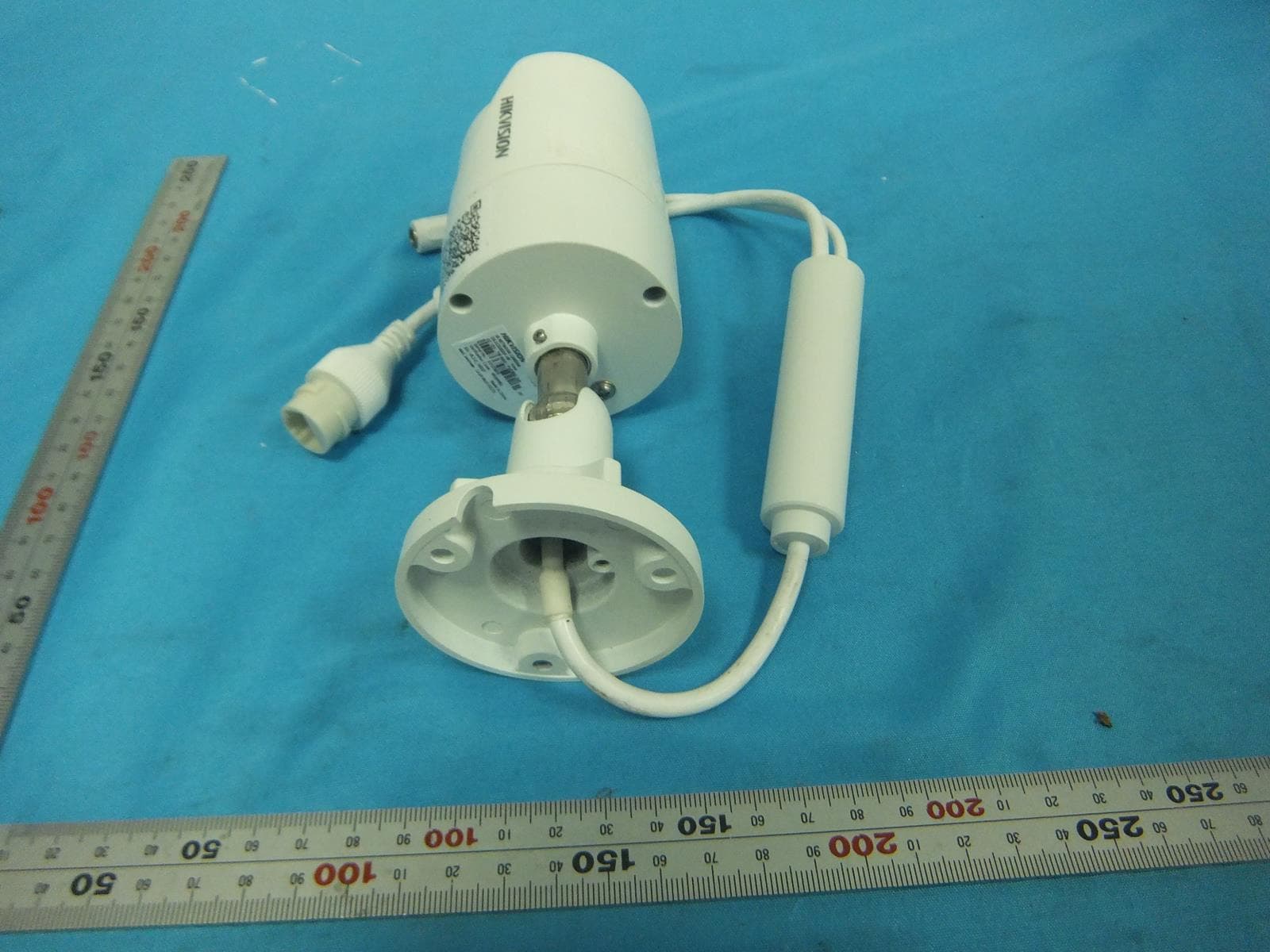
XU8TVIP322WI
Oct 21, 2015IR Network Camera
Equipment Class
DTS - Digital Transmission System