YJ8-LXQ1Looxcie Standard Definition Mountable Video Camera Product with integrated 802.11 b/g
Looxcie, Inc.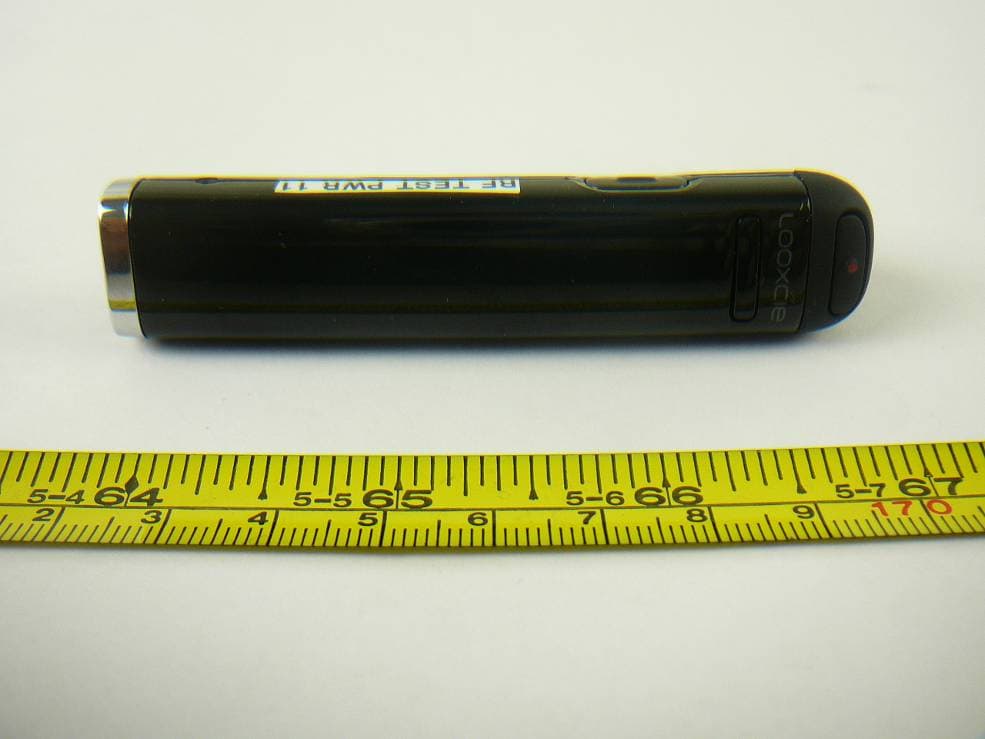
Click to zoom
Application Details
- Equipment Class
- DTS - Digital Transmission System
- Date of Grant
- Sep 29, 2013
- Application Purpose
- Original Equipment
- Date of Application
- Sep 29, 2013
- Equipment Note
- Looxcie Standard Definition Mountable Video Camera Product with integrated 802.11 b/g
- Frequency Range
- 2412.00000000 - 2462.00000000
- Company
- Looxcie, Inc.
- Country
- United States
Documents & Files
Document Text
Text extracted from the exhibit documents filed with the FCC. Open a document above to read the original.
Users Manual
Looxcie Lookout User’s Guide Lookout User’s Guide The Looxcie Lookout is a lightweight, wearable camera that allows you to stream live video from your point of view without interfering with your ability to perform your work. The Lookout should already be preconfigured to use a WiFi connection to stream your live video to a secure Vidcie domain for remote viewing by your colleagues. (If not, have your Vidcie tech use the Vidcie Cam Configurator tool to configure your camera for your WiFi.) This guide explains how to: • Charge the Looxcie Lookout battery. • Turn the camera on and off. • Understand the LED status light. • Record on-camera (if that functionality is enabled for your Lookout). • Troubleshoot the camera. Charging the Lookout Battery Full charge the Lookout battery before first use. To charge the battery: 1. Verify the power switch is OFF (switch is pushed toward rear of camera) 2. Plug the USB cable into the camera’s micro-USB port. 3. Plug the other end of the cable into a USB port on your computer or other USB charger. Average charge time is 3-4 hours. The camera’s status light flashes green while charging. It turns solid green when the battery is fully charged. For hardware reset: Push and hold both the Reset button on the bottom of the camera and the Record button together for 3 seconds. Micro-USB port Record button Status LED Power switch (on back side of camera) Reset button 1 Looxcie Lookout User’s Guide Turning the Camera On and Off To turn the camera on: • Slide the Power switch, located on the side of the camera, toward the front of the camera. When you turn the camera on, it immediately seeks a WiFi connection and begins streaming live video to your secure server. To turn the camera off: • Slide the Power switch toward the rear of the camera, away from the lens. Reading the LED Status Light The Looxcie Lookout has a single LED status light, located at the rear of the camera beside the micro- USB port. Depending on what state the camera is in, the status light has different meanings: POWER TOGGLE ON Blinking GREEN Solid GREEN Booting, seeking WiFi connection Connected to WiFi for streaming video ON USB CABLE Blinking GREEN Solid GREEN Battery is charging Battery is fully charged Recording On-Camera Your Vidcie domain supervisor may have optionally enabled on-camera recording for your Looxcie Lookout. If this feature is enabled, the Lookout can both stream live video and record video locally for later download to a computer. Your Vidcie domain supervisor should let you know if this feature is enabled for your camera. To record on-camera: Push the Record button, the button with the dot on it, located at the rear edge of the camera, next to the micro-USB port.To stop recording: • Push the Record button again. 2 Looxcie Lookout User’s Guide Troubleshooting My camera does not turn on. Press and briefly hold the Record and Reset buttons at the same time. If that does not work, charge the camera’s battery. My camera does not connect to WiFi (the LED status light continues to blink GREEN). Check to see if your WiFi network is on. If it is, you may try powering the WiFi device off and on again to reset it. If your camera still does not connect, make sure you are within range of your WiFi device. If you are within range, but the camera still does not connect, have your Vidcie tech check your camera’s configuration. How do I tell if I’m streaming live video successfully? If your Vidcie domain supervisor gives you video viewing privileges, you can log in to your Vidcie portal from any web browser with your username and password to check your video stream. For more information, see the Vidcie Viewer’s Guide. My camera is not working properly or Windows does not recognize my camera when it’s connected via USB. Try a manual hardware reset. Hold down both the Record button (next to the USB port) and the Reset button (located on the side of the camera) for 3 seconds. 3 Looxcie Lookout User’s Guide FCC Statement This device complies with part 15 of the FCC Rules. Operation is subject to the following two conditions: (1) This device may not cause harmful interference, and (2) this device must accept any interference received, including interference that may cause undesired operation. This equipment has been tested and found to comply with the limits for a Class B digital device, pursuant to part 15 of the FCC Rules. These limits are designed to provide reasonable protection against harmful interference in a residential installation. This equipment generates, uses and can radiate radio frequency energy and, if not installed and used in accordance with the instructions, may cause harmful interference to radio communications. However, there is no guarantee that interference will not occur in a particular installation. If this equipment does cause harmful interference to radio or television reception, which can be determined by turning the equipment off and on, the user is encourage to try to correct the interference by one or more of the following measures: --Reorient or relocate the receiving antenna. --Increase the separation between equipment and receiver. --Connect the equipment into an outlet on a circuit different from that to which the receiver is connected. --Consult the dealer or an experienced radio/TV technician for help. The FCC requires the user to be notified that any changes or modifications made to this device that are not expressly approved by Looxcie, Inc., may void the user’s authority to operate the equipment. 4
Users Manual
___________________________________________________________________________________________________ 1 Vidcie – LXQ Administrator Manual Version 1.1 29 March 2013 Use, reproduction, or disclosure is subject to restrictions set forth in Contract Number 2009*0674524*000 and Sub Contract No. Looxcie 01. ___________________________________________________________________________________________________ 2 Table of Contents List of Tables ............................................................................................................................................................................. 4 Terms ........................................................................................................................................................................................ 5 Introduction.............................................................................................................................................................................. 6 How to use this manual ........................................................................................................................................................ 6 What comes with a Looxcie LXQ system .............................................................................................................................. 6 Preparing a System for the Field – for administrators ............................................................................................................. 7 Field Preparation in Detail ........................................................................................................................................................ 8 Define the Configuration ...................................................................................................................................................... 8 Arranging the System ........................................................................................................................................................... 8 Available Configurations................................................................................................................................................... 8 Choosing a Camera ............................................................................................................................................................... 9 Looxcie LXQ Lens .............................................................................................................................................................. 9 Setting Security .................................................................................................................................................................. 10 Installing a System in the Field – Advice for Users ................................................................................................................. 11 What Makes a Good Setup ................................................................................................................................................. 11 Placement of Repeaters Relative to Hubs and Cameras ................................................................................................ 11 Increasing Range: Hints and Tips .................................................................................................................................... 11 Power ............................................................................................................................................................................. 12 Identifying Types of Cameras ......................................................................................................................................... 13 For Users ‐ Using the Looxcie LXQ System in the Field ........................................................................................................... 14 Introduction ........................................................................................................................................................................ 14 Getting Started ................................................................................................................................................................... 14 Turning on your Cameras ............................................................................................................................................... 14 Logging in as a User ........................................................................................................................................................ 15 Capturing your Location Data ......................................................................................................................................... 15 Using the Looxcie LXQ web‐based Application .................................................................................................................. 16 Cam Overview Page ........................................................................................................................................................ 17 Cam 2 + 2 Page ............................................................................................................................................................... 18 Cam 1 + 3 ........................................................................................................................................................................ 20 Cam Control Page ........................................................................................................................................................... 22 Cam Admin Page ................................................................................................................................................................ 23 What you can do with the Looxcie LXQ Web‐Based Application ................................................................…
Text truncated - open the document above for the full version.
Cover Letter(s)
1196 Borregas Avenue, Ste. 200 Sunnyvale, CA 94089 Phone: 408.935.2600 FCC Confidential Authorization August 12, 2013 FEDERAL COMMUNICATIONS COMMISSIONS Authorization and Evaluation Division 7435 Oakland Mills Road Columbia, MD 21046 Subject: Confidentiality Request regarding application for certification of FCC ID: YJ8-LXQ1 In accordance with Sections 0.457 and 0.459 of the Commission’s Rules, Looxcie, Inc. hereby requests long-term confidential treatment of information accompanying this application as outlined below: Block Diagram Schematics Operation Description The above materials contain proprietary and confidential information not customarily released to the public. The public disclosure of these materials provides unjustified benefits to its competitors in the market. Sincerely,
External Photos
Looxcie, Inc. FCC ID: YJ8-LXQ1 Report Number: R1308012-247 Page 50 of 54 FCC Part 15C Test Report 15 Exhibit C – EUT Photographs 15.1 EUT – Top View 15.2 EUT – Front View Looxcie, Inc. FCC ID: YJ8-LXQ1 Report Number: R1308012-247 Page 51 of 54 FCC Part 15C Test Report 15.3 EUT – Left Side View 15.4 EUT – Right Side View Looxcie, Inc. FCC ID: YJ8-LXQ1 Report Number: R1308012-247 Page 52 of 54 FCC Part 15C Test Report 15.5 EUT – Rear Side View 15.6 EUT – Bottom Side View
Internal Photos
Looxcie, Inc. FCC ID: YJ8-LXQ1 Report Number: R1308012-247 Page 53 of 54 FCC Part 15C Test Report 15.7 EUT – Open Case 15.8 EUT – Motherboard Top View Looxcie, Inc. FCC ID: YJ8-LXQ1 Report Number: R1308012-247 Page 54 of 54 FCC Part 15C Test Report 15.9 EUT – Motherboard Bottom View 15.10 EUT – AC/DC Adapter --- END OF REPORT ---
Test Report
Note: This test report is prepared for the customer shown above and for the device described herein. It may not be duplicated or used in part without prior written consent from Bay Area Compliance Laboratories Corp. This report must not be used by the customer to claim product certification, approval, or endorsement by A2LA*, NIST, or any agency of the Federal Government. * This report may contain data that are not covered by the A2LA accreditation and are marked with an asterisk “*” (Rev.2) FCC PART 15, SUBPART C TEST AND MEASUREMENT REPORT For Looxcie, Inc. 1196 Borregas Avenue, Suite 200, Sunnyvale, CA 94089, USA FCC ID: YJ8-LXQ1 Report Type: Original Report Product Type: SD Camera with Wi-Fi Prepared By: Bo Li Report Number: R1308012-247 Report Date: 2013-09-26 Reviewed By: Victor Zhang EMC/RF Lead Bay Area Compliance Laboratories Corp. 1274 Anvilwood Avenue, Sunnyvale, CA 94089, USA Tel: (408) 732-9162 Fax: (408) 732-9164 Looxcie, Inc. FCC ID: YJ8-LXQ1 Report Number: R1308012-247 Page 2 of 54 FCC Part 15C Test Report TABLE OF CONTENTS 1 General Description ..................................................................................................................................................... 5 1.1 Product Description for Equipment Under Test (EUT) ...................................................................................... 5 1.2 Mechanical Description of EUT ......................................................................................................................... 5 1.3 Objective ............................................................................................................................................................. 5 1.4 Related Submittal(s)/Grant(s) ............................................................................................................................. 5 1.5 Test Methodology ............................................................................................................................................... 5 1.6 Measurement Uncertainty ................................................................................................................................... 5 1.7 Test Facility ........................................................................................................................................................ 6 2 System Test Configuration.......................................................................................................................................... 8 2.1 Justification ......................................................................................................................................................... 8 2.2 EUT Exercise Software....................................................................................................................................... 8 2.3 Special Equipment .............................................................................................................................................. 8 2.4 Equipment Modifications.................................................................................................................................... 8 2.5 Local Support Equipment ................................................................................................................................... 8 2.6 EUT Internal Configuration Details .................................................................................................................... 8 2.7 Interface Ports and Cables .................................................................................................................................. 8 2.8 Power Supply List and Details ............................................................................................................................ 8 3 Summary of Test Results ............................................................................................................................................ 9 4 FCC §15.247 (i) & §2.1093– RF Exposure ................................................................................................................. 10 4.1 Applicable Standard .......................................................................................................................................... 10 4.2 SAR Exemption Guidelines .............................................................................................................................. 10 4.3 Evaluation Result .............................................................................................................................................. 10 5 FCC §15.203 – Antenna Requirements ...................................................................................................................... 11 5.1 Applicable Standard .......................................................................................................................................... 11 5.2 Antenna List ...................................................................................................................................................... 11 6 FCC §15.207 – AC Line Conducted Emissions ......................................................................................................... 12 6.1 Applicable Standards ........................................................................................................................................ 12 6.2 Test Setup ......................................................................................................................................................... 12 6.3 Test Procedure .................................................................................................................................................. 12 6.4 Test Setup Block Diagram ................................................................................................................................ 13 6.5 Corrected A…
Text truncated - open the document above for the full version.
Test Setup Photos
Looxcie, Inc. FCC ID: YJ8-LXQ1 Report Number: R1308012-247 Page 47 of 54 FCC Part 15C Test Report 14 Exhibit B – Test Setup Photographs 14.1 Conducted Emissions - Front View 14.2 Conducted Emissions - Side View Looxcie, Inc. FCC ID: YJ8-LXQ1 Report Number: R1308012-247 Page 48 of 54 FCC Part 15C Test Report 14.3 Radiated Emission below 1 GHz Front View at 3 Meter 14.4 Radiated Emission below 1 GHz Rear View at 3 Meter Looxcie, Inc. FCC ID: YJ8-LXQ1 Report Number: R1308012-247 Page 49 of 54 FCC Part 15C Test Report 14.5 Radiated Emission above 1 GHz Front View at 3 Meter 14.6 Radiated Emission above 1 GHz Rear View at 3 Meter
Contact Information
Applicant
Jerome T. Pereira(Vice President of Operations)
Test Firm
Bay Area Compliance Laboratories Corp.Lisa Tang
Technical Specifications
| # | Rule Parts | Frequency Range | Power Output |
|---|---|---|---|
| 1 | 15C | 2.41 GHz - 2.46 GHz | 1.83 mW |
Other Applications from Looxcie, Inc.
YJ8-LX4
Oct 14, 2012Looxcie HD Mountable Video Camera Product with Integrated 802.11b/g
Equipment Class
DTS - Digital Transmission System
YJ8-LX2
May 08, 2011BT 2.1 + EDR HEADSET WITH VIDEO CAMERA
Equipment Class
DSS - Part 15 Spread Spectrum Transmitter
YJ8-LX1
Aug 30, 2010BT 2.1+ EDR Headset with Video Camera
Equipment Class
JBP - Part 15 Class B Computing Device Peripheral