ZVJVMT408V1Media Tablet
Velocity Micro, Inc.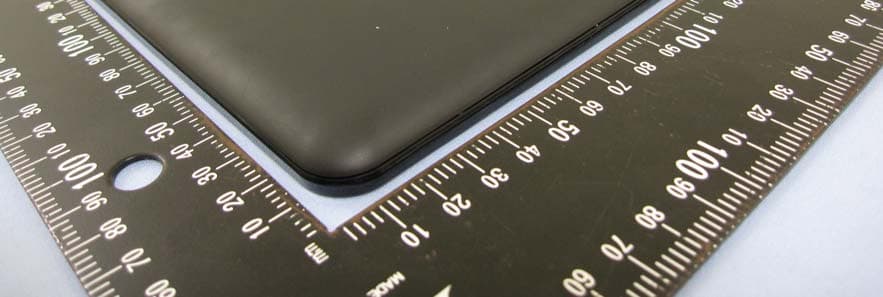
Click to zoom
Application Details
- Equipment Class
- DTS - Digital Transmission System
- Date of Grant
- Sep 05, 2011
- Application Purpose
- Original Equipment
- Date of Application
- Sep 05, 2011
- Equipment Note
- Media Tablet
- Frequency Range
- 2412.00000000 - 2462.00000000
- Company
- Velocity Micro, Inc.
- Country
- United States
Documents & Files
Document Text
Text extracted from the exhibit documents filed with the FCC. Open a document above to read the original.
Users Manual
T408 Offi cial User Guide 2 TABLE OF CONTENTS WELCOME I. GET ACQUAINTED II. HAND GESTURES III. GETTING STARTED IV. YOUR HOME SCREEN V. CONNECTING TO WI-FI VI. EMAIL SET UP VII. SAVING BATTERY VIII. MICRO SD CARDS IX. DEVICE STORAGE X. TRANSFER FILES XI. FILE FORMATS XII. KINDLE FOR ANDROID XIII. READING EPUBS XIV. CAMERA XV. AMAZON APPSTORE XVI. INSTALLING APPS XVII. PREINSTALLED APPS XVIII. QUICK OFFICE XIX. OI FILE MANAGER XX. MULTIMEDIA XXI. SYSTEM REQUIREMENTS XXII. SUPPORT XXIII. CONTACT US XXIV. FCC INFORMATION XXV. WARRANTY INFORMATION 3 4-6 7-8 9-10 11-12 13-15 16-17 18 19 20 21-22 23 24-25 26 27 28-29 30-31 32-33 34 35 36-37 38 39 40 41 42-43 Thanks for Choosing Cruz Thank you for purchasing a Velocity Micro CRUZ T408! We appreciate your business and know you’ll love your brand new multimedia device. This guide is intended to help you with initial setup of your device and to familiarize you with the Android operating system. Stay Up to Date For the latest updates, news, giveaways, downloads, and support tips, be sure to follow CRUZ on facebook and twitter! Check out our homepage at www.cruztablet.com for details! Registration Before we get started, we recommend that you register your CRUZ T408 if you did not do so already via the initial set up process. Registering your product allows you to get the most out of our CRUZ technical support. To register your product, please visit: www.cruztablet.com/support 23 4 Getting Acquainted I. GET ACQUAINTED JK AB C F I E H G D 45 A. Headphone Jack Connect earbuds through this port for a personal media experience. B. Micro USB Port The Micro-USB port is used to tether your CRUZ T408 to a computer for file transfer as well as battery recharge. C. microSD Slot With the integrated microSD card slot, your CRUZ has up to 32 GB of expandable storage. Carry tons of photos, videos, eBooks, music, and more wherever you go. D. Charging Indicator LED When your Cruz is charging, this LED light will be on. E. Status Bar Located at the top of the screen, the status bar contains the four icons that will be your primary means of navigation. From left to right, you will find “Back,” “Home,” “Search,” and “Menu.” The status bar also displays wi-fi con- nectivity, battery life, and the time. F. Applications Your Home-screen is very much like the “desktop” on a computer. It is a place for app shortcuts. G. Camera Forward-facing camera used for video-chat applications like Skype. I. GET ACQUAINTED 6 Getting Acquainted I. GET ACQUAINTED H. Widget Area Widgets are small applications that have functionality and accessibility directly from your home-screen. I. Nav Bar The Nav Bar is a semi-transparent 3-button bar at the bottom of the home screen. From left to right, the buttons are: “Settings,” “App Panel,” and “Gallery.” J. Volume Buttons Exterior buttons that control the device’s volume (+/-) K. Power Button The power button is located on the top left-hand corner of the device. While running, this button is also used to send the CRUZ into “Sleep” mode, as well as waking the device up. 67 II. HAND GESTURES Tapping Touch your finger to the screen and remove immediately to select an item on the screen. This is the equivalent of a mouse “click” on a computer. Dragging Press and hold your finger on the screen, then slide in the desired direction. Long-Pressing Press and hold your finger on the screen for 2-3 seconds. Oftentimes, this will open menu options or perform an app-specific function. 8 Scrolling Sliding your finger up and down in a vertical motion scrolls through menus, websites, and lists. The quicker you slide your finger, the greater the momentum and speed of the on-screen scrolling motion. Swiping Sliding your finger left and right scrolls horizontally. Some eReader apps are designed to turn the page in the direction you swipe. II. HAND GESTURES Pinching Positioning your thumb and index finger roughly 1-inch apart while “pinching” or “spreading” them typically zooms in or out, respectively. 9 To start your Cruz, press the on/off button located on the right side of the device. When you first turn on the Cruz, you will be greeted with a CRUZ logo, and then your Home screen. The display has a screen timeout by default set to 5 min. If the unit is left inactive for that period of time, the screen will go dark as if turned off. However, it is simply in standby mode. Tap the power button and a screen will appear with a green padlock button on the lower lefthand corner. This is your Lock Screen. Drag the padlock to the right to unlock. The battery should have a nominal charge on it out of the box and should charge fairly rapidly. Charge your T408 via micro-USB cable connected to your PC, or the included AC Adapter. Battery life will vary due to many conditions, especially when using Wi-Fi and maximum screen brightness. Sleep Mode and Powering Down To save battery, you should put your Cruz in sleep mode by turning off the LCD display. To do this, tap (not hold) the power button. Tap again to bring up the lock screen. In standby mode, the battery still discharges as the device continues to run. To turn off your Cruz completely, press and hold the power button until the “Tablet options” dialog appears and tap “Power off.” You should then see a dialog box that reads: “Your tablet will shut down.” Tap “OK” and your device will proceed to shut down. Getting Started III. GETTING STARTED 10 Getting Started III. GETTING STARTED Status Bar Icons There are four main buttons along the top of the touch screen. These are the Quick Launch buttons. They control the most frequently used functions in the Android platform. From left to right: BACK Returns to the previously viewed page or option screen. If you tap this button enough times, it will return to the Home Screen. HOME Returns to the home screen. Keep in mind hitting the Home button does not necessarily stop an application from running. Oftentimes apps will continue to run in the “background” and bog down memory and perfo…
Text truncated - open the document above for the full version.
Users Manual
Step 1 Turn on your Cruz and connect a mini USB cable to the Cruz device and to your PC. Step 2 Slide the notification panel down and tap the alert that reads, “USB Connected,” then tap “Turn on USB Storage.” Step 3 This should only be required once. After doing this, the alert should change to “Turn off USB storage ...” This is normal when tethered. Step 4 Your micro SD card will appear within Windows with a new drive letter assigned. The Autoplay feature of Windows may or may not open asking you what you want to do with the media. Click Open Folders to view files. If not, navigate to the proper drive from Windows Explorer by right-clicking the “Start” button. Step 5 You may now copy files to and from the device as needed. You may create folders here to organize content, or you may place content in existing folders for use by the application that created the folder. Step 6 When you are done with file management tasks, You may use the Windows application “Safely Remove Hardware” to unmount the Cruz USB drives. You may also tap “Turn off USB storage - Select to turn off USB storage” on the Cruz device. Step 7 You may now disconnect your USB cable from your Cruz device. Cruz access to the micro SD card returns. 21 Getting Started X. TRANSFER FILES Transfer Via USB Cable 22 Getting Started X. TRANSFER FILES Step 1 Unmount the micro SD card: Settings> Storage>Unmount SD Card Step 2 Eject your micro SD card and insert it into SD card adapter. Then insert SD card adapter into your PC Step 3Transfer files as needed Step 4 Eject micro SD card from PC, remove micro SD card from the SD card adapter, and reinsert into Cruz Transfer Via SD Card 23 Getting Started XI. FILE FORMATS The file formats that this device can support are numerous, but not infinite. The included QuickOffice App allows you to view and edit Microsoft Office file formats, including Word, Excel, and PowerPoint. Many eReader file types, and music/video file types are compatible with the device as well Most files should work, but not all files are encoded the same. For example, some MPEG4 files will work but others may not, depending on how they were encoded and compressed. It should be treated with a case-by-case approach. AUDIO WAV, OGG, MP3 VIDEO MP4, MOV, FLV IMAGES JPEG, JPG, GIF, PNG EBOOKS PDF, TXT, HTML, EPUB OFFICE DOC, DOCX, XLS, XLSX, PPT, PPTX, PPS 24 Getting Started XII. KINDLE FOR ANDROID Your CRUZ T408 offers the remarkable opportunity of carrying all your favorite books in the palm of your hand. Each Cruz comes pre-loaded with the Kindle for Android application. This application is a library portal allowing users to sign into their personal Kindle account, browse an immense selection of literature, and purchase/download books in an instant! There are even 100’s of free eBooks available for download. In this section, you will be walked through the initial set-up for the Amazon Kindle for Android app. Before beginning, make sure that your Cruz has made a successful connection with a Wi-Fi network. Without Wi-Fi access, you will not be able to view the Kindle store or download eBooks. You will need an Amazon account before continuing. If you do not have an account with Amazon, please visit Amazon.com. At the top of the header, you will see “Your Amazon.com.” Click it and then choose “New customer? Start here.” Follow the on-screen prompts to finish creating your account. Then resume following these instructions: Step 1 Tap the Kindle icon located on the Home Screen or on your App panel. Step 2 Once the application loads, sign into your Amazon account. If you have forgotten your username or password, visit Amazon.com to reset. Step 3 Once you are logged in, tap the “Menu” button on the status bar. Then select “Kindle Store” to launch the online Kindle store. You will be presented with numerous genre options. Pick one to continue. 25 Getting Started XII. KINDLE FOR ANDROID Step 4 When you find a book you want to download/purchase, tap the book cover to select it and advance to the next step. Step 5 The app will bring you to a product page with the book cover, the price, a “Buy Now” button, as well as a synopsis of the book lower on the page. Step 6 Tapping “Buy Now” will confirm that you want to add the book to your library. To begin the download, tap the “Menu” button on the status bar, then select “Sync” from main Kindle screen. Then select “Archived Items” from the “Menu” button to load the book. Step 7 You may be prompted to enter billing information if you did not previously save credit card info from within your Amazon account. 26 Getting Started XIII. READING EPUBS Many eReader files are in the ePUB file format. The Cruz does not natively support this file format, so an additional application available on the Cruz Market must first be downloaded. Keep in mind that many ePUB files are also DRM-protected, preventing illegal distribution of publications. In order to read DRM-protected ePUBs, you will need to download a specialized application that manages the DRM requirements. For instructions on how to read a DRM-protected ePUB on your Cruz, visit the Cruz Support Hub at www.cruzreader.com/support Step 1 Install Word Player from the Cruz Market (Apps > Books & Reference > Word Player) onto your Cruz. Step 2 Transfer your ePUB files to your SD card at the following folder location: /sdcard/Books. Step 3 Open Word Player and select “Load ePUB from SDcard.” Navigate to the “Books” folder and select your book to begin reading. Reading Unprotected ePUBs 27 Getting Started XIV. CAMERA There is one forward-facing camera on your CRUZ T408. It is capable of capturing both still images and video. There is a pre-installed application used to shoot photos/video and save them to your device. To access this application, tap the round, grey icon in your app panel labeled “Camera.” A grey panel will appear on the right with several buttons. Among these is a vertical sliding-panel with 2 main options on it. Once you have dragged the…
Text truncated - open the document above for the full version.
External Photos
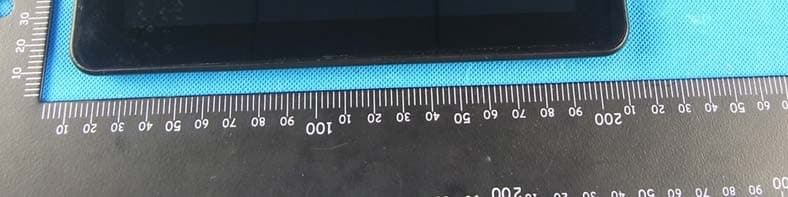
Compliance Certification Services Inc. Report No.: T110822003 Date of Issue: August 29, 2011 A1 - 1 / 16 APPENDIX 1 - PHOTOGRAPHS OF EUT EXTERNAL PHOTOGRAPHS OF EUT Compliance Certification Services Inc. Report No.: T110822003 Date of Issue: August 29, 2011 A1 - 2 / 16 Compliance Certification Services Inc. Report No.: T110822003 Date of Issue: August 29, 2011 A1 - 3 / 16 Compliance Certification Services Inc. Report No.: T110822003 Date of Issue: August 29, 2011 A1 - 4 / 16 Compliance Certification Services Inc. Report No.: T110822003 Date of Issue: August 29, 2011 A1 - 5 / 16 Compliance Certification Services Inc. Report No.: T110822003 Date of Issue: August 29, 2011 A1 - 6 / 16 Compliance Certification Services Inc. Report No.: T110822003 Date of Issue: August 29, 2011 A1 - 7 / 16
Internal Photos
Compliance Certification Services Inc. Report No.: T110822003 Date of Issue: August 29, 2011 A1 - 8 INTERNAL PHOTOGRAPHS OF EUT Compliance Certification Services Inc. Report No.: T110822003 Date of Issue: August 29, 2011 A1 - 9 Compliance Certification Services Inc. Report No.: T110822003 Date of Issue: August 29, 2011 A1 - 10 Chip Antenna Compliance Certification Services Inc. Report No.: T110822003 Date of Issue: August 29, 2011 A1 - 11 Compliance Certification Services Inc. Report No.: T110822003 Date of Issue: August 29, 2011 A1 - 12 Compliance Certification Services Inc. Report No.: T110822003 Date of Issue: August 29, 2011 A1 - 13 Compliance Certification Services Inc. Report No.: T110822003 Date of Issue: August 29, 2011 A1 - 14 Compliance Certification Services Inc. Report No.: T110822003 Date of Issue: August 29, 2011 A1 - 15 Compliance Certification Services Inc. Report No.: T110822003 Date of Issue: August 29, 2011 A1 - 16
RF Exposure Info
Compliance Certification Services Inc. FCC ID: ZVJVMT408V1 Report No.: T110822003-RP Page 81 APPENDIX I RADIO FREQUENCY EXPOSURE LIMIT According to §15.247(i), systems operating under the provisions of this section shall be operated in a manner that ensures that the public is not exposed to radio frequency energy levels in excess of the Commission's guidelines. See § 1.1307(b)(1) of this chapter. EUT Specification EUT Media Tablet Frequency band (Operating) WLAN: 2.412GHz ~ 2.462GHz WLAN: 5.18GHz ~ 5.32GHz / 5.50GHz ~ 5.70GHz WLAN: 5.745GHz ~ 5.825GHz Others Device category Portable (<20cm separation) Mobile (>20cm separation) Others Exposure classification Occupational/Controlled exposure (S = 5mW/cm 2 ) General Population/Uncontrolled exposure (S=1mW/cm 2 ) Antenna diversity Single antenna Multiple antennas Tx diversity Rx diversity Tx/Rx diversity Max. output power IEEE 802.11b mode: 15.72 dBm(37.32 mW) IEEE 802.11g mode: 22.53 dBm(179.06mW) IEEE 802.11n HT 20 MHz mode: 22.47 dBm(176.60mW) Antenna gain (Max) 3 dBi (Numeric gain: 1.99) Evaluation applied MPE Evaluation SAR Evaluation N/A* Remark: The maximum output power is 22.53 dBm(179.06mW) at 2437MHz (with 1.99 numeric antenna gain.) TEST RESULTS No non-compliance noted. MPE EVALUATION Not applicable. (1) 802.11b maximum average output power 13.49dBm (22.33mW) is less than 24.570mW (60/f), so 802.11b SAR test is not required; (2) 802.11g maximum average output power 11.76dBm (15.00mW) is less than 24.876mW (60/f), so 802.11g SAR test is not required. (3) 802.11n HT20 maximum average output power 11.64dBm (14.59mW) is less than 24.876mW (60/f), so 802.11n HT20 SAR test is not required.
Test Report
Compliance Certification Services Inc. FCC ID: ZVJVMT408V1 Report No.: T110822003-RP Note: This report shall not be reproduced except in full, without the written approval of Compliance Certification Services Inc. This document may be altered or revised by Compliance Certification Services Inc. personnel only, and shall be noted in the revision section of the document. Page 1 / 86 FCC 47 CFR PART 15 SUBPART C TEST REPORT For Media Tablet Model: T408 Trade Name: Velocity Micro Issued to Velocity Micro, Inc. 7510 Whitepine Rd, Richmond, VA 23237 USA Issued by Compliance Certification Services Inc. No.11, Wu-Gong 6th Rd., Wugu Industrial Park, New Taipei City 248, Taiwan (R.O.C.) http://www.ccsrf.com [email protected] Issued Date: August 29, 2011 Compliance Certification Services Inc. FCC ID: ZVJVMT408V1 Report No.: T110822003-RP Page 2 Revision History Rev. Issue Date Revisions Effect Page Revised By 00 August 29, 2011 Initial Issue ALL Angel Cheng Compliance Certification Services Inc. FCC ID: ZVJVMT408V1 Report No.: T110822003-RP Page 3 TABLE OF CONTENTS 1. TEST RESULT CERTIFICATION....................................................................................................4 2. EUT DESCRIPTION ...........................................................................................................................5 3. TEST METHODOLOGY ....................................................................................................................6 3.1 EUT CONFIGURATION........................................................................................................................6 3.2 EUT EXERCISE....................................................................................................................................6 3.3 GENERAL TEST PROCEDURES.............................................................................................................6 3.4 FCC PART 15.205 RESTRICTED BANDS OF OPERATIONS.........................................................7 3.5 DESCRIPTION OF TEST MODES...........................................................................................................8 4. INSTRUMENT CALIBRATION........................................................................................................9 4.1 MEASURING INSTRUMENT CALIBRATION......................................................................................9 4.2 MEASUREMENT EQUIPMENT USED .......................................................................................10 4.3 MEASUREMENT UNCERTAINTY .............................................................................................11 5. FACILITIES AND ACCREDITATIONS ........................................................................................12 5.1 FACILITIES .......................................................................................................................................12 5.2 EQUIPMENT......................................................................................................................................12 5.3 TABLE OF ACCREDITATIONS AND LISTINGS.....................................................................................13 6. SETUP OF EQUIPMENT UNDER TEST .......................................................................................14 6.1 SETUP CONFIGURATION OF EUT.......................................................................................................14 6.2 SUPPORT EQUIPMENT ...............................................................................................................14 7. FCC PART 15.247 REQUIREMENTS.............................................................................................15 7.1 6DB BANDWIDTH.............................................................................................................................15 7.2 PEAK POWER....................................................................................................................................26 7.3 AVERAGE POWER............................................................................................................................28 7.4 BAND EDGES MEASUREMENT ................................................................................................30 7.5 PEAK POWER SPECTRAL DENSITY....................................................................................................43 7.6 SPURIOUS EMISSIONS.................................................................................................................54 7.7 RADIATED EMISSIONS ..............................................................................................................64 7.8 POWERLINE CONDUCTED EMISSIONS...............................................................................................78 APPENDIX I RADIO FREQUENCY EXPOSURE ...............................................................................81 APPENDIX II PHOTOGRAPHS OF TEST SETUP .............................................................................84 APPENDIX 1 - PHOTOGRAPHS OF EUT Compliance Certification Services Inc. FCC ID: ZVJVMT408V1 Report No.: T110822003-RP Page 4 1. TEST RESULT CERTIFICATION Applicant: Velocity Micro, Inc. 7510 Whitepine Rd, Richmond, VA 23237 USA Equipment Under Test: Media Tablet Tr a d e N a m e : Velocity Micro Model: T408 Date of Test: August 22 ~ 24, 2011 APPLICABLE STANDARDS STANDARD TEST RESULT FCC 47 CFR Part 15 Subpart C No non-compliance noted We hereby certify that: The above equipment was tested by Compliance Certification Services Inc. The test data, data evaluation, test procedures, and equipment configurations shown in this report were made in accordance with the procedures given in ANSI C63.4: 2003 and the energy emitted by the sample EUT tested as described in this report is in compliance with the requirements of FCC Rules Part 15.207, 15.209, 15.247. The test results of this report relate only to the tested samp…
Text truncated - open the document above for the full version.
Test Setup Photos
Compliance Certification Services Inc. FCC ID: ZVJVMT408V1 Report No.: T110822003-RP Page 84 APPENDIX II PHOTOGRAPHS OF TEST SETUP Conducted Emissions Setup Photos Compliance Certification Services Inc. FCC ID: ZVJVMT408V1 Report No.: T110822003-RP Page 85 Radiated Emissions Setup Photos Compliance Certification Services Inc. FCC ID: ZVJVMT408V1 Report No.: T110822003-RP Page 86 Powerline Conducted Emissions Setup Photos
Contact Information
Applicant
Tamer Eldin(Product Manager)
Test Firm
Compliance Certification Services Inc.Hank Lee
Technical Specifications
| # | Rule Parts | Frequency Range | Power Output |
|---|---|---|---|
| 2 | 15C | 2.41 GHz - 2.46 GHz | 177.00 mW |
Other Applications from Velocity Micro, Inc.
ZVJT508
Jul 10, 2012MID
Equipment Class
DTS - Digital Transmission System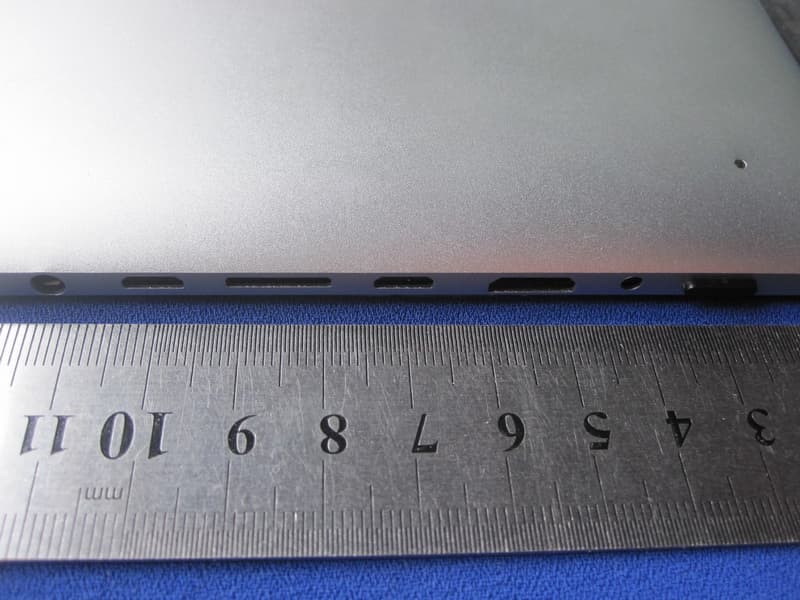
ZVJ-T510
Apr 16, 2012Cruz T510
Equipment Class
DSS - Part 15 Spread Spectrum Transmitter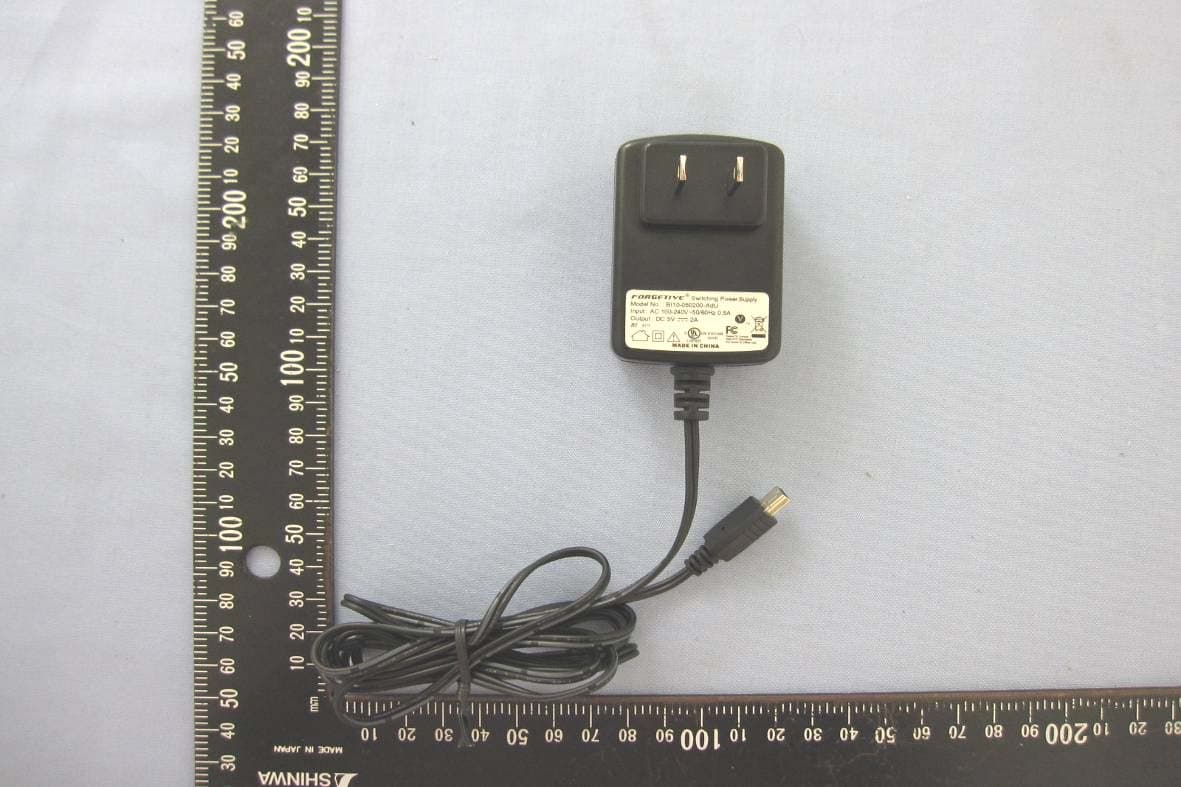
ZVJVMT410V1
Aug 28, 2011Media Tablet
Equipment Class
DTS - Digital Transmission System